

AI Tools for Virtual Assistants: The Complete Stack Guide (2026)

Disclosure: This article contains affiliate links. If you purchase through them, VA Automation Lab earns a commission at no additional cost to you. All tools are evaluated independently.
The complete AI tool stack for a virtual assistant practice: what you need in each of the twelve workflow areas, what each tool costs, and three ready-made stacks matched to your client volume.
The virtual assistant role has changed faster in the last two years than in the previous decade. Clients no longer need someone to handle tasks. They need someone to manage systems — keeping communication flowing, deadlines tracked, and operations running without constant oversight.
The problem is volume. A VA managing four clients might touch twelve different platforms in a single day: inbox, calendar, CRM, project tracker, reporting dashboard, scheduling tool, document editor, and more. Without a stack that fits together, that overhead scales linearly with every new client.
This guide is not a ranking. It’s a map of the virtual assistant tech stack: the fifteen workflow areas of a modern VA practice, what belongs in each one, and how the pieces connect into a system you can run. If you want a head-to-head verdict on which platform wins each category, that comparison lives in Best Tools for Virtual Assistants: The Complete Comparison Guide.
What this guide covers:
- The fifteen workflow areas, and the tool that anchors each one
- How much time an AI stack realistically saves
- Three complete stacks for 1–2, 3–5, and 5+ clients, with verified pricing
- Four workflow blueprints ready to implement
- A 30-day adoption sequence
No technical background required. Every tool here is operational in the first session.
Every tool category covered in this guide has its own dedicated section in the VA Automation Lab resource hub — including skill-level learning paths, a full tool quick reference, and the complete guide library organized by use case. If you’re looking for a structured starting point rather than an in-depth reference, that’s the faster entry point.
Want to Start Using AI Tools the Right Way?
If you’re a Virtual Assistant and feel confused by too many AI tools, this free starter toolkit shows you exactly where to begin, without tech overwhelm.
Ready-to-use prompts and workflow templates.
No research required: download it and start the first workflow today.
Table of Contents
1. The Virtual Assistant AI Stack at a Glance
A virtual assistant AI stack has five load-bearing pieces: an AI assistant (ChatGPT or Claude), an automation platform (Make), a project workspace (ClickUp), a scheduling layer (Reclaim.ai), and a CRM (Folk). Those five cover the majority of daily overhead in a multi-client practice. The other ten areas are added in response to a specific bottleneck, not in advance of one.
The table below maps each of the fifteen workflow areas to the tool that anchors it. Start with the row that matches your biggest current bottleneck.
Workflow Area | Anchor Tool | Role in the Stack | Free Plan |
AI Assistants | The unstructured layer — drafting, summarizing, thinking | ✅ Limited | |
AI Writing & Content | Output at volume when content is the deliverable | ✅ 10K chars/mo | |
Scheduling & Calendar | Manages the calendar rather than just booking it | ✅ Limited | |
Time Tracking & Billable Hours | Makes every other decision in the stack measurable | ✅ Unlimited | |
Email & Inbox Management | Triage across multiple client accounts, no rule-building | ❌ 14-day trial | |
Client Communication & VoIP | Virtual number per client, AI call notes, CRM sync | ❌ Demo available | |
Project & Task Management | One workspace for tasks, docs and time across clients | ✅ Unlimited tasks | |
Automation & Workflows | Removes the manual steps between every other tool | ✅ 1,000 credits/mo | |
Client Management & CRM | Where every client relationship is tracked in one view | ❌ 14-day trial | |
Forms & Onboarding | Structured intake that feeds the rest of the stack | ✅ 5 forms/mo | |
Contracts & E-Signatures | Agreements signed and tracked without attachments | ✅ 60 docs/year | |
Invoicing & Payments | Recurring billing and a client portal, free to five clients | ✅ 5 clients | |
Social Media Management | A workspace per client, with a content system that holds | ❌ 14-day trial | |
Analytics & Reporting | Client dashboards that assemble themselves | ✅ 3 data sources | |
Password & Security | Client credentials shared without exposing them | ❌ 14-day trial |
2. How These Tools Were Selected
Every tool here answers the same underlying question — what tools do virtual assistants need, not what a generic software roundup would recommend — assessed against five criteria specific to solo VA operations. Generic software roundups optimize for feature count. This guide optimizes for what a one-person practice needs.
VA-specific use cases. Tools were evaluated based on the tasks VAs do daily: inbox management, scheduling coordination, client documentation, reporting, and workflow automation. A tool that excels in an enterprise setting but requires IT configuration to set up does not appear here.
Free tier quality. Most VAs test tools before committing to a paid plan. The quality and limits of the free tier matter, a free tier that produces useful output in the first session is worth more than a generous paid plan that requires a month of onboarding.
Learning curve. Tools that produce their first useful output within sixty minutes of signup qualify as low-difficulty. Tools requiring workflow mapping, documentation reading, or technical setup before producing value are classified as medium or high difficulty.
Integration ecosystem. VA work is inherently multi-tool. A tool that doesn’t integrate with the platforms your clients already use creates friction rather than reducing it. Integration compatibility with the most common VA platforms (Gmail, Google Calendar, Notion, Slack, ClickUp, HubSpot) was factored into every pick.
Cost-to-time-saved ratio. The evaluation question was simple: at a standard VA billing rate, does this tool save enough time per month to pay for itself? Tools that don’t pass that test are not recommended.
3. What AI Changes in VA Work
Virtual assistant tools are the software platforms and AI systems that run the operational, communicative and administrative workflows of a VA practice — from automating client onboarding to triaging inboxes across multiple accounts. In 2026 the role has shifted from task executor to system manager, and the stack behind that shift is what separates a VA who scales from one capped at two or three clients.
The friction in VA work doesn’t come from any single difficult task. It comes from overhead accumulating around ordinary ones: the back-and-forth before a meeting is booked, the manual steps between a form submission and an active project, the thirty minutes spent compiling a report that could run itself. There are five recurring sources, and each has a defined solution.
Repetitive Admin Is Consuming Billable Hours
Email drafting, status updates, data entry between tools, invoice follow-ups, task creation from meeting notes — none of these are cognitively demanding, and all of them are time-consuming. A VA managing three clients might spend two to three hours per day on admin that is structurally identical from one day to the next: same inputs, same process, same output.
How AI solves it: generative tools (Claude, ChatGPT) reduce drafting from fifteen or twenty minutes per email to two or three. Automation platforms eliminate the manual steps between tools entirely. A form submission that previously required creating a CRM contact, opening a folder and sending a welcome email now triggers all three through a single Make scenario.
Individually each saving is small. Across a full week, the recovered hours are measured in half-days.
Scheduling Coordination Is a Disproportionate Time Drain
Scheduling looks simple until you’re managing it across four clients. Each meeting involves a back-and-forth email exchange, a time zone conversion, a calendar check, a confirmation, and a reminder. Multiply by twelve meetings a week and coordination alone consumes four to six hours that could be billable.
How AI solves it: Reclaim.ai removes most of that at the calendar level — it manages availability, protects focus blocks, and syncs personal and client calendars automatically. Clients book from a live availability link; time zones resolve without manual calculation; reminders send themselves. For VAs who need a more polished client-facing booking page, SavvyCal adds overlay availability, so clients see their own calendar alongside yours before booking.
Tool Fragmentation Adds Invisible Overhead
A VA managing four clients might touch ten to twelve platforms in a workday. Each transition costs time — not the transition itself, but the context reset that follows. In a day structured around constant platform-switching, that cost compounds into hours.
How AI solves it: the answer is not fewer tools but fewer manual transitions between them. Make connects platforms so data moves on its own: a completed task triggers a client notification, a new form submission populates the CRM and creates a project folder, a logged time entry flows into a formatted report. ClickUp consolidates task management, documentation and time tracking into one workspace, cutting the number of switches required per day.
Meeting Output Disappears Without a System
Every client call produces information that needs capturing: decisions, action items, context, commitments. Without a system, that lives in hastily written notes, half-remembered details, or nowhere. Reconstructing what was agreed three calls ago — when a client disputes a deadline — is both slow and professionally uncomfortable.
How AI solves it: meeting intelligence tools record, transcribe and summarize calls automatically. Fireflies.ai and Otter.ai both join the call as a participant and deliver a full transcript plus a structured action-item list within minutes. Those items sync to ClickUp or Notion via integration, removing the manual transfer step. The searchable archive means any past decision can be located in seconds.
Client Reporting Takes Hours That Should Take Minutes
Weekly and monthly reports are among the highest-value deliverables a VA produces and among the most time-intensive to compile by hand. Pulling traffic data, ad spend, social metrics and completion rates from four platforms, formatting them, and sending on schedule takes two to four hours per client per cycle.
How AI solves it: Databox connects to over 100 data sources and builds dashboards that update themselves. Paired with a Make scenario, those dashboards generate a formatted report and deliver it every Friday at 4:00 PM without intervention. The VA’s role shifts from compiling data to interpreting it — which is the part requiring judgment, and the part clients are paying for.
The principle across all five: AI handles the parts of VA work that follow predictable, repeatable patterns. Human attention goes to judgment, relationship management and adaptability, which is where the value of a skilled VA is delivered and where it cannot be automated.
4. How Much Time AI Tools Save Virtual Assistants
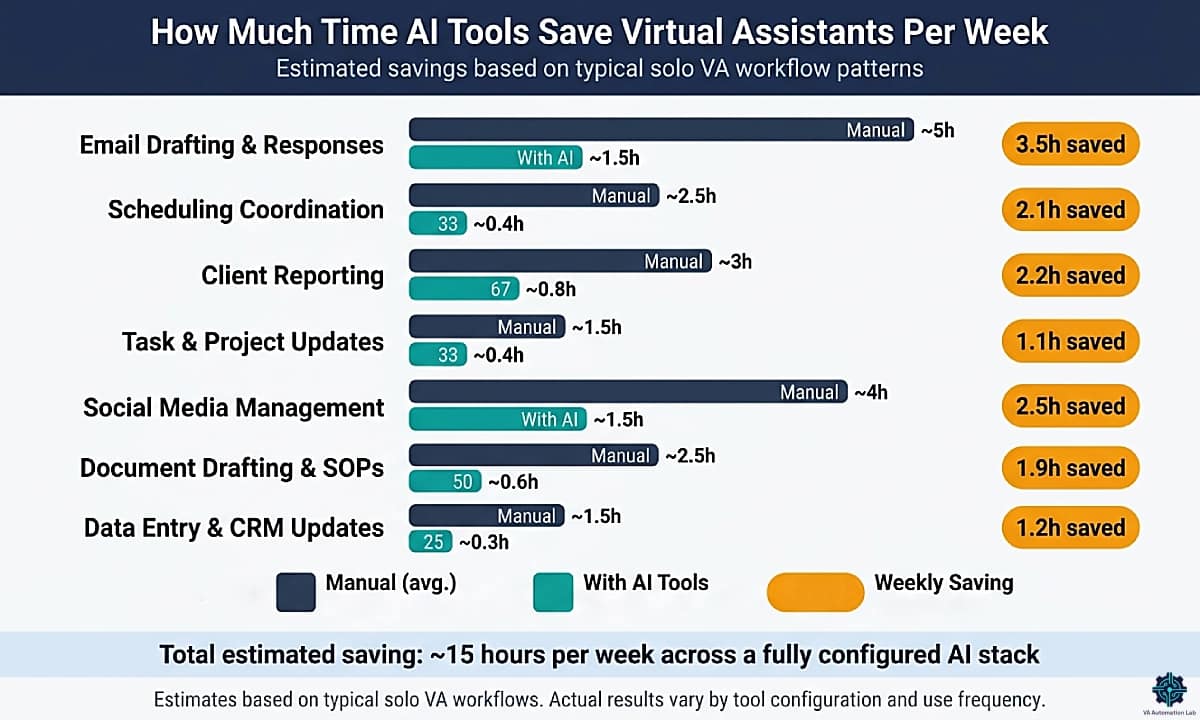
Time savings from AI tools are real, but they vary significantly based on which workflows you automate and how consistently you use the tools. The estimates below reflect typical VA workflow patterns, not guaranteed outcomes, and actual results will depend on client volume, tool configuration, and use frequency.
Workflow Area | Manual Time (weekly) | With AI Tools | Estimated Weekly Saving |
Email drafting & responses | 4–6 hours | 1–2 hours | 3–4 hours |
Scheduling coordination | 2–3 hours | 15–30 min | 1.5–2.5 hours |
Client reporting | 2–4 hours | 30–60 min | 1.5–3 hours |
Task & project updates | 1–2 hours | 20–30 min | 40–90 min |
Social media management | 3–5 hours | 1–2 hours | 2–3 hours |
Document drafting & SOPs | 2–3 hours | 30–45 min | 1.5–2 hours |
Data entry & CRM updates | 1–2 hours | 10–20 min | 40–100 min |
Conservative total estimate: 10–16 hours saved per week across a fully configured AI stack. Most VAs with a partial stack (2–3 active tools) report 4–8 hours saved weekly in the first month.
The tools that produce the fastest initial return are AI writing tools (Claude, ChatGPT) and scheduling automation (Reclaim.ai, Calendly), both require minimal setup and produce visible output from day one. Automation platforms (Make, Zapier) produce the largest cumulative savings but require a higher upfront configuration investment.
If you’re building your stack from scratch, the full framework for structuring your time and tools is in Productivity Systems for Virtual Assistants: The Complete Guide.
5. AI Tools for Virtual Assistants by Workflow Area
Most VAs who struggle with software are not using the wrong tools. They are using the right tools in the wrong areas, or leaving entire workflow areas unaddressed. A complete virtual assistant tool stack covers the fifteen areas below, each one names the anchor tool: the one that holds that part of the stack together.
AI Assistants
Every other tool in this stack does one defined job. A general-purpose AI assistant does the job you haven’t systematized yet — the drafting, summarizing, researching and thinking-out-loud that sits between the tools and never fits neatly into any of them. It’s the first thing to adopt because it needs no configuration, and the last thing you’ll outgrow.
The distinction from the next area is the one most VAs get wrong. An assistant is a conversation you have about the work. A writing tool is a machine that produces a specific deliverable at volume. Using one for the other’s job is the most common reason VAs conclude that AI “doesn’t really save time” — a chat window is a poor way to generate forty client captions, and a templated generator is a poor way to think through how to tell a client a deadline slipped.
ChatGPT ⭐ Anchor Tool
Best for: Daily drafting, summarizing long documents, research before a client call, turning rough notes into structure, working through a problem before you act on it.
Free plan: Yes — limited daily messages, uploads, image generation and research, with a smaller context window
Paid from: $8/month (Go) · Plus at $20/month (billed monthly)
Difficulty: Easy
Note on billing: ChatGPT individual plans are billed monthly only — there is no annual discount, unlike most tools in this guide.
ChatGPT is the anchor here on adoption rather than capability. It’s the assistant most VAs already have an account for, the one most clients recognize by name, and the one you’re most likely to be asked to work inside. That matters more than a marginal quality difference in an area whose whole advantage is that it requires no setup and no permission.
Its practical edge for VA work is persistent context. Projects and custom instructions mean you stop re-explaining a client’s brand voice at the start of every session — which is where the time saving actually comes from. Not generation speed, but not rebuilding context twelve times a week.
Which tier a VA needs: the free plan is enough to learn whether AI fits your workflow at all, but the message limits bite within a week of real use. Go at $8/month is the tier most solo VAs should start on — it removes the practical ceiling on messages and uploads. Plus at $20 is worth it only when you need Projects to hold separate client contexts, scheduled tasks, or custom GPTs.
Key VA use cases:
- Draft a client reply from a pasted thread and a one-line instruction about tone
- Turn a messy call note into a structured action-item list before the context fades
- Summarize a long client brief into the five things you actually have to do
- Pre-call research: competitor overview, industry terminology, sensible questions to ask
- Convert a process you already run into a first-draft SOP a client can follow
Full guide: ChatGPT for Virtual Assistants: Complete Guide to Use Cases, Prompts & Workflows
Alternatives worth knowing
Claude — Free plan available; Pro at $20/month (billed monthly). The stronger choice for long-document analysis and client-facing writing where the first draft needs to be close to final. Projects hold background and preferences per client, so context persists without re-prompting, and the gap between “needs heavy editing” and “needs a scan” compounds fast across a week of client documentation. Its free plan is more capable than most — web search, memory across conversations, file creation and connectors are all included. Full guide: Claude AI for Virtual Assistants.
Gemini — Free with any Google account. Earns its place through Workspace integration rather than raw capability: if a client runs on Gmail, Docs, Drive and Sheets, it summarizes and drafts inside those tools without a tab switch. The paid tier arrives bundled with Google One rather than as a standalone subscription.
Perplexity — Handles the pre-call research most VAs currently do across a dozen browser tabs, with sources attached so you can check what it told you. Free tier covers occasional use.
AI Writing & Content
Where an assistant helps you think, a writing tool produces output at volume. The VA use case is narrow and repetitive by design: forty social captions for a client’s month, a newsletter in the client’s voice, twenty product descriptions, a batch of email sequences. Work with a defined shape, needed in quantity, where a template beats a conversation.
This is also the area where the deliverable is often the billable product itself rather than an internal efficiency — which changes the calculation. A tool that saves you thirty minutes is worth $7/month. A tool that lets you take on content as a service line is worth considerably more.
For workflows, brand voice management and service packaging, see AI Writing & Content Creation for Virtual Assistants: The Complete Guide.
Rytr ⭐ Anchor Tool
Best for: High-volume short-form content, social captions, email sequences, product descriptions, meeting agendas, first drafts against a repeatable brief.
Free plan: Yes — 10,000 characters/month
Paid from: $7.50/month (Unlimited, billed annually)
Difficulty: Easy
Rytr is built around the structure that content work actually has: 40+ use-case templates, a tone selector, and unlimited generation at a price point low enough that it pays for itself on the first client deliverable. At $7.50/month for unlimited output it’s the cheapest paid tool in this entire stack, and the one with the shortest path from signup to a usable draft.
The tone match feature is what makes it viable across multiple clients. Each client has a voice, and switching between them manually is the part of content work that consumes attention rather than time. A saved tone profile removes that switching cost.
Key VA use cases:
- Generate a month of social captions from a content calendar brief in one session
- Draft email sequences against a defined structure — welcome, nurture, re-engagement
- Produce product descriptions at volume for e-commerce clients
- First-draft newsletters in a client’s established voice
- Meeting agendas and recurring internal documents from a fixed template
Full guide: Rytr for Virtual Assistants: Complete Guide, Features, Use Cases & AI Writing Workflows
Alternatives worth knowing
Frase.io — from $39/month, 7-day trial. SEO and content research rather than raw generation: SERP analysis, content briefs and optimization scoring. The pick when you deliver blog content as a billable service and the client cares where it ranks, not just that it exists. Full guide: Frase.io for Virtual Assistants.
TextExpander — from $3/month, 30-day trial. Not generative AI, but it solves the same underlying problem: create a snippet for your standard project update, client introduction or invoice follow-up, type a short code, and the full text expands in any app. The highest ratio of time saved to money spent anywhere in this guide. Full guide: TextExpander for Virtual Assistants.
Grammarly operates as a passive quality layer over everything before it reaches a client. AI-drafted text is usually correct and subtly off in register; Grammarly catches that on the way out, across Gmail, ClickUp, Notion and anywhere else you type.
For the full comparison guide, read Best AI Writing Tools for Virtual Assistants.
Scheduling & Calendar
Scheduling coordination is one of the highest-friction areas of VA work, not because it’s complex, but because it recurs constantly. Every meeting involves a back-and-forth email chain, a time zone calculation, a calendar check, and a confirmation. For a VA managing multiple clients, that overhead compounds across dozens of meetings per week.
AI scheduling tools eliminate most of that overhead. The best ones go further, actively managing your calendar to protect focus time, reschedule tasks when priorities shift, and sync across multiple client and personal calendars.
Reclaim.ai ⭐ Anchor Tool
Best for: AI-managed time blocking, protecting deep work time, automatic task scheduling, multi-calendar management.
Free plan: Yes — Lite: 1 calendar sync, 1 scheduling link, 5 AI agents
Paid from: $10/month (Starter, billed annually)
Difficulty: Easy
Reclaim.ai does more than let clients book slots — it manages your calendar against your priorities. It blocks focus time before meetings can fill it, reschedules incomplete tasks when the day shifts, and syncs personal and work calendars to prevent double-booking. For a VA juggling four or five clients, the reduction in cognitive load is immediate.
Key VA use cases:
- Auto-schedule recurring tasks (weekly reports, client check-ins) around existing commitments
- Protect 2-hour focus blocks daily, defended against incoming meeting requests
- Sync multiple client Google Calendars without exposing details across clients
- Smart 1:1 scheduling that finds mutual availability across connected calendars
Full guide: Reclaim.ai for Virtual Assistants: Complete Guide & Setup
Alternatives worth knowing
SavvyCal — free plan with 1 scheduling link and 1 calendar connection, paid from $12/month. Its differentiator is the invitee experience: clients overlay their own calendar on yours before booking, which removes the most common cause of rescheduling.
Simplybook.me — free up to 50 bookings/month, paid from $14/month. Purpose-built for service businesses that need payment collection, reminders and intake forms rather than a meeting link. Relevant when you’re building booking infrastructure for a client.
Calendly remains the default booking link most clients already recognize, and Motion and Clockwise occupy the AI-scheduling space alongside Reclaim — Motion by building your daily schedule automatically, Clockwise by optimizing focus time across a team.
For a full comparison of scheduling tools, see Best AI Scheduling Tools for Virtual Assistants.
Your Calendar Is Making Decisions You Never Approved
Every meeting request landing on an open slot is a decision about your week made by someone else. Reclaim.ai sits on top of the Google Calendar or Outlook you already use, defends focus blocks before meetings can fill them, reschedules protected time when a client moves a call, and prevents conflicts across every calendar you manage.
The Lite plan is free with no card and no expiry — enough to see whether defended focus time survives a real week.
Starter at $10/month is the upgrade at your second client calendar, since Lite syncs only one.
Time Tracking & Billable Hours
Time tracking is the area VAs skip longest and regret first. Without it you can’t tell which client is actually profitable at your current rate, which workflow is worth automating, or whether a fixed-price project made money. It’s also the cheapest area in the stack to get right — the free tiers here are close to unlimited.
Billing and invoicing sit in their own area further down; this one is about knowing where the hours go.
Toggl Track ⭐ Anchor Tool
Best for: Billable hour tracking across multiple clients, time reporting, understanding where your working hours actually go.
Free plan: Yes — unlimited tracking for solo users
Paid from: $9/month (Starter, billed annually)
Difficulty: Easy
Toggl Track is the foundation that makes every other decision measurable. The free solo plan covers all core tracking indefinitely; the Starter tier adds billable rates, project estimates and revenue analysis, which is where it starts earning its cost for VAs billing hourly across several clients.
Full Guide: Toggl Track for Virtual Assistants: Complete Guide, Time Tracking & Productivity Workflows
Alternatives worth knowing
Clockify — free unlimited tracking including reporting and project budgets, paid from $5/month. The most feature-complete free tier in the category, and the better pick if you manage a small team or track across many clients simultaneously.
Insightful — from $8/seat/month. Workforce analytics rather than personal tracking: relevant for VAs managing a subcontractor team or reporting capacity to a client.
Email & Inbox Management
Most VAs spend more daily time inside email than any other tool, and the work covers more ground than it appears. Inbox management — triaging, prioritizing and drafting across multiple client accounts — is the most common use case, but many VAs also own the outbound side: newsletters and sequences on behalf of clients, or cold outreach for business development.
SaneBox ⭐ Anchor Tool
Best for: AI inbox triage across multiple client email accounts, automatic filtering and prioritization.
Free plan: No — 14-day trial
Paid from: $6/month (Snack, billed annually)
Difficulty: Easy
SaneBox works at the inbox level, not the drafting level. Its AI learns which senders, threads, and subjects genuinely require attention and moves everything else out of the primary inbox, into a SaneLater folder for low-priority items, SaneNews for newsletters, SaneBlackHole for senders that should never appear again. What remains in the primary inbox is a filtered queue of what actually matters.
For a VA managing two or three client email accounts, the triage overhead alone (deciding what to read, what to defer, what to delete) can consume forty-five minutes to an hour daily. SaneBox eliminates most of that decision load automatically, without requiring any manual folder setup or filter rules.
Key VA use cases:
- Filter client inboxes so only actionable emails surface in the primary view
- Use SaneLater to batch-process low-priority messages at a defined time rather than throughout the day
- SaneReminders resurfaces emails that haven’t received a reply after a set timeframe, useful for client follow-up tracking
- Works across Gmail, Outlook, and any IMAP account without switching platforms
Full guide: SaneBox for Virtual Assistants: Review & Setup Guide
Email marketing, for clients who need sending as well as triage
ActiveCampaign — from $15/month (Starter, under 1,000 contacts), 14-day trial. The right tool when a client’s needs go past newsletters into behavioural automation: sequences that branch on what a subscriber opens, re-engagement triggered by inactivity, nurture flows responding to clicks. Plan for two to three hours of initial configuration.
Moosend — from $7/month for 500 contacts, 30-day trial. A clean visual automation builder at a lower price point, strong on e-commerce flows.
Brevo — free plan covering 300 emails/day up to 2,000 contacts, paid from $8/month. The most generous free tier for VAs sending an occasional newsletter on a client’s behalf.
Cold outreach, for business development clients
Lemlist — from $73/month (Email Pro), 14-day trial. Personalized cold outreach at scale with multi-step sequences across email and LinkedIn.
Woodpecker — $24/month for 500 contacts and 6,000 emails, 14-day trial. Built around deliverability: sending patterns and domain warm-up designed to keep volume outreach out of spam folders.
Outreach tools only matter once you know who you’re contacting and why — the Complete Client Acquisition Guide for Virtual Assistants shows how these connect into one pipeline.
Client Communication & VoIP
This area covers the real-time layer: calls, chat support, virtual meetings, and the infrastructure that keeps communication professional and organized across clients. For VAs managing customer-facing support on behalf of clients, this category is operational-critical.
KrispCall ⭐ Anchor Tool
Best for: Cloud VoIP calling, virtual phone numbers per client, AI call notes, CRM-integrated call management.
Free plan: No — free demo available
Paid from: $12/month (Essential, billed annually, up to 5 users)
Difficulty: Easy
KrispCall provides a professional cloud phone system for VAs who handle client calls, virtual phone numbers, call recording, AI-generated call summaries, and native CRM integrations. For VAs managing customer support or executive communication on behalf of clients, it replaces a physical phone system with a fully remote alternative.
Key VA use cases:
- Manage separate virtual numbers for each client without multiple physical SIM cards
- AI call transcription and summary, automatically logged to CRM after each call
- Call routing and IVR setup for client businesses
- Team call management for VAs who manage support agents
Alternatives worth knowing
Tidio — free up to 50 conversations/month, paid from $28/month. Live chat and AI chatbot for client websites: the Lyro agent handles common questions and escalates to a human only when needed.
CloudTalk — from $25/user/month. A heavier call centre platform than KrispCall, relevant when a client needs IVR, skill-based routing and live monitoring.
Timelines AI — from $25/month, 10-day trial. WhatsApp management with CRM sync, which matters for VAs supporting clients in markets where WhatsApp is the primary business channel.
ManyChat — free tier available, paid from $14/month. Chat automation across Instagram, Messenger and WhatsApp for clients running social-first customer acquisition.
Meeting intelligence. Fireflies.ai and Otter.ai both join calls as a participant, produce a full transcript and a tagged action-item list within minutes, and let you search across every past meeting by keyword. Fireflies has a free tier covering 800 minutes of storage per seat. Alongside them, Slack and Zoom are the two platforms most VA clients already run on, and Loom is the fastest way to turn a process you know into an SOP a client can follow — record once, share the link, stop repeating yourself on calls.
Project & Task Management
Project management tools are the operational backbone of a multi-client VA practice. The problem they solve is not task creation, it’s visibility: knowing, at any point in the day, what is due, what is blocked, what has been delivered, and what is waiting on a client. Without that visibility, context-switching between clients becomes cognitively expensive.
ClickUp ⭐ Anchor Tool
Best for: Multi-client task management, project dashboards, integrated time tracking, VA-to-client collaboration.
Free plan: Yes — unlimited tasks, unlimited members, 5 Spaces
Paid from: $7/month (Unlimited, billed annually)
Difficulty: Easy–Medium
ClickUp consolidates what most VAs manage across three or four separate tools — task manager, document storage, time tracker, reporting dashboard — into a single workspace. That reduces context-switching, keeps client-specific information together, and makes weekly status reporting considerably faster.
Its AI features accelerate documentation: given a meeting transcript, ClickUp AI produces a structured summary with action items, assignees and due dates in under thirty seconds.
Key VA use cases:
- Separate Spaces per client, each with their own task views and dashboards
- Time tracking per task → weekly client billing reports generated automatically
- SOP documentation stored alongside the tasks that reference it
- Client-facing portals for shared project visibility
Full guide: ClickUp for Virtual Assistants: Setup Guide, Templates & Workflows
Alternatives worth knowing
Notion — free workspace tier, Plus from $10/month, Business $20/month (includes Notion Agent and AI Meeting Notes). The right pick for documentation-heavy practices where the AI needs to sit inside the workspace the SOPs already live in. Full guide: Notion AI for Virtual Assistants, for the direct comparison, see Notion vs ClickUp for Virtual Assistants.
Beyond those two, Trello and Asana remain the most common platforms VAs inherit from clients, and Monday.com appears frequently in agency contexts. All three are worth being fluent in even if your own workspace runs elsewhere — client tooling is rarely your choice.
Automation & Workflows
Automation tools connect your software and run multi-step processes without manual intervention. For a VA managing multiple clients across multiple platforms, this is the highest-leverage category: once a workflow is automated, it runs indefinitely without your attention.
The distinction between this category and all others: automation tools don’t replace any one task, they eliminate the connective tissue between tasks. E.g.: New client intake form → CRM record → welcome email → project folder → onboarding checklist. That sequence, done manually, takes fifteen to twenty minutes. Automated, it takes zero.
For the full strategy on building automation workflows, see Automation for Virtual Assistants: The Complete Guide.
Make ⭐ Anchor Tool
Best for: Multi-step workflow automation, conditional logic, high-volume operations, connecting tools that don’t have native integrations.
Free plan: Yes — 1,000 credits/month, 2 active scenarios
Paid from: $9/month (Core, billed annually)
Difficulty: Medium
Make is the automation platform that offers the best balance of power and accessibility for solo VAs. Its visual, drag-and-drop scenario builder makes complex workflows (multi-branch logic, data transformation, error handling) manageable without writing a single line of code. The free tier is useful within a hard limit: 1,000 credits per month across 2 active scenarios, with scenario runtime capped at 5 minutes. That covers your first one or two automations and stops there.
Key VA use cases:
- Client onboarding: form submission → CRM contact → folder creation → welcome email → task assignment
- Weekly reporting: pull time data from Toggl Track→ format → send to client via email
- Social media: draft approved in ClickUp → auto-publish via Buffer → log in reporting sheet
- Invoice generation: project marked complete → invoice created in InvoiceNinja → sent to client
Full guide: Make for Virtual Assistants: The Beginner Setup Guide
Alternatives worth knowing
n8n — from $23/month, 14-day trial. The choice for advanced VAs building AI-native workflows with LLM processing steps rather than pure data movement. Full guide: n8n for Virtual Assistants.
Pabbly Connect — free tier with 100 tasks/month, paid from $16/month, or $349 once for lifetime access. The pick when recurring monthly cost is the friction point rather than capability.
Zapier deserves a mention as the fastest path to a first working automation and the broadest app library in the category. Its free plan covers unlimited two-step Zaps; multi-step workflows start at $20/month. The full breakdown is in Zapier vs Make for Virtual Assistants.
Automate the Tasks That Eat Your Billable Hours
Make‘s free plan gives you 1,000 credits/month across 2 active scenarios — enough to run two real workflows, say client onboarding and monthly reporting, and watch them work without you.
The third one is where it stops. And it arrives sooner than you’d expect: most VAs end up building a variant per client rather than one scenario that serves all of them, so the ceiling is client count more than workflow count.
Core at $9/month unlocks unlimited scenarios and raises the runtime cap from 5 minutes to 40.
Client Management & CRM
A CRM becomes necessary when managing contacts, follow-ups, project status, and communication across multiple clients creates more cognitive overhead than a spreadsheet can handle. The goal is not to implement an enterprise CRM, it’s to have one place where every client relationship is tracked: last conversation, active projects, pending follow-ups, and contract status.
For the full framework on structuring your client operations beyond contact management, see Client Management Systems for Virtual Assistants: The Complete Guide.
Folk ⭐ Anchor Tool
Best for: Solo VAs and small VA teams, contact management, pipeline tracking, lightweight CRM with AI enrichment.
Free plan: No — 14-day trial available
Paid from: $24/month (Standard, billed annually)
Difficulty: Easy
Folk is what a CRM looks like once the enterprise overhead is removed. Setup takes under two hours. AI contact enrichment populates missing details — company, role, LinkedIn — from an email address, cutting manual data entry substantially. Pipeline views show every client relationship at a glance.
Key VA use cases:
- Track every active client with custom fields (billing rate, contract end date, key contacts)
- Log outreach and follow-up sequences for prospective clients
- Group contacts by client company, project phase, or priority tier
- Use AI enrichment to build prospect lists without manual research
Full guide: Folk CRM for Virtual Assistants: Complete Setup Guide
Alternatives worth knowing
Dubsado — from $28/month, 21-day trial. Goes beyond a CRM to manage the whole client lifecycle: proposals, contracts, invoices, questionnaires and workflows in one platform. The most complete option here for VAs consolidating their business operations.
Pipedrive — from $16/month (Lite), 14-day trial. The pick when the use case is pipeline management rather than client operations: tracking leads through a funnel and automating follow-up for business development clients.
Zoho CRM — free forever for up to 3 users, paid from $16/month. The most generous free tier in the category, which makes it practical when you’re running a CRM as a service for a client rather than for yourself.
Bonsai and HoneyBook both combine proposals, contracts, invoicing and time tracking for solo freelancers, and are worth knowing when a client asks what you’d recommend for their own operations.
For the full comparison of the tools in this category read Best CRM for Virtual Assistants, for the Dubsado deep-dive, see Dubsado for Virtual Assistants: Review & Setup Guide.
Build the Client History Before You Need It
Most VAs add a CRM after relationships have already become hard to track. By then you’re migrating history instead of building it — and the migration is the part nobody finishes.
Folk takes under two hours to configure, enriches contacts automatically from an email address, and puts every active client relationship in one pipeline view.
No free plan, but the 14-day trial is enough to import your current clients and see whether the structure holds. Standard is $24/month; Premium at $48 is the upgrade when you need email sequences and deal tracking rather than contact management.
Forms & Client Intake
Forms and onboarding tools handle the structured data collection that starts every client relationship: intake questionnaires, project briefs, contract signing, and initial workflow setup. The tools in this category reduce the manual coordination required to move a new client from “signed” to “operational.”
Jotform ⭐ Anchor Tool
Best for: Building intake forms, client questionnaires, onboarding workflows, payment-enabled forms.
Free plan: Yes — 5 forms, 100 submissions/month
Paid from: $39/month (Bronze, billed annually)
Difficulty: Easy
Jotform’s AI form builder generates a complete form from a text description, describe the intake information you need from a new client, and Jotform produces a structured, styled form in under two minutes. Its template library (10,000+) covers virtually every VA use case. Native integrations with Make, Zapier, Google Sheets, and most CRMs make it easy to feed form responses directly into your automation workflow.
Key VA use cases:
- New client intake form with conditional logic (different questions based on service selected)
- Project brief forms that automatically create ClickUp tasks on submission
- Contract + payment forms combining signature and invoice in one step
- Feedback and satisfaction surveys delivered automatically at project milestones
Full guide: Jotform for Virtual Assistants: Intake & Onboarding
Alternatives worth knowing
Involve.me — free up to 50 submissions/month, paid from $29/month. Quiz-style interactive funnels with branching logic, which produce higher completion rates than static forms for client-facing onboarding.
Stop Rewriting the Same Intake Email
Every new client starts with the same 20–30 minutes of back-and-forth: what access do you need, what are the deadlines, who signs off.
Jotform‘s AI builder turns that conversation into a working form in under two minutes, and the free plan covers 5 forms and 100 submissions a month.
Bronze at $39/month is the upgrade at your fifth form — one intake form per client plus a feedback survey and the free tier is full. It also removes Jotform’s branding, which starts to matter once a form carries your client’s name rather than yours.
Contracts & E-Signatures
Collecting information and getting an agreement signed are different jobs, and the tools that do them well are different tools. Intake is about structure and routing; contracts are about tracking, version control and a signature that holds up.
Sending a contract as an email attachment creates three problems at once: no visibility into whether the client opened it, no version control when terms change, and a dependency on the client owning a printer. For a VA, the second and third are the expensive ones — chasing a signature is unbillable time that recurs with every new client.
PandaDoc ⭐ Anchor Tool
Best for: Service agreements, proposals and SOWs with e-signature inside the document, open-and-read tracking, template reuse across clients.
Free plan: Yes — 60 documents/year, unlimited e-signatures on those documents
Paid from: $19/month (Starter, billed annually)
Difficulty: Easy–Medium
PandaDoc replaces the attachment workflow with browser-based documents: you build from a template, send a link, and the client signs without downloading anything. The template library covers service agreements, NDAs and project proposals, which matters most at the point where you’re onboarding your third client and rewriting the same contract for the third time.
Real-time tracking is the feature VAs underrate. Knowing a client opened the document, spent four minutes on the pricing section and hasn’t come back tells you what the follow-up email needs to address — and whether to send one at all.
Key VA use cases:
- Reusable service agreement template with client details as merge fields
- Proposals with pricing tiers the client selects inside the document
- NDA sent and signed before a discovery call, without a separate tool
- Read tracking that tells you which section to address in the follow-up
- Signed contract triggering onboarding through Make the moment it completes
Full guide: PandaDoc for Virtual Assistants: Contracts & Onboarding
Alternatives worth knowing
Signeasy — from $10/month (Personal), free plan available. E-signature without the document-building layer: the right shape if you draft contracts elsewhere and only need them signed. Mobile-first, which matters if you sign from a phone more often than a desk. Business plans from $20/seat add unlimited sends, team templates and AI contract summaries.
Oneflow — Business from $292/month for 5 users, 14-day trial. GDPR-native and built in the EU, which is the deciding factor for a narrow but real set of clients. Priced for small teams and agencies rather than solo VAs.
For the full comparison, see Best Contract Tools for Virtual Assistants.
Invoicing & Payments
Getting paid is the workflow VAs most often run out of a spreadsheet and a manual bank check. It’s also the one where a small amount of automation removes a recurring source of friction: recurring invoices, payment reminders, and a client portal that answers “have you sent that yet” without an email.
InvoiceNinja ⭐ Anchor Tool
Best for: Solo VAs and small practices invoicing multiple clients, recurring billing, time-to-invoice workflows.
Free plan: Yes — up to 5 clients with unlimited invoicing
Paid from: $12/month (NinjaPro, billed annually)
Difficulty: Easy
InvoiceNinja covers the entire billing cycle without the accounting-suite overhead: professional templates, auto-billing and recurring invoices, online payment acceptance, expense tracking, and a client-side portal where invoices and payment history live. The free tier handles five clients with unlimited invoicing, which covers most VAs through their first year.
The paid tier is where it connects to the rest of the stack: automatic reminder emails, API integration so a completed project in ClickUp can trigger an invoice through Make, and branded invoice designs.
Key VA use cases:
- Recurring monthly retainer invoices sent automatically on a fixed date
- Time logged in Toggl Track converted into a billable invoice line
- Automatic payment reminders so follow-up stops being a task you remember
- A client portal that removes invoice-status emails entirely
Bonsai and HoneyBook both bundle invoicing into a wider client-operations platform, which is the better structure if you want proposals, contracts and billing in one place rather than a dedicated invoicing tool. Dubsado covers the same ground from the CRM side.
Social Media Management
Social media is one of the most delegated tasks in a VA practice. Clients hand off content scheduling because it’s time-consuming to execute consistently and because managing multiple platforms, posting times and approval cycles is exactly the repeatable overhead a VA with the right tools absorbs better than the client ever could.
The thing that separates tools in this area isn’t posting — everything posts. It’s whether the tool assumes you’re running one account or several, because the multi-client case is where the cost and the chaos both scale.
SocialBee ⭐ Anchor Tool
Best for: VAs managing social for two or more clients, category-based content systems, evergreen recycling, separate workspaces per client.
Free plan: No — 14-day free trial
Paid from: $24/month (Bootstrap, billed annually)
Difficulty: Easy–Medium
SocialBee is built around the assumption that you’re managing someone else’s accounts, and several of them. Each client gets a workspace with its own profiles, content library and calendar, so nothing bleeds between accounts and handing a client reporting access doesn’t expose anyone else’s work.
The category system is the structural advantage. You define content buckets — educational, promotional, curated, evergreen — and assign a posting frequency to each, and the tool enforces that mix automatically. Without it, content calendars go reactive: you schedule whatever is ready, and a thin pipeline quietly turns a client’s feed into 80% promotion. Evergreen recycling closes the same loop from the other end by re-queuing posts that already performed, which is what stops the calendar emptying at the end of a content batch.
Key VA use cases:
- One workspace per client, with profiles, library and calendar fully separated
- Category-based scheduling that holds a deliberate content mix without weekly input
- Evergreen recycling so a built library keeps working instead of expiring
- AI caption drafts across formats, included on every plan
- Client-ready analytics without granting access to other accounts
Full guide: SocialBee for Virtual Assistants: Review, Setup & Workflows
Alternatives worth knowing
Later — from $19/month (Starter), 14-day trial. The stronger pick when the visual grid is part of the deliverable: fashion, food, lifestyle, any brand where the Instagram feed is judged as a composition rather than a series of posts. Drafts and client approvals happen inside the interface. Extra Social Sets are billed per set, so cost scales with the client roster.
Buffer — free plan with 10 scheduled posts per channel, paid from $5/month. The entry-level option: no learning curve, no configuration before the first post. For a client posting two or three times a week across two platforms, the free plan covers it indefinitely.
Design. Almost every social deliverable needs a graphic, and Canva is the tool the overwhelming majority of VA clients already use. Its AI features — Magic Write for captions, background removal, brand kits and template resizing across platforms — mean a VA can produce on-brand assets without design training. If you take on social media work, Canva fluency is closer to a requirement than a differentiator.
Analytics & Reporting
Reporting is one of the highest-value tasks a VA can automate. A manually compiled client report takes two to four hours, pulling data from multiple platforms, formatting it, and presenting it. Automated, the same report runs itself and arrives in the client’s inbox on schedule.
Databox ⭐ Anchor Tool
Best for: Building automated client dashboards from 100+ data sources, scheduled report delivery, KPI tracking.
Free plan: Yes — 3 data source connections, daily data refresh, 1 dashboard
Paid from: $64/month (Analyst, billed annually)
Difficulty: Easy–Medium
Databox pulls live data from Google Analytics, Facebook Ads, Google Search Console, HubSpot, Shopify, and 100+ other sources into a single dashboard. The free plan covers three data connections, enough to build a meaningful dashboard for one client. Paid plans enable automated weekly or monthly report delivery without any manual intervention.
Key VA use cases:
- Build one dashboard per client pulling their key metrics into one view
- Schedule weekly performance reports delivered automatically every Monday
- Create goal-tracking dashboards that update in real time
- Replace manual spreadsheet reporting entirely for data-driven clients
Alternatives worth knowing
Metricool — free for 1 brand, paid from $20/month. Combines social scheduling, analytics and reporting, which makes it the more proportionate choice when the reporting need is social performance rather than full-funnel data.
The Report That Writes Itself Every Monday
A manually compiled client report takes two to four hours: log into four platforms, export, format, present. Do that for three clients and it’s most of a working day, every month, and none of it is billable at your real rate.
Databox pulls live data from 100+ sources into one dashboard and delivers it on a schedule. The free plan covers 3 data connections and one dashboard — enough to build a real one for a single client and show it to them.
Analyst at $64/month is the upgrade when a second client wants the same thing, since scheduled delivery and additional sources both sit above the free tier.
Password & Security
This is the shortest area in the stack and the one with the highest cost of getting it wrong. A VA accumulates client credentials by the nature of the work — email, social accounts, CRMs, scheduling tools, sometimes billing systems. Where those credentials live is a question every client eventually asks, and “in a spreadsheet” is an answer that loses contracts.
There is also a professional argument that has nothing to do with risk. Proposing a credential process before a client raises it signals that you’ve done this before, which is worth more in a discovery call than any tool in this guide.
1password ⭐ Anchor Tool
Best for: Storing and sharing client credentials without exposing the password itself, separating client vaults from your own, revoking access cleanly when an engagement ends.
Free plan: No — 14-day trial
Paid from: $3/month (Individual, billed annually)
Difficulty: Easy
1Password’s shared vaults let a client grant you access to an account without ever sending you the password. They can rotate it without telling you; you can use it without knowing it; and when the engagement ends, access is revoked in one action rather than a nervous audit of everything you might still be able to log into.
At $3/month it’s the cheapest line in any stack in this guide, and the only one where the argument for buying it is not time saved.
Key VA use cases:
- A separate vault per client, so offboarding is one revocation rather than a checklist
- Autofill for client accounts without the password ever passing through email or Slack
- Watchtower alerts when a credential you hold appears in a breach
- Your own business logins kept structurally separate from client material
Full guide: 1Password for Virtual Assistants: Manage Client Logins
For a full side-by-side comparison of all tools covered in this guide, see Best Tools for Virtual Assistants: the Complete Comparison Guide.
6. Three Stacks by Client Volume
Most VAs don’t need all twelve areas. They need the right three to five tools for their current client volume, and a clear signal for when to expand.
The stacks below are calibrated to client volume and build on each other: Intermediate adds automation and CRM to the Beginner base; Advanced adds reporting, client operations and communication on top of Intermediate. You don’t replace tools as you move up — you layer.
One rule before choosing: start with the free tiers. Every stack has a free or low-cost entry point. Validate that a tool produces results before committing to a paid plan.
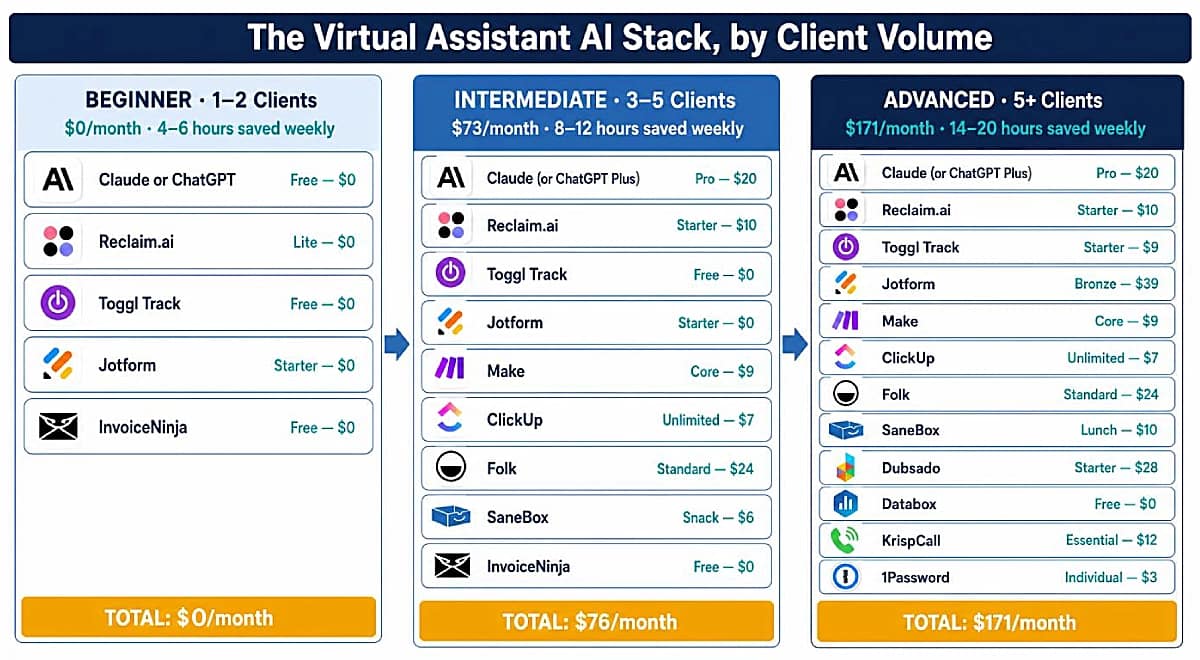
Beginner Stack — 1–2 Clients, Free Tools Only
Goal: Eliminate the most time-consuming manual tasks with the least setup time. Zero integration work required, every tool here is operational from the first session.
Monthly cost: $0
Weekly time saved: 4–6 hours
Tool | Purpose | Plan | Cost |
Email drafting, SOP generation, document creation | Free | $0 | |
AI calendar management, time blocking, scheduling | Lite | $0 | |
Billable hour tracking across clients | Free | $0 | |
Client intake forms and questionnaires | Starter | $0 | |
Invoicing and payment collection | Free | $0 | |
Total | $0/mo |
This stack is designed for new virtual assistants who want immediate productivity gains without dealing with technical setup, integrations, or complex systems. The priority at this stage is not advanced automation — it’s removing the most repetitive manual work as quickly as possible while establishing sustainable daily habits.
Claude or ChatGPT handles the highest-frequency writing: emails, meeting summaries, client communication, quick research. Reclaim.ai introduces basic scheduling automation and calendar organization, helping protect focus time and reduce scheduling friction early on. Toggl Track builds awareness around workload distribution and billable hours, which becomes critical as client work starts increasing. Jotform replaces scattered email-based intake with structured forms, and InvoiceNinja covers billing for up to five clients at no cost.
The strengths of this stack: every tool has a full free tier, can be implemented independently, requires minimal learning time, and delivers measurable time savings without requiring integrations or technical configuration. The goal is to build consistency and operational habits first, then expand into more advanced systems as client volume grows.
Intermediate Stack — 3–5 Clients, Building Systems
Goal: Automate multi-step processes, implement project and task management, inbox triage and introduce CRM before client volume makes relationship tracking unmanageable.
Monthly cost: $76
Weekly time saved: 8–12 hours
Tool | Purpose | Plan | Cost |
AI assistant — drafting, summarizing, research | Pro | $20 | |
Scheduling, multi-calendar sync, time blocking | Starter | $10 | |
Billable hour tracking | Free | $0 | |
Client intake forms and questionnaires | Starter | $0 | |
Multi-step workflow automation | Core | $9 | |
Multi-client task and project management | Unlimited | $7 | |
CRM, client pipeline, contact management | Standard | $24 | |
AI inbox triage across multiple client accounts | Snack | $6 | |
Invoicing and payment collection | Free | $0 | |
Total | $76/mo |
This stack is designed for virtual assistants managing a growing client base and transitioning from individual task execution to structured operational systems. At this stage, the main challenge is no longer simply staying productive, it is maintaining organization, consistency, and visibility across multiple clients, projects, schedules, and communication channels.
Make and ClickUp become essential for creating repeatable systems and reducing manual coordination between tasks, updates, and recurring workflows. Folk introduces lightweight CRM management before client relationships become difficult to track manually. On the productivity side, SaneBox helps reduce inbox clutter and prioritize important conversations automatically. This stack creates a more scalable and organized operational foundation without adding unnecessary complexity.
For the full system architecture behind this stack, see AI-Powered Productivity System for Virtual Assistants.
Advanced Stack — 5+ Clients, Full Operations
Goal: Maximize automation coverage, implement client reporting, systematize operations from proposal to invoice, and create a scalable infrastructure for communication, security, and client management.
Monthly cost: $171
Weekly time saved: 14–20 hours
Tool | Purpose | Plan | Cost |
AI assistant — drafting, summarizing, research | Pro | $20 | |
Scheduling, multi-calendar sync, time blocking | Starter | $10 | |
Billable hour tracking across clients | Starter | $9 | |
Client intake forms and questionnaires | Bronze | $39 | |
Multi-step workflow automation | Core | $9 | |
Multi-client task and project management | Unlimited | $7 | |
CRM, client pipeline, contact management | Standard | $24 | |
AI inbox triage across multiple client accounts | Lunch | $10 | |
Full client lifecycle — proposals, contracts, invoices, portals | Starter | $28 | |
Automated client dashboards, scheduled reporting | Free | $0 | |
Cloud VoIP, virtual numbers, AI call notes | Essential | $12 | |
Multi-client credential management | Individual | $3 | |
Total | $171/mo |
This stack is designed for experienced virtual assistants managing multiple active clients, recurring operations, larger volumes of communication, and more complex service delivery. At this stage, the bottleneck is no longer individual productivity, it is operational complexity: too many moving parts, fragmented systems, inconsistent onboarding, manual reporting, and communication overload.
Dubsado systematizes the client lifecycle from proposal and contract signing to invoicing and onboarding, reducing administrative overhead and creating a more professional client experience. Databox adds automated reporting and KPI visibility, allowing VAs to deliver clearer performance updates without manually assembling reports every week. As communication volume increases, KrispCall helps reduce fragmentation between calls, and 1Password becomes essential for securely managing the growing number of client accounts and credentials. Together, these systems transform the workflow from a collection of disconnected tools into a scalable operational infrastructure capable of supporting long-term client management efficiently.
For the multi-client operating system that sits underneath this stack, see How to Manage Multiple Clients as a Virtual Assistant Using AI.
Stack Comparison at a Glance
Beginner | Intermediate | Advanced | |
Client volume | 1–2 clients | 3–5 clients | 5+ clients |
Tools in stack | 5 | 9 | 12 |
Monthly cost | $0 | $76 | $171 |
Weekly time saved (est.) | 4–6 hours | 8–12 hours | 14–20 hours |
Setup time to first result | Same session | 1–3 days | 1–2 weeks |
Integration work required | None | Medium | Medium–High |
Move from Beginner to Intermediate when your current tools run without active management, you have three or more active clients, and scheduling or task management overhead has become a consistent friction point.
Move from Intermediate to Advanced when client reporting is still manual, client operations (proposals, contracts, invoicing) require too many manual steps, or communication management across five-plus clients is creating daily overhead.
7. How to Choose the Right Tool as a Virtual Assistant
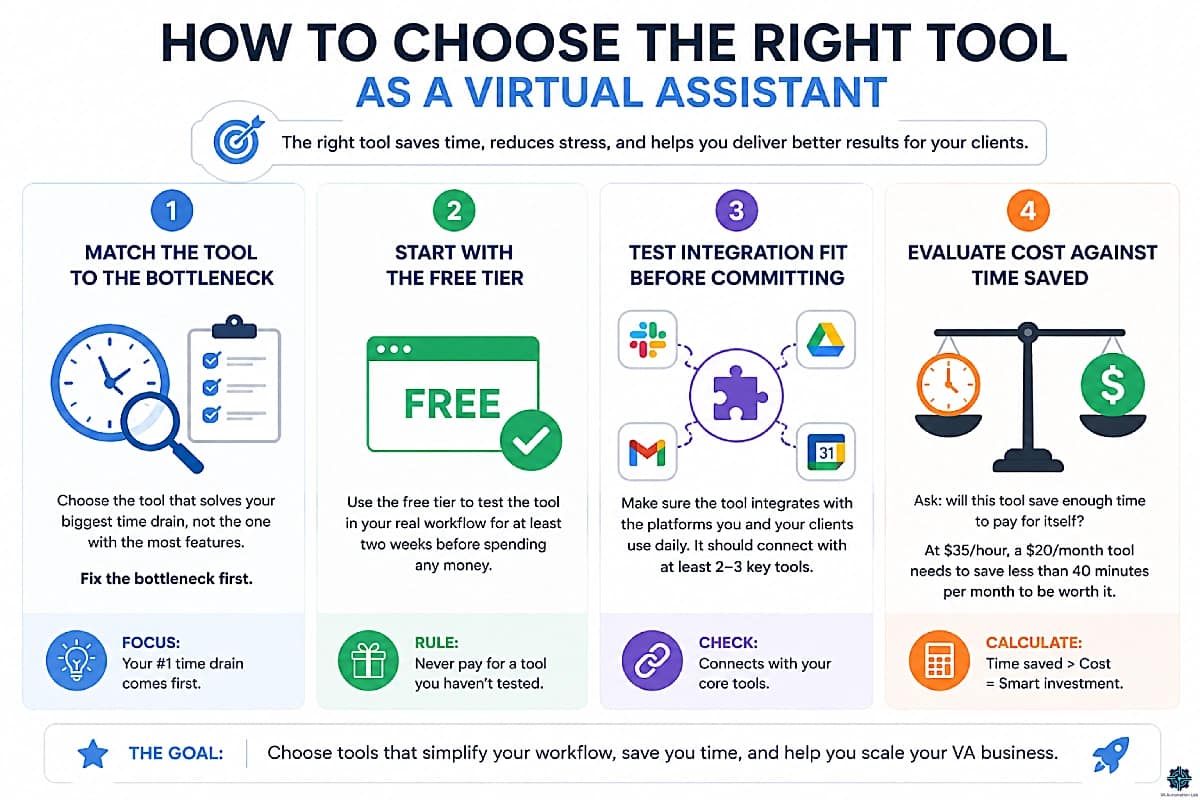
Four criteria prevent the most common selection mistake: tool-hopping, spending time evaluating and configuring platforms that get abandoned after two weeks.
Match the tool to the bottleneck. The right tool is not the one with the most features, it’s the one that addresses the workflow area consuming the most disproportionate time. Identify your single biggest time drain before evaluating any tool.
Start with the free tier. Every primary recommendation in this guide has a free tier sufficient to validate whether the tool works for your specific use case before any financial commitment. Never pay for a tool you haven’t used for at least two weeks.
Test integration fit before committing. A tool that doesn’t integrate with the platforms your clients use creates friction rather than reducing it. Before subscribing, confirm that the tool connects to at least two or three platforms you use daily.
Evaluate cost against time saved, not features. The correct question is: does this tool save enough time per month to pay for itself? At a $35/hour billing rate, a $20/month tool needs to save less than forty minutes per month to justify itself. Most AI writing tools cross that threshold in the first day of use.
8. Workflow Examples
These are complete, production-ready workflow blueprints, each one solves a specific recurring VA problem and can be implemented with the tools covered in this guide.
For a wider library organized by difficulty — from single-trigger automations through multi-branch client systems — see Best Automation Workflows for Virtual Assistants: Beginner to Advanced.
Workflow 1 — Automated Client Onboarding
Problem: New client intake involves 6–8 manual steps taking 20–30 minutes per client.
Tools: Jotform + Make + Folk + ClickUp + Gmail
Difficulty: Medium
Steps:
- Client submits Jotform intake questionnaire (name, company, services, timezone, billing info)
- Make triggers on new Jotform submission
- Make creates Folk contact with all intake data populated
- Make creates new ClickUp Space for the client, with standard project template applied
- Make sends welcome email via Gmail with onboarding checklist and next steps
- Make creates Google Drive folder with client name and shares with relevant team members
- ClickUp task created: “Complete client onboarding call” assigned to VA, due in 48 hours
Result: Full client setup completes in under two minutes, without manual intervention.
Full guide: How to Automate Client Onboarding for Virtual Assistants.
Workflow 2 — Automated Weekly Client Report
Problem: Compiling and sending a weekly performance report takes 2–3 hours per client.
Tools: Toggl Track + Make + Databox + Gmail
Difficulty: Medium
Steps:
- Make triggers every Friday at 4:00 PM
- Make pulls week’s time entries from Toggl Track, filtered by client project
- Make fetches current KPI data from Databox dashboard (traffic, conversions, or social metrics)
- Make formats data into a structured HTML email template
- Make sends report to client automatically, CC’d to VA
- Make logs report sent in ClickUp task as completed
Result: Zero manual time on reporting after initial setup.
Full guide: How to Automate Client Reporting as a Virtual Assistant.
Workflow 3 — AI Email Drafting System
Problem: Drafting client-facing emails takes 15–20 minutes each; a VA handling 30 emails per day loses 4–6 hours.
Tools: Claude + Grammarly + Gmail
Difficulty: Easy
Steps:
- Open Claude. Paste the email thread or context (1–2 sentences)
- Add tone instruction: “Draft a professional reply that acknowledges the delay, gives a revised timeline of [X], and closes with a clear next step”
- Review output (30–60 seconds). Copy to Gmail draft
- Run Grammarly (automatic with browser extension), approve or reject suggestions
- Send
Result: Email drafting time drops from 15–20 minutes to 2–3 minutes.
For inbox-specific automation, see AI Email Management for Virtual Assistants.
Workflow 4 — Social Media Automation Pipeline
Problem: Managing social media for one client takes 5–8 hours per week, most of it scheduling and formatting.
Tools: ChatGPT + Buffer + Make + Metricool
Difficulty: Medium
Steps:
- ChatGPT generates a month’s worth of post captions from the content calendar brief (30 minutes, once per month)
- Content approved in Google Sheets or ClickUp by client
- Make triggers when post is marked “approved”
- Make creates scheduled post in Buffer with approved caption and image
- Buffer publishes automatically at optimal times per platform
- Metricool tracks performance, weekly report auto-generated and emailed to client
Result: Active social media management time drops from 5–8 hours to 1–2 hours per week per client.
Full system: Social Media Automation for a Virtual Assistant: Complete System.
9. Beginner Roadmap: Your First 30 Days
The fastest way to start is not to build a complete stack on day one. It’s to create one useful workflow, make it reliable, then expand only after you have proof it saves time.
Most VAs stall for the same reason: too many tools at once, across too many use cases, before understanding where the real bottlenecks are. The result is tool fatigue and workflows that never become routine.
The principle: one task → one tool → one use case → one repeatable workflow. That sequence matters more than the specific tool. A simple workflow you use every day outperforms a better setup that stays half-finished.
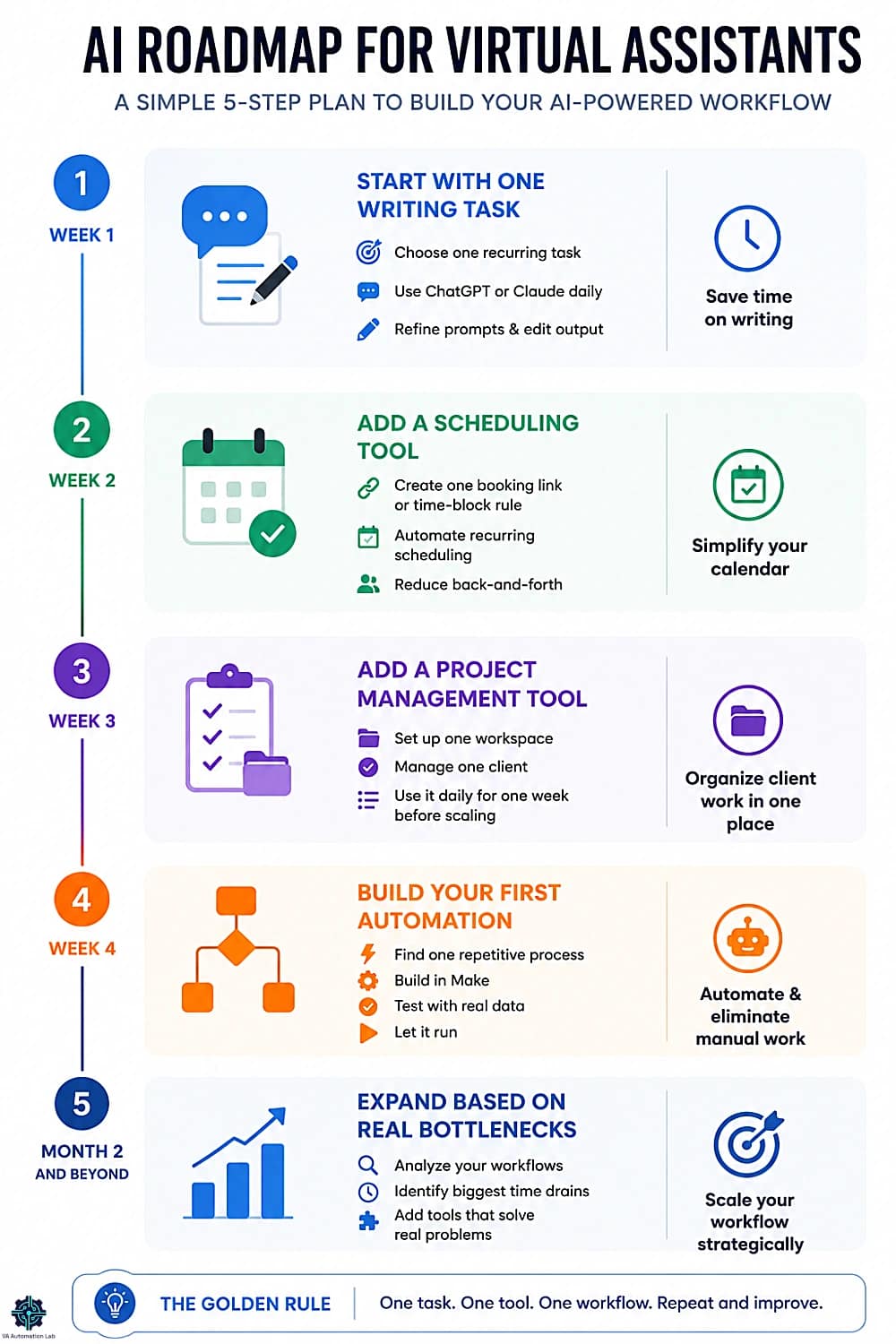
Week | Focus | Tool | Success |
Week 1 | One recurring writing task | You know which writing task is easiest to delegate and which prompt structure works for your clients | |
Week 2 | One scheduling bottleneck | One recurring scheduling task has left your inbox | |
Week 3 | One client, one workspace | One client’s work lives in one place, with a structure you can repeat | |
Week 4 | One automation | One process you no longer handle by hand, tested three times with real data |
Do not migrate everything at once, and do not automate a process you haven’t documented. Build one scenario, test it with real data, keep a manual backup until you trust it.
What to add in month two
Add tools based on evidence, not on feature lists. Look at what you used in month one and ask which tasks still consume too much time, which steps are still manual, and where friction remains between systems.
- Communication still the bottleneck → SaneBox or Lemlist
- Client operations still messy → Folk, Dubsado or Pipedrive
- Content work still slow → Frase.io, Rytr or Buffer
- Reporting still manual → Databox or Metricool
- Onboarding still back-and-forth → Jotform or Involve.me
- Getting paid still manual → InvoiceNinja
Add the next tool only when the current one produces a clear operational result: you use it regularly, it saves time repeatably, and it has become part of your normal workflow.
Full beginner guide: How to Start Using AI as a Virtual Assistant Without Technical Skills
10. Common Mistakes VAs Make with AI Tools
Starting With Automation Before Documenting the Process
Automation only works reliably when the underlying process is stable. Automating a workflow that hasn’t been documented produces automations that break unpredictably, often during client deliveries. The correct sequence: do the task manually → document every step → identify the repeatable parts → automate only those. See How to Automate Repetitive Tasks as a Virtual Assistant.
Testing Multiple Tools Simultaneously
Adopting three new tools in the same week produces three half-learned tools, none of which are used consistently enough to produce real results. One tool per workflow area. Use it for two weeks before evaluating results. Add the next tool only after the first is running reliably.
Copying Stacks Built for Different Roles
AI setups designed for marketing agencies, SaaS teams, or enterprise operations look impressive and perform poorly in a solo VA context. They’re too complex, require too much maintenance, and solve problems a solo VA doesn’t have. The tool picks in this guide were selected specifically against solo VA operational requirements.
Not Tracking Time Before and After
Without baseline time data, it’s impossible to measure whether an AI tool is actually saving time, or just adding a new layer of complexity. Set up Toggl Track (free for solo users) before adopting any new tool, track your current workflow for one week, then measure again after two weeks with the new tool in place. Let the data make the decision.
Skipping Security Infrastructure
Managing credentials for multiple clients in a spreadsheet or shared note is one of the most common and most risky VA practices. 1Password at $3/month eliminates that risk. Set it up before you have a security problem, not after.
11. Conclusion
The right AI stack for a virtual assistant is not the one with the most tools. It’s the one that removes the specific overhead currently limiting your client capacity, your output quality, or your working hours.
The fifteen workflow areas here map to the functional scope of a modern VA practice. You don’t need coverage in all fifteen. You need the anchor tool in the two or three areas where manual work is highest, validated on a free tier before any commitment, and built into a workflow you use daily. The most common mistake is not choosing the wrong tool — it’s adopting too many too quickly, before any single one has become reliable.
A four-tool stack used consistently beats a twelve-tool stack that’s half-configured. Start with the table in Section 1. Pick the row that matches your biggest bottleneck. Use the free tier for two weeks. Measure the time saved. Then evaluate the next area. That sequence — one bottleneck, one tool, two weeks, one decision — is the operating principle behind every stack in this guide, and the fastest path from a manual practice to one that runs on systems.
Where to go next
This guide maps the tools. Four companion guides go deeper on what you do with them:
- Automation for Virtual Assistants: The Complete Guide — building workflows that run without you in them
- Productivity Systems for Virtual Assistants: The Complete Guide — the time and attention structure these tools plug into
- Client Management Systems for Virtual Assistants: The Complete Guide — running client operations from first contact to final invoice
- AI Writing & Content Creation for Virtual Assistants: The Complete Guide — producing client deliverables at volume
And when the question is which of two specific platforms to buy rather than what belongs in the stack, Best Tools for Virtual Assistants: The Complete Comparison Guide carries the head-to-head verdicts.
Frequently Asked Questions About the Virtual Assistant Tool Stack
What tools does a virtual assistant need?
Five load-bearing pieces cover most daily overhead: an AI assistant (ChatGPT or Claude), an automation platform (Make), a project workspace (ClickUp), a scheduling layer (Reclaim.ai), and a CRM (Folk). The full stack spans fifteen workflow areas, but most VAs only need three to five active at once — the rest get added in response to a specific bottleneck. For head-to-head verdicts on each category, see Best Tools for Virtual Assistants.
How much does an AI tool stack cost for a virtual assistant?
A beginner stack costs $0/month on free tiers across ChatGPT or Claude, Reclaim.ai, Toggl Track, Jotform and InvoiceNinja. An intermediate stack runs $76/month — upgrading the AI assistant ($20) and Reclaim.ai ($10), then adding Make ($9), ClickUp ($7), Folk ($24) and SaneBox ($6). An advanced stack with reporting, client operations and VoIP runs $171/month. Each tier typically recovers its cost within two weeks through time returned to billable work.
Can AI replace virtual assistants?
No, and the concern misidentifies what AI automates. AI tools handle the predictable, repeatable parts of VA work: drafting similar emails, formatting documents, moving data between tools, coordinating schedules. The parts that drive client retention — judgment, communication quality, relationship management, adapting when something goes wrong — remain entirely human. VAs using AI handle more clients with better output. They are not being replaced. They are being amplified.
Where does automation fit in a VA tool stack?
Automation is the layer that removes the manual steps between every other tool, which means it only pays off once you have tools worth connecting. Add it after your workspace, calendar and CRM are in place — typically at three to five clients, when the same data starts being copied between systems by hand. Make‘s free plan covers 2 active scenarios, enough to prove the first workflow. Full breakdown: Automation for Virtual Assistants: The Complete Guide.
When does a virtual assistant need a CRM?
The trigger is not client count — it’s the first time you can’t remember when you last contacted someone without searching your inbox. For most VAs that lands around the third or fourth active client, or earlier if you’re pitching new business while serving existing accounts. Adopt it before that point rather than after, because a CRM added late means migrating history instead of building it. Full comparison: Best CRM for Virtual Assistants.
When should a VA add a scheduling tool?
As soon as you’re coordinating across more than one client calendar. A single client rarely justifies the setup; two create the conflict a booking link alone won’t solve, because the problem stops being “when am I free” and becomes “which commitments am I protecting”. Free tiers cover the first calendar indefinitely, so the upgrade trigger is the second connection rather than a feature. Full comparison: Best AI Scheduling Tools for Virtual Assistants.
Which tool should a virtual assistant set up first?
The one that addresses your largest current time drain — which for most VAs is either writing or scheduling. Both have zero-configuration free tiers, so you can test one against a real task the same day rather than researching first. Fluency builds through repetition, not comparison. The 30-day sequence is in Section 9, and the full beginner path is in How to Start Using AI as a Virtual Assistant Without Technical Skills.
Do I need to track time as a virtual assistant?
Yes — and Toggl Track makes it friction-free on a free solo plan with no meaningful limits. Without time data it’s impossible to tell which workflows consume disproportionate time, price services accurately, or measure what AI tools return. Set it up before adopting anything else: it’s the baseline that makes every other tool decision measurable rather than assumed.
How do I choose the right tool as a virtual assistant?
Match the tool to your biggest workflow bottleneck, not to a feature list, a trend, or another VA’s stack. Identify the one area consuming disproportionate time, then evaluate only tools in that category. Start on the free tier and use it consistently for two weeks before concluding anything. Confirm it connects to the platforms your clients already use — a tool that doesn’t integrate creates friction rather than removing it. The full framework is in Section 7.
Glossary: Essential Terminology for Virtual Assistants Software
AI Tool: Software that uses artificial intelligence to assist with tasks such as writing, organizing, analyzing, or automating workflows.
Automation Platform: A tool (like Make or Zapier) that connects apps and runs multi-step processes automatically without coding.
Conditional Logic: An automation rule that executes different actions depending on whether a condition is true or false, for example, routing a client to a different onboarding sequence based on the service they selected.
CRM (Client Relationship Manager): Software that centralizes contact information, communication history, project status, and follow-up schedules for every client relationship.
Data Extraction: AI’s ability to identify and pull specific information (tasks, dates, names, decisions) from unstructured sources like emails or meeting transcripts.
Integration: A connection between two apps that allows data to flow automatically between them, for example, a Jotform submission that creates a Folk CRM contact.
Natural Language Processing (NLP): The AI technology that allows tools to understand, interpret, and generate human language, the foundation of tools like Claude and ChatGPT.
No-Code Tool: A platform that allows users to build automations or workflows without writing code, the defining characteristic of Make, Zapier, and similar tools.
Scenario: A Make automation, the equivalent of a “Zap” in Zapier. Each scenario connects a trigger event to one or more subsequent actions.
Snippet: In TextExpander, a short abbreviation that expands into a longer pre-written text block when typed. Used to eliminate repetitive typing of standard phrases and templates.
Time Blocking: The practice of scheduling specific blocks of time for specific types of work, a productivity technique that tools like Reclaim.ai apply automatically using AI.
Trigger: The event that initiates an automation, for example, a new form submission, a new email in a specific folder, or a task status change.
Webhook: A real-time data transfer mechanism that allows apps to communicate instantly when a trigger event occurs, commonly used in Make scenarios to receive data from external services.
Workflow Automation: A multi-step automation that connects several tasks or tools to run an end-to-end process without manual intervention.
About the Author
Alex Stratton has spent the better part of a decade working at the intersection of virtual assistance and operational systems, first as a VA supporting founders and small business owners, then as a workflow consultant helping remote teams reduce the manual overhead that accumulates when businesses grow faster than their processes. The tools and workflows here reflect decisions made repeatedly in real client contexts, where the wrong choice costs hours, not minutes. Learn more about VA Automation Lab → About.