
How to Manage Multiple Clients as a Virtual Assistant Using AI: Complete Framework (2026)
Disclosure: This article contains affiliate links. If you purchase through them, VA Automation Lab earns a commission at no extra cost to you. We only recommend tools we’d genuinely use for this workflow.
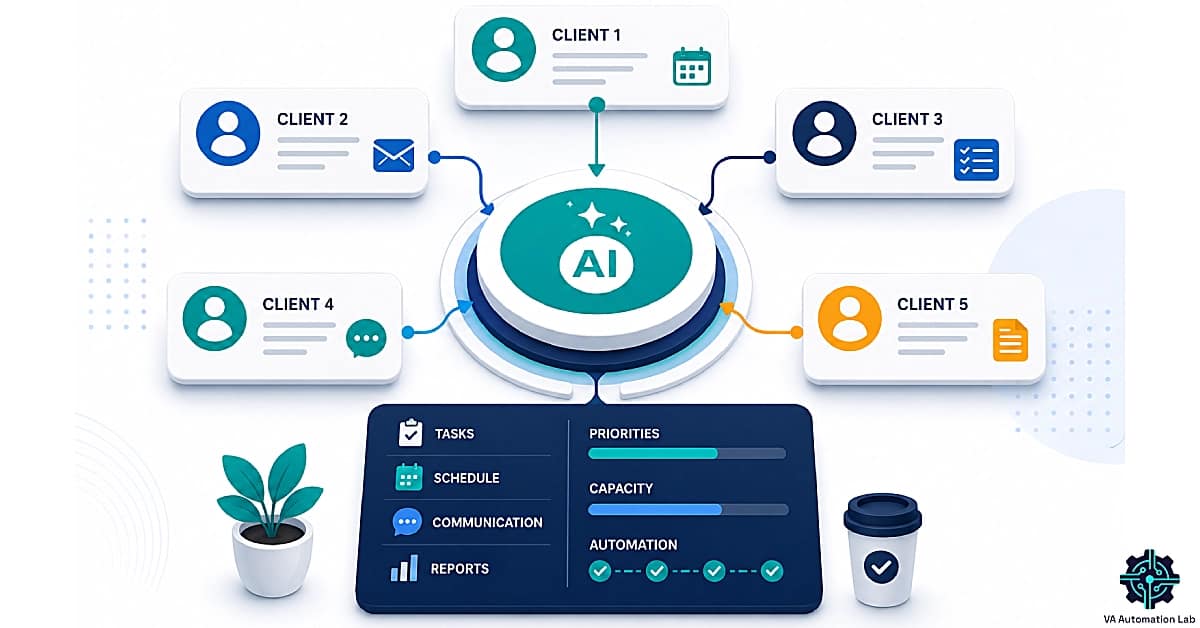
A complete system to manage multiple clients as a virtual assistant without overwhelm, missed deadlines, or constant context switching. Learn how to build a scalable client management system, understand how many clients you can realistically handle, and implement AI-powered workflows to stay organized and in control.
The challenge of multi-client management for virtual assistants is not the volume of work. It is the structural complexity of operating inside multiple parallel client ecosystems simultaneously, each with its own tools, communication style, priorities, and operational rhythm, while maintaining the same standard of quality, responsiveness, and reliability across all of them.
A VA managing two clients spends approximately 20% of their operational time on context switching, mentally recalibrating between client systems, locating information spread across different tools, and rebuilding the operational picture of each account from scratch every time attention shifts. At four or five clients, that overhead does not multiply linearly, it compounds. The cognitive load of tracking five parallel systems simultaneously is qualitatively different from tracking two.
The solution is not better memory or more disciplined organization. It is a virtual assistant client organization system, a structured framework that externalizes the cognitive overhead into processes, templates, and automations, so that multi-client management operates as a system rather than as a sustained act of mental effort.
What this guide covers:
- How many clients can a VA manage, and what actually determines the ceiling
- A seven-stage client management system built for AI-assisted VA operations
- Prompt libraries for task management, communication, prioritization, and reporting
- Five automation workflows, fully specified with tools
- The best tools to manage multiple clients as a virtual assistant, organized by use case
- A six-week implementation roadmap
- How to price your services as your roster scales
- Recommended tool stacks by experience level
This framework becomes even more effective when integrated into a structured client management system. If you want to see how all the tools connect across each stage, check out this Complete Guide to Client Management Systems for Virtual Assistants.
👉 AI Tools for Virtual Assistants: The Complete Practical Guide — the full reference for every AI tool category used in this framework.
Ready to Work Smarter as a Virtual Assistant?
The system in this guide works best when paired with the right prompt templates and workflow checklists.
The free toolkit includes ready-to-use AI prompts for client management, a multi-client onboarding checklist, and a full tool comparison matrix.
Table of Contents
1. Why Multi-Client Management Creates Compounding Cognitive Load
The usual way to describe multi-client work — “too many tasks, too much switching” — is true, but it doesn’t tell you what to fix. Here is the precise problem: managing several clients means holding five to seven separate pictures of “where things stand” in your head at once, and each one keeps changing as the work moves.
A single client’s picture holds a lot: the status of every active deliverable, the recent messages and what’s still open, how the client likes to work, the tools and logins you use for them, the deadlines coming up, and the unspoken expectations set during onboarding that nobody ever wrote down.
For one client, that fits in your head with no strain. For five, it doesn’t — your working memory simply can’t hold five full pictures at the same time. So you compensate. At the start of each client task, you rebuild the current state from scattered places: re-reading the last email thread, opening the task list, skimming the last report. That rebuild takes roughly 5–10 minutes per client every time you switch — and it’s the main reason the workload grows faster than the client count.
At three clients with an average of four context switches per day, reconstruction overhead is 60-120 minutes daily. At five clients, it is 100-200 minutes, 1.5-3 hours of every working day spent not on client work but on preparing to do client work. This is the overhead that an AI client management system for virtual assistants is designed to eliminate.
The second cause of compounding load is information fragmentation. Client details live across Gmail, Slack, ClickUp, Google Drive, and a Notion doc from the initial onboarding call. There is no single place where the complete current state of any client is visible. The VA’s memory is the integration layer, and when memory is under pressure from five simultaneous client models, it fails in predictable ways: missed follow-ups, inconsistent tone, duplicated work, delayed responses.
The solution to both problems, reconstruction overhead and information fragmentation, is the same: a virtual assistant client organization system that maintains the current operational state of every client automatically, accessible in seconds, without requiring the VA to reconstruct it.
2. How Many Clients Can a VA Manage?
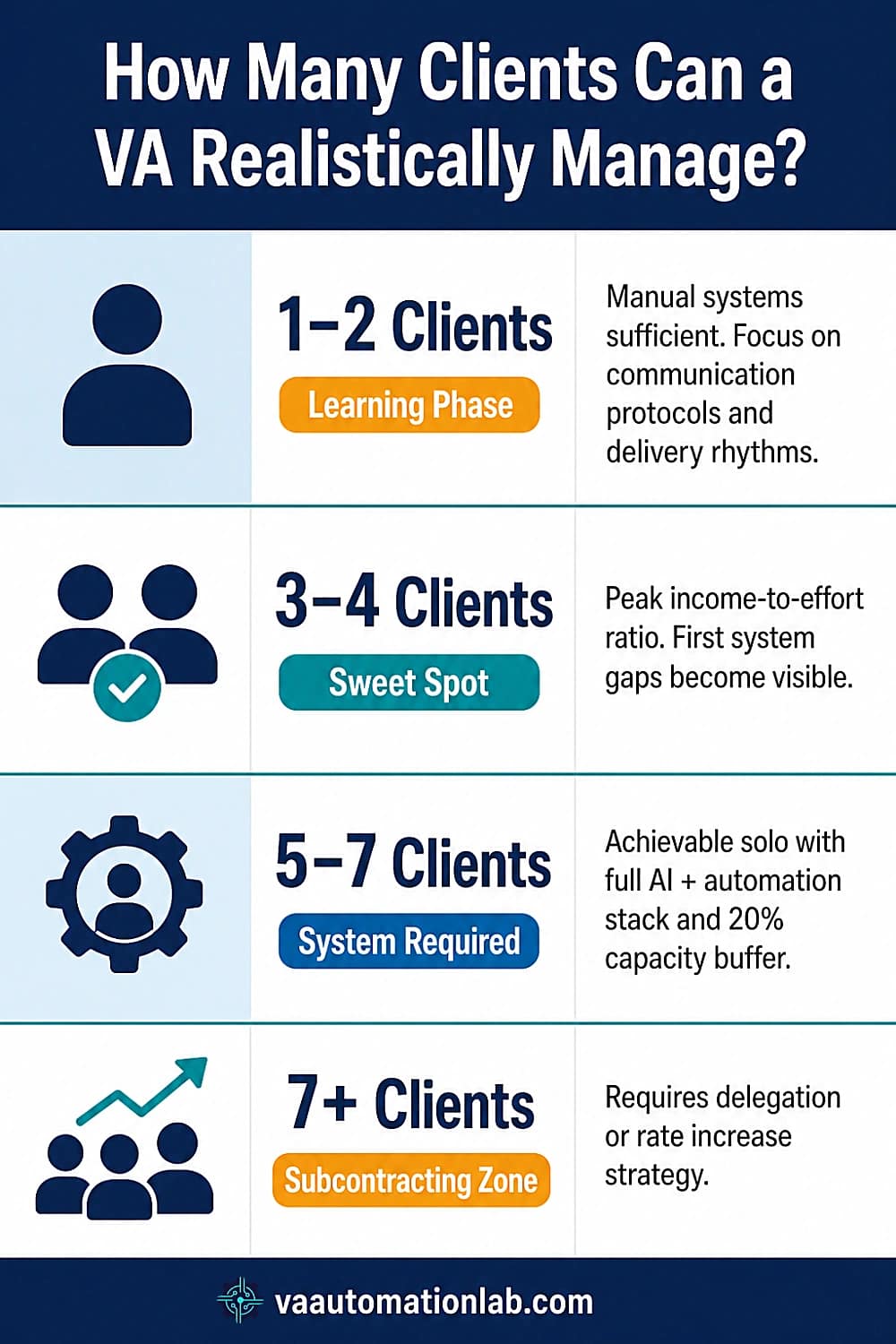
Most virtual assistants can manage 3–4 clients comfortably without automation, and 5–7 clients with a complete client management system in place, including standardized workspaces, AI-assisted prioritization, and automation for the recurring operational layer. Beyond 7 clients, a solo VA typically needs to subcontract or raise rates to reduce roster size.
This is the first question every VA building a multi-client business needs to answer honestly, and the answer depends on more than hours available per week.
Capacity Tiers: What the Numbers Look Like
1–2 clients — The learning phase
This is the baseline most VAs start from. At this stage, manual systems are sufficient: shared task lists, consistent email threads, a single project tracker. There is no urgent need for automation or a sophisticated tool stack. The primary investment is in establishing clear client communication protocols and delivery rhythms.
3–4 clients — The productive sweet spot
For most solo VAs with a defined service scope, three to four retainer clients is where income-to-effort ratio peaks. You have enough revenue to invest in the right tools; the operational overhead is manageable with structured processes; and client relationships remain personal without being stretched. This is also the tier where system gaps become visible for the first time. If you do not have a documented onboarding process, a standardized reporting workflow, and a clear context-switching protocol by client four, you will feel it.
5–7 clients — The system-dependent zone
Five to seven active retainer clients is achievable for a solo VA, but only with full implementation of the framework in this guide: standardized workspaces, AI-assisted prioritization, automation for the recurring operational layer, and a minimum 20% weekly capacity buffer for exception handling. Without that system, this tier produces quality degradation and burnout, not growth.
7+ clients — Subcontracting territory
Beyond seven clients, the irreducible human layer (exception handling, AI output review, relationship touchpoints, judgment calls) exceeds what one person can manage sustainably at quality. The growth path at this point is either raising rates and reducing client count, or building a small subcontracting model where a second VA handles specific deliverable types.
What Actually Determines Your Capacity Ceiling
Client count is the wrong metric. What matters is operational complexity per client:
Factor | Lower complexity | Higher complexity |
Service scope | Single defined service | Multiple service types |
Communication style | Async-first, weekly check-ins | Frequent messages, real-time responsiveness |
Tool stack | Shared tools across clients | Different tools per client |
Approval process | VA decides and delivers | Multiple approval rounds |
Reporting cadence | Monthly | Weekly or biweekly |
A VA managing five clients with identical, well-scoped retainer services and async communication can outperform a VA managing three clients with complex, multi-channel, approval-heavy engagements. Audit complexity before adding clients, not just availability.
Warning Signs You Have Hit Your Limit:
- You are consistently missing or nearly missing deadlines for clients you have had for months
- Client emails are sitting unread for more than 24 hours regularly
- You are mentally holding a client’s current project status rather than trusting your system
- Your weekly capacity buffer has dropped below 15% for two or more consecutive weeks
- The thought of a new client inquiry creates anxiety rather than interest
Any two of these signals is a reason to stabilize before adding clients, or to accelerate the system build so you can absorb the growth.
3. The Client Management System: Seven-Stage AI Framework
A client management system for virtual assistants is the complete operational setup used to run multiple clients at once: standardized workspaces and SOPs, an automation layer (Make or n8n), and an AI layer for drafting and prioritization. Built fully, it cuts per-client admin from hours to minutes each week.
This client management system is built around seven stages that cover the complete operational lifecycle of managing multiple clients simultaneously. Outputs from each stage become inputs for the next.
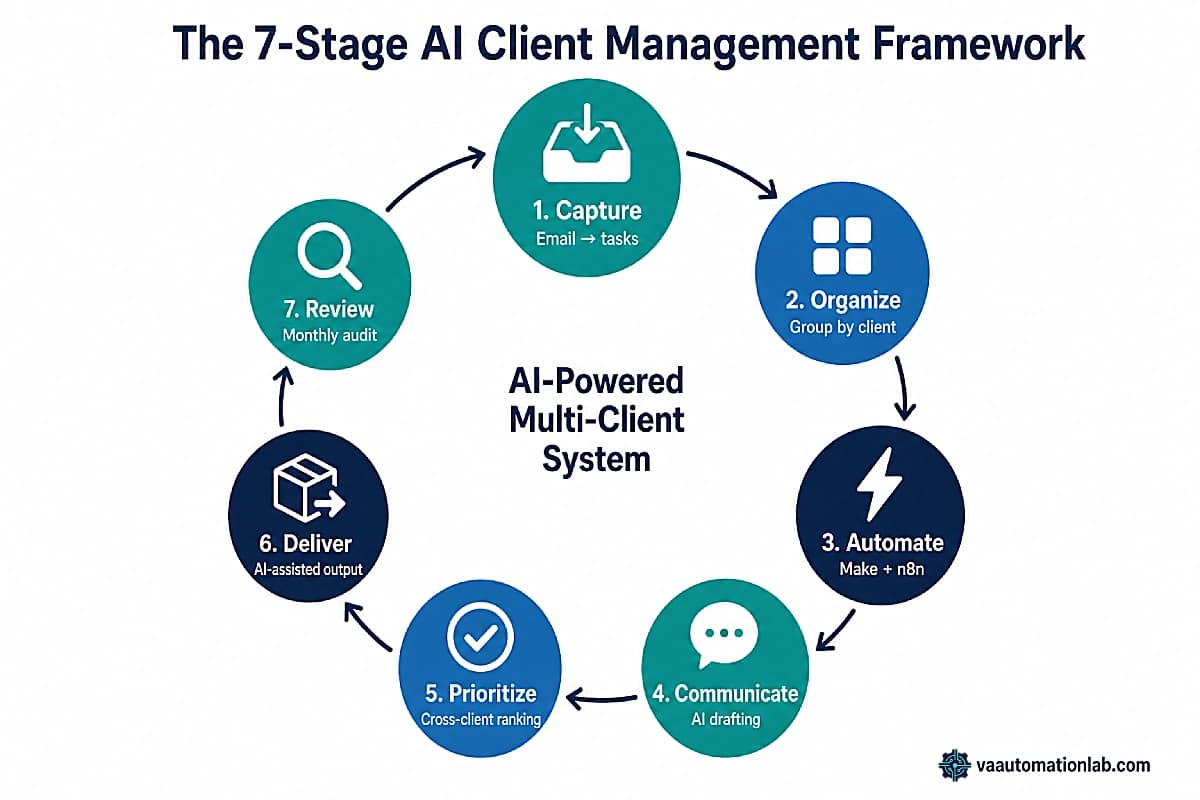
Stage 1 — Capture
Turn every incoming input (email, message, voice note, meeting transcript, brief) into a structured, actionable item. AI extracts tasks, deadlines, decisions, and pending items automatically, using ClickUp or Notion as the destination.
Daily time investment: 10-15 minutes (review AI-extracted items, correct any misclassification).
Without AI: 30-45 minutes of manual reading, sorting, and task creation.
Stage 2 — Organize
Convert captured items into client-specific task lists, priority queues, and workflow structures. AI groups by client, categorizes by type, and assigns initial priority weights based on deadline proximity and stated importance.
Daily time investment: 5-10 minutes (review AI organization, adjust priorities).
Without AI: 20-30 minutes of manual sorting across five client contexts.
Stage 3 — Automate
Remove recurring, predictable operational steps from the manual workload. Make handles onboarding sequences, weekly report delivery, recurring task generation, and reminder sequences. The VA’s involvement is exception handling, not execution.
Setup time investment: 4-6 hours once.
Ongoing time investment: 15-20 minutes per week for exception handling.
Stage 4 — Communicate
Handle all client-facing communication with AI-first drafting. Every email, update, follow-up, and report starts as an AI draft reviewed and refined by the VA, not written from scratch.
Daily time investment: 15-20 minutes (review and refine AI drafts, send).
Without AI: 60-90 minutes of manual writing across multiple client accounts.
Stage 5 — Prioritize
Generate the daily and weekly execution plan across all active clients using AI prioritization. The VA inputs the complete task list with deadlines and constraints; AI outputs a structured schedule with cross-client priority logic.
Weekly time investment: 10-15 minutes (Monday morning, review AI plan, adjust).
Without AI: 30-45 minutes of manual cross-client prioritization with high cognitive load.
Stage 6 — Deliver
Execute client work with AI support for content generation, analysis, and documentation. AI accelerates production without replacing the VA’s judgment on quality, context, and client-specific nuance.
Highest impact: reporting (60-80% faster), SOP creation (70-80% faster), email drafting (60-70% faster).
Stage 7 — Review
Analyze system performance, identify bottlenecks, and improve processes using AI-generated insights from operational data. Monthly strategic review using the task log, time tracking data, and client feedback.
Monthly time investment: 30-45 minutes.
Output: 1-3 specific system improvements to implement the following month.
Stage | AI Role | Tools | Time Saved |
Capture | Extract tasks from inputs | Claude, ClickUp AI | 20–30 min/day |
Organize | Group, categorize, prioritize | ClickUp, Notion | 15–20 min/day |
Automate | Execute recurring processes | Make | 2–4 hrs/week |
Communicate | Draft client communication | Claude, ChatGPT | 45–75 min/day |
Prioritize | Cross-client daily/weekly plan | Claude | 20–35 min/week |
Deliver | Content generation support | Claude, ChatGPT | Variable |
Review | System performance analysis | Databox, Toggl Track | 2–3 hrs/month |
4. AI for Task Management Across Multiple Clients
The first operational question in multi-client management is task architecture: how to maintain cross-client visibility without losing per-client detail. The problem is not the number of tasks, it is the cross-client visibility problem, the VA needs to see the complete workload picture across all accounts simultaneously to make correct prioritization decisions, while also maintaining the client-specific detail required to execute each task correctly.
AI prompt templates solve this at both levels: cross-client overview for prioritization, and client-specific breakdown for execution.
Prompt Library — Multi-Client Task Management
Cross-Client Weekly Task Overview:
I manage [NUMBER] clients simultaneously.
Review this complete task list and create a cross-client overview organized as follows:

1. CRITICAL THIS WEEK (deadline within 5 days OR client has flagged as urgent)
   Format: [CLIENT] — [TASK] — [DEADLINE]

2. IMPORTANT THIS WEEK (deadline within 10 days OR recurring deliverable due)
   Format: [CLIENT] — [TASK] — [DEADLINE]

3. IN PROGRESS (started, no immediate deadline)
   Format: [CLIENT] — [TASK] — [STATUS]

4. WAITING ON CLIENT (blocked — needs client input)
   Format: [CLIENT] — [TASK] — [WAITING FOR]

5. NEXT WEEK (deadline 8-14 days out)
   Format: [CLIENT] — [TASK] — [DEADLINE]

Flag any client with 3+ CRITICAL items as [OVERLOAD RISK].

Complete task list: [PASTE ALL TASKS WITH CLIENT LABELS AND DUE DATES]
Client-Specific Task Breakdown:
Create a detailed task breakdown for [CLIENT NAME] this week.

Include:
- All active tasks with estimated time
- Subtasks for any task over 60 minutes
- Dependencies (what must happen first)
- Items requiring client input before I can proceed
- Recurring tasks due this week

Output as a structured list I can copy directly into ClickUp.

Client context: [SERVICE TYPE, KEY DELIVERABLES, COMMUNICATION PREFERENCE]
Active tasks: [PASTE CURRENT TASK LIST]
AI Client State Summary (daily use):
Generate a current-state summary for [CLIENT NAME] based on the information below.

Include:
- Status of active projects (1 line each)
- Open action items (numbered list)
- Items waiting on client (if any)
- Next deadline (date + deliverable)
- Last communication summary (2 sentences)
- One thing I should address today

Format: structured briefing, under 200 words.

Recent emails: [PASTE LAST 3-5 EMAIL SUBJECTS + 1-LINE SUMMARIES]
Current tasks: [PASTE ACTIVE TASK LIST]
👉 Best Automation Workflows for Virtual Assistants — automating the task management layer for multi-client operations.
5. AI for Communication and Inbox Management
Communication is the second major challenge, and it grows with client count even faster than task management does. The reason: communication runs in both directions, and the client controls half of it. A VA with five clients gets messages from all five at once, and each reply has to match the tone, history, and current status of that specific account.
The fix is not to work through each inbox on its own. It’s to build one communication system where AI handles the heavy lifting — sorting messages, pulling out tasks, and drafting replies — while you handle only the part that needs judgment: the review and the relationship.
Most multi-client VAs run on an async-first protocol: all client communication is processed once a day during a scheduled inbox review, not monitored in real time. State this expectation during onboarding, alongside your standard response window, so clients know how the system works before they test it.
Prompt Library — Multi-Client Communication
Multi-Client Inbox Triage:
Categorize each message in this inbox list by CLIENT and by ACTION REQUIRED.

For each message output:
CLIENT: [name]
CATEGORY: Urgent / Needs Response / FYI / Waiting / Admin / Newsletter
ACTION: [1-line recommended action or NONE]
DEADLINE: [if mentioned, or NONE]

Sort output: Urgent first, then by client alphabetically within each category.

Inbox messages: [PASTE EMAIL SUBJECTS, SENDERS, AND 1-LINE PREVIEW FOR EACH]
Context-Aware Client Email Draft:
Write a professional email response for [CLIENT NAME].

Client context:
- Service: [WHAT YOU DO FOR THEM]
- Communication style: [formal/casual/direct]
- Current project status: [1-2 sentences]
- Last interaction: [DATE + BRIEF SUMMARY]

Situation: [DESCRIBE WHAT HAPPENED OR WHAT YOU NEED TO COMMUNICATE]

Requirements:
- Subject line included
- Under 150 words
- Tone consistent with client style above
- Clear next action or request in final sentence
- No filler openings
Weekly Multi-Client Communication Summary:
Prepare my weekly client communication review. For each client below, generate a one-paragraph status note that I can use as the basis for their weekly update email.

Include: key accomplishments, current status of active projects, one item needing their attention or approval.

Tone: professional and direct.
Under 100 words per client.

Client data:
[CLIENT A] — Completed tasks: [LIST]
             Active tasks: [LIST]
             Pending from client: [LIST OR NONE]

[CLIENT B] — Completed tasks: [LIST]
             Active tasks: [LIST]
             Pending from client: [LIST OR NONE]

[repeat for each client]
👉 Claude AI for Virtual Assistants: Complete Guide — covers the Projects setup workflow and the prompt library for the highest-frequency multi-client writing tasks.
👉 Best AI Writing Tools for Virtual Assistants — the full comparison of which AI writing tool to use for each communication task type.
Take Back Control of Your Inbox
When you manage multiple clients, your inbox becomes a bottleneck long before your workload does.
SaneBox uses AI to automatically filter, prioritize, and organize incoming emails so you only focus on what actually matters.
Less noise, fewer missed messages, and no more reactive work cycles driven by your inbox.
6. AI for Workflow Organization
Workflow organization is the layer that determines whether managing multiple clients scales or stalls. Without documented, client-specific processes, every recurring task requires the same cognitive investment as the first time it was executed, multiplied by the number of clients. With documented workflows, the VA’s attention is required only for exceptions and judgment calls, not for remembering how each process works.
The multi-client specific challenge is that each client has slightly different versions of the same processes: the reporting format varies, the approval flow varies, the communication rhythm varies. AI resolves this by generating client-specific versions of standard workflow templates quickly, the VA maintains one master SOP per process type and generates client variants from it on demand.
Prompt Library — Workflow Organization
Client-Specific SOP Generator:
Generate a Standard Operating Procedure for [PROCESS NAME] for [CLIENT NAME].

Use this structure:
PURPOSE: What this process achieves (1 sentence)
FREQUENCY: When this runs (daily/weekly/monthly/triggered)
TOOLS: List with specific location in each tool
TRIGGER: What starts this process

STEPS:
1. [Specific action — tool + location + output]
2. [Specific action — tool + location + output]
[continue for all steps]

CLIENT-SPECIFIC NOTES:
- Tone: [client communication preference]
- Format: [client's preferred deliverable format]
- Approval required: [yes/no — from whom]
- Time estimate: [minutes]

Base process: [DESCRIBE HOW YOU CURRENTLY DO THIS FOR THIS CLIENT]
Client context: [SERVICE TYPE + KEY PREFERENCES]
Multi-Client Workflow Audit:
Review my current processes across all clients and identify inefficiencies. Analyze:

1. DUPLICATED EFFORT
   Which processes am I doing identically for multiple clients but from scratch each time? (List with time per instance)

2. AUTOMATION CANDIDATES
   Which recurring steps could be automated with Zapier or Make? (List with estimated weekly time saving)

3. TEMPLATE GAPS
   Which processes have no documented SOP and rely on my memory? (List by client)

4. PRIORITY FIX
   Which single change would save the most time this week?

My current client processes:
[DESCRIBE YOUR MAIN RECURRING TASKS PER CLIENT — CAN BE ROUGH NOTES]
A strong onboarding process is the foundation of every downstream workflow. Without a consistent, documented onboarding sequence, each new client introduces operational variability that accumulates over time.
👉 How to Automate Client Onboarding for Virtual Assistants — the complete onboarding automation guide.
7. AI for Client Prioritization and Planning
Prioritization is the hardest mental task in multi-client work, because you have to weigh urgency and importance across every client at the same time. AI doesn’t make those calls for you. What it does is take over the sorting and ranking — the data work — so your attention goes to the actual decision instead of the busywork of lining everything up.
Prompt Library — Cross-Client Prioritization
Cross-Client Daily Priority List:
Create my prioritized task list for today across all clients. Apply this logic:

PRIORITY RULES:
1. Client deadline today or tomorrow → TOP
2. Client explicitly flagged as urgent → TOP
3. Deliverable that blocks client's next step → HIGH
4. Recurring task overdue → HIGH
5. Everything else → by deadline proximity

OUTPUT FORMAT:
MUST DO TODAY (max 5 items):
[CLIENT] — [TASK] — [TIME ESTIMATE] — [REASON]

SHOULD DO IF TIME (max 3 items):
[CLIENT] — [TASK] — [TIME ESTIMATE]

DEFER TO TOMORROW:
[CLIENT] — [TASK] — [REASON FOR DEFERRAL]

Flag if total "MUST DO" time exceeds 6 hours.

All active tasks: [PASTE WITH CLIENT LABELS AND DUE DATES]
Available hours today: [NUMBER]
Fixed commitments today: [LIST CALLS/MEETINGS]
Weekly Capacity Check:
Assess my capacity for this week across all clients. Tell me:

1. TOTAL WORKLOAD
   Estimated hours for all committed tasks (sum by client, then total)

2. CAPACITY STATUS
   Available hours: [my input]
   Committed hours: [AI calculation]
   Buffer: [difference — flag if under 20%]

3. OVERLOAD RISKS
   Any client with unrealistic expectations this week given total load?

4. RECOMMENDED ADJUSTMENTS
   Specific tasks to defer, delegate, or renegotiate with which client

Task list by client: [PASTE ALL TASKS WITH TIME ESTIMATES PER TASK]
Available hours this week: [NUMBER]
Reclaim.ai handles the scheduling side of this automatically, it blocks focus time on your calendar for each task, protects buffers between client slots, and rescheduling tasks automatically when priorities shift. The Starter plan ($10/month, billed annually) supports up to 10 seats, unlimited habits, and 3 smart meetings, enough for most solo VAs managing a multi-client roster. The Lite plan is free.
Turn Your Calendar Into a Prioritization System
Knowing what matters is not enough, your calendar needs to reflect it.
Reclaim.ai automatically schedules tasks, protects deep work time, and dynamically adjusts your week based on real priorities across clients.
It’s the missing layer between planning and execution, especially when your workload changes daily.
8. AI for Reporting and Deliverables
Reporting is the highest-value recurring deliverable in multi-client operations, the primary tangible evidence of the VA’s work that clients review between interactions. For a VA managing five clients, the manual reporting cycle (data collection, analysis, writing, formatting, sending) consumes 4-10 hours per month per client, potentially 20-50 hours monthly on a single deliverable type.
AI reporting automation reduces this to the review and approval layer: 10-15 minutes per client per reporting cycle, with AI handling the analysis, narrative writing, and formatting automatically.
Prompt Library — Multi-Client Reporting
AI Weekly Client Report:
Generate a professional weekly report for [CLIENT NAME] based on this week's data.

REPORT STRUCTURE:
Subject line: "Weekly Update — [Client Name] — Week of [dates]"

EXECUTIVE SUMMARY (2-3 sentences):
What was accomplished and the overall status.

THIS WEEK'S WORK:
[Bullet list from completed tasks — max 6 items formatted as: ✅ [task name] — [1-line result or status if relevant]]

METRICS THIS WEEK (if applicable):
[Key numbers — bold the figures]

COMING UP NEXT WEEK:
[3-5 items in priority order]

ACTION NEEDED FROM YOU:
[Numbered list of items requiring client input or NONE]

Tone: [professional/warm depending on client]
Under 300 words total.

Completed tasks: [PASTE LIST]
Metrics: [PASTE DATA IF APPLICABLE]
Client primary goal: [FROM ONBOARDING BRIEF]
Batch Report Generation (multiple clients):
Generate brief weekly update summaries for [NUMBER] clients. For each client, produce a 3-paragraph update suitable for a weekly email. Use the task data provided for each.

Format per client:
CLIENT: [name]
PARAGRAPH 1: What was accomplished (past tense, specific, reference actual tasks)
PARAGRAPH 2: What is in progress + next deliverable
PARAGRAPH 3: One item needing their input or confirmation (or: "No action required this week.")

Tone: professional and direct across all clients.

[CLIENT A]
Completed: [task list]
In progress: [task list]
Pending from client: [list or none]

[CLIENT B]
Completed: [task list]
In progress: [task list]
Pending from client: [list or none]

[repeat]
👉 ChatGPT for Virtual Assistants: Complete Guide — for the complete ChatGPT setup guide, including Memory configuration with your client roster and the Custom GPT build for client email drafting.
👉 How to Automate Reporting for Virtual Assistants — for the complete technical implementation of this reporting layer, the Google Sheets data hub, the Zapier or Make workflow that populates it automatically, the Looker Studio dashboard that clients access via link, and the AI prompt that generates the narrative section.
9. Automation Workflows for Multi-Client Management
The five workflows below address the highest-overhead manual processes in multi-client VA operations.
Workflow 1 — Inbox to Task Pipeline
Tools required: Gmail, Make (Core plan, $9/month), Claude API (or ChatGPT API), ClickUp (Unlimited, $7/month)
What it eliminates: manual email reading, task extraction, and task creation.
Time saved: 20-30 minutes per day.
Build time: 15-20 minutes.
Make Scenario:
TRIGGER: Gmail — Watch Emails (filter: from client domains, exclude newsletters)

MODULE 1: HTTP Request → Claude API
Prompt: "Extract from this email:
  1. Client name (identify from sender domain)
  2. Required action (1 sentence, start with verb)
  3. Deadline (exact date if mentioned, else: none)
  4. Priority: High / Medium / Low
  5. Category: Deliverable / Approval / Information / Admin
  Email: {{subject}} — {{body snippet}}"

MODULE 2: ClickUp — Create Task
  Name: [AI extracted action]
  List: [Router → match sender domain to client list ID]
  Priority: [AI extracted priority]
  Due date: [AI extracted deadline]
  Description: [full email body + sender + date]

MODULE 3: Gmail — Add Label
  Label: "Processed → ClickUp"

MODULE 4 (optional): Slack — Post Message
  Channel: #inbox-tasks
  Message: "[Client] — [task] | Priority: [priority] | Due: [deadline]"
Workflow 2 — Client Onboarding Pipeline
Tools required: Jotform (free tier for 5 forms) [or Dubsado (Premier, $44/month)], Make (Core), Google Drive, ClickUp, PandaDoc (Starter, $19/month), Gmail
What it eliminates: manual folder creation, contract generation, task setup, welcome email, and access collection across every new client.
Time saved: 2-3 hours per new client.
Build time: 3-4 hours.
Make Scenario:
TRIGGER: Jotform — New Submission (intake form)
  OR: Dubsado — New Lead (if using Dubsado for proposals + contracts)

MODULE 1: HTTP → Claude API
  Prompt: "Generate a personalized client brief and welcome email opening
  from this intake data: [intake fields]"

MODULE 2: Google Drive — Copy Folder
  Source: Master Client Folder Template
  Destination: Clients / [Client Name]

MODULE 3: ClickUp — Create List
  Source: Client List Template
  Name: [Client Name]
  Space: Client Work

MODULE 4: PandaDoc — Create Document from Template
  Template: Service Agreement
  Variables: [client name, service scope, rate, start date from Jotform]

MODULE 5: PandaDoc — Send Document
  Recipients: [client email]

MODULE 6: Make — Wait for Webhook (PandaDoc signature event)

MODULE 7: Gmail — Send Welcome Email
  Body: [Claude-generated personalized opening] + [standard onboarding body]
  Attachments: [access request form link via Jotform]

MODULE 8: Folk — Create Contact
  Tags: [Active Client], [service type]

MODULE 9: Slack — Notify VA
  Message: "New client onboarded: [name]. ClickUp list + folder ready."
Dubsado handles the proposal, contract, and payment collection end of this pipeline natively, without needing separate PandaDoc and payment gateway configurations. The Premier plan ($44/month, billed annually) adds scheduling, automated workflows, public proposals, and Zapier/Make integration. If you are onboarding more than two new clients per month, Dubsado’s built-in automation pays for itself in recovered setup time.
Full scenario structure documented in 👉 How to Automate Client Onboarding for Virtual Assistants
Workflow 3 — Weekly Planning Automation
Tools required: Make (Core), ClickUp, Claude API, Reclaim.ai (Starter, $10/month), Gmail (or Slack)
What it eliminates: manual Monday morning cross-client task review and schedule building.
Time saved: 25-35 minutes per week.
Build time: 30-45 minutes.
Make Scenario:
TRIGGER: Make Scheduler — Every Monday 7:30 AM

MODULE 1: ClickUp — Get Tasks
  Filter: Status ≠ Done | Due date ≤ next Friday | All active client lists

MODULE 2: HTTP → Claude API
  Prompt: Cross-Client Weekly Task Overview (see Section 4 prompt library)
  Input: task list from Module 1

MODULE 3: ClickUp — Create Task
  Name: "Weekly Plan — [week dates]"
  List: Admin & Operations
  Description: [Claude weekly plan output]
  Due date: this Friday

MODULE 4: Gmail — Send to Self
  Subject: "Your weekly plan — [dates]"
  Body: [Claude output]

MODULE 5: Reclaim.ai API (optional)
  Action: Create tasks from Claude priority list
  Duration: [estimated times from Claude output]
  Auto-schedule: enabled
Workflow 4 — Automated Weekly Reporting
Tools required: Make (Core or Pro), ClickUp, Claude API, Databox (free tier for 3 data sources), Gmail
What it eliminates: manual data collection, report writing, and email delivery for each client each week.
Time saved: 1-2 hours per week (across all clients).
Build time: 2-3 hours (one scenario per client, or Router-branched for all clients).
Make Scenario (Router-branched for multiple clients):
TRIGGER: Make Scheduler — Every Friday 4:00 PM

ROUTER: Branch by client (one branch per active client)

Per branch:
MODULE 1: ClickUp — Get Completed Tasks
  Filter: Status = Done | Completed this week | List = [client list]

MODULE 2: Databox — Get KPI Data (if connected)
  Metrics: [client-specific KPIs from Databox dashboard]

MODULE 3: Iterator → Aggregator
  Build structured task list from Module 1

MODULE 4: HTTP → Claude API
  Prompt: AI Weekly Client Report (Section 8 prompt library)
  Input: task list + Databox metrics + client context variables

MODULE 5: Gmail — Send Report
  To: [client email from ClickUp client field]
  Subject: [Claude-generated subject line]
  Body: [Claude report]

MODULE 6: Google Sheets — Log Row
  Columns: client, week, tasks completed, report sent timestamp
Databox connects to 100+ data sources (Google Analytics, social accounts, ad platforms) and aggregates KPIs into a single dashboard, which Make can then pull into the reporting workflow above. The free plan includes 3 data sources, 1 dashboard, and daily data refresh, enough to power reports for two or three clients. The Pro plan ($159/month, billed annually) removes limits and adds hourly sync.
👉 How to Automate Reporting for Virtual Assistants — the complete standalone guide for this workflow, including Google Sheets hub setup, Looker Studio dashboard configuration, and AI narrative prompt template.
Workflow 5 — Time Tracking to Invoice Pipeline
Tools required: Toggl Track (Starter, $10/month) [or Clockify (free)], Make (Core), InvoiceNinja (NinjaPro, $12/month) (or Dubsado).
What it eliminates: Manual time log review, invoice calculation, and PDF delivery.
Time saved: 30–60 minutes per billing cycle.
Build time: 45–60 minutes.
Make Scenario:
TRIGGER: Make Scheduler — 1st of month, 9:00 AM

MODULE 1: Toggl Track — Get Time Entries
  Filter: last month | tag = [client name] | billable = true

MODULE 2: Iterator — Process Entries
  Group by: client tag

MODULE 3: Aggregator — Sum Hours per Client

MODULE 4: InvoiceNinja — Create Invoice
  Client: [matched from Toggl client name]
  Line items: [service description] | Hours: [aggregated total] | Rate: [stored in InvoiceNinja]
  Due date: Net 15

MODULE 5: InvoiceNinja — Send Invoice
  Method: email to client
  Subject: "Invoice — [month] — [your business name]"

MODULE 6: Google Sheets — Log
  Columns: client, month, hours, invoice amount, sent date
Toggl Track is the tracking tool most VAs find easiest to run alongside client work, the browser extension and desktop app make one-click start/stop low-friction. The free plan covers time tracking on web, desktop, and mobile with 100+ tool integrations. The Starter plan ($10/month, billed annually) adds billable rates, project time estimates, and revenue analysis, the features that make the billing automation above accurate. Clockify is the free alternative if you are at an early stage and not yet billing by the hour.
Workflow | Trigger | Tools | Time Saved |
Inbox → Tasks | New email | Make, Claude, ClickUp | 20-30 min/day |
Client Onboarding | Form submission | Jotform/Dubsado, Make, PandaDoc, ClickUp | 2-3 hrs/client |
Weekly Planning | Monday 7:30 AM | Make, ClickUp, Claude, Reclaim.ai | 25-35 min/week |
Reporting | Friday 4 PM | Make, ClickUp, Claude, Databox | 1-2 hrs/week |
Time Tracking → Invoice | 1st of month | Toggl Track, Make, InvoiceNinja | 30–60 min/month |
👉 Make for Virtual Assistants: The Beginner Setup Guide — workspace setup, connection configuration, and the first-scenario walkthrough.
The Automation Platform Behind All Five Workflows
Make connects your client tools (Gmail, ClickUp, PandaDoc, Claude API, Toggl Track) into automated scenarios that run without your involvement.
The Core plan ($9/month, billed annually) covers all five workflows in this guide with room to scale.
10. Best Tools to Manage Multiple Clients as a Virtual Assistant
The client management tools below cover the same categories as the general VA automation stack, but the selection criteria inside each category shift when you’re managing multiple clients at once. The non-negotiable requirement is cross-client visibility: every tool here must keep client workspaces cleanly separated while still giving you one unified overview. For the broader, cross-category comparison of how these picks stack up, see the Best Tools for Virtual Assistants guide.
Project Management & Task Organization
ClickUp — the primary multi-client operations hub. Critical configuration: one Space per service category, one Folder labeled “Client Work,” one List per client (duplicated from a Client List Template), and one Dashboard with views across all active client lists. ClickUp Brain (AI add-on) generates task lists from meeting notes and emails inside the workspace.
- Free plan: unlimited tasks, 5 active automation rules, 5 spaces, 1 form
- Unlimited: $7/month (billed annually) — unlimited storage, unlimited integrations, native time tracking
- Business: $12/month — dashboards with advanced cards, webhooks, unlimited automation executions
Notion — better suited if your primary service involves documentation, content creation, or knowledge management. The Ask Notion feature queries across all client documentation simultaneously, the fastest way to find a specific piece of client information without knowing which document it lives in. Notion Plus is $10/month (billed annually).
For the complete side-by-side comparison of both tools for VA operations, see Notion vs ClickUp for Virtual Assistants.
CRM & Client Relationship Management
Folk — the CRM built for the way VAs actually manage client relationships. Folk combines pipeline management, contact enrichment, email campaigns, and a LinkedIn extension for client prospecting in one workspace. The Standard plan ($24/month, billed annually) includes AI-powered Magic Fields that auto-populate contact data, email and calendar sync, and 5,000+ integrations. Premium ($48/month) adds email sequences and custom objects.
Pipedrive — better suited if you are managing a higher volume of leads and want stronger pipeline reporting. The Lite plan ($16/month, billed annually) covers lead and pipeline management, 500+ integrations, and AI-powered report creation. Growth ($46/month) adds full email sync, automation sequences, and a meeting scheduler.
Zoho CRM — the budget-flexible option. The free plan supports 3 users with leads, deals, workflows, and mobile app, functional for a solo VA managing a small roster. Standard ($16/month, billed annually) adds AI agents, cadences, and sales forecasting. Professional ($27/month) adds CPQ, email intelligence, and process automation.
For the full side-by-side of every CRM option for solo VAs managing a client roster, read the comparison guide Best CRM for Virtual Assistants.
Automation Platforms
Make — the primary platform for complex multi-client workflows. The Router module branches scenarios by client type; the Iterator + Aggregator combination handles multi-record processing (e.g., pulling all completed tasks for a weekly report). Core: $9/month (billed annually, 10,000 ops, unlimited active scenarios). Pro: $16/month (custom variables, full-text execution log search).
n8n — the code-optional alternative with a self-hosted tier for VAs who want more control over data flow. Better suited for VAs with some technical background. Starter: $23/month (billed annually, 2,500 workflow executions). Pro: $58/month (10,000 executions, workflow history, global variables).
Scheduling & Calendar Management
Reclaim.ai — handles intelligent time blocking across multiple client commitments. It protects focus time automatically, reschedules tasks when priorities change, and includes scheduling links and smart meeting buffers. Starter plan: $10/month (billed annually, up to 10 seats). The Lite plan is free with 1 habit and 1 scheduling link.
SavvyCal — the scheduling link tool with one differentiating feature: calendar overlay for recipients. Clients see your availability overlaid on their own calendar, which reduces scheduling back-and-forth significantly. Basic plan: $12/month (billed annually), unlimited calendars and links, team scheduling. Free plan available with 1 scheduling link.
SimplyBook.me — if you offer appointment-based services (coaching calls, strategy sessions, onboarding calls), SimplyBook handles booking pages, client apps, payments, deposits, and tips. Basic plan: $14/month (billed annually), 100 bookings, 5 providers, client app. 14-day free trial.
See how Reclaim, SavvyCal, and the rest compare for multi-client calendar management in Best AI Scheduling Tools for Virtual Assistants.
Time Tracking & Billing
Toggl Track — the most frictionless time tracker for multi-client VA work. One-click start/stop from the browser extension, automatic project and client tagging, and weekly billable hour reports. Free plan covers the core tracking functions. Starter ($10/month, billed annually) adds billable rates, project estimates, and revenue analysis, the features required to run Workflow 5 accurately.
Clockify — the free alternative for VAs not yet billing by the hour or tracking billable rates. Free plan includes unlimited tracking, time tracker, timesheet, reports, and team activity, with no user limit. The Standard plan ($6/month, billed annually) adds invoicing, time off, and approval workflows if you need them.
Insightful — for VAs managing a small team of subcontractors, Insightful adds productivity monitoring, attendance tracking, and workload analytics on top of basic time tracking. Workforce Analytics plan at $10/month (billed annually).
Client Onboarding & Contracts
Dubsado — the all-in-one client management tool built specifically for service-based freelancers. Proposals, contracts, automated workflows, client portal, invoicing, and scheduling in one platform. Starter plan: $28/month (billed annually), unlimited projects and clients, invoicing, forms, and templates. Premier: $44/month, adds scheduling, automated workflows, Zapier/Make integration, and public proposals. 21-day free trial.
PandaDoc — the specialist tool for contract and proposal delivery at scale. Free plan includes 60 documents per year, 5 eSignatures/month, and real-time tracking. Starter ($19/month, billed annually) removes limits on document uploads and eSignatures. Business ($49/month) adds CRM integrations and approval workflows.
Jotform — the intake form and questionnaire layer for the onboarding workflow. Jotform AI Agents can respond to client submissions intelligently, collect follow-up information, and trigger downstream automations. Free plan: 5 forms, 100 monthly submissions. Bronze: $39/month (billed annually), 25 forms, 1,000 monthly submissions. Tip: connect Jotform to Make to trigger the onboarding pipeline automatically on every new submission.
Learn how PandaDoc helps virtual assistants automate contracts, proposals, and client onboarding, in PandaDoc for Virtual Assistants: Contracts & Onboarding
Email Management & Communication
SaneBox — works with any email client (Gmail, Outlook, others) to automatically sort incoming email into priority categories: real messages, newsletters, later, follow-up reminders. Particularly useful for multi-client inboxes where the signal-to-noise ratio degrades quickly. Snack plan: $6/month (billed annually, 1 email account, 2 features). Lunch: $10/month (2 accounts, 6 features). Dinner: $30/month (4 accounts, all features). 14-day trial.
Brevo — for VAs who manage email marketing on behalf of clients. Brevo handles email campaigns, SMS, automation, and landing pages in one platform. The free plan covers 300 emails/day, up to 2,000 contacts, basic automation. Starter ($8/month, billed annually) scales to 100k emails/month. Standard ($16/month) adds marketing automation, A/B testing, and up to 3 users.
ActiveCampaign — for VAs managing email automation for clients at a higher sophistication level. Starter: $15/month (billed annually, 1,000 contacts). Plus: $37/month. Pro: $79/month with predictive sending and site messaging.
KrispCall — if your service includes phone-based client support or outreach, KrispCall provides a business phone system with call recording, analytics, and team collaboration. Essential: $12/month (up to 5 users). Standard: $32/month (unlimited users).
TextExpander — saves typed snippets as short keyboard shortcuts, useful for client email openers, status update templates, and recurring phrases that vary only by client name. Individual: $3/month (billed annually). Business: $8/month. 30-day free trial.
Fireflies.ai — automatically transcribes and summarizes client calls. Free plan: unlimited transcription (up to 2 hours per recording, 800 minutes storage). Pro: $10/month (billed annually, 8,000 minutes storage, AI summaries, task extraction). Integrates with Zoom, Google Meet, and Teams.
For the complete breakdown of inbox tools and workflows when you run five or more client inboxes, read AI Email Management for Virtual Assistants.
Learn how SaneBox helps virtual assistants automate email management and organize multiple client inboxes in SaneBox for Virtual Assistants: Review & Setup Guide.
Security & Credentials
1Password — for managing the volume of login credentials that accumulates when working across five or more client tech stacks. 1Password vaults allow separate credential sets per client without mixing access, and vault sharing enables secure handover to clients or collaborators. Individual plan: $3/month (billed annually). Business: $8/month, adds SSO integrations and role-based vault permissions.
Reporting & Analytics
Databox — connects to 100+ data sources and aggregates KPIs into dashboards that clients can access via shareable links. The Free plan includes 3 data sources, 50 AI credits/month, 1 dashboard, and 10 custom metrics, making it suitable for lightweight client reporting. The Analyst plan ($64/month, billed annually) expands this to 5 data sources, full BI features, datasets, and hourly sync. The Pro plan ($159/month, billed annually) includes 3 data sources, unlimited users, 1,500 AI credits/month, all integrations, MCP server/API, sharing and notifications.
AI Assistants
Claude — primary AI for structured outputs requiring complex prompt logic: multi-client prioritization, batch report generation, SOP creation. Superior for prompts with multiple simultaneous output requirements.
ChatGPT — primary AI for interactive refinement: email drafting, quick triage, context-specific rewrites.
Centralize All Your Clients in One System
If you’re managing multiple clients across scattered tools, you don’t have a system, you have fragmentation.
ClickUp gives you a single operational layer where tasks, client workspaces, deadlines, and communication live in one place. It’s the backbone that makes everything in this guide actually work at scale.
Instead of switching between tools, you operate from one unified dashboard, with full visibility across every client.
11. Recommended Stack Based on Your Level
Starter Level — 1–2 Clients
At this stage, the priority is establishing reliable processes, not investing in premium tools. The free tiers of the core platforms are sufficient.
Category | Tool | Plan | Monthly Cost |
Project management | ClickUp | Free | $0 |
Documentation | Notion | Free | $0 |
Time tracking | Clockify | Free | $0 |
Automation | Make | Free | $0 |
Scheduling | Reclaim.ai | Lite | $0 |
Contracts | PandaDoc | Free | $0 |
AI assistant | Claude / ChatGPT | Free | $0 |
Email management | Gmail | Native | $0 |
Total | $0 |
Investment at this stage: time, not money. Build the habits (daily state summaries, standardized workspace, async communication protocols) before adding paid tools.
Growing Level — 3–4 Clients
At three to four clients, operational gaps become expensive in time rather than money. The tools at this tier address the specific bottlenecks that emerge at this scale.
Category | Tool | Plan | Monthly Cost |
Project management | ClickUp | Unlimited ($7/mo) | $7 |
Documentation | Notion | Plus ($10/mo) | $10 |
Time tracking | Toggl Track | Starter ($10/mo) | $10 |
Automation | Make | Core ($9/mo) | $9 |
Scheduling | Reclaim.ai | Starter ($10/mo) | $10 |
Scheduling links | SavvyCal | Basic ($12/mo) | $12 |
CRM | Folk | Standard ($24/mo) | $24 |
Contracts | PandaDoc | Starter ($19/mo) | $19 |
Email management | SaneBox | Lunch ($8/mo) | $10 |
Credentials | 1Password | Individual ($3/mo) | $3 |
Total | $114/month |
Scaling Level — 5+ Clients
At five or more clients, the system needs to be largely self-running. The tools at this tier eliminate the remaining manual overhead and provide the analytics needed to manage capacity and pricing decisions.
Category | Tool | Plan | Monthly Cost |
Project management | ClickUp | Business ($12/mo) | $12 |
Documentation | Notion | Business ($20/mo) | $20 |
Time tracking | Toggl Track | Starter ($10/mo) | $10 |
Automation | Make | Pro ($16/mo) | $16 |
Scheduling | Reclaim.ai | Business ($15/mo) | $15 |
Client management | Dubsado | Premier ($44/mo) | $44 |
CRM | Folk | Standard ($24/mo) | $24 |
Reporting | Databox | Free | $0 |
AI meeting notes | Fireflies.ai | Pro ($10/mo) | $10 |
Email management | SaneBox | Dinner ($25/mo) | $30 |
Credentials | 1Password | Individual ($3/mo) | $3 |
Text shortcuts | TextExpander | Individual ($3/mo) | $3 |
Total | $187/month |
12. Week-by-Week Implementation Roadmap
Most VAs reading this guide already have two to four active clients with existing manual processes. This roadmap introduces each system layer without disrupting current client work, and produces visible improvement at every weekly stage, not just after the full build is complete.
Before you can manage multiple clients, you have to win them — read how to do it in How to Get Clients as a Virtual Assistant Using AI.
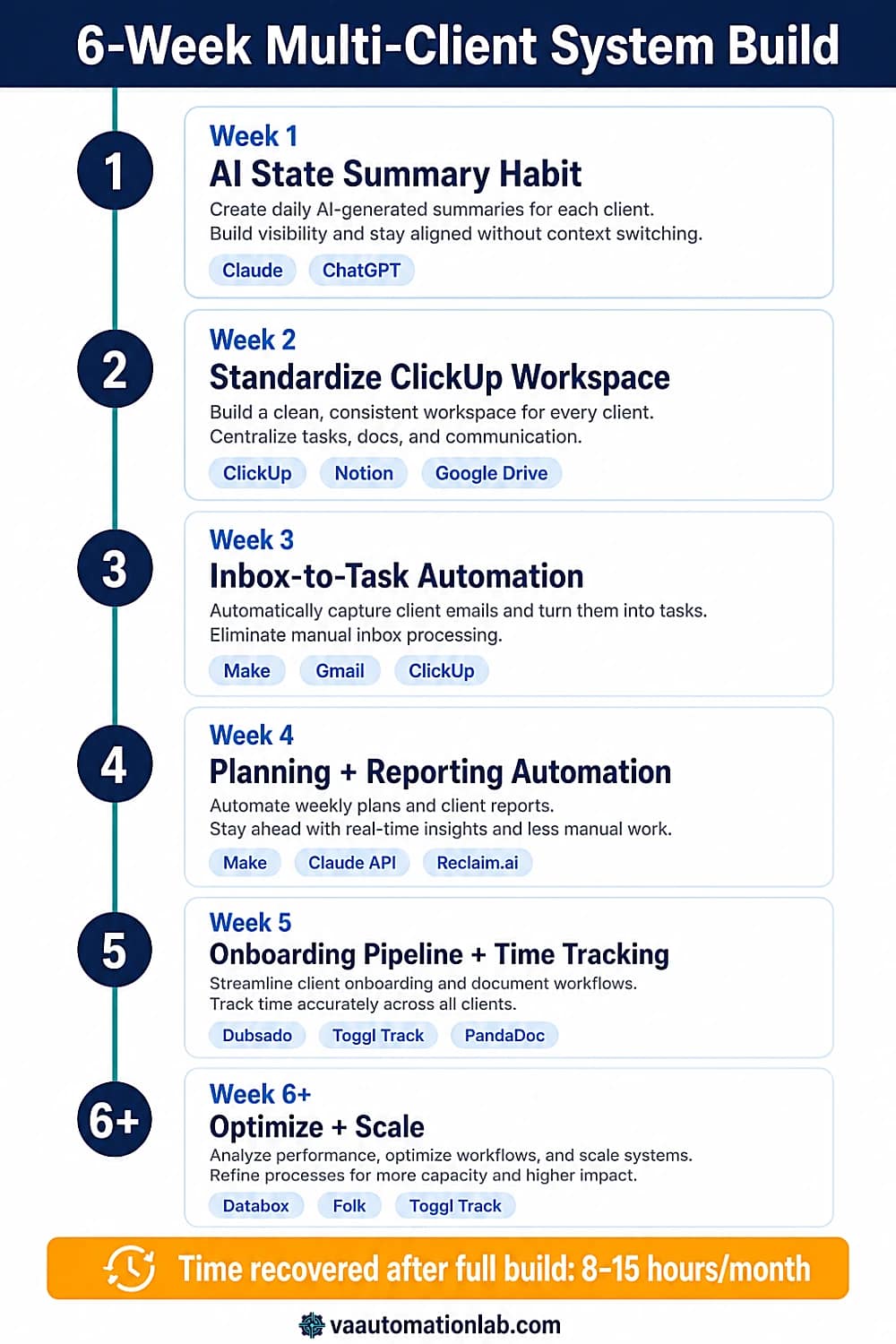
Week 1 — Establish the Client State Summary Habit (Zero Cost, Immediate Impact)
Goal: Eliminate reconstruction overhead before building anything else.
Tool required: Claude or ChatGPT.
Actions:
1. Set up a Claude or ChatGPT session for each active client with their current context pre-loaded (service description, tool stack, key deliverables, communication style).
2. Run the AI Client State Summary prompt (Section 4) for every client at the start of each day, before opening any email.
3. Run it again before every context switch, before moving from Client A work to Client B work.
4. Note where the summary prompt returns incomplete or inaccurate information. These are the data gaps you will fix in Week 2.
Time investment: 10–15 minutes setup + 5 minutes per client per day.
Visible result: Reconstruction time per context switch drops from 5–10 minutes to under 60 seconds by end of week.
Week 2 — Standardize the Client Workspace Structure in ClickUp
Goal: Give AI prompts consistent, reliable data to work with. A poorly structured workspace produces poor AI outputs.
Tools required: ClickUp (free plan sufficient), Google Drive (existing), Notion (optional, free).
Actions:
1. In ClickUp, create a “Client Work” Folder. Inside it, create one List per active client, all duplicated from the same Client List Template. The template should include: status columns (To Do / In Progress / Waiting on Client / Done), a Priority field, a Due Date field, a Client field, and a Notes field.
2. Migrate all current client tasks into the correct list. Estimated time: 30–60 minutes per existing client.
3. Create a cross-client Dashboard view: one “All Tasks” view filtered by Status ≠ Done, sorted by Due Date. This is your daily overview screen.
4. In Google Drive, create one folder per client using a Master Template (Proposals / Contracts / Deliverables / Reference / Meeting Notes subfolders).
5. In Notion (if used for documentation), create one client wiki per active client using a consistent template.
Time investment: 1–2 hours total.
Visible result: AI State Summary prompts now pull accurate, complete task data. Cross-client task overview becomes visible in under 30 seconds.
Week 3 — Activate the Inbox to Task Workflow
Goal: Remove manual email triage from the daily workload.
Tools required: Make (free plan covers initial testing; Core plan $9/month for unlimited active scenarios), ClickUp, Gmail, Claude (or ChatGPT) API key.
Actions:
1. Create a free Make account. Build Scenario 1 (Workflow 1 above): Gmail → Claude API → ClickUp.
2. Set the Gmail trigger filter to match your client email domains. Create one Make Router path per active client, mapping each domain to its corresponding ClickUp list ID.
3. Test with one client for 3 days: verify that all client emails create correctly labeled ClickUp tasks with accurate priority and deadline extraction.
4. After 3 days of clean results, expand to all active clients.
5. Apply the SaneBox or Gmail filter layer to your inbox simultaneously, separate client emails from newsletters, internal comms, and low-priority admin before the Make trigger fires.
Time investment: 2–3 hours for build and testing.
Visible result: Client emails no longer sit in a mixed inbox. Every actionable email becomes a ClickUp task within minutes of arrival. Daily inbox management drops from 30–45 minutes to a 5-minute review.
Week 4 — Activate Weekly Planning and Reporting Automation
Goal: Remove Monday morning planning overhead and Friday report writing from the manual workload.
Tools required: Make (Core plan), ClickUp, Claude API, Reclaim.ai (optional), Gmail.
Actions:
1. In Make, build Workflow 3 (Weekly Planning Automation). Test on a Monday, verify the ClickUp task pull is complete and the Claude output is accurate for your client roster.
2. Build Workflow 4 (Automated Weekly Reporting) for one client first. Send the AI-generated report to yourself, not the client, for the first run. Review for accuracy, tone, and completeness.
3. After one clean run, enable live delivery for that client. Expand to remaining clients one at a time over the following two weeks.
4. Set up Reclaim.ai (Starter, $10/month) to block focus time on your calendar based on the weekly plan output, connect via Make’s HTTP module or use Reclaim’s native task sync.
Time investment: 3–4 hours.
Visible result: Monday morning planning takes 10 minutes of review instead of 45 minutes of manual organization. Friday reports go out automatically. Total weekly time recovered: 1.5–2.5 hours.
Week 5 — Client Onboarding Pipeline + Time Tracking
Goal: Systematize new client intake and billing.
Tools required: Jotform (free) [or Dubsado (Premier, $44/month)], Make (Core), PandaDoc (Starter, $19/month), Toggl Track (Starter, $10/month), InvoiceNinja (NinjaPro, $12/month).
Actions:
1. Build Workflow 2 (Client Onboarding Pipeline). The highest-ROI point is the Make → PandaDoc connection: a client submits the Jotform intake form, Make generates and sends the contract automatically. Test with a test submission before going live.
2. If you use Dubsado, configure its built-in workflow automation instead, Dubsado’s native onboarding sequences handle proposal → contract → welcome email without needing Make for this specific flow.
3. Set up Toggl Track (Starter) with one project per active client. Install the browser extension. Begin tracking all billable time with client tags from day one of this week.
4. Build Workflow 5 (Time Tracking → Invoice Pipeline) if you bill hourly or by package.
Time investment: 3–5 hours.
Visible result: New clients are onboarded in 15 minutes of setup time instead of 2–3 hours. Monthly invoice generation becomes a one-click process.
Week 6 and Beyond — Continuous Improvement Layer
Goal: Optimize the system based on real operational data.
Actions:
1. Run the Monthly System Audit using the Multi-Client Workflow Audit prompt (Section 6), identify which manual steps remain and whether they should be automated or delegated.
2. Review Toggl Track data: which clients consumed disproportionate hours relative to their retainer value? This is pricing intelligence (see Section 13).
3. Add Databox to the reporting workflow if client KPI reporting is a service you provide, the free plan covers 3 data sources and is sufficient for lightweight client dashboards.
4. Consider Folk CRM (Standard, $24/month) for managing client relationships and contact enrichment as your roster grows beyond four clients.
5. Run the Weekly Capacity Check prompt (Section 7) every Monday as part of the planning review, flag any week where buffer drops below 20%.
👉 AI Powered Productivity System for Virtual Assistants — the complete five-layer productivity framework that this client management system builds on.
13. How to Price Your Services When Managing Multiple Clients
Pricing strategy is not a separate conversation from the system built in this guide, it is directly informed by it. Once you have accurate time tracking data from Toggl Track and a clear operational picture from your client dashboards, you have the inputs needed to price correctly.
From Hourly to Retainer: The Shift That Changes Everything
Hourly billing is the natural starting point for new VAs, but it creates a structural problem at scale: your income is capped by billable hours, which are capped by your time. Retainers break that cap by pricing your output value, not your time.
The transition makes sense when:
- You have worked with a client for at least 60 days and have consistent historical data on actual hours spent
- Your delivery time on recurring tasks has dropped significantly due to AI and automation
- The client relies on you for multiple service types and values continuity over per-task accountability
The critical rule: build retainer prices from Toggl Track actuals, not estimates. If you are running the time tracking workflow from Section 9, you already have the data.
Retainer Pricing by Client Complexity
Use your Toggl Track monthly hour averages as the baseline, then apply a multiplier based on operational complexity:
Complexity tier | Indicators | Multiplier |
Standard | Single service type, async comms, clear deliverables | 1.0× hourly rate |
Elevated | Multiple service types, mixed sync/async, approval cycles | 1.25–1.4× |
Complex | Multi-channel management, client-initiated urgency, high responsiveness requirement | 1.5–1.75× |
Do not charge the same retainer for a client who requires same-day responsiveness and approves three rounds of revisions as you charge for a client who responds within 48 hours and accepts first-draft deliverables.
Capacity Buffer as a Pricing Signal
The Weekly Capacity Check prompt (Section 7) does double duty as a pricing intelligence tool. When your buffer consistently runs below 20% for two consecutive weeks with your current roster, you have two options:
- Raise rates at the next retainer renewal cycle for the clients consuming disproportionate hours
- Add capacity (automation, delegation, scope reduction)
A 20% buffer is not a comfort margin, it is the operational reserve that makes client-initiated urgency manageable. Eroding it degrades service quality across all clients, not just the demanding one.
How to Raise Rates Without Losing Clients
Frame the rate increase around the value delivered, not the hours worked. Data from Databox or your reporting workflow (time saved, deliverables completed, KPIs moved) makes this conversation specific rather than abstract.
Rate increase communication template:
Write a professional email to [CLIENT NAME] notifying them of a retainer rate adjustment at renewal.

Context:
- Current retainer: $[amount]/month
- New retainer: $[amount]/month
- Effective date: [next renewal date]
- Key value delivered in the past [X] months: [3-4 specific accomplishments with numbers]
- What has changed: [service scope expansion, AI tools added, response time improved, etc.]

Requirements:
- Factual, not apologetic
- Lead with value delivered, introduce the new rate, explain what it covers
- Give at least 30 days' notice
- Under 200 words
Bundling Services as Your Stack Grows
As you add tools to your operational stack, you create opportunities to bundle services that were previously priced separately. For example:
- Social media management bundle: content creation (Claude/Rytr) + scheduling (Buffer/Metricool) + analytics reporting (Databox), priced as a single deliverable, not three line items
- Client communication bundle: inbox management (SaneBox) + email drafting (Claude) + weekly status updates, flat monthly fee
- Business admin bundle: time tracking + invoicing (InvoiceNinja) + contract management (PandaDoc), setup fee + monthly maintenance
Bundling works because the automation behind it means the marginal cost of adding the third service to the second is near zero. The pricing should reflect the value to the client, not the time you spend.
Price With Data, Not Estimates
Everything in your pricing strategy depends on one thing: accurate data.
Toggl Track gives you a precise view of how much time each client actually consumes, across tasks, projects, and weeks.
Without it, retainers are guesses. With it, they become predictable, scalable, and defensible.
If you’re serious about moving from hourly work to retainers, this is where it starts.
14. Common Mistakes That Break Multi-Client Systems
Managing multiple clients as a virtual assistant with AI introduces failure modes that do not exist in single client operations. These mistakes are the most common reasons why a multi-client system that works at two clients breaks at four or five.
Using One Workspace for All Clients
Keeping all client work in a single undifferentiated ClickUp list or Notion database eliminates the cross-client visibility that makes multi-client management tractable. Tasks from different clients mix together, priority conflicts are not visible, and the VA spends time mentally sorting what the system should sort automatically.
The fix: one dedicated ClickUp list per client, duplicated from the same Client List Template. One Google Drive folder per client, duplicated from the same Master Template. The structure is identical across clients, only the client name changes. This gives both per-client detail and cross-client comparability.
Context Switching Without a Current-State Brief
Context switching without a current-state brief is the most frequent operational error when managing multiple clients as a virtual assistant, it means starting each client interaction by reconstructing the operational picture from memory or scattered sources, the primary source of context switching overhead. At five clients with multiple switches per day, this overhead consumes 1-2 hours daily.
The fix: use the AI Client State Summary prompt (section 4) at the start of every client context switch. Run it in 30 seconds, read the 200-word output, begin work. The prompt synthesizes the current task status, open items, last communication summary, and next deadline into a single briefing. Reconstruction time drops from 5-10 minutes to 30 seconds.
Generic Communication Templates Across All Clients
Using the same email template for all clients ignores the single most important differentiator in multi-client communication management: each client has a distinct relationship context, communication style, and current project status. A generic “here is your weekly update” email sent to five clients with minor name substitutions signals that the VA is managing clients at scale without personal attention, the opposite of the premium service impression the update is supposed to create.
The fix: encode each client’s communication profile in the AI prompt, tone preference, relationship formality, current project context, primary goal. The AI draft then reflects the specific client rather than a generic template. Build time per client profile: 15 minutes. Ongoing time per email: review and send, not rewrite from scratch.
Prioritizing by Client Instead of by Impact
The natural tendency in multi-client management is to prioritize by client, serve client A fully before switching to client B. This produces consistent per-client service but systematically under-serves high-urgency items from lower-priority clients and over-serves low-urgency items from high-priority clients.
The fix: cross-client prioritization using the Daily Priority List prompt (section 7). The output ranks tasks across all clients by urgency, deadline proximity, and blocking status, not by client. The VA works the ranked list, not the client list. Client equity is a weekly metric (each client receives their contracted deliverables on time) not a daily operating principle.
Automating Without Client-Specific Configuration
Building one automation that sends the same report format, the same welcome email, and the same access request form to all clients eliminates manual repetition but also eliminates the client-specific customization that differentiates a premium VA service from a generic one.
The fix: use Make‘s Router module to branch automation sequences by client type or service category. Each branch uses client-specific templates, email variants, and ClickUp list structures. The automation runs identically for all clients, the output is customized per client. Build time for the additional branches: 30-45 minutes per new client type added.
Scaling Without Auditing Capacity
The most dangerous mistake in multi-client management is adding a new client without verifying that the existing automation system can absorb the additional volume. A system calibrated for four clients may handle five, but it may also produce delayed reports, missed reminders, and exception-handling failures at the fifth client that are not visible until a client notices.
The fix: use the Weekly Capacity Check prompt (section 7) every time a new client is being considered. Run the capacity calculation with the new client’s estimated task volume included. If the buffer falls below 20% (7-hour workdays with less than 1.5 hours unallocated), the new client requires either an automation expansion or a rate/scope renegotiation with an existing client before onboarding.
Letting Scope Creep Go Unmanaged
Scope creep is the slow expansion of what you do for a client without a matching change in pay or timeline — the “while you’re in there, can you also…” requests that feel small on their own but compound across a roster. With one client it’s easy to absorb. Across five, unmanaged scope creep is how a profitable retainer quietly becomes an unprofitable one, and how your capacity buffer disappears with no obvious cause.
The fix: define the retainer scope in writing and track requests that fall outside it. When an out-of-scope ask arrives, name it plainly and offer a path — fold it into the next renewal at an adjusted rate, bill it as a one-off, or trade it against something already in scope. Your Toggl Track data (Section 13) makes this concrete: when a client’s actual hours drift well above what their retainer assumes, that gap is scope creep showing up in the numbers, and it’s the signal to renegotiate.
15. Conclusion
Learning how to manage multiple clients as a virtual assistant at scale is a system design problem, not a time management problem. The framework in this guide addresses the three root causes of multi-client friction: reconstruction overhead (eliminated by the AI State Summary habit), information fragmentation (resolved by standardized workspaces), and cognitive overload from cross-client prioritization (handled by AI prompts that externalize the sorting).
The implementation roadmap in Section 12 starts with the components that produce the fastest visible improvement, the State Summary habit and workspace standardization, before adding the automation layer that makes the system self-sustaining. Each week adds one component without disrupting current client work.
The full system (standardized workspace, AI prompt library, five automation workflows) takes five to six weeks to build and recovers 8–15 hours per month for a VA managing four to five clients. The capacity released by those recovered hours is where income growth happens: higher-quality work, new client capacity, or higher rates supported by better-documented delivery.
Start with Week 1’s State Summary habit today. Run it for every active client tomorrow morning. The improvement in context switching speed is immediate, and it reveals exactly where the system needs to be built next.
Turn This System Into an Automated Machine
Understanding the framework is one thing. Running it without manual overhead is what actually changes your capacity.
Make connects your tools, automates repetitive workflows, and turns your multi-client system into something that runs in the background, from onboarding to reporting to weekly planning.
This is the layer that removes hours of operational work every week and allows you to scale without increasing your workload.
If you implement only one tool from this guide, make it this one.
Frequently Asked Questions About How to Manage Multiple Clients as a Virtual Assistant
How many clients can a VA manage without burning out?
For most solo VAs with a defined service scope and a working system, three to four active retainer clients is the productive sweet spot. Five to seven is achievable with full automation (standardized workspaces, AI prioritization, automated reporting and onboarding) and a minimum 20% weekly capacity buffer for exception handling.
Beyond seven clients, the irreducible human layer (relationship touchpoints, AI output review, judgment calls) typically exceeds what one person can manage sustainably without a subcontracting arrangement.
What is the single most important thing to do first when implementing this system?
The AI Client State Summary habit (Section 4), before any automation is built. Run it for every active client at the start of each day and before every context switch. This single habit produces immediate visible value (faster context switching, fewer missed items) and reveals the specific information gaps in your ClickUp or Notion setup that need to be addressed before automation is added. VAs who build automation first without the summary habit often discover that the underlying data is too inconsistent for the automations to produce accurate outputs.
Do I need to use both Zapier and Make?
No, one platform is sufficient, and Make is the stronger default for multi-client operations because its Router module handles client-type branching, and the Iterator + Aggregator combination processes multi-record data (like pulling all completed tasks for a weekly report).
If you are already on Zapier, Workflows 1 and 3 (inbox to task, weekly planning notification) work without limitations there. Make is specifically necessary for Workflow 2 (onboarding — branching logic, wait-for-webhook) and Workflow 4 (reporting — Iterator + Aggregator). Practical path: start with Make’s free plan, upgrade to Core ($9/month) when you activate your second scenario.
How do I set up a virtual assistant client organization system across clients using different tools?
Client-specific workspace configuration inside ClickUp handles the task layer regardless of what tools the client uses externally. Each client has one dedicated ClickUp list with a consistent structure, this is your operational view, not the client’s.
For client-side communication, the AI prompt library in Sections 4 and 5 includes a client context field where you encode the tool stack for each account. The AI output then references the correct tools for that client.
For credentials and access across different client stacks, 1Password (Individual, $3/month) with separate vaults per client is the cleanest solution.
How do I manage clients in different time zones?
Reclaim.ai (Starter, $10/month) automatically accounts for your working hours when scheduling tasks and buffer blocks, so client time zones only affect when you schedule calls and when you set expectations for same-day response. The async-first communication protocol from Section 5, where all client communication runs through a daily inbox review rather than real-time monitoring, reduces the operational impact of time zone differences significantly.
For scheduling calls, SavvyCal‘s calendar overlay feature shows your availability in the client’s local time zone, eliminating the back-and-forth of manual time zone conversion.
How do I use AI for client management without it feeling impersonal to clients?
The distinction is between automating logistics and automating relationship. Logistics (report delivery, task confirmation, access form reminders, status update delivery) can be fully automated without client experience impact. Relationship touchpoints (the check-in when a project milestone is reached, the message when something goes wrong, the renewal conversation) should remain manual and personal.
The AI drafting layer in Sections 5 and 8 does not automate sending; it automates the first draft, with the VA reviewing and personalizing before anything goes to the client. The client receives a message that reflects the VA’s judgment and voice. The fact that the draft was AI-generated is not detectable and not relevant, what matters to the client is that the communication is accurate, timely, and sounds like the VA.
What are the best tools to manage multiple clients as a virtual assistant?
The best tools to manage multiple clients as a virtual assistant depend on your service type and roster size. The core client management tools most VAs need: ClickUp (Unlimited, $7/month) for task management with one list per client; Make (Core, $9/month) as the automation platform connecting all other tools; Reclaim.ai (Starter, $10/month) for AI-powered calendar and focus time management; and Toggl Track (Starter, $10/month) for billable hour tracking.
For client relationship management, Folk (Standard, $24/month) handles pipeline, contact enrichment, and email campaigns. For client onboarding and contracts, Dubsado (Premier, $44/month) or PandaDoc (Starter, $19/month) cover proposals, eSignatures, and automated welcome sequences. See Section 10 for the complete breakdown organized by use case and Section 11 for stacks by experience level.
How do I track time across multiple clients without it disrupting my workflow?
Use Toggl Track (Starter, $10/month) with the browser extension. The one-click timer start from the browser bar with pre-configured client tags makes tracking accurate without requiring a separate window or app switch. Configure one Toggl project per active client, and use tags for service type (e.g., “email management,” “content creation,” “admin”) to build granular data for pricing decisions. The Make → Toggl → InvoiceNinja pipeline (Workflow 5) then converts that tracking data into invoices automatically on the first of each month.
When should I switch from hourly billing to a retainer model?
The switch makes sense when you have 60+ days of Toggl Track data for a client showing consistent monthly hours, and when your delivery time has dropped due to AI and automation (meaning hourly billing is penalizing your efficiency). The transition conversation with the client is easiest when framed around predictability for both parties, they know the monthly cost, you know the scope. Build the retainer price from your average monthly hours × your hourly rate, then apply a complexity multiplier based on the client tier framework in Section 13.
Glossary: Key Multi-Client Management Terms for Virtual Assistants
Client Management System: The complete operational infrastructure a VA uses to manage multiple clients simultaneously, combining a virtual assistant client organization system (workspace structure, templates, SOPs) with an automation layer (Make or n8n) and an AI assistance layer (prompt libraries, drafting, prioritization). A fully built client management system reduces per-client administrative overhead from hours to minutes per week.
Context Switching: The cognitive process of shifting attention from one client’s operational mental model to another. The primary source of administrative overhead in multi-client VA operations — each switch requires reconstructing the current state of the new client before productive work can begin.
Client State Summary: An AI-generated briefing of a single client’s current operational status (open tasks, pending items, last communication summary, next deadline) used to eliminate reconstruction time at the start of each context switch.
Reconstruction Overhead: The time spent re-familiarizing with a client’s current operational status before beginning work, typically 5–10 minutes per context switch when working from memory. The primary target of the AI Client State Summary habit.
Cross-Client Prioritization: The process of ranking tasks from multiple simultaneous clients by urgency, deadline proximity, and blocking status, treating the full multi-client workload as a single prioritized queue rather than managing each client’s tasks in isolation.
Client-Specific Workflow: A version of a standard VA process (reporting, onboarding, status update) customized to the specific requirements, preferences, and tool stack of one client. Stored as a dedicated ClickUp template or prompt variant to avoid rebuilding from scratch each time.
Capacity Buffer: The percentage of weekly available hours not committed to existing client work, the operational reserve that handles unexpected client requests, exception handling, and context switching overhead. Recommended minimum for stable multi-client operations: 20% of working hours.
Retainer: A fixed-fee recurring engagement where the client pays a set monthly amount for a defined scope of services, rather than billing by the hour. The preferred billing model for multi-client VA operations above two clients.
Router (Make): A Make module that branches a scenario into multiple parallel paths based on conditions, used in multi-client automation to direct different client types to different workflow sequences from a single trigger.
About the Author
Alex Stratton has spent the better part of a decade working at the intersection of virtual assistance and operational systems, first as a VA supporting founders and small business owners, then as a workflow consultant helping remote teams reduce the manual overhead that accumulates when businesses grow faster than their processes. The tools and workflows here reflect decisions made repeatedly in real client contexts, where the wrong choice costs hours, not minutes. Learn more about VA Automation Lab → About.