

Best AI Scheduling Tools for Virtual Assistants (2026)
Disclosure: This article contains affiliate links. If you purchase through them, VA Automation Lab earns a commission at no additional cost to you. All tools are evaluated independently.
The complete guide to AI scheduling for virtual assistants: 6 tools compared by use case, verified pricing, a quick-pick decision matrix, three calendar automation workflows, a recommended stack for every experience level, and the five mistakes that make scheduling systems fail, with the exact fix for each.
Scheduling is the highest-friction administrative task in most VA operations, not because it is complex, but because it is constant. Every new client adds a calendar, a set of preferences, a time zone, and a pattern of last-minute changes. Without a system, scheduling coordination expands to fill the spaces between every other task: a back-and-forth email chain here, a manual calendar update there, a rescheduling request on Friday afternoon that costs 20 minutes to resolve.
The best AI scheduling tools for virtual assistants eliminate this friction systematically. In 2026, these tools go far beyond booking links, they automate the entire coordination cycle, protect focus time, detect conflicts before they occur, and handle rescheduling without manual intervention.
This guide covers:
- Why AI scheduling is now essential for VA operations
- What to evaluate before choosing any scheduling tool
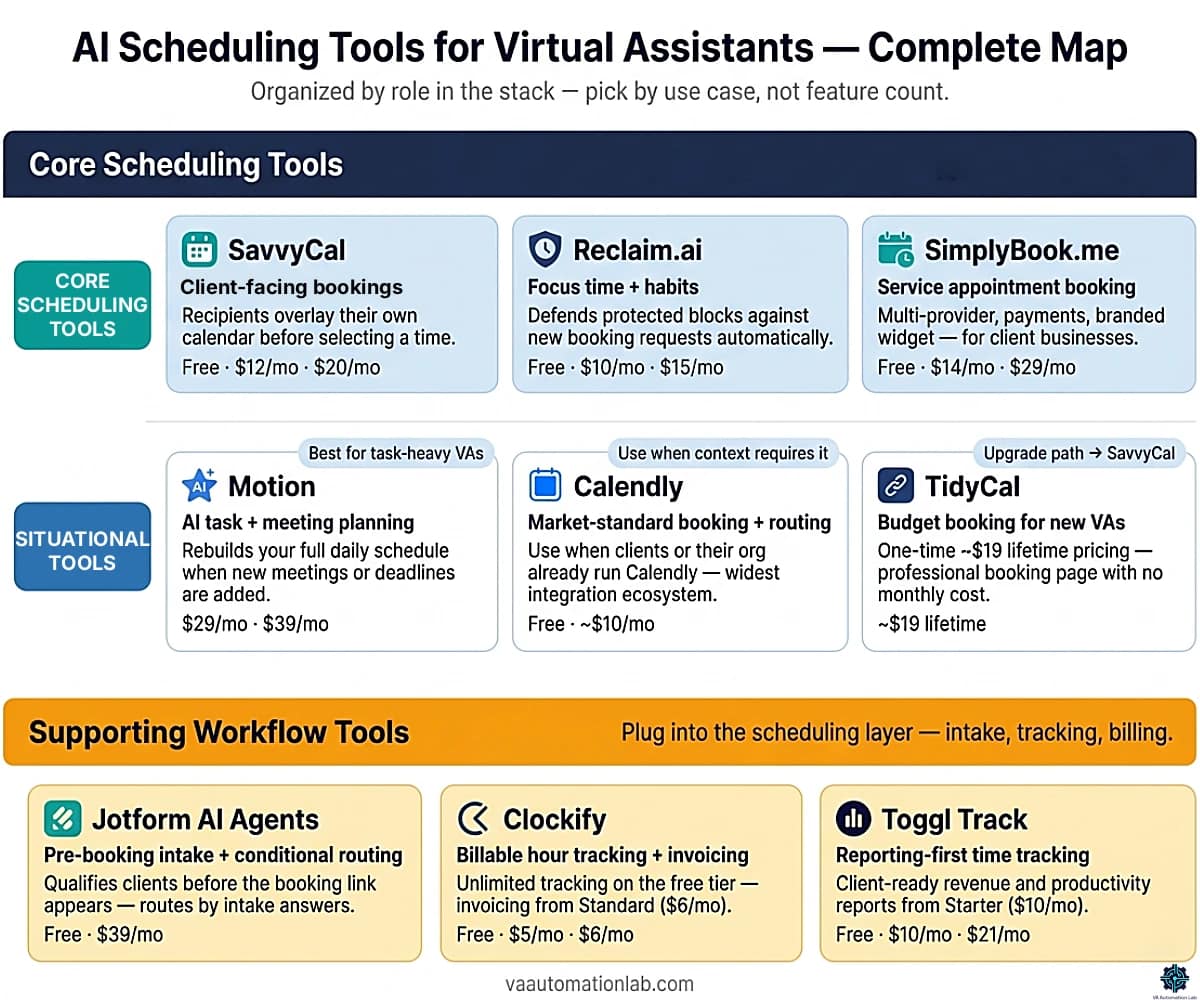
- 6 tools compared, with verified pricing and honest VA-specific limitations
- Best AI scheduling tools by use case (quick picks)
- How to match the right tool to your workflow type
- Recommended scheduling stacks for every experience level
- How to manage multiple client calendars without conflicts
- Three calendar automation workflows ready to implement
- Five mistakes that make scheduling systems fail, with the specific fix for each
👉 Tools for Virtual Assistants: The Complete AI Systems & Software Guide — the full reference for every AI tool category in VA work.
Get the Free AI Toolkit for Virtual Assistants
If you’re building a scheduling system from scratch, the Free AI Toolkit gives you the exact tools and workflow templates to get started, without the trial-and-error.
It includes tool picks, prompt templates, and a step-by-step setup sequence for VA operations.
Table of Contents
1. Best AI Scheduling Tools by Use Case (Quick Picks)
If you know your primary scheduling challenge, start here. Each recommendation is the minimum viable tool for that specific use case, not the tool with the most features.
Use Case | Primary Pick | Why |
Professional client booking links | SavvyCal | Recipient calendar overlay eliminates back-and-forth; unlimited links from $12/mo |
Budget booking for a new VA business | TidyCal | $29 one-time lifetime pricing; professional booking pages with zero monthly commitment |
Client or org already using Calendly | Calendly | Market-standard tool; use when client context requires it, not as a default |
Protecting your own focus time | Reclaim.ai | Habit scheduling + buffer automation; free tier sufficient for solo VAs |
Service appointment booking (for a client’s business) | SimplyBook.me | Multi-provider, payment capture, branded widget, intake forms built in |
Managing tasks and meetings in one system | Motion | Rebuilds your full daily plan around both meetings and deadlines in real time |
SavvyCal and Reclaim.ai are the recommended defaults for most VA setups, they cover the full scheduling stack with the strongest VA-specific feature set. Motion, SimplyBook.me, Calendly, and TidyCal each address a specific scenario where a different primary need takes precedence.
2. Why AI Scheduling Is Now Essential for Virtual Assistants
AI scheduling tools for virtual assistants are platforms that automate the full meeting coordination cycle — booking, conflict detection, time zone management, reminders, and post-booking workflow triggers — without manual intervention. Unlike a standard calendar app, they connect external booking (what clients see) with internal calendar management (focus time, recurring tasks, buffer automation), so the VA’s schedule runs as a system, not a series of manual responses.
The business case for AI scheduling is straightforward: scheduling is the administrative task with the highest frequency-to-value ratio in VA operations. It occurs multiple times per day, follows predictable patterns, and produces no deliverable output beyond the meeting itself.
For a VA managing three clients, the compound cost is significant. Each client has a separate calendar, different availability windows, a preferred meeting format, and occasional rescheduling requests. Manually coordinating a single meeting across two parties in different time zones takes 10–20 minutes of email exchange. Across a week of 15–20 meetings, that is 2–4 hours of pure coordination overhead, recovered entirely by a well-configured AI scheduling system in the first week.
The shift in 2026 is that the best AI scheduling tools now handle the full coordination cycle, not just the booking step:
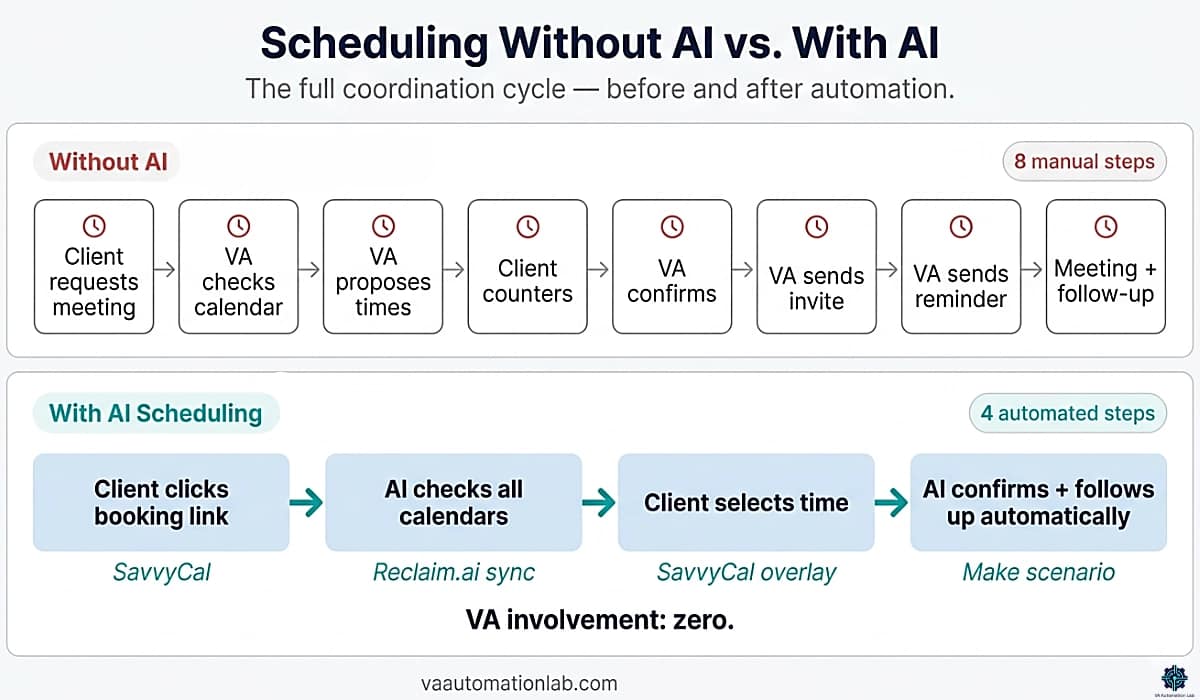
Before AI: client requests meeting → VA checks availability → VA proposes times → client counters → VA confirms → VA sends calendar invite → VA sends reminder → meeting occurs → VA sends follow-up.
With AI scheduling: client clicks booking link → AI checks real-time availability across all calendars → client selects time → AI sends confirmation, adds to all calendars, sends reminder, triggers follow-up workflow. VA involvement: zero.
The second reason AI scheduling matters for VAs specifically is client experience. A professional booking flow (clean page, instant confirmation, automatic reminder, polished follow-up) signals operational competence before the first meeting begins. Clients who receive a SavvyCal link with routing logic and automated preparation questions form a different impression than clients who receive a “does Tuesday at 3pm work for you?” email.
Scheduling automation is not a technical capability. Every tool in this guide has a free tier or trial and requires no programming knowledge. The realistic implementation time for a first scheduling automation is one session of 30–45 minutes.
3. What to Evaluate Before Choosing an AI Scheduling Tool
Choosing the right AI scheduling software as a virtual assistant requires different evaluation criteria than choosing for individual use. The booking software layer — what clients see and interact with — and the internal calendar management layer each carry separate requirements, and conflating them is the most common selection mistake. The standard review-site benchmarks, feature count, UI score, enterprise integrations, are largely irrelevant for VA workflows. The criteria that matter are operational.
Multi-Calendar Support and Account Separation
The most important criterion for VAs managing multiple clients. The tool must connect to multiple calendar accounts, not just multiple calendars within a single account, and maintain clear separation between them. A scheduling conflict that exposes one client’s calendar availability to another is an operational failure with real consequences.
Evaluate:
- Does the tool support multiple Google accounts?
- Multiple Outlook tenants?
- Can you configure separate availability rules for each client calendar without those rules interfering with each other?
Best performers: Reclaim.ai, SavvyCal, Motion.
Time zone intelligence
Non-negotiable for VAs supporting clients in different regions. The tool must detect each participant’s time zone automatically and display availability in the correct local time for each party, without requiring either the VA or the client to perform the conversion manually.
Evaluate:
- Does the tool display the client’s local time on the booking page?
- Does it prevent scheduling outside each party’s working hours automatically?
- What happens when a client is in a DST-shifted zone?
Best performers: SavvyCal (recipient calendar overlay), Reclaim.ai, Motion.
Automation and Integration Depth
A scheduling tool that only books meetings is a calendar app, not an AI calendar automation system. The tools that produce the most value for VA operations are those that connect scheduling events to downstream workflows: CRM record creation, task creation, file folder setup, pre-meeting questionnaire delivery, post-meeting follow-up sequences.
Evaluate:
- Does the tool connect natively to Make or Zapier?
- What triggers are available?
- Can a new booking trigger a multi-step workflow outside the scheduling tool itself?
Best performers: SavvyCal (Zapier), Reclaim.ai (Zapier + Slack), Motion (native task integration). Make can extend any scheduling tool’s automation capabilities significantly.
Focus Time Protection
A scheduling tool that allows clients to book any available slot will eventually fragment your day into unusable 30-minute blocks between back-to-back meetings. Focus time protection, the ability to define deep-work blocks that the tool defends against new bookings, is the feature that distinguishes a scheduling tool from a scheduling system.
Evaluate:
- Can you define meeting-free windows?
- Does the tool automatically move flexible blocks when new meetings are added?
- Can you set a maximum number of meetings per day?
Best performers: Reclaim.ai, Motion.
Client Experience Quality
The booking page a client sees is a direct reflection of your professional standard. A clean, branded, frictionless booking experience sets the tone for the entire client relationship. Conversely, a confusing or broken booking page creates doubt before the first interaction.
Evaluate:
- Can you customize the booking page with your branding or your client’s branding?
- Are confirmation emails editable?
- Does the rescheduling flow work without requiring the client to contact you directly?
Best performers: SavvyCal (unique recipient calendar overlay eliminates back-and-forth), SimplyBook.me (service-based booking with payment capture).
Setup Speed and Maintenance Cost
The best scheduling tool is the one you actually configure and maintain. A tool that requires 4 hours of initial setup and weekly adjustments will be abandoned within a month. For most VAs, the correct choice is the simplest tool that covers 90% of requirements, not the most powerful tool that covers 100%.
Evaluate:
- How long does the first functional setup take?
- How much ongoing maintenance does the tool require after initial configuration?
- What breaks when a client changes their availability preferences?
Best performers: SavvyCal, Reclaim.ai, SimplyBook.me.
4. The Best AI Scheduling Tools — Compared
The AI scheduling software in this guide covers seven tools across three distinct workflow categories: external booking, internal calendar management, and service-based appointment scheduling.
SavvyCal — Client Booking + Recipient Overlay
SavvyCal is the most VA-appropriate client-facing scheduling tool available. Its defining feature is unique: recipients can overlay their own calendar on top of your availability grid before selecting a time, eliminating the main cause of back-and-forth in the booking process, the recipient not knowing which of your open slots works for them without checking their own calendar separately.
Core features for VA scheduling:
- Recipient calendar overlay, clients see your availability alongside their own, side by side
- Unlimited scheduling links on Basic ($12/mo) and up
- Multiple calendar connections for conflict detection
- Delegate access on Premium, let another VA or assistant manage your availability
- Paid bookings on Premium, collect payment at time of booking for service calls
- Make and Zapier integration for downstream automation
- Time zone auto-detection on all booking pages
Best for: VAs whose primary scheduling need is professional client-facing booking links with a booking experience that minimizes back-and-forth friction. The recommended default for discovery calls, onboarding sessions, and recurring check-ins.
Pricing (annual):
- Free tier: 1 scheduling link, 1 calendar connection, SavvyCal branding. Sufficient for a VA validating their first scheduling workflow.
- Basic: $12/month — unlimited calendars and links, team scheduling
- Premium: $20/month — custom domains, delegate access, paid bookings
VA-specific limitation: no task management or focus time protection. Pair with Reclaim.ai for internal calendar management and focus block protection.
Reclaim.ai — Habits + Focus Time + Multi-Calendar
Reclaim.ai is the most VA-appropriate tool for internal calendar automation. It handles the layer that no external booking tool covers well: protecting recurring time blocks for non-meeting work (admin, reporting, client prep) against the constant pressure of new booking requests.
👉 Reclaim.ai for Virtual Assistants: Complete Guide & Setup — for a detailed feature breakdown, step-by-step setup, and VA-specific workflows.
Core features for VA scheduling:
- Habit scheduling — automatically places recurring blocks (weekly reporting, inbox management, planning) in the best available slots each week
- Smart meeting scheduling — finds optimal times based on both parties’ availability and preferences
- Buffer time automation — automatically adds prep and transition time around meetings
- Focus time protection — identifies and defends high-productivity windows
- Multi-calendar sync — manages across Google Calendar and Outlook simultaneously
- Slack integration — shows availability status automatically based on calendar state
- Scheduling Links — shareable booking pages (less polished than SavvyCal, suitable for internal use)
Best for: VAs who need to protect structured work time alongside client meeting commitments. The strongest tool for managing multiple client calendars while maintaining personal productivity blocks.
Pricing (annual):
- Lite: Free — 1 user, 1 habit, 1 scheduling link, 1 calendar sync, limited integrations
- Starter: $10/month — up to 10 seats, 3 scheduling links, unlimited habits, unlimited calendar sync, all integrations
- Business: $15/month — up to 100 seats, unlimited scheduling links, delegated access, webhooks
VA-specific limitation: external-facing booking pages are less polished than SavvyCal. The best setup combines Reclaim.ai (internal calendar management) with SavvyCal (external booking interface).
Motion — AI-Powered Day Planning
Motion is the most sophisticated AI scheduling tool for virtual assistants who need to manage both meetings and tasks in a single system. It does not just schedule meetings, it builds and continuously rebuilds your entire daily plan around meetings, deadlines, and priorities.
Core features for VA scheduling:
- Automatic task scheduling — drops tasks into available calendar slots based on priority and deadline
- Dynamic rescheduling — when a new meeting is added, Motion moves tasks automatically to maintain the optimal day structure
- Focus time protection — blocks deep-work time around meetings without manual intervention
- Meeting scheduler — client-facing booking pages integrated with the task planning system
- Multi-calendar support across Google and Outlook
Best for: VAs with a heavy mix of meeting coordination and task execution who want a single tool that manages both. Particularly effective for VAs managing their own workflows alongside client calendar management.
Pricing (annual):
- Pro AI: $29/month — 7,500 AI credits, unlimited storage, iOS/Android/desktop
- Business AI: $39/month — 15,000 AI credits, time tracking, advanced dashboards
Free trial available.
VA-specific limitation: higher learning curve than SavvyCal; full value requires configuring the task system, not just the scheduling component. Overkill for VAs whose primary need is client booking links.
SimplyBook.me — Service-Based Appointment Booking
SimplyBook.me is the appointment scheduling software that fills the gap general-purpose tools leave open: structured service-based booking with payment capture, provider management, and client intake forms. It is the right tool when the VA is managing appointment booking for a client’s business (a coaching practice, consultant, clinic, or studio) not just their own meeting schedule.
Core features for VA scheduling:
- Service catalog, define bookable services with duration, price, and provider
- Multi-provider management, handle booking across multiple staff members from a single dashboard
- Payment collection at booking (Stripe, PayPal, and others)
- Branded booking widget embeddable on client websites
- Automated confirmation and reminder sequences
- Custom intake forms per service type
- Google Calendar and Outlook sync
- HIPAA-compliant plan available (Standard tier and up)
Best for: VAs who manage appointment scheduling for service-based clients, coaches, therapists, consultants, clinics, fitness studios. Not the right tool for managing your own meeting schedule.
Pricing (annual):
- Free: $0 — 50 bookings/month, 1 provider, 1 custom feature, basic booking widget
- Basic: $14/month — 100 bookings, 5 providers, 3 custom features, payments
- Standard: $29/month — 500 bookings, 15 providers, 8 custom features, branded app, HIPAA
- Premium: $58/month — 2,000 bookings, 30 providers, unlimited custom features
14-day free trial, no credit card required.
Calendly — Market Standard — Booking + Routing
Calendly is the most widely recognized scheduling tool in VA operations, the product most clients already know, with brand recognition that removes friction before the booking page loads. Its routing forms, round-robin scheduling, and native Zapier integration make it a legitimate full-featured option, and it remains the default in many client organizations where the VA must operate within an existing tool stack.
Core features for VA scheduling:
- Event types with separate availability rules per client or meeting category
- Routing forms that send different clients to different booking pages based on their answers
- Round-robin and collective scheduling for team use cases
- Automated reminders and confirmation emails
- Native Zapier integrations + webhook/API support (Make via integration tools)
- Time zone auto-detection on all booking pages
Best for: VAs whose clients specifically request a Calendly link, VAs operating within client organizations where Calendly is already the company standard, and VAs who prefer the largest possible ecosystem of third-party integrations.
Pricing (annual):
- Free: $0 — 1 event type, 1 calendar connection, basic time zone detection
- Standard: $10/month — Unlimited event types, 6 calendar connections
- Teams: $16/month — Unlimited round-robin meetings, advanced admin features
TidyCal — Budget Booking for New VAs
TidyCal is the most cost-effective entry point for VAs who need a professional booking page without committing to a monthly subscription. Its lifetime pricing makes it the logical first tool for VAs in the first 3–6 months of business, when recurring software costs need to be minimized before revenue is stable.
Core features for VA scheduling:
- Clean booking pages with custom availability
- Multiple meeting types
- Time zone detection
- Integrations: Zoom, Google Meet, PayPal
- Lifetime pricing option
Best for: New VAs who need a professional booking presence immediately and want to eliminate monthly subscription costs during the early stage. Also useful as a low-commitment secondary booking page for specific one-off client contexts.
Pricing (lifetime):
- Free: $0 — Unlimited bookings, unlimited booking types, paid bookings
- Individual Plan: $29 — 10 calendar connections, advanced integrations, custom emails & reminders
Cal.com — Open-Source Booking with Zero Vendor Lock-In
Cal.com is the open-source alternative for VAs who need full control over their booking infrastructure — or who serve clients with data residency, compliance, or white-label requirements that rule out proprietary platforms.
Core features for VA scheduling:
- Unlimited event types and calendar connections (Free plan) — create separate booking links and sync multiple calendars without plan restrictions.
- Payment collection via Stripe and PayPal — accept payments directly during the booking process.
- Native Calendly import — migrate existing Calendly setups with minimal manual reconfiguration.
- Round-robin scheduling and routing forms (Teams plan) — distribute bookings across team members and route clients based on intake responses.
- HubSpot and Salesforce integration — sync booking activity with CRM workflows automatically.
Best for: VAs managing booking pages for clients in healthcare, legal, or enterprise environments where SOC 2 or HIPAA compliance is required (Organizations plan, $28/month), or any VA who wants professional scheduling infrastructure with no proprietary dependency.
Pricing (annual):
- Individual: free — unlimited event types, unlimited calendar connections
- Teams: $12/month — round-robin scheduling, routing forms, booking analytics
- Organizations: $28/month — SAML SSO and SCIM, SOC 2, HIPAA, ISO 27001 compliance
VA-specific limitation: Cal.com’s UI is less polished than SavvyCal or Calendly in places, and free-tier pages carry Cal.com branding — a professional downgrade if you’re publishing the link directly on behalf of a client. The $12/month Teams plan resolves this.
Tool | Best For | Free Tier | Paid From |
SavvyCal | Client booking + recipient overlay | ✅ 1 link | $12/mo |
Reclaim.ai | Focus time + habit scheduling | ✅ Lite plan | $10/mo |
Motion | AI task + meeting planning | ❌ Trial only | $29/mo |
SimplyBook.me | Service business appointment booking | ✅ 50 bookings | $14/mo |
Calendly | Market-standard booking + routing | ✅ 1 event type | $10/mo |
TidyCal | Budget booking for new VAs | ✅ Unlimited bookings | $29 lifetime |
Cal.com | Open-source / compliance-grade booking | ✅ Unlimited | $12/mo |
Supporting Tools for Scheduling Workflows
These three tools are not scheduling tools in the traditional sense, they sit adjacent to the booking layer, handling intake, time tracking, and billing. Each integrates directly with the core tools above and is included in the recommended stacks in Section 6.
Jotform AI Agents — Pre-Booking Intake Automation
Jotform AI Agents replace static pre-booking forms with conversational intake that adapts questions based on client responses and routes different client types to the correct SavvyCal booking page automatically. For VAs managing structured discovery or onboarding processes, this eliminates unqualified bookings before they consume calendar time.
Core role in the scheduling stack:
- AI Agent forms, conversational intake that adapts based on responses
- Conditional routing, send different clients to different SavvyCal booking links based on intake answers
- Native integrations with Zapier and Make, trigger downstream CRM, task, and file-creation workflows on form completion
- Payment collection embedded in forms
- Response storage and reporting dashboard
Best for: VAs who run structured discovery or onboarding intake before booking and need to qualify or segment clients before they reach the booking page.
Pricing (annual):
- Starter: Free — 5 forms, 100 monthly submissions
- Bronze: $39/month — 25 forms, 1,000 submissions, no branding
- Silver: $45/month — 50 forms, 2,500 submissions
Clockify — Time Tracking + Invoicing
Time tracking and scheduling are operationally linked for VAs billing hourly or managing retainer hours across multiple clients. Clockify is the free-tier leader in this category, unlimited tracking, timesheets, billable rate reports, and invoicing with no artificial limits on the free plan.
Pricing (annual):
- Free: $0 — unlimited tracking, timesheets, reports, billable rates
- Basic: $5/month — add time for others, bulk edit, project templates
- Standard: $6/month — invoicing, recurring invoices, approvals, attendance tracking
- Pro: $9/month — scheduling, forecasting, budget and estimates, custom fields
Toggl Track — Reporting-First Time Tracking
Toggl Track is the alternative for VAs who prioritize client-ready revenue and productivity reporting over raw tracking volume. Its Starter plan ($10/month) includes billable rates, project estimates, revenue analysis, and team collaboration features, more polished reporting than Clockify’s equivalent tier.
Pricing (annual):
- Free: $0 — time tracking, 100+ browser extension integrations, productivity reports
- Starter: $10/month — billable rates, project estimates and alerts, revenue analysis
- Premium: $21/month — profitability analysis, timesheet approvals, scheduled reports, SSO
Stop the Back-and-Forth — Let Clients Book the Right Time Instantly
SavvyCal lets clients compare your availability with their own calendar before booking, so they pick a time that actually works, without follow-ups, rescheduling, or friction.
Set up unlimited booking links, connect multiple calendars, and automate your scheduling workflow from day one.
5. How to Match the Right Tool to Your VA Workflow
The most common selection mistake: choosing based on feature lists rather than workflow fit. The decision framework below starts from your primary workflow type.
If Your Primary Need Is Client Booking Links
Primary tool: SavvyCal (Basic, $12/month).
Configure one scheduling link per meeting category: discovery call, onboarding session, weekly check-in, ad-hoc support. Set separate availability rules for each. Connect to Zapier or Make to trigger downstream workflows on new bookings.
If budget is the constraint in the first 3–6 months: TidyCal’s lifetime pricing ($29 one-time) covers the basics (multiple meeting types, time zone detection, Zoom integration) with no monthly commitment. The natural upgrade path is SavvyCal when you need delegate access, Make integration, or separate availability windows per client.
If your client or their organization already uses Calendly: use Calendly for that client context rather than asking them to adopt a new tool. Calendly’s free tier (1 event type) handles most single-client use cases; the paid tier ($10/month) unlocks routing and Zapier integration. Do not maintain Calendly as your primary tool for new clients, SavvyCal’s recipient overlay makes the booking experience meaningfully better.
What you do not need yet: Motion, Reclaim.ai. Add focus time protection only after your booking system is stable and you are consistently losing productive time to fragmented meetings.
If You Manage Both Tasks and Meetings Daily
Primary tool: Motion or Reclaim.ai.
If your day is a continuous mix of client meetings, task execution, and administrative work that all compete for the same time blocks, a tool that only manages meetings is insufficient.
- Motion is better if you want a single tool that auto-schedules tasks into your calendar and rebuilds your day when meetings shift.
- Reclaim.ai is better if you already have a task management system (ClickUp, Notion) and only need your calendar protected, not restructured.
Combination: SavvyCal for external client booking → Reclaim.ai for internal calendar management. SavvyCal handles how clients schedule with you; Reclaim.ai handles how that scheduling integrates with your existing workload.
If You Manage Appointment Booking for a Client’s Service Business
Primary tool: SimplyBook.me.
This is a distinct workflow from managing your own meeting schedule. A VA running appointment scheduling for a coaching practice, therapy clinic, or studio needs multi-provider support, payment capture, a branded booking widget, and automated reminders, none of which SavvyCal or Reclaim.ai are designed to provide.
Combination: SimplyBook.me for service-based booking + SavvyCal for your own internal meeting management.
If You Run Structured Intake or Discovery Processes
Primary tool: Jotform AI Agents + SavvyCal.
Use Jotform to collect intake information before the booking link appears. The AI agent asks qualifying questions, routes different client types to different booking pages based on their answers, and passes form data to your CRM automatically via Make. The client only reaches the SavvyCal booking page after completing intake, eliminating discovery calls that could have been a form.
6. Recommended Scheduling Stack for Virtual Assistants
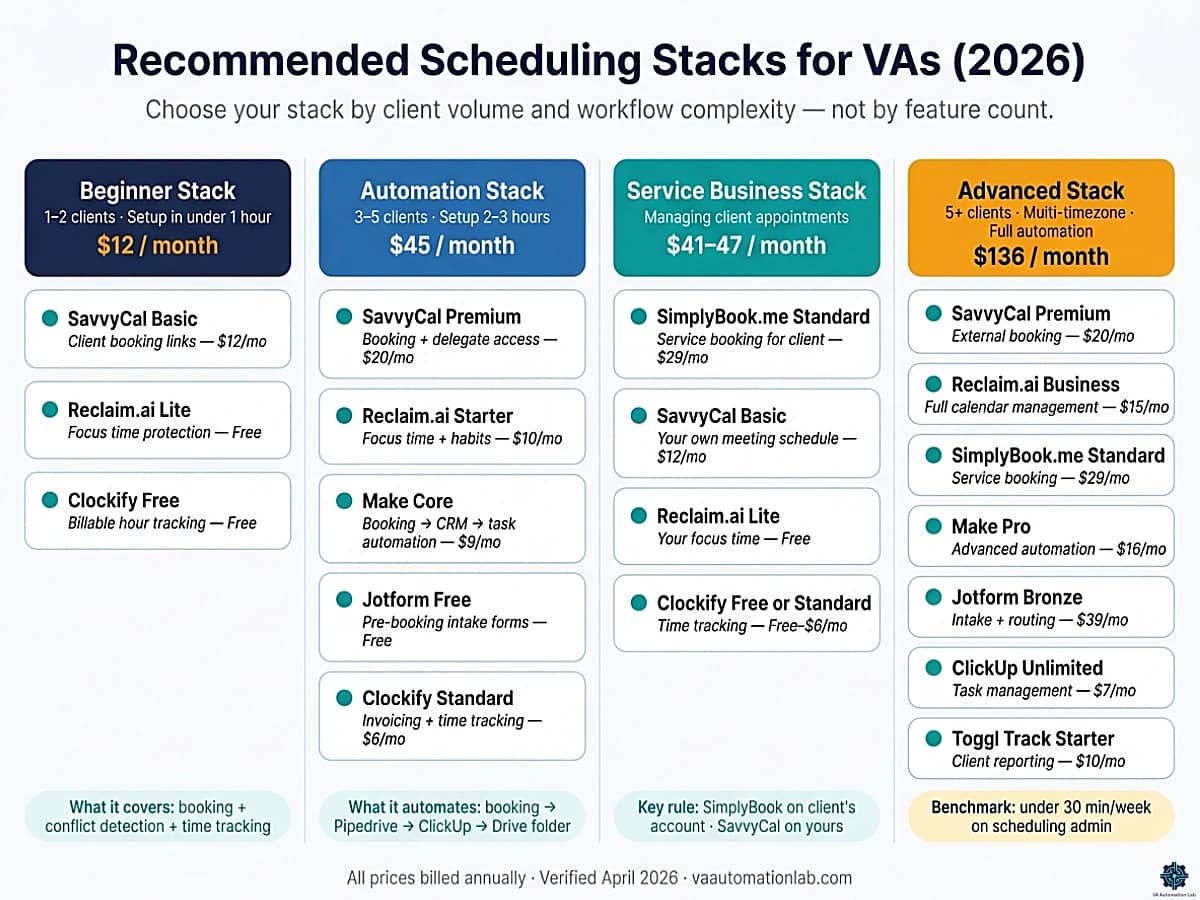
Rather than recommending a single tool, the most effective scheduling system for VAs is a coordinated stack. Each stack below is matched to a specific experience level and workload profile, with verified pricing.
Beginner Stack — Get Professional Fast
For: VAs in their first 6 months, managing 1–2 clients, who need a professional booking experience immediately without a complex setup.
Tool | Role | Cost |
SavvyCal Basic | Client-facing booking links | $12/mo |
Reclaim.ai Lite | Focus time protection | Free |
Clockify Free | Billable hours tracking | Free |
Total: $12/month.
What this covers: professional booking links for clients, conflict detection across 1–2 calendars, basic focus block protection, billable hour tracking for invoicing. Everything a new VA needs to operate professionally from day one.
What it does not cover: downstream automation (booking → CRM → task), service appointment management, multi-channel intake. Add those only when the manual overhead becomes measurable.
Setup time: 45–60 minutes for the complete stack.
Automation Stack — Eliminate Manual Coordination
For: VAs managing 3–5 clients who have a stable booking workflow but are still spending manual time on post-booking coordination: creating CRM records, setting up tasks, sending intake forms.
Tool | Role | Cost |
SavvyCal Premium | Booking + delegate access | $20/mo |
Reclaim.ai Starter | Focus time + habits | $10/mo |
Make Core | Booking → CRM → task automation | $9/mo |
Jotform Free | Pre-booking intake forms | Free |
Clockify Standard | Invoicing + time tracking | $6/mo |
Total: $45/month.
What this stack automates: new SavvyCal booking → Jotform intake triggered → Make creates contact in Pipedrive CRM → creates task in ClickUp → sends confirmation with prep materials → creates Google Drive folder. Zero manual steps between “client books call” and “VA is prepared for the call.”
What it does not cover: service appointment management for client businesses (add SimplyBook.me), advanced analytics across clients (add Databox), time zone complexity for 6+ clients in different regions (revisit Reclaim.ai Business tier at $15/mo).
Setup time: 2–3 hours for the complete automation (individual tools: 30–45 minutes each).
Service Business Stack — Manage Client Appointment Operations
For: VAs whose primary role includes managing appointment booking for a client’s service business — coaching practices, therapy clinics, studios, consultants with recurring client sessions.
Tool | Role | Cost |
SimplyBook.me Standard | Service booking for client | $29/mo |
SavvyCal Basic | Your own meeting management | $12/mo |
Reclaim.ai Lite | Your own focus time | Free |
Clockify Standard | Time tracking | $6/mo |
Total: $47/month.
Key distinction: SimplyBook.me runs on the client’s account (billed to them or included in your service fee). SavvyCal and Reclaim.ai run on your account. Maintain clean separation between the two.
Advanced Stack — Full-Spectrum Scheduling Operations
For: VAs managing 5+ clients across multiple time zones, with a combination of their own meeting schedule, service appointment management for clients, structured intake workflows, and integration with ClickUp-based project management.
Tool | Role | Cost |
SavvyCal Premium | External booking + delegate | $20/mo |
Reclaim.ai Business | Full calendar management | $15/mo |
SimplyBook.me Standard | Service business booking | $29/mo |
Make Pro | Advanced automation | $16/mo |
Jotform Bronze | Intake + form routing | $39/mo |
ClickUp Unlimited | Task management integration | $7/mo |
Toggl Track Starter | Client reporting + billing | $10/mo |
Total: $136/month.
At this level, every tool earns its cost through measurable time savings. The benchmark: a VA managing 5 clients with this stack should spend under 30 minutes per week on scheduling administration. If it is more than that, there is a misconfiguration, not a missing tool.
Protect Your Focus Time With Reclaim.ai
Reclaim.ai‘s Habit scheduling automatically places your recurring admin, reporting, and deep-work blocks in the best available slots each week, and defends them against new booking requests.
The free tier covers individual scheduling and habit management for solo VAs.
7. How to Build an Automated Scheduling System as a Virtual Assistant (Step-by-Step)
This is the implementation sequence for the Beginner and Automation stacks described above. Follow it in order. Each step builds on the previous one, skipping ahead produces a system with gaps that show up as double bookings or broken automations.
What you need before starting:
- A scheduling tool: SavvyCal — Basic plan at $12/month, or the free tier to test
- A calendar automation tool: Reclaim.ai — free tier is sufficient for this setup
- An automation platform: Make — free tier covers the basic scenario; Core ($9/month) for multiple active scenarios
- A task manager: ClickUp (Unlimited, $7/month, recommended) or Notion
- Total setup time: 45–60 minutes for the complete system
Step 1 — Build Your Booking Structure
Time: 10–15 minutes.
Create one scheduling link per meeting category, not one generic link for all clients. This is the structural decision that determines whether your system scales or fragments.
Recommended event types for most VA operations:
– Discovery call — 30 minutes, open availability, no pre-screening
– Client onboarding — 60 minutes, restricted availability, with intake form (Step 4)
– Weekly check-in — 30–45 minutes, fixed recurring slot per client
– Ad-hoc support — 20–30 minutes, limited slots per day
For each event type, define three parameters before activating the link:
1. Working hours: set exact start and end time per day — not “business hours” defaults. If you work 9am–5pm for Client A but 1pm–6pm for Client B, create separate availability windows for each.
2. Buffer time: minimum 15 minutes before and after every meeting. Back-to-back scheduling is the fastest way to erode output quality across a VA day.
3. Daily meeting limit: 3–4 external meetings maximum for most VA workflows. Beyond that, deep-work output degrades measurably. SavvyCal enforces this automatically once set.
After this step, your booking links exist, but they are not yet protected against fragmentation or double bookings. Do not share them with clients until Step 3 is complete.
Step 2 — Connect All Calendars for Conflict Detection
Time: 5–10 minutes.
This is the single most critical configuration step for VAs managing multiple clients. Every calendar that could contain a commitment needs to be connected to your scheduling tool so that occupied slots are blocked across all booking pages simultaneously.
In SavvyCal, connect under Settings → Calendar Connections:
– Your personal Google Calendar or Outlook (primary)
– Each active client’s shared calendar (secondary — read-only, for conflict detection only)
– Any internal calendars that contain commitments: team meetings, personal blocks, recurring admin
Enable “check for conflicts” on all connected calendars. SavvyCal will now mark any slot occupied in any connected calendar as unavailable on every booking page, regardless of which client or calendar the conflict originates from.
Verification check: book a test meeting from a separate email address. Confirm the slot disappears from all other event types immediately. If it does not, a calendar is not connected correctly.
A client who books a slot that was already occupied in another calendar is not a scheduling tool failure, it is a configuration failure. Fix it here, before sharing any link.
Step 3 — Set Up Focus Time Protection
Time: 10–15 minutes.
Calendar availability is not just the absence of meetings, it is the result of active decisions about which time is protected for non-meeting work. Without this step, your booking links will fill every technically available slot, including the blocks you need for actual client deliverables.
In Reclaim.ai, configure three elements:
Habit 1 — Deep work block:
– Duration: 2 hours
– Priority: High (Reclaim will defend this against new meeting requests)
– Scheduling window: 9am–12pm (or your highest-focus period)
– Frequency: daily
Habit 2 — Admin and planning block:
– Duration: 30–60 minutes
– Priority: Medium
– Scheduling window: 4pm–6pm (or your preferred end-of-day window)
– Frequency: daily
Buffer time settings:
– 15 minutes before all meetings (preparation)
– 15 minutes after all meetings (notes and transition)
– Reclaim adds these automatically as calendar blocks invisible to clients
Meeting limits:
– Set a maximum of 3–4 external meetings per day in Reclaim settings
– Connect Reclaim to your primary calendar so it reads SavvyCal bookings in real time and adjusts protected blocks accordingly
After this step, your SavvyCal booking links will display the slots that remain after protecting your deep-work time and admin blocks, not the raw availability of your calendar.
This is where the system shifts from “I accept meetings when I can” to “I accept meetings within a structure that protects my output.” It is the most impactful configuration step.
Step 4 — Automate Post-Booking Workflows
Time: 15–20 minutes for the first scenario.
A new booking should trigger a sequence of preparation actions automatically. Without this, every new meeting creates 10–20 minutes of manual work: creating a CRM contact, setting up a prep task, sending confirmation materials, creating a client folder. Across 15–20 bookings per week, that is 2–4 hours of avoidable overhead.
In Make, build a scenario triggered by a new SavvyCal booking:
Trigger: New event created in SavvyCal (event type: Onboarding Call or Discovery Call)
Action 1 — CRM: create or update contact in Pipedrive with name, email, and meeting type from the SavvyCal booking data.
Action 2 — Task: create task in ClickUp titled “Prepare for [Meeting Type] — [Client Name]” with due date set to 2 hours before the meeting start time.
Action 3 — Intake form (optional but recommended): trigger a Jotform AI Agent form via email to the client with 3–5 qualifying questions. Route the responses back to Make for CRM enrichment.
Action 4 — File structure: create a Google Drive folder at /Clients/[ClientName]/ with subfolders: Notes, Contracts, Deliverables.
Start with Actions 1 and 2 only if Make is new to you. Add Actions 3 and 4 in a second session once the base scenario is running reliably.
Step 5 — Test the Complete System Before Going Live
Time: 10 minutes. Non-negotiable.
Every error caught in testing costs 10 minutes. Every error caught after a client books costs significantly more — in time, in follow-up, and in professional credibility.
Test sequence:
1. Open your primary booking link from a second browser or a different email address
2. Select a meeting slot and complete the booking as if you were a client
3. Verify time zone detection: does the confirmation email display the meeting time in the client’s local time zone, not yours?
4. Verify conflict detection: does the booked slot disappear from all other event types and client booking links immediately?
5. Verify Make triggers: does the Pipedrive contact appear? Does the ClickUp task exist with the correct due date?
6. Verify calendar invite accuracy: does the event appear correctly in your calendar and in the test email’s calendar?
If any step fails, resolve it before sharing links with clients. A broken automation that runs silently, creating contacts in the wrong CRM field, generating tasks with the wrong due date, is harder to diagnose than a step that fails visibly during testing.
Step 6 — Deploy One Link per Client and Build for Scale
Time: 5 minutes per new client from this point.
The most common mistake at this stage: giving every client the same booking link. This creates a system that cannot distinguish between client contexts, all clients see the same availability, all bookings trigger identical automations, and adding a fourth client requires manual reconfiguration.
The correct structure:
– One dedicated SavvyCal scheduling link per client, with availability hours that reflect your contracted commitment to that client specifically
– One Make scenario per booking type (onboarding, check-in, ad-hoc), reusable across all clients — not rebuilt for each one
– One Reclaim.ai habit template per recurring workload type, duplicated for new clients rather than created from scratch
When client 4 arrives: duplicate the SavvyCal link, update the availability hours, connect their calendar, activate the existing Make scenario. Setup time: under 20 minutes.
The system you build for clients 1–3 should require zero architectural changes to accommodate clients 4, 5, and 6. If it does require changes, the original build was client-specific, not system-specific. Rebuild the foundation once, then scale.
👉 Make.com for Virtual Assistants: The Beginner Setup Guide — covers the first-scenario setup before you build this.
👉 ClickUp for Virtual Assistants: Setup Guide, Templates & Workflows — learn how to automatically turn appointments, client requests, and follow-ups into organized tasks and workflows.
What This System Delivers
Once all six steps are complete and the system has been live for one week:
Outcome | Before | After |
Email back-and-forth per booking | 3–6 exchanges | 0 |
Manual post-booking prep time | 15–20 min | 0 |
Double booking risk | Ongoing | Eliminated |
Focus time protection | Ad-hoc | Automated daily |
System setup time for new client | 60+ min | Under 20 min |
Weekly scheduling administration | 2–4 hours | Under 30 minutes |
Most VAs who implement this system correctly recover 2–4 hours per week in the first week, time that was previously consumed by the coordination overhead surrounding meetings, not the meetings themselves.
For the full set of automation workflows that extend this foundation, continue to Section 9.
👉 Productivity Systems for Virtual Assistants: The Complete Guide — for a complete framework on building a scalable VA operating system, including the 7 core components, tool stack architecture, and a step-by-step 4-week implementation plan.
8. How to Manage Multiple Client Calendars with AI
Managing multiple client calendars with an AI calendar system is architecturally different from managing a single calendar efficiently. The challenges are not just quantitative (more meetings, more time zones) they are structural: how to maintain clear separation between client accounts, how to prevent availability from one client leaking into another, and how to build a scheduling system that scales to a fourth or fifth client without requiring a full reconfiguration.
The Multi-Client Calendar Architecture
The foundation of any multi-client scheduling system is account separation, each client’s calendar operates in its own container, with its own availability rules, its own booking links, and its own downstream automation.
Recommended structure in SavvyCal:
- One SavvyCal account (yours) connected to your primary Google Calendar
- One scheduling link per client, each with separate availability hours reflecting that client’s working day and your contracted hours for them
- Never share a single booking link across multiple clients
Recommended structure in Reclaim.ai:
- Connect your personal calendar as primary
- Add each client’s calendar as secondary (read-only, for conflict detection)
- Configure availability rules that respect your contracted hours per client
- Set habit blocks for each client’s recurring deliverables: weekly reporting, Monday planning, Friday review
This architecture ensures that adding a new client means adding a new scheduling link and a new calendar connection, not rebuilding the entire system.
Time Zone Management Across Clients
The most operationally dangerous aspect of managing multiple client calendars is time zone drift, a meeting scheduled correctly in one client’s time zone that conflicts with another client’s obligations because the conversion was handled manually.
Systematic fix:
- SavvyCal‘s recipient calendar overlay means the client sees their own calendar alongside your availability before selecting a time, this eliminates the most common source of time zone miscommunication at the booking step itself
- In Reclaim.ai, set your primary working hours in your own time zone, then use buffer time to create transitions between back-to-back meetings with clients in different regions
- Google Calendar’s “additional time zones” feature shows two time zones simultaneously in the day view, keep this active when managing clients across regions
Preventing Double Bookings Across Client Calendars
Double bookings occur when two clients can both see the same slot because their calendars are not properly cross-referenced.
In SavvyCal: connect all active calendars under Calendar Connections. SavvyCal marks any slot occupied in any connected calendar as unavailable on all booking pages.
In Reclaim.ai: enable conflict sync across all connected calendars. Reclaim automatically blocks slots occupied in any calendar, regardless of which account the conflict originates in.
Manual verification step: 5-minute weekly calendar audit every Monday morning, open the week view with all calendars visible and scan for any overlaps automation missed.
Scaling to New Clients Without System Rebuilds
Build for the template, not the client: every SavvyCal scheduling link, every Reclaim.ai habit block, every Make scenario should be designed as a reusable template that a new client slot can be dropped into. When client 4 arrives, the process is: duplicate the scheduling link, update the availability hours, connect the calendar, activate the Make scenario. Total setup time: 20 minutes.
👉 How to Manage Multiple Clients as a Virtual Assistant Using AI: Complete Framework — a complete system to manage communication, tasks, priorities, deadlines, and client operations with AI
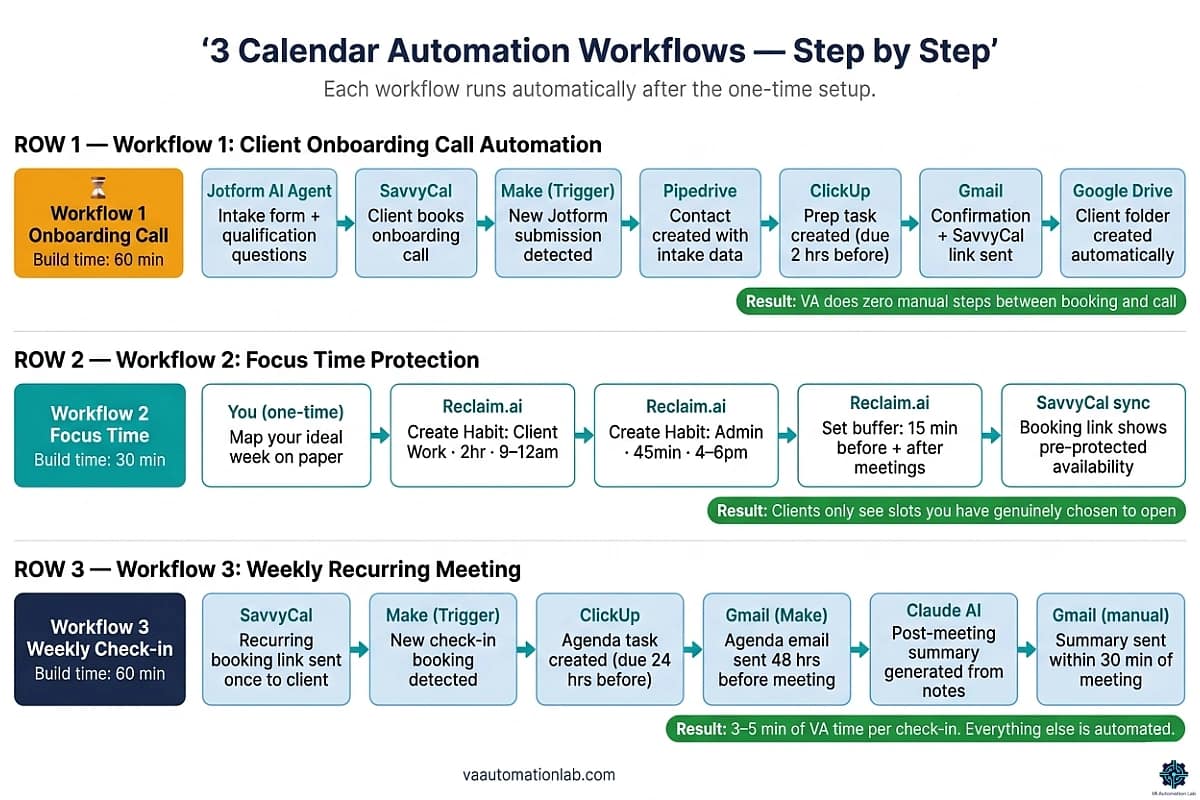
9. Three Calendar Automation Workflows, Ready to Implement
The three workflows below cover the highest-frequency scheduling automation scenarios in VA operations. Each is documented at the implementation level, a sequence you can build in a single session.
Workflow 1 — Client Onboarding Call Automation
What it does: converts a new client booking into a complete pre-call preparation sequence (CRM record, project task, intake form delivery, and Google Drive folder setup) automatically.
Tools: SavvyCal + Jotform + Make + Pipedrive + ClickUp
Time to build: 45–60 minutes in Make.
Time saved per booking: 15–20 minutes of manual setup per new client call.
Step-by-step:
- Create a Jotform AI Agent intake form with 4–5 qualifying questions: client name, company, service needed, current tools, primary pain point. Configure conditional logic to show the SavvyCal booking link only after form completion.
- Create a SavvyCal scheduling link: “Onboarding Call” with 60-minute duration and your onboarding availability hours.
- Make Trigger: “New submission in Jotform.”
- Make Action 1: Create contact in Pipedrive with name, email, company, and service need from the Jotform fields.
- Make Action 2: Create task in ClickUp titled “Prepare for onboarding call — [Client Name]” with due date set to 2 hours before the meeting.
- Make Action 3: Send confirmation email via Gmail with the SavvyCal booking link and a summary of the intake responses.
- Make Action 4: Create Google Drive folder at /Clients/[ClientName]/ with subfolders Notes, Contracts, Deliverables.
Result: by the time the call occurs, the client is in Pipedrive, the prep task is in ClickUp, the folder exists in Drive, and the intake answers are in the VA’s inbox. Zero manual steps.
Workflow 2 — Focus Time Protection Automation
What it does: maintains protected deep-work blocks in your calendar automatically, preventing meeting fragmentation even as new client bookings arrive throughout the week.
Tools: Reclaim.ai
Time to build: 20–30 minutes in Reclaim.ai.
Time saved: prevents 60–90 minutes of fragmented scheduling per week.
Step-by-step:
- In Reclaim.ai, create a Habit: “Client Work,” duration 2 hours, priority High, scheduling window 9am–12pm daily. This is your primary protected deep-work block.
- Create a second Habit: “Admin and Planning,” duration 45 minutes, priority Medium, scheduling window 4pm–6pm daily. This protects end-of-day admin time.
- Set buffer time: 15 minutes before and after all meetings. Reclaim adds these automatically as calendar blocks that prevent back-to-back bookings.
- Set meeting limits: maximum 3 external meetings per day. On days when 3 meetings are already booked, SavvyCal shows those slots as unavailable.
- Connect Reclaim.ai to SavvyCal via calendar sync: when SavvyCal books a meeting, Reclaim sees it immediately and adjusts Habit blocks to maintain target deep-work time within the remaining available slots.
Result: your SavvyCal booking link shows accurate availability that already accounts for focus time, buffer time, and daily meeting limits. Clients see only the slots you have genuinely chosen to make available.
👉 Set up focus time protection with Reclaim.ai
Workflow 3 — Weekly Recurring Meeting Automation
What it does: handles the full lifecycle of weekly client check-ins (scheduling, preparation reminder, agenda distribution, and follow-up task creation) without manual coordination each week.
Tools: SavvyCal + Make + ClickUp + Claude
Time to build: 60 minutes.
Time saved: 20–30 minutes per client per week.
Step-by-step:
- Create a SavvyCal scheduling link: “Weekly Check-in — [Client Name]” with recurring availability on the same day and time each week. Send the link once; the client books the recurring slot and all future occurrences are handled automatically.
- Make Trigger: “New booking created in SavvyCal — Weekly Check-in.”
- Make Action 1: Create recurring task in ClickUp “Prepare check-in agenda — [Client Name]” with due date set to 24 hours before each meeting.
- Make Action 2: Send automated email to client 48 hours before the meeting with a standard agenda template and a request for any topics they want to add.
- Post-meeting: paste raw notes into Claude with this prompt template:
Write a meeting summary email for a weekly client check-in.

Client: [CLIENT NAME]
Meeting date: [DATE]
Topics covered: [PASTE NOTES]
Decisions made: [LIST]
Action items: [WHO does WHAT by WHEN]
Next meeting: [DATE AND TIME]

Tone: professional and warm.
Length: under 150 words.
Format: brief intro + decisions + action items + next meeting confirmation.- Review the output, send to client within 30 minutes of the meeting ending.
Result: the weekly check-in cycle runs on a single initial booking. The VA’s recurring time investment: 5 minutes to prepare the agenda from the ClickUp reminder, the meeting itself, and 3–5 minutes to review and send the Claude summary.
👉 Automate your Meetings with SavvyCal
👉 Automation for Virtual Assistants: The Complete Guide — how to connect booking, onboarding, CRM updates, task creation, and client communication into a complete automation system.
👉 Best Automation Workflows for Virtual Assistants — the complete library of VA automation workflows that extend this scheduling foundation.
10. Common Mistakes That Make Scheduling Systems Fail
Using Multiple Scheduling Tools Without a Unified System
The most common scheduling failure in VA operations: using one tool for one client, a different tool for another, and a shared calendar link for a third, each with separate availability rules and no conflict detection between them.
The result is predictable: a double booking within the first two weeks. Each tool checks only its own calendar connections. If tool A and tool B both see the same slot as available, two clients can book it simultaneously.
The fix: choose one primary scheduling tool and route all client bookings through it. SavvyCal handles multiple client types natively through separate scheduling links, each with its own availability rules, all checked against the same connected calendars. If different clients require different booking experiences, use separate SavvyCal links within the same account rather than maintaining separate tools.
Not Setting Availability Boundaries
A scheduling link without explicit boundaries becomes a blank check for clients to fill your calendar. Without configured working hours, buffer times, daily meeting limits, and meeting-free days, the scheduling tool will accept bookings in every technically available slot.
The fix: before sharing any booking link, configure all four boundary types: working hours (exact start and end time per day), buffer time (minimum 15 minutes between meetings), daily meeting limit (3–4 external meetings per day for most VA workflows), and focus blocks (at least one 2-hour uninterrupted window per day marked unavailable). Configure the first two in SavvyCal; configure the last two in Reclaim.ai and connect both tools via calendar sync.
Automating Before Defining the Ideal Week
Calendar automation amplifies whatever weekly structure you have built, or failed to build. A VA without a clear mental model of their ideal week before configuring Reclaim.ai or Motion will produce an automated version of a disorganized schedule.
The fix: before opening any scheduling automation tool, map your ideal week on paper. Define: how many hours per day per client, when your highest-focus periods are, when you handle administrative work, and how many external meetings you can absorb without degrading output quality. Then configure the tool to enforce that structure. Reclaim.ai’s Habit scheduling is designed exactly for this: you define the structure, Reclaim.ai defends it automatically.
Ignoring Time Zone Errors Until They Cause a Missed Meeting
Time zone errors have the highest client relationship cost of any scheduling mistake. A missed meeting due to a time zone miscalculation is not perceived as a system failure, it is perceived as a professionalism failure.
The fix: treat time zone configuration as a critical setup step. SavvyCal‘s recipient calendar overlay is the most effective safeguard: because the client sees their own calendar when selecting a time, they confirm the slot in their local time themselves, eliminating the most common time zone error at the source. For every new client, additionally verify: does the confirmation email state the meeting time in their time zone explicitly? Does the calendar invite add correctly in their local time? Test with a personal email in a different time zone before sharing any booking link.
Using the Wrong Tool Category for the Job
Using SavvyCal or Reclaim.ai to manage appointment booking for a client’s coaching practice, clinic, or studio is a tool category mismatch. These tools are designed for peer-to-peer meeting scheduling, they lack multi-provider management, service catalogs, payment collection at booking, and branded booking widgets that service-based businesses require.
The fix: if the scheduling need is service appointment management for a client’s business (not your own meetings), the correct tool is SimplyBook.me. Its free tier (50 bookings/month, 1 provider) covers the initial scope for small service businesses; the Basic plan ($14/month) handles up to 100 bookings across 5 providers. Run SimplyBook.me on the client’s account, keep SavvyCal and Reclaim.ai on yours.
11. Conclusion
The best AI scheduling tools for virtual assistants are not the ones with the most features, they are the ones that match your specific workflow, require the least ongoing maintenance, and produce visible results in the first week of use.
For most VAs, the complete scheduling system starts with two tools: SavvyCal (Basic, $12/month) for professional client-facing booking, and Reclaim.ai (free tier) for internal focus time protection and habit scheduling. Connected via calendar sync and extended with a Make automation scenario for post-booking workflow, this stack eliminates the majority of manual scheduling overhead at a total cost of $12–21/month for most use cases.
Add SimplyBook.me when you manage appointment booking for a client’s service business. Add Jotform AI Agents when you need structured intake before the booking link. Add Make when the post-booking manual steps (CRM record, task creation, email, file setup) become a recurring time cost.
Automate scheduling one workflow at a time. Configure the first booking link, test it, connect it to Make, verify the downstream automation works correctly. Then add the second workflow. Within two weeks of correct implementation, daily time spent on scheduling coordination drops from hours to minutes, and the recovered time is available for the client work that actually grows your business.
Stop the Back-and-Forth — Let Clients Book the Right Time Instantly
SavvyCal lets clients compare your availability with their own calendar before booking, so they pick a time that actually works, without follow-ups, rescheduling, or friction.
Set up unlimited booking links, connect multiple calendars, and automate your scheduling workflow from day one.
Frequently Asked Questions About AI Scheduling for Virtual Assistants
What is the best AI scheduling tool for virtual assistants managing multiple clients?
For VAs managing multiple clients, the most effective starting combination is SavvyCal plus Reclaim.ai. SavvyCal handles external client booking with separate scheduling links and availability rules per client, recipient calendar overlay for frictionless time selection, and Zapier/Make integration for downstream workflows. Reclaim.ai handles internal calendar management, protecting focus time, scheduling recurring admin blocks, and syncing across multiple calendar accounts to prevent double bookings. Together they cover the full scheduling stack at a combined cost of $12–22/month depending on tier.
What is the difference between SavvyCal and Calendly for virtual assistants?
Both are client-facing booking link tools, but SavvyCal has a distinct differentiator: recipients can overlay their own calendar on top of your availability before selecting a time. This eliminates the most common source of booking back-and-forth, the recipient not knowing whether a slot works for them without separately checking their calendar. SavvyCal Basic ($12/month) includes unlimited scheduling links and calendar connections; Calendly‘s equivalent features are at a similar price point. SavvyCal also offers delegate access on its Premium plan ($20/month), which is useful for VAs who need an assistant or backup to manage their availability.
What is the difference between Motion and Reclaim.ai for virtual assistants?
Both tools automate calendar management beyond simple booking links, but they serve different primary needs. Motion rebuilds your entire daily schedule in real time around both meetings and tasks, it is a full day-planning system that treats meetings and deliverables as competing priorities in the same calendar. It is best for VAs who manage their own task execution alongside client calendar management. Reclaim.ai focuses on protecting recurring time blocks (habits, focus windows, admin slots) against the constant pressure of new meeting requests. It is less opinionated about task management and easier to configure for VAs who already have a task management system in place.
How do I prevent double bookings when managing multiple client calendars?
Connect all active calendars, your personal calendar and each client’s shared calendar, to your primary scheduling tool under calendar connections. Both SavvyCal and Reclaim.ai will mark any slot occupied in any connected calendar as unavailable across all booking pages simultaneously. As a secondary safeguard, run a 5-minute weekly calendar audit every Monday to manually verify no conflicts exist in the coming week. SavvyCal’s recipient calendar overlay also reduces double bookings by letting clients confirm their own availability before completing a booking.
When should a VA use SimplyBook.me instead of SavvyCal?
Use SimplyBook.me when the scheduling need is managing appointment booking for a client’s service-based business, a coaching practice, clinic, studio, or consultant with multiple service types and recurring client sessions. SimplyBook.me supports multi-provider management, service catalogs with pricing, payment collection at booking, and branded booking widgets, features SavvyCal is not designed to provide. SavvyCal remains the right tool for managing your own meeting schedule. A VA supporting a coaching client would run SimplyBook.me on the client’s account and SavvyCal on their own.
Do I need technical skills to automate scheduling as a virtual assistant?
No. All tools in this guide operate without programming knowledge. SavvyCal and Reclaim.ai require only browser-based configuration: connecting calendars, setting availability rules, and defining scheduling links. Make automation workflows use a visual scenario builder with no custom code, selecting triggers and actions from dropdown menus. A VA with no prior automation experience can build the complete onboarding call workflow from Section 8 in a single 45–60 minute session.
How do I use Jotform with my scheduling system?
Use Jotform AI Agents as the intake layer before your SavvyCal booking link. Build a 4–5 question AI agent form that qualifies leads or collects information before showing the booking page. Configure conditional logic in Jotform to show the SavvyCal link only after form completion, this ensures every booking arrives with pre-collected context. Connect Jotform to Make to pass form responses to your CRM (Pipedrive, Folk, Zoho CRM) and task management system (ClickUp) automatically on each submission.
How often should I review and update my scheduling system?
Review your scheduling configuration monthly: availability hours (do they still reflect your actual contracted client hours?), scheduling link list (are there meeting types you no longer offer, or new ones to add?), buffer times (are back-to-back meetings still creating friction?), and Make scenarios (are all downstream automations still producing the correct output?). A scheduling system that is not reviewed tends to accumulate small misconfigurations (a stale availability window, a broken Make step, a scheduling link no one uses) that compound into larger friction over time.
What is the best free AI scheduling tool for new virtual assistants?
For a new VA, the strongest free-tier combination is TidyCal (free plan — unlimited bookings, unlimited booking types) for immediate client-facing scheduling, paired with Reclaim.ai Lite (free — 1 habit, 1 scheduling link, 1 calendar sync) for basic focus time protection. TidyCal’s free tier handles professional booking pages with no monthly cost; Reclaim’s free tier protects at least one recurring deep-work block per day. Both are operational within 30–45 minutes of setup. Upgrade path: TidyCal Individual ($29 one-time) → SavvyCal Basic ($12/month) when delegate access and Make integration are needed.
How does Reclaim.ai protect focus time for virtual assistants?
Reclaim.ai uses a feature called Habits — recurring calendar blocks (deep work, admin, planning) that the tool automatically places in the best available slots each week and defends against new booking requests. When a new meeting is added to your calendar, Reclaim moves the Habit block rather than canceling it, preserving your target productive hours within the available slots. For VAs, the most effective configuration is: one 2-hour deep-work Habit (priority: High, window: 9am–12pm) and one 45-minute admin Habit (priority: Medium, window: 4pm–6pm). Both are available on the free Lite tier.
Glossary: Key Scheduling and Calendar Terms for Virtual Assistants
AI Scheduling Tool: A platform that uses automation and AI to handle meeting coordination (checking availability, confirming bookings, sending reminders, and triggering downstream workflows) without manual intervention from the VA.
Calendar Automation: The use of scheduling tools and no-code platforms such as Make to automatically manage calendar events and trigger connected actions (CRM updates, task creation, email delivery) on each new booking. AI calendar tools such as Reclaim.ai implement calendar automation at the individual level; enterprise AI calendar platforms apply the same logic across entire organizations.
Recipient Calendar Overlay: A SavvyCal feature that allows the booking recipient to view their own calendar alongside the host’s availability before selecting a time, eliminating the most common source of scheduling back-and-forth.
Focus Time Protection: AI-driven calendar rules that block defined deep-work windows and prevent new meetings from being scheduled during those periods. Primary tool: Reclaim.ai Habits.
Buffer Time: Automatic spacing inserted before and after meetings to prevent back-to-back scheduling and preserve transition time. Configured in Reclaim.ai or directly in SavvyCal’s event settings.
Booking Link / Scheduling Link: A shareable URL that allows clients to select a meeting time from the VA’s real-time availability. The foundation of client-facing scheduling automation.
Habit Scheduling: A Reclaim.ai feature that automatically places recurring non-meeting work blocks (admin, reporting, client prep) in the best available calendar slots each week, and defends those blocks against new meeting requests.
Multi-Calendar Coordination: Managing and scheduling across multiple separate calendar accounts simultaneously, typically one personal calendar and one or more client calendars, with unified conflict detection.
Conflict Detection: Automated analysis of all connected calendars that identifies overlapping bookings before they occur and marks those slots as unavailable across all booking pages.
Service-Based Booking: Appointment scheduling with a service catalog, multi-provider support, and payment capture, the workflow SimplyBook.me is designed for, distinct from peer-to-peer meeting booking.
Scheduling Stack: The combination of scheduling and automation tools a VA uses to cover the full coordination cycle: external booking, internal calendar management, intake, time tracking, and downstream workflow automation.
Intake Form: A pre-booking questionnaire (Jotform AI Agents) that collects client information before displaying a booking link, ensuring every scheduled meeting arrives with pre-collected context and qualifies the booking before the slot is confirmed.
About the Author
Alex Stratton has spent the better part of a decade working at the intersection of virtual assistance and operational systems, first as a VA supporting founders and small business owners, then as a workflow consultant helping remote teams reduce the manual overhead that accumulates when businesses grow faster than their processes. The tools and workflows here reflect decisions made repeatedly in real client contexts, where the wrong choice costs hours, not minutes. Learn more about VA Automation Lab → About.