
SaneBox for Virtual Assistants: Review & Setup Guide (2026)
Disclosure: This article contains affiliate links. If you sign up through them, VA Automation Lab earns a commission at no extra cost to you. Recommendations are based on our evaluation of tool fit for VA workflows.
SaneBox is an AI email service that filters low-priority mail out of your inbox, and for virtual assistants running several client inboxes, its delegation feature and hands-off triage can win back three to four hours a week.
If you manage email for clients, you already know the real problem isn’t writing replies. It’s the sorting: skimming newsletters, dismissing notifications, and hunting for the one message that needs an answer, across two, three, or four inboxes. That triage tax eats your focus before real work even starts.
This guide is a hands-on SaneBox review written for VAs. You’ll see exactly how the tool works, how to set it up in under fifteen minutes, how to run it across multiple client inboxes (including the delegation feature almost no review mentions), what the current pricing looks like, and where it falls short. By the end, you’ll know whether SaneBox belongs in your stack. For the wider picture, see our Tools for Virtual Assistants: The Complete AI Systems & Software Guide and our deeper AI email management workflows for VAs.
SaneBox at a Glance
Best for | Virtual Assistants managing multiple inboxes |
Free trial | 14 days |
Works with | Gmail, Outlook, Apple Mail and IMAP |
AI learning | Yes |
Client delegation | Executive Assistant Access |
Difficulty | Beginner |
Setup time | About 10 minutes |
This review evaluates SaneBox specifically from the perspective of professional virtual assistants managing multiple client inboxes. Features and recommendations focus on real client workflows rather than general personal productivity.
Want to Start Using AI Tools the Right Way?
The exact AI tools, plug-and-play prompts, and client-ready workflows we use to run VA work on autopilot.
Free, no fluff, straight to your inbox.
Table of Contents
1. What Is SaneBox and How Does It Work for Virtual Assistants?
Before the setup and the workflows, here’s the core idea in one paragraph.
SaneBox in one sentence
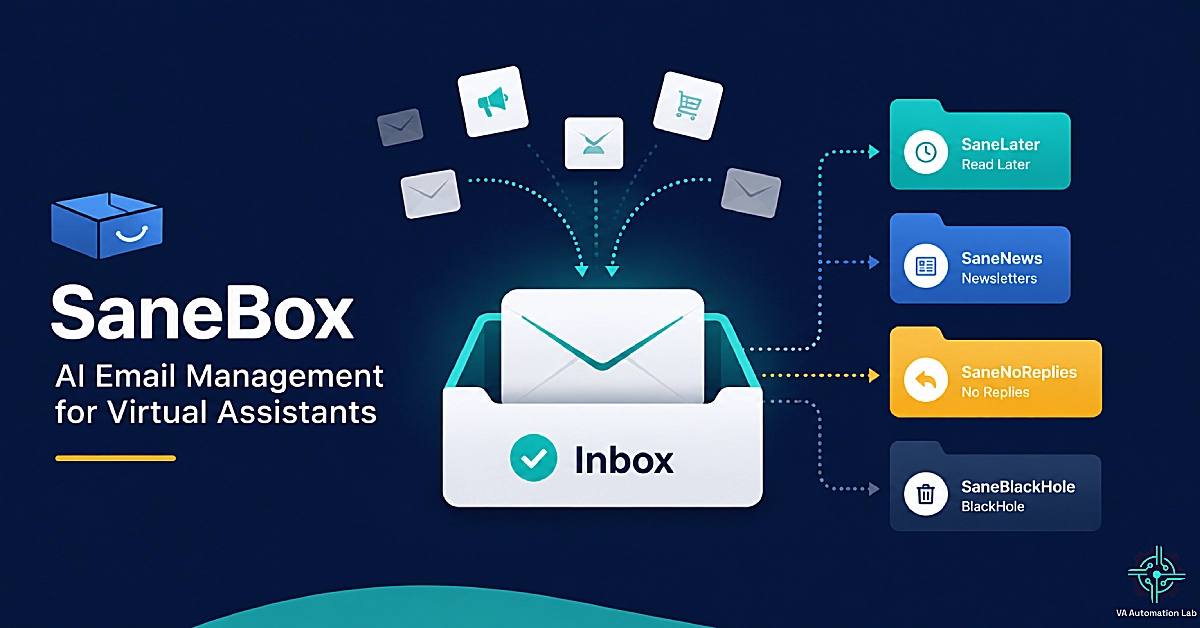
SaneBox is an AI email-management service that connects to your existing inbox — Gmail, Outlook, iCloud, Yahoo, or any IMAP account — and automatically moves unimportant messages into folders like SaneLater, so only priority mail stays in front of you. It learns from how you handle email and never reads message content, only the headers.
That last point matters more than it sounds — we’ll come back to it under client data.
How SaneBox Filters Your Inbox
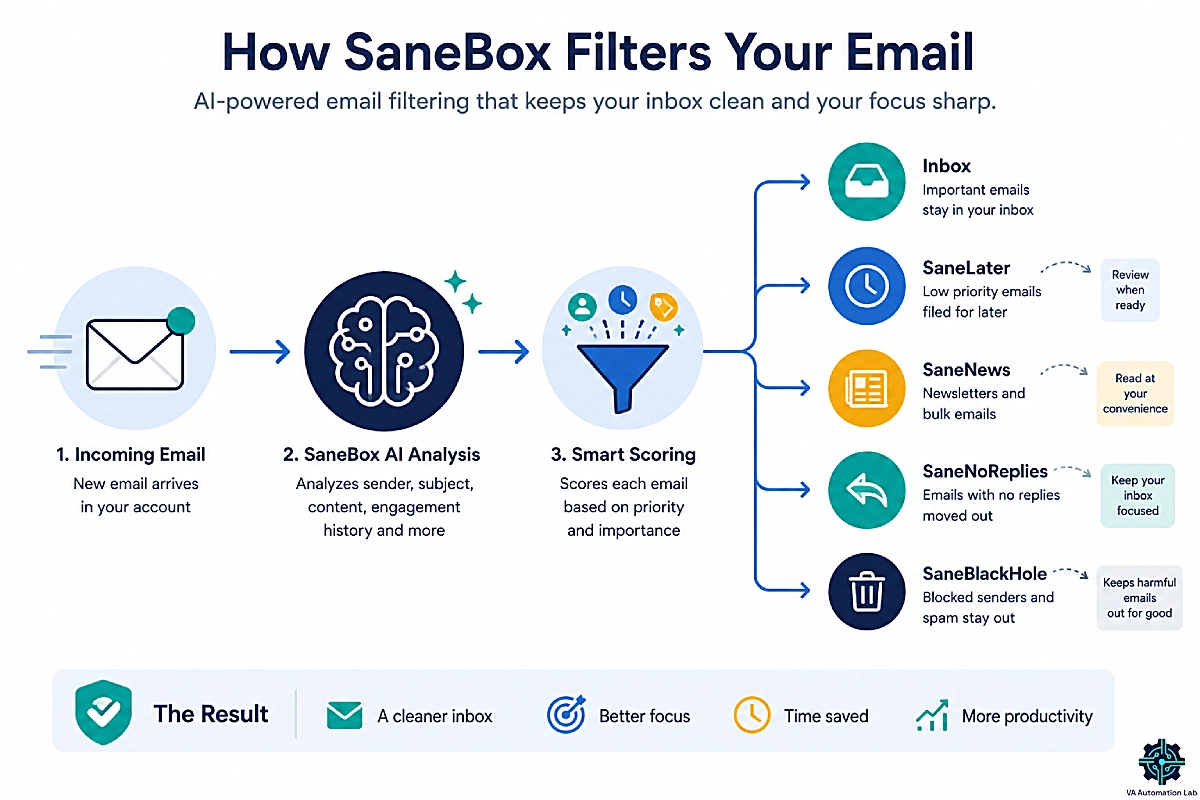
SaneBox sits between your mail server and your inbox, working in the background. When a new message arrives, its algorithm scores it against signals like who sent it, the subject line, whether you’ve replied to that sender before, and how you’ve treated similar mail in the past. Based on that score, it routes the message. Anything important stays in your inbox untouched. Everything else is filed into a dedicated folder — low-priority mail goes to SaneLater, newsletters and mailing lists to SaneNews, messages you’re only copied on to SaneCC, and senders you’ve banished to SaneBlackHole.
A quick example makes it click. A client’s weekly software newsletter drops into SaneNews, while an urgent reply from that same client’s customer stays front and center in the inbox. You didn’t write a single rule — SaneBox learned the difference from your past behavior.
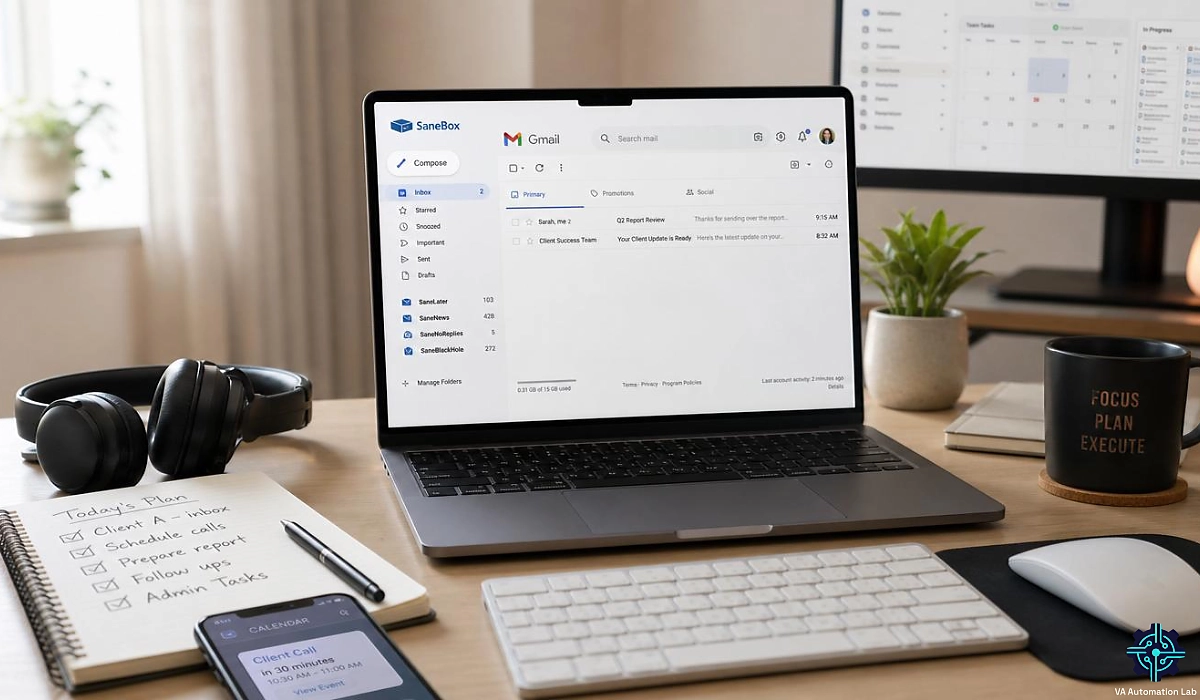
You keep training it just by dragging. Move a misfiled email back to your inbox and SaneBox learns that sender matters; drag a stray newsletter into SaneLater and it remembers for next time. Because all of this happens as ordinary folders on your mail server, it shows up everywhere you check email — Gmail on the web, Outlook on the desktop, or Apple Mail on your phone — with nothing to install and no new interface to learn. That’s a big part of why it slots into a VA workflow without disruption.
The Multi-Client Inbox Problem SaneBox Solves for VAs
Studies routinely put email at about a quarter of the average knowledge worker’s week. For a virtual assistant, it’s worse — you’re not triaging one inbox, you’re triaging several, each with its own senders, rhythms, and definition of “urgent.” What’s a drop-everything email for one client is background noise for another, and your brain pays a tax every time it switches context between them.
That constant switching is the hidden cost of managing multiple clients. Native filters don’t solve it, because rules are rigid: you’d have to build and maintain a separate set for every account, and they still can’t tell an important new sender from a forgettable one. Miss a rule and something slips; over-filter and you bury a message that mattered.
This is exactly the job SaneBox is built for. It learns each connected account separately, so a client’s priorities never bleed into another’s, and it handles the first pass on every inbox — clearing the noise so the threads that need you surface on their own. Good inbox management for a VA isn’t about reading faster; it’s about seeing less. Handle three busy clients this way and the time you claw back compounds fast.
2. SaneBox Features Every Virtual Assistant Should Know
SaneBox is really a bundle of small, focused tools. These are the SaneBox features that earn their keep for client work.
SaneLater — automatic inbox triage
The workhorse. Low-priority mail is filed out of your inbox into SaneLater automatically, keeping a client’s main view clean without deleting anything. Nothing is lost; it’s just moved for later, ready for a batch review when it suits you.
SaneNews — newsletter and bulk mail control
Newsletters, promotions, and mailing lists route into their own folder instead of cluttering the inbox. For a client account buried in subscriptions, this alone is a visible win on day one — and you can still read everything on your own schedule.
SaneBlackHole — one-click unsubscribe that sticks
Drag a persistent sender here and you never see them again. It’s the fastest way to permanently kill recurring noise in a cluttered client account, without hunting for tiny unsubscribe links.
SaneNoReplies and Reminders — follow-up tracking
SaneNoReplies collects the emails you sent that never got a reply, and Reminders nudge you to follow up. For a VA chasing proposals, invoices, or approvals on a client’s behalf, this is the accountability layer that stops threads from going silent.
Daily Digest, SaneSnooze, and SaneDoNotDisturb — focus and batch review
The Daily Digest is a single summary of everything SaneBox filtered out, so you scan the noise once instead of all day. SaneSnooze defers a message to resurface when you can act on it, and SaneDoNotDisturb pauses new mail so you can do focused work. Rounding out the set: Attachments (offload large files to the cloud), SaneCC (set aside mail you’re only copied on), and SaneNotSpam (rescue real mail wrongly flagged as spam).
Here’s how the core features map to real VA jobs.
SaneBox feature | What it does | Why it matters for a VA |
SaneLater | Files low-priority mail out of the inbox | Keeps every client inbox clean automatically |
SaneNews | Sorts newsletters and bulk mail into one folder | Fast decluttering of subscription-heavy accounts |
SaneBlackHole | Permanent one-click unsubscribe | Kills recurring noise for good |
SaneNoReplies + Reminders | Tracks unanswered mail and prompts follow-ups | Never lets a client proposal or invoice go silent |
Daily Digest | One summary of everything filtered | Batch-review noise once, not all day |
SaneDoNotDisturb | Pauses incoming mail | Protects deep-work blocks |
👉 AI Powered Productivity System for VAs — SaneBox belongs straight into the “communication” layer of this system.
See these Features Clean Out your Inbox in Real Time
Don’t take our word for it — connect your busiest inbox and let SaneBox sort it for you.
The 14-day free trial needs no credit card, and most VAs notice a lighter, calmer inbox within the first day.
3. How to Set Up SaneBox: A Step-by-Step Guide
Setup is quick. Most VAs are live in under fifteen minutes, and you can be running before a client even notices a change.
Step 1 — Connect your email account
Sign up for the 14-day free trial and connect the inbox using OAuth. SaneBox works with Gmail, Outlook and Microsoft 365, Apple iCloud, Yahoo, Fastmail, and any IMAP, Exchange, or ActiveSync account. There’s nothing to download, and you can revoke access at any time.
Step 2 — Enable the right Sane folders
During onboarding you choose which folders to switch on. Start small: SaneLater plus the Daily Digest is enough on day one. Add SaneNews and SaneBlackHole once you’ve seen how the sorting behaves. Turning everything on at once is the fastest way to feel overwhelmed, so build up.
Step 3 — Train SaneBox during the first two weeks
SaneBox analyzes your email history immediately, but it takes one to two weeks to fully learn your priorities. During this window, drag any misfiled message to the correct folder — each correction teaches the AI. Set the expectation up front, especially on a client account, so an early misfile doesn’t read as a failure. It’s the system learning.
Step 4 — Fine-tune accuracy over time
After training, filtering settles into the high 90s in accuracy for most users. Keep an eye on SaneLater for the first few weeks and drag anything important back to your inbox. Once it’s dialed in, SaneBox mostly disappears into the background — which is exactly what you want.
4. Using SaneBox to Manage Multiple Client Inboxes
This is where SaneBox becomes a real VA tool rather than a personal one, and it’s the part most reviews skip entirely.
Delegating a Client’s Inbox with Executive Assistant Access
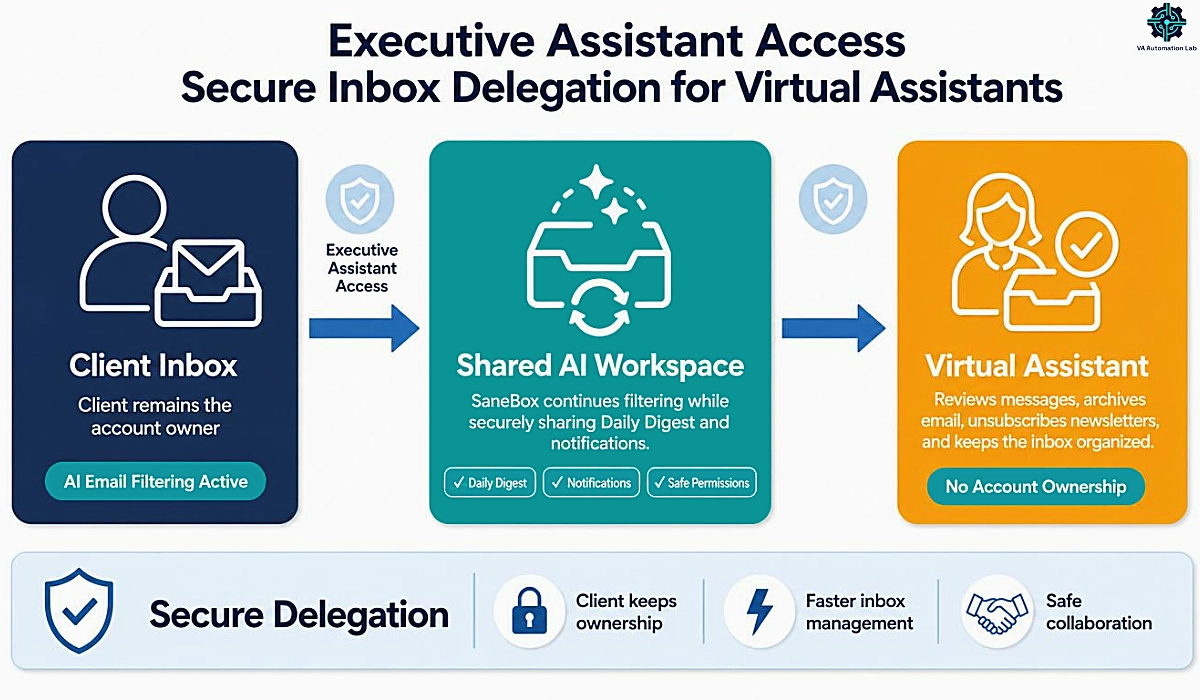
SaneBox has a built-in feature made for exactly this situation, and it’s the one most reviews never mention: Executive Assistant Access. Your client, as the account owner, turns it on from their SaneBox settings, and from that point their Daily Digest and SaneBox notifications are copied to you. From that Digest, you click straight through to process their filtered mail — triaging what SaneLater caught, unsubscribing junk, rescuing anything misfiled, and clearing the backlog on their behalf.
Setting it up takes three things. First, the client enables Executive Assistant Access on their account and adds your email as the assistant. Second, you whitelist SaneBox’s addresses — reports@sanebox.com, support@sanebox.com, message-digest@sanebox.com, and password-reset@sanebox.com — so nothing you need lands in your own spam folder. Third, you agree on a cadence, which is where the daily workflow below comes in.
Two caveats, so you set it up responsibly. This option is powerful: it forwards nearly all SaneBox mail to the assistant, including magic login links, which effectively grants you full access to the client’s SaneBox account. Treat that access with the same care as any shared credential — store it in a password manager (1password), and revoke it the moment the engagement ends. And decide up front whether delegation is even the right model: if you’d rather keep control on your side, you can instead connect the client’s inbox to your own SaneBox account (more on plans below).
Set up cleanly, though, delegation turns a client’s inbox into something you can own. It pairs naturally with the systems in our guide to Managing Multiple Clients as a VA.
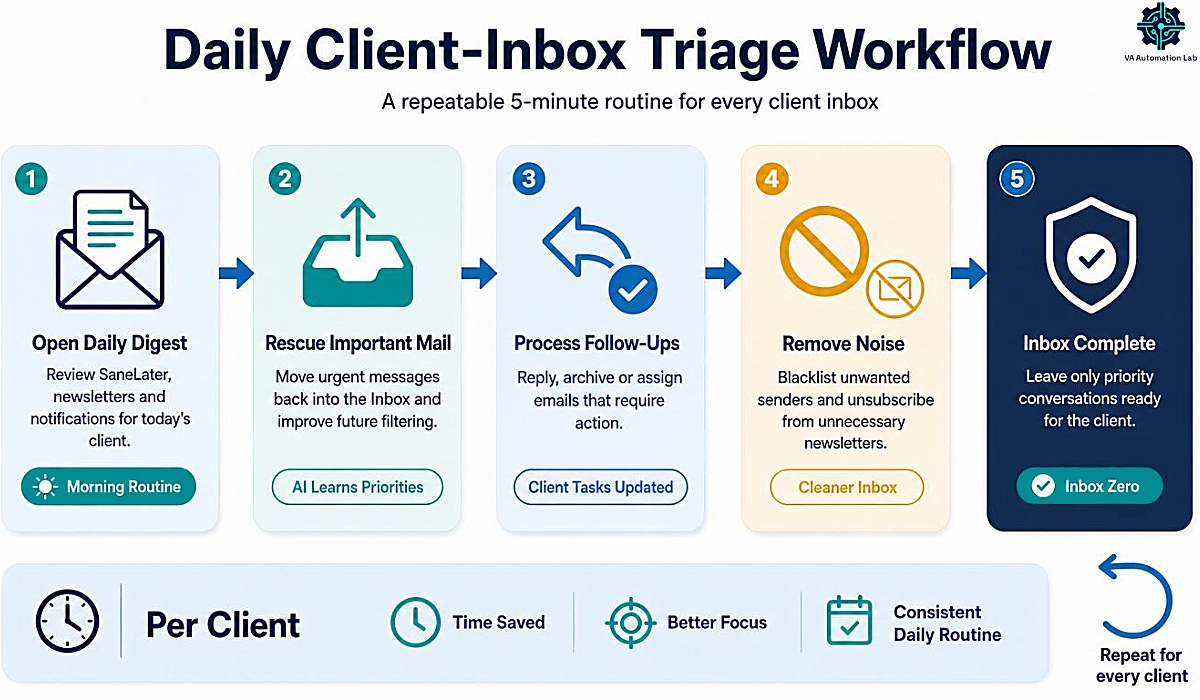
A Daily Client-Inbox Triage Workflow for VAs
Delegation only pays off with a repeatable cadence. Here’s a simple triage routine you can run per client in about ten minutes — short enough to do every morning, structured enough that nothing slips.
1. Open the Daily Digest first. Start with SaneBox’s summary of everything it filtered overnight, rather than the raw inbox. You review a full day of noise in one scan instead of message by message, which is where most of the time savings come from.
2. Rescue and train. Drag anything important back into the inbox. That surfaces the message for action and teaches the AI to route it correctly next time, so the Digest gets sharper every day.
3. Clear SaneNoReplies. Check the folder of emails the client sent that never got a reply, then send the follow-ups or flag them for the client. This is where a VA earns trust — proposals, invoices, and approvals stop slipping through the cracks.
4. Blackhole the junk. Send repeat offenders and dead newsletters to SaneBlackHole so they never return. Tomorrow’s Digest is shorter than today’s, and the inbox keeps getting cleaner without extra effort.
5. Close the loop. Note anything that needs the client’s decision and pass it over in one batched message, then move to the next account. Batching questions instead of pinging all day keeps you — and your client — out of reactive mode.
Keeping Client Accounts Separate and Data Secure
Handling someone else’s mail raises a fair question, and it’s one a good client will ask: is this safe? SaneBox’s architecture is reassuring here. It only analyzes email headers — the sender, subject, and timestamp — and never stores the full content of messages or their attachments. In plain terms, it can see that an email arrived from a given address with a given subject, but not what’s written inside.
Access is granted through OAuth, the same secure sign-in standard major apps use, which means a client can connect SaneBox and revoke that access in seconds without changing their password. The company also undergoes independent security audits, and each account you connect is trained in isolation, so one client’s definition of “important” never influences another’s.
For a VA, that combination — header-only analysis, revocable access, and per-account separation — is the difference between a tool you can responsibly put on a client’s inbox and one you can’t. A few practical habits make it airtight: store any delegated logins in a password manager (1password) rather than a notes app, use a separate browser profile per client where you can, and remove your access the day a contract ends. Handled this way, you can offer inbox management as a premium service and answer the security question with confidence.
5. SaneBox Pricing and Plans for Virtual Assistants
SaneBox has no free plan, but every tier comes with a 14-day free trial and no credit card required. Here’s the current SaneBox pricing, shown at the annual-billing rate.
Plan | Price (billed annually) | Email accounts | Features |
Snack | $5.42/month | 1 | 2 |
Lunch | $9.08/month | 2 | 6 |
Dinner | $26.58/month | 4 | All |
Monthly billing runs higher at $9.49, $15.99, and $42.99; 2-year $4.54, $7.46, $22.04.
What each plan includes
The tiers scale on two things: how many inboxes you connect and how many SaneBox features you can run at once. Snack covers a single account with two features, so it’s best seen as a taster. Lunch opens up two accounts and six features — enough to run real triage plus follow-up tracking. Dinner is the full toolkit: four accounts and every feature, including Attachments and SaneSnooze, with phone support on top. The practical takeaway is that the lower tiers cap how much of SaneBox you get, so match the plan to the features you’ll lean on most.
Which Plan Fits your VA Business
For most solo VAs, Lunch is the practical entry point. Its six features cover the tools you’ll use every day — SaneLater, the Daily Digest, SaneNoReplies, and a couple more — across two inboxes, which is usually your own business account plus one client. Snack looks cheaper, but two features rarely deliver the full “clean inbox” effect, so it works better as a trial-of-the-trial than a working setup.
If you connect several of your own client addresses under one SaneBox login, Dinner is the multi-client plan. Four accounts and every feature mean you can run full triage on your business inbox and up to three clients from a single dashboard — the sweet spot for a VA who owns the accounts.
There’s one nuance that can save you money. If you’re processing a client’s inbox through Executive Assistant Access, the subscription lives on their account, not yours. They choose the plan that fits their own inbox count, and you simply work from the forwarded Digest — meaning you don’t always need to buy SaneBox yourself to run it for a client. In practice, many VAs recommend a plan to the client, set it up on the client’s account, and keep their own Lunch plan for their business inbox. Match the plan to who owns the mailbox and you’ll never overpay.
Is SaneBox Worth it? The ROI Math for VAs
SaneBox says users save around three to four hours a week once it’s trained, and for a VA billing by the hour that number is easy to translate. Say you charge $40 an hour and SaneBox gives you back three hours a week. That’s $120 of recovered capacity weekly, or roughly $480 a month — against a Dinner plan at $26.58. Even on the conservative end, the tool pays for itself many times over the moment it saves you a single hour of triage.
There’s a softer return, too. Clearing decision fatigue from your morning means the hours you do spend are sharper, and a client who sees their inbox under control tends to trust you with more. Time you’re not spending sorting is time you can bill elsewhere, spend onboarding a new client, or simply keep for yourself.
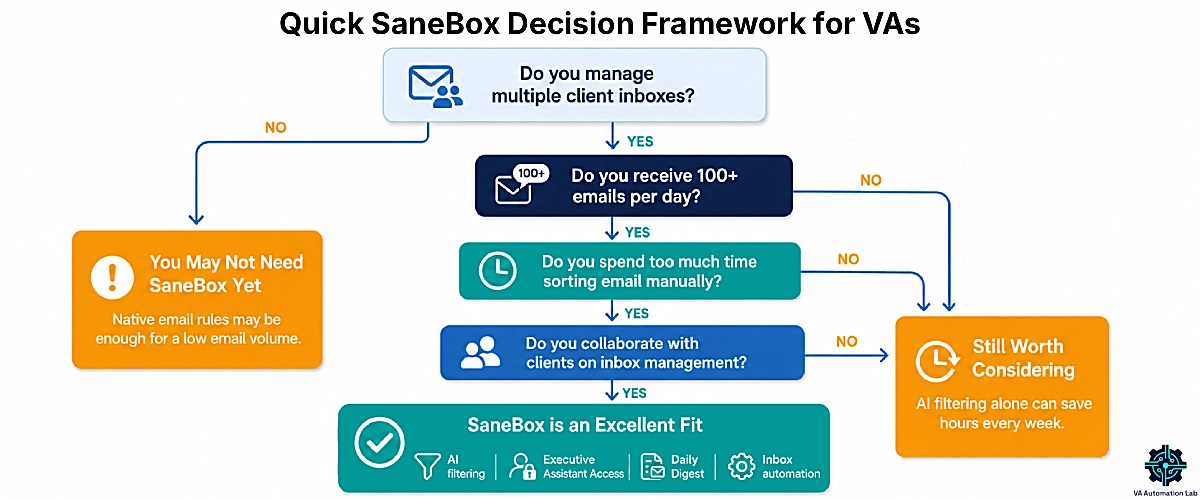
The caveat is the flip side. SaneBox earns its price at volume — if an inbox only gets a handful of emails a day, native filters may be enough and SaneBox is overkill. The rough break-even is fifty-plus emails a day; below that, the math gets thin. Above it, across two or three busy client inboxes, the return isn’t close. If you’re not sure where you land, the 14-day trial answers the question for free.
Get Back 3–4 Hours a Week for Less than One Billable Hour
At $5.42–$26.58 a month, SaneBox pays for itself the moment it saves you a single hour of triage.
Try any plan free for 14 days — no credit card — and keep every hour you win back.
6. SaneBox Pros and Cons for VAs
No tool is right for everyone. Here’s the balanced SaneBox review, from a VA’s point of view.
What SaneBox Does Exceptionally Well
SaneBox’s biggest strength is that it changes nothing about how you already work. There’s no new email client to adopt, no browser extension to babysit, and no behavior to relearn — it simply improves the inbox your client is already living in. That matters enormously for VAs, because you can add it to a client’s setup without asking them to change a single habit.
Its compatibility is rare. SaneBox works with essentially any provider and any client — Gmail, Outlook, iCloud, Yahoo, Fastmail, and anything on IMAP or Exchange — so you’re never locked out because a client uses an unusual setup.
The header-only privacy model makes it defensible for handling someone else’s mail, which is a real selling point when you pitch inbox management as a service. Follow-up tracking through SaneNoReplies prevents dropped balls — the kind of miss that costs a client relationship. And once trained, it runs hands-off: no daily maintenance, no rule-tending, just a cleaner inbox that gets smarter over time. For a VA, that “set it and forget it” quality is the whole point — it buys back attention without becoming one more tool to manage. Add Executive Assistant Access, and it’s one of the few email tools designed for the way VAs work.
Limitations and Drawbacks to Weigh
A few SaneBox limitations are worth knowing before you commit. The most common complaint is the lack of a free plan — a 14-day trial is your only free window, and if you want a permanently free tool, SaneBox isn’t it. The mitigation is simple: run the trial on your busiest inbox so you see the real effect before paying.
There’s also a one-to-two-week learning period. During that window, the occasional important email lands in SaneLater and you have to drag it back to train the system. It’s less a flaw than a break-in cost, but it means you shouldn’t switch on a brand-new client account the night before a big deadline — give it a runway.
Some features are gated to higher tiers, so unlocking the full toolkit means paying for Dinner rather than Lunch. A few users also report that leftover Sane folders linger in Outlook after cancellation and need a quick manual cleanup — worth knowing if you ever offboard a client. And the web dashboard can feel dense if you only open it occasionally, though most day-to-day work happens in the Digest rather than the dashboard. None of these are dealbreakers for a VA handling real email volume, but you should go in with eyes open rather than discover them mid-engagement.
Who SaneBox Is (and isn’t) Right for
SaneBox is an easy yes for one type of VA in particular: anyone handling fifty or more emails a day across one or more client inboxes who wants automated triage without switching tools. If your day starts with a wall of unread mail and you’re the one keeping clients’ inboxes under control, this is squarely built for you — and the delegation feature makes it work even when the mailbox isn’t yours.
It’s a weaker fit in a few cases. If your inboxes are light — a dozen emails a day — native filters will likely do the job for free. If you specifically want a full email-client replacement with built-in writing and sending, SaneBox isn’t that; it’s a filtering layer over the client you already use. And if you need a permanently free tool, the trial-only model will frustrate you.
There’s also a bottleneck test. If your real time drain isn’t email at all but your calendar — endless meetings and scheduling churn — a filter won’t fix it, and a scheduling assistant is the smarter spend. That’s not a knock on SaneBox; it’s aiming the right tool at the right problem, which is what the pairings below are about.
7. SaneBox Alternatives and Tools That Pair Well
SaneBox is a filtering layer, not an everything-app. The smartest setups pair it with one or two tools that cover what it deliberately doesn’t.
SaneBox vs Manual Email Rules and Native Filters
It’s fair to ask whether you could do all this yourself with Gmail filters or Outlook rules — and partly, you could. Native rules are free and perfectly fine for a handful of known senders: send this newsletter to a label, skip the inbox for that notification. Where they fall down is everything that makes a VA’s job hard.
Rules are static. They can’t tell an important new sender from a forgettable one, they don’t adapt as a client’s contacts change, and they can’t track which of your sent emails never got a reply. Worst of all, they don’t scale: every client inbox needs its own hand-built set, and you become the maintenance department. SaneBox’s value is that the AI does the adapting for you and keeps working across every account without upkeep.
Here’s the trade-off at a glance:
Manual Gmail/Outlook filters | SaneBox | |
Cost | Free | From $5.42/month |
Adapts as senders change | No — you edit the rules | Yes — the AI learns |
Follow-up tracking | No | Yes, via SaneNoReplies |
Upkeep across many inboxes | High — manual, per inbox | Low — automatic |
Time to set up | Ongoing | About 15 minutes |
For a single, simple inbox, DIY wins on price. For multi-client triage where your time is the scarce resource, automation wins — and it wins by more the more inboxes you run.
Pair SaneBox with a Scheduling Tool When the Bottleneck Is your Calendar
If meetings, not mail, are what drain your day, the fix isn’t a better inbox filter — it’s a scheduling assistant working alongside it. Reclaim.ai auto-defends your focus time and schedules tasks, habits, and meetings around each other so your calendar defends itself. It’s the calendar counterpart to what SaneBox does for email.
The parallel goes further than the concept. On its Business tier, Reclaim offers delegated access, so you can manage a client’s calendar the same way Executive Assistant Access lets you manage their inbox — one VA running both a client’s schedule and their email. Reclaim’s Lite plan is free, with paid tiers from $10 a month billed annually, so you can test the pairing at no cost.
Used together, the two tools cover the two biggest time sinks in a VA’s week: SaneBox clears the inbox, Reclaim protects the calendar. For most VAs, that combination removes more daily friction than any single tool can on its own. Our full Reclaim.ai Setup Guide walks through configuring it for client work.
Pair SaneBox with Text Expansion for Faster Client Replies
SaneBox surfaces the emails that need a reply; the next bottleneck is writing those replies fast. If you find yourself typing the same responses over and over — onboarding steps, status updates, “received, will handle by Friday,” scheduling confirmations — a text expander eliminates the retyping entirely.
TextExpander turns your most-used replies into short snippets that expand anywhere you type: your email client, a help desk, a chat window. Save a full onboarding message behind a shortcut like ;onboard, and a two-paragraph reply appears in a keystroke, complete with fill-in fields for the client’s name or dates. For a VA answering similar questions across several clients, that’s minutes saved on every thread and a consistent, professional voice every time.
It’s the cheapest speed upgrade in this whole stack, with plans from $3 a month billed annually and a 30-day free trial — long enough to build a snippet library and feel the difference. Where SaneBox saves the time you’d spend deciding which emails to open, TextExpander saves the time you’d spend answering them.
For the bigger toolkit that ties inbox, calendar, and client operations together, our Client Management Systems guide is the natural next read.
8. The Verdict on SaneBox for Virtual Assistants
If email triage is eating your week — and for most VAs juggling client inboxes, it is — SaneBox is one of the highest-leverage tools you can add. It requires no workflow change, protects client data by design, and its Executive Assistant Access makes real delegation possible in a way no competitor documents. That combination is rare: most inbox tools ask you to change how you work; SaneBox just makes the inbox you already use behave better.
Choose SaneBox if: you’re handling fifty or more emails a day across one or more client accounts, you want automated triage without switching email clients, or you’re looking to offer inbox management as a premium service and need a defensible, client-safe way to do it.
Skip it, or wait, if: your inboxes are light, you need a permanently free tool, or your real bottleneck is your calendar rather than your inbox — in that case, start with Reclaim.ai instead and revisit SaneBox once email volume grows.
Our recommendation: start on the Lunch plan for your own business inbox, run the 14-day trial on your busiest client account before committing to Dinner, and give it the full two weeks to train before judging the results. Most VAs know within the first week whether it’s earning its place in the stack — and once it is, it tends to disappear into the background, which is exactly the point.
Stop Sorting Email by Hand — Starting Today
Put your busiest client inbox on autopilot in under 15 minutes.
Start SaneBox‘s free 14-day trial, connect one account, and let the Daily Digest do the triage you’ve been doing manually.
Frequently Asked Questions About SaneBox for Virtual Assistants
What is SaneBox, and how does it work?
SaneBox is an AI email-management service that connects to your existing inbox and automatically sorts incoming mail by importance. It analyzes each message’s headers, keeps priority email in your inbox, and files everything else into folders like SaneLater and SaneNews. Because it learns from how you handle mail, its filtering gets more accurate over time — without you writing a single rule.
Is SaneBox safe, and does it read my emails?
SaneBox only analyzes email headers — the sender, subject, and timestamp — and never stores the full content of your messages or attachments. Access is granted through OAuth, so you can revoke it in seconds without changing your password, and the company undergoes independent security audits. That header-only model is what makes it defensible for handling a client’s inbox.
Does SaneBox work with Gmail and Outlook?
Yes. SaneBox works with Gmail, Outlook and Microsoft 365, Apple iCloud, Yahoo, and Fastmail, plus any account on IMAP, Microsoft Exchange, or ActiveSync. There’s nothing to install — it adds folders to your existing account, so you keep using whatever email app you already have, on desktop or mobile.
Is there a free version of SaneBox?
No — SaneBox doesn’t have a permanent free plan. Every tier does include a 14-day free trial with full features and no credit card required, which is enough time to connect your busiest inbox and see the real effect before you decide.
How much does SaneBox cost?
Billed annually, SaneBox costs $5.42 a month for Snack (1 inbox, 2 features), $9.08 for Lunch (2 inboxes, 6 features), and $26.58 for Dinner (4 inboxes, all features). Monthly billing is higher at $9.49, $15.99, and $42.99. Every plan comes with a 14-day free trial.
Is SaneBox worth it for a virtual assistant?
For a VA handling fifty or more emails a day across client inboxes, yes. SaneBox reports saving three to four hours a week once trained — easily worth $30 a month if you bill by the hour. It’s less worthwhile for light inboxes, where free native filters may be enough. The 14-day trial lets you confirm the payoff at no cost.
How is SaneBox different from a spam filter?
A spam filter blocks mail it thinks is malicious or junk. SaneBox sorts legitimate mail by how important it is to you, filing low-priority messages into SaneLater rather than deleting them. It even works in the other direction with SaneNotSpam, which rescues real emails your provider wrongly flagged as spam.
How long does SaneBox take to learn my inbox?
SaneBox starts filtering immediately by analyzing your email history, but it takes about one to two weeks of light training to reach peak accuracy. During that period you drag any misfiled message to the right folder; each correction teaches the system, and filtering settles into the high 90s in accuracy for most users.
Can an assistant manage my SaneBox account?
Yes. The account owner can enable Executive Assistant Access, which forwards their Daily Digest and notifications to a trusted assistant so they can process filtered email on the owner’s behalf. Note that this grants the assistant full access to the account, including login links, so only share it with someone you trust.
Can SaneBox handle multiple email accounts?
Yes — that’s a core reason VAs use it. The Lunch plan covers two inboxes and the Dinner plan covers four, all managed from one SaneBox login. If you handle even more, a client can run SaneBox on their own account and delegate the Digest to you through Executive Assistant Access.
Does SaneBox have a mobile app?
SaneBox offers an iOS app for managing your Digest on the go. Because it works as folders inside your existing email, you can also use it on any device through your normal mail app — Gmail, Outlook, or Apple Mail — without a dedicated SaneBox app.
What happens to my folders if I cancel SaneBox?
Filtering stops, but your existing folders and emails stay put, because they live on your mail server rather than on SaneBox. Some users find leftover Sane folders in Outlook that need a quick manual cleanup after cancelling, but no email is lost.
Glossary: Key SaneBox Terms
SaneLater: The folder where SaneBox files low-priority mail so it leaves your inbox but stays accessible for later.
SaneNews: A folder that collects newsletters and bulk mailing lists in one place.
SaneBlackHole: A folder that permanently unsubscribes and blocks any sender you drag into it.
SaneNoReplies: A folder that gathers emails you sent that haven’t received a reply, so you can follow up.
SaneCC: A folder that sets aside messages where you’re only on the CC line, keeping them out of your main view.
SaneSnooze: A feature that defers an email and resurfaces it in your inbox at a time you choose.
SaneDoNotDisturb: A setting that pauses new incoming email until you turn it back on.
SaneNotSpam: A feature that rescues legitimate emails your provider incorrectly marked as spam.
Daily Digest: A single daily summary email listing everything SaneBox filtered out of your inbox.
Executive Assistant Access: A SaneBox setting that forwards an account’s Digest and notifications to a trusted assistant for delegated processing.
OAuth: A secure sign-in standard that lets you grant an app limited access to your email and revoke it anytime without sharing your password.
Inbox triage: The process of sorting incoming email by importance so priority messages get attention first.
About the Author
Alex Stratton has spent the better part of a decade working at the intersection of virtual assistance and operational systems, first as a VA supporting founders and small business owners, then as a workflow consultant helping remote teams reduce the manual overhead that accumulates when businesses grow faster than their processes. The tools and workflows here reflect decisions made repeatedly in real client contexts, where the wrong choice costs hours, not minutes. Learn more about VA Automation Lab → About.