
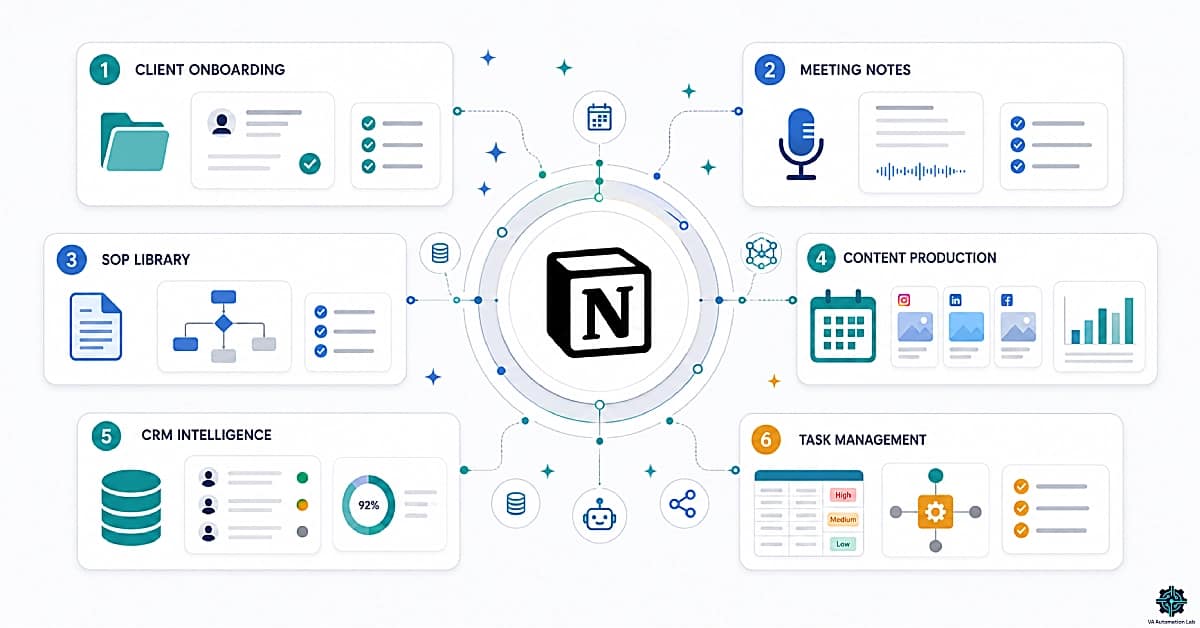
Notion AI for Virtual Assistants: Use Cases, Workflows & Automation Stack (2026)
Disclosure: This article contains affiliate links. If you purchase through them, VA Automation Lab earns a commission at no additional cost to you. All tools are evaluated independently.
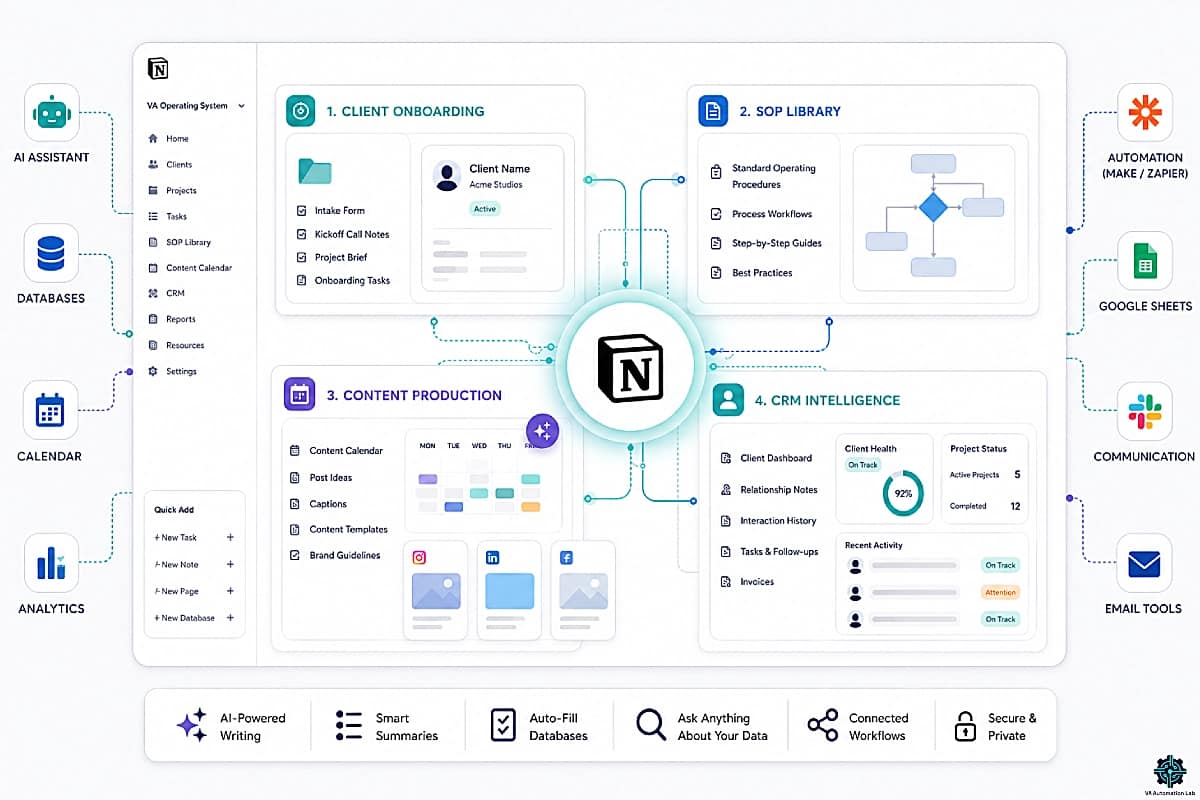
The complete guide to Notion AI for virtual assistants, 7 highest-ROI use cases with tool integrations, 6 ready-to-use templates with full prompt libraries, the Notion AI productivity system that covers client documentation to automated reporting, and the automation stack that extends Notion into a full operational platform.
Notion AI is the AI layer built into the Notion workspace that generates content, summarizes meetings, populates databases automatically, and answers questions about your client data — without switching tools. For VAs already using Notion as their operational hub, it reduces documentation and reporting time by 5 to 8 hours per week.
Notion is already the workspace tool of choice for most virtual assistants who manage multiple clients. Flexible enough to house client dashboards, SOPs, content calendars, and project trackers in a single system, it is one of the few tools VAs actually build their operations around rather than bolt onto them. Notion AI extends that system from storage and organization into active assistance. It generates content, summarizes meetings, answers questions about your workspace, populates database fields automatically and, when paired with the right automation stack, connects your documentation layer to the external tools your clients actually use.
The result is a workspace that does not just hold information, it processes it. A VA who previously spent 20 minutes writing a meeting summary and populating the client dashboard with action items now spends 3 minutes reviewing what Notion AI produced. Applied consistently across documentation, SOP creation, client reporting, content management, and onboarding, the compound time saving across a full client roster is 5 to 8 hours per week.
This guide covers the Notion AI use cases for virtual assistants that produce the highest measurable ROI, the templates worth building first, the automation stack that extends Notion’s reach, and the limitations to understand before committing to Notion as your primary VA productivity system.
What this guide covers:
- What Notion AI actually does for VAs (and what it does not)
- The 6 Notion AI features that matter most for VA operations
- 7 highest-ROI Notion AI use cases for virtual assistants, with tool integrations
- 6 Notion AI templates with full prompt libraries
- The recommended Notion AI productivity system and stack for VAs
- Notion AI vs other AI tools: practical decision framework
- 6 complete Notion AI workflows with implementation detail
- Limitations and the honest pricing picture
👉 Productivity Systems for Virtual Assistants: The Complete Guide — for a complete framework on building a scalable VA operating system, including the 7 core components, tool stack architecture, and a step-by-step 4-week implementation plan.
👉 Tools for Virtual Assistants: The Complete AI Systems & Software Guide — the full reference for every AI tool category in VA work.
Want to Start Using Notion AI the Right Way?
Notion AI is most powerful when paired with the right prompt library and tool stack, this free toolkit includes the Notion AI prompt templates, tool comparison guides, and VA workflow checklists to help you get set up faster.
It also covers every major AI tool category a VA needs in 2026.
Table of Contents
1. What Notion AI Does and What It Does Not Do
Notion AI is an AI layer built directly into the Notion workspace, it operates on the pages, databases, and documents you already have, rather than as a separate tool you switch to. This integration is its primary advantage and the reason it is more useful for virtual assistants who use Notion as their operational hub than a standalone AI tool like Claude or ChatGPT used in a separate browser tab.
What Notion AI does well:
It generates, rewrites, summarizes, and structures text-based content inside your Notion pages. It populates database fields automatically (AI Autofill). It answers questions about the content in your workspace (Ask Notion). It processes meeting notes, research, and client updates into clean, structured output. The Business plan includes Notion Agent and AI Meeting Notes, the two features that push it from writing assistant into an active Notion AI productivity system.
What Notion AI does not do:
It does not connect to external tools or trigger cross-platform automations, that requires Make or n8n. It does not have memory of previous conversations outside your workspace. Its output quality depends entirely on the quality of the content already in your Notion pages, a sparse, disorganized workspace produces sparse, disorganized AI output. It is not a replacement for Claude or ChatGPT for open-ended reasoning or complex multi-step problem solving.
The practical implication for VAs:
Notion AI produces the most value when your Notion workspace is already organized and actively used. If your current Notion setup is a collection of half-populated pages and unused databases, the first investment is organizing the workspace, then activating Notion AI on top of it. The tool amplifies what is already there; it does not fix structural gaps.
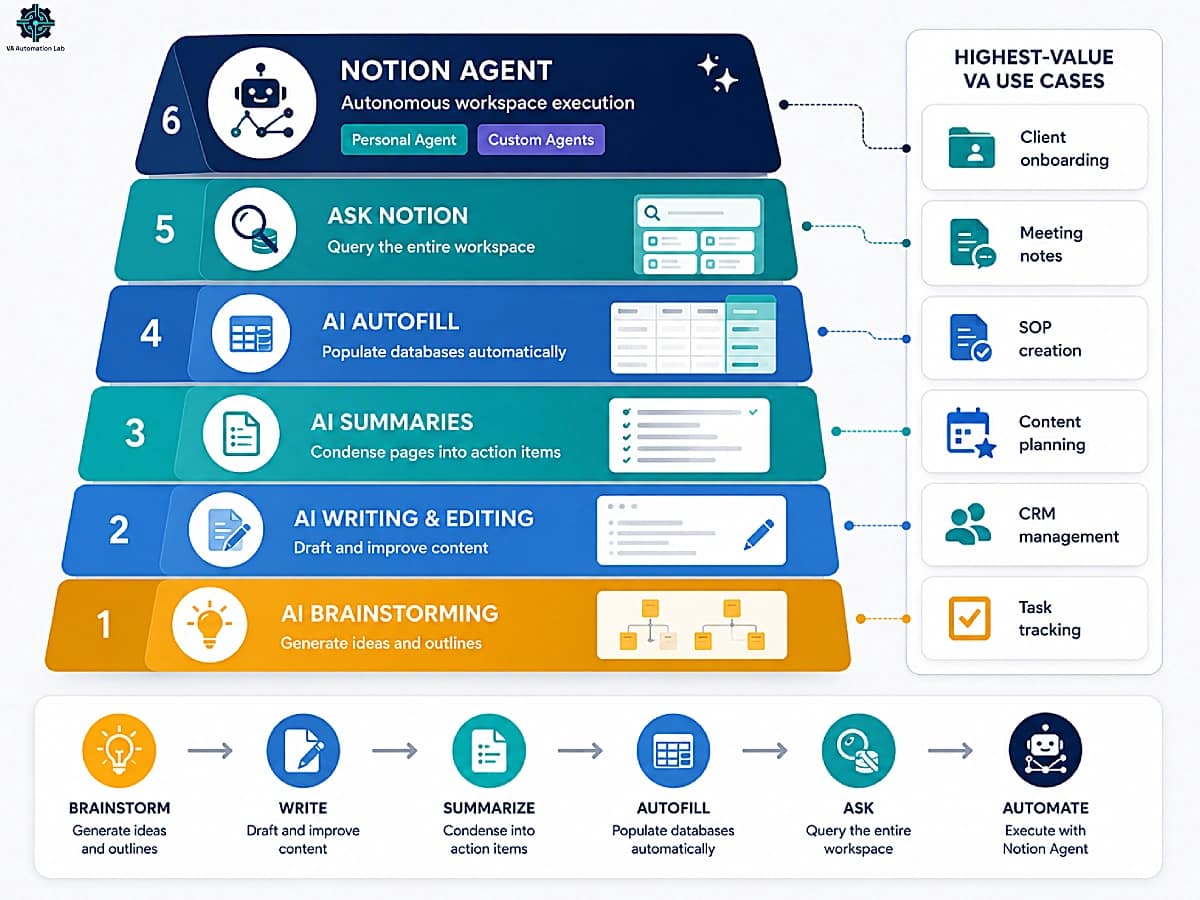
2. The 6 Notion AI Features That Matter Most for VAs
Not all Notion AI features produce equal value for virtual assistant workflows. The six below are the ones with the highest frequency-to-impact ratio for VA-specific operations, the features worth learning first before exploring the full capability set.
AI Writing & Editing
The most frequently used feature for VAs who handle client communication and documentation. Write faster, rewrite for clarity or tone, expand bullet notes into full paragraphs, or condense long drafts into concise versions, all inside the Notion page where the content already lives.
Highest-value VA applications:
- Drafting client-facing documents directly in Notion without switching to a separate AI tool
- Rewriting raw meeting notes into professional communication in seconds
- Standardizing tone across all pages in a client workspace, one command applied across the library
When to use it vs. Claude/ChatGPT: Use Notion AI writing for content that lives in Notion and benefits from workspace context. Use Claude or ChatGPT for content that requires extended reasoning, complex instructions, or information from outside the Notion workspace.
AI Summaries
The highest time-saving feature per use for most VAs. A 40-message meeting notes page becomes a structured 3-paragraph summary with action items in under 10 seconds.
Highest-value VA applications:
- Meeting notes → structured summary with decisions, action items, and next steps
- Long client research pages → executive brief
- Week’s activity across multiple pages → consolidated weekly status
Implementation note: Notion AI summaries work on the page they are applied to. For summaries that span multiple pages or databases, use the Ask Notion feature (below) instead.
AI Autofill in Databases
The most operationally powerful feature for VAs managing structured systems. AI Autofill adds an AI-generated column to any Notion database and populates it automatically based on each row’s existing content, no manual input required after initial configuration.
Highest-value VA applications:
- Task database: auto-generate task descriptions, priority levels, and category tags from task titles
- Content calendar: auto-generate post captions, content angles, or format recommendations from topic and audience fields
- Client CRM: auto-summarize recent activity per client from linked meeting notes
Implementation note: AI Autofill requires a prompt you configure once per database property. The prompt runs automatically on all new rows. For existing rows, run it in batch via “Fill all” in the property settings.
Ask Notion (Workspace Q&A)
The feature that transforms your Notion workspace from a storage system into a queryable knowledge base. Ask Notion in natural language and it searches across all pages and databases to generate a contextual answer.
Highest-value VA applications:
- “What tasks are overdue across all client projects?”
- “Summarize all updates for Client A from this month.”
- “What decisions were made in last week’s meetings?”
- “Which SOPs cover the invoicing process?”
Limitation: Ask Notion searches your workspace content, its quality depends on how completely and consistently that content is documented. A VA who logs all client activity in Notion gets accurate, comprehensive answers. A VA who only uses Notion for some clients gets partial answers that may miss critical information.
AI Brainstorming
The lowest-setup feature with immediate practical value for VAs who handle content creation, planning, or system design for clients. Open any Notion page, type a prompt, and receive a structured output (content ideas, SOP outlines, onboarding steps, project phases) that serves as the starting point for more refined work.
Highest-value VA applications:
- Content calendar: generating 4-week content plans from a client’s niche and audience description
- SOP creation: generating the structural outline before populating each step with specific details
- Client proposals: generating service options and deliverable descriptions from a brief
Notion Agent — Autonomous Workspace Execution
The feature that separates Notion AI from every other workspace productivity layer. Where the five features above require you to prompt each action individually, Notion Agent executes entire task sequences end-to-end — reading pages, creating content, updating databases, and generating structured output — for up to 20 minutes of continuous, autonomous work. This is the shift from AI that assists to AI that operates.
There are two distinct forms of Notion Agent, and the distinction matters for how you build VA workflows around them:
- Personal Agent (reactive) responds when you prompt it. Access it from the AI sidebar or by typing `/AI` on any Notion page. Give it a natural language instruction and it executes across your entire workspace, pulling from every page and database your account can access. Personal Agent is included in the Business plan at no additional cost.
- Custom Agents (proactive) run without prompting. You configure the task once, define a trigger or schedule, and the agent operates autonomously — around the clock, whether you are in Notion or not. Custom Agents launched on February 24, 2026 (Notion 3.3), require the Business plan, and bill at $10 per 1,000 Notion credits per month.
Highest-ROI VA applications for Notion Agent:
- “Compile all logged activity across my client pages from the last 7 days and generate a weekly summary page organized by client name”
- “Create a complete onboarding workspace for [new client]: client dashboard, task database with initial items from the project brief, meeting notes folder, and SOP checklist page”
- “Find all tasks marked Overdue across every client database and generate a consolidated action list with client name, task, and original due date”
- “Review the SOP library and identify any SOPs that have not been updated in more than 90 days”
Implementation note: Personal Agent produces output proportional to workspace quality. It reads what exists — sparse pages produce sparse output. Build a well-documented workspace first, then delegate summarization and compilation tasks to Notion Agent.
Limitation: Notion Agent operates within Notion and tools connected via Notion’s native integrations. It cannot access Gmail, Slack, or ClickUp unless those connections are configured. For workflows that need Notion Agent output to trigger actions in external tools, the Make automation layer (§5) handles the cross-platform handoff.
Feature | What It Does | Best VA Use Case |
AI Writing & Editing | Generates, rewrites, expands, condenses text | Client docs, communication, SOPs |
AI Summaries | Condenses pages into structured summaries | Meeting notes, research, weekly reviews |
AI Autofill | Auto-populates database columns with AI | Task management, content calendar, CRM |
Ask Notion | Answers questions about workspace content | Cross-client reviews, knowledge retrieval |
AI Brainstorming | Generates ideas and structured outlines | Content planning, system design |
Notion Agent | Executes autonomous multi-step workspace workflows | Generating client summaries, onboarding workspaces, and consolidated action lists |
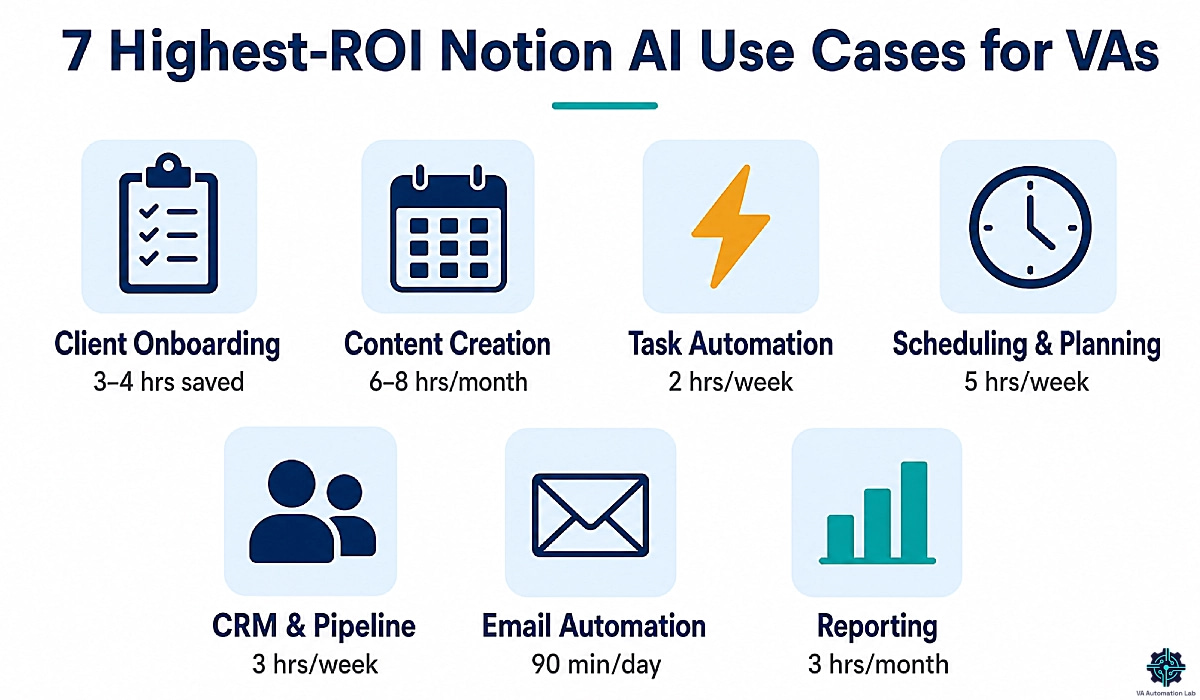
3. The 7 Highest-ROI Notion AI Use Cases for Virtual Assistants
This is where Notion AI for virtual assistants goes beyond features and into applied systems. Each use case pairs Notion AI with the external tools that VAs commonly manage for clients, creating a Notion AI productivity system that covers the full operational cycle.
Use Case 1: Client Onboarding Documentation
The problem: Every new client generates 2 to 4 hours of documentation work (project briefs, welcome emails, SOPs, task database setup) before any billable work begins.
How Notion AI solves it: Paste the raw kickoff call notes into Notion. Apply AI to generate the project brief, welcome email, and onboarding checklist. Use AI Autofill to populate the new client’s task database from the brief. The 4-hour manual process compresses to under 45 minutes.
Tool integration:
Use Dubsado (Premier plan at $44/month) to capture intake forms and automate the proposal-to-contract workflow. When a new client signs, Dubsado triggers the onboarding sequence. Paste the intake data into Notion, run the Notion AI onboarding prompts, and your documentation is done before the first call ends.
For intake forms specifically (collecting client preferences, brand assets, access credentials) Jotform (Bronze plan at $39/month) handles form-to-data collection with conditional logic and multi-step forms that Dubsado’s native forms cannot always match for complexity.
The Notion AI prompt for client onboarding:
Convert these onboarding notes into a structured project brief including:
- Client overview (name, business, service purchased)
- Primary goals (what success looks like for them)
- Key contacts and communication preferences
- Tools and platforms to manage
- Contracted deliverables and scope
- Timeline and key dates
- Open questions to resolve before starting

Notes: [PASTE ONBOARDING NOTES]
Time saving: 3 to 4 hours per new client → 45 minutes.
👉 How to Automate Client Onboarding for Virtual Assistants — build a complete onboarding workflow that runs itself.
Use Case 2: Content Creation
The problem: Content management for clients is one of the highest time-intensity VA services, ideation, drafting, scheduling, and performance review add up to 8 to 12 hours per client per month for VAs managing social media or newsletter operations.
How Notion AI solves it: The Notion content calendar database with AI Autofill for caption generation centralizes the entire production cycle. Monthly planning uses Notion AI brainstorming. Weekly caption drafts generate from the topic and angle fields. Performance review uses Ask Notion to synthesize data.
Tool integration:
For clients who need SEO-optimized blog or newsletter content beyond captions, Frase.io (Starter plan at $39/month) handles research, outline, and optimization workflow, the output feeds into Notion as a draft page. Rytr (Unlimited at $7.50/month) is the lower-cost option for VAs who need pure AI writing volume without SEO depth.
For scheduling the finished content, Buffer (Essential plan at $5/month per channel) handles direct publishing to Instagram, LinkedIn, Facebook, Pinterest, and TikTok. Later (Starter at $19/month) is the stronger choice for clients with visual-heavy Instagram or Pinterest operations where link-in-bio management matters. SocialBee (Bootstrap at $24/month) adds content category recycling, useful for clients where evergreen content is part of the strategy.
Notion AI content calendar workflow:
Generate a 4-week content plan for this client.
For each post include: topic, angle, format (carousel/reel/static/story),
platform, and a one-sentence hook.

Client niche: [NICHE]
Audience: [DESCRIPTION]
Monthly theme: [THEME]
Posting frequency: [X] times per week
👉 How to Automate Social Media as a Virtual Assistant — create a fully automated content system from idea to publishing.
Use Case 3: Task Automation
The problem: Notion AI generates content and populates databases, but it cannot trigger actions in external tools. A task marked “Completed” in Notion does not update the client’s ClickUp board, send a Slack notification, or log hours in Clockify, unless automation connects them.
How Notion AI solves it (with automation): Notion AI handles the documentation and intelligence layer. Make (Core plan at $9/month) handles the cross-platform action layer. The two together create a Notion AI productivity system that acts on information, not just organizes it.
Practical Make + Notion automations:
- New Notion task created → Make adds it to ClickUp/Asana and notifies via Slack
- Task marked Complete in Notion → Make logs the completion in your time tracker
- New client page created → Make sends a Slack message and creates a Google Drive folder
- Weekly review page updated → Make emails the client update automatically
n8n (Starter at $23/month) is the alternative for VAs who prefer self-hostable automation with more complex branching logic. Make is the faster-to-configure option for most VA use cases.
For time tracking connected to Notion tasks, Toggl Track (Starter at $10/month) and Clockify (Free plan handles most VA needs) both connect via Make to log time entries when Notion task status changes.
👉 Automation for Virtual Assistants: The Complete Guide — eliminate manual work with scalable automation workflows.
Use Case 4: Scheduling & Planning
The problem: VAs managing multiple clients spend disproportionate time on calendar coordination, scheduling client calls, blocking focus time, and managing availability across time zones.
How Notion AI solves it: Notion AI handles the planning layer, generating weekly priority lists, flagging scheduling conflicts in documented call notes, and producing daily briefings from the workspace. External tools handle the actual calendar mechanics.
Tool integration:
Reclaim.ai (Starter at $10/month) is the automation-first scheduling tool for VAs: it auto-schedules tasks from your to-do list into your calendar based on priority and available time, and protects focus blocks automatically. For VAs managing Notion-based task lists, Reclaim’s task sync means your Notion priorities translate directly into calendar blocks without manual scheduling.
SavvyCal (Basic at $12/month) handles the client-facing scheduling side, the link you send clients to book calls. Its calendar overlay feature lets clients see their own calendar alongside your availability, which eliminates the back-and-forth that standard scheduling links create.
The combination: Notion AI generates your weekly priority plan → Reclaim.ai schedules it into your calendar → SavvyCal manages inbound bookings without conflicts.
👉 Best AI Scheduling Tools for Virtual Assistants — find the smartest tools to automate planning and time management.
Use Case 5: CRM & Pipeline
The problem: Most VAs manage client relationships across scattered tools, email threads, Notion notes, and spreadsheets that do not connect. Pipeline visibility (leads, proposals, renewals) is even more fragmented.
How Notion AI solves it: Notion’s database structure combined with AI Autofill creates a functional lightweight CRM. Ask Notion provides cross-client intelligence. For VAs who need a purpose-built CRM with pipeline automation, external tools integrate via Make.
Tool integration:
Pipedrive (Lite at $16/month) is the clearest pipeline tool for VAs managing their own client acquisition, lead tracking, proposal status, and deal closing in a visual pipeline. Use Make to sync Pipedrive deal stages to Notion client pages: when a deal closes in Pipedrive, a new client workspace auto-creates in Notion.
Folk (Standard at $24/month) is the better choice for VAs who want a CRM built around relationship context rather than sales pipeline, contact enrichment, email campaigns, LinkedIn extension, and AI magic fields that auto-populate contact details work well for relationship-driven VA businesses.
For VAs managing CRM-heavy clients (not their own pipeline), Zoho CRM (Free plan for up to 3 users, Standard at $16/month) is a cost-effective option to manage on the client’s behalf.
👉 Best CRM for Virtual Assistants — manage clients, pipelines, and follow-ups in one streamlined system.
Use Case 6: Email Automation
The problem: Email is the highest-volume communication channel for most VA operations, drafting, sending, and following up on client communication consumes 60 to 90 minutes per day for the average VA managing 3+ clients.
How Notion AI solves it: Notion AI drafts client communication directly inside the workspace. For bulk email, newsletter, and automated follow-up sequences that clients run, external email tools handle delivery and automation, with Notion as the content source.
Tool integration:
Brevo (Starter at $8/month) handles client newsletter and transactional email operations at the lowest price point in its category, 5,000 emails/month on Starter, with marketing automation from Standard ($16/month). For VAs managing email marketing for small business clients, Brevo’s combination of email, SMS, and automation in one platform is practical and affordable.
ActiveCampaign (Starter at $15/month for 1,000 contacts) is the deeper option when client email operations require advanced segmentation, behavioral triggers, and multi-step sequences, its automation depth exceeds Brevo’s Standard tier for complex client needs.
For email content generation, the Notion AI draft workflow (from meeting notes or brief → draft email → client review) reduces email writing time by 70 to 80% before the email enters any sending platform.
👉 AI Email Management for Virtual Assistants: Best Tools and Workflows — automate inbox management and client communication end-to-end.
Use Case 7: Reporting
The problem: Monthly client reports take 2 to 4 hours to produce manually, collecting data from multiple platforms, synthesizing it, and writing the narrative. Multiply by 5 clients and reporting becomes a full workday every month.
How Notion AI solves it: Notion AI generates the narrative layer of reports from documented data. For the data aggregation layer, external reporting tools pull metrics automatically and feed them into the Notion reporting template.
Tool integration:
Databox (Pro plan at $159/month) aggregates metrics from 70+ integrations (Google Analytics, Facebook Ads, HubSpot, Shopify, and more) into automated dashboards and reports. Connect Databox to your client’s data sources, let it aggregate the metrics, then use Notion AI to generate the narrative analysis and recommendations based on the numbers.
The monthly reporting workflow: Databox exports the metrics summary → paste into Notion → Notion AI generates the narrative report → client receives a polished document instead of a raw spreadsheet.
👉 How to Automate Client Reporting as a Virtual Assistant — for the complete client reporting automation system.
Use Case | Notion AI Role | Key Integration | Time Saved |
Client Onboarding | Project briefs, welcome emails, task setup | Dubsado, Jotform | 3–4 hrs per client |
Content Creation | Ideation, caption drafts, repurposing | Frase.io, Buffer, Later | 6–8 hrs/month/client |
Task Automation | Documentation + AI Autofill | Make, n8n | 1–2 hrs/week |
Scheduling & Planning | Priority planning, calendar briefings | Reclaim.ai, SavvyCal | 3–5 hrs/week |
CRM & Pipeline | Contact summaries, relationship notes | Pipedrive, Folk | 2–3 hrs/week |
Email Automation | Draft generation, content source | Brevo, ActiveCampaign | 60–90 min/day |
Reporting | Narrative generation from data | Databox | 2–3 hrs/month/client |
Schedule Smarter, Not Harder — Reclaim.ai
Reclaim.ai translates your Notion task priorities directly into calendar blocks — automatically.
It protects your focus time, handles habit scheduling, and eliminates the daily “when am I doing this?” overhead.
Try Reclaim free, then upgrade from Starter at $10/month.
4. Notion AI Templates for Virtual Assistants
The six templates below are the highest-impact starting points for any Notion AI for virtual assistants setup. Each is designed as a reusable structure that works across clients with minimal modification, one setup, multiple clients.
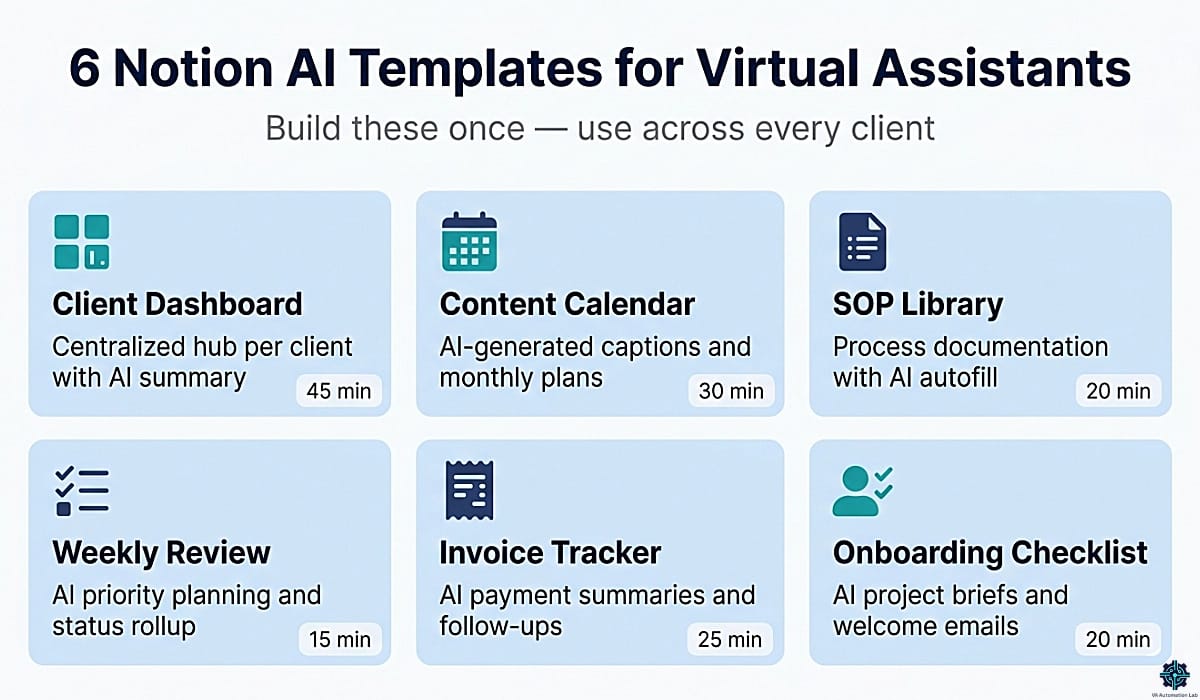
Template 1 — Client Dashboard
What it is: a centralized hub for managing each client’s information, ongoing work, and communication history in a single Notion page.
Structure:
- Client overview (name, service type, contracted hours, key contacts, tools used)
- Active projects with status and deadline
- Weekly priorities
- Communication log (linked to meeting notes database)
- Deliverables tracker
- Open questions and decisions pending
AI Autofill configuration for the Communication Log database:
Summarize this meeting note entry in 2-3 sentences.
Include: main topic, key decision or outcome, and any action item assigned.
Advanced prompts for the Client Dashboard:
Summarize all updates from this client page and generate a structured weekly report including: key wins, blockers, pending tasks, and recommended next steps.Based on these notes, draft a concise follow-up email highlighting decisions made, upcoming deadlines, and required actions from the client.
Tone: professional and warm. Under 150 words.Review all open questions and unresolved items for this client.
Categorize by: Waiting on Client / Waiting on VA / Resolved.
Flag anything overdue.Time to build: 45 minutes. Start here if you manage 2+ active clients.
Template 2 — Content Calendar
What it is: a database-driven content planning system where Notion AI generates ideas, writes captions, and assists with repurposing, without leaving the workspace.
Database structure:
- Post title / topic
- Platform (Instagram, LinkedIn, Newsletter, etc.)
- Format (carousel, reel, static, long-form)
- Status (Idea → Draft → Review → Scheduled → Published)
- Publish date
- AI-generated caption (AI Autofill property)
- Performance notes (filled post-publication)
- Repurpose from (linked post property)
AI Autofill configuration for Caption property:
Based on this post topic and platform, write a platform-appropriate caption with:
- A strong opening hook (first line, max 8 words)
- Core message (2-3 sentences)
- CTA (1 sentence)
Tone: [CLIENT TONE — update per client]
Advanced prompts:
Generate a 4-week content plan for this client.
For each post include: topic, angle, format, platform, and a one-sentence caption hook.

Client niche: [NICHE]
Audience: [DESCRIPTION]
Monthly theme or campaign: [THEME]
Posting frequency: [X] times per week
Repurpose this long-form content into 5 short social media posts.
For each: platform, format, hook, core message, and CTA.
Adapt tone and length for each platform.
Original content: [PASTE]
Platforms: Instagram, LinkedIn, Newsletter, Twitter/XAnalyze this month's performance data and identify:
- Top 3 posts by engagement and why they likely worked
- Content types or topics to increase next month
- 2 posts to repurpose into a different formatTime to build: 30 minutes. Start here if you handle content for clients.
Template 3 — SOP Library
What it is: a structured repository for all repeatable processes, both internal VA operations and client-specific workflows, with consistent formatting enforced by Notion AI.
Database structure:
- SOP title
- Category (Client Onboarding / Reporting / Content / Admin / Communication / Billing)
- Client (linked to client database or “Internal”)
- Last updated date
- Status (Draft / Active / Archived)
- AI-generated summary (AI Autofill property)
- Version number
AI Autofill configuration for Summary property:
Summarize this SOP in 2 sentences.
Include: what process it covers and when to use it.
Core SOP generation prompt:
Convert these notes into a complete SOP.
Structure: Purpose | When to use | Prerequisites | Step-by-step instructions (numbered) |
Quality check | Troubleshooting.
Fill in missing steps based on the context provided.
If information is missing, note it as [NEEDS CLARIFICATION].

Notes: [PASTE]
SOP consistency enforcement prompt:
Rewrite this SOP using the same structure, tone, and formatting as the other SOPs in this library. Ensure consistency across all sections.
Do not change the substance — only standardize the presentation.

SOP to rewrite: [PASTE]
Reference SOP for style: [PASTE]
SOP audit prompt (run quarterly):
Review all SOPs in this library. Flag any that:
- Reference tools or processes that may be outdated
- Are missing a Quality Check or Troubleshooting section
- Have not been updated in the past 90 days
- Overlap significantly with another SOP
Time to build: 20 minutes. Start here if you need standardized operations.
Template 4 — Weekly Review System
What it is: a recurring page template for weekly reflection, planning, and client status consolidation, the operational backbone of consistent VA delivery.
Page structure:
- Week number and date range
- Completed this week (per client, bullet format)
- In progress (per client)
- Blockers or unresolved items
- Priorities for next week
- Admin and internal tasks
- Time tracking summary (hours per client)
- Notes and observations
Core weekly review prompts:
Based on this week's completed tasks and in-progress items, generate:
1. Top 3 priorities for next week per client
2. Any risks or blockers to address
3. A one-paragraph summary I can use as a status update in my internal planning document.
Summarize all completed tasks from this week and categorize them by:
- client
- task type (admin / deliverable / communication / research)
- estimated impact (high / medium / low)Identify any client where communication has been lower than usual this week and suggest a proactive check-in message for each.Time to build: 15 minutes. Start here if you want a structured weekly rhythm.
Template 5 — Invoice & Billing Tracker
What it is: a Notion database that tracks all invoices, payment status, and billing history across clients, with AI Autofill generating payment summaries and follow-up messages automatically.
Database structure:
- Invoice number
- Client (linked to client database)
- Amount
- Status (Draft / Sent / Paid / Overdue)
- Due date
- Payment date
- Services (linked or listed)
- AI-generated payment summary (AI Autofill)
- Follow-up message (AI Autofill, conditional on overdue status)
AI Autofill for payment summary:
Summarize this invoice entry in one sentence.
Include: client name, amount, service period, and current status.
AI Autofill for overdue follow-up:
Write a professional, non-aggressive payment reminder for this overdue invoice.
Include the invoice number, original due date, and amount.
Tone: firm but warm. Under 80 words.
Monthly billing report prompt (Ask Notion):
Generate a monthly billing summary.
Include: total invoiced, total collected, outstanding balance by client, and any invoices overdue by more than 7 days.
For VAs who need purpose-built invoicing beyond Notion (multi-currency, recurring invoices, client payment portals) InvoiceNinja (NinjaPro at $12/month) connects via Make to sync payment status back to Notion automatically. PandaDoc (Starter at $19/month) adds proposal and contract e-signature to the billing workflow.
Time to build: 25 minutes. Start here if billing administration is taking more than 2 hours per month.
Template 6 — Client Onboarding Checklist
What it is: a repeatable Notion page template that guides every new client through the onboarding process, with Notion AI generating the customized content for each section.
Page structure:
- Client name and engagement start date
- Scope summary (AI-generated from intake notes)
- Access credentials needed (checklist)
- Tools to set up (checklist with links)
- Welcome email draft (AI-generated)
- First 30 days deliverables (AI-generated from scope)
- Client communication preferences
- Key dates and milestones
Welcome email prompt:
Write a professional welcome email for a new client.
Include: confirmation of the engagement start, brief summary of the agreed scope, next steps they need to complete (list max 3), and scheduled first check-in date.

Client name: [NAME]
Service: [SERVICE DESCRIPTION]
Start date: [DATE]
Next steps for client: [LIST FROM BRIEF]
Tone: warm and professional.
First 30 days deliverables prompt:
Based on this client's scope and goals, generate a first 30 days plan.
Format:
- Week 1: [Setup and discovery tasks]
- Week 2: [First deliverables]
- Week 3: [Ongoing operations begin]
- Week 4: [Review and optimize]
Include specific, actionable items for each week based on the scope provided.

Client scope: [PASTE FROM PROJECT BRIEF]
Template | Primary Use | AI Features Used | Time to Build | Start Here If… |
Client Dashboard | Client management, reporting, communication log | AI Autofill + Summaries | 45 min | You manage 2+ active clients |
Content Calendar | Social media, newsletter, content production | AI Autofill + Brainstorming | 30 min | You handle content for clients |
SOP Library | Process documentation, repeatable workflows | AI Writing + AI Autofill | 20 min | You need standardized operations |
Weekly Review | Planning, status consolidation, priorities | AI Summaries + Ask Notion | 15 min | You want a structured weekly rhythm |
Invoice & Billing Tracker | Billing management, payment follow-up | AI Autofill + Ask Notion | 25 min | Billing admin takes 2+ hrs/month |
Client Onboarding Checklist | New client setup | AI Writing + Brainstorming | 20 min | You onboard 1+ new clients/month |
Start With 3 Months Free of Notion Business
Notion for Startups gives qualifying new accounts 3 months free of the Business plan, including Notion Agent, AI Meeting Notes, Enterprise Search, and full AI capabilities.
If you’re building a Notion AI system for your VA operation, this is the lowest-cost way to test it at full capacity before committing to monthly billing.
5. Recommended Notion AI Stack for Virtual Assistants
Notion AI is the documentation and intelligence layer. The tools below complete the stack by handling the functions Notion AI cannot: external automation, scheduling, client acquisition, reporting, and communication. This is the Notion AI productivity system built for a solo or small-team VA operation.
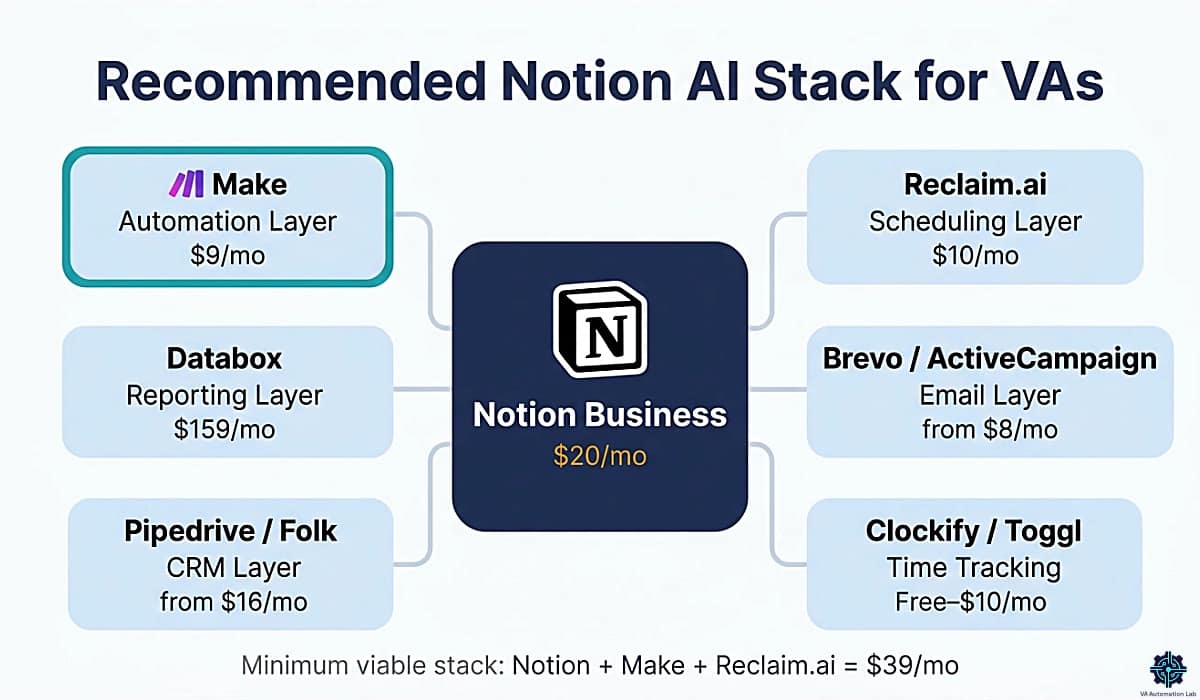
Core Layer: Notion Business
Notion Business at $20/month is the operational center. At the Business plan level, you get Notion Agent, AI Meeting Notes, Enterprise Search, and full AI capabilities, not the trial version included in Free and Plus plans. For VAs building a full Notion AI productivity system, the Business plan is the right entry point.
New to Notion? The Notion for Startups program offers 3 months free of the Business plan, including full AI features, for qualifying new accounts. If you’re evaluating whether Notion AI can replace part of your current tool stack, this is the lowest-friction way to test it at full capability before committing to monthly billing.
Automation Layer: Make or n8n
Make Core at $9/month connects Notion to every external tool in your client’s stack. This is where the Notion AI productivity system extends beyond the workspace: task updates trigger Slack notifications, new client pages auto-create Google Drive folders, completed deliverables log automatically in time trackers. For most VA operations, Make’s Core plan (unlimited active scenarios, minute-level scheduling) covers 90% of automation needs.
n8n Starter at $23/month is the alternative for VAs who prefer more control over branching logic or self-hosting.
Scheduling Layer: Reclaim.ai + SavvyCal
Reclaim.ai Starter at $10/month auto-schedules tasks from your to-do list into your calendar, protects focus time, and handles habit scheduling automatically. Pairs directly with Notion task databases via Make to translate Notion priorities into calendar blocks.
SavvyCal Basic at $12/month handles client-facing booking links with the calendar overlay that reduces scheduling back-and-forth. Free plan available for VAs who only need one scheduling link.
Reporting Layer: Databox
Databox Pro at $159/month aggregates client metrics from 70+ integrations and delivers automated reports. Pair it with Notion AI for the narrative layer: Databox produces the numbers, Notion AI generates the analysis and recommendations. The Free plan (3 data sources, 1 dashboard, daily refresh) covers the reporting needs for VAs just starting to automate client reporting.
Communication Layer: Brevo or ActiveCampaign
Brevo Starter at $8/month for client newsletter management at low volume. ActiveCampaign Starter at $15/month for 1,000 contacts when clients need behavioral segmentation and automated sequences.
Pipeline Layer: Pipedrive or Folk
Pipedrive Lite at $16/month for VAs managing their own client pipeline with a structured sales process. Folk Standard at $24/month for relationship-driven VA businesses where contact context and outreach history matter more than pipeline stages.
Supporting Tools (role-dependent)
- Time tracking: Clockify Free or Toggl Track Starter at $10/month
- Client intake forms: Jotform Bronze at $39/month
- Client contracts and proposals: PandaDoc Starter at $19/month
- Social media scheduling: Buffer Essential at $5/month or Later Starter at $19/month
- AI writing for SEO content: Frase.io Starter at $39/month
The minimum viable Notion AI stack for a solo VA:
Layer | Tool | Monthly Cost |
Workspace + AI | Notion Business | $20 |
Automation | Make Core | $9 |
Scheduling | Reclaim.ai Starter | $10 |
Total | $39/month |
The $39/month stack replaces the equivalent of 10 to 15 hours of manual work per month, at a typical VA rate of $25 to $40/hour, the ROI is measurable within the first billing cycle.
👉 Productivity Systems for Virtual Assistants: The Complete Guide — for the complete productivity framework that wraps around this stack.
Connect Notion to Every Tool Your Clients Use
Make connects Notion to 3,000+ apps with a visual drag-and-drop interface, no code required.
When a Notion task updates, Make can notify via Slack, log time in Clockify, update a CRM record, or send a client email automatically.
The Core plan at $9/month covers unlimited active scenarios with minute-level scheduling, sufficient for most VA automation needs.
6. How to Set Up Notion AI as a Virtual Assistant: Step-by-Step
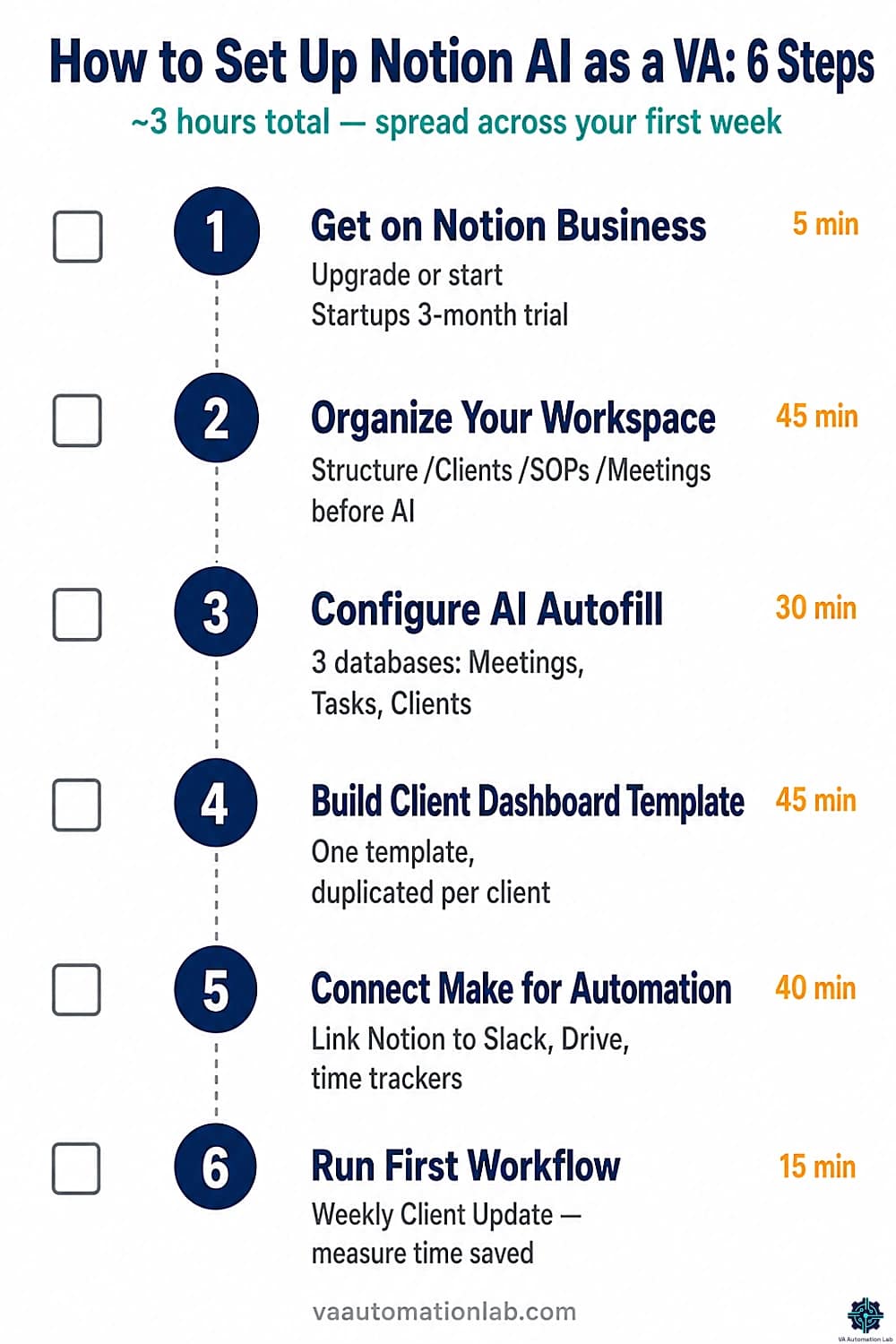
This section covers the implementation sequence, how to go from a Notion account to a working Notion AI productivity system configured for VA operations. The steps below follow a progressive logic: each one builds the foundation the next step runs on.
What you will have at the end: a Notion workspace with AI Autofill active on a client database, Ask Notion configured as a knowledge base, Make connected for external automation, and the weekly client update workflow running for at least one client.
Time to complete: approximately 3 hours for initial setup, spread across your first week.
Step 1 — Get on the Right Notion Plan
Full Notion AI capabilities (AI Autofill at scale, Notion Agent, AI Meeting Notes) are only available on the Business plan at $20/month. Free and Plus plans include trial-level access with usage limits that will interrupt workflows once exceeded. Confirm you are on Business before building any system that depends on AI.
Go to your Notion workspace → Settings → Plans → upgrade to Business.
If you are starting fresh or evaluating before committing: the Notion for Startups program provides 3 months free of the Business plan, including full AI features. It is the most cost-effective way to test the complete system before billing begins.
To verify the plan is active: open any Notion page, type /AI, if the full command menu appears including “Notion AI”, “Fill with AI”, and “Ask AI”, you are on Business.
Step 2 — Audit and Organize Your Workspace Before Activating AI
Notion AI generates output based on what is in your workspace. An unorganized workspace produces poor AI output regardless of prompt quality, ten minutes of cleanup now saves hours of debugging later.
Set up a top-level structure with these sections:/Clients — one sub-page per active client/SOPs — process documentation database/Meetings — meeting notes database, linked to client pages/Content — content calendar databases (per client or shared)/Admin — billing tracker, weekly reviews, internal tasks
For each active client, make sure their page contains at minimum: name and scope, one logged meeting note, and at least one active project or task. Archive anything no longer active, Ask Notion searches everything, including outdated content that pollutes query results.
Quick test: open a client page and run Ask Notion, “Summarize the current status of [Client Name].” If the answer is accurate and specific, the workspace is ready. If it returns generic output, that client page needs more content before AI can work on it.
Step 3 — Configure AI Autofill on Your Core Databases
AI Autofill is the feature that eliminates daily manual field population, categorizing, summarizing, and tagging entries. Configured once per database, it runs automatically on every new row.
Set it up in this order:
Meetings database — open your Meetings database → Add property → AI Autofill → name it “Summary” → enter this prompt:Summarize this meeting note in 3 sentences. Include: main topic discussed, key decision or outcome, and action items (WHO / WHAT / WHEN).
Tasks database — open your Tasks database → Add property → AI Autofill → name it “Description” → enter:Based on this task title, generate: - A 2-sentence description of what the task involves - Priority: High / Medium / Low - Category: Admin / Client Work / Content / Communication / Operations
Clients database — open your Clients database → Add property → AI Autofill → name it “Status Summary” → enter:Summarize this client's current status based on linked pages. Include: active projects and status, last interaction outcome, any pending items, and overall health: On Track / Attention Needed.
After configuring each property, click “Fill all” to backfill existing rows. New rows populate automatically within 10 to 30 seconds of being created.
Step 4 — Build Your Client Dashboard Template
A template built once and duplicated takes 5 minutes to deploy per new client. Built from scratch per client, it takes 45 minutes. Build it once now.
Create a new Notion page — “CLIENT DASHBOARD TEMPLATE” — with this structure:
## Client Overview Name | Service Type | Contracted Hours | Status | Key Contacts | Tools Used## Active Projects [Database: linked to Tasks, filtered by this client]## Weekly Priorities [Bulleted list — updated manually each Monday, 5 minutes]## Communication Log [Database: linked to Meetings, filtered by this client] [AI Autofill: Summary property active]## Deliverables Tracker [Database: Status (Draft / In Review / Delivered) | Deadline | Link]## Open Questions & Decisions Pending [Table: Question | Owner | Status | Date Raised]
Save as a Notion template via the ··· menu → “Turn into template”. Test by duplicating it for one existing client and confirming the AI Autofill Summary field in the Communication Log populates from real meeting data.
For client intake before this dashboard exists (collecting brand assets, credentials, preferences) Jotform (Bronze at $39/month) handles multi-step conditional intake forms that pre-populate the client overview fields and reduce manual data entry at onboarding.
Step 5 — Connect Make to Extend Notion Into External Tools
Notion AI handles the documentation and intelligence layer. Make (Core at $9/month) handles the action layer, connecting Notion’s output to the tools your clients actually use. Without this step, your Notion AI system is isolated.
Start with these three scenarios:
New client → Google Drive folder. Trigger: new item in the Clients database. Action: create a Google Drive folder named “[Client Name] — [Start Date]”. Every new client automatically gets a Drive folder with no manual step required.
Task completed → time log entry. Trigger: Notion Tasks item updated (Status → “Completed”). Action: create a time entry in Clockify or Toggl Track with the task name and client. Completed tasks auto-log to your time tracker without switching tools.
Meeting note added → Slack notification. Trigger: new item in the Meetings database. Action: send a Slack message to your channel with the client name and AI Autofill summary. Your team is notified of new meeting outcomes without checking Notion directly.
Run each scenario manually from Make’s editor before enabling the schedule, and confirm the downstream action triggers correctly.
For the full Make setup guide including 12 pre-built scenario templates, see Make.com for Virtual Assistants: The Beginner Setup Guide.
Step 6 — Run Your First Workflow End-to-End
Pick one active client whose Notion page has 3 to 4 logged activity items from the past week. Open their client dashboard. Copy the Weekly Client Update prompt from Workflow 1 in Section 8 into Notion AI. Review the output, edit for tone, send the update. Log your total time from opening Notion to sending the email.
On the first run, most VAs take 8 to 12 minutes versus 20 to 30 minutes manually. By week 3, after the workspace is better documented and the prompt is calibrated to the client’s communication style, the same workflow typically runs in 3 to 5 minutes.
After the first run, open the prompt and add one line addressing whatever the AI missed: a client preference, a tone adjustment, a section it skipped. Each iteration improves the output for that specific client. This calibration cycle is how Notion AI compounds in value over time, it is not a one-time setup but a system that gets more accurate the more consistently you use it.
7. Notion AI vs Other AI Tools for VAs
Understanding where Notion AI fits in the VA tool stack prevents the most common mistake: using it for everything, or using it for nothing because other tools seem more capable in isolated comparisons.
Feature | Notion AI | ChatGPT | Claude | ClickUp AI |
Integrated in workspace | ✅ | ❌ | ❌ | ✅ |
Database automation | ✅ | ❌ | ❌ | ✅ |
Writing tools | ✅ | ✅ | ✅ | ✅ |
Summaries | ✅ | ✅ | ✅ | ✅ |
Workspace Q&A | ✅ | ❌ | ✅ (Projects) | ✅ |
Complex reasoning | ⚠️ Limited | ✅ | ❌ | ⚠️ Limited |
Best for VAs | Workflow + documentation | Content + reasoning | Complex tasks + projects | Task management |
The practical decision framework:
Use Notion AI when the content lives in Notion and benefits from workspace context, meeting summaries, SOP generation, database population, client dashboard updates, content calendar management. The zero-switching-cost advantage is real.
Use Claude or ChatGPT when the task requires extended reasoning, information from outside the workspace, or a back-and-forth conversation to refine the output. Complex client proposals, strategic recommendations, troubleshooting workflows, and nuanced communication where multiple iterations are expected, these belong in Claude or ChatGPT.
Use ClickUp AI when your primary project management system is ClickUp rather than Notion. The two workspace AIs are analogous in function, choose based on where your operational data lives.
The recommended combination for most VAs: Notion AI as the operational hub for documentation, databases, and workspace-native content + Claude as the reasoning and generation tool for complex or context-heavy tasks. These two tools cover 95% of VA AI needs without overlap.
👉 Notion vs ClickUp for Virtual Assistants: Complete Comparison Guide — for the complete side-by-side comparison across eight feature categories, the automation gap analysis, and the VA profile decision framework.
👉 Claude AI for Virtual Assistants: Complete Guide — the complete Claude guide covers how to set up one Claude Project per client and connect the output workflow back into Notion as your documentation layer.
8. Six Notion AI Workflows — With Implementation Detail
The six workflows below show how to use Notion AI for virtual assistants at the implementation level, not as a list of features, but as repeatable sequences that handle specific, high-frequency VA tasks from input to finished output. Each workflow documents the exact steps, the prompt to use at each stage, and the time saving benchmark so you can evaluate the ROI before building it.
Taken together, these Notion AI workflows cover the core operational cycle of most VA businesses: client reporting, onboarding, documentation, content production, and relationship management. The recommended sequence is to implement them in order, Workflow 1 produces visible results in the first week and establishes the documentation habit that makes every subsequent workflow more effective.
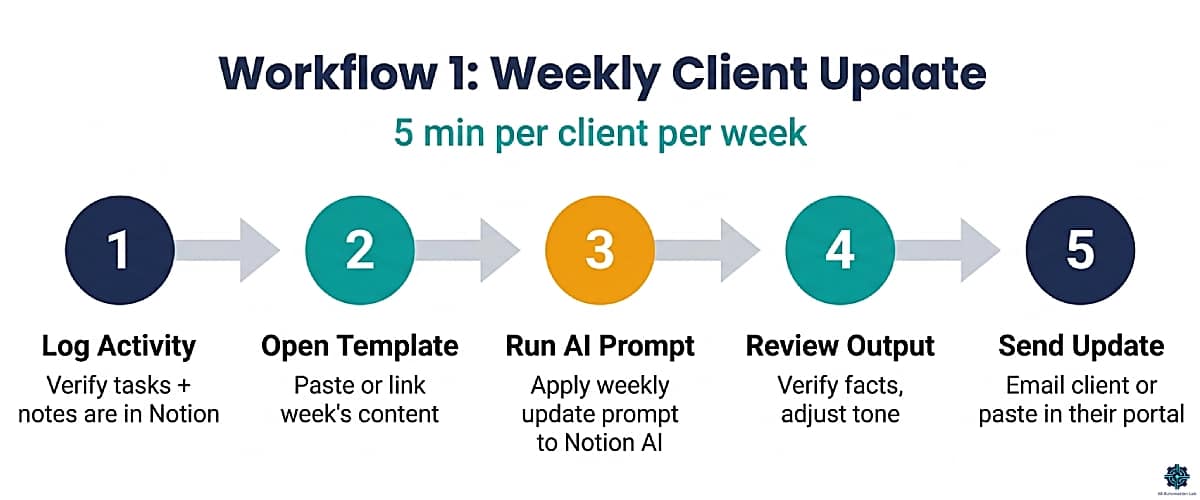
Workflow 1 — Weekly Client Update
What it does: converts a week’s worth of Notion activity (completed tasks, meeting notes, client updates) into a polished, professional client status email in under 5 minutes.
Time to implement: 20 minutes to set up the template. 5 minutes per client per week to run.
Step-by-step:
- At the end of each week, open the client’s Notion dashboard page. Verify the current week’s tasks, meeting notes, and updates are logged.
- Open a new Notion page or the Weekly Review template. Paste or link the week’s relevant content.
- Apply Notion AI with this prompt:
Summarize this week's client activity and generate a structured status update email including:
- Subject line
- Opening sentence (brief positive framing)
- Key accomplishments this week (bullet list, max 5)
- In progress (bullet list, max 3)
- Coming up next week (bullet list, max 3)
- Any items requiring client input or decision
- Closing line with next scheduled touchpoint

Tone: professional and warm. Total length: under 200 words.- Review output, verify facts against the source content, adjust tone for the specific client relationship, add any context Notion AI missed.
- Send from the client’s email account or your VA account depending on the engagement type.
Result: consistent, professional weekly updates delivered to every client without spending 20-30 minutes per client writing them manually.
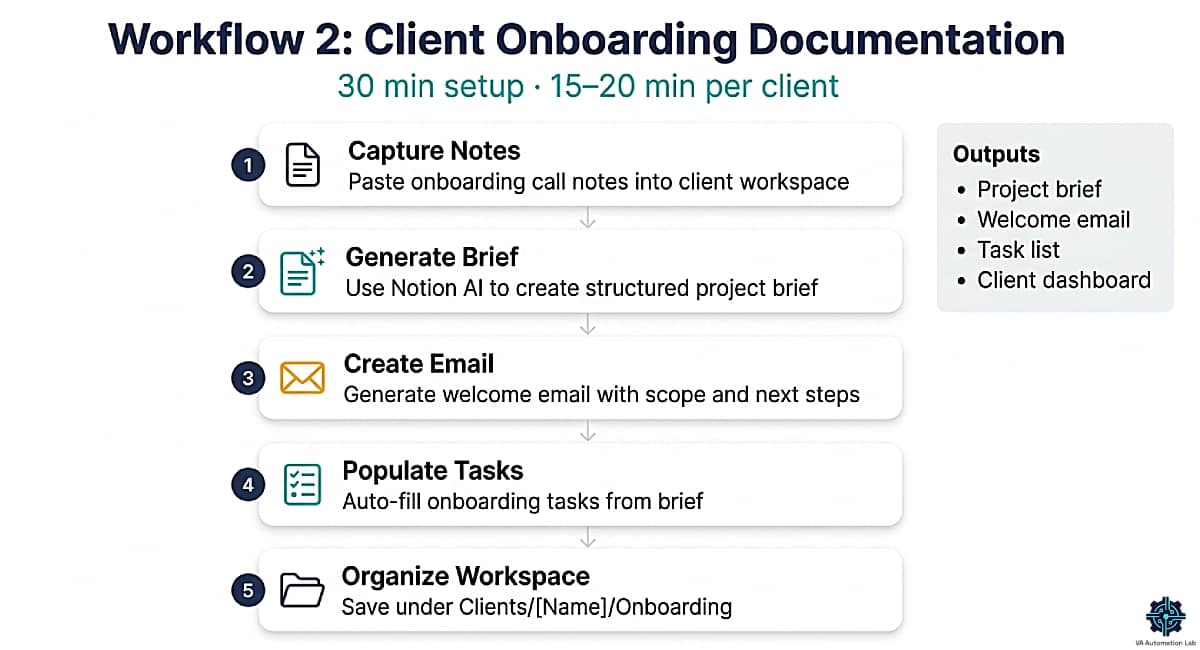
Workflow 2 — Client Onboarding Documentation
What it does: transforms a new client intake form or kickoff call notes into a complete onboarding package (welcome email, project brief, SOP checklist, and client dashboard setup) using Notion AI.
Time to implement: 30 minutes to configure the onboarding template. 15-20 minutes per new client.
Step-by-step:
- After the onboarding call, paste raw notes into the client’s Notion workspace.
- Apply Notion AI to generate the project brief:
Convert these onboarding notes into a structured project brief including:
- Client overview (name, business, service purchased)
- Primary goals (what success looks like for them)
- Key contacts and communication preferences
- Tools and platforms to manage
- Contracted deliverables and scope
- Timeline and key dates
- Open questions to resolve before starting

Notes: [PASTE ONBOARDING NOTES]- Generate the welcome email:
Write a professional welcome email for a new client.
Include: confirmation of the engagement start, brief summary of the agreed scope, next steps they need to complete (list max 3), and scheduled first check-in date.

Client name: [NAME]
Service: [SERVICE DESCRIPTION]
Start date: [DATE]
Next steps for client: [LIST FROM BRIEF]
Tone: warm and professional.- Use AI Autofill to populate the client’s task database with the initial onboarding task list generated from the project brief.
- File the completed brief in the client’s Notion workspace under /Clients/[Name]/Onboarding.
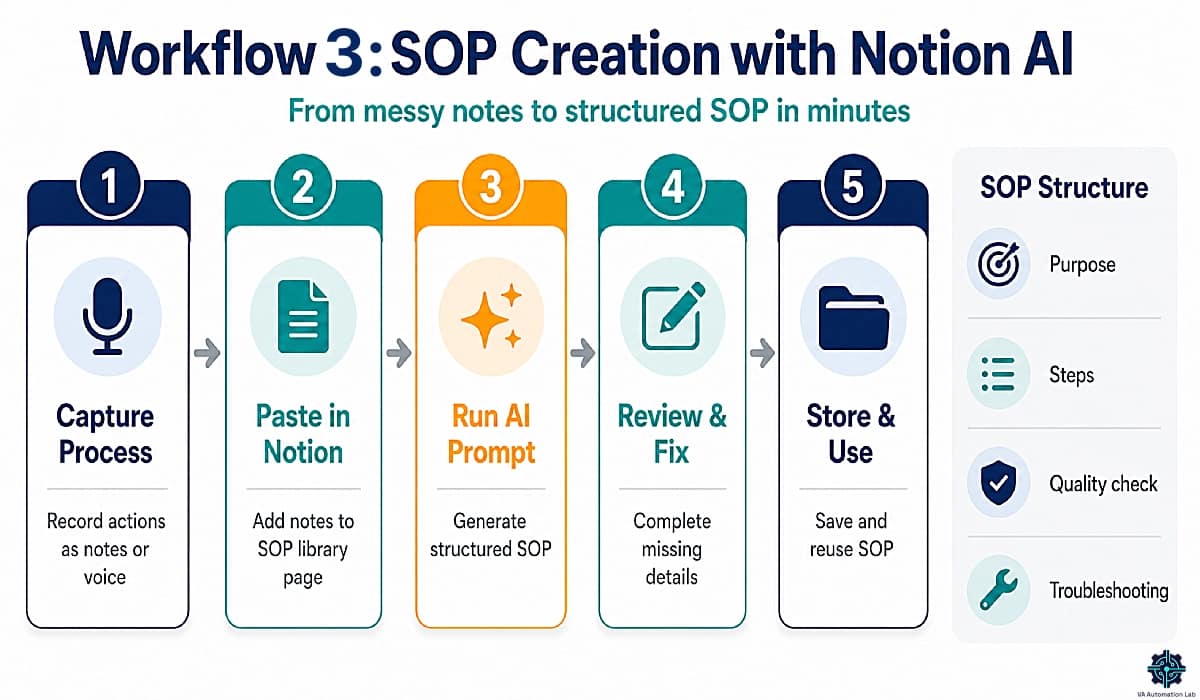
Workflow 3 — SOP Creation from Process Notes
What it does: turns unstructured process descriptions (voice-to-text dumps, bullet notes, or scattered instructions) into complete, consistently formatted SOPs in under 15 minutes.
Step-by-step:
- Document the process as you execute it, voice notes, bullet points, or stream-of consciousness text. Accuracy of content matters; formatting does not at this stage.
- Paste the raw notes into a new Notion page in your SOP Library.
- Apply Notion AI:
Convert these process notes into a complete SOP.

Structure:
1. Title: [one line, action-oriented]
2. Purpose: what this process accomplishes (1-2 sentences)
3. When to use: trigger conditions
4. Prerequisites: tools, access, information needed before starting
5. Steps: numbered, detailed, one action per step
6. Quality check: how to verify correct completion
7. Troubleshooting: the 2-3 most common issues and their fixes

Fill in gaps based on the context provided.
If information is missing, note it with [NEEDS CLARIFICATION].

Raw notes: [PASTE]- Review the output, fill in any [NEEDS CLARIFICATION] flags, verify technical accuracy, adjust to match the formatting of existing SOPs in your library.
- AI Autofill auto-generates the summary property for the new SOP row in the database.
Workflow 4 — Content Production Pipeline
What it does: manages the full content production cycle for a client inside Notion, from ideation to caption drafting to post-publication performance review, using Notion AI at each stage.
Step-by-step:
- Monthly planning session (30 minutes): Open the content calendar database. Use Notion AI to generate the month’s content plan:
Generate a 4-week content plan for this client.

For each post:
- Topic
- Angle (what perspective or insight to take)
- Format (carousel / reel / static / story)
- Platform
- One-sentence hook

Client niche: [NICHE]
Audience: [DESCRIPTION]
Monthly focus: [THEME OR CAMPAIGN]
Frequency: [X posts/week]- Weekly production (15-20 minutes per client): For each post in the current week’s queue, use AI Autofill to generate the draft caption from the topic and angle fields.
- Review and edit captions, 2-3 minutes per post. Adjust for brand voice nuances that the AI consistently misses and note them in the client’s AI preferences section.
- Post-publication: add performance data to the database. Monthly, use Ask Notion to generate the performance review:
Analyze this month's content performance data and generate a brief report including:
- Top performing post (and why it likely worked)
- Lowest performing post (and what to adjust)
- Patterns across the month
- Three recommendations for next month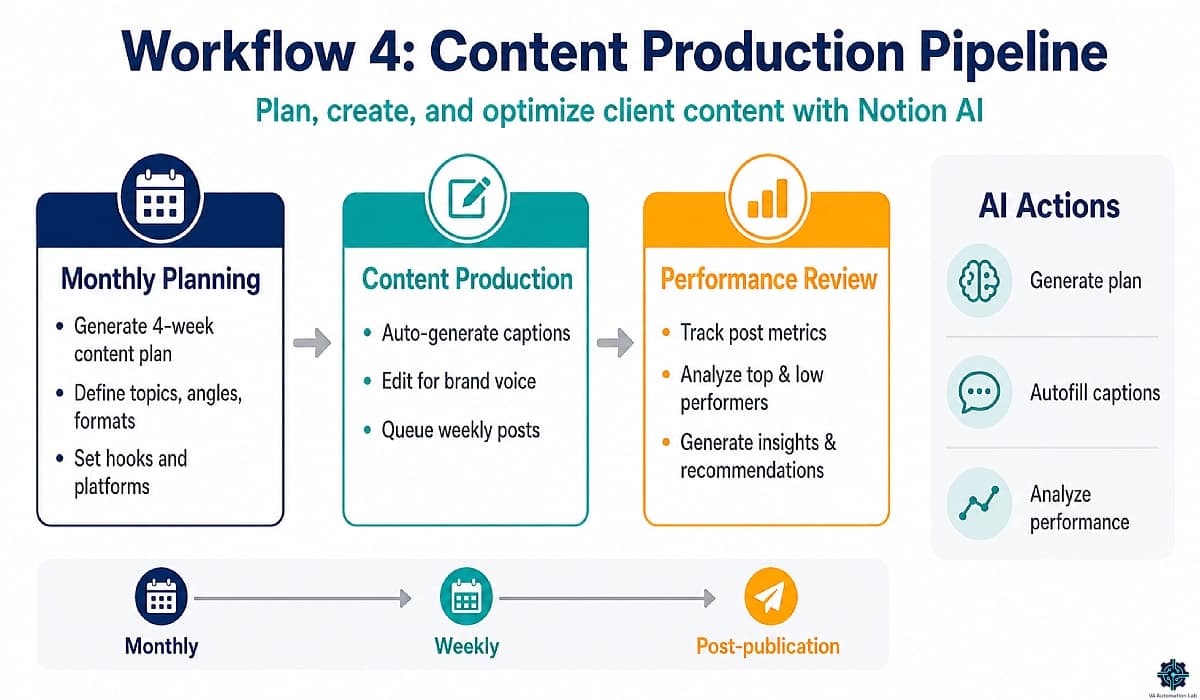
Workflow 5 — CRM and Relationship Intelligence
What it does: maintains a lightweight CRM inside Notion where AI Autofill and Ask Notion generate ongoing client intelligence, relationship summaries, follow-up identification, and monthly status reports.
Database structure:
Build a Clients database with properties:
- Client name, service tier, status (Active/Paused/Closed)
- Contracted hours per month
- Primary contact and communication preference
- Last contact date (auto-updated)
- Linked pages: meeting notes, deliverables, invoices
- AI summary property (AI Autofill)
AI Autofill configuration:
Summarize this client's current status based on linked pages. Include:
- Active projects and their status
- Last interaction and outcome
- Any pending items or unresolved questions
- Overall relationship health: On Track / Attention Needed
Weekly Ask Notion queries for client management:
Which clients have had no communication logged in the past 7 days?Summarize all pending action items across all active clients. Group by client and due date.Which clients have deliverables due this week?
List by client with the specific deliverable and deadline.Monthly client intelligence report:
Generate a monthly summary for [CLIENT NAME].
Include: key accomplishments, ongoing projects, relationship notes, risks or concerns, and recommended next steps for the coming month.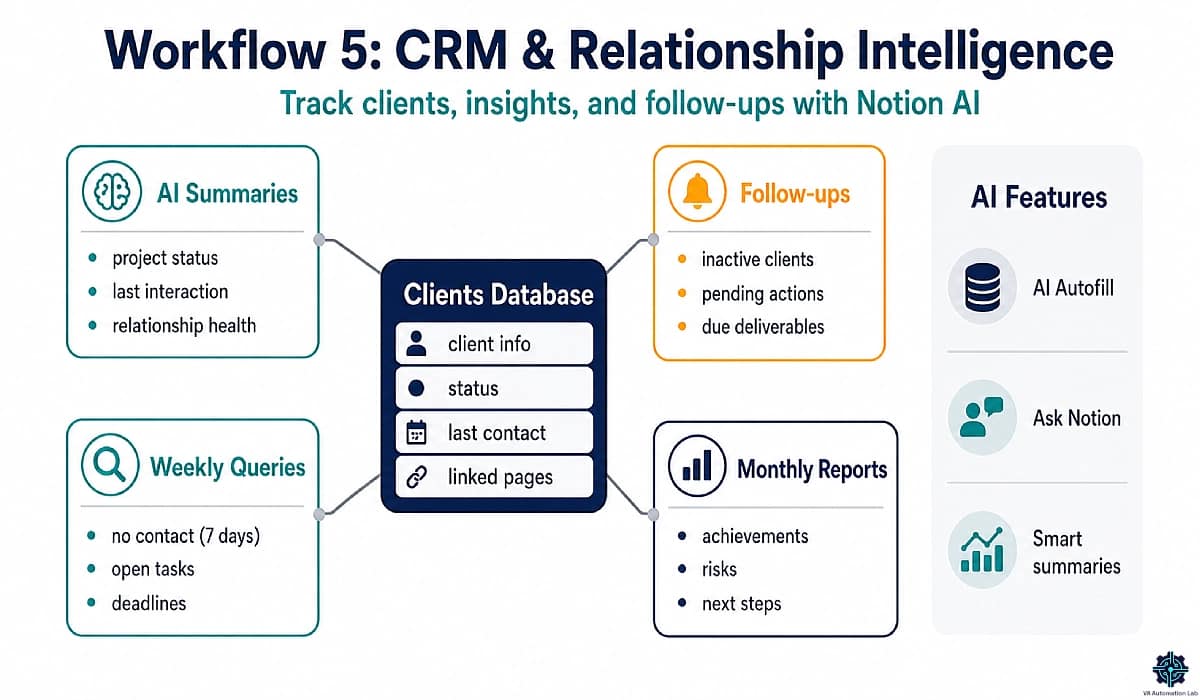
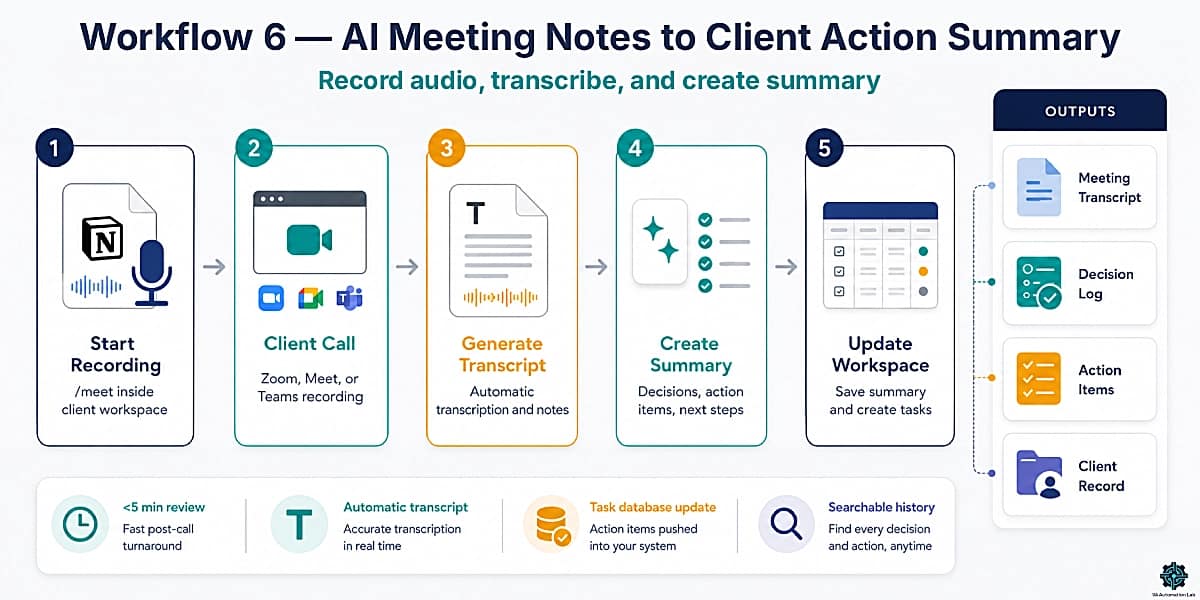
Workflow 6 — AI Meeting Notes to Client Action Summary
What it does: records the audio of any client call or kickoff meeting directly from your desktop, transcribes it in real time, and generates a structured summary with decisions and action items — inside a linked Notion page, with no separate app and no bot joining the call.
Time to implement: 5 minutes to verify the feature is enabled on your Business plan. 3–5 minutes per meeting to review and file the output.
Step-by-step:
1. Before the call starts, open Notion on your desktop and navigate to the client’s workspace. On the meeting notes page (or a new blank page), type `/meet` and click Start recording. Notion captures your system audio — microphone input and all device audio — for the duration of the call. For Notion Calendar users: if the meeting exists in your Notion Calendar, the meeting page and recording block can be created automatically when the event begins.
2. Run the call normally in Zoom, Google Meet, or Microsoft Teams. Notion records in the background with no visible bot, no notification to participants, and no external login required.
3. When the call ends, click Stop recording. Notion generates a full transcript and an initial AI summary automatically.
4. Apply Notion AI to the raw output to produce a client-ready action summary:
Review this meeting transcript and generate a structured summary including:

- Meeting date and attendees
- Key decisions made (bullet list, one line per decision)
- Action items (format: [task] — [owner] — [due date if stated])
- Open questions or blockers flagged during the call
- Agreed next steps and next scheduled touchpoint

Total length: under 250 words. Tone: professional.
5. File the completed summary in the client’s workspace at `/Clients/[Name]/Meetings/[Date]`. Use AI Autofill to push any new action items from the summary directly into the client’s task database, so every commitment from the call enters the production system before you close the tab.
Result: every client call generates a filed summary, a task database update, and a retrievable record — in under 5 minutes of post-call work.
Limitation: AI Meeting Notes requires a manual trigger — you must start recording before the call begins. It does not auto-join from your calendar the way dedicated tools like Fireflies.ai do. For VAs managing high meeting volumes across multiple clients, dedicated meeting notetakers remain a complementary option alongside Notion for workspace-level documentation.
👉 Best Automation Workflows for Virtual Assistants — the complete automation workflow library.
9. Limitations of Notion AI
Understanding the limitations of Notion AI for virtual assistants prevents over-reliance and clarifies when to use a different tool.
Output Quality Depends on Workspace Quality
Notion AI generates output based on what is in your workspace. If meeting notes are incomplete, client pages are sparsely populated, or databases have missing fields, the AI output reflects those gaps, incomplete summaries, generic descriptions, inaccurate status reports. Notion AI is not a substitute for disciplined documentation practice; it is an accelerator for VAs who already document consistently.
No Cross-Platform Memory or Integration
Notion AI cannot retrieve information from Gmail, ClickUp, Slack, or any external tool. It operates entirely within the Notion workspace. A meeting that was not logged in Notion does not exist for Notion AI. For VAs who manage client operations across multiple platforms, either centralize key information in Notion as a deliberate practice or accept that Ask Notion queries will return partial results. This is precisely where the Make automation layer (Use Case 3 above) earns its cost.
Not Optimized for Complex Reasoning
Notion AI performs well on structured, predictable tasks, summarization, formatting, categorization, first-draft generation. It underperforms Claude and ChatGPT on tasks that require extended reasoning, nuanced judgment, or multi-step problem solving. For complex client proposals, strategic planning, or situations with significant ambiguity, use Claude or ChatGPT and paste the output into Notion rather than generating it in Notion directly.
Before building Notion AI workflows, verify:
✅ Notion workspace is actively used and documented
✅ Key client information is logged in Notion consistently
✅ Client’s Notion plan includes AI features (if working in their workspace)
✅ Complex reasoning tasks routed to Claude / ChatGPT, not Notion AI
✅ Business plan ($20/month) confirmed for full AI feature access
10. Notion AI Plans & Pricing for Virtual Assistants
Every Notion plan includes the core workspace — databases, task management, Notion Calendar, and Notion Mail. The decision that determines what you can build is which AI tier each plan unlocks. Notion structures AI access across three levels: trial (Free and Plus), full (Business), and autonomous scheduled automation (Custom Agents, add-on).
Plan | Price | AI Level | Notion Agent | AI Meeting Notes | VA Verdict |
Free | $0/month | Trial only | ❌ | ❌ | Test the interface; not suitable for operational workflows |
Plus | $10/month | Trial only | ❌ | ❌ | Right for Notion without AI; too limited for this guide’s workflows |
Business | $20/month | Full | ✅ | ✅ | Minimum viable tier for a Notion AI VA system |
Custom Agents | +$10/1,000 credits | Autonomous | ✅ | ✅ | Add-on for recurring, schedule-triggered agent workflows |
All prices are billed annually.
Free and Plus both give trial-level AI. The trial covers basic AI Writing and simple Summaries — enough to get a sense of the feature, not enough to run AI Autofill across a client database, use Ask Notion at operational frequency, or access Notion Agent or AI Meeting Notes. Building workflows on trial AI creates a hard ceiling at exactly the point where the tool starts saving real time.
Plus at $10/month is the correct tier for VAs using Notion primarily as a project management and client portal tool, without relying on AI as a core layer. It adds unlimited charts (useful for reporting dashboards), unlimited collaborative blocks, unlimited file uploads, and custom forms and sites — all valuable for client-facing workspace builds. If AI is not central to your workflow, Plus covers most VA operational needs.
Business at $20/month is the entry point for every workflow documented in this guide. The features that unlock at Business — and only at Business — are the ones that produce the hourly time savings documented throughout:
- Notion Agent — autonomous multi-step task execution, reactive (Personal Agent) and scheduled (Custom Agents)
- AI Meeting Notes — system audio capture, real-time transcription, and structured summaries without a bot
- Enterprise Search — workspace-wide search spanning all pages, databases, and connected integrations
- Full AI Autofill and Ask Notion — no trial caps on database columns, row counts, or query frequency
- Premium integrations — unlocks the advanced connection tier for third-party tools in the automation stack
The ROI calculation for a solo VA: the minimum viable stack (Notion Business at $20/month, Make Core at $9/month, Reclaim.ai Starter at $10/month) runs $39/month total. At a $25/hour VA rate, recovering that cost requires less than two billable hours per month. The time savings documented across the seven use cases in §3 — conservative estimates — exceed that by an order of magnitude.
Custom Agents and Notion Credits
Custom Agents — the proactive, schedule-triggered variant of Notion Agent that runs whether you are in Notion or not — bill separately at $10 per 1,000 Notion credits per month, in addition to the Business plan seat price. Credits are shared across the workspace, reset monthly, and do not roll over to the next billing period. The Personal Notion Agent (the on-demand assistant you prompt directly) is included in the Business plan and does not consume credits.
For most solo VA operations, monthly credit usage stays low. A Custom Agent configured to run once daily — reviewing 30 client pages and generating a status summary — consumes approximately 10–30 credits per run, or $3–$9 per month at typical usage. Before adding multiple scheduled agents to your workspace, check the Credits Dashboard at Settings → Access & billing → Notion credits to track consumption patterns.
Start With 3 Months Free of Notion Business
The Notion for Startups program gives qualifying new accounts 3 months free of the Business plan — including Notion Agent, AI Meeting Notes, Enterprise Search, Custom Agents, and full AI capabilities with no trial restrictions. It is the lowest-cost path to building and testing a complete Notion AI system before monthly billing begins, and the right starting point if you want to run all six workflows in this guide before committing to a paid plan.
11. Conclusion
Notion AI for virtual assistants produces the most value when it is treated as an accelerator for work that already has a clear structure, not as a tool that creates structure from nothing.
The practical starting sequence: configure the client dashboard template with AI Autofill for the communication log summary property. Run the weekly update workflow for one client for two weeks. Add the SOP creation workflow when the next process needs documentation. Connect Make to extend Notion’s output into the external tools your clients use. Expand to the content production pipeline for clients where content management is part of the scope.
Each addition builds on the previous one. This is how the Notion AI productivity system operates at its most effective, not as a feature demonstration, but as a compounding operational layer. Within a month of consistent use, the documentation and reporting overhead that every VA operation carries, the 30 to 40 minutes per client per week spent writing summaries, drafting updates, and maintaining records, compresses into a review and edit task that takes a fraction of the time.
The 7 Notion AI use cases for virtual assistants in this guide (onboarding, content, automation, scheduling, CRM, email, and reporting) cover the full operational cycle. Each pairs Notion AI with the specific external tool that extends its reach into that function. Together, they form a Notion AI stack that runs a VA business rather than just organizing it.
Build Your Notion AI System for VA Work — Start Free
Get started with Notion AI and set up a complete virtual assistant workspace for task management, client onboarding, content creation, and automation.
You’ll also get access to a ready-to-use system structure to help you implement everything faster, no complex setup required.
Frequently Asked Questions About Notion AI for Virtual Assistants
Is Notion AI worth it for virtual assistants?
For VAs who already use Notion as their primary workspace, Notion AI is worth the cost if it eliminates at least 30 minutes of weekly documentation or writing work, which most VAs reach within the first week on meeting summaries alone. Full AI capabilities require the Business plan at $20/month. If your Notion use is limited to a few pages and you rarely log client activity there, the AI features will underperform because they depend entirely on the quality and completeness of your workspace. Build the workspace first, then activate AI on top of it.
What are the best Notion AI use cases for virtual assistants?
The seven highest-ROI Notion AI use cases for virtual assistants are: client onboarding documentation, content creation and calendar management, task automation via Make integration, scheduling and priority planning, CRM and pipeline management, email draft generation, and client reporting. Of these, meeting summaries and AI Autofill for task databases produce visible time savings within the first week — they require no complex configuration and work on existing workspace structure.
What is the difference between Notion AI and ChatGPT for virtual assistants?
The primary difference is context and integration. Notion AI operates inside your workspace, it can access, summarize, and populate your existing pages and databases without copy-pasting. ChatGPT (and Claude) are external tools where you bring the context manually. For workspace-native tasks (meeting summaries, SOP generation, database population, client dashboard updates), Notion AI is faster because it has zero switching cost. For complex reasoning, extended conversations, or content generation that requires information from outside Notion, Claude or ChatGPT produces better output. Most VAs use both: Notion AI for operational content, Claude/ChatGPT for complex or external-context tasks.
How do I set up AI Autofill in Notion?
Open any Notion database → add a new property → select “AI Autofill” from the property type list → write a prompt that describes what you want the property to generate based on the other fields in that row → save the property. For new rows, the AI Autofill property populates automatically. For existing rows, click the property → “Fill all” to run the prompt across all existing entries. The prompt is editable at any time — update it to refine the output quality as you learn what the AI produces consistently versus where it needs more guidance.
Can I use Notion AI to manage multiple client workspaces?
Yes, with two approaches. If clients have shared their Notion workspace with you as a guest, you can use Notion AI directly in their workspace, subject to their plan including AI features (Business tier). If you manage client work in your own Notion workspace, build a separate database or section per client with its own AI Autofill configuration and linked meeting notes. The second approach gives you more control over the AI configuration but requires that all client information be logged in your Notion rather than the client’s.
👉 How to Manage Multiple Clients as a Virtual Assistant Using AI: Complete Framework
What Notion plan do I need for full AI features?
The Business plan at $20/month is the correct tier for VAs building a full Notion AI system. Free and Plus plans include trial-level Notion AI access — sufficient for evaluation, not for the AI Autofill, Ask Notion at scale, Notion Agent, or AI Meeting Notes workflows covered in this guide. If you want to evaluate Business before committing to billing, the Notion for Startups program offers 3 months free of the Business plan for qualifying new accounts.
What are the best Notion AI templates for virtual assistants?
The six highest-impact Notion AI templates for VAs are: Client Dashboard (centralized client hub with AI Autofill communication summaries), Content Calendar (AI-generated captions and monthly planning), SOP Library (AI-enforced process documentation), Weekly Review System (AI-generated priority planning), Invoice & Billing Tracker (AI-generated payment summaries and follow-ups), and Client Onboarding Checklist (AI-generated project briefs and welcome emails). All six templates and their full prompt libraries are documented in Section 4 of this guide.
How does Notion AI connect to other tools?
Notion AI itself does not connect to external tools — it operates entirely within the Notion workspace. The integration layer is handled by Make (Core at $9/month) or n8n. Make connects Notion to 3,000+ apps: when a task updates in Notion, Make can notify via Slack, log time in Clockify, update a CRM record in Pipedrive, or send an email via Brevo. The Notion AI + Make combination creates a productivity system that both organizes and acts on information.
What is the Notion AI productivity system for virtual assistants?
A Notion AI productivity system for VAs combines the Notion workspace (Business plan for full AI) with automation via Make, scheduling via Reclaim.ai, and reporting via Databox. Notion AI handles the documentation and intelligence layer, generating summaries, populating databases, drafting communications, and answering workspace queries. Make connects that output to the external tools clients use. Reclaim.ai translates Notion task priorities into calendar blocks. Databox aggregates client metrics for the reporting layer. The full stack — (Notion Business ($20) + Make Core ($9) + Reclaim.ai Starter ($10) — costs $39/month and replaces 10 to 15 hours of manual work per month.
How does Notion AI compare to ClickUp AI for virtual assistants?
Both are workspace-native AI tools with similar core capabilities: writing assistance, summaries, and task database automation. The primary differentiator is platform: choose the AI that lives in your primary operational hub. If your client operations, task management, and documentation all live in Notion, Notion AI produces more value because its workspace context is richer. If your primary system is ClickUp, ClickUp AI has the same contextual advantage. For the full comparison across eight feature categories, see Notion vs ClickUp for Virtual Assistants.
Glossary: Key Notion and Notion AI Terms for Virtual Assistants
Notion AI The AI assistant integrated directly into the Notion workspace. Generates content, summarizes pages, populates database fields, and answers questions about workspace content without requiring a separate tool. Full capabilities available on the Business plan ($20/month).
Notion Agent An advanced AI feature on the Notion Business plan that can take multi-step actions inside the workspace, finding information, creating pages, and completing structured tasks from a single prompt.
AI Autofill A Notion database property type that uses a configured prompt to automatically generate content for each row based on existing field values. Requires initial configuration; runs automatically on new rows.
Ask Notion A Notion AI feature that allows natural language queries across the entire workspace, searching pages and databases to return contextual answers.
Notion Database A structured table in Notion where each row is a page with its own properties (fields). Used for task management, content calendars, CRMs, SOP libraries, and billing trackers in VA workflows.
Notion AI Workflow A repeatable sequence of Notion AI operations applied to a specific VA task, from collecting raw input to generating structured output, with defined prompts for each step.
Notion AI Productivity System The combination of Notion Business (AI hub), Make (automation layer), and scheduling/reporting tools that extends Notion’s AI capabilities into a full VA operational platform.
SOP (Standard Operating Procedure) A documented, step-by-step process for a recurring task. One of the primary use cases for Notion AI generation and the core content of an SOP Library.
AI Prompt The instruction given to Notion AI that determines what it generates. Prompt quality directly determines output quality, specific, structured prompts produce specific, structured outputs.
Client Dashboard A Notion page or database that centralizes all information for a specific client (projects, communication history, deliverables, and notes) enhanced by Notion AI summaries and Autofill properties.
Knowledge Base A structured Notion workspace section containing documented processes, FAQs, templates, and reference materials, queryable via Ask Notion.
Workspace Context The content already in your Notion workspace that Notion AI uses to generate relevant, specific output. The quality of AI-generated summaries and answers depends directly on how completely the workspace is documented.
Make A visual automation platform that connects Notion to 3,000+ external apps. The integration layer that extends Notion AI outputs into external tools, the operational complement to Notion AI’s workspace intelligence.
About the Author
Alex Stratton has spent the better part of a decade working at the intersection of virtual assistance and operational systems, first as a VA supporting founders and small business owners, then as a workflow consultant helping remote teams reduce the manual overhead that accumulates when businesses grow faster than their processes. The tools and workflows here reflect decisions made repeatedly in real client contexts, where the wrong choice costs hours, not minutes. Learn more about VA Automation Lab → About.