
n8n for Virtual Assistants: Complete Guide, AI Workflows & Automation (2026)
Disclosure: This article contains affiliate links. If you sign up through them, VA Automation Lab earns a commission at no extra cost to you. Recommendations are based on our evaluation of tool fit for VA workflows.
n8n is one of the most powerful automation platforms available today—but it’s not the right choice for every virtual assistant. This guide shows you when it shines, when it doesn’t, and how to build practical AI workflows for real client work.
You didn’t become a virtual assistant to spend your mornings copying data between apps, chasing the same follow-up emails, or rebuilding the same client report every week. Yet that’s where the hours disappear unnoticed.
Search for a fix and one name keeps coming up: n8n. It promises to automate almost anything — but the moment you open it, the screenshots look like something built for software engineers. Nodes, webhooks, self-hosting, JavaScript. It’s enough to make any non-technical VA close the tab.
This guide clears that up. You’ll learn what n8n is, whether it fits a solo VA (and when a simpler tool wins), the real client workflows you can build, 2026 pricing, and a setup you can follow today. For the wider toolkit this sits inside, start with our complete guide to AI tools for virtual assistants. For a broader automation context for VA workflows covering six workflow categories and the full tool stack, read Automation for Virtual Assistants: The Complete Guide.
By the end, you’ll know exactly where n8n belongs in your business — and where it doesn’t.
n8n at a Glance
Best for | Advanced, high-volume automation & AI workflows |
Learning curve | High — the steepest of the mainstream tools |
Pricing | Free (self-hosted) · Cloud from €20/mo (2.5k executions) |
Hosting | Cloud or self-hosted — your choice |
AI | Native (AI nodes, agents & MCP built in) |
Integrations | 500+ apps, plus any tool with an API |
Free trial | 14 days on n8n Cloud |
Best alternative | Make — easier to learn, from $9/mo (10k credits) |
Want to Start Using AI Tools the Right Way?
Stop guessing which tools are worth your time.
Our free AI Toolkit hands you the exact apps, ready-to-import workflow templates, and step-by-step automation playbooks we use to take hours of manual work off a VA’s plate every week.
Join the VAs who are building leaner, more profitable businesses — no fluff, no spam.
Table of Contents
1. What Is n8n?
n8n is an open-source workflow automation platform that connects your apps through visual building blocks called nodes. You drag, drop, and link nodes to automate repetitive tasks, with no code required for most work. It runs in the cloud or on your own server, and it has built-in AI features for smarter automations. It’s pronounced “n-eight-n” — short for “nodemation.”
Think of it as digital plumbing. You decide what starts a task and what should happen next, and n8n runs it for you, on time, every time, without you touching it.
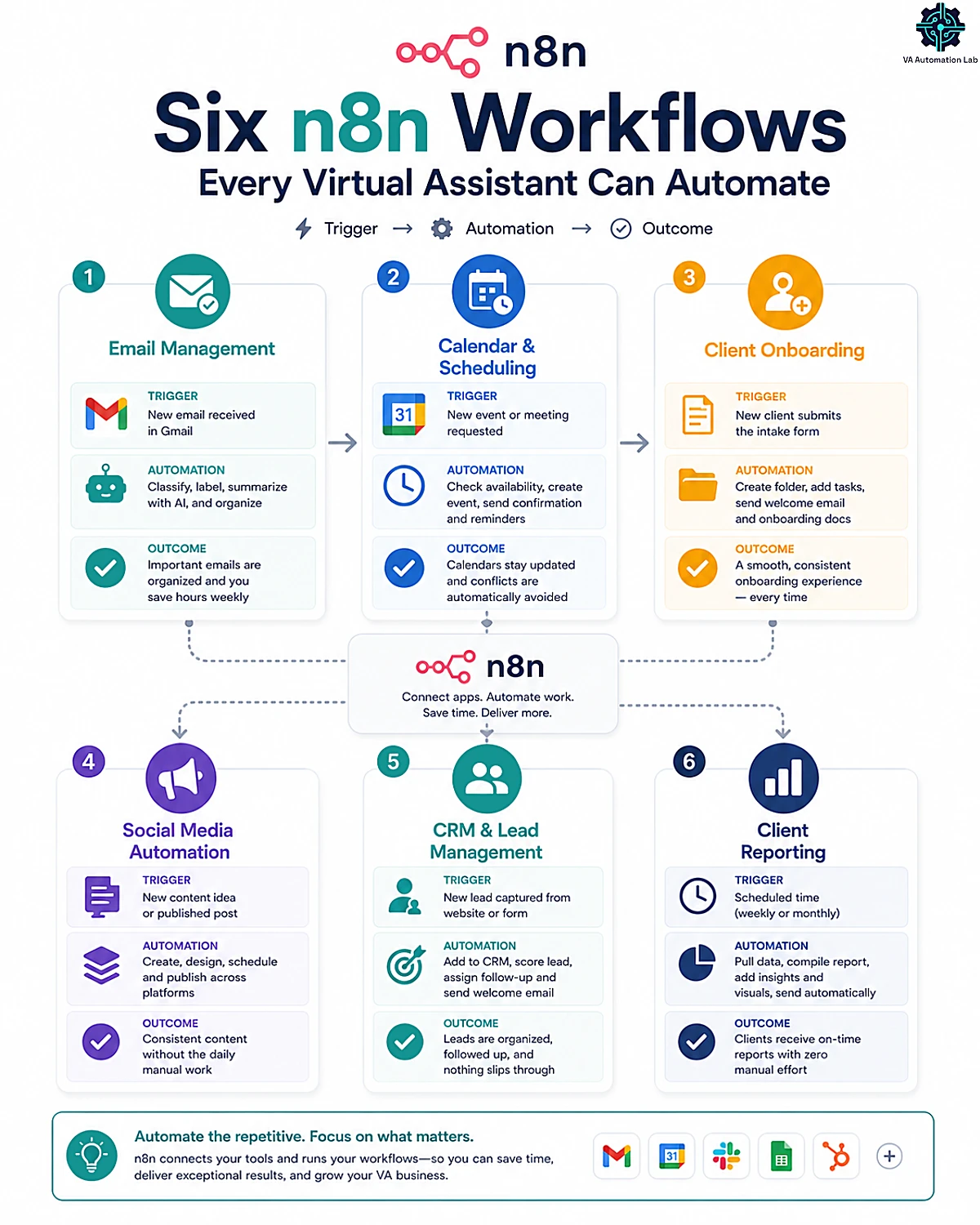
At a glance, here’s what VAs use n8n to automate — each one is covered in detail below:
- Sorting, labeling, and summarizing client email
- Managing calendars and protecting focus time
- Onboarding new clients from a single form
- Scheduling and publishing social media content
- Syncing leads into a CRM automatically
- Building recurring client reports
How an n8n workflow works — nodes, triggers, and executions
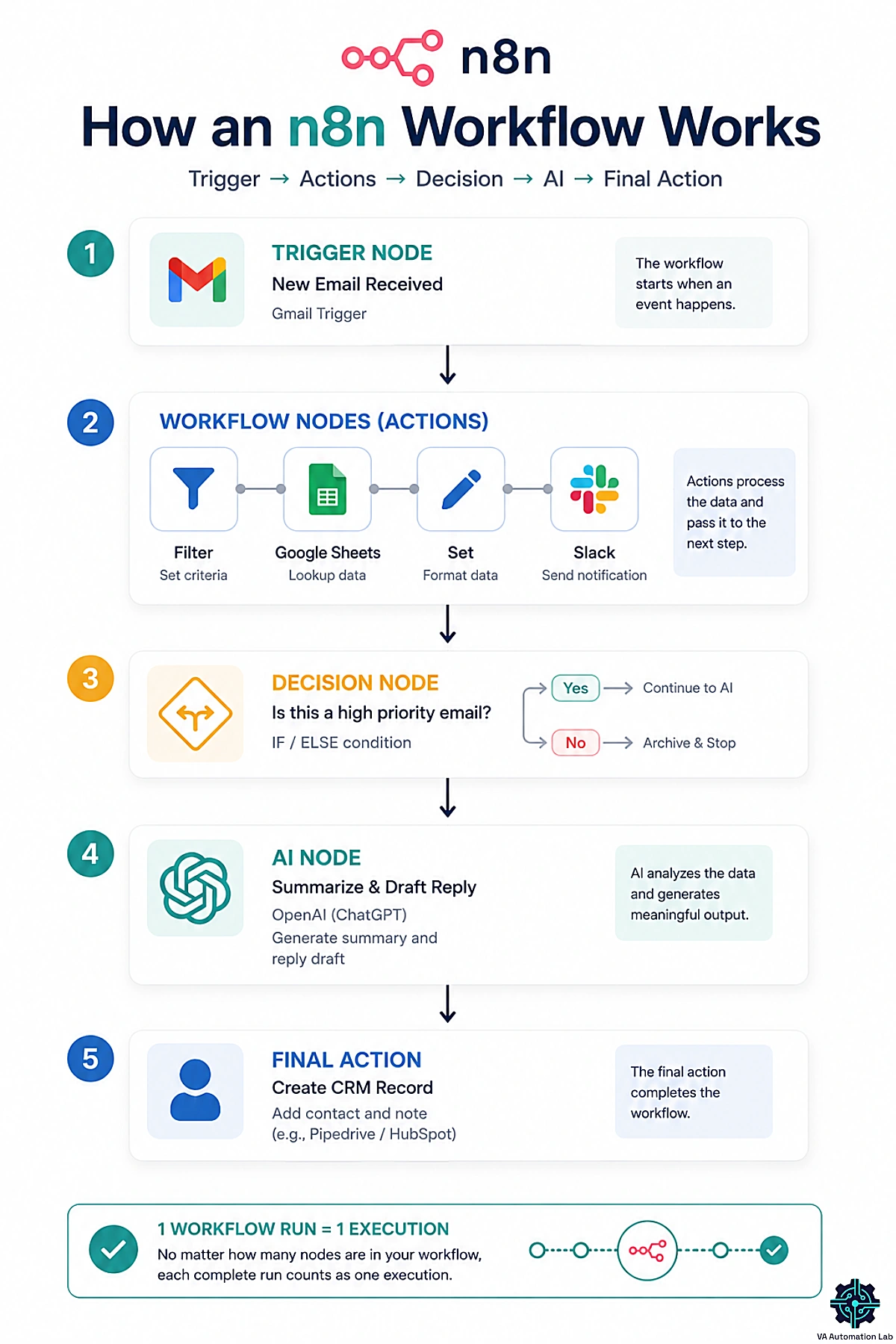
Every automation in n8n is a workflow: a chain of steps that runs when something happens. Those steps are nodes, and there are two kinds.
A trigger node starts the workflow. It could be a new email, a submitted form, a scheduled time, a new row in a spreadsheet, or a webhook — a signal another app sends the instant something happens. Action nodes are what happens next — summarize the email, add a task, send a Slack message, update a CRM. Data flows from one node to the next, left to right — each step feeding the one after it.
Here’s a VA example. Trigger: a client fills out your intake form. Actions: n8n creates a folder, adds a welcome task, and sends a “we’ve received your details” email. One trigger, three actions, zero manual work.
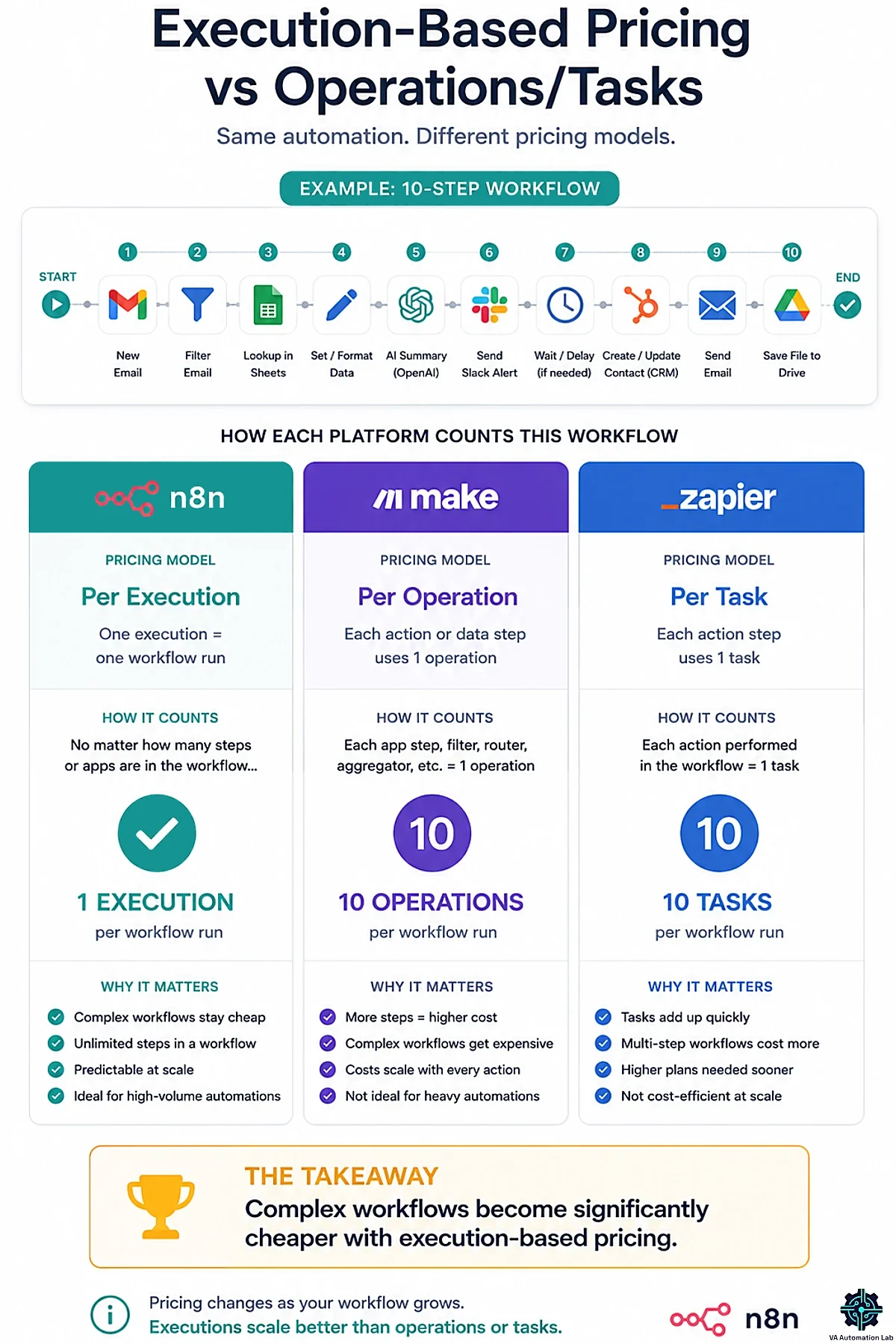
One word you’ll see everywhere is execution. In n8n, a single run of an entire workflow counts as one execution, no matter how many nodes it contains. A 3-step workflow and a 30-step workflow each use exactly one execution per run. That detail matters a lot for pricing, and we’ll come back to it.
What makes n8n different — fair-code, self-hostable, execution-based
Most automation tools are locked to the vendor’s cloud. n8n is open-source and “fair-code,” which means you can run the software yourself, on your own server, and keep all your workflow data in your own environment. That’s a real advantage for privacy-sensitive client work — and if you handle data for European clients, self-hosting keeps everything in your own environment, which simplifies GDPR compliance.
It also prices differently. Where competitors charge per step or per action, n8n charges per full workflow run. And it’s AI-native — you can drop AI models straight into a workflow rather than bolting them on later. Those three traits (own your data, pay per run, build with AI) are n8n’s real identity. Whether they’re worth the trade-offs depends entirely on you — which is the next question.
2. Is n8n Right for Virtual Assistants?
n8n is powerful. It’s also the steepest of the mainstream automation tools to learn. Before you invest a weekend in it, let’s be clear about whether it fits how you work.
The skills you need (and the ones you don’t)
You do not need to be a developer. You don’t need to write code for the vast majority of VA workflows, and n8n’s templates and AI builder now do a lot of the heavy lifting. If you’re brand new to AI tools in general, our guide on How to Start Using AI as a VA is a gentler on-ramp before you tackle n8n.
What does help is comfort with logic — “if this, then that” thinking — and a willingness to connect apps using API keys (we’ll walk through that in the setup section). If you’ve ever built a multi-step Zap or a Make scenario, you already have the mindset. If the idea of an API key makes you nervous, that’s fine too; it’s far simpler than it sounds, and you’ll do it once per app.
When n8n is the right call — and when to start simpler
Picture automation tools as a ladder. Zapier is the easiest first rung: fast, guided, huge app catalog. Make is the powerful visual middle: more control, still approachable, doable for non-developers. n8n is the top rung: the most control and the lowest running cost at scale, but the most to learn.
Most VAs should start one rung below n8n. If you want a managed tool you can learn this week, Make is usually the smarter first move. And if your goal is simply “cheap, hosted automation without n8n’s setup,” there’s a budget option worth knowing: Pabbly Connect runs managed automations from $16/month for 10,000 tasks, with a one-time lifetime deal if you’d rather avoid subscriptions entirely.
Cloud vs self-hosted: which path a solo VA should pick
n8n gives you two ways to run it, and this choice trips people up.
n8n Cloud is the managed option: you sign up, you build, n8n handles the servers, updates, and uptime. No technical maintenance.
Self-hosted means you install n8n on your own server. The software is free, but you become responsible for setup, updates, backups, and security. It’s cheaper and gives you full data control — but it’s real ongoing work.
For almost every solo VA, Cloud is the right path. Self-host only if you truly want server control or you’re comfortable with a little tech admin. Choosing Cloud isn’t “settling” — it’s spending a few dollars a month to never think about servers.
Not ready for n8n’s learning curve? Start automating today — from $16/month.
If n8n feels like a lot for where you are right now, you don’t have to wait to start saving time.
Pabbly Connect gets you automating today: no self-hosting, no steep setup, just a visual builder that works.
You get 10,000 tasks a month, unlimited workflows, and a 365-day tracking window, so there’s zero pressure to rush.
Prefer to pay once and never think about it again? Grab the one-time lifetime deal.
It’s the lowest-friction way to put your first automation to work.
3. n8n Features That Matter for VA Work
n8n has a long feature list. Here are the parts that change your day as a VA.
The visual workflow builder and 500+ integrations
The heart of n8n is a drag-and-drop canvas. You add nodes, connect them, and watch data move through each step. Outputs appear right next to each node’s settings, so you can see exactly what’s happening and fix problems fast.
It connects to 500+ apps right out of the box — covering the tools VAs live in: Gmail, Google Sheets, Slack, Notion, Airtable, calendars, and more. And when an app isn’t on the list, the HTTP Request node is your escape hatch: if a service has an API, n8n can talk to it. In practice, that means “connect anything.”
Native AI nodes and AI agents
This is n8n’s 2026 standout. You can drop AI nodes directly into a workflow to summarize text, classify messages, or draft replies, and you can build AI agents that make simple decisions on their own. We’ll build a real one in the AI section — for now, just know it’s baked in, not bolted on.
Code when you need it — and why you mostly won’t
Yes, n8n lets you write JavaScript or Python inside a workflow. And no, you almost certainly won’t need to. Code is there for the rare custom transformation, and even then, an AI model can write the snippet for you. Treat it as a safety net, not a requirement.
Templates and the community library
You don’t have to start from a blank canvas. n8n has thousands of ready-made templates — inbox managers, lead routers, content repurposers — that you can import and adapt. For a beginner, templates are the single fastest way to learn: open one that’s close to what you need, see how it’s wired, and change the parts that matter.
4. n8n Pricing Explained
n8n’s pricing is misunderstood, mostly because it counts usage differently from everyone else. Let’s fix that.
How execution-based pricing works vs tasks and operations
Three tools, three ways of counting the same automation:
Platform | Billing unit | What one 10-step workflow run costs |
n8n | Execution (one full workflow run) | 1 execution |
Zapier | Task (one action step) | up to 10 tasks |
Make | Credit (one module run) | up to 10 credits |
Run that workflow 1,000 times a month and the gap is stark: 1,000 executions on n8n versus up to 10,000 tasks on Zapier. For complex, high-volume automation, n8n’s per-run model is dramatically cheaper. For a handful of simple workflows, the difference barely matters.
Free Community Edition vs n8n Cloud plans
n8n comes in two versions. The Community Edition is the free, open-source version you self-host — no license fee and no execution limits from n8n itself; you only pay for the small server it runs on.
n8n Cloud is the managed, no-setup option:
Plan | Price (annual) | Executions | Best for |
Starter | €20/mo | 2,500 | A solo VA testing real workflows |
Pro | €50/mo | 10,000 | Heavier use across several clients |
Starter includes unlimited users, one shared project, and 50 AI workflow-builder credits; Pro adds more projects, workflow history, execution search, and 150 AI credits. Larger Business and Enterprise tiers exist for teams that need single sign-on and advanced controls, but they’re priced well above what a solo VA needs — so we’ll leave them out of scope.
What a solo VA pays — realistic cost scenarios
Here’s the part most guides skip: n8n Cloud is not the cheapest managed option. n8n Starter is €20/month for 2,500 executions, billed annually (n8n prices in euros), against Make Core at $9/month for 10,000 credits and Pabbly Connect Standard at $16/month. n8n’s famous low cost only appears when you self-host — where you swap a subscription for a few dollars of hosting plus a little setup time.
So the real math is simple. Want managed and cheap? Make or Pabbly win on sticker price. Want maximum control and the lowest cost at high volume, and you don’t mind self-hosting? That’s where n8n pulls ahead. Either way, you can try n8n’s Cloud free for 14 days before deciding.
5. n8n ROI: Is It Worth It for a VA?
A tool is only “expensive” if it costs more than it gives back. For a VA, n8n’s return is easy to calculate, because your core asset — time — has a price tag: your hourly rate.
The simple ROI formula
Here’s the whole thing:
(Hours saved per month × your hourly rate) − (n8n cost + any AI usage) = your monthly return.
Because n8n runs a workflow for the same cost whether it fires once or a thousand times, every hour it claws back after setup is close to pure profit.
A realistic example
Say you’re a VA billing $35/hour, and you build the inbox-triage and client-reporting workflows from this guide. Between them, they save you roughly six hours a week — no more manual sorting, no more Friday report-building. (Plug in your own numbers; the point is the shape of the math, not these exact figures.)
- Time saved: ~6 hrs/week ≈ 24 hrs/month
- Value of that time: 24 × $35 = $840/month
- Cost: n8n Starter €20/month billed annually (+ a few dollars of AI usage)
That’s roughly $840 of your time freed for €20 plus a few dollars of AI usage. Even if your estimate is wildly optimistic and you save a third of that, n8n still pays for itself many times over in the first week you use it.
The returns that don’t show up in the formula
The hourly math undersells it. n8n also buys you:
- Capacity. Hours you’re not doing admin are hours you can bill to another client — automation is how solo VAs take on more work without burning out.
- Consistency. A workflow never forgets a step, sends the wrong client the wrong file, or skips a follow-up. That reliability is what earns retainers.
- A new revenue line. This is the big one. Once you can build these workflows, you can sell them. Offering “automation setup” as a paid service turns n8n from a cost into a profit center — you build a client’s onboarding or reporting flow once and charge a setup fee for it. Many VAs earn more from building automations than from the admin work the automations replace.
Put simply: if n8n saves you even a couple of hours a month, it’s already worth it. Most VAs save far more than that.
The math checks out — now put n8n to work, free for 14 days.
You’ve seen the return: even a couple of saved hours a month covers the cost several times over.
So there’s no reason to sit on it. Spin up n8n Cloud free for 14 days (cancel anytime), follow the setup steps below, and you could have your inbox sorting itself by tonight — or self-host the open-source Community Edition and keep it free forever.
Start small, prove the ROI on one workflow, and scale from there.
6. How to Set Up n8n: A Step-by-Step Walkthrough
Here’s the fastest path from zero to your first working automation.
Step 1 — Create your account (or self-host the basics)
The simplest start is n8n Cloud. Go to n8n’s site, start the 14-day free trial, and you’ll have a working instance in your browser in minutes — nothing to install. If you’d rather self-host, one-click hosting platforms let you deploy n8n on a small server without touching Docker; only go this route if you’re comfortable with light server admin.
Step 2 — Build your first workflow (trigger + action)
Create a new workflow and add your first trigger node. A great beginner trigger is the Schedule node (run every morning at 8 a.m.) or a Gmail trigger (run when a new email arrives). Then add an action node — for example, send yourself a Slack message. Connect the two nodes by dragging a line between them. That’s a complete workflow.
Step 3 — Connect credentials safely (API keys and OAuth)
To let n8n use an app, you connect a credential — usually by clicking “Sign in with Google” (OAuth) or pasting an API key from the app’s settings. n8n stores these securely. The golden rule: never share your API keys or paste them anywhere outside n8n. You’ll set each app up once, and n8n remembers it.
Step 4 — Test, activate, and monitor
Before going live, click Test workflow to run it once with real data. Check each node’s output on the canvas to confirm it did what you expected. When it’s right, toggle the workflow to Active so it runs automatically. If something breaks later, open the Executions list to see exactly which step failed and why.
7. n8n Workflows for Virtual Assistants (Real Examples)
This is where n8n earns its place. Below are six automations that map directly to VA work — each with its purpose, the exact node chain to build it, a realistic setup time, and the result you get. Each n8n automation follows the same pattern: a trigger starts it, and a chain of actions does the rest. For a broader menu across every tool, see our guide to the Best Automation Workflows for Virtual Assistants — and if you’re still doing everything by hand, start with How to Automate Repetitive Tasks.
Email Triage and Daily Inbox Summary
Purpose: Stop living in your inbox. This sorts every incoming email and hands you one clean digest each morning instead of constant checking.
Setup time: ~30–45 minutes · Beginner-friendly.
How to build it:
- Gmail Trigger node — fires on each new email.
- AI node (OpenAI or Claude) — classify the email: client, lead, newsletter, or low-priority.
- Switch node — route the email by that category.
- Gmail node — apply the right label or move it to a folder.
- In a second workflow: a Schedule Trigger (e.g., 8 a.m.) → Gmail node fetches overnight mail → AI node summarizes it → Slack (or Gmail) node sends you the digest.
The result: Your inbox sorts itself, and your morning email review shrinks to a two-minute read.
Pair it with a dedicated filter like our SaneBox Setup Guide and the systems in our AI Email Management guide.
Calendar and Booking Management
Purpose: Kill double-bookings and protect your focus time automatically, so your calendar works for you instead of against you.
Setup time: ~20–30 minutes · Beginner-friendly.
How to build it:
- Google Calendar Trigger (or a booking-tool webhook) — fires when a new event or booking lands.
- Set / Function node — read the event type (call, deep work, admin).
- Google Calendar node — auto-create prep and buffer blocks before and after the event.
- Optional Google Calendar node — check a second calendar and block the slot to prevent conflicts.
- Notification node (Slack or email) — confirm the update to you or the client.
The result: Every booking gets prep time and a buffer automatically, with no manual calendar tetris.
Pair it with a scheduling assistant like Reclaim.ai, which defends your time around the events n8n creates — see our Best AI Scheduling Tools guide.
Client Onboarding Automation
Purpose: Turn a newly signed client into a fully set-up project in seconds, with a consistent experience every time.
Setup time: ~45–60 minutes · Intermediate.
How to build it:
- Form Trigger (Jotform/Typeform submission or webhook) — fires when a new client completes your intake form.
- Google Drive node — create the client’s folder from a template.
- Project tool node (ClickUp or Notion) — spin up the project and onboarding task list.
- Gmail node — send a branded welcome email with next steps.
- CRM node (Folk or Pipedrive) — create or update the contact record.
The result: Zero-touch onboarding — a signed client is set up, welcomed, and in your CRM before you’ve refilled your coffee.
Our full guide on Automating Client Onboarding walks through the whole sequence.
Social Media Content Scheduling
Purpose: Publish approved content across platforms on a set cadence without logging in daily.
Setup time: ~30–45 minutes · Beginner-friendly.
How to build it:
- Schedule Trigger (e.g., daily) — or a “new approved row” trigger in Notion/Sheets.
- Notion / Google Sheets node — fetch the posts due today.
- Filter node — keep only rows where status = approved and date = today.
- Social node (Buffer or SocialBee via API/HTTP Request) — queue or publish the post.
- Update node — mark the row as published so it never goes out twice.
The result: A hands-off content pipeline — you approve, n8n publishes.
Combine it with our Social Media Automation Guide and a scheduler like SocialBee.
Lead Capture and CRM Sync
Purpose: Never lose a lead to manual copy-paste again, and respond before your competitors do.
Setup time: ~30 minutes · Beginner-friendly.
How to build it:
- Webhook / Form Trigger — fires when a lead arrives from a form or ad (e.g., Facebook Lead Ads).
- Optional HTTP Request node — enrich the record with company info.
- CRM node (Folk, Pipedrive, or ActiveCampaign) — create the contact and deal.
- Gmail node — send an instant “thanks, we’ll be in touch” reply.
- Slack node — ping you about the new lead.
The result: Leads land in your CRM enriched and acknowledged within seconds — no missed follow-ups.
See our Best CRM for Virtual Assistants roundup and our Folk CRM Setup Guide.
Automated Client Reporting
Purpose: Kill the Friday reporting grind — deliver client-ready reports on schedule without touching a spreadsheet.
Setup time: ~60 minutes · Intermediate.
How to build it:
- Schedule Trigger (weekly or monthly) — fires on your reporting day.
- Data source nodes — pull metrics from Google Analytics, social APIs, or a dashboard tool.
- Merge / Set node — assemble the numbers into your report template.
- Google Docs / Sheets node — generate the formatted report.
- Gmail node — send it to the client, or save a draft for your review first.
The result: Reports build and send themselves on schedule; your only job is a 60-second review.
Our guide to Automating Client Reporting shows the full build.
8. Building AI Automations in n8n
Automation moves data. AI automation makes decisions about that data — and this is where n8n pulls away from every simpler tool. It’s also the most valuable skill you can build right now, because “AI agent” work is exactly what clients are starting to pay a premium for.
What AI Agents Do (and where to keep a human in the loop)
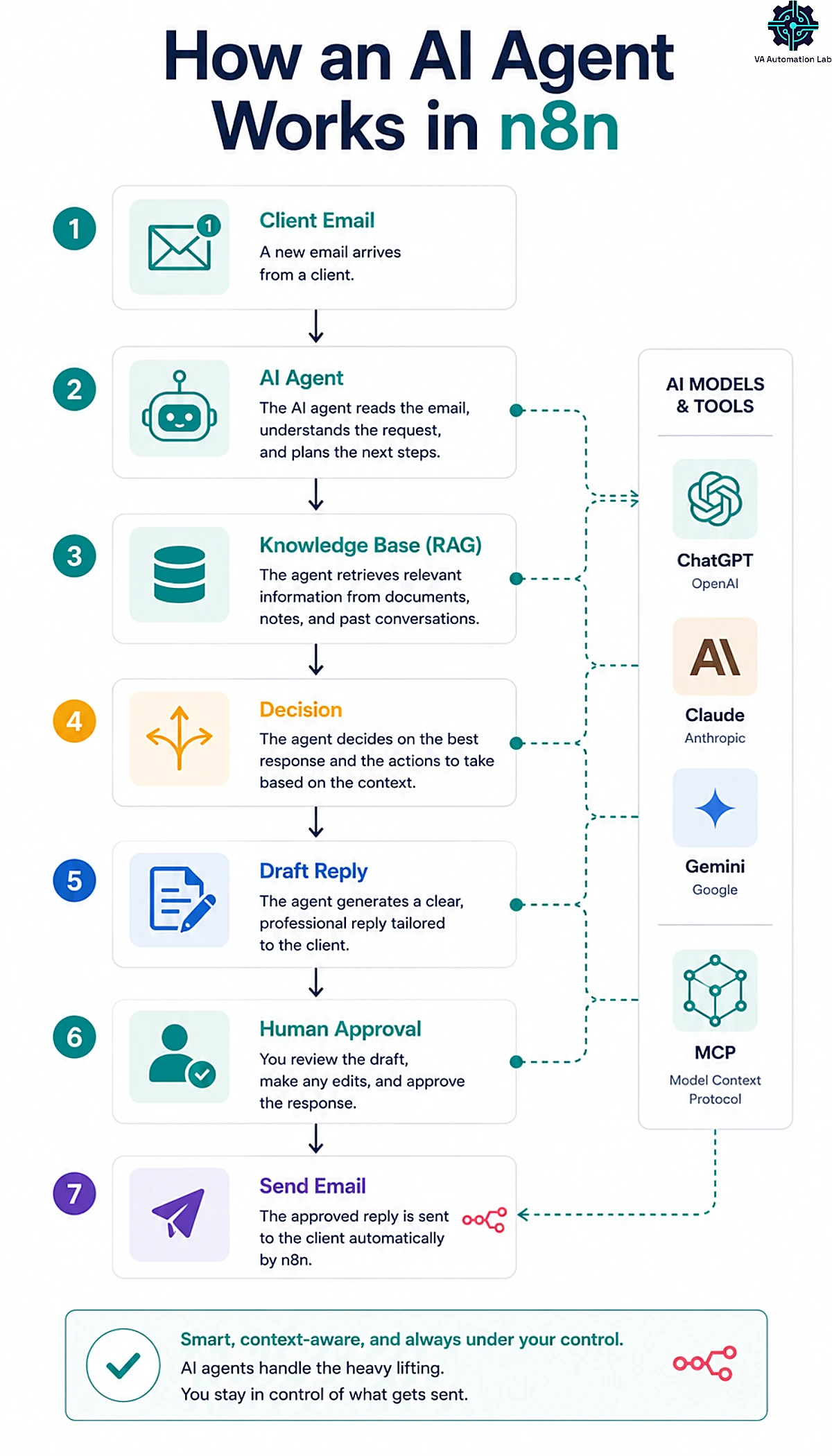
A standard workflow follows fixed rules: “if X, do Y.” An AI agent can reason within a workflow — read a message, decide what it means, and choose the right next step from the tools you give it. In n8n, an agent can read an email, look something up, draft a reply, and update a record, all in one run.
The safety valve is the human-in-the-loop checkpoint: you insert a step that pauses and waits for your approval before the agent sends anything to a client. You get the speed of automation without ever handing over final judgment on client-facing work. For most VAs, that approve-before-send pattern is the difference between “useful” and “risky.”
Plugging in the Models: ChatGPT, Claude, Gemini, and MCP
The AI model is pluggable. You can wire in ChatGPT, Claude, or Gemini as the “brain” of a step and swap it whenever you like — if a new model is better or cheaper next month, you change one node. n8n also speaks MCP (the Model Context Protocol), so your workflows can plug into the wider AI-tool ecosystem — and an AI assistant like Claude can even call your n8n workflows as tools it uses on your behalf.
Two things to flag: the AI model’s usage is billed separately by that provider (a few cents to a few dollars a month for typical VA volume), and n8n’s own AI workflow-builder credits (50 on Starter, 150 on Pro) are for building workflows from plain-English prompts, not for running them. Budget for the model’s API cost on top of your n8n plan.
Giving your AI a Memory: Knowledge Bases and RAG
Out of the box, an AI model only knows general information — not your SOPs, your client details, or your pricing. RAG (retrieval-augmented generation) fixes that. You load your own documents into a knowledge base (n8n connects to vector stores like Pinecone, Qdrant, or Supabase), and the agent answers from your information instead of guessing.
For a VA, this is a superpower. Feed in your standard operating procedures and you have an assistant that answers “how do we handle a refund request?” the way you would. Feed in a client’s brand guidelines and product FAQs, and you can build a support agent that replies in their voice — the kind of deliverable you can charge real money for.
A Complete AI workflow, Step by Step: the Inbox Assistant
Here’s one you could ship this week — the workflow that first sells most VAs on n8n:
- Gmail Trigger — fires on a new client email.
- AI node — reads the email and classifies it: a question, a request, or an FYI.
- Switch node — routes questions and requests to the drafting step; files FYIs.
- AI Agent node (with your saved templates and tone) — drafts a reply in your voice.
- Gmail node — saves the reply as a draft (not sent).
- Slack node — pings you: “Draft ready for [client] — approve?”
Setup time: ~1–2 hours · Intermediate.
The result: You open Slack, read a ready-made reply, tweak a word, and hit send — seconds instead of minutes, and the writing is already done. Across a full client roster, that one workflow can reclaim hours every week.
High-value AI Automations to Build Next
Once the inbox assistant clicks, these are the automations clients happily pay for:
- Meeting-notes-to-action-items: transcript in, summary and task list out.
- Content repurposing: one long post becomes a week of platform-native captions.
- Data extraction: pull structured fields out of messy emails, PDFs, or forms.
- Client FAQ chatbot: a RAG agent trained on a client’s docs that handles tier-one questions.
Each of these is a service you can offer, not just a task you can automate — which is the whole point of learning this now.
9. The Best Tool Stack to Pair with n8n
n8n is the engine, but an engine needs something to drive. On its own it’s a clever connector; paired with the right tools, it becomes a full business system. Here’s the stack we recommend building around n8n — each tool slots directly into the workflows above, and each is a natural place n8n sends or pulls data.
What it handles | Recommended tool | Why it pairs with n8n |
Smart email triage | Filters the noise out of your inbox before your n8n summary workflow runs | |
Calendar & focus time | Auto-defends your time around the events n8n creates or updates | |
CRM | Where n8n syncs every lead and contact automatically | |
Social scheduling | The publishing queue n8n routes approved content into | |
Intake & forms | Triggers your n8n onboarding and lead-capture workflows | |
Proposals & e-signatures | n8n sends, tracks, and files client documents around it | |
Client dashboards & reporting | Feeds the metrics n8n assembles into automated reports | |
AI writing | Drafts the content your n8n workflows schedule and publish |
You don’t need all eight on day one. Start with the one that supports your most painful workflow — usually the CRM or the email layer — and add the rest as you automate more. We’ve published full setup guides for several of these: Reclaim.ai, Folk CRM, SocialBee, and SaneBox. For the complete picture across every category, see our Best Tools for Virtual Assistants roundup.
10. n8n vs Make vs Zapier for Virtual Assistants
Most VAs comparing automation tools are really choosing between these three. Here’s how they really compare.
n8n vs Zapier — power vs simplicity
Zapier is the easiest tool to start with, full stop: guided setup, the biggest app catalog, and Zaps you can build in minutes. n8n gives you far more control and costs far less at high volume, but it asks more of you upfront. If you want “working automation today” and your workflows are simple, Zapier wins. If you’re building complex, high-volume systems and want to own them, n8n wins.
n8n vs Make — self-hosting vs the managed visual builder
This is the comparison that matters most for VAs. Make is the approachable visual builder — powerful, colorful, and learnable without a developer, starting at $9/month on Core, which includes 10,000 credits. n8n matches and exceeds Make’s power and can run on your own servers for full data control, but it’s steeper to learn and its Cloud plans start at €20/month billed annually. For most VAs, Make is the better on-ramp; for the technically comfortable who want ownership and scale, n8n is the upgrade. Our full Make Setup Guide and our 4 Best Zapier Alternatives for Virtual Assistants comparison go deeper on the middle rung.
Which automation tool should a VA choose?
n8n | Make | Zapier | |
Ease of learning | Steepest | Moderate | Easiest |
Billing model | Per execution (full run) | Per credit (per step) | Per task (per step) |
Cheapest paid plan | €20/mo (Cloud) · free self-host | $9/mo (10k credits) | From $19.99/mo |
Self-hosting | Yes (own your data) | No | No |
Built-in AI | Deepest (agents + LLM nodes) | Good | Good |
Best for | Power users wanting control + scale | Most VAs wanting visual power | Beginners wanting speed + apps |
The simple rule: new to automation → start with Zapier or Make. Ready for more power and lower costs at scale, and comfortable with a little setup → move to n8n. Comparing more than just automation platforms? Our Best Tools for Virtual Assistants roundup covers every category a VA needs.
Want n8n’s power without the setup? Make gets you there faster.
If self-hosting and a steeper learning curve aren’t your thing, Make gives you a visual builder nearly as capable as n8n — at a lower entry price ($9/month for 10,000 credits) and with an on-ramp most VAs pick up in a single weekend.
It’s the tool we recommend to the majority of VAs starting out, and the one that turns “I should automate this” into a working scenario the same day.
Try it free, build your first scenario, and feel how quickly it clicks.
11. n8n Limitations and Common Pitfalls
A fair review names the downsides. Here are the three that catch VAs out.
The learning curve is real (and how to shortcut it)
n8n’s flexibility is also its friction — the blank canvas can be intimidating. The shortcut: don’t start from scratch. Open a template close to your goal, use the AI builder to draft a workflow from a plain-English description, and start with one small automation before you attempt a complex one. Momentum beats perfection.
Self-hosting means you’re the sysadmin
“Free” self-hosting isn’t free of effort. You own the updates, backups, security patches, and any 2 a.m. outage. For a solo VA, that’s often a poor trade. If you don’t actively want to manage a server, choose n8n Cloud and spend the few dollars a month to make the maintenance someone else’s job.
Execution limits and no one-click migration
On n8n Cloud, workflows can pause when you hit your execution cap, so pick a plan that fits your real volume (self-hosting removes this limit entirely). And there’s no one-click import from Zapier or Make — moving over means rebuilding your workflows by hand. Moving between n8n Cloud and self-hosted is easy, though: you can export and import your workflows as JSON files. It’s only the switch from Zapier or Make that’s manual. Factor that switching cost in before you commit.
None of these are dealbreakers for the right user. They’re simply the price of n8n’s power — and worth knowing before you start.
12. Where n8n Fits: Your Next Step
Here’s the bottom line. n8n is the most powerful automation platform a virtual assistant can put their hands on — capable of running your inbox, your onboarding, and your reporting, and of powering AI agents that draft client replies while you review them in seconds. It’s also the one that asks the most of you: a real learning curve, and, if you self-host, a little tech responsibility.
That trade-off is the decision. If you’re ready to invest a weekend, want to own your data, and plan to scale without per-task fees, nothing else comes close — and as the ROI math showed, the cost is a rounding error against the hours you’ll win back and the automation services you can sell. If you’d rather be automating by this afternoon, Make is the smarter first step for most VAs, and Pabbly is the budget shortcut.
But don’t let the comparison become another reason to stall. The VAs who pull ahead aren’t the ones with the perfect tool — they’re the ones who automated one painful task, then another. Pick the workflow costing you the most time right now — inbox triage, onboarding, reporting — and build just that one this week. The rest compounds from there.
You have the full blueprint: what n8n is, what it costs, the return it delivers, the exact workflows, the tool stack, and the setup steps. The only thing between you and a lighter, more profitable workweek is starting.
You’ve got the blueprint. Now build the automation that buys back your week.
You know what n8n is, what it costs, the ROI it delivers, and exactly which workflow to build first.
The only step left is the one that counts: starting.
Create your free n8n account, import a template, and ship your first automation today — because every week you wait is another week of manual work you never had to do.
Start free, keep the Community Edition forever, and upgrade only once it’s already paying for itself.
Frequently Asked Questions About n8n for Virtual Assistants
What is n8n used for?
n8n connects your apps and automates the work between them — sorting email, onboarding clients, syncing leads to a CRM, scheduling social posts, building reports, and running AI agents. For a VA, it replaces the repetitive, copy-paste tasks that eat your day.
Is n8n free to use?
Yes — the self-hosted Community Edition is free and open-source, with no execution limits from n8n (you only pay for the server it runs on). n8n Cloud is paid, starting at €20/month billed annually, with a 14-day free trial.
Do you need coding skills to use n8n?
No. Most VA workflows are built entirely with the drag-and-drop canvas and templates. Writing JavaScript or Python is optional and rarely needed — and an AI model can write any snippet for you.
Is n8n hard to learn?
It has the steepest learning curve of the mainstream automation tools, but it’s very learnable. Start with a template close to your goal, use the AI builder to draft workflows from plain English, and build one small automation before a complex one. Most VAs are productive within a weekend.
Is n8n secure for client data?
Yes — and it can be more private than cloud-only tools. When you self-host, your workflow data and API keys stay entirely in your own environment, which helps with GDPR and sensitive client work. On n8n Cloud, credentials are stored encrypted. Either way, never share API keys outside n8n.
Is n8n better than Zapier or Make for a virtual assistant?
It depends on your skill and volume. Zapier is easiest for beginners; Make is the powerful, learnable middle ground most VAs should start with; n8n is the most powerful and cheapest at scale, but the steepest to learn.
Can n8n replace a virtual assistant?
No. n8n removes repetitive, rule-based work, but it can’t replace a VA’s judgment, client relationships, or problem-solving. Think of it as a tool that makes you faster and more valuable — not a substitute for you.
Can you make money offering n8n automation as a VA?
Yes, and it’s one of the best reasons to learn it. Once you can build these workflows, you can offer “automation setup” as a paid service — building a client’s onboarding, reporting, or AI-agent workflow for a setup fee. Many VAs earn more from building automations than from the admin work those automations replace.
Is cloud or self-hosted n8n better for beginners?
Cloud, almost always. It removes all server setup and maintenance, so you can focus on building workflows. Only choose self-hosting if you specifically want data control or enjoy light server admin.
How many workflows can I run on n8n?
Unlimited when you self-host. On n8n Cloud, you can build unlimited workflows, but your monthly executions are capped by your plan (2,500 on Starter, 10,000 on Pro), and active workflows pause if you exceed the limit.
Glossary: Key Terms for n8n
Node: A single step in an n8n workflow — either a trigger that starts it or an action that does something.
Trigger: The event that starts a workflow, such as a new email, a form submission, or a scheduled time.
Execution: One complete run of a workflow, from start to finish. n8n bills by executions, not by individual steps.
Workflow: A connected chain of nodes that automates a task from trigger to result.
Webhook: A way for one app to instantly notify n8n that something happened, so a workflow can start in real time.
Fair-code / open-source: A licensing model that lets you run and self-host the n8n software freely, with full control over your data.
Self-hosting: Running n8n on your own server instead of n8n’s cloud — cheaper and more private, but you handle setup and maintenance.
AI agent: An AI-powered step that can read information, make a simple decision, and choose the next action within a workflow.
About the Author
Alex Stratton has spent the better part of a decade working at the intersection of virtual assistance and operational systems, first as a VA supporting founders and small business owners, then as a workflow consultant helping remote teams reduce the manual overhead that accumulates when businesses grow faster than their processes. The tools and workflows here reflect decisions made repeatedly in real client contexts, where the wrong choice costs hours, not minutes. Learn more about VA Automation Lab → About.