
Social Media Automation for Virtual Assistants: Tools, Workflows & Complete System (2026)

Disclosure: This post contains affiliate links. VA Automation Lab earns a commission if you purchase through them, at no extra cost to you. Recommendations are based on genuine evaluation of tool fit for VA workflows.
Social media automation is one of the highest-leverage skills in a Virtual Assistant’s operational repertoire, social media management is among the most time-consuming, repetitive, and chronically under-systemized service types in VA operations. This guide covers the complete automation system: the workflow architecture for managing multiple clients, the tool stack that handles scheduling, content generation, and approval, the AI prompts that eliminate the blank-page problem, the Make scenarios that connect the moving parts, and the reporting automation that closes the loop without manual compilation.
The problem with social media management for VAs is not the creative work, it is the operational overhead surrounding it. A VA managing social media for multiple clients spends hours on tasks that have nothing to do with content quality: manually scheduling posts across platforms, reformatting content for different aspect ratios and character limits, chasing client approvals via email, downloading analytics screenshots and pasting them into reports, and switching between tools and logins. None of this work requires creative judgment. All of it can be automated or semi-automated with the right system in place.
The automation system in this guide is built for the VA who manages social media for two to five clients simultaneously, the scale at which manual workflows break down fastest and where systematic automation produces the most immediate operational return. The system covers four automation layers: content generation, scheduling and publishing, client approval, and reporting. Each layer can be implemented independently, the full stack compounds the time savings across all four.
What this guide covers:
- The four social media automation layers and where to start
- The best social media automation tools for VAs, stacked by client volume and by platform
- The AI prompt library for social media content, organized by platform and content type
- Four Make automation scenarios that run the pipeline hands-free
- The client approval workflow, how to get sign-off without email back-and-forth
- The multi-client system for maintaining brand voice at automation speed
- How to automate client reporting so it takes 15 minutes instead of 4 hours
- How to package and price your social media VA services
- Common automation mistakes and how to fix them
👉 AI Tools for Virtual Assistants: The Complete Practical Guide — the full reference for every AI tool category in VA work.
👉 Automation for Virtual Assistants: The Complete Guide — for a complete breakdown of every workflow category worth automating and how to sequence your rollout.
Want to Start Using AI Tools the Right Way?
The Free AI Starter Toolkit includes the social media content calendar template for Notion (pre-configured with Status, Platform, Publish Date, and AI Autofill for caption generation), the brand voice guide template for multi-client operations, and the prompt library for the four highest-frequency social media content types.
Ready to use. Duplicate for every client.
Table of Contents
1. Why Social Media Management Breaks Down Without Automation
Social media automation for virtual assistants is the use of scheduling tools, AI content generators, and workflow automation (such as Make) to take over the repetitive operational tasks inside social media management — scheduling, reformatting, approval routing, and reporting — so a VA can serve more clients in less time without lowering content quality.
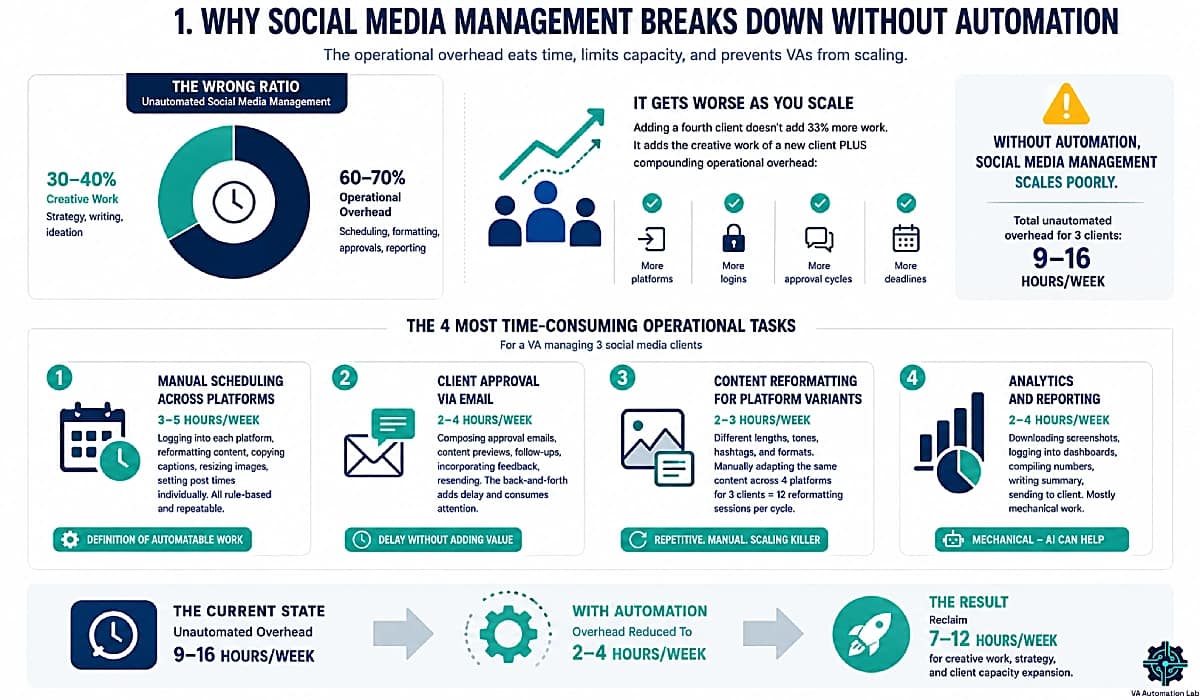
It addresses a specific operational problem: the ratio of creative work to operational overhead in unautomated social media management is inverted. For most VAs managing social media without a systematic workflow, the breakdown looks like this:
Creative work (strategy, writing, ideation): 30-40% of total social media hours.
Operational overhead (scheduling, formatting, approval chasing, reporting): 60-70% of total social media hours.
This ratio is the wrong way around, and it worsens as the client roster grows. Adding a fourth social media client to a three-client roster does not add 33% more work. It adds the creative work of a fourth client plus the compounding operational overhead of managing one more set of platforms, logins, approval cycles, and reporting deadlines. Without automation, social media management is a service that scales poorly.
The four most time-consuming operational tasks in unautomated social media management, ranked by weekly time cost for a VA managing three clients:
1. Manual scheduling across platforms
Estimated time: 3-5 hours/week. Logging into each platform, reformatting content for each platform’s specifications, copying captions, resizing images, setting post times individually. All of it is rule-based and repeatable, the definition of automatable work.
2. Client approval via email
Estimated time: 2-4 hours/week. Composing approval request emails, compiling content previews, following up on unanswered approvals, incorporating feedback, resending. The back-and-forth adds delay and consumes attention without adding value.
3. Content reformatting for platform variants
Estimated time: 2-3 hours/week. A LinkedIn post and an Instagram caption for the same topic require different lengths, tones, hashtag densities, and formats. Manually adapting the same content across four platforms for three clients is 12 reformatting sessions per content cycle.
4. Analytics and reporting
Estimated time: 2-4 hours/week. Downloading screenshots, logging into analytics dashboards, compiling numbers into a report template, writing the narrative summary, sending to the client. The entire process is mechanical except the interpretive narrative, and even that can be AI-assisted.
Total unautomated overhead: 9-16 hours/week for a three-client social media operation. The automation system in this guide targets each of these four areas and reduces the combined overhead to 2-4 hours/week, freeing 7-12 hours for creative work, strategy, and client capacity expansion.
2. The Four Automation Layers
Automating social media as a virtual assistant works most effectively as a layered system. Each layer automates a distinct stage of the social media workflow, and the layers connect sequentially to form a pipeline from content idea to published post to client report.
Layer 1 — Content Generation
The AI-assisted layer. Tools like Rytr or Frase.io generate first drafts of captions, post copy, and content calendars from a structured brief. The VA reviews and refines, not writes from scratch. Time reduction: 50–70% of content creation time.
Layer 2 — Scheduling and Publishing
The scheduling tool layer. Buffer, Later, or SocialBee publishes content automatically at preset times across all platforms. No manual login, no manual posting, no platform-specific reformatting. Time reduction: 80–90% of scheduling time.
Layer 3 — Client Approval
The workflow layer. A structured approval process using a shared tool (Notion, ClickUp, or Later‘s built-in external approval links) replaces email back-and-forth with a single review interface. Time reduction: 60–70% of approval time.
Layer 4 — Analytics and Reporting
The reporting automation layer. Make pulls analytics data from the scheduling tool, structures it into a report template, and sends it to the client automatically on a preset schedule. Time reduction: 80–95% of reporting time.
Build sequence: Implement Layer 2 first (scheduling) — highest time saving, lowest setup effort. Then Layer 1 (AI content generation), highest creative return. Then Layer 3 (client approval), removes the most friction from the client relationship. Then Layer 4 (reporting), closes the automation loop.
👉 AI Writing & Content Creation for Virtual Assistants: The Complete Guide — covers every AI writing tool and prompt framework Layer 1 draws on, beyond just social captions.
3. Best Social Media Automation Tools for VAs
Choosing the right social media automation tools as a VA isn’t a question of which tool has the most features, it’s a question of which tool stack matches your current client volume and your clients’ platform needs. The sections below organize the answer two ways: by the scale of your VA business, and by the social media platforms you’re managing.
Social Media Automation Stack by Level
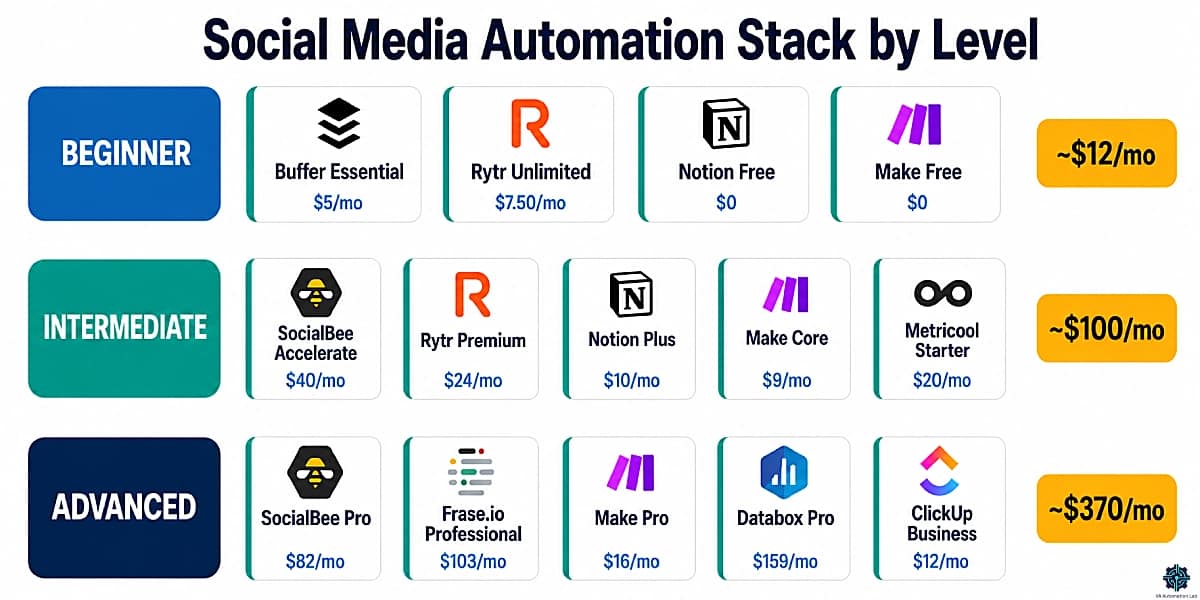
Beginner Stack — 1 to 2 Clients (~$12–25/month)
At this stage, the priority is a repeatable process without an expensive tool subscription eating into your first retainer revenue.
Scheduling: Buffer Essential at $5/month (billed annually) — unlimited scheduled posts, 1 user, AI Assistant, advanced analytics, and hashtag manager. Buffer Free works if you’re testing a single client (10 posts per channel, no cost). If your client is Instagram or TikTok-primary and values visual content planning, Later Starter at $19/month gives you a visual grid calendar and 30 posts per profile across 8 channels in a single Social Set.
AI content: Rytr Unlimited at $7.50/month — unlimited AI content generation across 40+ use cases, including dedicated Instagram and LinkedIn caption formats. At this price point, it is the most cost-effective entry into AI-assisted content production for a VA.
Content calendar: Notion Free — a simple database with Status, Platform, Publish Date, Caption, and Visual Asset columns handles 1–2 clients without hitting any plan limits.
Automation: Make Free — 1,000 credits/month is sufficient to run basic automation for one to two clients (approval notifications, status-based triggers). No cost until you scale past two clients.
Monthly tool cost at this stage: $12.50/month (Buffer Essential + Rytr Unlimited) or $26.50/month if using Later Starter instead of Buffer.
Intermediate Stack — 3 to 5 Clients (~$100–120/month)
At three clients, manual content batching breaks down. The key upgrade at this level is switching to a scheduling tool that handles category-based content recycling, so the content calendar keeps running even between batching sessions.
Scheduling: SocialBee Accelerate at $40/month — 10 social profiles, 50 content categories, post approval system, 2 years of analytics, hashtag organizer, and bulk post editor. The category-based recycling means evergreen content stays in rotation automatically, removing the manual re-queuing step every month. If your clients skew toward Instagram and TikTok, add or substitute Later Growth at $37.50/month for its visual calendar and built-in external approval workflows.
AI content: Upgrade to Rytr Premium at $24/month for multiple Tone Match, critical when you’re generating content for 3–5 clients with distinct brand voices. Or consider Frase.io Starter at $39/month if any of your clients need content tied to a blog or SEO strategy.
Content calendar: Notion Plus at $10/month — unlimited collaborative blocks, guest access for client-facing approval views, and unlimited file uploads for linking visual assets directly in the calendar database.
Automation: Make Core at $9/month — unlimited active scenarios, scheduled runs down to the minute. This is where Make pays for itself immediately: approval notification triggers, Notion-to-scheduling-tool sync, and weekly report generation all run without manual intervention.
Reporting: Metricool Starter at $20/month — up to 10 brands, unlimited content publishing, PDF and PPT report exports, LinkedIn analytics, and unlimited analytics history. At the intermediate level, Metricool’s branded report export becomes a client deliverable.
Monthly tool cost at this stage: $103–118/month depending on which combination you use.
Advanced Stack — 6+ Clients or Agency-Level Operations (~$260–450/month)
Past five clients, the bottleneck shifts from process to bandwidth. The advanced stack is designed to minimize per-client touch points.
Scheduling: SocialBee Pro at $82/month — 25 social profiles, 5 workspaces, 3 users, unlimited content categories, export analytics reports, and internal notes. The multi-workspace structure means each client is fully isolated from others, reducing the operational risk of cross-client content errors. Add Later Growth ($37.50/month) or Later Scale ($82.50/month) for Instagram-first or TikTok-heavy clients who need visual approval workflows and competitive benchmarking.
AI content: Frase.io Professional at $103/month — 3 seats, 40 AI-optimized articles/month, 5 brand voice profiles, and multi-domain monitoring. If your clients have blog + social media packages, Frase.io aligns the content strategy across both.
Automation: Make Pro at $16/month — priority execution, custom variables, and full-text execution log search (essential for debugging complex multi-client scenarios). For VAs who want more custom control or prefer self-hosted workflows, n8n Pro at $58/month provides 10,000 workflow executions and 20 concurrent executions.
Reporting: Databox Pro at $159/month (unlimited dashboards, hourly data sync, AI Analyst, unlimited users) for clients who receive live performance dashboards. Or Metricool Advanced at $53/month for up to 50 brands with team management, role management, and the Looker Studio connector, a more cost-effective option for VAs focused on monthly PDF reporting rather than live dashboards.
Content calendar: Notion Plus ($10/month) or ClickUp Business ($12/month) — the ClickUp Business plan adds unlimited dashboards, unlimited timeline views, and 5,000 automation executions/month, which integrates well with Make for task-based triggers.
Monthly tool cost at this stage: $264-451.5/month depending on which combination you use.
Level | Scheduling | AI Content | Automation | Reporting | Calendar | Monthly Cost |
Beginner (1–2 clients) | Buffer Essential ($5) or Later Starter ($19) | Rytr Unlimited ($7.50) | Make Free | Buffer built-in | Notion Free | $12–27/mo |
Intermediate (3–5 clients) | SocialBee Accelerate ($40) or Later Growth ($37.50) | Rytr Premium ($24) or Frase.io Starter ($39) | Make Core ($9) | Metricool Starter ($20) | Notion Plus ($10) | $100-120/mo |
Advanced (6+ clients) | SocialBee Pro ($82) + Later Growth/Scale | Frase.io Professional ($103) | Make Pro ($16) or n8n Pro ($58) | Databox Pro ($159) or Metricool Advanced ($53) | Notion Plus ($10) | $260-450/mo |
Social Media Automation Stack by Platform
Different platforms have meaningfully different scheduling requirements, API behaviors, and content formats. Matching your tool choice to the platform your client is on saves friction and prevents the wrong tool from becoming a weekly bottleneck.
Instagram and TikTok
Best tool: Later Starter ($19/month) or Later Growth ($37.50/month).
Later was originally built for Instagram and remains the strongest visual scheduling tool for image-first and video-first platforms. The visual grid calendar shows exactly how the client’s Instagram profile will look before publishing, a concrete selling point when presenting content batches. Later’s Starter plan covers 8 profiles in one Social Set with 30 posts per profile. Later Growth adds external client approval links (reviewers don’t need a Later account), a social inbox, and up to 180 posts per profile.
For TikTok, Later supports direct scheduling on all paid plans. SocialBee Accelerate ($40/month) is a solid alternative if the client mixes TikTok with several other platforms and needs category-based recycling.
Budget option: Buffer Essential ($5/month) — reliable Instagram and TikTok scheduling without the visual calendar. Appropriate when the client doesn’t require grid preview and is cost-sensitive.
Best tools: SocialBee Accelerate ($40/month) or Pro, Metricool Starter ($20/month).
LinkedIn scheduling is supported by Buffer, SocialBee, and Metricool. For analytics-heavy LinkedIn clients (B2B clients who track engagement and follower growth closely), Metricool Starter at $20/month is worth highlighting specifically because it bundles LinkedIn scheduling and analytics with PDF/PPT report exports in one tool, reducing the need for a separate reporting layer.
Note: Metricool Free does not include LinkedIn connection, the Starter plan ($20/month) is required.
Content: Rytr Premium ($24/month) with its LinkedIn use case generates professional long-form LinkedIn post drafts. Frase.io Starter ($39/month) makes sense for clients whose LinkedIn strategy is tied to a content or SEO marketing program.
Twitter/X
Best tool: Metricool Starter ($20/month) — Twitter/X add-on is included in the Starter plan. Metricool Advanced ($53/month) adds full Twitter/X analytics and customizable report templates.
Important: Metricool Free does not support Twitter/X scheduling or analytics. If your client needs Twitter/X management, budget for the Starter plan minimum.
Alternative: Buffer Essential ($5/month) — includes Twitter/X scheduling. Appropriate for clients who post to Twitter/X as a secondary channel and don’t require Twitter/X-specific analytics.
Best tool: Later Starter ($19/month) or Later Growth ($37.50/month) — Later has one of the strongest Pinterest scheduling integrations among mid-market scheduling tools, with visual pin planning and direct publishing.
If your client needs Instagram and Pinterest managed together, Later’s Social Set (which bundles up to 8 profiles) covers both platforms under a single plan without the need for two separate tools.
Alternative: Buffer Essential ($5/month) — supports Pinterest scheduling, though without Later’s visual planning layer.
Multi-Platform (3+ Simultaneous Platforms)
Best tool: SocialBee Pro ($82/month) — 25 social profiles, 5 separate workspaces, 3 user seats, unlimited content categories. The workspace-per-client structure is what makes SocialBee Pro the right choice at multi-platform scale: each client’s profiles, categories, and queues are fully isolated.
Automation: Pair SocialBee Pro (or Buffer Team) with Make Core ($9/month) for cross-platform content routing. A Make scenario can read a single approved post from Notion, route it to the correct SocialBee category based on the Platform field, and trigger separate publishing queues per platform, all without manual steps.
Reporting: Metricool Advanced ($53/month) for up to 50 brands with aggregated multi-platform reporting, or Databox Pro ($159/month) for live client dashboards pulling from multiple data sources simultaneously.
Platform | Best Tool | Alternative | Note |
Instagram & TikTok | Later Starter/Growth | SocialBee Accelerate | Visual grid, 30–180 posts/profile |
SocialBee Accelerate | Metricool Starter | Analytics + PDF reports | |
Twitter/X | Metricool Starter | Buffer Essential | Free plan excluded – Twitter/X add-on required |
Later Starter | Buffer Essential | Visual pin planning | |
Multi-platform | SocialBee Pro | Buffer Team + Make | 5 workspaces, 25 profiles |
Where DM and Comment Automation Fit
Scheduling and reporting automate the publishing side; the conversation side has its own tooling. For clients who run lead-gen or FAQ-heavy DMs, a chatbot tool like ManyChat handles keyword-triggered replies, story mentions, and comment-to-DM flows on Instagram and Facebook — useful for capturing leads without a VA watching the inbox all day. Keep it scoped to predictable, rule-based replies; nuanced community responses stay human.
👉 SocialBee for Virtual Assistants: Review, Setup & Workflows — see how to build scalable social media workflows.
SocialBee Keeps Your Content Calendar Running Between Sessions
SocialBee’s category-based scheduling automatically recycles evergreen content in rotation, so the client’s feed stays active even between batching sessions.
At $40/month (Accelerate), you get 10 social profiles, a built-in post approval system, and 2 years of analytics history.
The tool pays for itself within the first retained client.
4. The AI Prompt Library for Social Media
The prompt library below is organized by content type and platform. Each prompt follows the Role/Task/Context/Format structure established in the ChatGPT for Virtual Assistants guide, Role tells the AI who it is, Task specifies what to produce, Context provides the client and audience data, Format specifies the output structure.
The prompts work with ChatGPT, Claude, and Rytr‘s dedicated social media use cases. For batch content generation, producing a week’s captions in one session, Rytr’s Unlimited plan ($7.50/month) handles the volume without per-generation limits.
Prompt Category 1 — Monthly Content Calendar
Prompt 1.1 — Content Calendar Generation
You are a social media strategist for a [INDUSTRY] business targeting [AUDIENCE DESCRIPTION].

Create a 4-week social media content calendar for [PLATFORM/S].

Brand voice: [DESCRIBE — e.g., professional but approachable, educational, witty].

Content pillars (use these proportions):
- [PILLAR 1, e.g., educational tips]: 40%
- [PILLAR 2, e.g., behind-the-scenes]: 25%
- [PILLAR 3, e.g., client results]: 20%
- [PILLAR 4, e.g., promotional]: 15%

Posting frequency: [X] posts per week.

Output format: Week | Day | Platform | Pillar | Topic | Content angle | Hook first line

Do not write captions yet, topics and angles only.
Prompt 1.2 — Content Pillar Development
You are a brand strategist for [CLIENT NAME], a [BUSINESS TYPE] targeting [AUDIENCE].

Define 4 content pillars for their social media strategy. For each pillar:
- Pillar name
- Why it resonates with [AUDIENCE]
- 5 specific topic examples
- The content format that works best (carousel, single image, video, text)
- The emotion or response it triggers

Keep the brand voice [VOICE DESCRIPTION].
Output as a structured list, one pillar per section.
Prompt Category 2 — Platform-Specific Captions
Prompt 2.1 — LinkedIn Post
You are a professional content writer for [CLIENT NAME], a [ROLE/TITLE] in [INDUSTRY].

Write a LinkedIn post about: [TOPIC].

Audience: [AUDIENCE DESCRIPTION — e.g., founders, HR managers, VAs].

Tone: [VOICE — e.g., authoritative, conversational, data-driven].

Structure:
- Hook: 1 line that stops the scroll (question, bold statement, or stat)
- Body: 3-5 short paragraphs, max 3 lines each, with line breaks
- Insight or takeaway in the final paragraph
- CTA: 1 question to drive comments
- 3-5 relevant hashtags at the end

Length: 150-300 words.
No corporate jargon. No generic conclusions. Write in first person.
Prompt 2.2 — Instagram Caption
You are a social media copywriter for [CLIENT NAME], a [BUSINESS TYPE] with a [VOICE] brand voice.

Write an Instagram caption for a post about [TOPIC/IMAGE DESCRIPTION].

Audience: [AUDIENCE DESCRIPTION].

Structure:
- Hook: first line visible before "more" — must stop the scroll
- Body: 3-5 sentences expanding the hook with value or story
- CTA: a specific action (save this, share with someone who, comment below with)
- Line break before hashtags
- Hashtags: 8-12, mix of broad (#socialmedia) and niche (#[CLIENT NICHE]tips)

Emoji use: [NONE / MINIMAL / MODERATE].
Max 2200 characters. Conversational, not corporate.
Prompt 2.3 — X (Twitter) Thread
You are a content strategist for [CLIENT NAME] in [INDUSTRY].

Write a 7-tweet thread about [TOPIC].

Audience: [AUDIENCE DESCRIPTION].

Brand voice: [VOICE DESCRIPTION — X tone: direct and opinionated].

Structure:
- Tweet 1 (hook): bold claim or contrarian take — max 240 chars
- Tweets 2-6 (body): one insight or step per tweet, numbered (2/ 3/ 4/ etc.)
- Tweet 7 (close): summary + CTA to follow, save, or share

Rules:
- Each tweet self-contained (readable alone)
- No filler tweets
- Concrete examples over abstract statements
- Max 240 chars per tweet

Output as numbered list:
Tweet 1: [text]
Tweet 2: [text]
etc.

No hashtags unless 1–2 max. Conversational, not corporate.
Prompt 2.4 — Facebook Post
You are a community manager for [CLIENT NAME], a [BUSINESS TYPE] targeting [AUDIENCE] on Facebook.

Write a Facebook post about [TOPIC].

Tone: [VOICE DESCRIPTION].

Structure:
- Opening: a question or relatable statement (2 lines max)
- Body: the value or story (3-4 short paragraphs)
- Close: a question that invites comments from the community
- 2-3 hashtags maximum

Length: 100-250 words.
Warm, conversational tone. Avoid link-bait or clickbait phrasing.
Prompt Category 3 — Content Repurposing
Prompt 3.1 — Blog Post → Social Content
You are a content repurposing specialist.

Below is a blog post excerpt from [CLIENT NAME]'s website:

[PASTE EXCERPT — 200-500 words]

Repurpose this content into:
1. One LinkedIn post (150-250 words)
2. One Instagram caption (80-150 words)
3. One X thread (7 tweets)
4. One Facebook post (100-200 words)

For each version:
- Extract the core insight
- Adapt the tone for the platform
- Write a platform-appropriate hook
- Include a relevant CTA

Brand voice: [VOICE DESCRIPTION].
Do not just summarize — reframe the insight for each platform's audience.
Prompt 3.2 — Podcast/Video → Social Clips
You are a content strategist repurposing audio/video content for [CLIENT NAME].

Below are the key points from a [podcast episode / video] about [TOPIC]:

[PASTE TRANSCRIPT EXCERPT OR BULLET POINTS]

Create:
1. 5 standalone social media quotes (tweetable, max 200 chars each)
2. 3 Instagram carousel slide concepts (one key idea per slide, 10-15 words)
3. 1 LinkedIn post using the best insight
4. 5 story ideas (platform: Instagram or LinkedIn) with suggested format (poll, question, behind-the-scenes, stat reveal, tip)

Brand voice: [VOICE DESCRIPTION].
Prioritize counterintuitive or actionable insights.
Prompt Category 4 — Hashtag and Engagement
Prompt 4.1 — Hashtag Research
You are a social media strategist for [CLIENT NAME], a [BUSINESS TYPE] in [NICHE].

Generate a master hashtag library for their [PLATFORM] account.

Audience: [AUDIENCE DESCRIPTION].

Output three tiers:
TIER 1 — Broad reach (100k-1M posts): 10 hashtags
TIER 2 — Niche authority (10k-100k posts): 15 hashtags
TIER 3 — Micro-community (1k-10k posts): 10 hashtags

Also include:
- 5 branded hashtag suggestions specific to [CLIENT NAME]
- Avoid: [LIST ANY HASHTAGS TO EXCLUDE]

Format: tiered list with hashtag and estimated post volume in brackets.
Prompt 4.2 — Comment Response Templates
You are the community manager for [CLIENT NAME], a [BUSINESS TYPE] with a [VOICE] brand voice.

Write 10 template comment responses for the following common comment types:
1. General positive comment ("Love this!", "So helpful!")
2. Specific question about [PRODUCT/SERVICE]
3. Request for more information
4. Negative or critical comment
5. Tag-a-friend comment

For each type, write 2 response variants — one shorter (under 30 words), one with more substance (30-60 words).

Tone: [VOICE DESCRIPTION].
Never copy-paste — these are templates to personalize per comment.
👉 Claude AI for Virtual Assistants: The Complete Guide — for prompt patterns and use cases beyond social captions, see the dedicated Claude guide.
5. The Content Repurposing Workflow
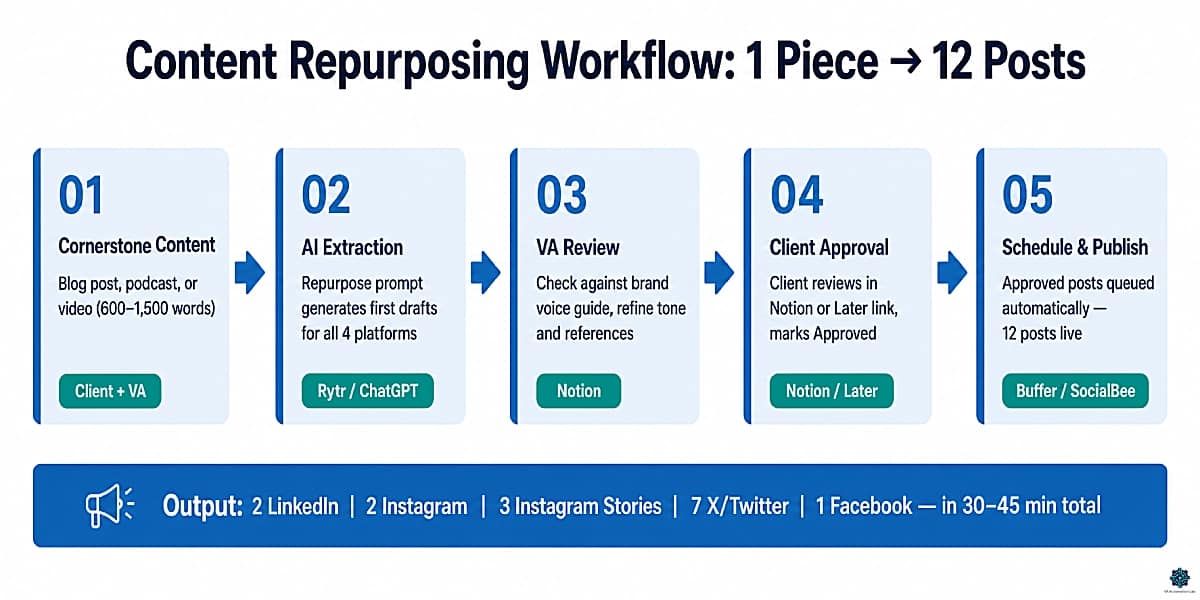
Content repurposing is the highest-leverage automation opportunity in social media management for VAs because it multiplies the value of every piece of content created. One piece of cornerstone content, a blog post, podcast episode, or long-form video, produces 8-12 pieces of platform-specific social content with the right system.
The repurposing pipeline:
Step 1 — Cornerstone content input. The client produces or the VA drafts one piece of long-form content per week: a blog post (600-1.500 words), a podcast episode summary (key points bulleted), or a video transcript excerpt. This is the raw material for the week’s social content.
Step 2 — AI extraction. Prompt 3.1 or 3.2 from Section 4 (or the equivalent in Rytr‘s Content Repurposing use case) extracts the core insights and produces first drafts for all four platforms simultaneously. Time: 5-10 minutes including review.
Step 3 — VA review and refinement. The VA reviews the AI output against the client’s brand voice guide in Notion. Adjustments: tone, specific product references, any sensitivity filters. Time: 10-20 minutes per batch of content.
Step 4 — Client approval. The refined content batch goes to the client via the approval workflow in Section 6. No email, one shared link. Time: 2-3 minutes to send for approval.
Step 5 — Scheduling. Approved content goes directly into SocialBee‘s content category queue or Buffer‘s publishing queue. Platform-specific images are added from the client’s Canva folder or media library. The scheduling tool publishes automatically at preset optimal times. Time: 10–15 minutes per batch.
One piece of cornerstone content → 12 posts:
Output | Platform | Format |
1 | Long-form post | |
2 | Carousel (5 slides) | |
3 | Caption (single image) | |
4 | Carousel (5 slides) | |
5 | Instagram Stories | 3-slide sequence |
6 | X | Thread (7 tweets) |
7-11 | X | 5 standalone tweets |
12 | Community post |
Total VA time per cornerstone content piece: Unautomated: 3-5 hours. With this system: 30-45 minutes.
6. The Client Approval Workflow
The client approval workflow is the friction point that most social media VA operations handle inefficiently. The standard approach (send content via email, wait for reply, incorporate feedback, resend) adds 2-4 days of delay per content cycle and consumes significant VA attention for what is fundamentally an administrative handoff.
The automated approval workflow eliminates email from the approval loop entirely.
The Notion-based approval system
Setup (one time per client, 20-30 min):
Create a Content Approval database in the client’s Notion workspace with these fields:
- Post Title (text)
- Platform (multi-select: LinkedIn, Instagram, X, Facebook)
- Publish Date (date)
- Caption (text — full copy)
- Visual Brief (text — image description or Canva link)
- Status (select: Draft / Ready for Review / Approved / Revision Needed / Scheduled)
- Client Notes (text — for feedback)
Share the database with the client as a filtered view, Status = “Ready for Review” only. The client sees only what needs approval, not the full production pipeline.
The weekly workflow:
Monday (VA): Move approved content from previous week to Buffer, update Status to “Scheduled.” Add new week’s content drafts to database, set Status to “Draft.”
Tuesday (VA): Review all Draft items against brand voice guide. Update Status to “Ready for Review” for items ready for client sign-off. A Make automation (Scenario 2 in Section 7) sends the client an email notification: “Your content for the week of [DATE] is ready for review. [Link to Notion view].”
Wednesday-Thursday (Client): Client reviews content in the Notion view. Changes Status to “Approved” or “Revision Needed” and adds notes in the Client Notes field.
Thursday (VA): Pull all “Approved” items from Notion. Schedule in Buffer for the following week. Address any “Revision Needed” items. Update Status to “Scheduled.”
Total VA time in approval process: With this system: 15-20 minutes per week versus 2-4 hours per week unautomated.
Alternatives
Later external approval links (recommended for Instagram-heavy clients):
Later Growth ($37.50/month) includes built-in external approval workflows. You share a link with the client, they review individual posts and approve or leave feedback directly in Later without needing a Later account. This is the lowest-friction approval experience for design-sensitive clients who want to see posts in their visual context before approving.
ClickUp task-based approval (recommended for clients already using ClickUp):
If the client uses ClickUp for project management, the approval workflow maps cleanly onto a Task list with custom Status fields. Guest access is available on the Free plan, and Make can trigger on task status changes to automate the Approved → scheduling pipeline.
Plan Visual Content Like a Pro
If your clients rely on Instagram, Pinterest or TikTok, visual planning matters.
Later gives you a drag-and-drop content calendar, preview grid, and built-in approval workflows, making it easier to manage aesthetic consistency across posts.
Ideal for creators and visual brands.
7. Four Make Automation Scenarios
The Make scenarios below connect the layers of the social media automation system for virtual assistants into a coherent pipeline. Each scenario is described with the full module sequence, buildable in Make on the Core plan ($9/month).
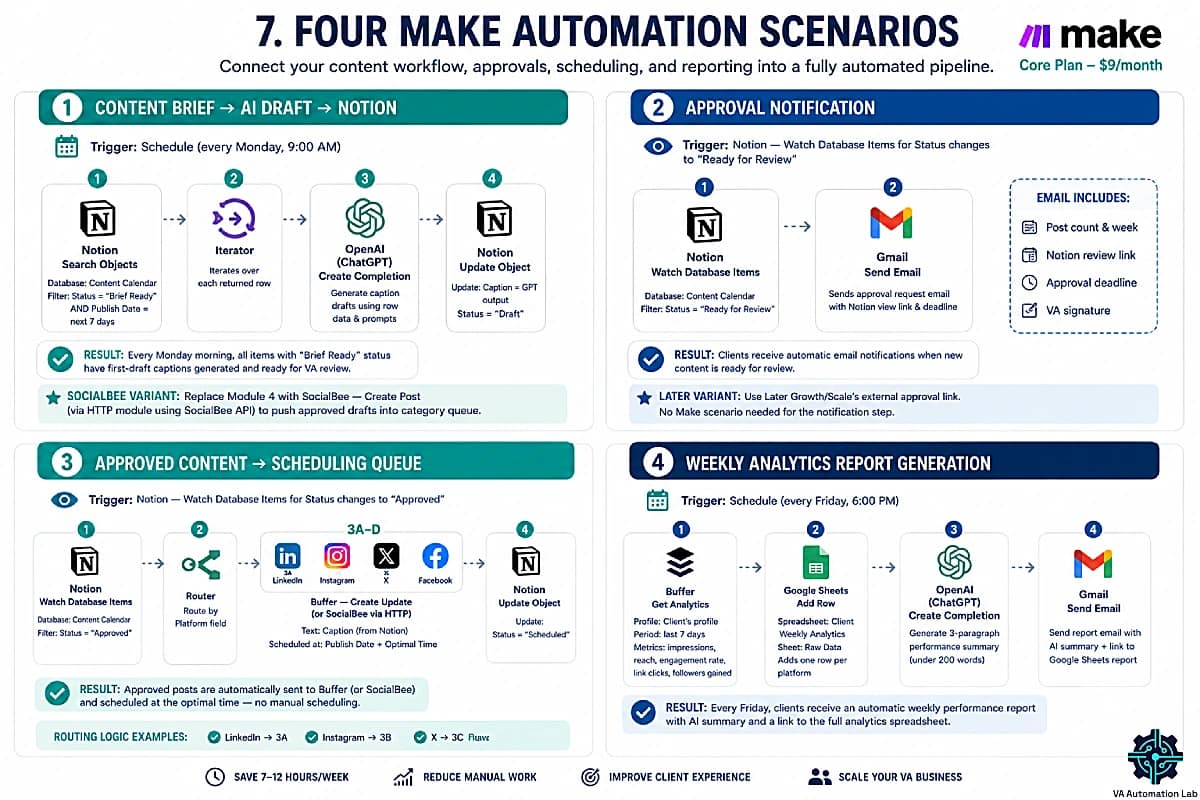
Scenario 1 — Content Brief → AI Draft → Notion
Trigger: Schedule (every Monday, 9:00 AM).
Function: generates first draft captions for the week from the content calendar in Notion.
MODULE 1: Notion — Search Objects
Database: Content Calendar
Filter: Status = "Brief Ready"
         AND Publish Date = next 7 days

MODULE 2: Iterator
Iterates over each returned row

MODULE 3: OpenAI (ChatGPT) — Create Completion
System prompt:
"You are a social media copywriter for [CLIENT NAME].
Brand voice: [VOICE].
Target audience: [AUDIENCE].
Write captions exactly as instructed."

User prompt:
"Write a [Platform] caption about [Topic] with this content angle: [Angle].
Include CTA: [CTA Type].
Format: [Platform-specific format]."

Variables pulled from Notion row: Platform, Topic, Angle, CTA Type

MODULE 4: Notion — Update Object
Database: Content Calendar
Updates: Caption field = GPT output
               Status = "Draft"
Result: Every Monday morning, all content items with “Brief Ready” status in the Notion content calendar have first-draft captions generated and waiting for VA review.
SocialBee variant: Replace Module 4 with SocialBee — Create Post (via HTTP module using SocialBee API) to push approved drafts directly into the relevant content category queue.
Scenario 2 — Approval Notification
Trigger: Notion — Watch Database Items for Status changes to “Ready for Review”.
MODULE 1: Notion — Watch Database Items
Database: Content Calendar
Filter: Status = "Ready for Review"

MODULE 2: Gmail — Send Email
To: [Client email address]
Subject: "[CLIENT NAME] — Content ready for review: week of [Publish Date]"
Body:
"Hi [Client Name],

Your social media content for the week of [DATE] is ready for your review.

[NUMBER] posts are waiting for your approval here: [NOTION VIEW LINK]

Please mark each item as Approved or Revision Needed by [DEADLINE DATE].
Posts will be scheduled for the following week once approved.

[VA SIGNATURE]"
Result: The client receives an automatic email notification every time new content is ready for review, without the VA manually composing and sending the email.
Later variant: If using Later Growth/Scale, replace the Notion notification with Later’s built-in external approval link. No Make scenario needed for the notification step.
Scenario 3 — Approved Content → Scheduling Queue
Trigger: Notion — Watch Database Items for Status changes to “Approved”.
MODULE 1: Notion — Watch Database Items
Database: Content Calendar
Filter: Status = "Approved"

MODULE 2: Router
Routes to different scheduling channels based on Platform field value:
Route A: Platform = "LinkedIn" → Module 3A
Route B: Platform = "Instagram" → Module 3B
Route C: Platform = "X" → Module 3C
Route D: Platform = "Facebook" → Module 3D

MODULE 3A-D: Buffer — Create Update (or SocialBee via HTTP module)
Channel: [Client's platform channel]
Text: Caption (from Notion)
Scheduled at: Publish Date + Optimal Time (set per platform in Buffer)

MODULE 4: Notion — Update Object
Updates: Status = "Scheduled"
Result: Every time the client marks a post as “Approved” in Notion, it is automatically sent to Buffer (or SocialBee) and scheduled for publication at the optimal time, no manual scheduling by the VA.
Scenario 4 — Weekly Analytics Report Generation
Trigger: Schedule (every Friday, 6:00 PM).
Function: Pulls analytics from scheduling tool, formats into report, sends to client.
MODULE 1: Buffer — Get Analytics (or Later/Metricool via HTTP)
Profile: [Client's profile]
Period: last 7 days
Metrics: impressions, reach, engagement rate, link clicks, followers gained

MODULE 2: Google Sheets — Add Row
Spreadsheet: [Client] Weekly Analytics
Sheet: Raw Data
Adds one row per platform with all metrics from Module 1

MODULE 3: OpenAI (ChatGPT) — Create Completion
Prompt:
"You are a social media analyst writing a brief weekly performance summary for [CLIENT NAME]. Write in [VOICE] tone.

Data for the week of [DATE]: [METRICS FROM MODULE 1]

Write a 3-paragraph summary:
Paragraph 1: Overall performance and key wins this week.
Paragraph 2: The top-performing post and why it likely performed well.
Paragraph 3: One recommendation for next week based on the data.

Keep it under 200 words. No jargon. Client-friendly language."

MODULE 4: Gmail — Send Email
To: [Client email]
Subject: "[CLIENT NAME] Social Media Report — Week of [DATE]"
Body: AI narrative (Module 3 output)+ link to full Google Sheets report
Attachment: none (link only)
Result: Every Friday evening, the client receives an automatic weekly social media performance report with an AI-generated narrative summary and a link to the full analytics spreadsheet, with zero VA time spent on manual compilation.
👉 Make for Virtual Assistants: The Beginner Setup Guide — covers the Router module concept and workspace configuration before you open the canvas.
These Four Scenarios Run in Make — Start Free
All four automation scenarios above are built in Make.
The free plan includes 1,000 credits/month and the full visual canvas, enough to build and test each scenario before going live.
When you’re managing two or more clients, Make Core at $9/month covers the complete social media automation stack without hitting limits.
8. The Multi-Client System — Managing Five Clients Without Losing Brand Voice
The central operational challenge of social media automation for virtual assistants at multi-client scale is not the automation itself, it is maintaining brand voice consistency across five different clients while operating at the speed that automation enables. When content generation is fast, the risk of brand voice drift increases. The system below solves this structurally.
The Brand Voice Guide — one per client:
Create a dedicated Brand Voice page in each client’s Notion workspace. The page contains five elements:
1. Voice Descriptor Matrix
Three columns: Tone IS / Tone IS NOT / Example. Example row: IS: “Authoritative” | IS NOT: “Arrogant” | Example: “Use data to support claims, never dismiss alternatives.”
2. Vocabulary Guide
Words and phrases the brand uses: [“transform”, “systems”, “results-driven”] Words and phrases the brand avoids: [“hustle”, “grind”, “guru”, “hack”]
3. Platform Tone Variations
How the voice adapts per platform: LinkedIn: professional, insight-led. Instagram: warmer, more personal. X: direct, opinionated. Facebook: community-oriented, conversational.
4. Content Restrictions
Topics, claims, or comparisons the client has explicitly asked to avoid.
5. Sample Approved Posts
3-5 examples of previously approved, high-performing posts per platform. The AI uses these as tone references when inserted into the prompt as “write in the style of these examples.”
The prompt injection system:
Each AI prompt for content generation includes a Brand Voice injection:
Before writing, review this brand voice reference for [CLIENT NAME]:

VOICE: [Paste descriptor matrix — 3-4 key descriptors with IS/IS NOT]
VOCABULARY TO USE: [list]
VOCABULARY TO AVOID: [list]
PLATFORM TONE ([PLATFORM]): [description]

Example of an approved post in this voice: "[PASTE ONE APPROVED POST]"

Now write the caption brief above in this exact voice.
This injection, combined with the client’s content calendar brief, produces first drafts that require minimal voice correction, reducing the review time per post from 5-10 minutes to 1-3 minutes.
SocialBee Pro for multi-client workspace isolation:
At the Advanced Stack level (6+ clients), SocialBee Pro’s 5-workspace structure provides a clean organizational layer. Each client gets their own workspace with isolated profiles, content categories, publishing schedules, and analytics. Switching between clients is a one-click workspace change, not a login change or a filtered view, which reduces the operational risk of cross-client content errors significantly.
The five-client daily workflow:
The fully automated system reduces daily active VA time for social media management across five clients to:
Task | Time |
Review AI-generated draft captions | 20-30 min |
Approve/refine Notion content items | 15-20 min |
Check Buffer publishing queue | 5 min |
Respond to flagged client notifications | 10 min |
Total daily active time | 50-65 min |
The remaining social media work (analytics reports, approval chasing, scheduling) runs automatically via Make scenarios.
👉 AI Writing & Content Creation for Virtual Assistants: The Complete Guide — for step-by-step workflows, including platform-specific prompts and repurposing pipelines.
9. Automated Reporting for Social Media Clients
Automated reporting is the highest-value automation layer for client retention in social media VA operations. Clients who receive a consistent, professional weekly report maintain higher confidence in the VA’s work than clients who receive reports only when asked. The automation in Section 7’s Scenario 4 handles the data layer. This section covers the reporting structure that makes the data meaningful.
Option 1 — Metricool:
Metricool aggregates analytics across all connected platforms and exports branded PDF or PPT reports directly from its dashboard. At the Starter level, you get unlimited analytics history, 10 brands, and LinkedIn analytics included. For a VA managing 1–5 social clients, Metricool Starter covers the full reporting workflow without a separate reporting tool. Report data pulls automatically; you add commentary and send.
Option 2 — Later:
Later‘s built-in analytics cover platform performance for all connected profiles. The Growth plan ($37.50/month) includes up to 1 year of analytics history and UGC collection. Later Scale ($82.50/month) adds competitive benchmarking (up to 20 competitors), brand health monitoring, and custom shareable analytics reports. Best when the client is primarily on Instagram, Pinterest, or TikTok and already on Later for scheduling.
Option 3 — Databox:
Databox connects to Later, Buffer, Google Analytics, and 70+ other data sources to build automated client dashboards that update hourly. The AI Analyst feature generates written summaries of performance trends, you review and send. At $159/month, Databox Pro makes sense at the Advanced Stack level when you’re billing premium reporting rates or managing 6+ clients who each receive a live performance dashboard as a retainer deliverable.
Standard monthly report structure:
Section | Content |
Executive summary | 3-paragraph AI narrative (via Make Scenario 4) |
Platform performance | Posts published vs. planned, reach, impressions by platform |
Engagement | Engagement rate (vs. previous month) |
Top posts | Top 3 performing posts with screenshot or link |
Audience growth | Follower change, net growth |
Next month focus | 2–3 data-driven recommendations |
👉 How to Automate Client Reporting as a Virtual Assistant — for the full reporting-automation framework across every VA service line, not just social media.
10. How to Build the Social Media Automation System — Step by Step
The five-step implementation sequence below builds the full social media automation system for a VA managing existing clients. Total setup time: 4-6 hours spread across one week.
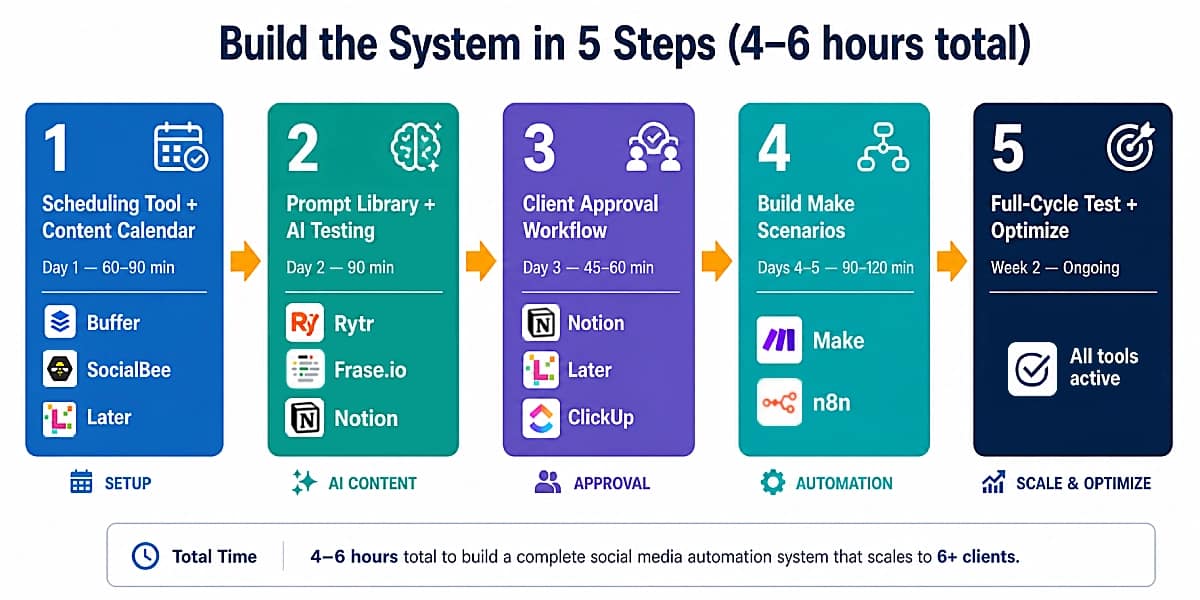
Step 1 — Set Up the Scheduling Tool and Content Calendar (Day 1 — 60-90 min)
Choose your scheduling tool based on the stack-level guidance in Section 3. For most VAs starting at 2–3 clients: Buffer Essential ($5/month) or SocialBee Accelerate ($40/month). For Instagram-primary clients: add Later Starter ($19/month).
Create one channel set (Buffer) or workspace (SocialBee) per client. Configure the posting schedule, days and optimal times per platform. Connect the client’s social accounts.
In parallel, create the Notion Content Calendar database for each client using the fields from Section 6. Add the Brand Voice Guide page for each client before generating any AI content.
Do not build the Make scenarios yet. The content pipeline needs to function manually first so the automation validates a working process rather than an untested one.
Step 2 — Build the Prompt Library and Test AI Content Generation (Day 2 — 90 min)
For each client, run Prompts 1.1 and 1.2 from Section 4 to generate the first monthly content calendar and content pillar definitions. Review the output against the client’s Brand Voice Guide. Make adjustments to the prompt’s voice description and vocabulary sections until the output matches the client’s voice without manual correction.
Save the finalized prompts, with the client-specific brand voice injections, in the client’s Notion Brand Voice page. These are the templates for all future content generation for this client.
Run Prompt 2.1 through 2.4 for three to five posts to validate the caption quality before building the automation layer on top.
Step 3 — Build the Client Approval Workflow (Day 3 — 45-60 min)
Configure the Notion Content Approval database for each client following the field structure in Section 6, or set up Later’s external approval links if using the Later Growth plan. Create the filtered shared view showing only “Ready for Review” items and send the link to each client with a brief explanation of the new workflow.
Add 5-7 real content items with Status set to “Ready for Review” and have the client test the approval process before building the Make notification automation. The workflow needs to function manually before automation is added.
Step 4 — Build the Make Scenarios (Day 4-5 — 90-120 min)
Build the four Make scenarios of Section 7 in this order:
1. Scenario 2 (approval notification) — the simplest scenario, validates the Notion → Gmail connection.
2. Scenario 3 (approved content → scheduling) — validates the Notion → Buffer/SocialBee connection.
3. Scenario 1 (content brief → AI → Notion draft) — adds the AI generation layer.
4. Scenario 4 (analytics → report) — the most complex scenario, build last.
Test each scenario with real data before activating the next one. Run Scenarios 1-3 manually for one week before setting them to automatic triggers.
Step 5 — Run One Full Cycle and Optimize (Week 2)
Run the complete workflow for all clients through one full weekly cycle with the automation active. Monitor: Is the AI content quality consistent without additional manual correction? Are publishing times optimal? Is the client responding to approval notifications within the expected window? Is the weekly report generating correctly?
Identify any friction points and adjust the relevant scenario or prompt. After one full cycle with no manual interventions required, the system is operational.
Start Simple: Schedule Content Without Overcomplicating Your Stack
If you’re working with your first client, you don’t need a complex system.
Buffer gives you everything you need to schedule posts, manage content, and stay consistent, without expensive subscriptions or steep learning curves.
Perfect for testing your workflow before scaling.
11. Common Automation Mistakes
Automating Before Validating the Manual Workflow
VAs who build the Make automation before running the workflow manually for one week automate a broken process. Automation amplifies what is there, if the content brief prompt produces inconsistent output, the Scenario 1 automation generates inconsistent drafts at scale.
The fix: run each layer manually for one week before automating it. Validate that the prompt produces reliable output, that the client responds to the approval workflow, and that the scheduling tool publishes correctly, then add automation on top of a validated process.
Using One Brand Voice Across Multiple Clients
VAs who use the same content prompt for all clients without client-specific brand voice injections produce content that sounds identical across different brand accounts. The content may be technically correct but lacks the distinctiveness that makes each client’s social media recognizable.
The fix: build the Brand Voice Guide in Notion for every client before generating any content. The 20-30 minutes of initial setup prevents months of generic-sounding content and reduces the revision requests that consume more time than the setup would have.
Scheduling Without a Visual Review Step
Scenario 3 moves approved content to Buffer or SocialBee automatically, but approved text with an unreviewed image is a publishing risk. A caption that references a specific visual element (a product color, a person, a graph) and is paired with the wrong image creates an inconsistency that reaches the audience before the VA catches it.
The fix: add a visual review checkpoint to the approval workflow. Add an “Image Confirmed” checkbox field to the Notion Content Calendar database. Scenario 3 only triggers when both Status = “Approved” AND Image Confirmed = true. The VA checks the visual pairing before marking the image field, adding 30 seconds per post to prevent a publishing error.
Sending AI Reports Without Reviewing the Narrative
The Scenario 4 analytics narrative is AI-generated from raw numbers. On most weeks it is accurate and appropriately framed. On a bad-performance week, a platform algorithm change, a seasonal dip, an industry event, the AI may frame the decline neutrally when the client expects a more proactive explanation and recommendation.
The fix: add a Friday morning VA review step to Scenario 4. Trigger the report generation automatically on Friday morning, but route the Gmail send through a 30-minute delay, allowing the VA to review the narrative and edit if necessary before it reaches the client. In Make: add a Tools > Sleep module (30 minutes) between Module 3 and Module 4, and add the Gmail send to a queue the VA approves before sending.
Over-Automating Community Management
Comment responses, DM replies, and community engagement cannot be fully automated without damaging the client’s brand. Automated comment responses that do not match the specific comment context are immediately recognizable as bot behavior, a significant brand risk for small business clients whose social presence depends on perceived authenticity.
The fix: automate the operational layer (scheduling, reporting, approval notifications) fully. Automate the community management layer partially, use the comment response templates from Prompt 4.2 as starting points, not automated sends. The VA personalizes each response from the template before posting. This takes 15-20 minutes per client per week, a small overhead for a high-value client experience element.
Not Tracking Repurposing ROI
VAs who implement the repurposing workflow from Section 5 often do not track which repurposed formats outperform the original. A blog post repurposed into an Instagram carousel may generate 3x more engagement than the LinkedIn post from the same source, data that should inform the content strategy but is lost if not captured.
The fix: add a “Source Content” field to the Content Calendar database in Notion linking each post to its cornerstone content source. Add a “Format Performance” column to the Tab 2 sheet in the analytics report. After three months, the data shows which repurposing formats produce the best results per platform per client, enabling strategy optimization without additional creative effort.
12. How to Package and Price Your Social Media VA Services
Understanding virtual assistant social media management pricing helps you position your services competitively and ensures your tool costs are covered in every retainer. These are realistic market rates for 2026, not aspirational benchmarks.
Starter Package — $500–$800/month:
- 12–16 posts/month (3–4/week) across 1 platform
- Basic content calendar in Notion
- Monthly performance summary (Metricool PDF export)
- Tool stack: Buffer Essential ($5) + Rytr Unlimited ($7.50) + Make Free ($0) = $12.50/month in tools
- Your time after system setup: 8–12 hours/month
Growth Package — $1,000–$1,500/month:
- 20–30 posts/month across 2–3 platforms
- Content calendar management with client approval workflow
- Engagement monitoring (2× weekly check-ins)
- Monthly report with insights and recommendations
- Tool stack: SocialBee Accelerate ($40) + Later Starter ($19) + Make Core ($9) + Rytr Premium ($24) + Metricool Starter ($20) = $112/month in tools
- Your time after system setup: 15–20 hours/month
Full Management Package — $2,000–$3,500/month:
- 40–60 posts/month across 3–5 platforms
- Full content calendar, weekly approval cycles, content repurposing from cornerstone pieces
- Daily engagement monitoring
- Custom analytics dashboard (Databox Pro or Metricool Advanced)
- Monthly strategy review with client
- Tool stack: SocialBee Pro ($82) + Later Growth ($37.50) + Make Pro ($16) + Frase.io Starter ($39) + Databox Pro ($159) = $333.50/month in tools
- Your time after system setup: 25–40 hours/month
Rule of thumb: Tool costs should represent no more than 10–15% of the monthly retainer. At the Growth Package level ($1,000–$1,500/month), $112/month in tools is 7–11% of revenue, standard overhead for any systemized service business.
13. Conclusion
Social media automation is ultimately a question of system design, not tool selection. The scheduling tool, the AI content generator, and the Make scenarios are all substitutable. What is not substitutable is the workflow architecture: the four automation layers, the brand voice system that maintains client distinctiveness at automation speed, the approval workflow that removes email from the loop, and the reporting automation that closes the client relationship loop without manual effort.
The implementation sequence matters as much as the system design. Start with Layer 2 (scheduling), it produces the highest immediate time saving and requires no AI configuration. Build Layer 1 (AI content generation) on top of a functioning schedule. Add Layer 3 (approval workflow) once content quality is validated. Close the loop with Layer 4 (reporting automation). Each layer compounds the previous one.
A VA who implements this system completely for three clients recovers 10–19 hours per week, capacity that translates directly into an expanded client roster, higher service quality, or reduced working hours.
Key takeaways:
- Choose your scheduling tool by client volume and platform: Buffer Essential ($5/mo) for 1–2 clients; SocialBee Accelerate ($40/mo) for 3–5; SocialBee Pro ($82/mo) for 6+. Add Later for Instagram/TikTok-primary clients.
- Use Rytr Unlimited ($7.50/mo) for AI caption generation at the Beginner and Intermediate levels. Upgrade to Rytr Premium ($24/mo) when managing 3+ client brand voices simultaneously.
- Build all four Make scenarios, the $9/month Core plan covers everything for up to five clients.
- Automate scheduling, reporting, and approval notifications fully. Keep community management human.
- Package your services with tool costs factored in, $12–$112/month in tools across your three stack levels.
Build a Fully Automated Social Media System
If you’re managing multiple clients, manual scheduling quickly becomes a bottleneck.
SocialBee lets you automate content publishing, recycle evergreen posts, and manage multiple profiles from a single dashboard, without rebuilding your workflow every month.
It’s the closest thing to a “set-and-scale” system for virtual assistants.
Frequently Asked Questions About Social Media Automation as a Virtual Assistant
What tools do I need to automate social media as a virtual assistant?
The minimum viable stack for social media automation as a VA is three tools: a scheduling platform (Buffer Essential at $5/month or SocialBee Accelerate at $40/month), an AI writing tool (Rytr Unlimited at $7.50/month), and a workflow automation tool (Make Core at $9/month). Total cost for the Beginner Stack: approximately $12.50–$22/month. The Notion content calendar adds $10/month at the Plus plan and significantly improves multi-client content organization.
Which is better for social media scheduling: Buffer, SocialBee, or Later?
It depends on your client volume and platform mix. Buffer Essential ($5/month) is the lowest-cost starting point and handles all major platforms reliably, use it for 1–2 clients. SocialBee Accelerate ($40/month) adds category-based content recycling and a post approval system, which become essential at 3–5 clients. Later Growth ($37.50/month) is the right choice when your clients are Instagram or TikTok-primary and value visual calendar previews and built-in external approval workflows. Many intermediate-level VAs run both: SocialBee as the primary scheduler and Later for design-sensitive clients.
How many clients can I manage social media for using automation tools?
With a well-configured system (scheduling tool, Make, content calendar, AI writing tool) most solo VAs comfortably manage 4–6 social media clients at the Growth Package level. Past six clients, the bottleneck shifts to bandwidth rather than process. SocialBee Pro ($82/month) gives you 5 isolated workspaces and 3 user seats, making it the right upgrade when you’re ready to subcontract or serve 6+ clients simultaneously.
Can I automate social media for multiple clients without mixing up their accounts?
Yes, but it requires deliberate system design. SocialBee Pro isolates each client in a separate workspace. Notion stores each client’s content calendar and brand voice in separate databases with separate sharing permissions. The Make scenarios include client-specific routing logic (via the Router module in Scenario 3) that prevents cross-client content errors. The brand voice injection system in Section 8 maintains voice distinctiveness even when using the same AI model for all clients.
How long does it take to set up the social media automation system?
The full system setup takes 4–6 hours across one week following the five-step sequence in Section 10. Scheduling tool setup: 60–90 minutes. Notion content calendar and brand voice guides per client: 30–45 minutes each. Prompt library validation: 90 minutes. Make scenario build: 90–120 minutes. Total: approximately 5–6 hours for a three-client operation. The time investment is typically recovered within the first two weeks.
What social media platforms can be automated with this system?
Buffer supports LinkedIn, Instagram, X (Twitter), Facebook, Pinterest, TikTok, Mastodon, and Google Business Profile. SocialBee covers Instagram, Facebook, Twitter/X, LinkedIn, Pinterest, TikTok, and Google Business Profile. Later excels at Instagram, TikTok, Pinterest, Facebook, Twitter/X, and LinkedIn. For Twitter/X-specific analytics, Metricool Starter ($20/month) is required, Metricool Free does not include Twitter/X. The Make scenarios work with any platform supported by your chosen scheduling tool’s API.
How do I handle clients who want to approve every post before publishing?
The Notion approval workflow in Section 6 is designed for this scenario. Every post moves through a Status field from Draft → Ready for Review → Approved before scheduling. Scenario 3 only triggers on “Approved” status, making it technically impossible for unapproved content to publish automatically. For clients who prefer not to use Notion, Later Growth’s external approval link feature lets clients approve individual posts from a simple link without needing a Later account. For clients who want same-day turnaround on approvals, add a Slack notification variant to Make Scenario 2.
How do I report social media results to clients without spending hours on it?
Metricool Starter ($20/month) exports branded PDF or PPT reports directly from its analytics dashboard, data pulls automatically, you review and send. For clients already on Later Growth or Scale, Later’s built-in analytics reporting covers platform-specific performance with 1–2 years of history. For premium reporting clients, Databox Pro ($159/month) builds live client dashboards that update hourly from multiple sources. Pair any of these with Make Scenario 4 (the weekly analytics report generator from Section 7) and reporting goes from 2–4 hours per client per month to 15 minutes of review.
Glossary: Key Terms for Social Media Automation as a Virtual Assistant
Content Repurposing: The process of adapting one piece of long-form cornerstone content (blog post, podcast, video) into multiple platform-specific social media posts. The repurposing workflow in this guide produces 8–12 posts from one source piece, reducing per-post production time by 60–70% compared to creating each post from scratch.
Brand Voice Guide: A documented reference that defines a client’s social media tone, vocabulary, content restrictions, and platform-specific adaptations. Used as an injection in AI content generation prompts to maintain voice consistency across automated content production. One guide per client, stored in Notion.
Content Pillar: A thematic category that defines a portion of a client’s social media content mix. Example pillars: Educational Tips (40%), Behind-the-Scenes (25%), Client Results (20%), Promotional (15%). Content pillars ensure strategic variety across a content calendar and prevent all posts from being promotional.
Social Set (Later): Later’s term for a group of social media accounts managed together as a single unit. Each Social Set includes up to 8 profiles across multiple platforms. Later Starter covers 1 Social Set; Later Growth covers 2 Social Sets; Later Scale covers 6 Social Sets.
Content Category (SocialBee): SocialBee’s equivalent of a content pillar, a named queue of posts that publishes in rotation. SocialBee Accelerate supports 50 categories; SocialBee Pro supports unlimited categories. Category-based scheduling enables evergreen content recycling without manual re-queuing.
Make Scenario: An automated workflow in Make consisting of connected modules that execute in sequence when triggered. The four scenarios in this guide automate content draft generation, approval notification, scheduling, and analytics reporting as sequential module chains.
Content Approval Database: A Notion database that functions as the client-facing content review interface. Posts move through Status stages from Draft to Approved or Revision Needed. The client accesses a filtered view showing only items requiring their review.
Brand Voice Injection: A block of client-specific voice, vocabulary, and tone instructions inserted at the beginning of each AI content generation prompt. The injection ensures that content produced by the same AI model for multiple clients maintains distinct brand voices rather than converging toward a generic AI-generated style.
Cornerstone Content: A substantial, long-form piece of content (blog post, podcast episode, video) that serves as the raw material for the content repurposing workflow. One piece of cornerstone content per week feeds the entire social media publishing schedule for all platforms through the repurposing pipeline.
Engagement Rate: A social media analytics metric calculated as total engagements (likes, comments, shares, saves) divided by reach or impressions, expressed as a percentage. A primary KPI in the weekly analytics report, more meaningful than raw like counts because it measures audience response relative to content exposure.
External Approval Link (Later): A Later Growth/Scale feature that generates a shareable link allowing clients to review and approve individual posts without a Later account. The reviewer receives in-app or email notifications when feedback is added.
Content Category Queue (SocialBee): A rotating publishing queue tied to a specific content category. When the queue empties, SocialBee automatically recycles approved evergreen posts in rotation, maintaining a consistent posting cadence without manual re-adding.
About the Author
Alex Stratton has spent the better part of a decade working at the intersection of virtual assistance and operational systems, first as a VA supporting founders and small business owners, then as a workflow consultant helping remote teams reduce the manual overhead that accumulates when businesses grow faster than their processes. The tools and workflows here reflect decisions made repeatedly in real client contexts, where the wrong choice costs hours, not minutes. Learn more about VA Automation Lab → About.