
Toggl Track for Virtual Assistants: Complete Guide, Time Tracking & Productivity Workflows (2026)
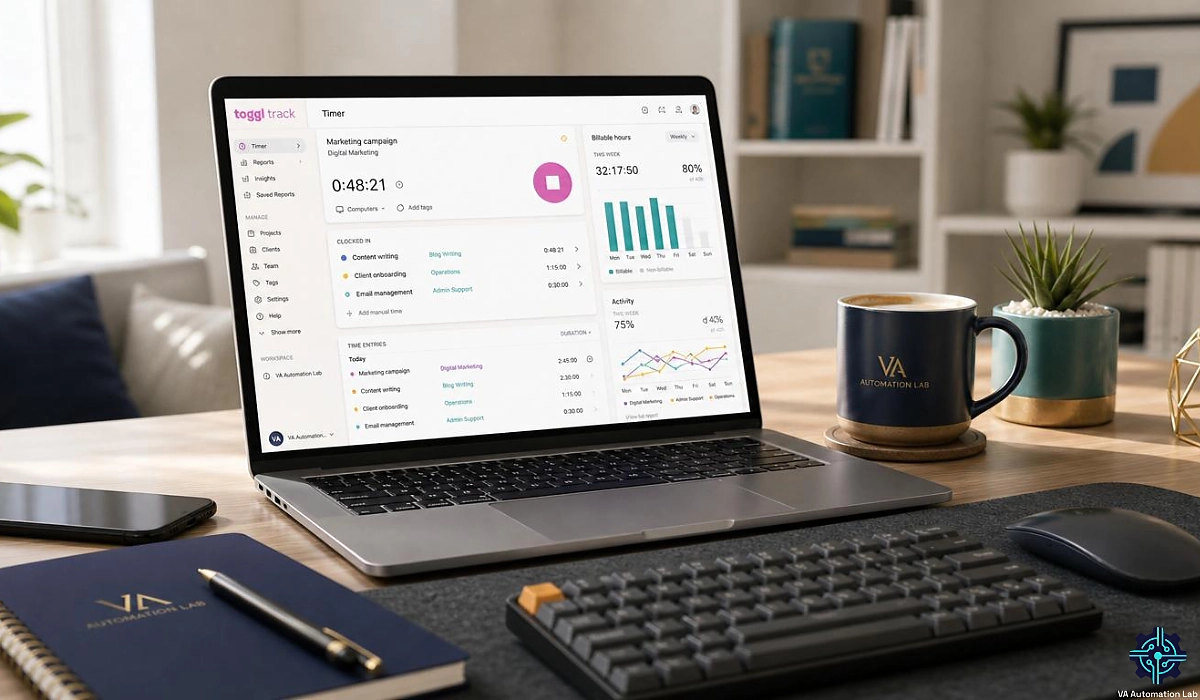
Disclosure: This article contains affiliate links. If you sign up through them, VA Automation Lab earns a commission at no extra cost to you. Recommendations are based on our evaluation of tool fit for VA workflows.
Toggl Track gives virtual assistants a fast, privacy-first way to log every billable minute, organize it by client, and turn tracked hours into accurate invoices, realistic quotes, and a calmer week.
If you’ve ever guessed how long a task took, undercharged a client, or reached Friday with no idea where your hours went, you’re the reason a tool like Toggl Track exists. Time tracking is the backbone of a profitable virtual assistant business. It tells you what to charge, which clients are worth keeping, and where your day leaks.
This guide is a complete walkthrough of Toggl Track for virtual assistants: what it is, the features that matter, a step-by-step setup for multi-client work, daily productivity workflows, real pricing and ROI, and how it compares to the alternatives. It sits inside our wider Productivity Systems for Virtual Assistants guide and complements Tools for Virtual Assistants: The Complete AI Systems & Software Guide. By the end, you’ll know exactly how to set it up and whether it belongs in your stack.
Toggl Track at a Glance
Best for | Solo VAs and small teams who bill by the hour |
Free plan | Yes — up to 3 users, unlimited projects and clients |
Paid plans (annual) | Starter $9/user/mo · Premium $16/user/mo |
Standout features | One-click timer, Autotracker, client-ready reports |
Platforms | Web, desktop, mobile, browser extension |
Privacy | No screenshots, keystroke logging, or GPS |
Integrations | 100+ (Asana, Notion, ClickUp, Google Calendar, QuickBooks) |
Our verdict | The best privacy-first time tracker for VAs |
Get the Free AI Toolkit for Virtual Assistants
The tools, templates, and workflows we use to save hours every week.
Free, straight to your inbox.
Table of Contents
1. What Is Toggl Track and How Does It Work?
Toggl Track is a time-tracking app that lets virtual assistants log hours with a one-click timer, organize them by client and project, and turn that data into billing-ready reports. It runs on web, desktop, mobile, and the browser, includes a free plan for up to five users, and never takes screenshots.
That last point matters. Toggl Track has built its reputation on being simple and private, which is exactly what most solo VAs want.
How Toggl Track Works
The core loop takes seconds. You type what you’re working on, pick a client or project, and hit the pink start button. When you finish, you stop the timer. Each entry becomes a line of data you can tag, edit, and report on later.
Forgot to start the timer? You can add time manually or drag entries onto a calendar view. On desktop, a background Timeline records which apps and sites you used, so you can rebuild a forgotten hour without guessing. Everything syncs across your devices, and it keeps working offline until you’re back online.
What Makes Toggl Track Different (Privacy-First)
Many time trackers are monitoring tools in disguise. They capture screenshots, log keystrokes, or track your location. Toggl Track deliberately avoids all of that. There are no screenshots, no keystroke logging, and no GPS.
For a VA, that’s a selling point in both directions. You get accurate data without feeling watched, and you can reassure clients that your reports come from real work, not surveillance. Toggl is also ISO 27001 certified and SOC 2 Type 1 compliant, so client data sits on a platform built for security.
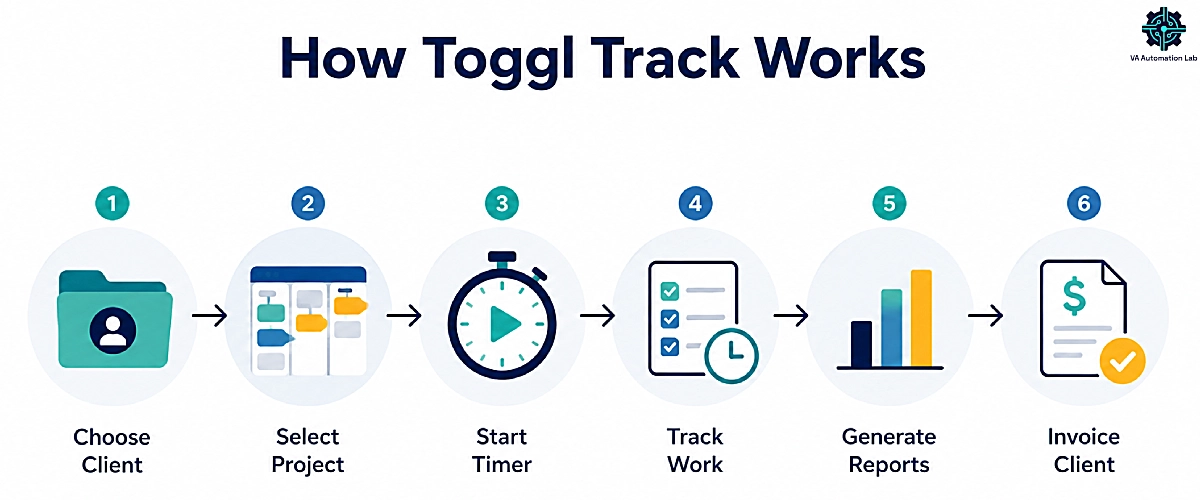
2. Why Time Tracking Matters for Virtual Assistants
Time is your inventory. When you sell hours, every untracked minute is either lost revenue or unpaid work you’re handing a client. Most VAs don’t undercharge on purpose. They undercharge because they never measured how long the work takes.
Here’s what most VAs end up tracking in Toggl Track:
- Inbox and email management
- Calendar and scheduling work
- Content creation and social scheduling
- Client calls, meetings, and check-ins
- Research, data entry, and admin
- Recurring project work per client
The Hidden Cost of Untracked Hours
Picture a “quick” inbox cleanup you quote at one hour. Track it for a month and you find it averages 90 minutes. At a $35 rate, that’s $17.50 you give away every session. Across several clients, the leak adds up to thousands a year.
Tracking closes that gap. It shows you the true cost of each task, which lets you price with confidence instead of hope. It also protects your boundaries, because scope creep becomes visible the moment a client’s hours drift past what you agreed.
Billable vs Non-Billable, Client by Client
Not every hour is billable, and that’s fine. Client work is billable. Your own admin, marketing, and tool setup usually aren’t. The problem starts when the two blur together.
Toggl Track keeps them separate. You mark client hours as billable and tag your own operations as non-billable. Then a single report shows exactly how much invoiceable work you did per client this week. That clarity is the difference between running a business and just staying busy.
3. Toggl Track Features That Matter for Virtual Assistants
Toggl Track has a lot of features, but only some earn their keep in a VA’s day. Here are the ones that matter, each mapped to the job it does for you.
Toggl Track feature | What it does for a VA |
One-click timer | Start tracking in a second, with no setup friction |
Projects & clients | Keep every client’s hours cleanly separated |
Tags | Slice time by task type and billable status |
Reports (Summary/Detailed/Weekly) | Turn raw hours into client-ready summaries |
Timeline (desktop) | Rebuild your day if you forgot the timer |
Autotracker | Suggests entries based on your app activity |
Browser extension | Track inside Asana, Notion, Gmail, and 100+ tools |
The One-Click Timer and Manual Entry
The timer is the heart of Toggl Track, and its whole design philosophy is low friction. You click once to start and once to stop. No forms, no dropdowns you’re forced to fill in first. You can add the description, project, and tags while the timer runs or after you stop it.
When you forget entirely, manual mode lets you enter start and stop times or just a duration. This flexibility is why VAs stick with Toggl. A tracker only works if you use it, and this one gets out of your way.
Projects, Clients, and Tags
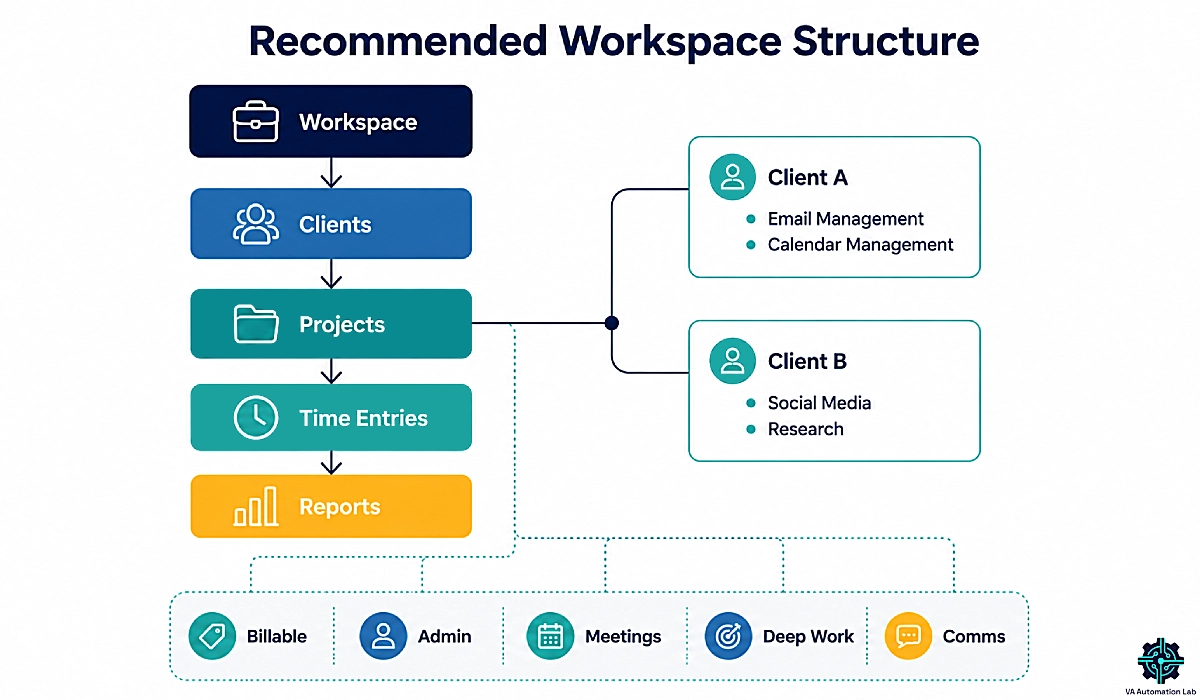
These three are how you turn a pile of timers into usable data. A Client is who you work for. A Project is the work itself, and each project belongs to one client. Tags cut across everything to label the type of work.
For a multi-client VA, this structure is gold. You can answer “how many hours did I bill Client A this month?” and “how much time do I spend on email across all clients?” from the same data. We’ll build this structure step by step in the setup section below.
Reports Clients Read
Toggl Track offers three report types. The Summary report is the visual overview: hours by client, project, or tag. The Detailed report lists every single entry, line by line, for billing or auditing. The Weekly report gives a calendar-style recap of your week.
You can filter any report by client, project, tag, or billable status, then export it as a PDF or CSV. Even better, you can share a live link so a client sees their hours in real time, no attachment required. This is what makes your invoices feel transparent instead of arbitrary.
Focus Tools: Timeline, Idle Detection, and Pomodoro
Beyond tracking, Toggl’s desktop app includes a few built-in focus tools. The Timeline records the apps and websites you used, stored privately on your device, so you can reconstruct time you forgot to log. Idle detection notices when you’ve stepped away and asks whether to keep or discard that time.
The built-in Pomodoro timer runs focused 25-minute sprints with breaks. For VAs juggling constant task-switching, these tools turn a plain timer into a light focus system, which we’ll put to work in the workflows section.
Toggl Track Integrations for Your VA Stack
Toggl Track connects to 100+ tools, so you can track time inside the apps you already use. There are two ways it links up. Native integrations sync data directly with Asana, Google Calendar, Outlook, Jira, Salesforce, and QuickBooks Online (you can even send Toggl-generated invoices straight to QuickBooks). The browser extension adds a start button inside Notion, ClickUp, Todoist, Trello, Slack, Gmail, and dozens more.
Two are especially useful for VAs. The Google Calendar integration turns your scheduled events into ready-made time entries, and the ClickUp or Notion connection lets you start a timer from inside the task you’re working on. If you outgrow the built-in options, Toggl’s public API and tools like Make connect it to almost anything, which we cover in the automation and stack sections below.
4. How to Set Up Toggl Track for Your VA Business (Step by Step)
Most guides show you the buttons. This one shows you how to structure Toggl Track for real multi-client work, so your reports are useful from day one. The whole setup takes about ten minutes.
Step 1 — Create your workspace and account
Sign up free at Toggl Track using your email, Google, or Apple login. You’ll land in a single workspace, called an Organization. Keep everything in this one workspace — if you accidentally create a second, its data won’t show up in your main reports. Set your time zone in Profile settings so hours line up with your local day.
Step 2 — Add your clients and build your project structure
Add each client as a Client, then create a Project for the work you do for them. The cleanest pattern for VAs is one Project per service or engagement (for example, “Inbox Management” and “Content Scheduling” under the same client). Give each project a color so reports are easy to scan at a glance.
Step 3 — Create tags for task types and billable status
Tags are how you slice time later. Start with a small, consistent set and resist the urge to over-tag. This starter taxonomy covers most VA work:
Tag → Use it for
Billable → Any hour you can invoice
Admin → Your own operations (setup, invoicing, marketing)
Deep Work → Focused, high-value tasks
Meetings → Calls and client check-ins
Comms → Email and message handling
Step 4 — Set billable rates and project estimates
If you’re on a paid plan, add your hourly rate at the workspace, client, project, or task level (Toggl’s rate hierarchy is one of the cleanest around). Add a time estimate per project so you get an alert when a project nears its budget. This is what powers accurate invoices and early scope-creep warnings.
Step 5 — Install the apps and browser extension
Add the desktop app (for the Timeline and Pomodoro), the mobile app (for tracking away from your desk), and the browser extension. The extension drops a start button inside 100+ tools like Asana, Notion, and Gmail, so you can track without switching tabs. Now tracking happens wherever you work.
That’s it. You now have a workspace that separates clients, labels work, and produces reports you can bill from.
Start Tracking in the Next 5 Minutes
You’ve got the blueprint — now put it to work.
Toggl Track is free for up to 3 users, and there’s no credit card required.
See where your billable hours really go
5. Productivity Workflows for Virtual Assistants Using Toggl Track
A tracker only pays off if it becomes a habit. These workflows turn Toggl Track from a passive timer into a complete time-management system. They also feed directly into our 5-layer AI Productivity System for Virtual Assistants.
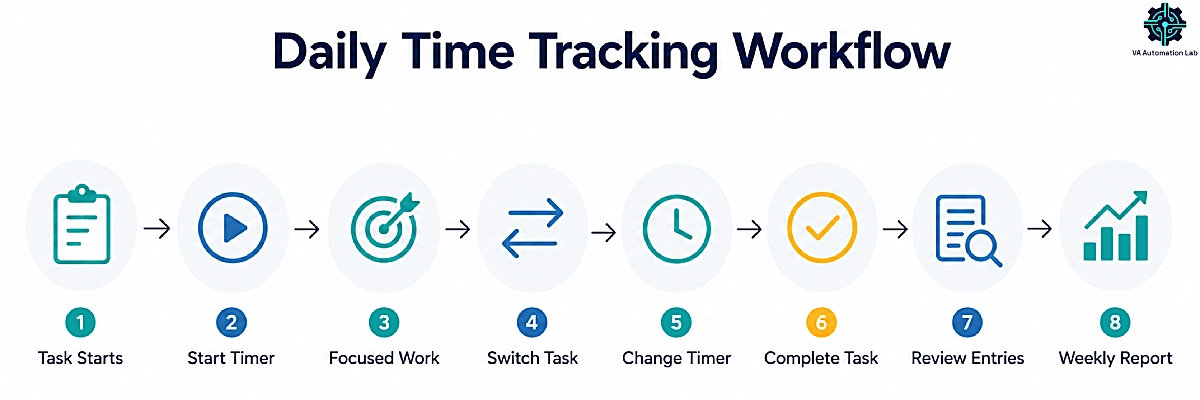
The Daily Tracking Routine
Keep it simple so it sticks. When you start a task, start a timer. When you switch tasks, switch the timer. When you finish, stop it. That’s the entire discipline.
Use Favorites for the entries you repeat daily, so common tasks start in one tap. Be descriptive in your entry names — “Draft newsletter intro” beats “Working” when you review reports later. Within a week, tracking stops feeling like a chore and starts feeling like autopilot.
Focus Sessions With Pomodoro and the Timeline
When you need deep focus, switch on Pomodoro mode and work in 25-minute sprints. The forced breaks keep you fresh, and the timer removes the temptation to drift into email mid-task.
On the days you forget to track at all, open the Timeline. It shows the apps and sites you used, hour by hour, so you can rebuild the day and log it accurately. Together, these two features protect both your focus and your billable total.
Automating Your Time Tracking
The best tracking is the kind you barely think about. Toggl’s Autotracker watches for keywords in the apps and windows you open, then suggests entries so you can log time in one click. The Google Calendar integration goes further, turning scheduled events into ready-made entries.
For hands-off tracking, connect Toggl to the rest of your stack with an automation tool. You can auto-create a Toggl entry when a task starts in ClickUp, push a completed entry into a QuickBooks invoice, or send a weekly time summary to Slack or Google Sheets. Our guides to Automating Repetitive Tasks and Building Workflows in Make show you how to wire these up.
The Friday Weekly Review
Block 20 minutes every Friday for a review. Open your Weekly report and check three things. First, are there any untagged or misfiled entries? Fix them while the week is fresh. Second, did any non-billable work sneak in that should have been billable? Third, which tasks took longer than you expected?
This ritual keeps your data clean and turns tracking into insight. Over a few weeks, you’ll spot the low-value tasks worth automating or dropping.
Capacity Planning Without Overcommitting
Once you have a few weeks of data, you can plan capacity like a business, not a guess. Your reports show how many billable hours you realistically deliver per week. When a new client asks for more, you can compare their estimated hours against your real headroom.
That means you can say yes with confidence, or say “not yet” with evidence. It’s the simplest defense against burnout there is.
6. How to Use Toggl Track Reports for Client Billing and Pricing
Reports are where tracked time becomes money. This is the part most VAs underuse, and it’s the fastest path to higher, fairer income.
Client-Ready Reports and Shareable Links
For a professional client update, use the Summary report for the high-level view and the Detailed report to itemize every entry. Filter by that client and by billable status so they see only what they’re paying for.
Then choose how to deliver it. Export a branded PDF or CSV to attach to an invoice, or send a live shareable link so the client can check their hours anytime. If you also handle reporting for clients, this pairs neatly with our guide to Automating Client Reporting as a Virtual Assistant.
One note: Toggl Track’s own invoicing is basic. It exports clean reports and simple PDFs, but it has no proposals, contracts, or client portal. Most VAs pair it with a dedicated invoicing tool, which we cover in the stack section next.
Productivity Metrics Worth Tracking
Once your data is flowing, a few numbers tell you how healthy your business really is. Watch these:
- Utilization (billable %): the share of your hours that are billable. Low utilization means too much admin.
- Hours per client: who eats your week, and whether their retainer still fits.
- Time per task type: which work is worth keeping, delegating, or automating.
- Estimate vs actual: how close your quotes are to reality, so you can price better.
You can approximate utilization on the free plan using your Billable tag. Rate-based numbers like revenue and profitability need a paid plan, since billable rates unlock on Starter.
Quoting New Projects From Real Data
Here’s the highest-leverage move in this whole guide. Say a client asks what a monthly inbox-and-calendar package would cost. Instead of guessing, you check your Toggl summary: similar work averaged nine hours last month. At your $35 rate, that’s $315. Add a 15% buffer for scope creep and round to $370.
You’ve just quoted from data, not a feeling. Do this consistently and you stop underpricing, win more of the right clients, and defend your rates without flinching.
7. The Productivity Stack: Tools to Pair With Toggl Track
Toggl Track is the measurement layer of a VA productivity system. It gets far more powerful when it sits inside a stack that handles scheduling, tasks, email, automation, and invoicing. Here’s the setup we’d build around it, matched to the job each tool does.
Track your time → Toggl Track. The hub of the stack. Everything else feeds hours into it or acts on the data it produces.
Protect your focus → Reclaim.ai. Toggl tells you where time went; a time-blocker helps you plan where it should go. Reclaim auto-schedules focus blocks and habits around your meetings. See our full Reclaim.ai Setup Guide for Virtual Assistants.
Book meetings clients love → SavvyCal. The calls you track have to be booked first. SavvyCal sends clean scheduling links, lets clients overlay their calendar on yours, and even supports delegating to an assistant. Plans start at $10/month (annual).
Run your tasks → ClickUp or Notion. Track time against the same projects you manage. Both integrate with Toggl’s extension so you can start a timer from inside a task. Compare them in our ClickUp for Virtual Assistants Guide and Notion AI for Virtual Assistants Guide.
Tame your inbox → SaneBox. Email is often a VA’s biggest untracked time sink. SaneBox filters low-priority mail automatically, so the hours you do track on email are the ones that matter. Details in our SaneBox Review and Setup Guide.
Kill repetitive typing → TextExpander. You retype the same replies, briefs, and updates every week. TextExpander turns them into short snippets that expand instantly, saving keystrokes and hours you’d otherwise burn (and track). It has a free plan, and Pro starts at just $5/month per user, billed annually.
Automate the busywork → Make. Connect Toggl to the rest of your stack so time entries, reports, and tasks move on their own. Learn the basics in our Make Setup Guide for Virtual Assistants.
Invoice the hours → InvoiceNinja. This fills Toggl’s biggest gap. Export your tracked hours, then turn them into branded, recurring invoices with online payments. InvoiceNinja even has a free plan for up to five clients.
Build this once and you have a lightweight, mostly affordable system that tracks, plans, bills, and runs itself.
8. Is Toggl Track Worth It? Pricing, Plans, and ROI for VAs
Short answer: for almost any VA who bills by the hour, yes. Here’s the pricing, the math, and how to pick a plan.
Toggl Track Pricing
All prices below are per user per month on annual billing. Paid plans include a 30-day Premium trial with no credit card.
Plan | Price (annual) | Best for |
Free | $0 (up to 3 users) | Solo VAs who track hours and invoice manually |
Starter | $9/user/mo | VAs who bill hourly and want billable rates + rounding |
Premium | $16/user/mo | Small VA teams needing profitability and approvals |
Enterprise | Custom | Larger operations (25+ seats, multiple workspaces) |
The dividing lines are simple. Billable rates, project estimates, time rounding, and templates unlock at Starter. Profitability analysis, timesheet approvals, and fixed-fee project tracking live in Premium. The Free plan is generous: unlimited tracking, projects, and clients for up to five users, with no expiry.
The ROI of Tracking Your Time
The paid upgrade pays for itself faster than almost any tool you own. Starter costs $9/user/month, or about $108 a year.
Now the return. Suppose Toggl helps you recover just one previously unbilled hour each week. At a $35 rate, that’s $35 × 52 = $1,820 a year in captured revenue, against a $108 cost. That’s roughly a 17x return, and most VAs recover far more than one hour once they see where time leaks. Even on the free plan, the time-awareness alone helps you quote better and cut low-value work. The math almost never argues against tracking.
Free vs Paid: Which Plan Do You Need?
Use this quick logic:
- Stay Free if you’re a solo VA who tracks hours mainly for awareness and invoices manually. Many VAs live here happily for years.
- Go Starter the moment you want billable rates baked into reports, time rounding for clean invoices, or budget alerts on fixed-price work. For most hourly VAs, this is the sweet spot.
- Go Premium if you have a small team, or you need to see project profitability and approve timesheets before billing.
Recover More Than Toggl Costs — Free for 30 Days
Starter runs about $108 a year and pays for itself the first time you catch an unbilled hour.
Try every paid feature free for 30 days, no card needed.
9. Toggl Track Pros and Cons for Virtual Assistants
No tool is perfect. Here’s the verdict after weighing what Toggl Track does brilliantly against where it falls short for a VA.
Where Toggl Track Excels
It’s the most polished daily experience in the category. The one-click timer, best-in-class Autotracker, and clean Timeline make tracking almost effortless. Reports are visual and client-ready, and shareable links build trust fast.
It’s also private by design (no screenshots or surveillance), secure (ISO 27001, SOC 2), and stuffed with 100+ integrations. The free plan is one of the best around, and the rate hierarchy is superb for multi-client billing.
Where Toggl Track Falls Short
The biggest gap is invoicing. Toggl exports reports and basic PDFs, but there are no proposals, contracts, or client portal at any tier, so you’ll pair it with a dedicated tool. Per-seat pricing also sits above budget rivals like Clockify, which stings as a team grows. And the most useful reporting (profitability, approvals) is locked behind Premium.
Who Toggl Track Is Right For
Toggl Track is ideal for the solo VA or small VA team who values speed, clean reporting, and privacy, and who’s happy to bill through a separate invoicing tool. If you’re on a tight budget with a larger team, or you want built-in invoicing, an alternative may fit better — which brings us to the comparison.
10. Toggl Track vs Other Time Tracking Tools for Virtual Assistants
Toggl isn’t the only option. Here’s how it stacks up against the alternatives VAs ask about most. For the full field, see our Best Tools for Virtual Assistants Comparison.
Toggl Track | Clockify | Harvest | Time Doctor | |
Free plan | Up to 3 users | Unlimited users | 1 seat, 2 projects | Trial only |
Starts at (annual) | $9/user/mo | $5.49/user/mo | Paid plans per user | Paid plans per user |
Best for | Polish + privacy | Budget / larger teams | Built-in invoicing | Detailed monitoring |
Screenshots | Never | Optional (Pro) | No | Yes |
Toggl Track vs Clockify
This is the classic matchup, and both are excellent. Toggl wins on daily experience: a cleaner interface, a stronger Autotracker, better integrations, and more polished reports. It’s also strictly privacy-first.
Clockify wins on value. Its free plan supports unlimited users (Toggl caps at five), and its paid tiers cost roughly half per seat. Clockify also includes native invoicing on paid plans, though its higher tiers add optional screenshots and GPS. The rule of thumb: choose Toggl for polish and privacy as a solo VA or small team; choose Clockify if budget or team size is your main constraint.
→ If value is your priority, Clockify is a strong, free-forever starting point.
Toggl Track vs Harvest and Time Doctor
Harvest is the pick if you want time tracking and invoicing in one tool. It’s more of an all-in-one, but its free plan is thin (one seat, two projects), and some users report steep renewal price hikes after its 2025 ownership change.
Time Doctor leans the other way, toward detailed employee monitoring with screenshots and activity tracking. That suits agencies overseeing a team, but it’s overkill (and a bit invasive) for most solo VAs. For independent VAs, Toggl’s trust-based, screenshot-free approach usually feels better.
11. Conclusion
Toggl Track earns its place as the time-tracking backbone of a virtual assistant business. It’s fast, private, and pleasant to use, and its reports turn tracked hours into accurate invoices and confident quotes. Start on the free plan to build the habit, move to Starter once you want billable rates and cleaner invoices, and pair it with a simple stack for scheduling and billing.
The real win isn’t the timer. It’s what the data does for your pricing, your boundaries, and your income. Set it up today, track for one week, and let your own numbers make the case.
Track, Bill, and Quote With Confidence
For fast, private, client-ready time tracking, Toggl Track is our top pick for VAs.
Start free today and upgrade only when you’re ready for billable rates.
Frequently Asked Questions About Toggl Track for Virtual Assistants
What is Toggl Track and how does it work?
Toggl Track is a time-tracking app for freelancers and teams. You start a one-click timer for each task, organize entries by client and project, and generate reports from that data. It works on web, desktop, mobile, and the browser, and syncs automatically across devices.
Is Toggl Track free for virtual assistants?
Yes. Toggl Track has a free plan for up to five users with unlimited time tracking, projects, and clients, and no time limit. For a solo VA who tracks hours and invoices manually, the free plan is often enough for years.
How much does Toggl Track cost?
On annual billing, paid plans are $9 per user per month for Starter and $16 per user per month for Premium. Enterprise is custom-priced. All paid plans include a 30-day Premium trial with no credit card required.
Does Toggl Track take screenshots or monitor my screen?
No. Toggl Track is privacy-first and never takes screenshots, logs keystrokes, or tracks your location. The desktop Timeline records your app activity privately on your own device, and only you decide what becomes a time entry.
How do I track billable hours in Toggl Track?
Mark client time entries as billable and tag your own admin work as non-billable. On a paid plan, set billable rates at the workspace, client, project, or task level. Then filter any report by billable status to see exactly how much invoiceable work you did.
Can I use Toggl Track for multiple clients?
Yes, and it’s built for it. Add each client as a Client, create Projects for their work, and use Tags for task types. Reports then let you view hours per client or per task type across all clients, which is ideal for multi-client VAs.
Does Toggl Track work offline?
Yes. You can keep tracking time without an internet connection. Toggl Track stores your entries locally and syncs them automatically once you’re back online, so no data is lost.
Does Toggl Track have invoicing?
Only basic invoicing. It exports clean reports and simple PDFs, but there are no proposals, contracts, or client portal. Most VAs pair Toggl with a dedicated invoicing tool like InvoiceNinja to bill their tracked hours.
Is Toggl Track better than Clockify?
It depends on your priority. Toggl Track offers a more polished interface, a stronger auto-tracker, and better integrations. Clockify offers an unlimited-user free plan and lower per-seat pricing. Solo VAs who value polish and privacy usually prefer Toggl; budget-focused or larger teams often prefer Clockify.
Is Toggl Track worth it for virtual assistants?
For most hourly VAs, yes. Even recovering one unbilled hour a week can return many times the subscription cost, and better time data leads to more accurate quotes and healthier boundaries. Start free, then upgrade when you want billable rates and cleaner invoices.
Glossary: Key Terms for Toggl Track
Time entry: A single logged block of time in Toggl Track, with a description, project, and tags.
Autotracker: A Toggl feature that suggests time entries by matching keywords from the apps and windows you use.
Timeline: A private, device-only record of the apps and websites you used, so you can rebuild a forgotten day.
Idle detection: A prompt that notices when you’ve stepped away and asks whether to keep or discard that time.
Pomodoro: A focus technique of 25-minute work sprints with short breaks, built into Toggl’s timer.
Workspace (Organization): The container that holds all your Toggl data; each paid plan includes one workspace.
Billable rate hierarchy: Toggl’s ability to set your hourly rate at the workspace, client, project, or task level.
Utilization: The share of your working hours that are billable — a key profitability metric for VAs.
About the Author
Alex Stratton has spent the better part of a decade working at the intersection of virtual assistance and operational systems, first as a VA supporting founders and small business owners, then as a workflow consultant helping remote teams reduce the manual overhead that accumulates when businesses grow faster than their processes. The tools and workflows here reflect decisions made repeatedly in real client contexts, where the wrong choice costs hours, not minutes. Learn more about VA Automation Lab → About.