
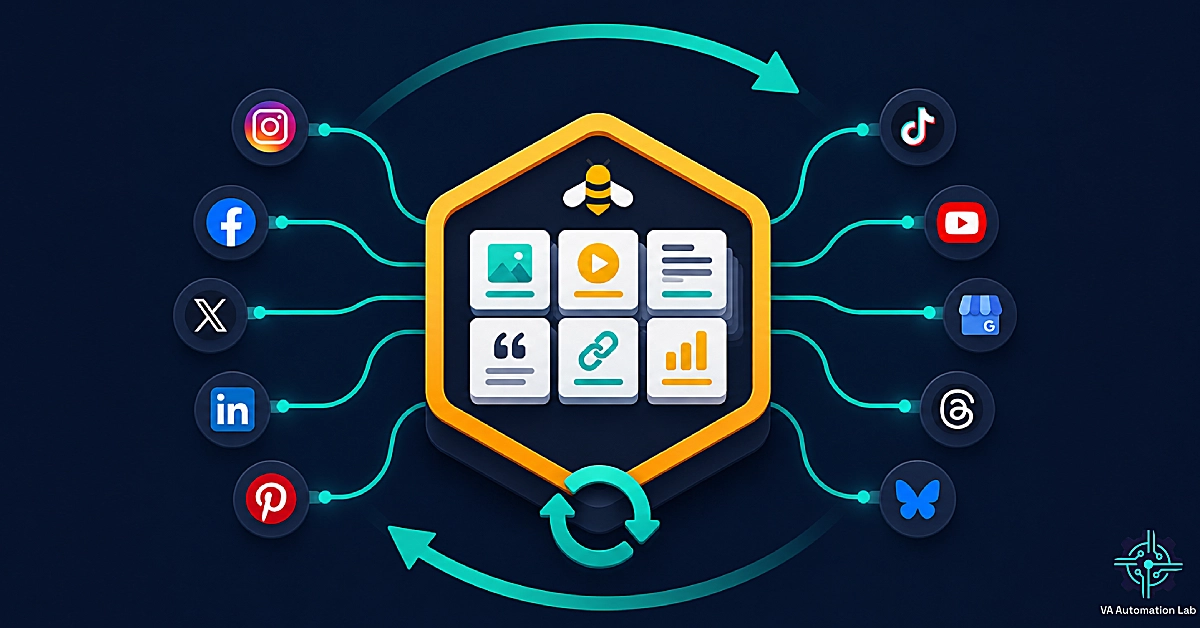
SocialBee for Virtual Assistants: Review, Setup & Workflows (2026)
Disclosure: This article contains affiliate links. If you sign up through them, VA Automation Lab earns a commission at no extra cost to you. Recommendations are based on our evaluation of tool fit for VA workflows.
Everything you need to know before running multi-client social media on SocialBee: setup, workflows, pricing, and our verdict.
Managing social media for several clients is one of the most time-consuming services a virtual assistant offers, and one of the easiest to run inefficiently. Every client means another set of logins, another posting schedule, another round of approvals, and a steady stream of content that has to be written, formatted, and published by hand. Do that across three or four clients and the overhead eats the hours you should be billing.
SocialBee is built to remove most of that overhead. Instead of scheduling posts one at a time, you organize content into categories that publish on rotation and recycle your best evergreen posts automatically. For a VA, that shift — from posting by hand to running a content system — is the difference between social media that scales and social media that caps your client roster.
This is a complete, practical review of SocialBee for virtual assistants: what it does, how to set it up, the workflows that matter across multiple accounts, pricing, where it falls short, and how it compares to Buffer and Later. For the wider system it fits into, start with the AI Tools for Virtual Assistants Guide — the broader AI toolkit — then read Automation for Virtual Assistants: The Complete Guide to Tools & Workflows for the complete picture on automating your workflows.
Want to Build a Social Media System That Scales?
The Free AI Starter Toolkit includes a multi-client social content calendar template, a brand voice guide for managing several clients at once, and a prompt library for the highest-frequency social content types.
Ready to use. Duplicate for every client.
Table of Contents
1. What SocialBee Is and What It Does for Virtual Assistants
SocialBee is a social media management tool that schedules and publishes content across ten platforms from one dashboard. For virtual assistants, its defining feature is category-based scheduling: you organize posts into content categories that publish on rotation and recycle evergreen content automatically, cutting weekly posting work to minutes per client.
That is why SocialBee appears so often in VA tool conversations: it turns social media from a daily manual task into a system that runs on its own, which for a VA is the only kind worth building. If a client’s main need is consistent, organized, multi-platform publishing — Instagram, Facebook, X (Twitter), LinkedIn, Pinterest, TikTok, YouTube, Google Business Profile, Bluesky, and Threads — without daily manual effort, it is one of the strongest options a solo VA has.
SocialBee in One Sentence
SocialBee is a social media scheduling tool that keeps a client’s feed full by rotating content through categories and automatically recycling your best evergreen posts — no daily manual posting required.
Why Category-Based Scheduling Changes the VA Workflow
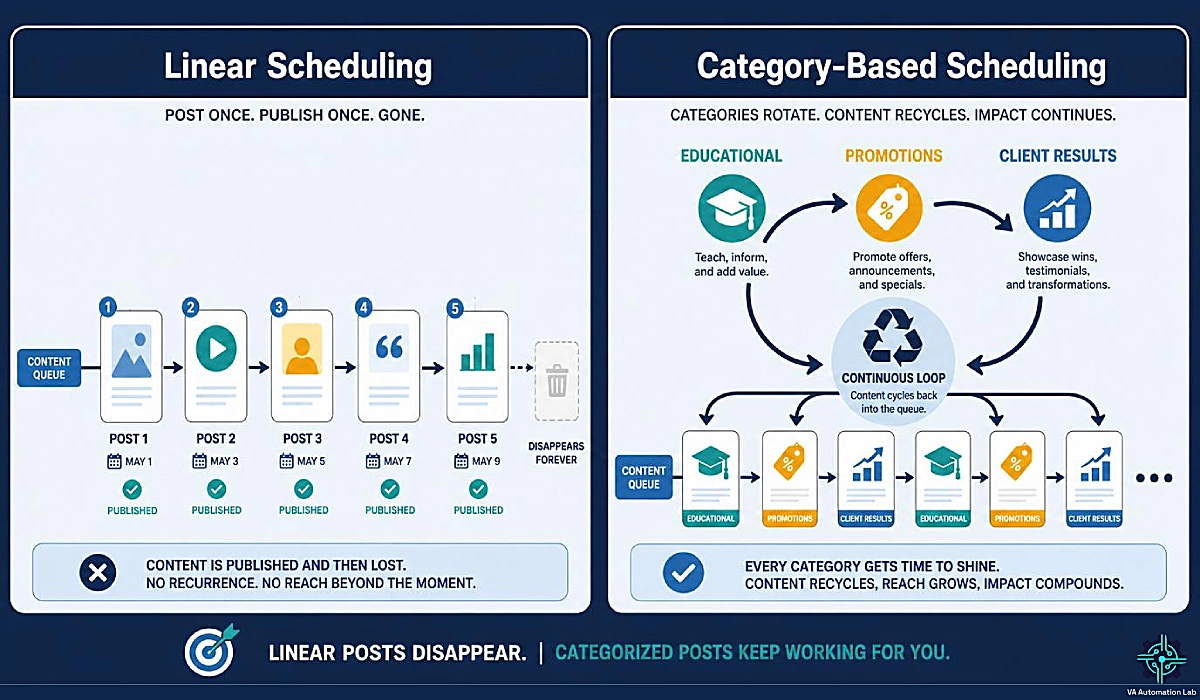
Most schedulers work in a straight line. You write a post, pick a date and time, and it publishes once. Then it is gone. To keep a client’s feed active, you repeat that process for every single post, every week, forever. This is the model Buffer and most simple tools use, and it works, but it scales badly because the work never stops.
SocialBee replaces that line with a loop. You create content categories, like “Educational Tips,” “Client Results,” “Behind the Scenes,” and “Promotions,” and you assign each category its own posting slots in the week. Then you fill each category with posts. SocialBee rotates through them automatically. “Educational Tips” might publish every Monday and Thursday; “Promotions” every other Friday. You set the rhythm once, and the schedule maintains itself.
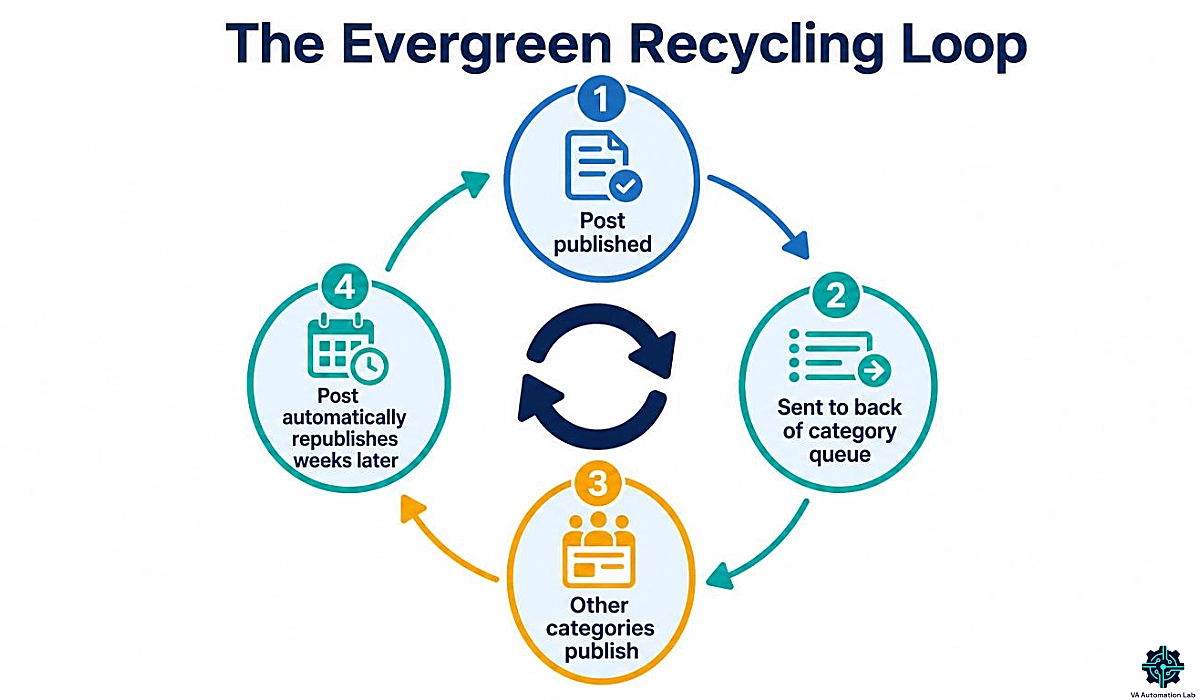
The second half of the system is evergreen recycling. When you mark a post as evergreen, it does not disappear after publishing — it goes to the back of its category queue and republishes weeks later, reaching the people who missed it. Write thirty good posts for a client, mark them evergreen, and they keep circulating for months. For a VA, this is the feature that turns a five-hour weekly task into a thirty-minute one.
Who SocialBee Is Built For (and Who Should Skip It)
SocialBee fits a specific kind of VA work well. It pays off quickly for VAs managing social media for solopreneurs, coaches, local businesses, or small brands that want a steady mix of evergreen and fresh content. The category system earns its keep most when you run several clients at once and need each one’s content cleanly separated.
It is a poor fit in two cases. First, if a client posts only fresh, time-sensitive content every day and never recycles, the category system is overhead — a simpler tool serves them better. Second, if you or a client need deep social listening, advanced competitor benchmarking, or enterprise approval chains, SocialBee will feel limited and you will add a second tool anyway.
See How the Category System Works on Your Own Accounts
SocialBee‘s category-based scheduling and evergreen recycling are easiest to understand once you’ve built a few categories yourself.
The 14-day free trial needs no credit card, so you can set up a real client’s content and watch the rotation run before you decide.
2. SocialBee Features That Matter for VA Client Work
SocialBee has a long feature list, but only a handful move the needle on billable time. The sections below cover the ones that matter for client work.
Content Categories and Evergreen Recycling
A content category is a named bucket with its own posting schedule. You decide how many a client needs, four to six is typical, and what proportion of the feed each fills. Educational content might take 40% of slots, promotional content 15%, and so on.
Once the categories and schedule exist, you fill them with posts. SocialBee publishes in category order at the times you set. Evergreen recycling is what makes this powerful: marked posts re-enter the queue after publishing and run again later. You can set expiration dates so time-sensitive posts never repeat by accident. The result for a VA is that a client’s feed stays full and varied without daily input — build the library once, top it up occasionally, and the system carries the rest.
The AI Copilot: Captions, Images, and Content Strategy
SocialBee’s AI Copilot handles the blank-page problem. You describe what you want, and it generates captions, post variations, hashtag suggestions, and images. Give it a website URL or answer a few questions and it can draft a content strategy, with over a thousand built-in prompts to start from.
An important 2026 update: all paid plans now include unlimited AI content generation. Earlier versions capped AI use with credits; that cap is gone. For a VA producing content across multiple client brand voices, unlimited generation means you are not rationing drafts. The Copilot will not replace a skilled copywriter, but it removes the slowest part of production — getting a first draft on the page. Pair it with your brand voice notes and a review pass, and it speeds up the whole pipeline.
For a deeper content workflow, the AI Writing & Content Creation for Virtual Assistants Guide covers prompt structure and repurposing.
The Engage Unified Inbox
SocialBee has a social inbox called Engage, it pulls comments, mentions, and messages from your connected profiles into one screen so you can reply without logging into each platform.
The caveat is the time window. Engage typically surfaces interactions from roughly the last seven days, so it is built for keeping up with recent activity, not digging through a month of old comments. For a VA handling day-to-day community management, that window is usually fine. Just do not expect it to replace a dedicated inbox tool for a high-volume brand. For most solo VA clients, Engage covers the engagement layer well enough to avoid a second subscription.
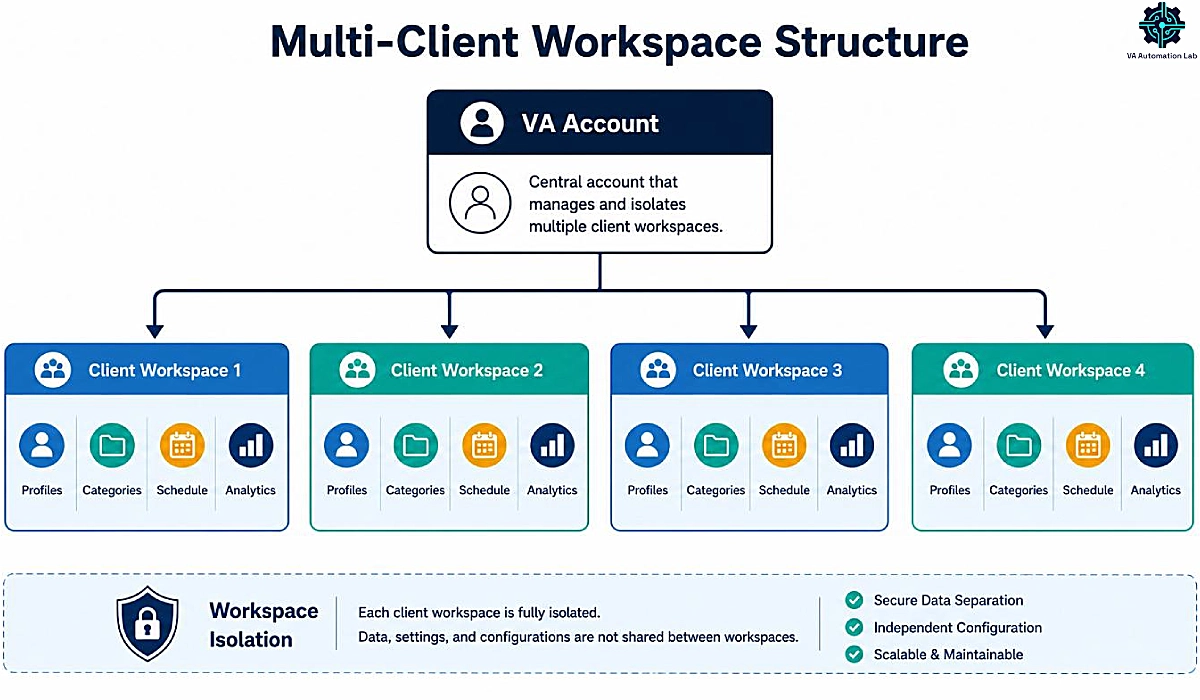
Workspaces for Multi-Client Isolation
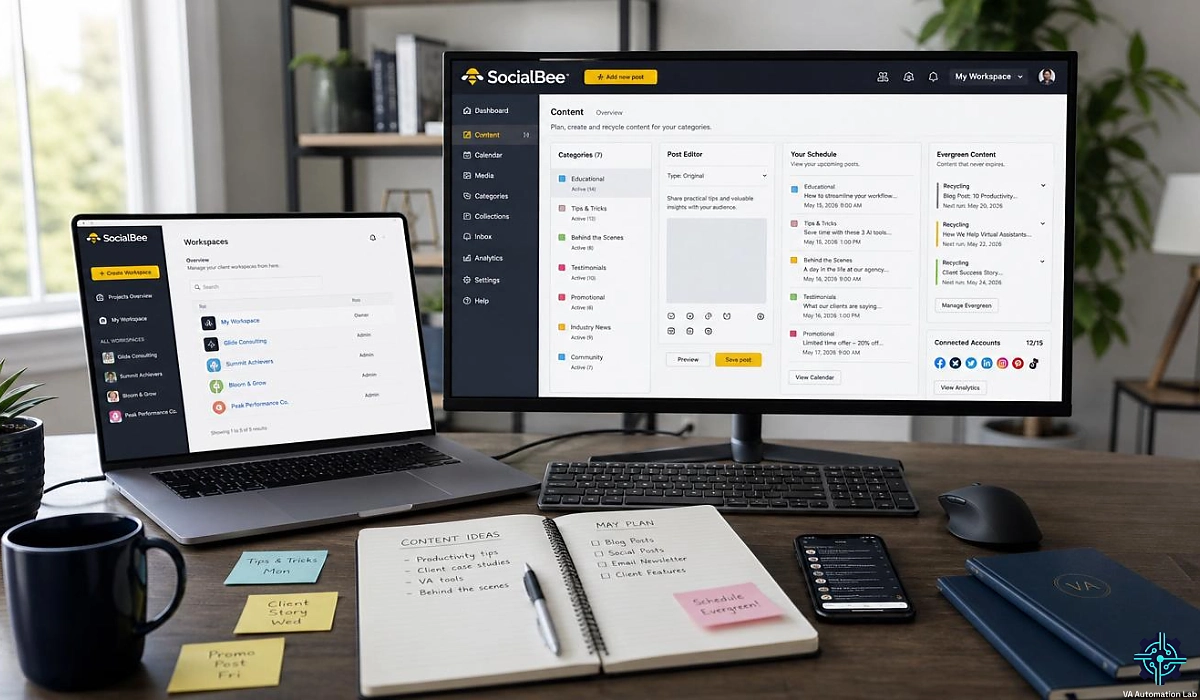
Workspaces are the feature that makes SocialBee usable at multi-client scale. A workspace is a fully isolated container: its own connected profiles, its own categories, its own schedule, and its own analytics. Each client lives in their own workspace, and switching between them is one click, not a login change or a filtered view.
For a VA, this isolation is risk management. The most damaging mistake in multi-client social work is posting one client’s content to another’s account. Separate workspaces make that error structurally far less likely, because you never see two clients’ queues in the same view. The catch is that workspaces are gated behind the Pro plan and above — lower tiers give you one workspace only. That line is the main reason VAs managing several clients land on Pro, covered in the pricing section below.
Analytics, Reporting, and Content Curation
SocialBee’s analytics track the basics well: reach, impressions, engagement, follower growth, and link clicks, with up to two years of history on Accelerate and above. One edge over simpler tools is category analytics — you can see how “Educational” posts perform against “Promotional” posts, which directly informs how you tune a client’s content mix.
The limit is depth. SocialBee’s analytics are good enough for a clear monthly client report, but not a substitute for a dedicated analytics platform if a client wants granular, multi-source dashboards. Two smaller features round out the toolkit. Content curation via RSS feeds and import tools lets you pull in third-party content to fill a category. And direct Canva, Unsplash, and GIPHY integration inside the post editor means you design and attach visuals without leaving the tool. Both cut tab-switching, which is where VA hours vanish.
3. How to Set Up SocialBee as a Virtual Assistant (Step-by-Step)
Setting up SocialBee for a client takes roughly one to two hours, most of it building the category structure. Publishing works the moment your accounts are connected. The steps below are sequenced for client work specifically, not a personal account.
Step 1 — Create Your Account and Connect Client Profiles
Start the 14-day trial at SocialBee, no credit card required. Sign up with your own VA business account, not a client’s, so your dashboard stays under your control. From there you connect the client’s social profiles to a workspace dedicated to that client.
A note on profile counting: SocialBee counts each connected account as one profile. Two Instagram accounts, one Facebook page, and one LinkedIn page is four profiles. Keep that in mind when matching a client to a plan — the profile limit per tier is the number you hit first. Connect only the platforms the client actively uses.
Step 2 — Build Your Content Categories
This is the step that determines whether the system works. Translate the client’s content strategy into four to six categories. A typical structure for a service business: Educational Tips, Behind the Scenes, Client Results or Testimonials, Curated Industry Content, and Promotions.
Resist the urge to create too many categories. Five well-defined buckets that each have enough content to rotate beat twelve thin ones that empty out. The goal is a balanced, varied feed that never looks repetitive and never runs dry.
Step 3 — Set the Posting Schedule per Category
With categories created, assign each one its posting slots in the week. SocialBee lets you set specific days and times per category, and it suggests optimal times based on past performance once data accumulates. Decide the cadence with the client: how many posts per week, on which platforms, at what times.
The schedule is where the content mix becomes real. If Educational is meant to be 40% of the feed, give it the most slots; if Promotions should stay light, give it few. Once set, this scheduling automation runs every week until you change the mix.
Step 4 — Fill the Queue and Turn On Evergreen Recycling
Now add posts to each category. Use the AI Copilot to draft, then refine against the client’s brand voice. As you add posts, mark the timeless ones — tips, quotes, educational pieces — as evergreen so they recycle. Mark time-sensitive posts as one-time, or set an expiration date so they retire after their moment passes.
Aim to build a starting library of twenty to thirty evergreen posts per active category before going live. That is the threshold where recycling produces a full feed without obvious repetition. Below it, posts cycle too fast and the audience notices.
Step 5 — Configure the Approval Workflow
If the client wants to approve content before it publishes, set up the approval workflow now. SocialBee supports roles, manager, publisher, contributor, and a review step where the client approves or requests changes before anything goes live. Invite the client as a reviewer to their workspace, and they see only what needs sign-off, not your full production pipeline.
This single configuration removes email from the approval loop, where most VA social workflows lose time. The table below is a practical starting structure for a service-business client.
Category | Share of feed | Suggested cadence | Recycle? |
Educational Tips | 40% | 2–3×/week | Yes (evergreen) |
Behind the Scenes | 20% | 1×/week | Sometimes |
Client Results | 15% | 1×/week | Yes (evergreen) |
Curated Industry Content | 15% | 1–2×/week | No (time-sensitive) |
Promotions | 10% | Every other week | No (set expiry) |
4. Four SocialBee Workflows Every VA Should Configure
Setup gives you a working tool. Workflows give you an operation. These four are where SocialBee stops being a scheduler and becomes the backbone of a multi-client social service. For the full social media system these fit inside, see the Complete Social media Automation System for Virtual Assistants.
Workflow 1 — The Multi-Client Workspace System
One workspace per client, never mixed.
- Create a new, separate workspace for each client (available on Pro and above).
- Connect that client’s social profiles only inside their own workspace.
- Set a naming convention per client — initials or a brand color — so the active workspace is obvious at a glance.
- Build that client’s categories and posting schedule inside their workspace, independent of every other client.
- Switch workspaces with a single click before touching any content, so you are never looking at two clients’ queues at once.
Each client’s profiles, categories, schedule, and analytics live in their own container, and you switch between them with a single click. This lets a solo VA run social for five clients without the cross-client errors that wreck client trust. Set a fixed color or naming convention per client so the context is always obvious at a glance. When you open a workspace, everything you see belongs to that one client, no filtered view to misread, no shared queue to confuse.
For the broader operating system behind managing several clients at once, the Managing Multiple Clients as a Virtual Assistant Using AI Guide covers how this scheduling layer fits with the rest of your stack.
Workflow 2 — The Evergreen Library (Write Once, Post for Months)
A library that keeps publishing itself.
- Pick two or three evergreen-eligible categories per client — tips, quotes, educational posts, repurposed blog content.
- Block one batching session per client per month.
- Use the AI Copilot to write or generate fifteen to twenty new posts and top up those categories.
- Mark each post as evergreen so it re-enters the queue automatically instead of disappearing after it publishes.
- Set an expiration date only on time-sensitive posts, so holiday promos and event reminders never accidentally repeat.
- Leave the schedule alone between sessions — recycling carries the feed on its own.
The practical move is to batch. Set aside one session per client per month to write or generate fifteen to twenty new evergreen posts and top up the library. Once the library is full enough, a client’s feed stays active for weeks with no new input from you, turning social media from a daily obligation into a monthly batching task. This workflow is the reason SocialBee earns its place in a VA stack.
Workflow 3 — Client Approval Without Email Back-and-Forth
Email is where social approval workflows go to die: send previews, wait, incorporate feedback, resend, days of delay for what is really an administrative handoff. SocialBee’s built-in approval step replaces it with a single review surface.
- Invite the client into their workspace as a reviewer, so they see only what needs sign-off, not your full production pipeline.
- Turn on approval requirements for the categories that need client sign-off.
- The client reviews queued posts inside their own access level and approves them or leaves a note requesting changes.
- Check the approval queue on a fixed day each week and schedule whatever has been approved.
- Treat any requested change as a single revision pass, not an email thread.
The client opens their workspace, sees the posts awaiting approval, and either approves them or leaves a note requesting changes. You see the decision immediately and schedule what is approved. No email thread, no chasing, no version confusion. For a VA, this turns a multi-hour weekly approval cycle into a few minutes of checking statuses.
Workflow 4 — Connecting SocialBee to Make for End-to-End Automation
This is the advanced workflow, and where the real leverage lives. SocialBee handles publishing, but it does not connect your content calendar, your approval status, and your client reporting on its own. Make does, and our Zapier vs Make Comparison for VAs explains why it is the better fit for this kind of content pipeline. With a Make scenario, an approved post in your Notion content calendar can route automatically to the correct SocialBee category, and your weekly performance data can be pulled and formatted into a client report without you lifting a finger.
- Build a Make scenario triggered by an “Approved” status change in your content calendar — Notion, Airtable, or similar.
- Add a Router module to branch the scenario by platform or content type.
- Map each branch to send the approved post into the matching SocialBee category.
- Add a second, scheduled scenario that pulls SocialBee’s analytics weekly and formats them into a client report.
- Test the full scenario on one client before rolling it out across your roster.
The pattern is straightforward: Make watches your content calendar for an “Approved” status, reads the platform field, and sends the post into the matching SocialBee queue. A separate scheduled scenario pulls analytics each week and drafts a report. This is how a VA closes the loop from content idea to published post to client report with almost no manual steps. The Make Setup Guide for VAs walks through the Router module and scenario building you need first.
Connect SocialBee to a Full Automation Pipeline with Make
SocialBee publishes your content. Make connects it to your content calendar, approval workflow, and client reporting, so the whole pipeline runs hands-free.
The free plan includes 1,000 credits a month, enough to build and test your first SocialBee scenario. Core at $9/month for 10,000 credits (billed annually) unlocks unlimited active scenarios and scheduling down to the minute for production use across multiple clients.
5. SocialBee Pricing: Which Plan Makes Sense for VAs
SocialBee pricing is built around capacity — how many profiles, users, and workspaces you need — rather than locking core features behind higher tiers. Every paid plan includes the AI Copilot, the Engage inbox, content categories, scheduling, and analytics. What changes between tiers is scale. All figures below are annual-billing rates.
The Plan Tiers at a Glance
SocialBee offers no free-forever plan. There is a 14-day free trial with no credit card, after which a paid plan is required. The three standard tiers run from solo use up to multi-client scale, and SocialBee offers larger agency tiers above Pro for operations that need 50 or more profiles.
Plan | Price (annual) | Profiles | Users | Workspaces | Categories | Best for |
Bootstrap | $24/mo | 5 | 1 | 1 | 10 | Solo VA testing or 1 small client |
Accelerate | $40/mo | 10 | 1 | 1 | 50 | A VA managing a few clients on one workspace |
Pro | $82/mo | 25 | 3 | 5 | Unlimited | Multi-client VAs needing client isolation |
SocialBee also offers higher Pro50, Pro100, and Pro150 agency tiers (scaling to 150 profiles and adding white-label reports); check socialbee.com/pricing for current agency rates before purchasing, as plans and prices change.
Which Plan Fits Your Client Volume
The right plan maps cleanly to client count. For one to two clients, Accelerate is usually enough: ten profiles and 50 categories cover a couple of clients comfortably, and the two-year analytics history supports proper reporting. The single-workspace limit is the only real constraint.
For three to five clients, Pro is the practical floor. The jump matters less for the extra profiles and more for the five workspaces — that is what gives each client a clean, isolated container. For six or more clients or agency operations, the Pro50 tier and above add the capacity you need.
Add-Ons, the Concierge Option, and Hidden Costs
Two cost lines catch VAs out. First, add-ons: if you need one more profile than your plan allows, you can buy extra profiles or seats individually rather than jumping a whole tier — useful, but check whether the next tier is cheaper once you need several. Second, the Concierge service (ConciergeBee): SocialBee promotes a done-for-you content option that is a separate, significant monthly cost on top of your plan — useful, but budget for it deliberately, since it is not part of the base subscription.
The summary: SocialBee sits in the middle of the market, cheaper than Hootsuite or Sprout Social, more expensive than Buffer at entry. You are paying primarily for the category system, evergreen recycling, and unlimited AI. If those three solve a real problem for your client work, the cost is easy to justify against the hours they recover.
6. Where SocialBee Falls Short for VAs
No tool is the right answer for every client, and a review has to cover the gaps. These are the real limitations worth knowing before you commit a client to SocialBee.
The Category System Has a Learning Curve
The category model is powerful, but it is not the workflow most people expect. If you are used to “write a post, pick a time, publish,” SocialBee’s “build categories, set rotations, fill queues” approach feels like extra work at first. The initial setup takes an hour or two of thinking, not just clicking.
This is a one-time cost, not an ongoing one — once built, it runs with very little maintenance. But it means SocialBee is a poor choice for a client you need live in ten minutes, or for a VA who wants zero setup.
Analytics Depth and the Reporting Gap
SocialBee’s analytics are solid for the basics and good enough for a clear monthly summary, but they are not deep. If a client wants granular, multi-source dashboards — performance pulled from several platforms and tools into one live view — SocialBee will not deliver that alone. You layer a dedicated reporting tool on top.
This is a common, reasonable stack: SocialBee for scheduling and publishing, a separate tool for client-grade reporting — a scope boundary, not a flaw. For the full reporting layer, the Automate Client Reporting as a Virtual Assistant Guide covers how to build professional client reports without manual compilation.
Mobile App and Engagement Limits
A few smaller constraints round out the picture. SocialBee’s mobile experience is limited compared to its web app, so most real work happens at a desktop. The Engage inbox surfaces roughly the last seven days of interactions; there is no deep social listening for unlinked brand mentions; and on TikTok it schedules posts but lacks the native, platform-specific features a TikTok-first client might need.
None of these are dealbreakers for a typical solo-VA client whose main need is consistent multi-platform publishing. But if a client leans heavily on real-time community management, deep listening, or TikTok-native features, you will outgrow SocialBee on that dimension.
Add the Reporting Layer SocialBee’s Analytics Don’t Cover
SocialBee handles scheduling well, but client-grade reporting needs more depth than its built-in analytics provide.
Metricool aggregates performance across all connected platforms and exports branded PDF and PPT reports your clients can read at a glance — the reporting layer that completes a SocialBee scheduling stack.
7. SocialBee vs Buffer vs Later: Choosing the Right Scheduler
SocialBee is not the only scheduler a VA should consider, and the right choice depends on the client. Here is how it stacks up against the two alternatives VAs most often weigh it against. For the full picture across every VA tool category, see the Best Tools for Virtual Assistants Comparison Guide.
SocialBee vs Buffer
This comparison comes down to a system versus simplicity. Buffer is the simplest scheduler on the market: clean interface, almost no learning curve, and a free plan for a few channels. But every Buffer post is one-and-done; there is no content recycling and no categories. To keep a feed active, you reschedule each post by hand, forever.
The rule of thumb is clear: Buffer wins under three channels and for clients who post only fresh content; SocialBee wins at scale and for clients with an evergreen library. If a client is cost-sensitive, posts a few times a week, and does not recycle, Buffer is the smarter pick — and a perfectly good one.
→ Try Buffer if simplicity is the priority
SocialBee vs Later
Later is built around visual platforms. Its strength is Instagram, Pinterest, and TikTok, where the visual grid preview lets you and the client see exactly how a feed will look before anything publishes. That preview is a real selling point for design-conscious clients, and Later’s external approval links make client sign-off easy.
Later is weaker on text-heavy platforms and the category model — it does not recycle evergreen content on a category rotation the way SocialBee does. The split is straightforward: choose Later for Instagram-first or Pinterest-first visual clients; choose SocialBee for multi-platform clients with a category-driven content mix.
→ Try Later for visual-first clients
When to Run SocialBee Alongside Another Tool
You do not have to pick just one: SocialBee as the core scheduler across most clients, Later for the one or two Instagram-heavy accounts that need visual planning, and a dedicated analytics tool for client-grade reporting. The comparison table below summarizes the decision.
Factor | SocialBee | Buffer | Later |
Core strength | Category system + recycling | Simplicity | Visual planning |
Evergreen recycling | Yes | No | Limited |
Best platforms | Multi-platform | Multi-platform | Instagram, Pinterest, TikTok |
Learning curve | Moderate | Minimal | Low |
Best for VA clients | Content-mix, multi-client | Simple, fresh-only | Visual-first brands |
Entry price | Mid | Low | Low–mid |
8. Is SocialBee Worth It for Virtual Assistants? (The Verdict)
After the features, setup, workflows, and pricing, the SocialBee review comes down to one question: does it earn its place in a VA’s tool stack? For the right client work, the answer is a clear yes.
The case for SocialBee
SocialBee’s value for a VA is concentrated in three features that compound: the category system, evergreen recycling, and unlimited AI generation. Add workspaces for clean multi-client isolation, and you have a tool built for the way VAs serve multiple clients at once. For three to five content-consistent clients, SocialBee on Pro is one of the strongest single investments you can make in your operation — the time it recovers pays for the subscription many times over.
The one caveat
The value depends entirely on whether you will build and maintain the category library. SocialBee rewards a system; it does not reward casual use. Set it up properly, fill the categories, and keep the evergreen library topped up, and it is excellent. Treat it like a basic scheduler and post one-off content without categories or recycling, and you are paying a premium for features you are not using — a simpler, cheaper tool would serve you better.
Recommended starting point
The right move is to test it on real work, not in the abstract. Start the 14-day trial, pick one client, and build their full category structure and a starter evergreen library. Run it for a week and watch the recycling carry the feed. That single test shows the time the system recovers in your workflow, more than any review can.
Build One Client’s System and See the Time It Recovers
The fastest way to know if SocialBee fits your VA work is to set up a real client: build the categories, fill an evergreen library, and let the rotation run.
The 14-day free trial needs no credit card, so you can validate the full system — scheduling, recycling, and approvals — before committing to a plan.
Frequently Asked Questions about SocialBee for Virtual Assistants
Is SocialBee free?
No. SocialBee has no free-forever plan. It offers a 14-day free trial with no credit card, after which a paid plan is required. On annual billing, plans start at $24/month (Bootstrap), with most VAs on Accelerate ($40/month) or Pro ($82/month). If you want a permanent free tier for testing, Buffer is the closer fit.
How much does SocialBee cost for a virtual assistant?
On annual billing, SocialBee runs at $24/month (Bootstrap, 5 profiles), $40/month (Accelerate, 10 profiles), and $82/month (Pro, 25 profiles, 5 workspaces). Most VAs managing three to five clients choose Pro for the multi-client workspace isolation. Agency tiers (Pro50–Pro150) scale to 150 profiles. Every paid plan includes the AI Copilot, content categories, the Engage inbox, and analytics — you pay for capacity, not features.
Can I manage multiple clients in one SocialBee account?
Yes, and this is one of SocialBee’s strongest features for VAs. The Pro plan gives you five isolated workspaces, each with its own profiles, categories, schedule, and analytics. You switch between clients with one click, and because you never see two clients’ queues in the same view, the risk of posting to the wrong account drops sharply. Bootstrap and Accelerate include only one workspace, so multi-client work generally needs Pro.
SocialBee vs Buffer, which is better for a VA?
It depends on the client. Buffer is simpler, cheaper at entry, and has a free plan, ideal for clients who post a few times a week with fresh content and no recycling. SocialBee adds category-based scheduling and evergreen recycling, valuable for clients with a content library and for VAs managing several accounts. The short version: Buffer wins under three channels and for fresh-only posting; SocialBee wins at scale and for evergreen-heavy strategies.
Does SocialBee have AI content generation?
Yes. SocialBee’s AI Copilot generates captions, post variations, hashtags, images, and full content strategies from a URL or a few prompts. As of 2026, all paid plans include unlimited AI generation — the earlier credit caps are gone — which matters for a VA producing content across multiple client brand voices. The Copilot speeds up first drafts significantly, though you still review and refine output against each client’s voice. For prompt techniques that sharpen that output, see our ChatGPT for Virtual Assistants Guide.
What platforms does SocialBee support?
SocialBee publishes to ten platforms: Instagram, Facebook, X (Twitter), LinkedIn, Pinterest, TikTok, YouTube, Google Business Profile, Bluesky, and Threads. This broad coverage is part of why it suits multi-platform VA clients. Note that while it schedules TikTok posts, it lacks some native, TikTok-specific features a TikTok-first client might need — in that case, you would add a specialist tool alongside it.
Does SocialBee have a social inbox?
Yes. SocialBee’s unified inbox is called Engage, and it pulls comments, mentions, and messages from connected profiles into one screen for replies. The main limitation is the time window: Engage typically surfaces interactions from the last seven days, so it is built for current conversations rather than a month of old activity. For most solo-VA clients, that window covers day-to-day community management well.
How long does SocialBee take to set up?
Connecting accounts and publishing works immediately, but a proper setup for client work takes about one to two hours, most of it designing the content category structure. The category system has a learning curve if you are used to simple scheduling, but it is a one-time cost: once categories, schedule, and the evergreen library are built, the system runs with little maintenance. Plan the setup time realistically and avoid promising a client instant results on day one.
SocialBee vs Hootsuite — which is better for a VA?
For most virtual assistants, SocialBee. Hootsuite is built for enterprise teams and priced to match — its entry plan costs more than SocialBee’s Pro tier yet includes fewer profiles, and its real edge is deep social listening that most solo-VA clients never use. Choose Hootsuite only when a client needs enterprise-grade monitoring or compliance; otherwise SocialBee gives a VA the scheduling, recycling, and multi-client workspaces they need for far less.
Glossary
Content Category: A named bucket of posts in SocialBee with its own posting schedule. SocialBee rotates through the posts inside it automatically — the foundation of category-based scheduling.
Evergreen Content Recycling: SocialBee’s ability to automatically republish marked posts after they run, sending them to the back of their category queue to reach new audience members later. It lets a small library keep a feed active for months.
Content Queue: The ordered list of posts inside a content category waiting to publish. When a queue runs low, evergreen posts re-enter it automatically, maintaining a consistent cadence without manual re-adding.
AI Copilot: SocialBee’s built-in AI assistant that generates captions, post variations, hashtags, images, and content strategies from prompts or a website URL. All paid plans include unlimited generation as of 2026.
Workspace: A fully isolated container holding one client’s profiles, categories, schedule, and analytics. Available on Pro and above (five workspaces), workspaces keep multiple clients cleanly separated.
Engage Inbox: SocialBee’s unified social inbox that pulls comments, mentions, and messages from connected profiles into one screen for replies. It typically surfaces interactions from the last seven days.
Concierge (ConciergeBee): SocialBee’s optional done-for-you content service, a separate monthly cost on top of a standard plan, where SocialBee’s team handles content creation and strategy.
Category Analytics: A reporting feature that breaks down performance by content category, showing how each content type performs. It lets a VA tune a client’s content mix based on data — an edge over schedulers that report only per-post.
Approval Workflow: SocialBee’s review process where a client or manager approves content before it publishes. Using roles and a review step, it replaces email-based approval with a single shared review surface.
Annual Billing: Paying for a SocialBee plan yearly rather than monthly, which lowers the effective monthly cost by about 16%. All pricing in this guide uses annual-billing figures.
About the Author
Alex Stratton has spent the better part of a decade working at the intersection of virtual assistance and operational systems, first as a VA supporting founders and small business owners, then as a workflow consultant helping remote teams reduce the manual overhead that accumulates when businesses grow faster than their processes. The tools and workflows here reflect decisions made repeatedly in real client contexts, where the wrong choice costs hours, not minutes. Learn more about VA Automation Lab → About.