
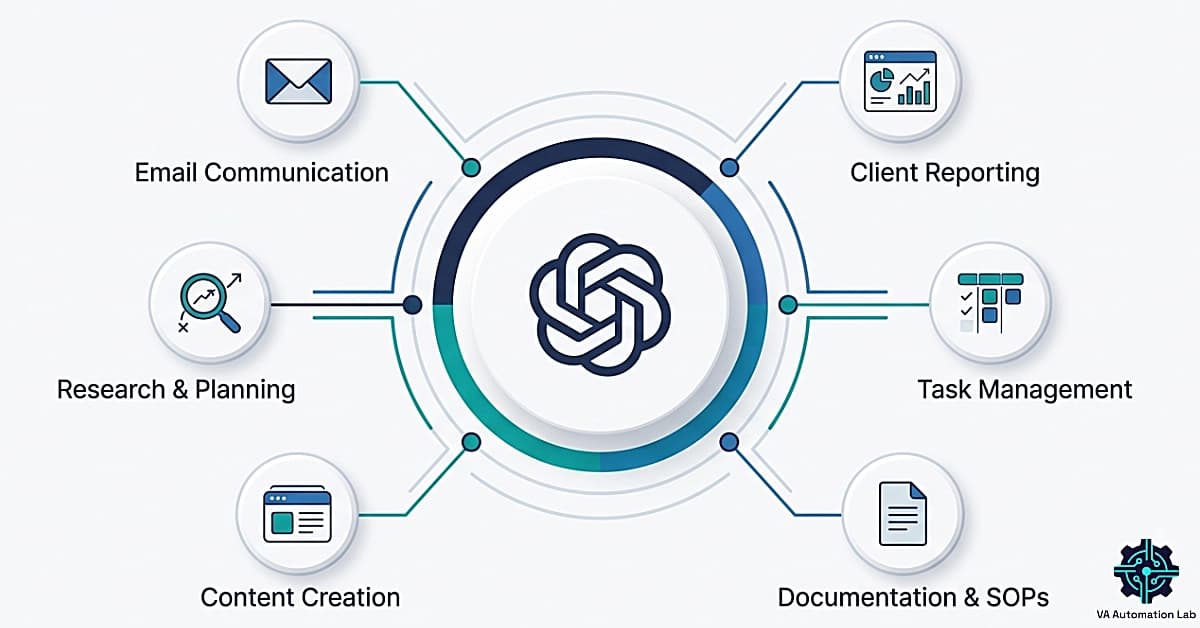
ChatGPT for Virtual Assistants: Complete Guide to Use Cases, Prompts & Workflows (2026)
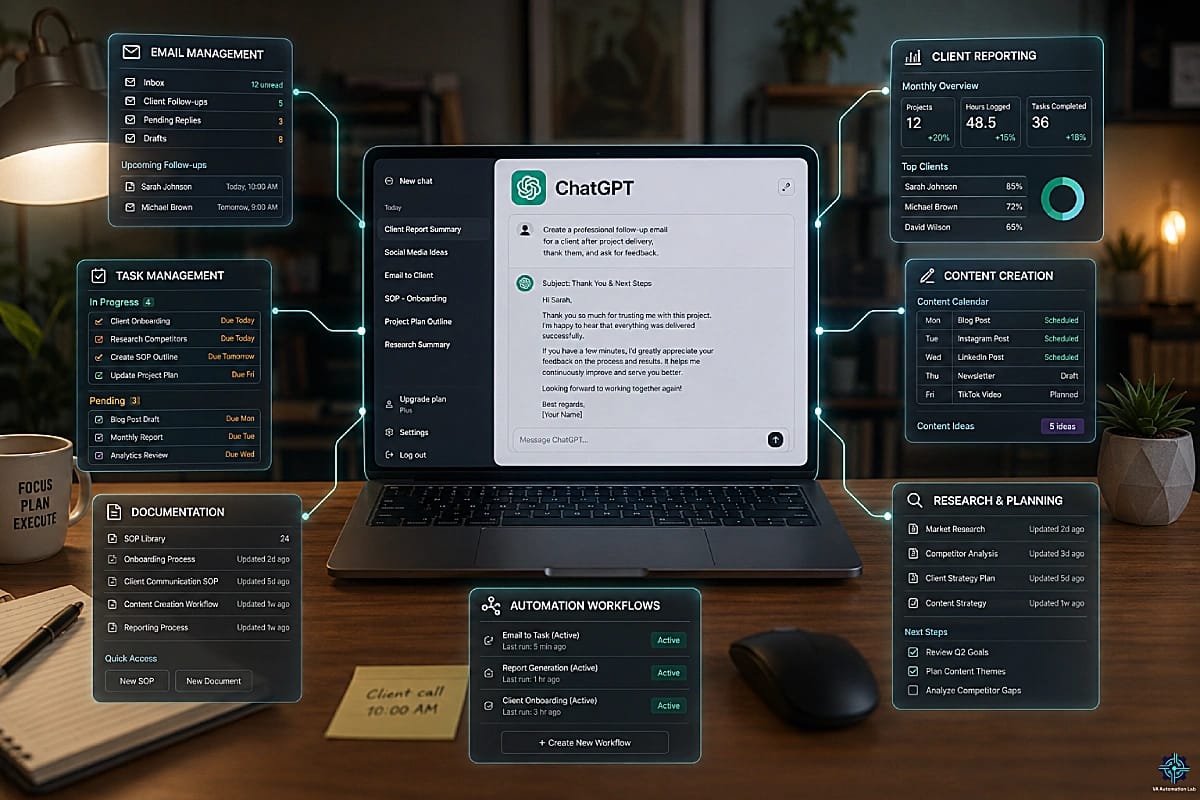
Disclosure: This article contains affiliate links. If you purchase through them, VA Automation Lab earns a commission at no additional cost to you. All tools are evaluated independently.
The complete guide to using ChatGPT as a virtual assistant: the ten highest-impact use cases organized by task category, 20+ ready-to-use prompt templates, the workflows that reduce admin time by 60-80%, the plans comparison for VA operations, and the implementation sequence that gets you from zero to a fully integrated ChatGPT workflow in five days.
ChatGPT for virtual assistants is the most widely adopted AI tool in 2026, not because it is the most technically sophisticated option available, but because it is the most immediately usable. A VA who opens ChatGPT for the first time can produce a professional client email draft in under two minutes, with no training, no configuration, and no technical background required. That accessibility is its primary advantage, and the reason it remains the default starting point for VAs who are learning how to use ChatGPT as a virtual assistant.
But accessibility and systematic operational use are different things. Most VAs who use ChatGPT regularly are using approximately 20-30% of its potential in their daily operations, drafting emails when prompted to, generating occasional social media content, asking ad-hoc questions when stuck. The remaining 70-80% of ChatGPT’s value in VA operations comes from structured, repeatable use: a prompt library organized by task category, consistent prompt architecture that produces reliable outputs, and workflows that connect AI-generated content to the tools and processes already in use.
This guide covers the full operational picture, not just what ChatGPT can do for virtual assistants, but how to build a systematic, repeatable use that compounds over time.
What this guide covers:
- The ten best ChatGPT use cases for virtual assistants, organized by task category and operational impact
- 20+ prompt templates you can copy and use immediately, structured for VA-specific tasks
- ChatGPT plans comparison for VA operations, which plan is worth it and when
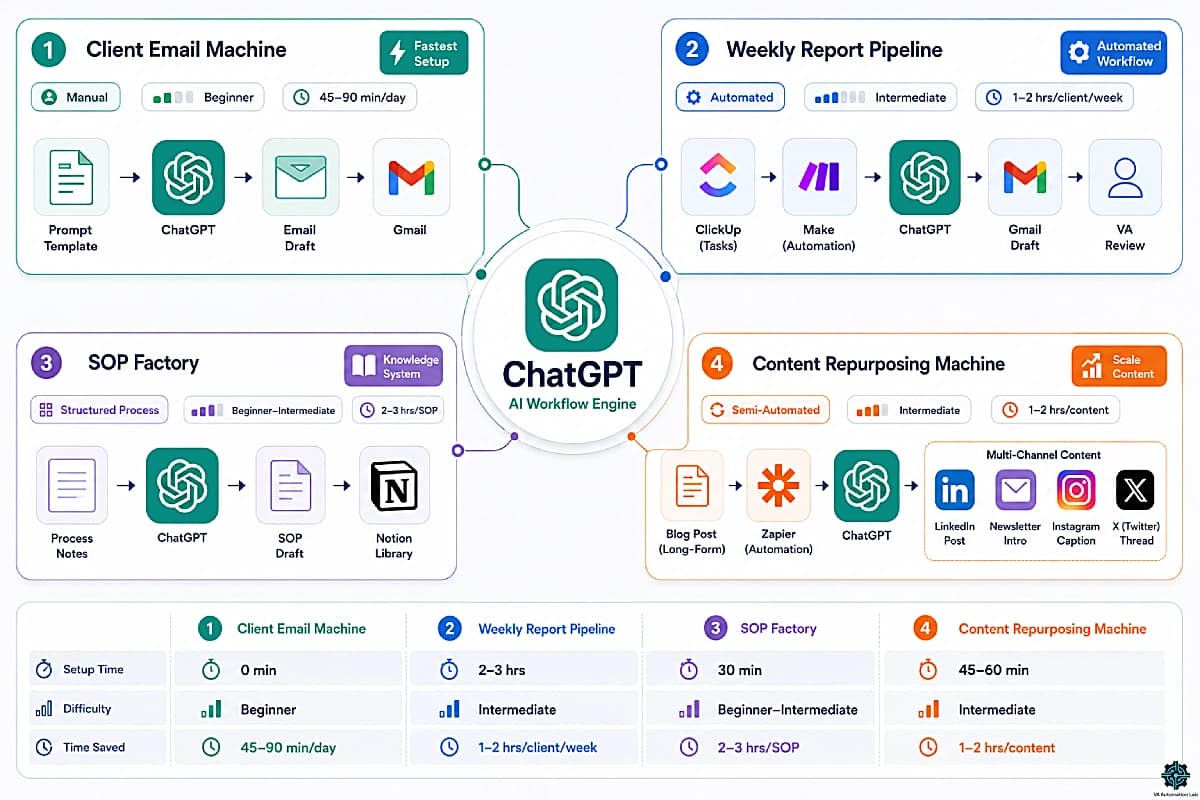
- Four ChatGPT virtual assistant workflows, from inbox management to client reporting
- Common prompting mistakes and how to fix them
- Implementation sequence, from first prompt to full ChatGPT integration in five days
- The best tools to use alongside ChatGPT for VA operations
👉 Tools for Virtual Assistants: The Complete AI Systems & Software Guide — for a complete overview of the best AI tools for Virtual Assistants.
Want to Start Using AI Tools the Right Way?
The complete ChatGPT prompt library from this guide — plus the Make weekly report pipeline blueprint, the ClickUp VA configuration template, and the systems checklist for a fully AI-integrated VA operation.
Free, in one download.
Table of Contents
1. What ChatGPT Is and What It Is Not
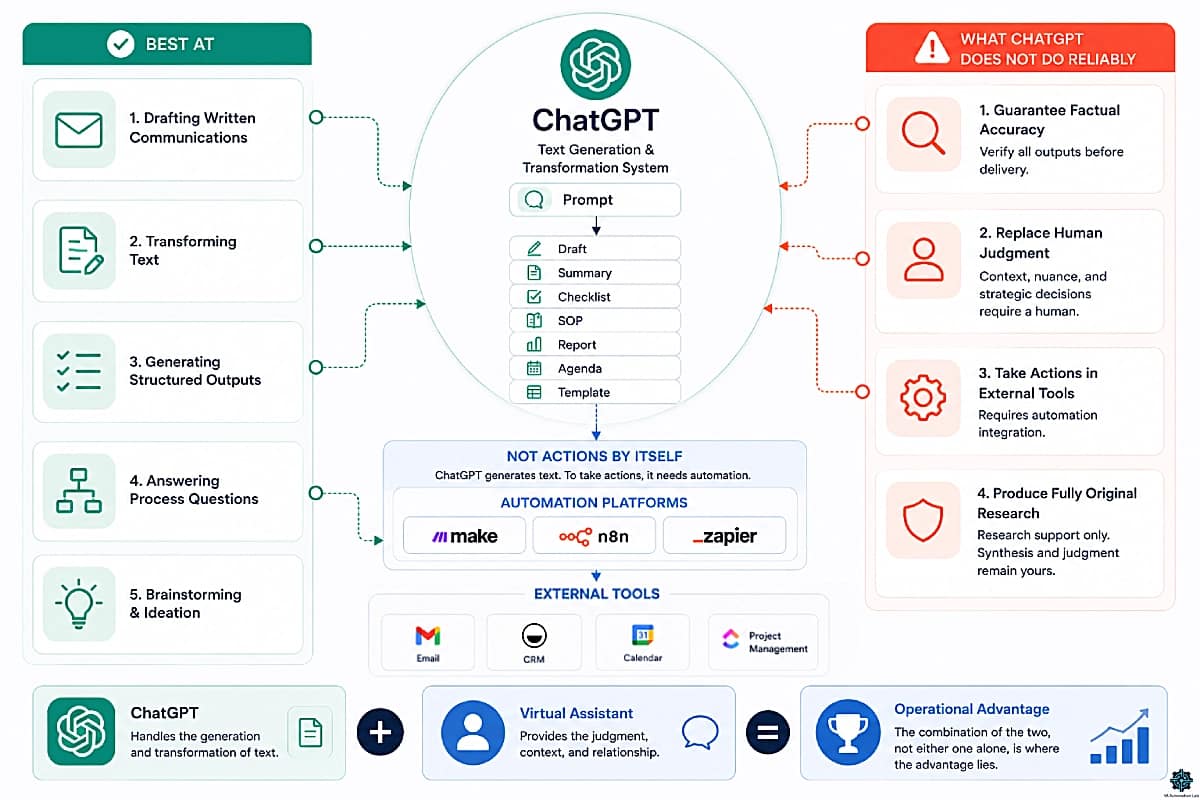
ChatGPT is OpenAI’s AI system for generating, transforming, and structuring text — email drafting, report writing, SOP creation, client communications, and research synthesis. In 2026, it is the most widely adopted AI tool in VA workflows because it produces professional-quality output from a plain-language prompt with no technical setup required.
Understanding how to use ChatGPT as a virtual assistant effectively starts with a precise definition of what it is, and where its boundaries are. Conflating the two is the primary reason VAs either underuse it (treating it as a novelty rather than an operational tool) or overuse it (relying on its outputs without judgment, producing errors that damage client trust).
ChatGPT is a large language model built by OpenAI. In practical terms for VA operations, it is a text generation and transformation system — it takes input text (your prompt) and produces output text (a draft, a summary, a plan, a structured list) based on patterns in its training data and the instructions in your prompt. As of 2026, ChatGPT includes web search on all plans, it searches automatically when the query benefits from current information, and Memory is active by default on all plans, storing context and preferences across sessions. What it does not do on its own is take actions in external systems: that requires integration with automation tools like Make, n8n or Zapier.
What ChatGPT does exceptionally well for virtual assistants:
- Drafting any form of written communication (emails, reports, updates, proposals) from a brief description or bullet points
- Transforming existing text (summarizing, rewriting, reformatting, translating, adjusting tone)
- Generating structured outputs (task lists, SOPs, checklists, agendas, templates, frameworks)
- Answering process questions (“What should a client onboarding email include?” “What are the steps to set up a ClickUp dashboard?”)
- Brainstorming and ideation (content ideas, service expansion, workflow improvements)
What ChatGPT does not do reliably:
- Guarantee factual accuracy on specific numbers, dates, or niche domain claims — verify all outputs before client delivery
- Replace human judgment on relationship context, client-specific nuance, or strategic decisions
- Take actions in external tools without automation integration
- Produce fully original research — web search accelerates research, but synthesis and judgment remain yours
For a VA, the operative principle is simple: ChatGPT handles the generation and transformation of text. You handle the judgment, the context, and the relationship. The combination of the two, not either one alone, is where the operational advantage lies.
2. Why ChatGPT Is the Default Starting Point for Virtual Assistants
Of the AI tools available in 2026, ChatGPT for virtual assistants is not the most powerful for every specific task (Claude handles complex structured reasoning with more precision; Notion AI integrates more tightly with the Notion workspace; ClickUp AI is more native to task management). But it is the most strategically correct starting point for a VA building their AI capability from zero, for three reasons.
Reason 1 — Zero configuration required. ChatGPT produces useful output on the first prompt, with no workspace setup, no template library, no integration required. A VA who wants to draft a client update email can do so in 90 seconds from account creation to finished draft. No other AI tool in the VA stack has this combination of immediacy and output quality.
Reason 2 — The broadest task surface. ChatGPT handles every text-based task in a VA’s operational range: email drafting, SOP creation, report writing, meeting summaries, research synthesis, content creation, task breakdown, client proposals, social media copy, and more. Building proficiency with a single tool that covers the full task surface is more efficient than building proficiency with five specialized tools simultaneously.
Reason 3 — The most transferable prompt skills. The prompting principles that make ChatGPT outputs reliable and high-quality transfer directly to every other AI tool in the VA stack: Claude, Notion AI, ClickUp AI, and any AI integration in Zapier or Make. A VA who learns to write clear, structured prompts in ChatGPT is already equipped to use every AI tool they will encounter in their career.
This does not mean ChatGPT is the only tool a VA needs, it means it is the one that should be mastered first, before adding specialized tools for specific functions.
👉 How to Start Using AI as a Virtual Assistant — the beginner guide to the complete AI tool stack for VAs.
3. ChatGPT Plans for Virtual Assistants — Which One Do You Actually Need?
The ChatGPT plan question is one of the most common practical questions among VAs adopting the tool. The short answer for most VAs: start with Free to test output quality and frequency of use, upgrade to Plus when you need Custom GPTs for recurring task types or want access to GPT-5.5 Thinking and expanded agent capabilities for complex workflows.
Plan | Price | Best For | Key VA Features | Limitation |
Free | $0/mo | First 1–2 weeks of exploration | GPT-5.5 Instant (limited), web search, data analysis, Memory, image creation, 500 MB Library | Limited messages and uploads; no Custom GPTs; no advanced reasoning; ads in some countries |
Go | $8/mo | Occasional-use or budget-conscious VAs | More GPT-5.5 messages than Free, reasoning models, Custom GPTs, Projects/Tasks, advanced data analysis | Lower usage caps than Plus; not optimal for daily professional use |
Plus | $20/mo | Solo VA — daily operational use | GPT-5.5 Instant + Thinking (reasoning), expanded deep research, agent mode, Custom GPTs, Projects/Tasks, more messages/uploads, early feature access | No team management |
Pro $100 | $100/mo | High-volume single users | All Plus features at 5× usage, GPT-5.5 Pro, maximum Codex | Overkill for most VA operations |
Pro $200 | $200/mo | Maximum-capacity users | All Plus at 20× usage, GPT-5.5 Pro, unlimited uploads, maximum deep research and agent mode | Overkill for solo VA operations |
Business | $20/user/mo | VA teams, agencies, data-sensitive clients | All Plus + 60+ connected apps, shared workspace, admin controls, SAML SSO, no training on business data | Minimum 2 users |
The right plan depends entirely on how you intend to integrate ChatGPT into your daily operations — occasional use justifies Free or Go, daily operational use justifies Plus immediately.
The active model lineup is:
- GPT-5.5 Instant — the default model for all users (Free and paid). Optimized for speed and everyday tasks. Handles email drafting, SOP creation, task management, and routine communications reliably and fast.
- GPT-5.5 Thinking — the reasoning model for complex tasks. Available on Plus and above. Best for multi-step research synthesis, complex proposals, and analytical tasks requiring deeper reasoning.
- GPT-5.5 Pro — the highest-capability model variant. Available on Pro, Business, and Enterprise plans.
- Codex — the agentic coding model, relevant for VAs who build automation workflows. Available across paid plans with varying usage limits.
The Plus plan at $20/month is the operational threshold for VAs using ChatGPT as a daily work tool.
The key features that justify the upgrade from Free to Plus in 2026:
Custom GPTs — pre-configured AI assistants built for specific recurring tasks. A “Client Email Drafting GPT” that already knows your tone guidelines, your client roster, and your communication standards produces better outputs than a generic prompt every time. Custom GPTs are the single most impactful Plus-only feature for VAs — Memory and web search are now available on Free, but Custom GPTs remain exclusive to Plus and above.
GPT-5.5 Thinking at volume — Free users have limited access to GPT-5.5 Thinking. Plus users receive significantly higher usage limits on the Thinking model, sufficient for daily complex task processing. For VAs who run reasoning-heavy workflows — research synthesis, complex proposals, multi-document analysis — this higher allotment is the practical justification for the Plus plan.
Deep Research — Available on Plus with expanded limits. For research-heavy VA workflows, Deep Research conducts multi-step, multi-source web research and synthesizes findings into a structured report — replacing 30–60 minutes of manual reading and reorganization per research task with a minutes-long AI-driven process. Outputs should be verified before client delivery.
Agent Mode — Available on Plus (expanded vs Free). ChatGPT’s agentic capabilities allow it to execute multi-step autonomous actions in connected tools. For VAs building advanced workflows, Agent Mode opens the door to ChatGPT completing sequences of tasks independently, beyond the standard prompt-response cycle.
Google Workspace integration — Gmail, Google Calendar, and Google Contacts integration is active for Plus users, enabling ChatGPT to reference these tools automatically in relevant conversations and eliminating the manual copy-paste step between Gmail and ChatGPT for email drafting and calendar-aware planning tasks.
Memory — now available on all plans including Free, so no longer a Plus differentiator. However, Plus users get improved Memory capabilities and higher storage limits.
The Free plan is appropriate for:
- Testing ChatGPT for the first time
- Occasional use (less than 5–10 prompts per day)
- VAs who already use another primary AI tool (Claude, Notion AI) and want ChatGPT for overflow tasks
The Go plan ($8/month) is appropriate for:
- VAs who want more capacity than Free but don’t require the full Plus feature set for daily professional use
- Budget-conscious VAs testing AI-augmented workflows before committing to Plus
- International VAs in markets where Go offers the most accessible entry point between Free and Plus
The Plus plan is appropriate for:
- VAs using ChatGPT as their primary daily AI tool
- Any VA who needs Custom GPTs for recurring task types
- VAs who run reasoning-heavy or research-heavy workflows requiring GPT-5.5 Thinking at volume
Connect ChatGPT to Your Entire VA Tool Stack
The real operational power of ChatGPT comes when it is connected to the rest of your workflow.
Make is the automation platform that links ChatGPT to Gmail, ClickUp, Notion, Slack, and every other tool in your VA stack — in visual, no-code scenarios that run automatically.
The weekly report pipeline in section 6 runs entirely on Make.
4. The Ten Best ChatGPT Use Cases for Virtual Assistants
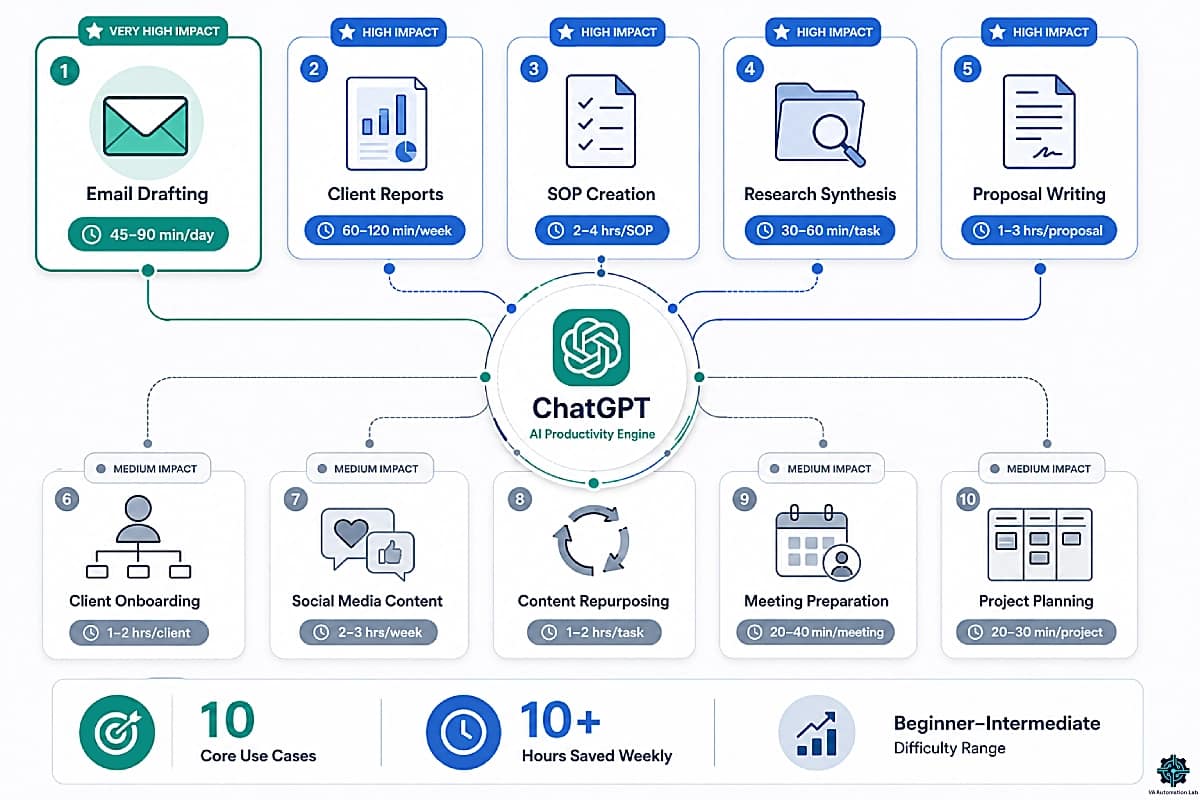
The best ChatGPT use cases for virtual assistants are organized below by task category and ranked by combination of time saved per week and quality uplift in the deliverable produced. Each use case maps to a specific task category in VA operations and connects to the prompt templates in section 5.
Use Case 1 — Email Drafting and Inbox Management
Time saved: 45-90 minutes/day
Difficulty: Beginner
Email is the highest-volume text task in most VA operations. ChatGPT eliminates blank-page drafting entirely, every email, follow-up, update, reminder, and proposal starts as an AI draft reviewed and refined by the VA, not written from scratch.
The operational shift is from write → review to generate → review → refine. The time saving is 60-75% per email for experienced ChatGPT users.
👉 AI Writing & Content Creation for Virtual Assistants: The Complete Guide — for a complete system covering purpose-built AI writing tools, workflows, and brand voice management.
Use Case 2 — Client Reports and Weekly Updates
Time saved: 60-120 minutes/week
Difficulty: Beginner
Weekly updates and monthly reports are high-value deliverables for client retention but high-effort to produce manually. ChatGPT transforms completed task lists, metrics data, and project notes into professionally formatted, narrative reports in minutes.
Combined with Make automation (see section 6), this becomes a fully automated pipeline where ChatGPT writes the report and automation delivers it.
👉 How to Automate Reporting for Virtual Assistants — for the complete implementation of this pipeline, Google Sheets data hub, Zapier or Make workflow, Looker Studio dashboard, and AI narrative prompt.
Use Case 3 — SOP and Documentation Creation
Time saved: 2-4 hours per SOP
Difficulty: Beginner-Intermediate
Standard Operating Procedures are the operational documentation layer that makes VA services scalable and consistent. They are also the most time-consuming document type to create manually. ChatGPT generates complete, structured SOPs from a brief description of the process in minutes, the VA reviews, refines, and approves.
Use Case 4 — Research Synthesis and Briefings
Time saved: 30-60 minutes per research task
Difficulty: Beginner
VAs regularly conduct research for clients: competitor analysis, industry trends, tool comparisons, supplier research, content research. ChatGPT synthesizes multiple sources into structured briefings, comparison tables, and executive summaries, eliminating the manual reading and reorganization that makes research tasks time-consuming. On Plus, the Deep Research feature handles multi-step research tasks with source synthesis automatically.
Use Case 5 — Proposal and Scope of Work Writing
Time saved: 1-3 hours per proposal
Difficulty: Intermediate
Client proposals and Scopes of Work are high-stakes documents where quality directly affects close rate. ChatGPT generates professional proposal structures, service descriptions, pricing rationale paragraphs, and terms sections from bullet-point inputs, reducing a 2-3 hour writing task to a 20-30 minute review and refinement.
Use Case 6 — Onboarding Documentation and Templates
Time saved: 1-2 hours per new client
Difficulty: Beginner-Intermediate
Every new client requires the same set of onboarding documents: welcome email, services overview, access request form, onboarding questionnaire, first-week schedule. ChatGPT generates all of these from the client brief, replacing the manual assembly of documents from scratch each time.
👉 How to Automate Client Onboarding for Virtual Assistants — the complete onboarding automation system, from document generation to delivery workflow.
Use Case 7 — Social Media Content Creation
Time saved: 2-3 hours/week
Difficulty: Beginner
Social media content creation is one of the most common service offerings for VAs and one of the most repetitive. ChatGPT generates captions, post copy, content calendars, hashtag sets, and engagement responses at scale, consistently, in the client’s brand voice when prompted correctly.
👉 How to Automate Social Media as a Virtual Assistant — for the complete integrated system, with ChatGPT connected to a Notion content calendar, a client approval system, and a Buffer scheduling pipeline via Make, with prompt library and automation scenarios.
Use Case 8 — Content Repurposing
Time saved: 1-2 hours per repurposing task
Difficulty: Beginner
Turning a blog post into LinkedIn content, a podcast transcript into a newsletter, a webinar into a series of social posts, content repurposing is high-value work for content-focused clients and highly automatable with ChatGPT. The input is existing content; the output is reformatted, tone-adjusted variants ready for each platform.
Use Case 9 — Meeting Preparation and Follow-Up
Time saved: 20-40 minutes per meeting
Difficulty: Beginner
Pre-meeting agendas, briefing documents, question lists, and post-meeting summary emails with action items, all tasks that follow a consistent structure and can be generated by ChatGPT with minimal input from the VA.
Use Case 10 — Task Breakdown and Project Planning
Time saved: 20-30 minutes per project
Difficulty: Beginner
Complex client deliverables contain dozens of implicit subtasks. ChatGPT converts a project brief or high-level objective into a structured task list with subtasks, estimated time, dependencies, and suggested sequencing, ready to import into ClickUp or Notion.
Use Case | Weekly Time Saved | Difficulty | Impact |
Email Drafting | 45-90 min/day | Beginner | Very High |
Client Reports | 60-120 min/week | Beginner | High |
SOP Creation | 2-4 hrs/SOP | Beginner-Int | High |
Research Synthesis | 30-60 min/task | Beginner | High |
Proposals + SOW | 1-3 hrs/proposal | Intermediate | High |
Onboarding Docs | 1-2 hrs/client | Beginner-Int | High |
Social Media Content | 2-3 hrs/week | Beginner | Medium-High |
Content Repurposing | 1-2 hrs/task | Beginner | Medium |
Meeting Prep + Follow-Up | 20-40 min/meeting | Beginner | Medium |
Task Breakdown | 20-30 min/project | Beginner | Medium |
These ten use cases represent the complete operational surface of ChatGPT for virtual assistants, from the tasks that produce the fastest time saving to those that elevate deliverable quality at scale.
5. ChatGPT Prompts for Virtual Assistants — Complete Prompt Library
The ChatGPT prompts for virtual assistants below are organized by task category and structured for reliable, high-quality outputs in VA-specific contexts. Each template uses bracketed placeholders ([LIKE THIS]) for the variable inputs you fill in before submitting.
The four-component prompt structure used throughout this library:
Every effective ChatGPT prompt for virtual assistants contains four components:
Role — who ChatGPT should act as (“Act as an experienced virtual assistant supporting a [INDUSTRY] client…”)
Task — what to produce, with specifics (“Draft a weekly update email that covers…”)
Context — the relevant background information ChatGPT needs (“Client name: [NAME]. Service type: [SERVICE]. Tone preference: [TONE]…”)
Format — the structure of the output (“Output as: subject line + 3 paragraphs — action item list. Under 200 words.”)
Prompts that include all four components produce outputs that require minimal editing. Prompts that skip context or format produce generic outputs that require significant rewriting, defeating the purpose.
ChatGPT for Email Management
Email management is the highest-frequency use case in ChatGPT for virtual assistants and the one that produces the fastest visible time saving. The prompt templates below cover the four highest-volume email task types in VA operations.
Prompt Library — Email Management
Client Update Email:
Act as a professional virtual assistant drafting a weekly update email for a client.

Client: [NAME]
Service type: [WHAT YOU DO FOR THEM]
Tone: [formal / semi-formal / warm-professional]
Period covered: [DATE RANGE]

This week's completed work: [PASTE COMPLETED TASKS — bullet points fine]

In progress: [PASTE ACTIVE TASKS]

Action needed from client (if any): [LIST OR "None this week"]

Requirements:
- Subject line: "Weekly Update — [Client Name] — Week of [dates]"
- Opening: 1 sentence summarizing the week
- Body: organized as Completed / In Progress / Next Week / Action Required
- Closing: forward-looking, professional
- Under 250 words total
- No filler phrases ("I hope this email finds you well", "Please don't hesitate to reach out")
Follow-Up Email (No Response):
Act as a professional virtual assistant. Draft a polite follow-up email for a message that has not received a response.

Original message context: [DESCRIBE WHAT THE ORIGINAL EMAIL ASKED OR REQUESTED]
Days since original send: [NUMBER]
Relationship with recipient: [CLIENT / VENDOR / COLLABORATOR]
Urgency: [HIGH / MEDIUM / LOW]
Tone: [MATCH TO RELATIONSHIP]

Requirements:
- Subject: "Following up — [original subject]"
- Reference the original email briefly (1 sentence, no accusatory tone)
- Restate the specific request or question clearly
- Clear call to action in final sentence
- Under 100 words
- Professional but warm — not passive-aggressive
Email Thread Summary:
Summarize this email thread and extract all actionable items.

Output structure:
SUMMARY: What this thread is about (2-3 sentences, past-tense)

DECISIONS MADE: [numbered list or "None"]

ACTION ITEMS: [person responsible] — [action] — [deadline if mentioned or "no deadline stated"]

WAITING ON: [who needs to respond or take action before this can progress — or "Nothing pending"]

NEXT STEP: [1 recommended next action for the VA to take]

Email thread: [PASTE FULL THREAD]
Professional Email Rewrite (Tone Adjustment):
Rewrite this email to make it more [TONE: formal / concise / warm / assertive / diplomatic].

Keep all factual content identical.
Do not add or remove any information.
Do not change the meaning of any sentence.
Adjust only tone, word choice, and structure.

Current email: [PASTE EMAIL]

After rewriting, add a one-line note explaining the main change made.
👉 AI Email Management for Virtual Assistants — the complete guide to AI inbox management, tool stack, and email automation workflows.
ChatGPT for Client Communication
Beyond inbox management, client communication covers a broader range of documents and touchpoints, proposals, onboarding documents, service agreements, check-in messages, and difficult conversations. ChatGPT is particularly valuable in this category because the output quality directly affects client perception of professionalism and reliability.
Prompt Library — Client Communication
New Client Welcome Email:
Act as a professional virtual assistant writing a welcome email for a new client at the start of an engagement.

Client name: [NAME]
Service type: [WHAT YOU WILL DO FOR THEM]
Start date: [DATE]
Primary communication channel: [EMAIL / SLACK / OTHER]
Reporting schedule: [WEEKLY / BIWEEKLY / MONTHLY]
Tone: [warm-professional / formal]

Include:
1. Warm opening that acknowledges the start of the engagement (not generic)
2. Brief summary of the services agreed
3. How you will communicate (frequency + channel)
4. What you need from them in the first week (access, information, or approvals)
5. Clear next step with a specific action and date

Under 300 words. No filler. Subject line included.
Service Proposal:
Act as a professional virtual assistant writing a service proposal for a potential client.

Client industry: [INDUSTRY]
Client primary need: [DESCRIBE IN 2-3 SENTENCES]
Services to propose: [LIST YOUR SERVICES]
Pricing structure: [HOURLY / RETAINER / PROJECT-BASED — include range if appropriate]
Unique positioning: [WHAT MAKES YOU DIFFERENT — e.g., AI-powered workflows, industry-specific experience]

Proposal structure:
1. Opening — acknowledge their specific need
2. Your approach — how you address their need
3. Services overview — bullet list with 1-line description per service
4. Investment — pricing structure (not specific numbers — frame as ranges)
5. Why me — 2-3 sentences on positioning
6. Next step — specific call to action

Professional tone, confident, client-focused. Under 400 words. No jargon.
Difficult Message — Delay or Issue:
Act as a professional virtual assistant. Draft a message communicating a problem or delay to a client.

Situation: [DESCRIBE WHAT HAPPENED]
Impact on deliverable: [WHAT IS DELAYED OR AFFECTED AND BY HOW MUCH]
Cause (if appropriate to share): [BRIEF — or leave blank if not appropriate]
Resolution plan: [WHAT YOU WILL DO TO FIX OR MITIGATE]
Tone target: [accountable and solution-focused — not defensive, not over-apologetic]

Requirements:
- Acknowledge the issue directly in the first sentence (no preamble)
- State the impact clearly
- Present the resolution plan as the primary focus
- End with a specific next action and date
- Under 150 words
- Professional email format with subject line
Client Boundary / Scope Change:
Act as a professional virtual assistant. Draft a professional message to a client who is requesting work outside the agreed scope of services.

Original scope: [DESCRIBE WHAT WAS AGREED]
What they are now requesting: [DESCRIBE THE OUT-OF-SCOPE REQUEST]
My position: [e.g., happy to add this as a paid addition / not able to accommodate / need to discuss timing]

Tone requirements:
- Professional and friendly — not defensive
- Acknowledge the request positively
- Clearly distinguish the request from the current scope
- Propose a clear path forward (additional fee, new proposal, or timeline)
- Preserve the relationship

Under 200 words. Email format. Subject line included.
👉 Best AI Writing Tools for Virtual Assistants — for a complete breakdown of the top tools, a clear framework to choose the right one for each task, and ready-to-use workflows and prompts to streamline your writing process.
ChatGPT for Task Management and Planning
The task management applications of ChatGPT for virtual assistants are some of the most underused in daily practice. Most VAs use task management tools (ClickUp, Notion, Asana) for the storage and tracking layer, but use manual judgment for the planning and breakdown layer, which is exactly where ChatGPT produces the most consistent time savings.
Prompt Library — Task Management and Planning
Weekly Task Prioritization:
Act as a productivity consultant for a virtual assistant managing multiple clients.

Create a prioritized weekly plan from this task list. Apply this logic:

Priority rules:
1. Client deadline within 2 days → URGENT
2. Client explicitly requested urgency → HIGH
3. Deliverable blocking client's next step → HIGH
4. Recurring task overdue → HIGH
5. Everything else → by deadline proximity

Output format:
URGENT (do today): [CLIENT] — [TASK] — [TIME ESTIMATE] — [REASON]

HIGH PRIORITY (do this week — first): [CLIENT] — [TASK] — [DEADLINE]

STANDARD (do this week): [CLIENT] — [TASK] — [DEADLINE]

DEFER (can move to next week if needed): [TASK] — [REASON]

Flag if total urgent + high priority time exceeds 6 hours.

My task list: [PASTE ALL TASKS WITH CLIENT LABELS AND DEADLINES]
Available hours this week: [NUMBER]
Project Breakdown:
Act as a project manager for a virtual assistant. Break down this project into a complete, actionable task list.

Project: [DESCRIBE THE DELIVERABLE OR OBJECTIVE IN 2-3 SENTENCES]
Deadline: [DATE]
Client: [NAME AND INDUSTRY]
My role: [WHAT SPECIFICALLY I AM RESPONSIBLE FOR]
Tools available: [e.g., ClickUp, Google Docs, Canva, Gmail]

For each task include:
- Task name (start with action verb)
- Subtasks if task > 60 minutes
- Dependencies (what must happen first)
- Estimated time
- Tool to use

Sort by recommended execution sequence. Flag any tasks requiring client input before I can proceed.
Daily Briefing (morning routine):
Act as an executive assistant preparing my morning briefing. Based on the information below, give me a structured start-of-day overview.

Include:
1. TOP 3 PRIORITIES TODAY (max 3 — must do before end of day)
2. MEETINGS OR CALLS (time + prep note per meeting)
3. WAITING ON (items blocked by someone else — 1 line each)
4. QUICK WINS (tasks under 15 minutes I can do between larger tasks)
5. ONE RISK TO WATCH (anything that could create a problem if not addressed today)

My tasks for today: [PASTE]
My calendar: [PASTE OR DESCRIBE]
Yesterday's unfinished items: [LIST OR "None"]
ChatGPT for Research and Documentation
Research and documentation are the two categories where ChatGPT for virtual assistants has the most direct impact on perceived expertise. A well-structured research briefing or a clearly written SOP signals a level of professional capability that clients notice, and ChatGPT makes both achievable at scale.
Prompt Library — Research and Documentation
Competitor Research Briefing:
Act as a research analyst for a virtual assistant preparing a competitive briefing for a client.

Client's business: [DESCRIBE IN 2 SENTENCES]
Competitor to analyze: [NAME]
Research focus: [e.g., pricing, positioning, content strategy, service offerings, reviews]

Briefing structure:
1. OVERVIEW (3-4 sentences — who they are)
2. CORE OFFERINGS (bullet list)
3. PRICING (what is publicly visible)
4. POSITIONING (how they present themselves — what audience they target)
5. STRENGTHS (2-3 from client's perspective)
6. WEAKNESSES / GAPS (2-3 — where they fall short)
7. KEY TAKEAWAY FOR CLIENT (1 recommendation based on the above)

Tone: objective, analytical, client-ready.
Use only publicly available information.
Search the web for current information on [COMPETITOR] before generating this briefing.
Standard Operating Procedure (SOP):
Act as an operations consultant for a virtual assistant. Generate a complete Standard Operating Procedure for the process described below.

SOP structure:
TITLE: [Process Name]
PURPOSE: Why this process exists (1 sentence)
FREQUENCY: When this runs
TRIGGER: What starts this process
TOOLS: [List each tool + specific location]
TIME ESTIMATE: [Total minutes]

STEPS:
[Number each step]
[Start each with an action verb]
[Include tool + specific location + expected output]
[Note any decision points with IF/THEN logic]

QUALITY CHECK: What to verify before marking complete

CLIENT-SPECIFIC NOTES: [Anything unique to this client's version]

Process to document: [DESCRIBE THE PROCESS — rough notes are fine]
Client context: [SERVICE TYPE + KEY PREFERENCES]
Meeting Notes to Action Items:
Convert these meeting notes into a structured post-meeting summary.

Output structure:
MEETING: [date + attendees]
SUMMARY: What was decided and agreed (3-4 sentences, past tense)

DECISIONS MADE:
[Numbered list — each decision clearly stated in 1 sentence]

ACTION ITEMS:
[Owner] — [Specific action] — [Deadline — specific date if mentioned]

OPEN QUESTIONS:
[Items that were raised but not resolved, with who is responsible for resolution]

NEXT MEETING:
[Date if set, agenda items if discussed]

Meeting notes: [PASTE RAW NOTES]
Build Your VA Prompt Library in Notion
The most effective prompt libraries live in Notion — organized by task category, tagged by client, and accessible in seconds from any device.
Notion also stores your client SOPs, meeting notes, and AI-generated documents in one searchable workspace.
New users get 3 months free with all AI features.
6. Four ChatGPT Virtual Assistant Workflows
These four workflows represent the highest- impact integrations of ChatGPT into VA operations, the ones that produce the largest time savings relative to build complexity. Each ChatGPT virtual assistant workflow below connects AI generation to the tools already in use, through either direct copy-paste or automation via Zapier and Make.
👉 Automation for Virtual Assistants: The Complete Guide — for the complete automation framework beyond ChatGPT.
Workflow 1 — The Client Email Machine (Manual + ChatGPT)
Type: Manual integration
Setup time: 0 (uses ChatGPT directly)
Daily time saved: 45-90 minutes
This is the fastest ChatGPT virtual assistant workflow to implement because it requires no tools, no automation, and no configuration, just a saved prompt template opened at the start of every email drafting session.
The process:
- Open ChatGPT (browser or app)
- Open your saved “Client Email Draft” prompt template (saved in a Notion page or ClickUp document)
- Fill in the bracketed placeholders (client name, task list, tone, format)
- Submit, review the draft output
- Refine if needed (typically 1-2 sentence adjustments)
- Copy to Gmail, send
The behavioral shift: The VA never opens Gmail to start writing an email from scratch. Every email begins in ChatGPT. This single habit change produces the 45-90 minute daily time saving without any additional setup.
Workflow 2 — The Weekly Report Pipeline (ChatGPT + Make)
Type: Automated integration
Setup time: 2-3 hours (Make scenario)
Weekly time saved: 1-2 hours per client
MAKE SCENARIO:

TRIGGER: Make Scheduler — Friday 3:00 PM

MODULE 1: ClickUp — Get completed tasks
Filter: Status = Done
        Completed this week
        List = [Client list]

MODULE 2: Iterator — Process each task
Extract: task name + completion date

MODULE 3: Aggregator — Build task list string

MODULE 4: HTTP — ChatGPT API
System prompt: "You are a professional virtual assistant writing client reports. Always use professional, concise language. Never use filler phrases."

User message: "Generate a weekly client report email for [CLIENT NAME].
Completed tasks this week: [AGGREGATED TASK LIST]
Client primary goal: [FROM PROMPT CONFIG]
Tone: [CLIENT TONE PREFERENCE] [USE WEEKLY REPORT TEMPLATE FROM SECTION 5]"

MODULE 5: Gmail — Create draft
To: [client email]
Subject: [from ChatGPT output]
Body: [from ChatGPT output]
Status: DRAFT (not auto-send — VA reviews before sending)

MODULE 6: Slack — Notify VA "📊 Weekly report draft ready for [CLIENT NAME] — review in Gmail"
Note: the report is created as a Gmail draft, not sent automatically. The VA reviews and sends, maintaining quality control without the writing effort.
👉 How to Automate Reporting for Virtual Assistants — for a version of this pipeline that runs end-to-end automatically, including scheduled delivery and a live client dashboard.
👉 Make.com for Virtual Assistants: The Beginner Setup Guide — covers the HTTP module configuration and API connection steps needed to embed ChatGPT as a native scenario step.
Workflow 3 — The SOP Factory (ChatGPT + Notion)
Type: Manual integration with structured process
Setup time: 30 minutes (Notion template setup)
Time saved per SOP: 2-3 hours
The SOP Factory is a repeatable process for generating client-specific Standard Operating Procedures at scale, using ChatGPT for generation and Notion for storage and retrieval.
Setup (one-time, 30 minutes):
- Create a Notion database called “SOP Library”
- Properties: Client, Process Name, Frequency, Last Updated, Status
- Create a template page with the SOP structure from the prompt in section 5
- Save the SOP Generator prompt as a Notion page in “Prompt Library”
The process (per SOP, 15-20 minutes):
- Open the SOP Generator prompt in Notion
- Fill in the process description and client context
- Submit to ChatGPT
- Review output, adjust any client-specific details
- Create new SOP page in Notion from template
- Paste ChatGPT output
- Tag with Client + Process Name + Frequency
Result: a searchable, updatable SOP library for every client, built from AI-generated first drafts, maintained in Notion.
Workflow 4 — The Content Repurposing Machine (ChatGPT + Zapier)
Type: Semi-automated
Setup time: 45-60 minutes (Zapier)
Time saved: 1-2 hours per content piece
For VAs managing social media or content for clients, the content repurposing workflow turns a single long-form input (blog post, newsletter, podcast transcript) into a full set of platform-specific content assets automatically.
ZAP STRUCTURE:

TRIGGER: Google Drive — New file in folder: "Content to Repurpose — [Client Name]"

ACTION 1: Google Drive — Get file content (extracts text from Google Doc)

ACTION 2: ChatGPT via Zapier AI Action
Prompt: "You are a content strategist for [CLIENT NAME], a [INDUSTRY] brand.
Your tone is [BRAND VOICE].

Repurpose the content below into:
1. LinkedIn post (150-200 words, professional tone, 1 CTA at end)
2. Twitter/X thread (5-7 tweets, conversational, each under 280 chars)
3. Instagram caption (80-120 words, engaging, 5 relevant hashtags at end)
4. Newsletter intro paragraph (100-150 words, warm and direct)

Original content: [Google Doc text]"

ACTION 3: Google Docs — Create new document
Name: "Repurposed — [original filename] — [date]"
Content: [ChatGPT output]
Location: Client content folder

ACTION 4: Slack — Notify
"Content repurposed for [CLIENT NAME] — review doc in Drive: [link]"
👉 Zapier vs Make for Virtual Assistants: The Complete Comparison Guide — for help choosing the right automation platform for your specific VA workflow requirements.
Manage Your VA Tasks and Client Projects in ClickUp
The Make → ChatGPT reporting pipeline in Workflow 2 pulls task data directly from ClickUp.
ClickUp is the task management platform built for multi-client, recurring-workflow VA operations — and the tool whose task data feeds ChatGPT’s most valuable reporting automations most effectively.
7. How to Set Up ChatGPT for Your VA Business
Setting up ChatGPT for consistent, professional use in VA operations requires more than creating an account. The five steps below build the configuration layer that makes ChatGPT a reliable daily tool rather than an occasional one.
Step 1 — Create Your Account and Choose Your Plan
Create your ChatGPT account at chat.openai.com. Start with the Free plan for the first week to test output quality and frequency of use. The Free plan now includes web search and Memory, so you can test ChatGPT’s full research and context- retention capabilities without upgrading.
If you find yourself needing Custom GPTs for recurring tasks, or hitting usage limits on GPT-5.5 Thinking for complex reasoning tasks, upgrade to Plus ($20/month). For most VAs, the Custom GPT capability alone justifies the upgrade within the first two weeks of use.
Step 2 — Configure Memory with Your VA Profile
Memory is active by default on all plans as of 2026, ChatGPT automatically builds a memory from your conversations over time. However, for VA operations, the most effective approach is to set Memory explicitly rather than letting it accumulate passively. Open a new chat and submit this configuration prompt:
Please remember the following about me and use it in all future conversations:I am a virtual assistant.My name is [NAME].My primary services: [LIST YOUR SERVICES]My typical clients: [INDUSTRY / PROFILE]My tone of voice: [e.g., warm-professional, direct, formal]My primary tools: [ClickUp / Notion / Gmail / Slack / Zapier / Make]My working hours: [TIMEZONE + HOURS]When drafting emails or client communication, always match my tone of voice above.When generating task lists, always format for ClickUp import (checkbox markdown).When generating SOPs, always use the structure: Purpose / Frequency / Trigger / Tools / Steps / Quality Check.
After submitting, verify ChatGPT confirms it has saved the information. You can review and edit what ChatGPT has stored about you at any time via Settings → Personalization → Manage Memories.
Step 3 — Build Your Prompt Library
Create a dedicated Prompt Library document in Notion or Google Docs with one section per task category. Copy the prompts from sections 5 of this guide as your starting set.
Structure:
– Email Management (4 prompts)
– Client Communication (4 prompts)
– Task Management (3 prompts)
– Research and Documentation (3 prompts)
– Social Media (add from use case section)
Label each prompt with the task type and estimated time saving. Update the library as you refine prompts with specific client preferences.
Step 4 — Build Your First Custom GPT
In ChatGPT Plus, go to Explore GPTs → Create. Build one Custom GPT for your highest-frequency task. Recommended for most VAs: a “Client Email Assistant” Custom GPT with these instructions:
You are a professional virtual assistant specializing in client email management.Always apply these defaults:- Tone: [VA's tone preference]- Length: concise — under 200 words unless a report format is specified- Opening: never use "I hope this finds you well" or similar filler- Closing: always end with one specific next action or request- Format: subject line always included Client roster (update as needed):- [CLIENT A]: [service type, tone preference]- [CLIENT B]: [service type, tone preference]- [CLIENT C]: [service type, tone preference]When asked to draft an email for a specific client, automatically apply that client's tone and context without being asked.
Step 5 — Integrate with Your Daily Workflow
ChatGPT is most effective when it is integrated into the daily operational flow rather than used reactively. Establish these three integration points:
Morning (5 minutes): submit the Daily Briefing prompt from section 5 with your task list and calendar. Use the output as your operating plan for the day.
During email time (per email): open the Client Email Draft prompt, fill in the context, generate, review, refine, send. Never draft from scratch again.
End of week (Friday): submit the Weekly Report prompt for each client. Review the drafts, send. The reporting cycle becomes a 20-30 minute task instead of a 2-3 hour one.
8. ChatGPT vs Other AI Tools for Virtual Assistants
ChatGPT is not the only AI tool in a VA’s stack, it is the general-purpose layer. Each specialized tool has a specific context where it outperforms ChatGPT, and understanding this matrix prevents both under-utilization (using only ChatGPT for everything) and over-complication (using five tools for tasks ChatGPT handles better).
Tool | Primary Strength | Best VA Use Case | When to Choose Over ChatGPT |
ChatGPT | Versatile generation + transformation | Email, reports, SOPs, proposals, content | Default for all general text tasks |
Claude | Long-form quality + instruction precision + 200K context | Multi-section documents, proposals, nuanced client communication | When output length exceeds 500 words or tone precision is critical |
Gemini | Google Workspace native intelligence | Gmail composition, Google Docs drafting, Calendar-aware planning | When the VA’s entire workflow runs in Google Workspace — eliminates the copy-paste step entirely |
Notion AI | Native integration with Notion workspace | In-Notion docs, meeting notes, database queries | When working inside Notion — eliminates copy-paste |
ClickUp AI | Native task management integration | Task summaries, action items from briefs, project descriptions | When working inside ClickUp — auto-creates tasks |
Perplexity | Research with cited sources | Current data, competitor research requiring verifiable citations | When research must be explicitly cited and source-attributed |
The recommended stack configuration for most VAs:
ChatGPT Plus as the primary daily driver — email, communication, reports, planning, and all general text tasks. GPT-5.5 Instant handles the fast-turnaround layer; GPT-5.5 Thinking handles complex reasoning and synthesis tasks.
Claude as the secondary tool for writing-heavy, documentation-heavy work requiring high tonal precision or document-length consistency: complex multi-section SOPs, long-form client proposals, sensitive client communications.
Notion AI active if the VA’s primary workspace is Notion — saves the copy-paste step for in-workspace tasks.
ClickUp AI active if the VA uses ClickUp as the primary task management hub — generates task descriptions and summaries natively.
Perplexity for research tasks that require explicit source citation, where the VA must show the client where the data came from, not just what it says.
Deep dives:
👉 Claude AI for Virtual Assistants: Complete Guide to Use Cases, Prompts & Workflows
👉 Notion AI for Virtual Assistants: Complete Guide
👉 ClickUp for Virtual Assistants: Setup Guide, Templates & Workflows
9. The Best Tools to Use Alongside ChatGPT as a Virtual Assistant
ChatGPT handles the text generation and transformation layer of VA operations. The tools below handle the delivery, organization, automation, tracking, and closure layers — the surrounding infrastructure that turns AI-generated content into billable, client-ready work. Each tool fills a specific gap that ChatGPT alone cannot cover.
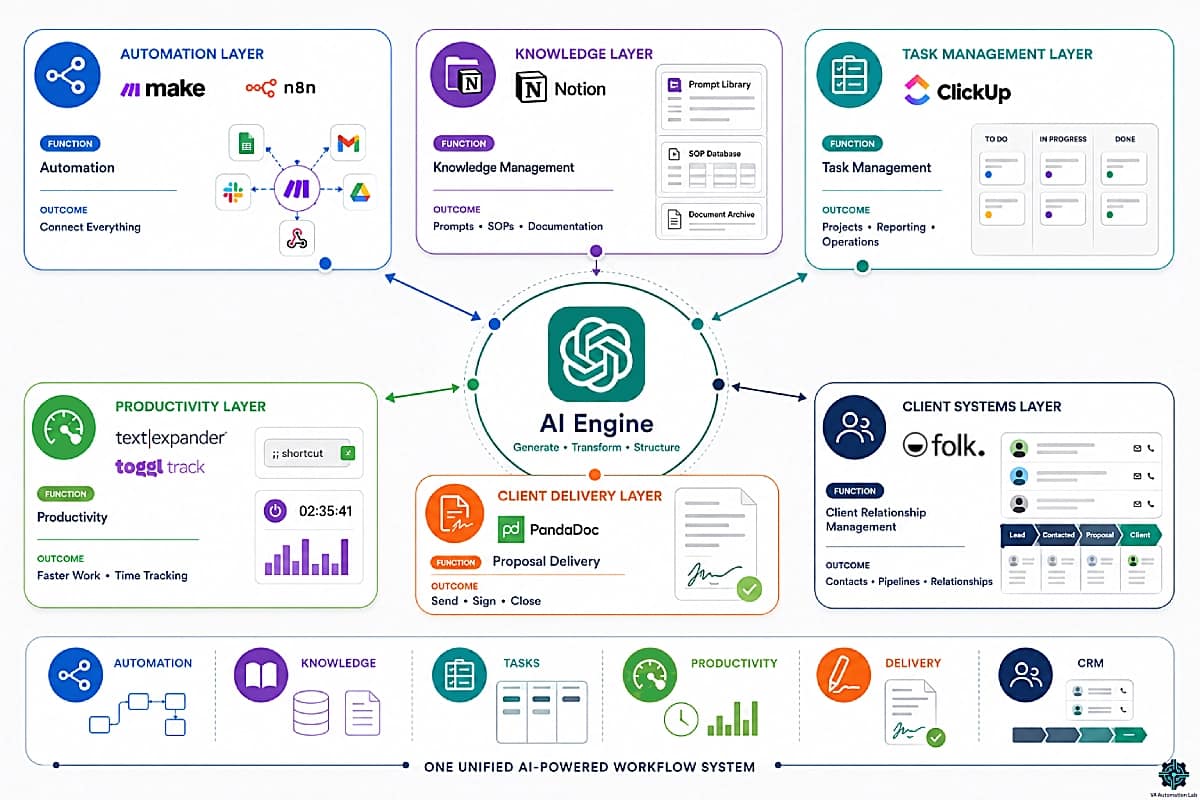
Make — Automation and Workflow Integration
Make is the automation platform that connects ChatGPT to your entire VA tool stack without code. The weekly report pipeline in section 6, the content repurposing workflow, and every future ChatGPT automation you build run on Make scenarios. Make pulls data from ClickUp, sends it to ChatGPT via API call, and delivers the output to Gmail, Slack, or Google Docs automatically — removing the manual copy-paste step from every workflow you build. For VAs who want to move from manual ChatGPT use to true automated pipelines, Make is the infrastructure layer that makes it possible.
→ Build your ChatGPT automation workflows with Make
n8n — Open-Source Automation
n8n is an open-source automation platform that connects ChatGPT to external tools, databases, and business systems. Like Make, it can automate reporting, content workflows, client communications, and data processing, but offers greater flexibility for advanced users who want more control over their automations. For VAs building increasingly sophisticated AI workflows, n8n provides a scalable alternative that can handle complex logic, custom integrations, and self-hosted deployments while keeping ChatGPT at the center of the workflow.
→ Build advanced ChatGPT automation workflows with n8n
Notion — Prompt Library and Knowledge Management
Notion is the natural home for your ChatGPT prompt library, SOP database, and AI-generated document archive. The flexible database structure makes it easy to organize prompt templates by task category, tag SOPs by client and frequency, and retrieve any document in seconds. The SOP Factory workflow in section 6 runs entirely inside Notion. Beyond storage, Notion AI provides native AI assistance inside the workspace — drafting documents, summarizing databases, and querying notes without switching to ChatGPT.
→ Set up your VA prompt library and SOP database in Notion (New users get 3 months free with all AI features)
ClickUp — Task Management
ClickUp is the task management hub that feeds ChatGPT’s most valuable reporting automations. When client tasks live in ClickUp with statuses, deadlines, and completion dates, the Make scenario in section 6 pulls that data automatically and passes it to ChatGPT for weekly report generation. ClickUp AI also generates task descriptions and summaries natively, eliminating the copy-paste step for in-workspace tasks. The combination — ClickUp for task storage, ChatGPT for report generation, Make for the connection — is the most consistently time-saving automation in a VA’s operational toolkit.
→ Use ClickUp as your ChatGPT-integrated task management hub
TextExpander — Prompt Shortcuts
TextExpander turns your ChatGPT prompt library into keyboard shortcuts that trigger anywhere. Instead of opening Notion and copying a prompt manually before every task, TextExpander lets you assign a short abbreviation to any prompt template — type ;;emaildraft, ;;sopgen, or ;;weeklyreport in any browser, app, or email client and the full prompt expands instantly. For VAs using 10–15 prompts daily, TextExpander eliminates a 30–60 second setup step per prompt, compounding into measurable time savings across a working week.
→ Speed up your ChatGPT prompting workflow with TextExpander
Toggl Track — Time Tracking and Productivity Measurement
As ChatGPT reduces task completion time, Toggl Track documents the actual hours spent — essential for accurate billing, client reporting, and rate negotiations. Track pre- and post-AI adoption time on key recurring tasks to build concrete evidence of productivity gains. When a client asks whether AI tools are paying off, or when you need to justify a retainer rate increase, Toggl Track data provides the numbers to make the case.
→ Track and report your ChatGPT-assisted work hours with Toggl Track
PandaDoc — Proposal Delivery
ChatGPT drafts the proposal content (Use Case 5 in this guide). PandaDoc handles the presentation and signature layer: professionally formatted templates, interactive pricing tables, e-signature workflow, and real-time notification when a proposal is viewed or signed. The combination — ChatGPT generates the proposal structure and copy in minutes, PandaDoc delivers it professionally and closes it — compresses a 2-3 hour proposal process to under 30 minutes from prompt to signed document.
→ Deliver ChatGPT-drafted proposals and close them with PandaDoc
Folk — Client Relationship Management
Folk provides the client relationship layer that ChatGPT cannot manage on its own. While ChatGPT drafts emails, follow-ups, onboarding messages, and client updates, Folk stores contact information, communication history, pipeline stages, and relationship context in a centralized workspace. Together, they create a more effective client management system: ChatGPT generates the communication, while Folk preserves the information needed to keep every interaction organized, personalized, and easy to track across multiple clients.
→ Manage client relationships and communication history with Folk
Tool | Function in the VA Stack | Primary ChatGPT Integration Point |
Automation infrastructure | Connects ChatGPT to all other tools via API | |
Automation platform | Automates advanced ChatGPT workflows with customizable integrations | |
Prompt library + knowledge base | Stores and organizes all prompt templates and SOPs | |
Task management | Provides task data for ChatGPT reporting workflows | |
Prompt shortcuts | Triggers ChatGPT prompts via keyboard abbreviations | |
Time tracking | Measures and reports time saved by ChatGPT integration | |
Proposal delivery | Formats and closes ChatGPT-generated proposals | |
Client Relationship Management | Stores client relationships, communication history, and pipeline data |
Prove the ROI of Your ChatGPT System
The tools in this section save hours.
Toggl Track makes those savings visible — and billable.
Log time before and after AI adoption on your key recurring tasks, generate client-ready time reports in one click, and use concrete productivity data when renegotiating retainers or setting new rates.
The VA stack works; Toggl Track is how you prove it.
10. Common Prompting Mistakes VAs Make
The difference between a ChatGPT prompt that produces a usable first draft and one that produces a generic output requiring complete rewriting is almost always structural. These six mistakes are the most common reasons ChatGPT outputs require more editing than the prompt-writing time saved.
Mistake 1 — No Role Specification
Submitting “Write an email to my client about the project update” without specifying who ChatGPT should act as produces a generic corporate email that sounds nothing like a VA’s professional voice.
The fix: always open with “Act as a professional virtual assistant…” or “You are an experienced VA supporting a [INDUSTRY] client…” Role specification immediately shifts tone, vocabulary, and output structure toward the VA professional context.
Mistake 2 — No Format Instruction
Without a format instruction, ChatGPT makes its own structural choices, sometimes producing 5 paragraphs when you needed 2, sometimes a bullet list when you needed prose, sometimes a formal tone when you needed warm.
The fix: always end the prompt with an explicit format instruction: “Output as: subject line + 3 paragraphs — action item list. Under 200 words. Professional but warm tone.” The format instruction is the single most impactful addition to any prompt.
Mistake 3 — Accepting the First Output Without Iteration
The first ChatGPT output is a draft, not a final deliverable. VAs who send the first output without review produce AI-detectable, generic content that does not reflect their voice or the client’s context.
The fix: treat ChatGPT like a junior VA whose draft you review before anything leaves your desk. Use one-line follow-up prompts to refine: “Make this 30% shorter.” “Adjust the tone to be more direct.” “Add a specific call to action at the end.” “Remove the second paragraph, it’s redundant.” Iteration takes 60 seconds and transforms the output.
Mistake 4 — Including Sensitive Client Data in Prompts
Pasting client contracts, financial data, personal information, or confidential strategy documents into ChatGPT prompts violates data privacy principles and potentially your client agreements.
The fix: replace identifiable information with placeholders in prompts submitted to ChatGPT. Use [CLIENT NAME] instead of the actual name, [AMOUNT] instead of specific financial figures, [PROJECT NAME] instead of confidential project names. The output quality is identical, the risk is eliminated. If you work with clients who have strict data requirements, use ChatGPT Business (data not used for training) or evaluate Claude’s privacy terms.
Mistake 5 — Not Verifying Web Search Outputs Before Delivery
ChatGPT includes web search on all plans and uses it automatically when a query benefits from current information. However, the convenience of automatic search creates a new risk: VAs who trust ChatGPT’s web-search outputs as verified facts rather than research starting points. ChatGPT with web search is significantly more accurate than a knowledge-cutoff-only response, but it can still misattribute, misread sources, or synthesize conflicting information into a confident-sounding claim.
The fix: treat all web-search-assisted ChatGPT outputs as first-draft research, verify specific facts, statistics, and claims against the original sources before delivering to clients. ChatGPT with web search is a research accelerator, not a fact source. For research that requires explicitly cited, verifiable sources, Perplexity remains the more reliable tool.
Mistake 6 — One Prompt for Multiple Tasks
Asking ChatGPT to “write a weekly report, create a task list for next week, and draft the follow-up email for Client A” in a single prompt produces a compromised version of all three rather than a high-quality version of any one.
The fix: one task per prompt. The 30 seconds spent submitting three separate prompts produces three better outputs than one combined prompt produces three mediocre ones. If you need multiple outputs for the same client, use the “same context” efficiency: set the context once (“I’m working on [CLIENT A] operations.”), then submit the individual task prompts sequentially in the same conversation.
11. Conclusion
ChatGPT is not a tool you learn once and deploy perfectly. It is a system that improves continuously as you refine your prompt library, configure Memory with more precise preferences, and integrate AI generation into more of your daily task types.
The ten use cases in this guide cover the full operational range of ChatGPT for virtual assistants, from the email drafting that produces the fastest immediate time saving to the SOP creation and client proposals that elevate the quality of your service delivery.
The 20+ prompt templates in section 5 are starting points, not permanent fixtures. The most effective prompt library is the one built from your specific client roster, your service types, and your voice — refined through iteration over weeks of use.
Start with section 7, the five-step setup sequence, today. Configure Memory, build the first Custom GPT, integrate ChatGPT into your email process as the first operational habit. Within five working days, the daily time saving will be visible. Within four weeks, the compound effect of consistent AI-first workflows will be measurable.
The Implementation Starts with One Scenario
The weekly report pipeline in section 6 is the highest-ROI ChatGPT automation a VA can build: ClickUp task data in, professional client report draft out, delivered to Gmail every Friday.
Build time: 2–3 hours. Time saved: 1–2 hours per client, every week, automatically.
Make is the platform that runs it — visual, no-code, and built for exactly this kind of VA workflow.
Frequently Asked Questions About ChatGPT for Virtual Assistants
Is ChatGPT free for virtual assistants?
The Free plan now includes web search and Memory — features that were previously Plus-only — so it is genuinely more useful for VA work than in prior versions. However, the $20/month Plus plan remains the operational threshold for daily professional use. The primary justifications for Plus in 2026 are Custom GPTs (not available on Free), significantly higher GPT-5.5 Thinking usage limits, expanded deep research and agent mode, and active Google Workspace integration.
Custom GPTs alone justify the upgrade for any VA with recurring task types: a configured “Client Email Assistant” GPT pays for the plan cost in the first week of use.
Can I use ChatGPT with my existing tools like ClickUp, Notion, and Gmail?
Yes, at two levels. Direct integration: copy ChatGPT output into your tools manually. This requires no setup and works immediately for email drafting, task list generation, and document creation.
Automated integration: connect ChatGPT to your tools via Zapier or Make to trigger AI generation automatically (for example, generating a weekly report from ClickUp tasks and delivering it to Gmail as a draft).
The automated level requires 1-3 hours of setup per workflow but eliminates the manual step entirely.
How do I keep client data safe when using ChatGPT?
Use placeholders for all identifiable client information — [CLIENT NAME], [COMPANY], [AMOUNT] — instead of actual data in prompts submitted to the Free or Plus plans. For clients with strict data privacy requirements (legal, financial, healthcare), use ChatGPT Business plans, where conversation data is not used to train OpenAI models. Always review your client contracts for any AI tool usage restrictions before using ChatGPT on client work.
How long does it take to learn ChatGPT as a virtual assistant?
Basic operational proficiency, producing useful first drafts for emails and routine communications, takes approximately two to three days of active daily use.
Building a full prompt library for your specific service types takes two to four weeks.
The performance plateau, where your prompts consistently produce near-final-quality outputs, is typically reached in four to eight weeks of daily use. The learning curve is driven by iteration: each prompt you refine and save makes the next similar task faster.
Should I tell my clients I use ChatGPT?
This is a judgment call based on client relationship and contract terms. There is no obligation to disclose the use of AI tools for drafting and internal operations, just as there is no obligation to disclose which project management tool you use.
The relevant question is whether the final deliverable meets the quality and accuracy standard the client expects, and whether your client contract includes any AI usage restrictions. For content delivered under the client’s name (blog posts, social media, newsletters), some clients have explicit preferences about AI use, clarify in the onboarding conversation rather than assuming.
What is the difference between ChatGPT and a Custom GPT?
ChatGPT is the general-purpose AI with no pre-loaded context about you, your clients, or your working standards.
A Custom GPT is a version of ChatGPT you configure with standing instructions, context, and behavioral rules that apply automatically to every prompt you submit.
For a VA, the practical difference is significant: a “Client Email Assistant” Custom GPT already knows your tone, your clients’ names and preferences, and your formatting standards, so every email prompt produces a context-aware draft without re-explaining the setup. Custom GPTs are available on the Plus plan and above.
Can ChatGPT replace virtual assistants?
No — and understanding why matters for how you position your services. ChatGPT handles text generation and transformation at speed and scale; it cannot make judgment calls, manage client relationships, recognize when a project scope is drifting, or take autonomous actions without human-configured automation and ongoing oversight. The accurate model in 2026 is not ChatGPT versus VAs — it is the VA multiplied by ChatGPT. VAs who integrate AI systematically are delivering higher output quality, handling more clients simultaneously, and building services a non-AI VA cannot replicate at the same price point. The competitive risk is not replacement — it is being outcompeted by AI-augmented VAs who adopted these tools first.
Glossary: Key ChatGPT Terms for Virtual Assistants
Prompt The text input submitted to ChatGPT to generate a response. The quality, specificity, and structure of the prompt directly determines the quality of the output.
Prompt Library A collection of saved, tested prompt templates organized by task category. The VA’s primary productivity asset for ChatGPT operations, replaces blank-page prompting with reliable, refined templates for every recurring task type. Building a prompt library is the highest-leverage productivity investment a VA can make when adopting ChatGPT for virtual assistants as a daily work tool.
Custom GPT A personalized version of ChatGPT configured with standing instructions, context, and behavioral rules. Available on Plus and above. The recommended setup for any recurring task type with specific quality requirements.
Memory A ChatGPT feature that stores information about the user across conversations. For VAs, the critical configuration: tone of voice, client roster, tool preferences, and output format standards, so every session starts from a briefed baseline rather than zero.
System Prompt The standing instruction set that tells ChatGPT how to behave in every interaction. Equivalent to the standing instructions in a Custom GPT but submitted at the start of a session rather than pre-configured. Used in API integrations (Zapier, Make) to set ChatGPT’s operational context for automated workflows.
Context Window The maximum amount of text ChatGPT can process in a single conversation, input (your prompts) plus output (its responses). GPT-5.5 Instant, the current default model, handles 128,000 tokens, enough for very long documents and extended multi-turn conversations. GPT-5.5 Thinking supports 196,000 tokens. For VAs, the practical implication is that ChatGPT can process full email threads, long meeting transcripts, and multi-section documents in a single session without losing context.
Temperature A setting that controls the randomness of ChatGPT’s outputs, higher temperature produces more varied, creative responses; lower temperature produces more consistent, predictable outputs. In the standard ChatGPT interface, temperature is managed by the VA through prompt instructions (“Be creative and varied” vs “Be consistent and factual”). In API integrations, temperature is set as a numeric parameter.
Token The unit ChatGPT uses to measure text length, roughly equivalent to 0.75 words in English. Used to calculate context window limits and API pricing. Not directly relevant to standard ChatGPT interface use but important for VAs building automation workflows that use the ChatGPT API.
Web Search A ChatGPT feature available on all plans, including Free, that enables real-time internet access. ChatGPT uses it automatically when a query benefits from current information. Essential for current competitor research, fact-checking, and market analysis. All ChatGPT outputs based on web search should be verified against original sources before client delivery, web search improves accuracy significantly but does not eliminate the need for human review.
Agent Mode A ChatGPT capability available on Plus and above that enables multi-step autonomous task execution. Rather than responding to a single prompt, ChatGPT in Agent Mode can take a sequence of actions — browsing the web, reading files, writing and executing code, and interacting with connected applications — to complete a goal specified in a single prompt. For VAs, Agent Mode is the earliest form of true AI-driven task delegation: assign a research task, a formatting task, or a data-processing task, and ChatGPT completes the full sequence without additional prompting.
Deep Research A ChatGPT feature available on Plus and above that performs multi-step, multi-source research on a given topic and synthesizes findings into a structured report. For VAs, Deep Research replaces 30–60 minutes of manual reading and reorganization per research task, producing a structured briefing in minutes. Outputs should be verified against original sources before client delivery.
GPT Actions A Custom GPT capability that connects the GPT to external APIs, enabling it to retrieve data from or take actions in external systems (CRM, project management tools, calendars) directly from a ChatGPT conversation. The integration layer between ChatGPT and a VA’s tool stack without requiring a separate automation platform.
About the Author
Alex Stratton has spent the better part of a decade working at the intersection of virtual assistance and operational systems, first as a VA supporting founders and small business owners, then as a workflow consultant helping remote teams reduce the manual overhead that accumulates when businesses grow faster than their processes. The tools and workflows here reflect decisions made repeatedly in real client contexts, where the wrong choice costs hours, not minutes. Learn more about VA Automation Lab → About.