
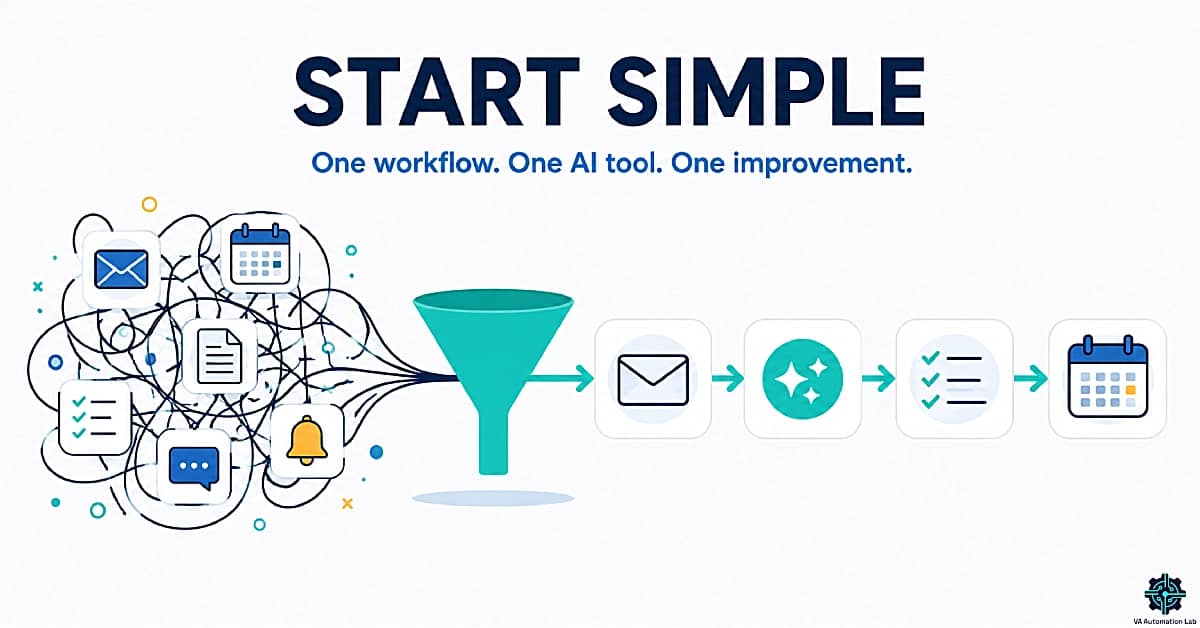
How to Start Using AI as a Virtual Assistant (Without Technical Skills)

Disclosure: This article contains affiliate links. If you purchase through them, VA Automation Lab earns a commission at no additional cost to you. All tools are evaluated independently.
A practical, step-by-step guide on how to start using AI as a virtual assistant, from the first tool you open to the first workflow you build, including copy-paste prompts and a beginner tool stack.
The hardest part isn’t learning the tools. It’s knowing which tool to open first, what to type into it, and how to tell whether the output is good enough for real client work. Most guides skip those last two questions. This one covers all three, with concrete first steps, copy-paste prompts, a clear evaluation framework, and a tool stack sized for where you actually are right now.
What this guide covers:
- Your first session with AI, what to do and what to type
- Copy-paste prompts for the three highest-ROI VA tasks
- The beginner tool stack
- Example AI workflows, manual and automated
- How much time AI actually saves, with real benchmarks
- The most common beginner mistakes and which tools to avoid
- Where to go next after your first wins
👉 Tools for Virtual Assistants: The Complete AI Systems & Software Guide — the full reference on choosing and using AI tools across every VA workflow category.
Want to Start Using AI Tools the Right Way?
If you’re a Virtual Assistant and feel confused by too many AI tools, this free starter toolkit shows you exactly where to begin, without tech overwhelm. Ready-to-use prompts and workflow templates. No research required: download it and start the first workflow today.
Table of Contents
1. Why Most VAs Struggle to Start with AI
The most common reason virtual assistants delay starting with AI is not fear of technology, it is the absence of a clear first action. “Use AI to save time” is not an instruction. It is a direction without a destination. Without knowing which tool to open, what to type, and how to judge the result, most VAs either never start or open a tool once, find the output disappointing, and conclude that AI doesn’t work for their type of work.
Both responses miss the same point: AI output quality is directly proportional to the quality of the input. A vague prompt produces a vague result. A specific, context-rich prompt, one that describes the task, the audience, the tone, and the format, produces output that requires editing rather than rewriting. The gap between “AI doesn’t work for me” and “AI saves me three hours per week” is almost always a gap in how the tool is being used, not a limitation of the tool itself. Getting started with AI for virtual assistants is easier than most expect, the barrier is almost never the technology.
The second reason VAs struggle is tool paralysis. There are hundreds of AI tools. Every VA community has a different recommendation. Every roundup article lists different platforms. The solution is not to evaluate all of them, it is to start with one tool that covers the highest-volume task in your current workflow and learn it completely before considering alternatives.
This guide removes both obstacles, it tells you exactly what to do on day one, what to type, and how to evaluate the output. It is the clearest starting point for how to start using AI as a virtual assistant without prior experience or technical knowledge.
2. The Right Mindset Before You Open Any Tool
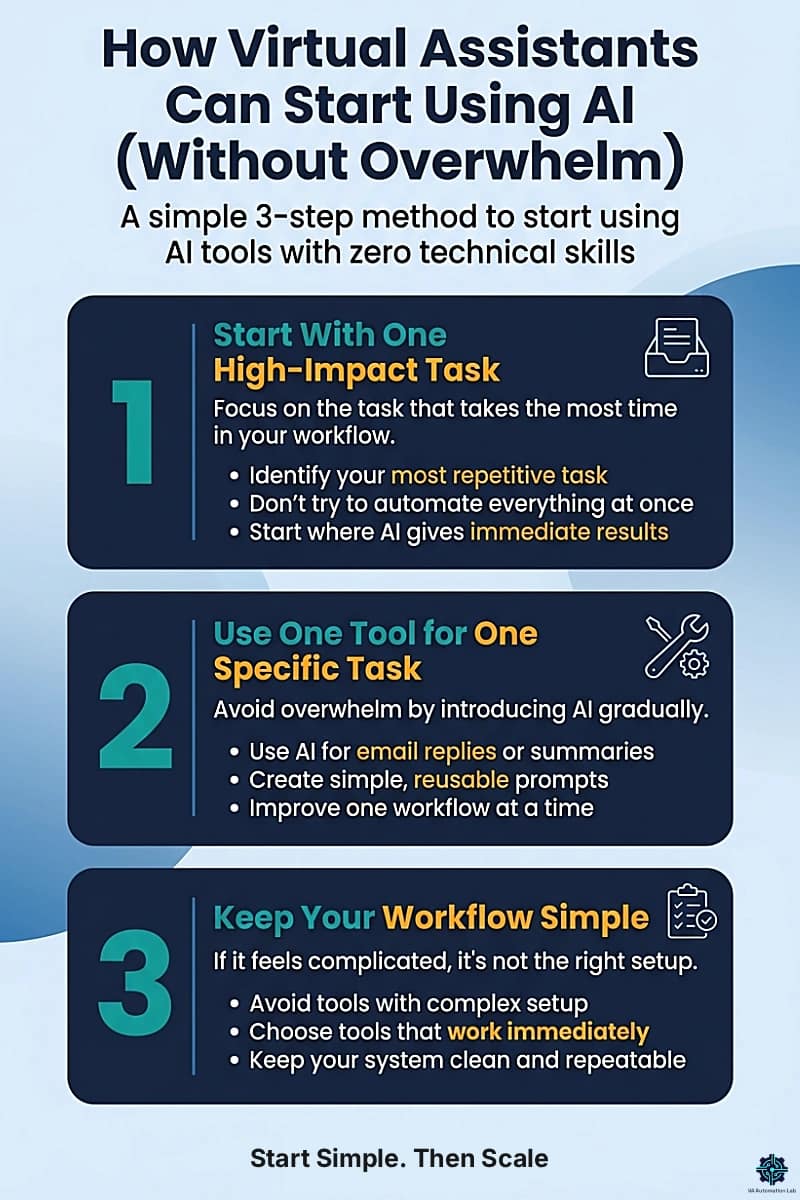
AI works best as an accelerator of work you already understand, not as a replacement for work you haven’t yet defined. Before opening any tool, two things should be clear.
First: identify the task, not the tool
The question is not “what can I use AI for?”, it’s “which task in my current workflow takes the most time relative to its complexity?” That task is where AI produces the fastest, most visible result. For most VAs, the answer is written communication: email drafting, follow-up messages, summary documents, client updates. For others it’s documentation, SOPs, meeting notes, onboarding guides. Start where the repetition is highest.
Second: accept that AI output is a starting point, not a final product
Every piece of AI-generated content requires human review before it reaches a client. Not because AI produces bad output, it frequently produces excellent output, but because you are the one who knows the client’s tone, history, and expectations. AI provides the structure and the draft. You provide the context and the judgment. This division of labor, AI drafts, human reviews, is the foundation of using AI without technical skills in a professional VA context.
Once these two things are clear, the practical question of how to start using AI as a virtual assistant stops being abstract and becomes a sequence of concrete actions.
3. Your First Session: What to Do on Day One
Open Claude or ChatGPT, the two beginner AI tools for virtual assistants that require zero setup and produce usable output in the first session. Both are free to start and require only an email to register. Choose one, Claude for client-facing writing that requires professional tone and nuance, ChatGPT for internal drafts, structured lists, and rapid generation.
Your first prompt should be specific. This is the single most important lesson for using AI without technical skills. Compare these two approaches:
❌ Vague prompt — produces generic output:
"Write a follow-up email to a client."✅ Specific prompt — produces usable output:
"Write a professional follow-up email to a client named Sarah who missed our scheduled onboarding call yesterday. Tone: warm but direct. The email should: acknowledge the missed call without blame, propose two alternative times (Tuesday 10am or Thursday 2pm GMT), and ask her to confirm which works. Keep it under 120 words."The second prompt takes thirty seconds longer to write. The output requires thirty seconds of editing instead of three minutes of rewriting. That ratio, slightly more input for significantly better output, is the core skill of using AI efficiently in VA work.
Your first session structure — 20 minutes:
Minutes 1-5: Register and open the tool. No configuration needed. The interface is a text box. Type into it.
Minutes 5-15: Write three specific prompts for the task you identified in section 2. Use the structure below for each:
- Context: who is involved, what is the situation
- Task: what you need the AI to produce
- Format: length, tone, structure
- Constraints: what to avoid, what to include
Minutes 15-20: Review the three outputs. For each one, ask:
- Does this accurately represent the situation?
- Is the tone appropriate for this specific client?
- What would I change before sending?
Edit what needs editing. That edited output is your first AI-assisted deliverable. The entire session, including editing, should take less time than writing the same content from scratch.
Claude | ChatGPT | |
Best for | Client-facing writing, SOPs | Internal drafts, brainstorming |
Output tone | Nuanced, professional | Fast, structured |
Free tier | ✅ Available | ✅ Available |
Start here if | Email and documentation are your main tasks | Speed and variety matter more than polish |
Your First 3 Prompts (Copy & Paste)
These three prompts are designed for real VA tasks. Fill in the brackets and paste directly into Claude or ChatGPT.
Prompt 1 — Client Update Email
Write a brief project status update email for client [CLIENT NAME].
Context: We are working on [PROJECT TYPE]. This week I completed [WHAT YOU DID].
Next steps are [UPCOMING ACTIONS] with an expected completion date of [DATE].
Tone: professional and concise. Format: 3 short paragraphs, no bullets.
Under 150 words.
Prompt 2 — Meeting Summary Document
Convert these raw meeting notes into a structured client summary document.
Client: [CLIENT NAME]
Meeting date: [DATE]
Meeting type: [ONBOARDING / CHECK-IN / PROJECT REVIEW]

Format the output as:
- Summary (2–3 sentences describing what was covered)
- Key decisions (bullet list, one sentence each)
- Action items (table: Action | Owner | Deadline)

Tone: professional. Notes: [PASTE YOUR RAW NOTES HERE]
Prompt 3 — Standard Operating Procedure (SOP) Draft
Turn this process description into a structured SOP for a virtual assistant.
Process: [DESCRIBE THE TASK IN YOUR OWN WORDS, AS YOU'D EXPLAIN IT
TO A NEW COLLEAGUE]

Format:
- When to use this SOP (1 sentence)
- Numbered steps (each step: action + expected outcome)
- Notes and exceptions (if any)

Language: clear and direct, written for someone doing this for the first time.
Save these three prompts in a Google Doc or Notion page labelled “Prompt Library.” Every prompt template you build from here follows the same structure: context, task, format, constraints.
👉 Claude AI for Virtual Assistants: Complete Guide — covers the eight VA-specific use cases, the prompt library organized by task type, and the Projects setup that gives Claude persistent client context from session one.
👉 ChatGPT for Virtual Assistants: Complete Guide to Use Cases, Prompts & Workflows — the complete setup guide, prompt library, and daily workflow integration.
4. How to Evaluate AI Output Before It Reaches a Client
AI output fails in professional VA work for three predictable reasons: factual errors, tone mismatches, and missing context. Each one has a specific check.
Factual accuracy check
AI tools are generative, they produce plausible text, not verified text. Any output that contains specific facts, dates, prices, names, or statistics requires verification against the source. AI is reliable for structure, tone, and phrasing. It is unreliable for specific facts it has not been given explicitly in the prompt. The rule: if a fact appears in AI output that you did not include in the prompt, verify it before use.
Tone match check
AI defaults to a professional, neutral tone that works for most contexts but not all. Before sending any AI-drafted communication to a client, check: does this match how I normally communicate with this person? Does it sound like me, or does it sound like a formal document? If the tone is off, the fastest fix is a follow-up prompt: “Rewrite this in a more casual tone, as if written by someone who has worked with this client for six months.”
Context completeness check
AI only knows what you tell it. If a follow-up email references a previous conversation, AI cannot know what was said unless you include it in the prompt. Review every AI-generated client communication for missing context, references that are obvious to you but absent from the prompt and therefore absent from the output.
5-point checklist before any AI output reaches a client:
✅ All specific facts verified against source
✅ Tone appropriate for this specific client relationship
✅ No missing context that the client would expect to be referenced
✅ Length and format appropriate for the communication channel
✅ Reviewed and edited, not sent directly from AI output
This check takes two to three minutes. It is the difference between AI that builds client trust and AI that damages it. It is also one of the non-negotiable habits for anyone learning how to start using AI as a virtual assistant in a professional context.
5. Best Beginner AI Tools for Virtual Assistants
Once your first AI workflows are working consistently, the next step is building a small operational stack around them. Most beginners make one of two mistakes here: either relying on a single AI tool for everything, or adding too many tools before they have a clear workflow to support.
A good beginner AI stack should solve one specific problem per workflow category: writing, task organization, scheduling, communication, documentation, or automation. The goal is not to use the most tools possible, but to create a simple system that reduces repetitive work without adding unnecessary complexity.
AI Assistance — Claude / ChatGPT
For most beginner virtual assistants, Claude or ChatGPT should be the first AI tools learned because they improve multiple workflows immediately without requiring technical setup. They can draft client emails, summarize meetings, structure SOPs, rewrite messages professionally, brainstorm ideas, and turn rough notes into organized documents within seconds.
The key advantage is flexibility: instead of learning a different tool for every task, beginners can use one conversational AI assistant across writing, organization, communication, and productivity workflows. Over time, reusable prompt templates make the outputs faster and more consistent.
Pricing: Both tools offer strong free plans suitable for beginners. ChatGPT Plus starts at $20/month for access to more advanced models and features. Claude Pro starts at $20/month with higher usage limits and expanded capabilities. Most beginner VAs can comfortably start with the free versions before upgrading.
Full guides: Claude AI for VAs — ChatGPT for VAs
Email Management — SaneBox
AI writing tools draft emails well. SaneBox handles the inbox side, filtering, prioritizing, and surfacing what matters across multiple client email accounts. It works with any email client (Gmail, Outlook, Apple Mail) and requires zero technical setup.
Pricing (billed annually): Snack $6/month (1 account, 2 features), Lunch $10/month (2 accounts, 6 features), Dinner $30/month (4 accounts, all features). 14-day free trial. The Lunch plan covers most VAs managing two client inboxes.
Full guide: SaneBox for Virtual Assistants: Review & Setup Guide
Scheduling — Reclaim.ai
Reclaim.ai automates time-blocking for tasks, habits, and meetings, and reschedules automatically when calendar conflicts arise. For VAs managing their own workload across multiple clients, it removes the daily micro-decisions about when to do what.
Pricing (billed annually): Lite Free (1 user, basic features), Starter $10/month (unlimited habits, 3 scheduling links, integrations), Business $15/month (100 seats, webhooks, delegated access).
Full guide: Reclaim.ai for Virtual Assistants: Complete Guide & Setup
Task Management — ClickUp
ClickUp gives you a central workspace to track client tasks, store SOPs, and run AI-assisted documentation. The free plan covers most solo VA operations. ClickUp AI (available on paid plans) drafts task descriptions, generates subtask lists, and summarizes project threads.
Pricing (billed annually): Free (unlimited tasks, 1 form, basic features), Unlimited $7/month (unlimited integrations, native time tracking), Business $12/month (5,000 automations/month, advanced dashboards).
Full guide: ClickUp for Virtual Assistants: Setup Guide, Templates & Workflows
Writing and Drafting — Rytr
For client-facing content, proposals, email sequences, and social captions, Rytr is the most accessible paid AI writing tool for VAs starting out. It generates structured content across 40+ use cases (email, blog outlines, meeting agendas, client proposals) and operates through a simple interface that requires no learning curve.
Pricing (billed annually): Free (10,000 characters/month), Unlimited at $7.50/month, Premium at $24/month with multiple tone-matching profiles and plagiarism checking. The Unlimited plan covers the output volume of a VA managing three to four clients without hitting limits.
Start with Claude or ChatGPT for the first two weeks. Switch to or add Rytr once you have regular writing tasks that need faster turnaround or template-based output.
Full guide: Rytr for Virtual Assistants: Complete Guide, Features, Use Cases & AI Writing Workflows
Time Tracking — Toggl Track
Knowing how long tasks actually take is one of the most underused habits among beginner VAs, and one of the most valuable for setting accurate rates, managing client scope, and identifying where AI is genuinely saving time. Toggl Track makes this frictionless: start a timer from the browser, desktop, or mobile, tag it to a client and project, and generate billable reports at the end of the week.
Pricing (billed annually): Free (unlimited tracking, 100+ integrations, productivity reports), Starter $10/month (billable rates, project estimates, revenue analysis), Premium $21/month (timesheet approvals, profitability analysis, scheduled reports). The free plan is sufficient for most solo VAs.
Full guide: Toggl Track for Virtual Assistants: Complete Guide, Time Tracking & Productivity Workflows
Once the core workflow is stable, the next step is reducing the manual coordination work happening between tasks, documents, and client systems. The following tools are not necessary on day one, but they become valuable when your workload becomes more repetitive, standardized, and process-driven.
The goal at this stage is no longer just “working faster” — it’s building workflows that run more consistently with less manual effort.
Automation — Make
Make allows virtual assistants to automate recurring processes visually, without coding. You can create workflows where a form submission creates a task in ClickUp, generates a document, sends an email, updates a CRM, or schedules a follow-up automatically.
For beginners, the biggest advantage is not “advanced automation” — it’s eliminating small repetitive actions that interrupt focus throughout the day. Start with one simple workflow and expand only after it works consistently.
Pricing (billed annually): Free (1,000 credits/month, unlimited scenarios, 15-minute scheduling), Core $9/month (10,000 credits, faster execution, advanced integrations), Pro $16/month (larger workflows and custom variables). The free or Core plan is enough for most solo VAs starting with automation.
Full guide: Make for Virtual Assistants: The Beginner Setup Guide
Documentation & Client Processes — PandaDoc
Client onboarding, proposals, contracts, and SOP documents quickly become difficult to manage when handled manually across multiple tools. PandaDoc centralizes these processes into one system where documents can be created from templates, sent for signature, tracked, and reused across workflows.
For virtual assistants, this is especially useful once client operations become more standardized. Instead of rewriting onboarding documents or manually formatting proposals every time, you can create reusable systems that reduce admin work and improve consistency.
Pricing (billed annually): Free (60 docs/year, 5 e-Signatures/month), Starter $19/month (unlimited documents and e-Signatures), Business $49/month (workflow automation, CRM integrations, approval workflows). The Starter plan is typically sufficient for solo VAs managing recurring client documentation.
Full guide: PandaDoc for Virtual Assistants: Contracts & Onboarding
Workflow Area | Recommended Tool | Use Case | Beginner Priority |
AI Assistance | Claude / ChatGPT | SOPs, brainstorming, summaries | Essential |
Email Management | SaneBox | Filtering and prioritizing inboxes | Useful |
Scheduling | Reclaim.ai | Automatically scheduling meetings | Useful |
AI Writing | Rytr | Repeatable content drafting | Useful |
Task Management | ClickUp | Organizing workflows, tasks, and SOPs | Essential |
Time Tracking | Toggl Track | Tracking how much time recurring tasks actually take | Useful |
Automation | Make | Connecting tools and automating repetitive actions | Advanced |
Documentation | PandaDoc | Standardizing onboarding and client documents | Advanced |
👉 Best Tools for Virtual Assistants in 2026: The Complete Comparison Guide — side-by-side comparisons across every major VA tool category.
The Easiest AI Writing Tool for VA Tasks
Rytr generates email drafts, client update messages, meeting agendas, and proposals across 40+ use cases.
For VAs managing recurring written deliverables, it adds consistent output speed without a steep learning curve.
6. The Three VA Tasks Where AI Produces the Fastest Results
Not all VA tasks benefit equally from AI. When you’re figuring out how to start using AI as a virtual assistant, these three categories produce the fastest, most visible results, consistently, across client types and workflow structures.
Task 1: Email Drafting and Client Communication
Email drafting is the best entry point for beginner AI tools for virtual assistants, it’s the highest-volume written task in most VA operations and the area where results appear fastest. The ROI is visible within the first session.
What AI handles well:
- First-draft replies to recurring client question types
- Follow-up emails after meetings, calls, or missed deadlines
- Client update messages on project status
- Standardized onboarding communication
- Polite but firm messages on delayed payments or overdue approvals
What requires human judgment:
- Sensitive communications involving conflict or disappointment
- Emails where relationship nuance is critical
- Any message involving confidential or legally sensitive information
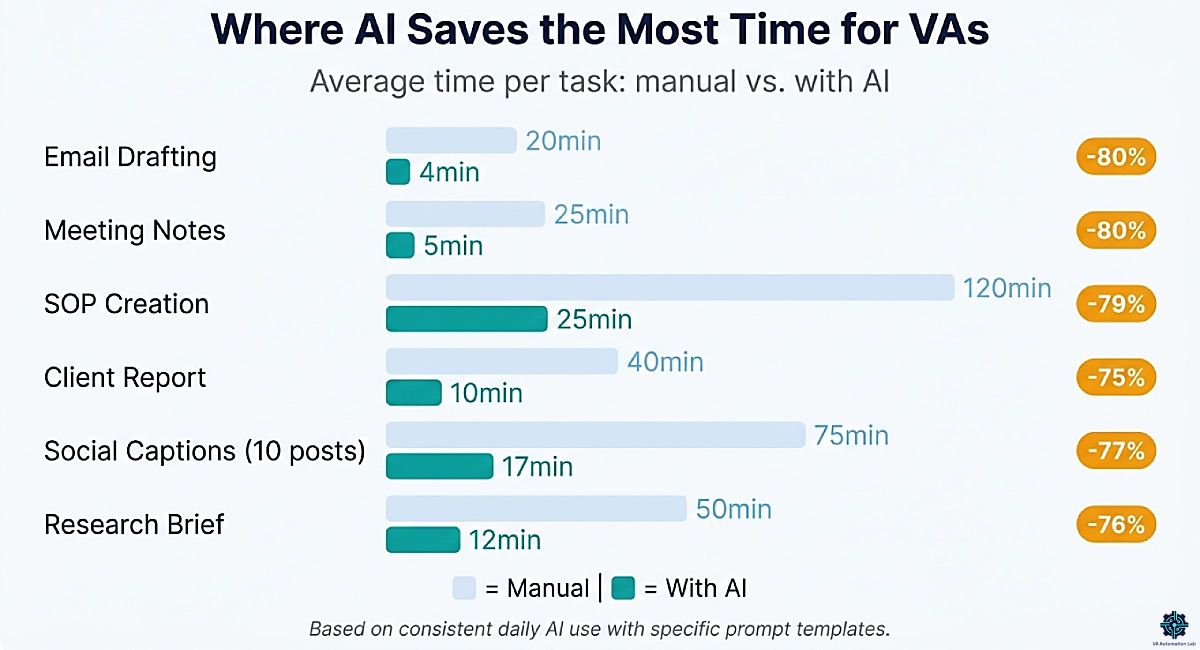
Time saving benchmark: a 20-minute email drafting task typically takes 3–5 minutes with AI, including the prompt and editing. Across a VA managing three clients, this recovers 1–2 hours per week from email alone.
Recommended tools:
- Claude / ChatGPT (free) — drafting, tone adjustment, reply suggestions
- Rytr ($7.50/mo) — template-based generation for recurring email types
👉 Best AI Writing Tools for Virtual Assistants — discover the most effective AI tools for drafting client emails, generating replies, and improving communication speed while maintaining a professional tone.
Task 2: Meeting Notes and Summary Documents
After every client call, most VAs spend 15–30 minutes converting raw notes into a structured summary document. AI compresses this to under 5 minutes.
The workflow:
- During the call, take rough notes, bullet points, fragments, key decisions, action items. No complete sentences needed.
- After the call, paste the raw notes into Claude or ChatGPT using Prompt 2 from section 3 above.
- Review the output, add any context missing from your notes, and send or file.
This single workflow, applied to every client call, recovers 30–60 minutes per week for a VA managing regular meetings.
Recommended tools:
- Claude / ChatGPT (free) — note structuring and summary drafting
- ClickUp (free) — storing and organizing meeting summaries by client
Task 3: SOP and Documentation Drafts
Creating standard operating procedures from scratch is one of the most time-consuming documentation tasks in VA work. AI reduces it from a two-hour writing exercise to a 20-minute editing exercise.
The workflow:
- Describe the process to AI as you would explain it verbally to a new colleague, conversational language, no formatting required. Include: what triggers the process, each step in order, what the output should look like, and any exceptions or edge cases.
- Prompt: “Turn this process description into a structured SOP. Format: numbered steps, each step with action and expected outcome. Add a brief intro paragraph and a ‘When to use this SOP’ header. Keep the language clear for someone doing this task for the first time.”
- Review the structure, verify the steps reflect the actual process, and edit for accuracy.
AI handles the writing. You handle the accuracy.
Recommended tools:
- Claude / ChatGPT (free) — SOP drafting and structuring
- ClickUp (free) — storing SOPs, linking to related tasks, version control
Using Notion instead of ClickUp? Both tools offer strong AI features at the workspace level. See the full ClickUp vs Notion comparison for Virtual Assistants and the dedicated Notion AI for Virtual Assistants guide to decide which fits your documentation style.
👉 Best Automation Workflows for Virtual Assistants — proven automation setups from email routing to client reporting.
Turn SOPs Into a Repeatable System
Once your SOP is structured, store it where it connects to your actual work.
ClickUp gives you a single place to manage: tasks, clients, workflows and automations.
Instead of jumping between tools, you organize everything in one structured system that actually scales.
7. How to Start Using AI as a Virtual Assistant: Your First Workflow
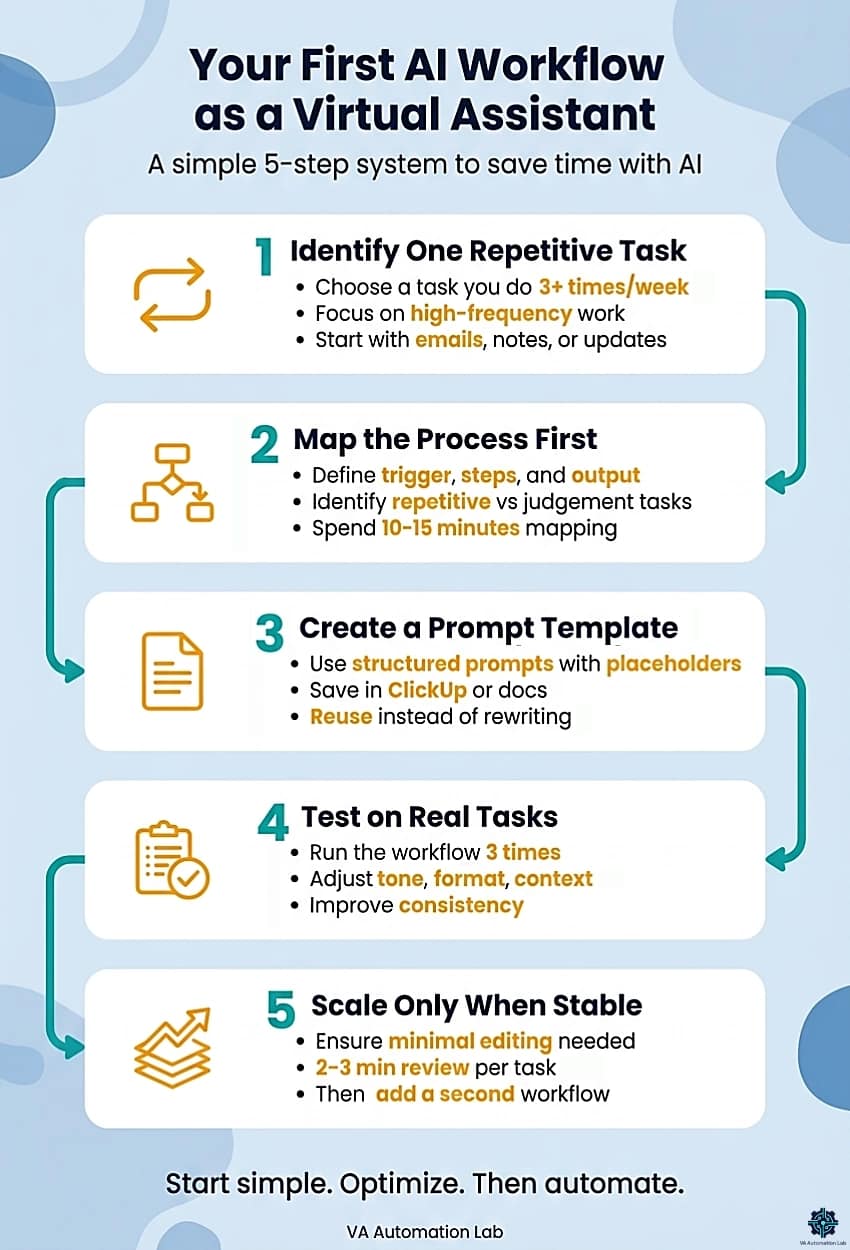
An AI workflow for virtual assistants is a repeatable sequence where AI handles a defined part of a recurring task, consistently, without requiring a new prompt from scratch each time.
Step 1 — Identify One Repetitive Task
Choose the task that occurs most frequently in your current workflow, ideally something that happens at least three times per week. High-frequency tasks produce the most compounded time savings. Good starting candidates: client email replies, meeting summaries, weekly status updates, onboarding document drafts.
Step 2 — Map the Process Before Adding AI
Before involving AI, document the task manually:
– What triggers this task? (an email arrives, a meeting ends, a deadline passes)
– What are the steps, in order?
– What does the completed output look like?
– Where does the most time currently go?
– What part is repetitive and predictable?
– What part requires judgment or context that only you have?
This mapping takes 10-15 minutes and prevents the most common beginner mistake: automating a process that isn’t yet stable and producing inconsistent output at scale.
Step 3 — Build a Reusable Prompt Template
Once the process is mapped, create a prompt template, a structured prompt with placeholders that you fill in for each instance of the task. Example for meeting summaries:
Convert these meeting notes into a structured client summary.
Client: [CLIENT NAME]Meeting date: [DATE]Meeting type: [ONBOARDING / CHECK-IN / PROJECT REVIEW]
Format the output as:- Summary (2-3 sentences)- Key decisions (bullet list)- Action items (table: Action | Owner | Deadline)
Tone: professional and concise.Notes: [PASTE NOTES HERE]
Save this template in Notion, a Google Doc, or a simple text file. Every time this task occurs, open the template, fill in the placeholders, paste into Claude or ChatGPT, review the output, edit as needed. The prompt writing phase goes from 3 minutes to 30 seconds.
Step 4 — Test on Three Real Instances
Before treating a workflow as established, run the prompt template on three real instances of the task, three actual meetings, three actual client emails, three actual SOP drafts. Evaluate each output against the checklist in section 4. Adjust the prompt template based on what you find: add context that was consistently missing, refine the format instructions, adjust tone.
Step 5 — Expand Only After the First Workflow Is Stable
A workflow is stable when it produces consistent, usable output with minimal editing, roughly two to three minutes of review per instance. That is the signal to add a second workflow. Not before. The goal is depth before breadth: one workflow used consistently every day produces more value than five workflows used occasionally.
👉 How to Automate Repetitive Tasks as a Virtual Assistant — step-by-step guide to building automations around your most frequent tasks.
8. Example AI Workflow (Step-by-Step)
A workflow is not just using a tool, it’s a repeatable sequence where AI handles a defined part of a recurring task consistently, without redesigning the process each time. Below is a complete working example: the client email workflow, first manual (weeks 1–2) then automated (month 2+).
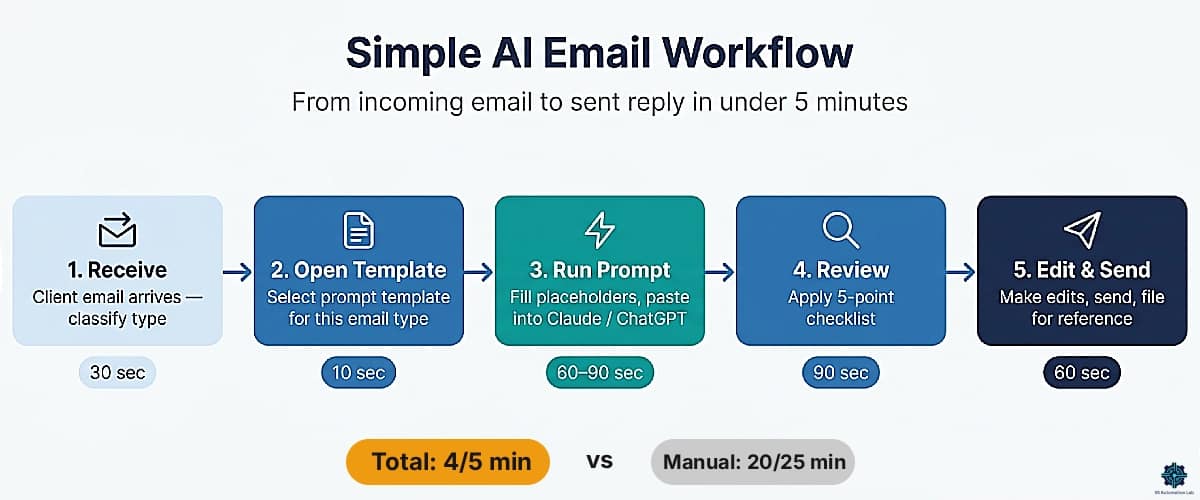
Simple AI Email Workflow
This workflow covers the full cycle from incoming client email to sent reply, using AI for the draft, manual review, and send.
Trigger: Client email arrives requiring a non-trivial reply (not a yes/no).
Step 1 — Read and classify (30 seconds)
Read the email. Identify the type: update request, question, change request, complaint, approval needed. This classification determines which prompt template to use.
Step 2 — Open Claude or ChatGPT (10 seconds)
No tab-switching required if you keep the tool pinned. Open your Prompt Library doc.
Step 3 — Fill and send the prompt (60–90 seconds)
Use the email prompt template from section 3. Fill in client name, context, tone, and any constraints. Paste and run.
Step 4 — Review against the 5-point checklist (90–120 seconds)
Facts correct? Tone matched? Context complete? Length appropriate? Read fully before sending.
Step 5 — Edit and send (60 seconds)
Make the edits. Send. File the sent email as reference for next time.
Total time per email: 4–5 minutes (vs. 15–25 minutes manual drafting for complex replies).
Automation Version (Advanced)
Once the manual email workflow runs smoothly for 2–3 weeks, you can automate the routine parts using Make.
What automation adds:
- Incoming emails tagged by type get automatically routed to a draft queue in ClickUp
- The task card includes the original email text (pre-pasted, ready for prompting)
- After the reply is sent, the thread is logged to the client’s record automatically
Basic Make scenario (3 modules):
- Gmail / Outlook trigger — watches for emails matching a label or keyword
- Filter — confirms it matches a client name or project tag
- ClickUp action — creates a task titled “Draft reply: [email subject]” with the email body in the description
This is not a beginner scenario, it belongs in week 6–8 after the manual workflow is stable. The value: zero manual task creation for email follow-up. Estimated setup time: 45 minutes with Make’s visual builder.
Make pricing (billed annually): Free plan includes 1,000 credits/month (enough to test). Core plan at $9/month removes run limits and supports scheduled scenarios down to the minute.
👉 AI Email Management for Virtual Assistants: Best Tools and Workflows — the full system for inbox management, drafting, and client communication
9. How to Expand Your AI Use After the First Wins
The question of how to start using AI as a virtual assistant has a clear answer after the first workflow is stable: expand in one direction at a time, following a simple sequence.
Add one adjacent workflow. If your first workflow was email drafting, the natural adjacents are: meeting summary documents (similar input type, similar output format) or weekly client updates (recurring, structured, high repetition). Choose the adjacent that occurs most frequently.
Introduce a second tool only when the first is insufficient. Claude and ChatGPT cover most written communication and documentation workflows. The point where a second tool becomes necessary is when a task requires something neither provides: scheduling automation (Reclaim.ai), workspace management (ClickUp), email filtering (SaneBox), or multi-step process automation (Make). Add the second tool to address a specific gap, not for variety.
Connect workflows to automation. Once two or three AI workflows are stable, the next level is connecting them: a new client form triggers a folder creation, a draft email, and a task in your project manager, automatically, without manual steps between them. This is where Make enters the stack. AI does the content generation. Automation handles the routing.
👉 Make for Virtual Assistants: The Beginner Setup Guide — learn how to connect your tools and automate repetitive tasks step by step using a no-code platform, even if you’re starting from zero.
Connect Your AI Workflows Without Code
Make lets you automate the manual steps between your AI tools (routing emails to task queues, triggering drafts, and logging client interactions) without writing a line of code.
The free plan covers 1,000 credits/month, enough to test your first automation before committing.
10. How Much Time Can AI Save?
Time savings from AI depend on task type, prompt quality, and how consistently workflows are applied. The benchmarks below are based on consistent daily use of AI for core VA tasks, not one-off experiments.
Task | Manual Time | With AI | Weekly Saving (3 clients) |
Client email drafting (complex replies) | 15–25 min each | 4–5 min each | 90–120 min |
Meeting notes → summary doc | 20–30 min/call | 4–6 min/call | 60–90 min |
SOP / process documentation | 90–120 min each | 20–30 min each | 60–90 min (per SOP) |
Weekly client status report | 30–45 min | 8–12 min | 60–90 min |
Social media caption drafts (10 posts) | 60–90 min | 15–20 min | 45–70 min |
Research summary (topic brief) | 45–60 min | 10–15 min | 30–45 min |
Onboarding document draft | 120–180 min | 30–45 min | 90–135 min (per client) |
Conservative cumulative saving for an active VA: 3–5 hours per week after two weeks of daily use, rising to 8–12 hours per week by month 3 once automation layers are added.
These are not theoretical numbers. They reflect the real output of consistent AI use on high-frequency tasks, not the idealized savings cited in marketing materials. Your actual savings depend on how specifically you write prompts and how systematically you apply templates.
👉 AI-Powered Productivity System for Virtual Assistants: 5-Layer Framework — integrating AI tools into a complete daily system.
Save Even More Time on Email Management
AI can reduce the time spent drafting emails and summaries — but inbox management is often where the biggest productivity bottleneck still remains. As client communication grows, constantly sorting newsletters, notifications, follow-ups, and low-priority emails creates hidden context switching throughout the day.
SaneBox automatically filters and prioritizes your inbox so you can focus on important client communication first, while less urgent messages are organized in separate folders for later review.
For many virtual assistants, this becomes one of the highest-ROI productivity upgrades because it reduces both email volume and mental overhead.
11. Common Beginner Mistakes and How to Avoid Them
Getting started with AI for virtual assistants is straightforward when you avoid the four patterns that consistently delay results.
Testing Multiple Tools Simultaneously
Opening Claude, ChatGPT, and Notion AI in the same week produces one outcome: you use none of them consistently enough to see results. Each tool has a learning curve, not a steep one, but enough that fluency requires repetition.
The fix: choose one tool for one task. Use it every day for two weeks before evaluating whether to add a second.
Using Vague Prompts and Concluding AI Doesn’t Work
The most common complaint about AI among VAs who gave up early: “the output was generic and not usable.” In almost every case, the prompt was generic. AI output quality mirrors prompt quality.
The fix: use the prompt structure from section 3, context, task, format, constraints. Spend 60 seconds writing the prompt. Save 10 minutes editing the output.
Sending AI Output Without Review
AI tools produce confident, well-formatted text that is sometimes factually incorrect, tonally mismatched, or missing critical context. A VA who sends AI output directly to a client without review is not saving time, they are creating a different kind of work: correcting client confusion and rebuilding trust.
The fix: apply the five-point checklist from section 4 to every AI output before client delivery. Always.
Automating Before the Process Is Stable
Building a Make or Zapier workflow around an AI process that hasn’t been tested manually first produces automations that fail unpredictably. If the underlying process has inconsistencies, automation amplifies them.
The fix: run any AI workflow manually at least ten times before connecting it to automation. Automate only what is demonstrably stable.
Tools to Avoid as a Beginner
Some tools are genuinely good but are wrong for where you are right now, either too expensive to justify before you have clear use cases, or too complex to adopt before basic AI habits are established.
Advanced AI writing suites (Writesonic, Jasper) These tools are built for high-volume SEO content and agency-level production. At $79–$199/month, they don’t make sense for a beginner VA whose primary use case is email drafting and meeting notes. Start with Claude or ChatGPT (free) and Rytr ($7.50/mo), cover your actual output volume before investing in a full content suite.
Enterprise automation platforms before you have manual workflows n8n and Make are both excellent tools, but using them before you have stable manual AI workflows is the fastest way to build automations that break in unpredictable ways. Week 6+, not week 1.
AI tools with no free tier or trial period Any tool that requires a paid commitment before you’ve tested it for your specific tasks is a risk at this stage. Prioritize tools with free plans or at least a 14-day trial, SaneBox (14-day), Reclaim.ai (free tier), ClickUp (free tier), Rytr (free tier), Make (free tier) all qualify.
All-in-one “AI assistant” apps with broad claims Tools that claim to “do everything” for VAs tend to do nothing particularly well. At the beginner stage, narrow tools that do one thing reliably (draft emails, transcribe meetings, filter inboxes) produce more consistent results than platforms trying to replace your entire workflow stack.
12. Conclusion
Getting started with AI as a virtual assistant is not a technical problem. It is a sequence problem. The sequence is specific and repeatable: identify one high-frequency task, build a reusable prompt template, test on three real instances, refine, then expand.
Every VA who has integrated AI into their daily workflow started with that same sequence, one task, one tool, one prompt template tested until consistent. The benchmarks in section 8 are not aspirational: 3–5 hours saved per week in the first two weeks is the typical outcome for VAs who apply this approach systematically.
For the actual tool decisions: start with Claude or ChatGPT (free) for writing. Add Reclaim.ai (free Lite plan) to stop losing time to scheduling. When your output volume grows, Rytr at $7.50/month is the most cost-efficient upgrade for template-based writing tasks. When you’re ready to automate, Make Core at $9/month connects everything.
The difference between VAs who see results in the first week and those who spend months evaluating tools is not capability. It is the willingness to start with something small and specific rather than waiting until the perfect system is designed.
Open Claude or ChatGPT today. Use one of the three prompts from section 3 on a real task. Compare the time that took to the time the manual version would have required. That comparison is the only evaluation you need to decide whether to continue.
Once you’ve started with your first AI tool, the VA resource hub gives you a structured learning path, organized by skill level, to know exactly which tool to add next and in what order.
Let Reclaim.ai Manage Your Calendar Automatically
Reclaim.ai doesn’t just create booking links, it actively manages your calendar.
It blocks focus time before meetings can fill it, reschedules incomplete tasks when priorities shift, and syncs personal and work calendars to prevent conflicts.
For VAs managing four or more clients, the setup takes thirty minutes and the time savings start the same day.
Frequently Asked Questions About AI Tools for Virtual Assistants
Do virtual assistants need technical skills to use AI?
No. The tools covered in this guide (Claude, ChatGPT, Rytr, Reclaim.ai) require no setup, no configuration, and no technical knowledge. They operate through a text interface: you describe what you need, the tool generates output, you review and edit it. If you can write an email, you can use these tools. The technical bar for how to start using AI as a virtual assistant is genuinely as low as advertised.
What is the first AI tool a virtual assistant should use?
Start with Claude or ChatGPT, both free, both require only an email to register. Claude produces higher-quality output for client-facing professional writing. ChatGPT is faster for internal drafts and structured list generation. Use one tool for thirty days before evaluating whether to add a second. The three copy-paste prompts in section 3 of this guide work equally well in both tools.
What are the first tasks a VA should use AI for?
The three highest-return starting points for beginner AI tools for virtual assistants are: email drafting (fastest time savings, immediate results), meeting note summarization (high-frequency, predictable format), and SOP documentation (high time investment per instance, very automatable). All three are covered in section 6 with prompt templates you can use immediately.
How do I know if AI output is good enough to send to a client?
Apply five checks before any AI-generated content reaches a client: verify all specific facts, confirm the tone matches this specific client relationship, check that no contextual references are missing, confirm length and format are appropriate for the channel, and confirm you have read and edited the full output, not just skimmed it. This review takes two to three minutes. The full checklist is in section 4.
How long does it take to see results from AI as a VA?
For most VAs, the first measurable time saving appears in the first session, a specific prompt for a real task produces usable output faster than writing from scratch. A stable workflow, one that consistently saves 15–30 minutes per day, typically develops within two to three weeks of daily use. The benchmarks in section 8 show the realistic progression by task type.
What should I do after I have one AI workflow working?
Once your first workflow produces consistent, usable output with minimal editing, add one adjacent workflow, a task similar in type or frequency to the first. After two stable workflows, consider connecting them to no-code automation with Make to eliminate the manual steps between tasks. The “Where to Go Next” section above maps the full expansion path.
Which AI tools should beginners avoid?
Three categories are genuinely problematic for VAs in the first 30–60 days: (1) enterprise AI writing suites like Writesonic at $79–$199/month, the cost isn’t justified before you have clear production use cases; (2) complex automation platforms before manual AI workflows are stable, Make and n8n are excellent tools but belong in month 2+; (3) all-in-one “AI assistant” apps that claim to replace your entire workflow stack, narrow tools that do one thing reliably consistently outperform broad platforms at this stage. Full context in section 10.
What is the ROI of adding AI tools as a VA?
The break-even calculation is straightforward: if you bill $30–50/hour and AI saves you 3–5 hours per week, the monthly value of that recovered time is $360–$1,000. A minimal AI stack (Claude free, Reclaim.ai free, ClickUp free) costs $0. An advanced stack (Rytr $7.50, SaneBox $10, Make $9, Reclaim.ai $10) costs approximately $35/month. The ROI at even $30/hour billing and a conservative 3-hour weekly saving is over 30:1. The tool cost is not the variable, consistent daily use of the tools is.
Is AI replacing human virtual assistants?
No, and the evidence in the market is the opposite. VAs who use AI effectively are increasing their capacity (more clients, more complex projects) and their rates (delivering faster, more documented work). What AI replaces is the low-value repetitive execution that limited how much a VA could take on: drafting routine emails, formatting meeting notes, writing first-draft SOPs. The judgment, client relationship management, and contextual decision-making that define a skilled VA’s value are not things current AI tools automate. The framing that matters: AI expands what a single VA can do, it does not replace what a VA does.
Can I use AI across multiple client accounts without mixing data?
Yes, with one practical rule: never paste one client’s confidential information into a prompt that references another client’s name or project. Keep client contexts separate either by using distinct AI conversations per client or by opening a fresh session before switching clients. Tools like Claude’s Projects feature allow persistent but isolated client contexts. For a full approach to managing multiple clients with AI, the multi-client AI guide covers the full framework.
Is it safe to use AI tools with client data?
Generally yes, with one important practice: never paste one client’s confidential information into a session that references another client. Keep client contexts separated by using distinct conversations or AI projects. For client-facing AI tools, review the provider’s data handling policy — Claude, ChatGPT, and most commercial AI platforms do not use your input to train their models on paid plans. For sensitive material (contracts, financial information, legal documents), use AI to generate structure and templates, then fill in the sensitive content manually after generation.
Glossary: Key Terms for Getting Started with AI
AI Tool: A software application that uses artificial intelligence to assist with tasks such as writing, organizing, or automating workflows. For VA purposes: Claude, ChatGPT, Rytr, Reclaim.ai, ClickUp AI.
Prompt: The instruction you type into an AI tool. The quality and specificity of the prompt directly determines the quality of the output. A specific prompt with context, task, format, and constraints produces usable output. A vague prompt produces generic output.
Prompt Template: A reusable prompt structure with placeholders [CLIENT NAME], [DATE], [PASTE NOTES] that you fill in for each instance of a recurring task. The foundation of an efficient AI workflow.
AI Workflow: A repeatable sequence where AI handles a defined part of a recurring task, from prompt input to edited output, consistently, without requiring the process to be redesigned each time.
No-Code Tool: A platform that allows users to build automations without writing code. For VAs: Zapier and Make. These connect AI workflows to other tools and automate the routing of information between them.
Process Mapping: Documenting each step of a task manually before introducing AI, identifying what triggers it, what each step produces, and where the most time goes. The required first step before any automation.
Overtooling: Using more AI tools than necessary, resulting in overlapping features, divided attention, and no tool used consistently enough to produce results. The most common beginner mistake in AI adoption.
AI Output Review: The process of reading, fact-checking, tone-checking, and editing AI-generated content before it reaches a client. Not optional. The five-point checklist in section 4 covers this completely.
Automation Trigger: The event that starts an automated workflow, a new email arriving, a form submission, a calendar event ending. In Make or Zapier, every automation begins with a trigger.
Token / Credit: The unit of consumption in AI tools. In Make, one “operation” is one module execution. In Rytr, characters generated. In Claude/ChatGPT, tokens consumed per input and output. Understanding the unit helps avoid hitting plan limits during active use.
About the Author
Alex Stratton has spent the better part of a decade working at the intersection of virtual assistance and operational systems, first as a VA supporting founders and small business owners, then as a workflow consultant helping remote teams reduce the manual overhead that accumulates when businesses grow faster than their processes. The tools and workflows here reflect decisions made repeatedly in real client contexts, where the wrong choice costs hours, not minutes. Learn more about VA Automation Lab → About.