
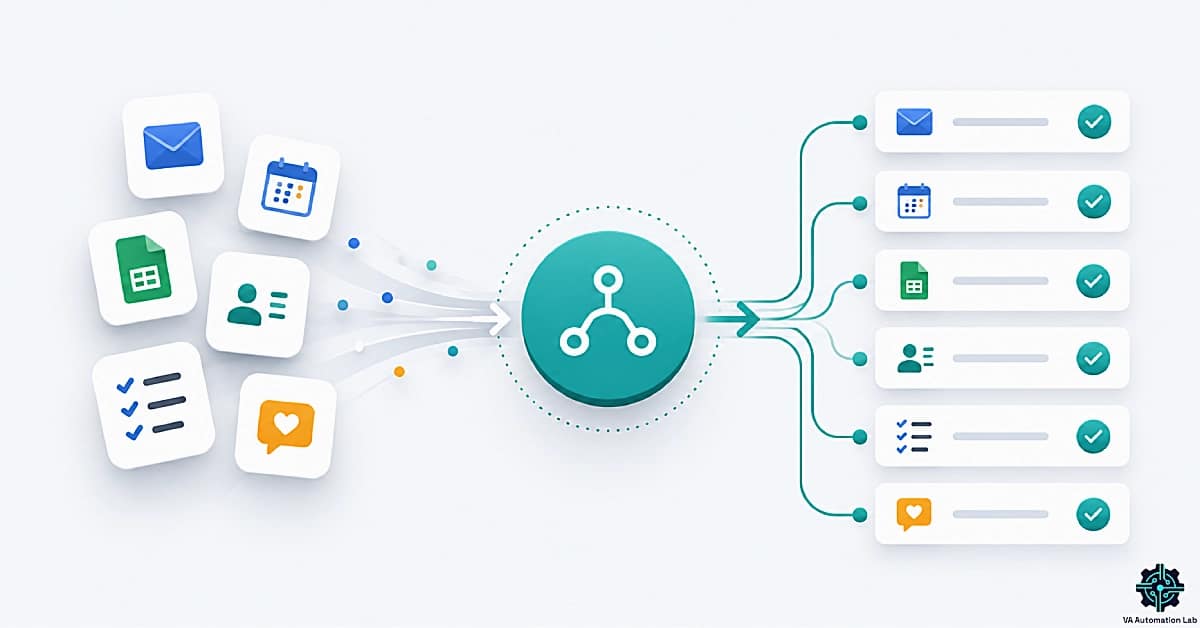
How to Automate Repetitive Tasks as a Virtual Assistant (2026 Guide)
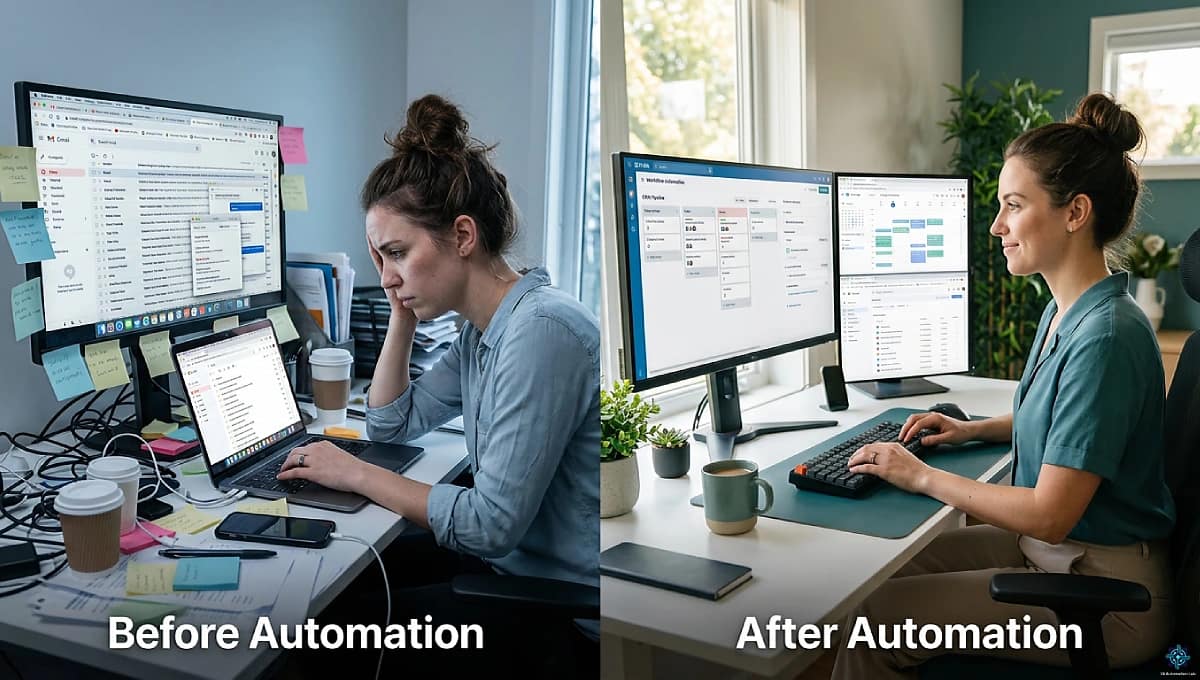
Disclosure: This article contains affiliate links. If you purchase through them, VA Automation Lab earns a commission at no additional cost to you. All tools are evaluated independently.
The complete, practical guide on how to automate repetitive tasks as a virtual assistant, with a 4-layer framework, 35+ tools organized by use case, 5 copy-paste-ready workflows, and a beginner roadmap that requires zero technical skills.
Virtual assistants can automate repetitive tasks by pairing AI tools with no-code automation platforms that route data between tools automatically. The most effective approach starts with one high-frequency task, builds a single stable workflow, and expands only after confirming measurable time savings.
Repetitive tasks are the single largest drain on VA productivity. Email triage, data entry, scheduling coordination, file organization, manual CRM updates — each takes only minutes individually. Across a full workday managing multiple clients, they consume hours. The cumulative cost is not just time: it is cognitive load, context switching, and the constant background pressure of work that never fully clears.
The shift in 2026 is that automating these tasks no longer requires technical knowledge. The tools available today — AI assistants, no-code automation platforms, and increasingly autonomous AI agents — were built for non-technical users. The barrier to workflow automation has been reduced to one thing: knowing where to start.
This guide gives you that starting point and everything beyond it.
What this guide covers:
- The difference between AI automation and traditional no-code automation
- The 4-layer VA automation framework, what to automate first
- The 6 task categories with the highest automation ROI
- 35+ tools organized by use case, with verified pricing
- 5 real, copy-paste-ready automation workflows
- A step-by-step beginner roadmap from zero to first workflow
- The four mistakes that make automation fail and how to avoid them
For the full reference for every AI tool category in VA work read AI Tools for Virtual Assistants: The Complete Stack Guide. The broader framework covering every major workflow category, including scheduling, reporting, lead capture, and documents is in Automation for Virtual Assistants: The Complete Guide.
Get the Free AI Toolkit for Virtual Assistants
Automation is only half the picture. This free toolkit shows you which AI tools to pair with your workflows to cover every area of your VA business.
Includes beginner automation templates, AI prompts for email and scheduling, and tool recommendations organized by use case.
Table of Contents
1. Why Automation Is Now Essential for Virtual Assistants
The business case for learning how to automate repetitive tasks as a virtual assistant is not abstract. It is arithmetic.
A VA managing three clients spends, conservatively, two hours per day on tasks that follow the same structure every time: triage the inbox, extract the action items, update the project tracker, send the status update, schedule the follow-up call, organize the files from the previous meeting. None of these tasks require professional judgment. All of them require time.
Two hours per day is ten hours per week. Across a month, that is forty hours of billable capacity consumed by mechanical repetition. For a VA billing at $30–50 per hour, this represents $1,200–$2,000 per month in capacity lost to tasks that a well-configured automation system handles in minutes.
Automation recovers that capacity and reallocates it to the work that actually justifies a VA’s rate: strategy, client communication, problem-solving, and the judgment calls that no tool can replace.
The competitive landscape is a second reason automation matters specifically in 2026. Clients who work with VAs experienced in workflow automation expect faster turnaround, fewer errors, and more consistent delivery. A VA who can automate client workflows delivers results that a manual-only VA cannot match at the same price point, which shifts the conversation from cost to value.
The barrier to entry has also never been lower. No-code automation in 2026 requires no programming knowledge. Platforms like Make and ClickUp are designed for non-technical users. AI tools like Claude and ChatGPT operate through natural language. The realistic time investment to build a functional first automation is one focused session of 30–60 minutes.
2. AI vs Traditional Automation: What’s the Difference?
This is one of the most common sources of confusion for VAs getting started with automation, and getting it wrong leads to using the wrong tool for the job.
What AI Automation Does
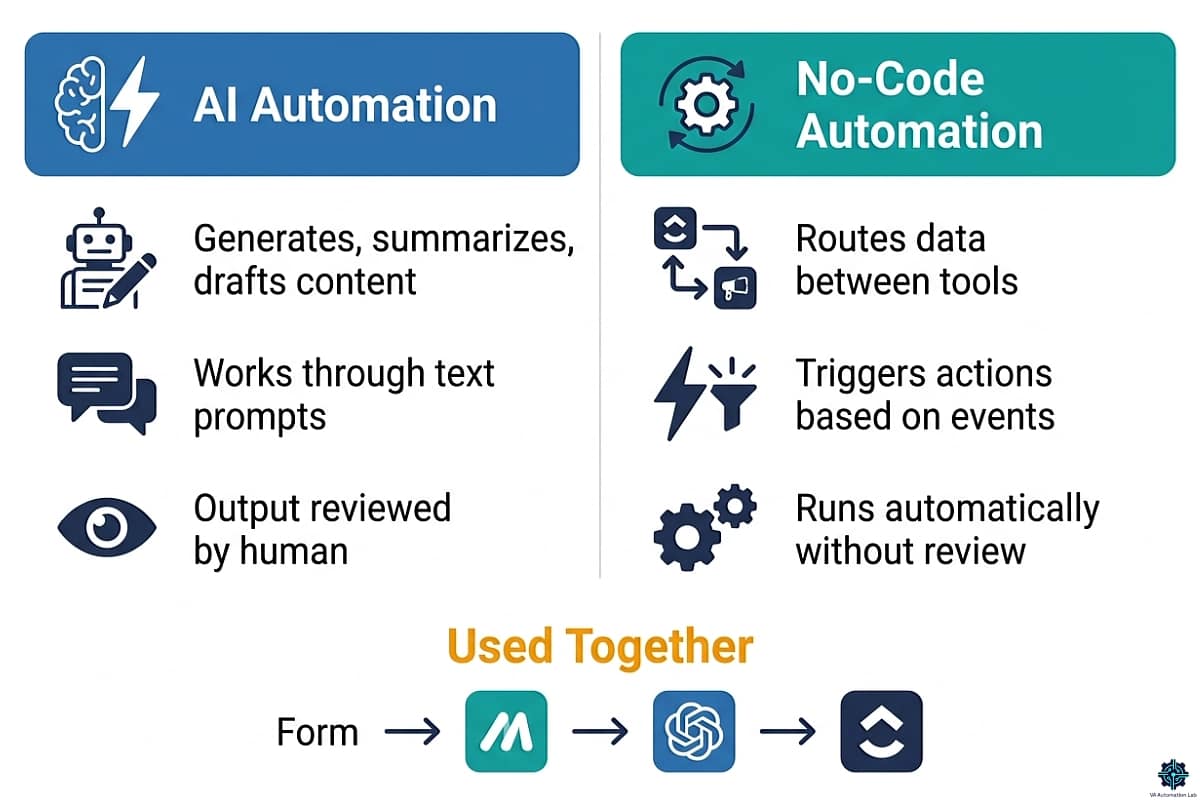
AI automation handles text-based tasks, generating, summarizing, rewriting, classifying, or structuring content. It works through a prompt or an integrated AI feature, and the output is content a human reviews before use (at least in most VA workflows).
Best for: meeting note summaries, first-draft email replies, SOP drafting, social media captions, report narratives, task extraction from unstructured text.
Representative tools:
- Claude, ChatGPT — general-purpose AI for text-based task automation
- Rytr — AI writing assistant purpose-built for short-form content (emails, captions, descriptions). Free plan includes 10K characters/month; Unlimited plan is $7.50/month
- Frase.io — AI content optimization tool for VAs who manage blog content or SEO workflows for clients. Starter plan at $39/month covers 10 AI-optimized articles/month
The key limitation: AI automation does not move data between tools, trigger events, or execute actions in your software. It produces content. Something else has to route that content to where it needs to go.
What Traditional (No-Code) Automation Does
No-code automation handles data routing and action execution, moving information between tools, triggering sequences based on events, creating records, sending notifications, and connecting platforms without code.
Best for: new form submission → CRM record created → welcome email sent → project folder created. This is the kind of multi-step sequence that runs entirely in the background once built.
Representative tools:
- Make — the highest-capability no-code platform for VA workflows, especially for complex conditional logic and multi-tool sequences
- n8n — open-source alternative with strong API support and a growing template library
- Zapier — beginner-friendly workflow automation platform, ideal for quickly connecting apps and building simple multi-step workflows without technical complexity
The key limitation: traditional automation follows predefined rules. It does not generate content, interpret context, or adapt to new situations. It does exactly what you configured it to do, no more.
Where They Overlap: AI + Automation Combined
The most powerful VA workflows combine both: no-code automation handles the routing and triggering; AI handles the content generation.
A complete example: new email arrives with label “Client Action” → Make sends the email body to Claude via API → Claude generates a structured summary and suggested reply → Make creates a task in ClickUp with the summary as the description → VA reviews the task with context already prepared.
Type | What It Does | Requires Judgment? | Example Tools |
AI Automation | Generates, summarizes, drafts content | Yes — review before sending | Claude, Rytr, Frase.io |
No-Code Automation | Routes data, triggers actions, connects tools | Minimal — follows rules | Make, N8n, Zapier |
AI Agent | Interprets context, decides, executes across tools | Partial — designed for defined scope | Claude + tools, Make + AI steps |
Understanding this distinction before you open any tool saves hours of troubleshooting. If you need to write something, use an AI tool. If you need to move something, use a no-code platform. If you need to do both, combine them.
3. The VA Automation Framework: 4 Layers
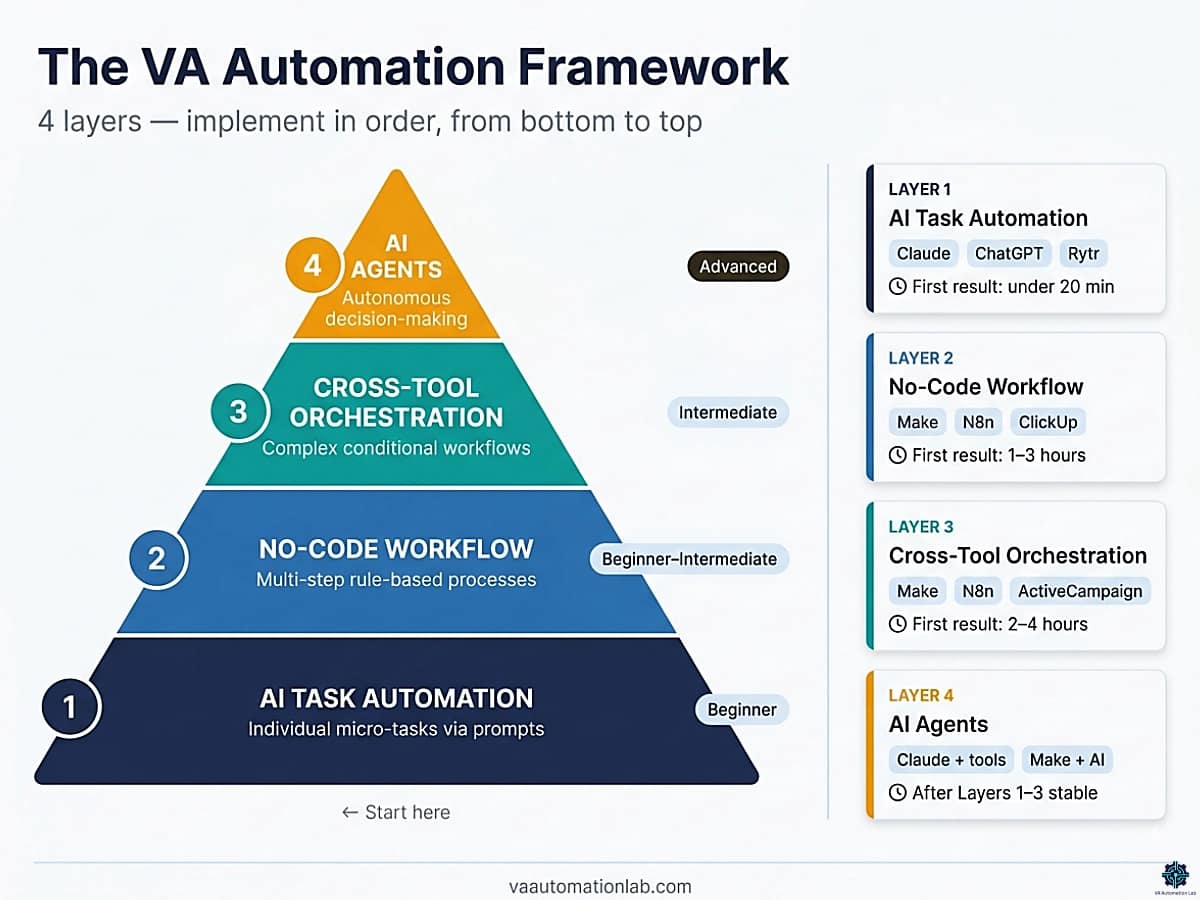
Understanding how to automate repetitive tasks as a virtual assistant requires a framework, not just a tool list. The four-layer model below organizes automation by complexity and implementation order, so you always know what to build next and why.
Layer 1 — AI Task Automation
What it covers: individual micro-tasks — single workflow steps that AI handles faster and more consistently than manual execution.
Examples: email thread summarization, first-draft reply generation, task extraction from meeting notes, document formatting, SOP drafting from a verbal description.
Tools: Claude, ChatGPT, Gemini (for Gmail), Copilot (for Outlook), Notion AI, Rytr.
When to start here: always. Layer 1 is the entry point for every VA regardless of technical experience. These tools require no configuration, they work through a text prompt. The first automation most VAs implement is Layer 1: paste meeting notes into Claude, receive a structured summary in 10 seconds.
Time to first result: one session, often under 20 minutes.
For the full guides of the main tools in this category, read Claude AI for Virtual Assistants: The Complete Guide and ChatGPT for Virtual Assistants: Complete Guide to Use Cases, Prompts & Workflows.
Layer 2 — No-Code Workflow Automation
What it covers: multi-step, rule-based processes that connect two or more tools and transfer information between them automatically based on a trigger.
Examples: new form submission → contact created in CRM → welcome email sent → onboarding folder created in Drive. New email labeled “Invoice” → row added to billing spreadsheet → task created in ClickUp.
Tools: Make, ClickUp, N8n, Zapier.
When to start here: after at least one Layer 1 automation is stable and you have identified a recurring process where you manually move information between two tools. No-code automation for virtual assistants at Layer 2 requires that the underlying process is already defined and consistent, automating a messy process produces automated mess.
Time to first result: 1-3 hours for the first workflow; 20-30 minutes once you’re familiar with the platform.
Layer 3 — Cross‑Tool Orchestration
What it covers: complex workflows that connect three or more tools in sequence, with conditional logic that routes information differently depending on the situation.
Examples: client form submitted → contact added to CRM → if new client: trigger onboarding sequence + create Drive folder + send welcome email + schedule kickoff call → if returning client: update existing record + notify VA → add to project board.
Tools: Make, ClickUp + Zapier combined, n8n.
When to start here: after Layer 2 automations are stable and you’re building workflows for clients with complex, multi-tool operations. This layer requires more setup time but produces the highest time savings per workflow, an entire client process runs automatically from a single trigger.
Layer 4 — AI Agents
What it covers: autonomous systems that don’t just execute predefined steps but make decisions, interpret context, and adapt their actions based on what they find.
Examples: an AI agent that monitors a client inbox, identifies emails requiring action, drafts responses tailored to each sender’s history, flags exceptions for human review, and updates the CRM without a predefined rule for every scenario.
Tools: Claude with tools enabled, ChatGPT with Actions, Make + AI step combinations.
When to start here: after Layers 1-3 are established. Layer 4 requires stable underlying processes and is currently most practical for high-volume, high-frequency tasks where the decision-making patterns are consistent enough that AI can be trusted to handle exceptions.
Read how to implement a system around AI in AI Powered Productivity System for Virtual Assistants.
Layer | Name | What It Automates | Best Tools | Difficulty |
1 | AI Task Automation | Individual micro-tasks | Claude, ChatGPT, Rytr | Beginner |
2 | No‑Code Workflow | Multi-step rule-based processes | Make, N8n, ClickUp | Beginner-Intermediate |
3 | Cross‑Tool Orchestration | Complex conditional multi-tool flows | Make, N8n | Intermediate |
4 | AI Agents | Autonomous decision-making workflows | Claude + tools, Make + AI | Advanced |
4. The 6 Task Categories VAs Should Automate First
Not all repetitive tasks produce equal automation ROI. The six categories below are ordered by frequency and implementation simplicity, the combination that produces the fastest, most visible results when learning how to automate repetitive tasks as a virtual assistant.
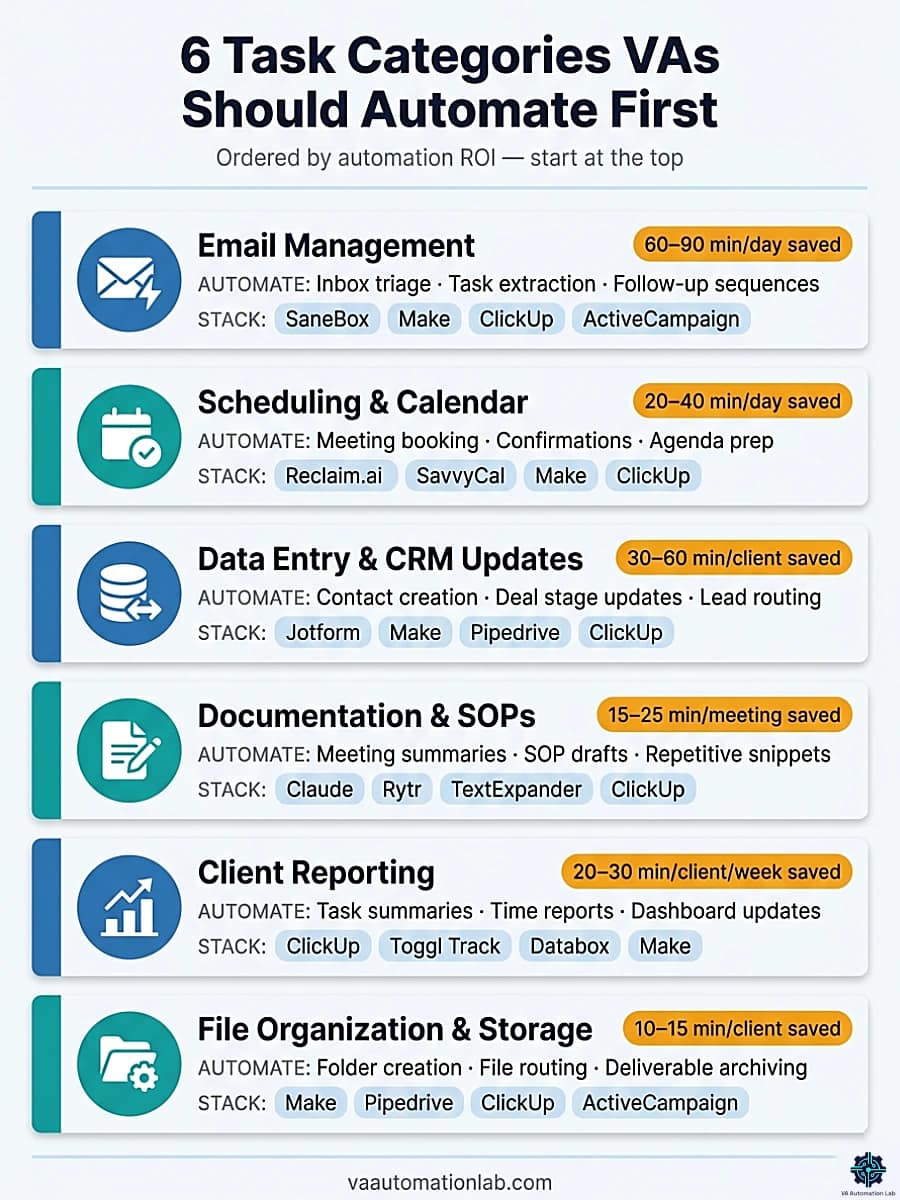
Email Management
Why automate first: Email is the highest-frequency task for most virtual assistants and follows predictable patterns, making it one of the easiest areas to automate. Even simple workflows can deliver immediate, measurable time savings.
What to automate:
- Thread summarization and quick replies — Use AI tools (Claude, ChatGPT, Gemini) to generate summaries and first-draft responses, reducing manual writing time
- Inbox filtering and prioritization — Use SaneBox to automatically sort emails, highlight important messages, and reduce noise
- Task extraction from emails — Connect your inbox with Make to automatically turn emails into tasks in ClickUp
- Automated follow-ups and sequences — Use ActiveCampaign or Brevo to send follow-ups, reminders, and client communication without manual input
- Inbox triage and labeling — Combine Gmail filters with SaneBox to automatically categorize incoming messages
Automation workflow — Layer 2: A simple but powerful workflow eliminates most manual inbox management:
New email arrives → labeled “Action Required” → Make triggers → task created in ClickUp (subject = task name, body = description, sender = comment) → optional follow-up sequence triggered via ActiveCampaign
This creates a fully automated pipeline from inbox to task execution and follow-up.
Time saving benchmark: A structured email automation system can reduce inbox management time by 60–90 minutes per day for a virtual assistant handling multiple client accounts.
Recommended stack for email automation:
- Inbox organization → SaneBox
- Workflow automation → Make
- Task management → ClickUp
- Follow-ups & communication → ActiveCampaign
For the full email automation setup in detail, including prompt templates for AI-assisted triage and a step-by-step SaneBox configuration for multi-client inboxes, read AI Email Management for Virtual Assistants: Best Tools and Workflows.
Scheduling & Calendar Coordination
Why automate first: Scheduling is one of the most time-disproportionate tasks a VA handles — the coordination logic is simple and fully predictable, yet the back-and-forth email exchange to find a time can consume 15–20 minutes per meeting. Automating this category produces an immediate client-facing improvement as well as internal time savings.
What to automate:
- Meeting booking — Use Reclaim.ai to intelligently block time and share availability links that sync with your actual calendar in real time
- Client-facing scheduling links — Use SavvyCal to give clients a clean booking experience with calendar overlay, reducing confusion and rescheduling
- Booking confirmation and reminders — Connect your scheduling tool with Make to automatically send confirmation emails and 24-hour reminders without manual drafting
- Pre-meeting agenda preparation — Trigger a Make workflow when a meeting is booked to create a ClickUp page pre-populated with the meeting template
- Rescheduling sequences — Configure Reclaim.ai to automatically find the next available slot when a meeting is cancelled and notify the client
Automation workflow — Layer 2: A booking-to-preparation sequence that runs without any manual steps:
Client books via Reclaim.ai scheduling link → Make triggers → Google Calendar event confirmed → confirmation email sent with agenda template → 24-hour reminder sent → ClickUp task created for pre-meeting prep
Time saving benchmark: A fully automated scheduling stack eliminates 20–40 minutes of coordination per day for a VA managing 5+ meetings per week across multiple clients.
Recommended stack for scheduling automation:
- AI calendar management → Reclaim.ai
- Client-facing booking → SavvyCal
- Workflow automation → Make
- Task and prep management → ClickUp
Data Entry and CRM Updates
Why automate first: Data entry is pure repetition with zero creative value and a disproportionately high error rate when done manually. It is also the category where automation produces the most consistent output — a correctly configured workflow will always create the same CRM record, in the same format, with zero transcription errors.
What to automate:
- New contact creation from form submissions — Use Make to automatically create a contact in Pipedrive or Zoho CRM every time a new intake form is submitted, with all fields mapped
- CRM stage updates from email activity — Connect ActiveCampaign to your CRM so that email opens, link clicks, and replies automatically update deal stages in Pipedrive without manual logging
- Spreadsheet row additions from form data — Route Jotform submissions through Make to populate a Google Sheet tracking new leads or project requests
- Invoice and payment record creation — Connect InvoiceNinja to your workflow so that a project completion trigger in ClickUp automatically creates and sends the invoice
- Lead qualification data routing — Use Make conditional logic to route leads from Jotform to different Pipedrive pipelines based on budget range or service type selected in the form
Automation workflow — Layer 3: A complete client intake sequence that eliminates all manual data entry:
Client submits intake form in Jotform → Make triggers → contact created in Pipedrive with all fields mapped → project created in ClickUp → Google Drive folder structure created → welcome email sent via ActiveCampaign → VA notified via ClickUp task assignment
Time saving benchmark: Automating client intake eliminates 30–60 minutes of manual data entry per new client. Across 4 new clients per month, this recovers 2–4 hours of billable capacity.
Recommended stack for CRM and data entry automation:
- Form and data capture → Jotform
- Workflow automation → Make
- CRM and pipeline management → Pipedrive
- Task management → ClickUp
For the step-by-step build of the full client intake automation, including the Jotform field mapping, Pipedrive contact creation setup, and the ClickUp project template configuration in Make, see How to Automate Client Onboarding for Virtual Assistants.
Documentation and SOPs
Why automate first: Documentation tasks carry a high time cost per output — writing a meeting summary or an SOP from scratch takes 15–30 minutes, but the structure is always predictable. AI reduces that to 2–3 minutes of review and editing. For a VA handling 8–10 client interactions per week, this is one of the highest-leverage categories to automate early.
What to automate:
- Meeting notes to structured summaries — Use Claude or ChatGPT with a prompt template to convert raw meeting notes into a formatted summary with decisions, action items, and next steps in under a minute
- SOP drafting from verbal descriptions — Describe a process in plain language and use Claude to generate a formatted, step-by-step SOP ready for client delivery
- Repetitive text snippets — Use TextExpander to store reusable phrases, email templates, and SOP sections that expand from a short keyboard shortcut
- Onboarding documentation from templates — Use ClickUp Docs to store master onboarding templates that are automatically duplicated when a new client project is created
- Short-form content drafts — Use Rytr to generate first drafts of routine client-facing content (email newsletters, service descriptions, update messages) at speed
Automation workflow — Layer 1 + Layer 2: A post-meeting documentation pipeline:
Raw meeting notes pasted into Claude with prompt template → structured summary generated (decisions + action items + next steps) → summary pasted into ClickUp Docs in client workspace → Make triggers task creation for each action item in ClickUp → TextExpander abbreviation used to insert standard follow-up email template → summary sent to client
Time saving benchmark: AI-assisted documentation reduces meeting summary time from 20–30 minutes to 3–5 minutes per meeting. For a VA handling 10 client meetings per week, this recovers 2.5–4 hours weekly.
Recommended stack for documentation automation:
- AI drafting and summarization → Claude / ChatGPT
- Short-form content drafts → Rytr
- Repetitive text shortcuts → TextExpander
- Documentation and task management → ClickUp
- Workflow automation → Make
Client Reporting
Why automate first: Client reporting is the most structurally predictable high-effort task in a VA’s week. The format is identical every time, the data already exists in the tools you use, and the only manual step is pulling it together and formatting it. Automating this category has a direct impact on client perception — faster, more consistent reports signal a more professional operation.
What to automate:
- Weekly task completion summaries — Connect ClickUp with Make to automatically pull completed tasks for each client and format them as a weekly status update
- Billable hours summaries — Use Toggl Track or Clockify to generate time reports by client and export them automatically on a schedule
- Performance and analytics reports — Use Databox to pull KPIs from multiple client tools into a single dashboard that updates automatically
- Monthly invoice-ready hour exports — Connect Clockify or Toggl Track to InvoiceNinja via Make to create invoices directly from tracked time, with no manual calculation
- Automated report delivery — Use ActiveCampaign or Gmail via Make to send the formatted report to the client automatically on a schedule, with a human review step before final delivery
Automation workflow — Layer 3: A fully automated weekly reporting pipeline:
Every Friday → Make scheduled trigger → completed tasks pulled from ClickUp by client tag → time data pulled from Toggl Track → structured report generated via Claude prompt → draft email created in Gmail for VA review → VA reviews and sends → Databox dashboard updated for live client access
Time saving benchmark: Automating client reporting eliminates 20–30 minutes of manual compilation per client per week. For a VA with 4 reporting clients, this recovers 80–120 minutes every Friday.
Recommended stack for client reporting automation:
- Task and project tracking → ClickUp
- Time tracking → Toggl Track or Clockify
- KPI dashboards → Databox
- Workflow automation → Make
For the complete build of this workflow, including the ClickUp task pull setup, the Toggl Track time export configuration, the Claude prompt template for report generation, and the Databox dashboard setup for live client-facing reporting, see How to Automate Client Reporting as a Virtual Assistant.
File Organization and Storage
Why automate first: File organization has zero cognitive value — it is pure rule-based sorting. Yet disorganized file structures are one of the most common sources of time wasted searching and of client friction when deliverables cannot be found quickly. Automating this category is low-effort to configure and produces a permanent, invisible improvement to how your operation runs.
What to automate:
- New client folder creation — Use Make to automatically build a standardized folder structure in Google Drive whenever a new client is added to Pipedrive or a new project is created in ClickUp
- Invoice and receipt routing — Route incoming invoices labeled in Gmail to the correct client billing folder in Drive automatically via Make
- Meeting recording uploads — Connect your video conferencing tool to Make to automatically upload recordings to the correct client folder and create a ClickUp task for review
- Completed deliverable archiving — Trigger a Make workflow when a ClickUp task is marked complete to move the associated file to the client’s Deliverables archive with a date-stamped filename
- Template duplication for new projects — Use ClickUp’s template system to automatically clone a master project structure whenever a new client project is initiated
Automation workflow — Layer 2: A new client setup workflow that creates the full file structure from a single trigger:
New contact created in Pipedrive → Make triggers → Google Drive API creates folder: /Clients/[ClientName]/ → subfolders created: Contracts, Deliverables, Invoices, Meeting Notes → master document templates copied into each subfolder → ClickUp project created with standard task list → client notified via ActiveCampaign welcome email
Time saving benchmark: Automated folder creation saves 10–15 minutes per new client. More importantly, it eliminates the ongoing 5–10 minutes per week spent searching for misplaced files in manually organized structures.
Recommended stack for file organization automation:
- Workflow automation → Make
- CRM trigger source → Pipedrive
- Task and project management → ClickUp
- Client communication → ActiveCampaign
Category | Highest-ROI Tasks to Automate | Automated Outcome | Recommended Stack | Time Saved |
📧 Email Management | Inbox triage, task extraction, follow-up sequences | Emails become tasks automatically; follow-ups run without manual input | SaneBox → Make → ClickUp → ActiveCampaign | 60–90 min/day |
📅 Scheduling | Meeting booking, confirmations, agenda prep, reminders | Client books → confirmation sent → prep task created, zero manual steps | Reclaim.ai → SavvyCal → Make → ClickUp | 20–40 min/day |
🗂️ Data Entry & CRM | Contact creation, deal stage updates, lead routing | Form submitted → CRM record created → project + folder + email triggered | Jotform → Make → Pipedrive → ClickUp | 30–60 min/client |
📄 Documentation | Meeting summaries, SOP drafts, repetitive text snippets | AI generates structured summaries; shortcuts expand reusable content | Claude/ChatGPT → Rytr → TextExpander → ClickUp | 15–25 min/meeting |
📊 Client Reporting | Weekly task summaries, time reports, dashboard updates | Data pulled, report generated, draft sent for review on schedule | ClickUp → Toggl Track → Databox → Make | 20–30 min/client/week |
📁 File Organization | Folder creation, file routing, deliverable archiving | New client or completed task triggers full folder setup automatically | Make → Pipedrive → ClickUp → ActiveCampaign | 10–15 min/client |
5. Best Tools to Automate Repetitive Tasks
The problem with generic “best automation tools” lists is that they mix tools that serve completely different functions. This section organizes the most relevant tools into seven use-case categories, with verified pricing and honest notes on VA fit. Every pricing figure below is confirmed from official pricing pages.
Compare the top platforms by category, workflow use case, pricing, automation features, and beginner-friendliness in Best Tools for Virtual Assistants in 2026: The Complete Comparison Guide.
Workflow Automation Platforms
These are the engines of your automation stack, the tools that connect everything else.
Make — The top-tier choice for VA workflow automation
- Best for: multi-step workflows, conditional routing, connecting 3+ tools in sequence
- Free plan: 1,000 credits/month, enough to test and run lightweight automations
- Paid from: Core $9/month (unlimited active scenarios, API access, scheduled runs down to the minute), Pro $16/month (custom variables, full execution log search), Teams $29/month
Make’s visual canvas-style builder makes complex workflows readable at a glance. For VAs managing multiple clients who need different routing logic, Make handles this far better than simpler alternatives. The free tier is genuinely useful as a starting point, most VAs working with 1–2 clients and simple linear workflows can run on it for the first 30–60 days.
Full guide: Make for Virtual Assistants: The Beginner Setup Guide
n8n — The automation platform for VAs who want more control
- Best for: VAs comfortable with slightly more technical setup, open-source workflows, strong API integrations
- Free plan: self-hosted (free); cloud starts at Starter $23/month (2,500 executions)
- Paid from: Starter $23/month, Pro $58/month (10,000 executions, admin roles, workflow history)
n8n’s cloud offering makes sense if your VA work involves clients with specific API requirements or if you’re building automations that need greater flexibility than Make provides. For most VAs just starting out, Make is the simpler entry point, but N8n is worth knowing when complexity scales.
Full guide: n8n for Virtual Assistants: Complete Guide, AI Workflows & Automation
Zapier — A widely used automation platform with a large app ecosystem
- Best for: VAs who prefer step-by-step tutorials and need integrations with niche or legacy apps not yet available on Make
- Free plan: 100 tasks/month, single-step zaps only — not sufficient for real VA workflows
- Paid from: Professional $20/month (750 tasks, multi-step zaps, filters, paths), Team $69/month
- Note: Higher cost per task than Make at equivalent functionality. Conditional logic (Paths) requires the Professional plan and is less flexible than Make’s native Router module. The main advantage is tutorial coverage — if you learn better from written guides than from visual builders, Zapier has more beginner-oriented resources. Once your workflows require branching logic or 3+ tool connections, Make handles those cases more efficiently and at lower cost.
Compare pricing, ease of use, workflow flexibility, integrations, AI automation features, and the best choice for beginner vs advanced automation systems in 4 Best Zapier Alternatives for Virtual Assistants and in Zapier vs Make for Virtual Assistants: The Complete Comparison Guide.
Scheduling & Time Automation
Scheduling is one of the first categories VAs automate because the ROI is immediate and visible, no more back-and-forth email threads to find a meeting time.
Reclaim.ai — AI-powered calendar management for VAs who juggle multiple clients
- Best for: intelligent time-blocking, task scheduling, calendar sync across personal and work accounts
- Free plan: Lite — 1 scheduling link, 1 habit, 1 week scheduling range
- Paid from: Starter $10/month (unlimited habits, 3 scheduling links, 3 smart meetings, up to 10 seats), Business $15/month (unlimited scheduling links, 12-week range, delegated access)
Reclaim actively manages your calendar by finding the best available slots for tasks and automatically adjusting when priorities shift. For VAs coordinating across multiple client calendars, this is meaningfully different from a basic scheduling link tool.
Full guide: Reclaim.ai for Virtual Assistants: Complete Guide & Setup
SavvyCal — Scheduling with calendar overlay for recipients
- Best for: client-facing scheduling links, eliminating time zone confusion, professional booking experience
- Free plan: 1 scheduling link, 1 calendar connection
- Paid from: Basic $12/month (unlimited links, unlimited calendars, team scheduling), Premium $20/month (custom domains, delegate to assistant, paid bookings)
SavvyCal’s calendar overlay feature lets recipients see their own calendar alongside availability, meaningfully reducing scheduling friction compared to standard scheduling tools.
Clockify — Time tracking for billable hours and project monitoring
- Best for: tracking billable time across multiple clients, generating invoices from tracked hours
- Free plan: unlimited time tracking — genuinely useful for solo VAs
- Paid from: Basic $5/month, Standard $6/month (invoicing, approvals, time off), Pro $9/month (scheduling, expenses, budget tracking)
For VAs who bill hourly across multiple clients, Clockify’s free tier covers most needs. The Standard plan makes sense once you’re generating invoices directly from tracked time.
Toggl Track — Clean time tracking with strong reporting
- Best for: clean time tracking experience, revenue and productivity analysis, team collaboration
- Free plan: unlimited time tracking, productivity reports, 100+ integrations via browser extension
- Paid from: Starter $10/month (billable rates, project estimates), Premium $21/month (profitability analysis, scheduled reports, timesheet approvals)
Toggl Track’s free tier is one of the most generous in this category. The Starter plan adds billable rate tracking, useful for VAs who charge different rates per client or project type.
Full guide: Toggl Track for Virtual Assistants: Complete Guide, Time Tracking & Productivity Workflows
For the full comparison of scheduling tools for VAs, see Best AI Scheduling Tools for Virtual Assistants.
Email & Inbox Automation
SaneBox — AI email prioritization that works with any email client
- Best for: VAs managing high-volume inboxes, filtering newsletters and low-priority emails, snoozing threads
- Free plan: 14-day trial
- Paid from: Snack $6/month (1 email account, 2 features), Lunch $10/month (2 accounts, 6 features), Dinner $30/month (4 accounts, all features)
SaneBox works on top of Gmail, Outlook, or any IMAP client, no migration needed. It learns from your behavior and moves low-priority emails to separate folders automatically. For a VA managing 3+ client inboxes, the Lunch plan (2 accounts, 6 features) is the practical sweet spot.
Full guide: SaneBox for Virtual Assistants: Review & Setup Guide
ActiveCampaign — Email automation and CRM for VAs managing client marketing workflows
- Best for: VAs who build and manage email sequences, lead nurturing campaigns, and automated client communication flows
- Free plan: 14-day trial
- Paid from (1,000 contacts): Starter $15/month, Plus $37/month, Pro $79/month
ActiveCampaign is the primary choice for VAs whose service offering includes email marketing. The platform combines email automation, CRM, and behavioral triggers in one, meaning the lead-capture-to-nurture workflow is built entirely within one tool rather than stitched together across three.
Brevo — Email marketing and automation with a usable free plan
- Best for: VAs running straightforward email campaigns for clients, transactional emails, SMS
- Free plan: 300 emails/day, basic automation, up to 2,000 contacts — workable for small client lists
- Paid from: Starter $8/month (from 5,000 emails/month), Standard $16/month (marketing automation, A/B testing, AI send time optimization)
Brevo’s free tier and low entry pricing make it the right recommendation for clients who need basic email automation but are not yet ready for the full ActiveCampaign stack.
Documentation & SOP Automation
ClickUp — Project management platform with built-in automation and documentation
- Best for: VAs who need task management, SOP documentation, and workflow automation in one platform
- Free plan: unlimited tasks, collaborative docs, kanban boards, sprint management, 1 form
- Paid from: Unlimited $7/month (unlimited spaces, Gantt charts, integrations, custom fields, time tracking), Business $12/month (unlimited dashboards, webhooks, 5K automations/month, mind mapping), ClickUp Brain AI add-on at $9/month — unlimited AI assistant, AI writing, and chat across ChatGPT, Gemini, and Claude, includes 1,500 AI Super Credits/month for automations and agents, Everything AI add-on at $28/month adds AI Notetaker, AI Fields, unlimited AI Automations, and 5,000 Super Credits/month.
ClickUp is the closest thing to an all-in-one VA operations platform, task management, documentation, and automation in a single environment. The Unlimited plan at $7/month covers most VA use cases. The Business plan adds 5,000 automations/month, which is meaningful once you’re running multiple client workflows.
Full guide: ClickUp for Virtual Assistants: Setup Guide, Templates & Workflows
Notion — Documentation, SOPs, and knowledge base
- Best for: VAs who need a single workspace for SOPs, client wikis, onboarding documents, and internal knowledge bases — particularly those managing documentation for multiple clients simultaneously
- Free plan: available — basic features
- Paid from: Plus $10/month (unlimited forms, charts and file uploads, basic integrations), Business $20/month (Notion Agent, AI meeting notes, premium integrations), Notion AI available as an add-on at $10/month — generates first-draft SOPs from a description, summarizes long documents, and auto-fills database properties
Notion’s database system makes it particularly effective for VA documentation workflows: a single SOP database can store, tag, filter, and version-control every process document across all client workspaces. Notion AI reduces SOP drafting time significantly — describe a process in plain language and receive a structured, formatted document ready for client delivery.
Full guide: Notion AI for Virtual Assistants: Use Cases, Workflows & Automation Stack
TextExpander — Keyboard shortcut expansion for repetitive text
- Best for: VAs who write the same phrases, email signatures, or response templates dozens of times per day
- Free plan: 30-day trial
- Paid from: Individual $3/month (all core features), Business $8/month (team sharing, analytics), Growth $11/month (advanced team management)
TextExpander is Layer 1 automation at its simplest: type a short abbreviation, get the full text instantly. For a VA who sends the same project update language, invoice follow-up phrasing, or onboarding instructions repeatedly, this eliminates hundreds of keystrokes per day.
Full guide: TextExpander for Virtual Assistants: Complete Guide to Templates, Snippets & Productivity Workflows
CRM & Client Management Automation
Pipedrive — Sales-focused CRM with strong automation for client pipelines
- Best for: VAs managing sales pipelines, client follow-up sequences, lead tracking for clients
- Free plan: 14-day trial
- Paid from: Lite $16/month (pipeline management, AI-powered reports, 500+ integrations), Growth $46/month (full email sync, automations, nurturing sequences, meeting scheduler)
Pipedrive’s automation capabilities on the Growth plan cover most client pipeline management workflows a VA would build — automated follow-up sequences, deal stage triggers, and email tracking — without requiring a developer to configure.
Zoho CRM — Full-featured CRM with a genuine free tier
- Best for: VAs managing CRM setup and administration for clients, particularly those who need a cost-effective solution
- Free plan: available — up to 3 users, includes leads, deals, workflows, and reports
- Paid from: Standard $16/month (workflows, AI agents, cadences, sales forecasting), Professional $27/month (process automation, inventory management, Google Ads integration)
Zoho CRM’s free plan is one of the few genuinely usable no-cost CRM options, making it a practical recommendation for clients who need basic CRM functionality without committing to a paid platform.
Folk — Relationship-first CRM with strong contact enrichment
- Best for: VAs managing lightweight CRM, outreach pipelines, and contact management — particularly for clients in consulting or professional services
- Free plan: 14-day trial
- Paid from: Standard $24/month (pipeline management, email campaigns, contact enrichment, AI assistants, LinkedIn extension), Premium $48/month (email sequences, advanced permissions, API access)
Folk’s AI-powered “Magic Fields” automatically populate contact information from LinkedIn profiles and email interactions, reducing manual data entry in contact management workflows.
Full guide: Folk CRM for Virtual Assistants: Complete Setup Guide
Dubsado — Client management platform for service-based VAs
- Best for: VAs who offer their own services and need proposals, contracts, invoicing, and scheduling in one place
- Free plan: 21-day trial
- Paid from: Starter $28/month (unlimited clients/projects, invoicing, templates), Premier $44/month (scheduling, automated workflows, public proposals, Zapier integration)
Dubsado is more of a business management platform than a traditional CRM, it is built specifically for service providers who need client-facing forms, contracts, and payment collection in a single workflow.
Compare tools like Pipedrive, Zoho CRM, Folk, and Dubsado based on workflow automation, ease of use, and client management features, in Best CRM for Virtual Assistants.
Social Media Automation
Buffer — Clean, reliable social media scheduling
- Best for: VAs managing social scheduling for 1–3 clients, simple posting calendars, clean analytics
- Free plan: 10 scheduled posts per channel, 1 user, AI assistant, basic analytics
- Paid from: Essential $5/month/channel (unlimited posts, advanced analytics, hashtag manager), Team $10/month/channel (unlimited team members, content approval workflows)
Buffer’s free plan is a practical starting point for VAs just taking on a first social media client. The Essential plan unlocks unlimited scheduling and is still priced low enough to bill back to any client.
Metricool — Social scheduling with competitive analytics built in
- Best for: VAs who need scheduling plus competitive benchmarking and reporting in one tool
- Free plan: 1 brand, up to 20 posts/month, 30 days of analytics, AI social media assistant
- Paid from: Starter $20/month (up to 10 brands, unlimited publishing, LinkedIn, Twitter/X, PDF reports, unlimited analytics history), Advanced $53/month (up to 50 brands, team management, post approval, Metricool API)
Metricool’s Starter plan is the practical upgrade path for VAs managing social media for clients, it adds LinkedIn, report exports, and unlimited analytics history at a price that covers itself with a single client retainer.
Later — Visual social scheduling with strong Instagram and TikTok support
- Best for: VAs managing visual brands on Instagram or TikTok, link-in-bio management
- Free plan: 14-day trial
- Paid from: Starter $19/month (1 social set / 8 profiles, 1 user, 30 posts/profile, 5 AI credits/month), Growth $37.50/month (2 social sets, collaboration workflows, social inbox, 180 posts/profile, 50 AI credits/month)
Later’s Growth plan is the right tier for VAs managing an active social presence, the collaboration and approval workflow tools make client review cycles manageable without requiring the client to log in to the tool.
SocialBee — Category-based scheduling with evergreen content recycling
- Best for: VAs managing content-heavy accounts with recurring post types (tips, quotes, promotions)
- Free plan: 14-day trial
- Paid from: Bootstrap $24/month (5 social profiles, unlimited AI content generation, analytics up to 3 months), Accelerate $40/month (10 profiles, advanced analytics, bulk editor, CSV uploads, post approval system)
SocialBee’s category-based scheduling, where content is organized by type and cycled automatically, is particularly useful for VAs managing accounts that post at high frequency with consistent content pillars.
Full guide: SocialBee for Virtual Assistants: Review, Setup & Workflows
Learn how to build automated publishing systems, client approval workflows, analytics reporting, and AI-assisted content pipelines using tools like Buffer, Metricool, Later, and SocialBee, in Social Media Automation for Virtual Assistants: Tools, Workflows & Complete System.
Forms & Data Collection Automation
Jotform — Form builder with AI agents for automated data collection
- Best for: VAs who collect client intake data, questionnaire responses, or booking information
- Free plan: Starter — 5 forms, 100 monthly submissions, 1 GB storage — usable for a solo VA’s intake flow
- Paid from: Bronze $39/month (25 forms, 1,000 submissions, no branding), Silver $45/month (50 forms, 2,500 submissions), Gold $115/month (100 forms, 10,000 submissions, HIPAA compliance)
Jotform’s AI agent feature now allows forms to behave as conversational intake flows, asking follow-up questions based on responses rather than presenting a static form. Useful for complex client discovery questionnaires.
Full guide: Jotform for Virtual Assistants: Intake & Onboarding
Involve.me — Interactive funnel and quiz builder for lead capture
- Best for: VAs managing lead generation funnels, quizzes, or interactive onboarding flows for clients
- Free plan: 50 submissions or 500 visits/month
- Paid from: Starter $29/month (5 live funnels, email automations, conditional logic, 50+ premium features), Pro $59/month (15 funnels, remove branding, detailed funnel analytics), Business $129/month (30 funnels, A/B testing, webhooks)
Involve.me is the right tool when a client’s intake or lead-capture flow needs to be more interactive than a standard form, branching logic, scoring, and dynamic content based on responses.
Build Your First VA Workflow in Make
Make‘s free plan includes 1,000 credits/month and access to 3,000+ app integrations, enough to build and run two to three client-facing automations before any paid commitment.
The visual canvas builder requires no coding and no previous automation experience.
6. The Beginner Roadmap: How to Start Automating
The fastest path to automating repetitive tasks as a virtual assistant is not the most comprehensive one. It is the most specific one. The roadmap below starts with a single task, builds one stable automation, and expands only after results are confirmed, the same principle that applies to every layer of the framework.
Step 1 — Identify One Repetitive Task
Choose the task you perform most frequently, ideally something that occurs at least five times per week and follows the same structure every time. The best starting candidates: email thread summarization (high frequency, Layer 1 implementation), meeting notes to structured summary (high frequency, immediate client impact), or new contact creation from form submissions (highest error rate in manual workflows, Layer 2).
Evaluation criteria for your first automation:
– Does this task occur at least 3-5 times per week?
– Does it follow the same steps every time?
– Is the output format predictable?
– Does it require information I already have, rather than judgment about information I don’t?
If all four are yes, it is an automation candidate. If the last answer is no — the task requires significant judgment — automate the structure and keep the judgment step manual.
Step 2 — Choose One Tool Matched to the Task
Match the task to the simplest tool that covers it, not the most powerful tool available.
If your first task is… → Start with…
Email summarization → Claude or ChatGPT (Layer 1, free)
Meeting notes to summary → Claude with prompt template (Layer 1, free)
Scheduling coordination → Reclaim.ai or SavvyCal (Layer 2, free tier)
New client data entry → Make + intake form (Layer 2, free tier)
SOP drafting → Claude with process description prompt (Layer 1, free)
File organization → Make + Google Drive (Layer 2, free tier)
The pattern: start with Layer 1 (AI tool, no configuration) if the task is text-based. Start with Layer 2 (no-code automation) if the task involves moving information between tools.
Do not start with Make, complex conditional logic, or multi-step workflows. Build the simplest version that works, then add complexity only after the simple version has been running stably for two weeks.
Step 3 — Automate One Use Case Only
Apply the chosen tool to the single use case identified in Step 1. Not two use cases. Not “let me also test it for X while I’m here.” One use case, documented and tested, before any expansion.
For Layer 1 (AI tools): build a prompt template, test it on three real instances, refine, then use it consistently for two weeks.
For Layer 2 (no-code): build the Make or n8n workflow, run a test trigger, verify each step produces the correct output, then leave it running for two weeks without modification.
Step 4 — Keep the Workflow Simple
The most reliable automation is the one with the fewest steps. Every additional step is an additional failure point. When building no-code automation for virtual assistants, resist the temptation to handle every edge case in the first version. Build the 80% solution, the one that handles the most common scenario correctly, and add exception handling only after the base workflow is proven stable.
If a workflow takes more than two hours to build, it is either too complex for a first attempt or the wrong tool for the task. Return to a simpler layer and build up.
Step 5 — Expand Only After Confirmed Results
A workflow is confirmed stable when it has run correctly for two weeks with minimal manual intervention and the time saving is measurable. At that point, add one adjacent automation, a task similar in type or frequency to the first.
The compounding effect of virtual assistant workflow automation becomes visible after three to four stable automations: the daily time recovered from automation exceeds the time invested in building new ones, and the system becomes self-reinforcing.
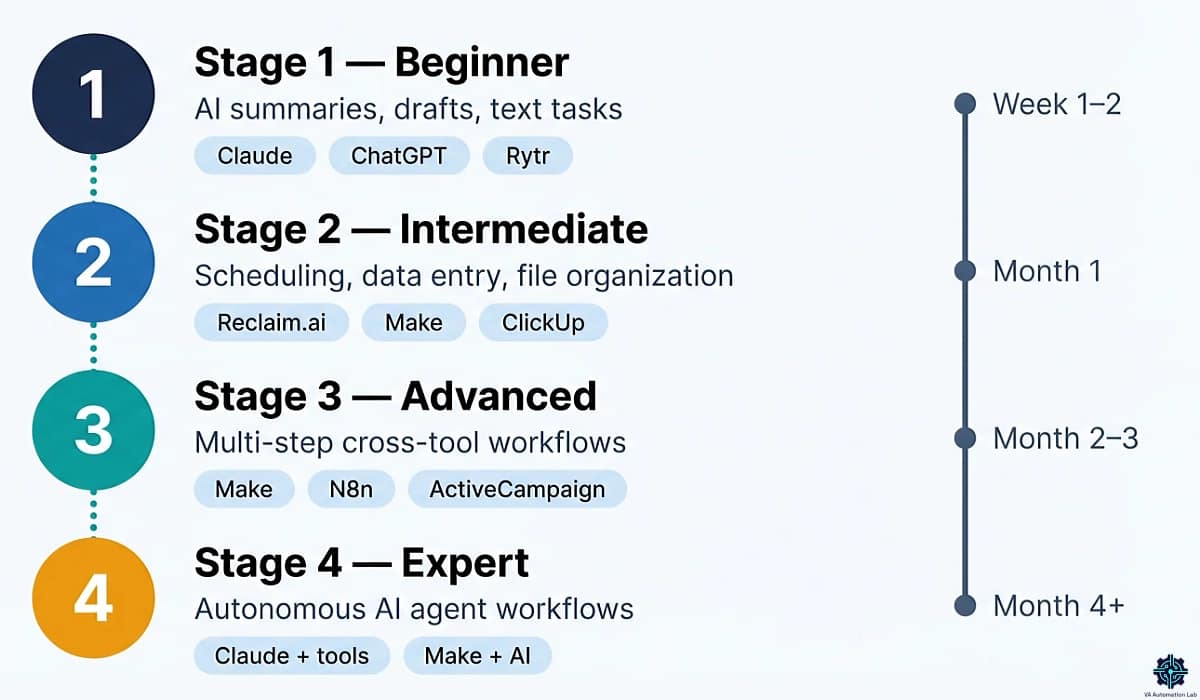
Stage | Skill Level | What You Automate | Tools to Use |
Stage 1 | Beginner | AI summaries, drafts, single-task AI | Claude, ChatGPT, Rytr |
Stage 2 | Intermediate | Scheduling, data entry, file organization | Reclaim.ai, Make, ClickUp |
Stage 3 | Advanced | Multi-step cross-tool workflows | Make, n8n, ActiveCampaign |
Stage 4 | Expert | Autonomous AI agent workflows | Claude + tools, Make + AI |
7. Five Real Automation Workflows You Can Copy Today
The workflows below are specific: each includes the tools used, the trigger, each step in sequence, and the realistic time to build. None requires coding. All are designed for solo VAs managing multiple client relationships.
Workflow 1: Email → Task → CRM
What it does: converts a flagged email into a tracked task in ClickUp and a logged activity in Pipedrive, automatically, with no copy-paste.
Tools: Make + ClickUp + Pipedrive
Time to build: 45–60 minutes
Time saved: 5–8 minutes per flagged email, adds up fast across 10–15 flagged emails per day
Step-by-step:
- In Gmail, create a label “→ Action” for emails that need follow-up.
- Make trigger: “New email with label → Action in Gmail.”
- Make action 1: Create task in ClickUp, title = email subject, description = email body, due date = today + 2 days, tag = client name extracted from sender domain.
- Make action 2: Search for existing contact in Pipedrive by sender email.
- Make action 3: If contact found → log activity in Pipedrive (activity type: email, note = email subject + timestamp). If contact not found → create new contact + log activity.
- Make action 4 (optional): Send Slack or email notification to yourself with task name and ClickUp link.
Test: apply the label to an old email and verify all three steps complete correctly before activating.
Workflow 2: Lead Form → Email Sequence
What it does: turns a new lead form submission into an automatic multi-step email nurture sequence — no manual follow-up required, each email personalized with the lead’s details.
Tools: Jotform + ActiveCampaign
Time to build: 60–90 minutes (form build + sequence build)
Time saved: 30–45 minutes per new lead in manual follow-up time
Step-by-step:
- Build the lead intake form in Jotform, capture name, email, service interest, and budget range.
- In ActiveCampaign, create an automation: trigger = “Contact added to list [Lead — Inquiry].”
- Map Jotform submission to ActiveCampaign contact: connect via Jotform’s native ActiveCampaign integration or via Make.
- Build the ActiveCampaign sequence:
- Email 1 (immediate): thank you + what to expect next + calendar link
- Email 2 (day 2): relevant case study or resource based on service interest (use ActiveCampaign conditional content to match the field)
- Email 3 (day 5): soft follow-up, “Any questions before we connect?”
- Email 4 (day 10): final touch, “Closing your inquiry, happy to reconnect anytime”
- Add a tag “Lead — Active” when the contact opens email 1, and “Lead — Engaged” when they click the calendar link.
Note: the conditional content in step 4 requires the Plus plan ($37/month for 1,000 contacts) or higher. The Starter plan supports the sequence structure but not conditional branching.
Workflow 3: Social Scheduling Pipeline
What it does: creates a repeatable weekly social scheduling process using two complementary tools (one for scheduling, one for analytics) so content is published consistently and performance is monitored automatically.
Tools: Buffer + Metricool
Time to build: 30–45 minutes (account setup and workflow documentation)
Time saved: 60–90 minutes per week of manual scheduling and reporting
The workflow:
- Content creation (Monday): draft the week’s posts using an AI tool (Claude or Rytr) based on the content calendar. Output: 7–10 posts in a Google Doc or Notion page.
- Scheduling (Buffer): load posts into Buffer by platform. Buffer’s Queue feature distributes posts at optimal times, no manual scheduling required. The Team plan ($10/month/channel) enables client approval before posts go live.
- Analytics (Metricool): connect the same accounts to Metricool for analytics tracking. Metricool’s reporting runs automatically and exports weekly performance data as a PDF, ready to send to the client as a report.
- Weekly review (Friday): review Metricool analytics for the week. Adjust next week’s content plan based on top-performing post types and engagement data.
Why use both tools: Buffer handles scheduling with the cleanest UX and client approval flow. Metricool handles analytics, competitive benchmarking, and report exports, features not available in Buffer’s Essential plan. The two tools complement rather than overlap.
Workflow 4: Meeting → Notes → CRM
What it does: turns a recorded client call into structured notes and a logged CRM activity, automatically, with no transcription or manual data entry.
Tools: Fireflies.ai + Zoho CRM (via Make)
Time to build: 30–45 minutes
Time saved: 15–25 minutes per meeting in manual note-taking and CRM logging
Step-by-step:
- Fireflies.ai joins the call automatically (invite fireflies@fireflies.ai or connect via calendar integration). Free plan covers unlimited transcription (recording limit: 2 hours); Pro plan at $10/month adds downloadable transcripts and action item tracking.
- After the call, Fireflies generates a transcript and AI summary with action items. This arrives in your email and Fireflies dashboard within minutes.
- Make trigger: “New meeting processed in Fireflies.ai” (via Fireflies webhook).
- Make action 1: Parse the AI summary, extract action items, decisions, and key discussion points.
- Make action 2: Search Zoho CRM for the client contact by email.
- Make action 3: Log activity in Zoho CRM. Activity type: Meeting, note = parsed summary, action items = extracted to-dos.
- Make action 4 (optional): Create tasks in ClickUp for each extracted action item, tagged to the client.
Test: record a 5-minute test call with Fireflies, verify the webhook fires, and check that the CRM activity is logged correctly before activating for live client calls.
Workflow 5: Invoice Automation
What it does: automates recurring invoice generation, delivery, and payment tracking, eliminating the manual monthly invoicing cycle.
Tools: InvoiceNinja
Time to build: 30 minutes initial setup; runs automatically thereafter
Time saved: 10–20 minutes per client per billing cycle
Step-by-step:
- Set up InvoiceNinja client profiles, add client name, email, billing address, and currency. Free plan supports up to 5 clients; NinjaPro at $12/month removes the client limit.
- For retainer clients: create a recurring invoice, set billing frequency (monthly, bi-weekly), amount, and auto-send date.
- Enable auto-billing if the client has a saved payment method, InvoiceNinja charges and sends the receipt automatically.
- Configure payment reminders: send reminder 3 days before due date, 1 day after due date, and 7 days after due date, all automated.
- For project-based clients: create an invoice template per service type. When a project closes, duplicate the template, update the hours/amount, and send. Tracked time from Clockify or Toggl Track can be imported directly as line items.
Free vs paid: InvoiceNinja’s free plan (5 clients) is a real working option for VAs just starting out. NinjaPro at $12/month adds unlimited clients, custom SMTP, and automated reminder control, worth it once you’re managing 6+ billing relationships.
Discover the complete library of VA automation workflows in Best Automation Workflows for Virtual Assistants: Beginner to Advanced.
Manage Every Client Workflow in One Place
ClickUp‘s free plan gives you unlimited tasks, collaborative docs, and kanban boards, enough to run a multi-client VA operation from day one.
The Unlimited plan at $7/month adds Gantt charts, native time tracking, and unlimited integrations, including direct connection to Make for automated task creation.
8. Common Mistakes That Make Automation Fail
Even with powerful tools and clear workflows, many VAs still struggle to automate repetitive tasks effectively. The problem is never the technology, it is the approach. The four mistakes below account for the majority of failed automation attempts.
Automating Before Documenting
The single most reliable predictor of a failed automation is building it before the underlying manual process is stable and documented. If you cannot describe the exact steps of a task (what triggers it, what each step produces, what the output looks like), you cannot automate it reliably. Make and n8n will execute whatever sequence you build, including the inconsistencies.
The fix: before opening any automation platform, write down the process. Trigger → Step 1 → Step 2 → Output. Run it manually three times and verify the output is consistent. Then automate the documented version.
Using Too Many Tools Simultaneously
Opening Make, n8n, Zapier, and ClickUp Automations in the same week produces one outcome: four half-built automations, none of which work reliably, and a week spent on configuration instead of client work.
The fix: choose one no-code platform and use it exclusively for 30 days. Make for most VAs, largest ecosystem, strongest conditional logic, best documentation. n8n if your workflows require advanced API handling. Switch only after you have built three stable automations on your chosen platform.
Copying Workflows Built for Developers
The majority of automation tutorials are built by developers for developer-scale complexity. A VA does not need a 15-step workflow with webhook handlers and custom code steps to automate client intake. Following developer tutorials produces overly complex automations that break in non-obvious ways and are impossible to debug.
The fix: start with the simplest version that solves the problem. A 3-step automation that works reliably is worth more than a 15-step automation that requires weekly maintenance. Use the five workflows in the previous section as your starting point, they are designed for VA operations, not developer workflows.
Expecting AI to Replace Judgment
Workflow automation handles the mechanical, predictable parts of VA work with high reliability. It does not handle the parts that require professional judgment, reading a difficult client email and deciding whether to escalate, adjusting a project scope based on a conversation, or choosing which task to prioritize when everything is urgent.
The fix: when designing any automation, explicitly identify the step that requires judgment and keep it manual. Build the automation to handle everything before and after that step, and include a human review checkpoint at the judgment step rather than trying to automate past it.
9. Conclusion
Learning how to automate repetitive tasks as a virtual assistant is a compounding system: each stable automation frees time to build the next one, until the mechanical overhead of daily VA operations drops from hours to minutes.
The starting point is always the same, one task, one tool, one workflow tested until stable. The framework in this guide tells you which layer to start at, which task category produces the fastest ROI, and which tools belong in each category of your automation stack.
The five workflows in section 7 give you five concrete starting points. The tools section gives you the right option at every price point. The beginner roadmap gives you the sequence to follow so you are not building complexity before the foundation is ready.
Three months of consistent implementation, one new automation per week, produces a measurable shift: a VA operation that handles more volume, delivers more consistently, and requires less of your time than it did at the start.
At 30 days: one stable automation running, 2–3 hours per week recovered, enough to see the model working without having invested significant setup time.
At 60 days: two to three workflows active, 5–8 hours per week recovered, at least one client noticing faster turnaround or more consistent delivery.
At 90 days: a functional automation stack covering the highest-frequency tasks across your client roster — 10+ hours per week recovered, and enough available capacity to take on a new client without increasing working hours. The system does not require a significant upfront investment of time. One focused session per week, applied consistently, produces compounding results that become visible within the first month.
Start with Make‘s free plan. Build the first workflow this week.
Your First Automation Is One Free Account Away
Make‘s free plan covers your first three client workflows, no credit card required.
The Core plan at $9/month unlocks unlimited active scenarios and scheduling down to the minute.
Most VAs who start on the free plan are on the Core plan within 60 days because the time savings pay for the upgrade in the first week.
Frequently Asked Questions About How to Automate Repetitive Tasks as a Virtual Assistant
What tasks can a virtual assistant automate?
Virtual assistants can automate any task that is repetitive, follows a predictable structure, and does not require professional judgment at every step. The highest-ROI categories are: email triage and task extraction, scheduling coordination, new client data entry and CRM updates, meeting note summarization, weekly client reporting, file organization, social media scheduling, and invoice generation. If a task follows the same steps every time and the output is consistent, it is a strong automation candidate.
Do I need coding skills to automate workflows?
No. The most capable no-code platforms available today (Make, n8n, Zapier) require zero coding knowledge. Make’s visual canvas builder lets you drag, connect, and configure workflow steps without writing a single line of code. AI tools like Claude and ChatGPT operate entirely through natural language. The realistic prerequisite for VA automation in 2026 is logical thinking about process steps, not programming knowledge.
What is the best automation tool for beginners?
For AI automation (text-based tasks): Claude or ChatGPT, both have free plans and require nothing beyond typing a prompt. For no-code workflow automation: Make‘s free plan (1,000 credits/month) is the most beginner-accessible option with the strongest long-term capability. The visual interface is more intuitive than alternatives for non-technical users, and the free tier is sufficient to build and run two to three lightweight automations before any paid commitment.
How long does it take to build a workflow?
A Layer 1 automation, an AI prompt template for a recurring task, takes 20–30 minutes to build and test. A Layer 2 no-code automation in Make, such as the lead form to email sequence workflow in section 7, takes 60–90 minutes for the first build. After the first workflow, build time drops significantly because platform familiarity carries over. Most VAs who commit to one session per week build 3–4 stable automations in the first month.
Where should a VA start when learning how to automate repetitive tasks?
Start with a Layer 1 automation, an AI tool applied to a single text-based task, with no configuration required. The most practical first automation for most VAs is meeting notes to structured summary using Claude or ChatGPT: paste the raw notes, use a prompt template, receive a formatted output in 10 seconds. This produces a visible, immediate result and builds confidence with the prompt-based workflow before moving to Layer 2 no-code automations that require tool configuration.
What is the difference between no-code automation and AI automation for virtual assistants?
AI automation handles text-based tasks, generating, summarizing, rewriting, or structuring content. It works through a prompt and produces output that a human reviews before use. No-code automation handles data routing, moving information between tools, triggering actions based on events, and connecting platforms without code. In practice, the most effective VA automation systems combine both: AI handles the content generation, no-code automation handles the routing and triggering. See section 2 for a full breakdown with examples.
Is Zapier or Make better for virtual assistants?
Make for most VAs, stronger conditional logic, more capable for complex workflows, lower cost at equivalent functionality, and the free tier (1,000 credits/month) is more generous than Zapier’s free tier (100 tasks/month). Zapier has a larger app ecosystem and more tutorials designed for non-technical users, which gives it an edge as the absolute beginner’s first step. The practical recommendation: start with Make’s free plan if you are comfortable learning from documentation; start with Zapier if you need more hand-holding from tutorials, then migrate to Make when your workflows require conditional branching. Full comparison in the Zapier vs Make for Virtual Assistants guide.
Can I automate workflows for multiple clients with the same Make account?
Yes, and this is one of the most valuable aspects of no-code automation for VAs managing multiple clients. Build one scenario with a router that branches differently based on the client (identified by email domain, tag, or form field). Alternatively, clone the scenario for each client and modify the destination, same structure, different output locations. Most VAs use a combination: one shared scenario for universal processes (intake, file creation) and client-specific scenarios for workflows where the logic differs significantly between clients.
What should I automate first to automate client workflows effectively?
The highest-ROI starting point is the client intake process, the sequence from first contact to operational setup. It is high-frequency across a VA’s career, fully predictable in structure, and the time saving is immediate and measurable: 30–45 minutes of manual data entry eliminated per new client. After intake, the second highest ROI is weekly reporting, the recurring process that consumes 20–30 minutes per client every Friday and follows the same format every time. Both workflows are covered in section 7 of this guide.
How do I track the time I save from automation?
Use a time tracking tool to establish a baseline before automating. Clockify (free plan) and Toggl Track (free plan) both let you track time by project and client. Run the manual version of a task for one week while logging time, then automate it and compare. Toggl Track’s productivity reports show time distribution across projects automatically; Clockify’s Standard plan ($6/month) adds invoicing and approval features that are useful once you’re tracking billable time across multiple clients.
How much does it cost to automate workflows as a virtual assistant?
The entry cost is zero. Make‘s free plan (1,000 credits/month), ClickUp‘s free plan (unlimited tasks), Claude and ChatGPT (free tiers), and Clockify (free unlimited tracking) cover a complete beginner automation stack with no monthly spend. Most VAs reach a paid tier only when client volume makes the free limits genuinely restrictive — typically Make Core at $9/month as the first upgrade. A full intermediate stack covering automation, CRM, scheduling, and time tracking runs $30–60/month, recoverable within the first week of time savings at any standard VA billing rate.
Can AI replace a virtual assistant?
No — and the distinction matters. AI tools automate specific, repeatable tasks: drafting, summarizing, scheduling, data entry. They do not replace the judgment, relationship management, and contextual decision-making that define a VA’s value to a client. The VAs most at risk are those who only perform mechanical tasks and have not developed the workflow design and tool expertise that AI cannot replicate. A VA who builds and manages automation systems for clients is not replaceable by AI — they are using AI as their primary leverage tool.
Glossary: Key Automation Terms for Virtual Assistants
Automation Trigger: The event that starts an automation — for example, “new form submitted,” “email labeled,” or “scheduled time reached.” Every automation in Make or N8n begins with a trigger.
Automation Action: The step that executes after a trigger, creating a task, sending an email, updating a CRM record, or creating a folder. A workflow is a sequence of actions.
No-Code Automation: Automation built without programming using visual platforms like Make. Enables multi-tool workflow building without developer knowledge.
Workflow Automation: A multi-step automated sequence that handles an entire process from trigger to final output without manual intervention at each step.
AI Agent: An autonomous AI system that interprets context, makes decisions, and executes multi-step tasks across tools, beyond predefined rules.
Conditional Logic (Router): Rules that route a workflow differently based on conditions, “if client type = A, send email X; if client type = B, send email Y.” Available in Make (Routers) and n8n (Switch nodes).
Prompt Template: A reusable AI prompt with placeholders for variable information — the Layer 1 equivalent of a no-code workflow template. Example: “Summarize the following meeting notes for [CLIENT NAME] in bullet points: [PASTE NOTES].”
Process Mapping: Documenting each step of a manual task before automating it, identifying the trigger, each action, the output, and any decision points. Required before any no-code automation build.
Scenario: A complete automated workflow built on Make’s visual canvas, one or more trigger modules connected to a sequence of action modules, configured to run automatically when triggered.
Task Extraction: AI’s ability to identify action items, deadlines, and commitments from unstructured text, email bodies, meeting notes, client messages.
Cross-Tool Orchestration: Workflows that connect three or more platforms in sequence, passing information automatically between them based on triggers and conditions.
CRM Automation: Rule-based actions triggered by changes in a CRM, a deal moving to a new stage triggers a follow-up email, or a new contact triggers an onboarding sequence.
Webhook: A real-time notification sent from one application to another when a specific event occurs. Used to connect tools that don’t have native integrations in Make or n8n.
Email Sequence: A series of automated emails sent at predefined intervals after a trigger, used in tools like ActiveCampaign for lead nurturing, client onboarding, or follow-up campaigns.
About the Author
Alex Stratton has spent the better part of a decade working at the intersection of virtual assistance and operational systems, first as a VA supporting founders and small business owners, then as a workflow consultant helping remote teams reduce the manual overhead that accumulates when businesses grow faster than their processes. The tools and workflows here reflect decisions made repeatedly in real client contexts, where the wrong choice costs hours, not minutes. Learn more about VA Automation Lab → About.