
Jotform for Virtual Assistants: Intake & Onboarding (2026)
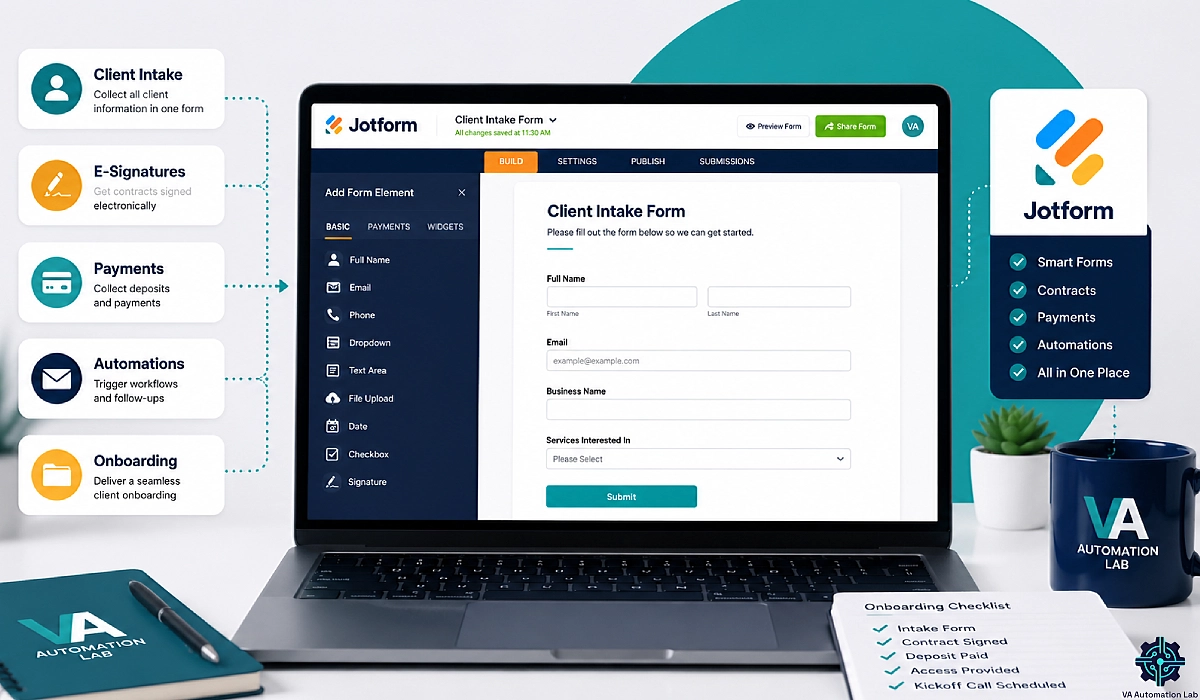
Disclosure: This article contains affiliate links. If you sign up through them, VA Automation Lab earns a commission at no extra cost to you. Recommendations are based on our evaluation of tool fit for VA workflows.
Jotform gives freelance virtual assistants one place to capture client information, collect signatures, take payments, and trigger onboarding — replacing the email chase that eats hours from every new engagement.
Every new client starts the same way. You send a welcome email asking for their business details. They reply with half of it. You ask again for the rest. Three days later you still have no brand guidelines, no tool access, and no signed agreement. The work you quoted for has not started.
That gap between “yes” and “work begins” is where most virtual assistants lose their margin. It is also the easiest part of the business to systemise.
This guide covers Jotform for virtual assistants from the ground up: which features matter for client work, how to build an intake form that collects everything in one pass, how to chain that form into an onboarding sequence, what it costs at real VA volume, and where it stops being the right tool.
Forms sit in the capture layer of a wider stack. If you are still assembling that stack, start with our Complete Guide to AI tools for Virtual Assistants and our breakdown of Client Management Systems for Virtual Assistants.
Jotform at a Glance
What it is | No-code form builder with built-in e-signatures, payments, a submission database, workflow automation, and AI agents |
Best for | Solo virtual assistants running client intake, onboarding, and recurring task requests |
Free plan | 5 forms · 100 monthly submissions · 10,000 monthly form views · Jotform branding |
Entry paid plan | Bronze — $34/month billed annually · 1,000 submissions · branding removed |
Standout for VAs | Conditional logic, Jotform Sign, and native workflows in one subscription |
Biggest limitation | Single user on every plan below Enterprise |
Skip it if | Your forms are internal only, or you need unlimited free submissions |
Setup time | About one hour for a complete client intake form |
Get the Free AI Toolkit for Virtual Assistants
Templates, prompts, and workflow maps we use to build client systems.
No fluff, no tech overwhelm. Free, straight to your inbox.
Table of Contents
1. Jotform for Virtual Assistants: What It Does and Where It Fits
Jotform is a no-code form builder that virtual assistants use to collect client information, contracts, files, and payments through a single branded link. Beyond forms, it includes a signature tool, a submission database, a workflow builder, and AI agents — enough to run client intake and onboarding without a separate client portal.
Most VAs meet Jotform through a template. You search for a client questionnaire, land on a ready-made form, clone it, and send the link. That works. It is also the shallowest possible use of the product.
The reason Jotform earns a place in a VA stack is not the form. It is what happens after someone presses submit.
The Five Tools Inside a Single Jotform Account
One login gives you five products, and they share data by default.
- Form Builder creates the forms themselves, with drag-and-drop fields, conditional logic, and payment gateways.
- Jotform Sign turns a PDF or a form into a signable document with an audit trail.
- Jotform Tables stores every submission in a spreadsheet-style database you can filter and sort.
- Jotform Workflows chains steps together — approvals, emails, signature requests, payment collection.
- Jotform AI Agents handles the same data collection through conversation instead of a form.
The connection matters more than the feature list. A submission lands in Tables, triggers a Workflow, sends a Sign document, and records the result in the same place. Competing form builders make you assemble that from three subscriptions.
Where Forms Sit in the Virtual Assistant Client Lifecycle
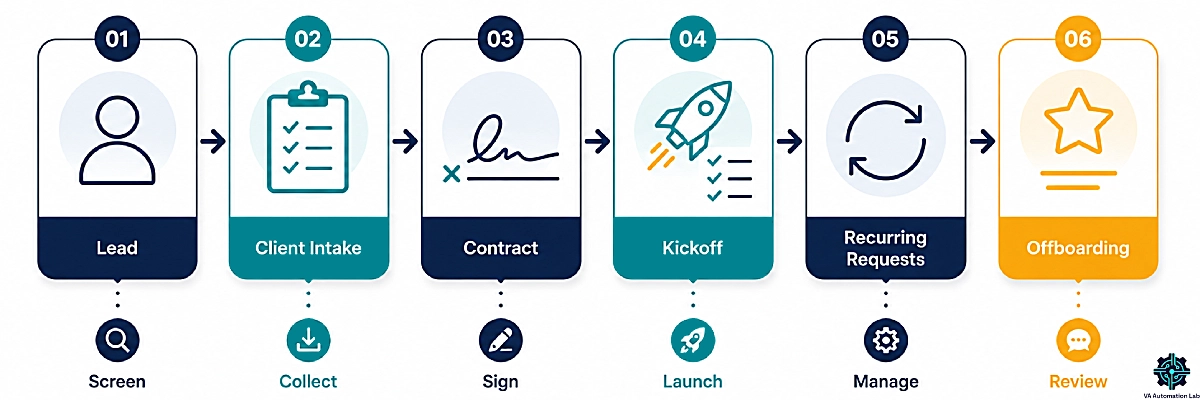
A VA business runs through six stages, and a form belongs at five of them.
Stage | What the form does | Jotform product |
Lead | Screens inquiries before a discovery call | Form Builder |
Intake | Collects everything needed to start work | Form Builder + Tables |
Contract | Captures the signature and deposit | Sign + payment field |
Kickoff | Confirms priorities and access | Workflows |
Recurring ops | Queues task requests and status updates | Form Builder + Tables |
Offboarding | Gathers feedback and a testimonial | Form Builder |
Most VAs use a form at one stage — intake — and handle the other five by email. That is the single biggest efficiency gap in the model. It is also why this guide is organised around the lifecycle rather than the feature list.
The Admin Hours a Form-first System Removes from a VA Week
Run the numbers on one client. Chasing missing details across four emails costs roughly 40 minutes. Retyping their information into your CRM and task manager costs 15. Rebuilding a questionnaire because the last one lived in a document costs 20. Add scheduling the kickoff call and you are near 90 minutes of unbillable work before the engagement starts.
Onboard eight clients a year and that is 12 hours. Onboard two a month and it is 36. Neither figure includes the cost of starting work on incomplete information, which is where scope disputes begin.
A form-first system replaces almost all of it. The same logic applies across the rest of your week — see our guide to Automating Repetitive Tasks as a Virtual Assistant for the wider pattern.
2. Jotform Features That Matter Most for Client Work
Jotform ships with more than 400 widgets and 150-plus integrations. Almost none of that matters to a solo VA. These five features do.
Conditional Logic for Multi-Service Intake Routing
Conditional logic shows or hides fields based on earlier answers. For a VA offering several services, it removes the need to maintain a separate form per service.
One intake form asks which service the client is buying. Selecting inbox management reveals questions about email volume, delegation rules, and mailbox access. Selecting bookkeeping support reveals questions about accounting software and reconciliation frequency. Selecting content coordination reveals questions about brand voice and publishing calendars. Nobody sees a question that does not apply to them.
The practical effect is completion rate. A 40-question form frightens people. The same form showing 14 relevant questions gets finished in one sitting.
Jotform Sign for Contracts, NDAs, and Scope Agreements
Jotform Sign turns an existing PDF into a signable document, or collects a signature inside a form. It supports signing order for multi-party agreements, sends automatic reminders, and generates an audit trail recording every step.
For a VA, this covers the standard set: service agreement, NDA, scope document, and any client-specific authorisation. Signed documents land in Tables alongside everything else, so a client record holds their intake answers and their contract in one row.
Jotform Sign is capable rather than specialised. If contracts are a large part of your operation, or you need clause libraries and template versioning, compare it against the Best Contract Tools for Virtual Assistants before committing.
Jotform Tables as a Lightweight Client Database
Every submission lands in Tables automatically. You can filter, sort, add columns, assign statuses, and leave notes without exporting anything.
For a VA managing three to six clients, Tables replaces a CRM outright. You get a searchable record of who asked for what and when, which is most of what a small service business needs.
It stops being enough at a predictable point. Tables has no pipeline view, no email sync, no follow-up sequencing, and no way to see a contact’s full history across multiple forms. When you start tracking prospects as well as clients, move to a real CRM and keep Tables as the capture layer. Our guide to the Best CRM for Virtual Assistants covers where to go next.
Prefill, Auto-PDF, and File Uploads for Repeat Clients
Three features carry disproportionate weight for recurring work.
Prefill populates a form with information you already hold, so a retainer client submitting their fourth task request does not retype their company name and preferences.
Auto-PDF converts any submission into a formatted document. Useful for turning an intake response into a scope summary you send back for confirmation.
File uploads collect brand assets, logos, and reference documents at the same moment as everything else, instead of in a separate email thread that gets lost.
Together they remove the friction that makes clients avoid your forms after the first one.
Jotform AI Agents as a Client-Facing Intake Assistant
AI Agents collect the same information through conversation rather than a form. You build one from scratch, from an existing form, or from one of several thousand templates, then train it on your own documents and FAQs. Jotform publishes VA-specific starting points, including a virtual assistant contract agent template.
Agents run across web chat, voice, SMS, WhatsApp, and email. For a VA, the useful application is lead qualification: an agent on your site answers questions about your services, asks what the visitor needs, and captures the answers as a structured submission, including hours when you are not working.
Read the meters before building anything ambitious. Agents, conversations, voice minutes, and SMS are counted separately from form submissions. The free Starter plan includes 5 agents, 100 monthly conversations, and 50 voice minutes. Bronze raises that to 25 agents and 1,000 conversations. A dedicated phone number for a voice agent is a paid add-on, which is the cost most people miss.
Build your First Client Form this Afternoon
Jotform‘s free plan gives you 5 forms, 100 monthly submissions, and every core feature in this section — conditional logic, e-signatures, and Tables included.
No card required to start.
3. How to Build a Virtual Assistant Client Intake Form
This is the form that pays for itself first. Budget an hour to build it properly once, then clone it for every client afterwards.
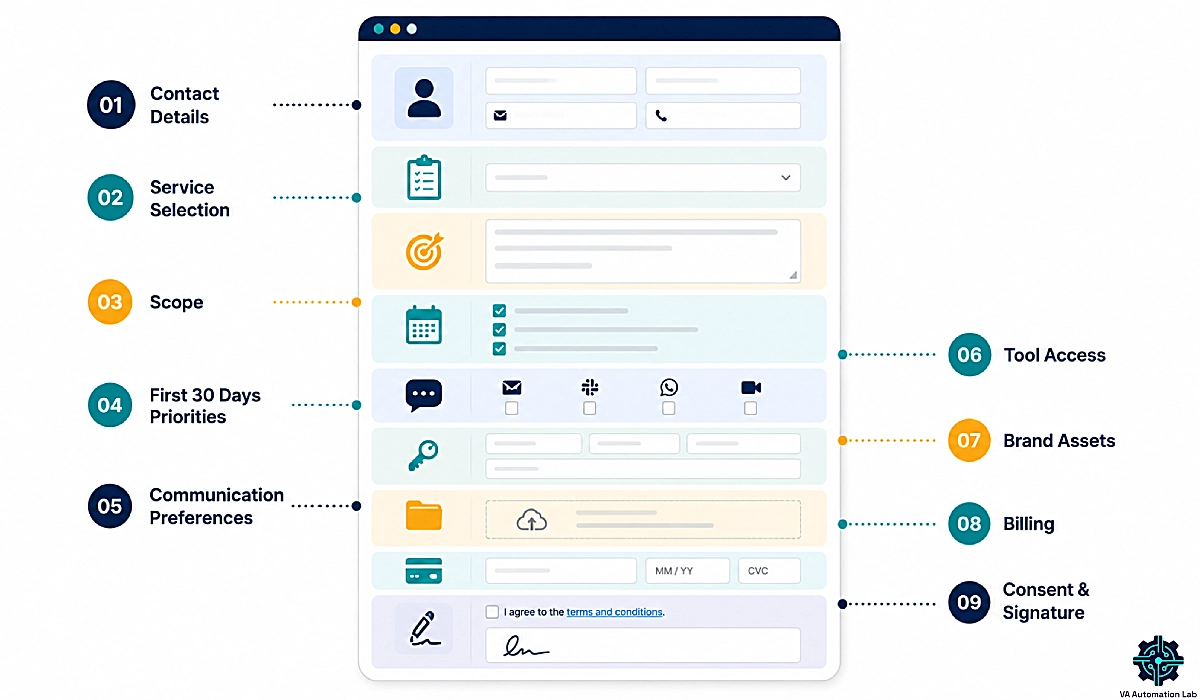
The Nine Field Blocks Every VA Intake Form Needs
Most virtual assistant client intake form templates collect contact details and stop. Each block below exists because leaving it out creates a specific problem later.
- Contact and business basics. Name, business name, email, time zone. Time zone is the one people skip, and it is the one that causes missed calls.
- Service selection. Which package they are buying. This field drives every conditional rule in the form.
- Scope and deliverables. What is included, stated in their words. This becomes your reference when scope creep starts.
- Priorities in the first 30 days. Three items, ranked. Prevents the common failure where a VA optimises the wrong thing for a month.
- Communication preferences. Preferred channel, expected response time, working hours. Sets the boundary before it is tested.
- Tool access required. Which platforms you need, and who grants access. Never collect passwords in a form field — ask which tools need access, then handle credentials through a password manager. The security section below explains why this matters.
- Brand and reference files. File upload for logos, style guides, and existing SOPs.
- Billing details. Invoicing contact, purchase order requirements, payment terms.
- Consent and agreement. Data processing consent and a signature field, if you are combining intake with your service agreement.
Adding Conditional Logic So Clients Only Answer What Applies
Build the form with every field visible, then hide what does not apply. Working in that order is faster than adding fields conditionally as you go.
Step 1 — Set your controlling field
Set the service selection as a required single-choice field near the top.
Step 2 — Group by service
Put each service’s questions into its own section, so you write one rule per group instead of one per field.
Step 3 — Write show rules, not hide rules
Show the bookkeeping section if service equals bookkeeping. Show rules are easier to audit when the form grows.
Step 4 — Add a catch-all
Include an “other” option with an open text field, so an unusual request does not dead-end.
Step 5 — Test every path
Submit the form once per service option. Logic errors only appear on paths you have not walked.
Use Jotform free while you build. The Starter plan allows five forms and 100 monthly submissions, which is enough to build and test properly before paying anything.
Sending Submissions to Your Calendar, CRM, and Task Manager
Native integrations handle the straightforward destinations. Connect Google Sheets or Google Drive to archive responses, your calendar to schedule the kickoff, and your CRM to create the contact record. Setup is a few clicks each, and no third-party tool is involved.
Native integrations are one-to-one. Each connection fires independently, and none of them can transform data, apply conditions, or run steps in sequence. The moment your onboarding needs “if the client picked bookkeeping, create these five tasks and send that welcome email,” you have outgrown them. That is the next section.
4. Automating Client Onboarding With Jotform Workflows
Client onboarding automation is where a form stops being a form and becomes a process. Jotform Workflows is the native builder for it, and it goes further than most VAs expect before an external tool is needed. For the wider process view, see How to Automate Client Onboarding for Virtual Assistants.
Mapping Your Onboarding Sequence Before You Automate It
Write the sequence on paper first. Every step, every decision point, every message, in order.
Most VAs discover two things during this exercise. First, they ask for the same information more than once across different touchpoints. Second, two or three steps exist only out of habit and can be deleted outright.
Automating before mapping reproduces the mess faster. Map first, delete what is redundant, then build. The exercise takes 20 minutes. It is the highest-return part of this guide.
Building the Approval, E-Signature, and Payment Path
Jotform Workflows uses a drag-and-drop builder with conditional branching. A typical VA onboarding flow runs like this:
Intake form submitted → conditional branch on service type → service agreement sent through Jotform Sign → deposit invoice issued through the payment element → welcome email with kickoff scheduling link → internal notification to you.
Everything above runs natively. No external automation platform, no webhook, no code. Workflows also supports parallel branches, so the welcome email can go out while the contract is still pending signature. Real-time tracking shows exactly where each client is stuck.
Wiring Jotform Into Make for Multi-Tool Onboarding
Native workflows stop at Jotform’s own boundary. When onboarding needs to create eight tasks in your project manager, generate a client folder with a fixed subfolder structure, add a row to a tracker, and post to a channel — all conditional on the service selected — you need an automation layer.
Jotform sends a webhook on submission. Make receives it and routes from there. A single scenario handles the branching, formats the data for each destination, and retries anything that fails.
A working example: intake submitted → Make receives the webhook → router splits by service type → bookkeeping branch creates a project from a template, builds the folder structure, adds the client to your tracker, and posts a summary to your workspace. One scenario, four destinations, zero manual steps.
→ Try Make Free — 1,000 credits a month covers a small VA practice comfortably. Make for Virtual Assistants: The Beginner Setup Guide walks through the first build.
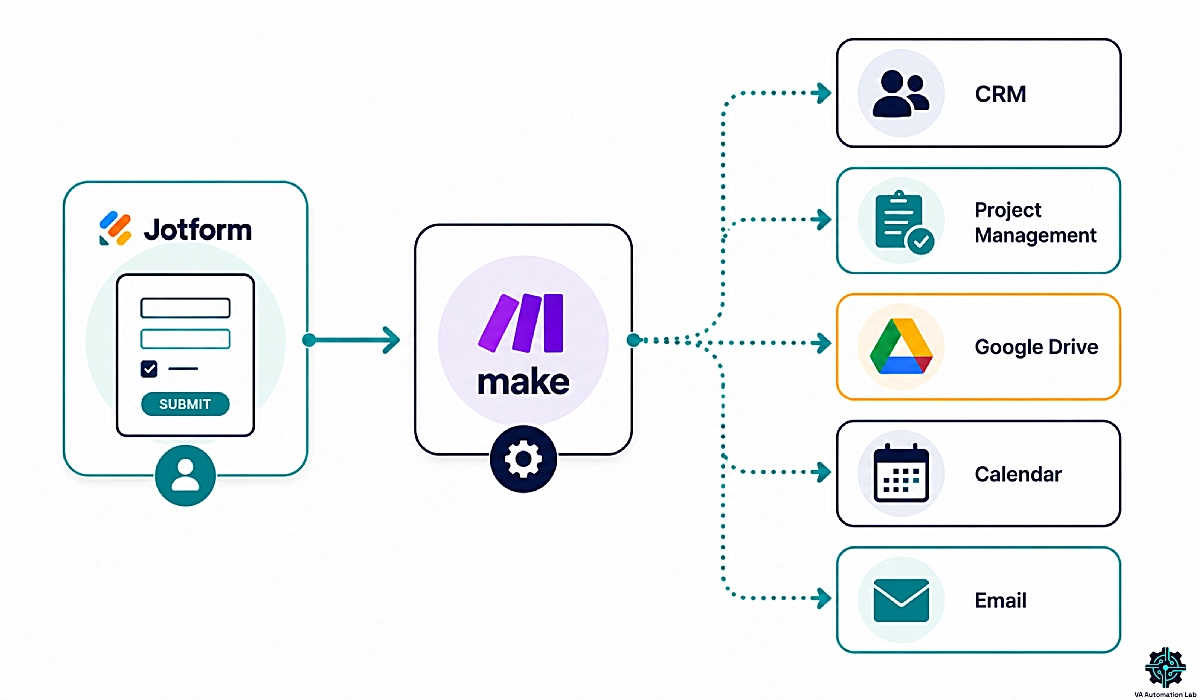
Connect Jotform to Everything Else You Run
Jotform’s native integrations fire one at a time.
Make routes a single submission to your CRM, calendar, task manager, and storage conditionally — from one scenario.
The free plan covers 1,000 credits a month.
5. Client Form Workflows Virtual Assistants Can Copy
Intake is one form. These cover the rest of the lifecycle.
A Lead Qualification Form That Screens Out Bad-Fit Inquiries
Replace the “contact me” button with a short qualification form. Five questions: what they need, monthly hours required, budget range, start date, and how they found you.
Set budget as a required range selection rather than an open field. This is the field that does the work — it filters the inquiries that would consume a 30-minute discovery call and go nowhere. Route qualified leads to your scheduling link automatically and send everyone else a polite response with your rate card.
Pair this with a deliberate acquisition process. How to Get Clients as a Virtual Assistant Using AI covers what feeds the form.
A Recurring Task Request Form for Retainer Clients
This is the highest-value workflow here, and almost nobody builds it.
Retainer clients send requests through whichever channel is convenient for them — Slack at midnight, email on Sunday, a voice note on Tuesday. You end up as the queue. A task request form fixes that: task description, priority, deadline, required assets, and approval owner. Prefill their standing details so the form takes 30 seconds to complete.
Submissions land in Tables and flow into your task manager. You get a timestamped record of every request, which resolves the “I asked for that last week” conversation permanently. Route requests into Folk if you want each one attached to the client record rather than sitting in a task list alone — Folk CRM for Virtual Assistants: Complete Setup Guide covers the configuration.
This workflow is what pushes your submission volume up, which matters when you pick a plan. It also compounds with the systems in How to Manage Multiple Clients as a Virtual Assistant Using AI.
A Weekly Update and End-of-Day Report Form
A short structured update beats a long unstructured email. Completed this period, in progress, blocked and needing a decision, planned next. Four fields, submitted on a fixed schedule.
The structure is the value. Clients scan it in 20 seconds, and the “blocked” field surfaces decisions before they become delays. Auto-PDF turns each submission into a clean document you can attach to an invoice.
For dashboards and metrics rather than narrative updates, see How to Automate Client Reporting as a Virtual Assistant.
Offboarding and testimonials. One more form closes the loop. When an engagement ends, send a short feedback form with a testimonial request and permission checkbox. Two minutes of client time, and it is the cheapest source of social proof you will ever get.
Selling Form Builds as a Productized VA Service
Here is the angle nobody covers. Once you can build a conditional intake form with automated routing, you have a service to sell.
Small businesses need the same systems you do and have nobody to build them. A packaged offer works well: intake form build with conditional logic, native integrations, and a Tables setup, delivered in a week. Add a monthly retainer for maintenance and changes.
Price it on the outcome rather than the hours. A form that ends a client’s onboarding chaos is worth several times what the build costs you in time. After the second one you are working from a template. This is one of the cleaner routes from hourly VA work to productized service revenue.
6. Jotform Pricing for a Solo Virtual Assistant Business
Jotform meters four things independently: forms, monthly submissions, monthly form views, and storage. Whichever fills first determines your plan. For a VA it is almost always submissions.
Jotform Free Plan Limits: What Starter Covers and Where It Breaks
The Starter plan is free permanently: 5 forms, 100 monthly submissions, 10,000 monthly form views, 100 MB of storage, 10 signed documents, and 10 payment submissions. Forms carry Jotform branding until you upgrade.
Understand the difference between the two headline meters. A form view is someone loading the page. A submission is someone completing it. Ten thousand views against 100 submissions sounds generous, and it is — right up until a form goes on a page that gets traffic.
Here is the practical read for a VA. If you use Jotform for client intake only, the free plan may serve you indefinitely. Onboarding twelve clients a year is twelve submissions. What breaks the free plan is the recurring task request form from the previous section. Eight retainer clients submitting three requests a week is roughly 96 submissions a month. You are at the ceiling before counting anything else.
When you hit the limit, forms stop accepting submissions until the counter resets on the first of the month. There is no overage charge and no silent billing, but there is also no grace period.
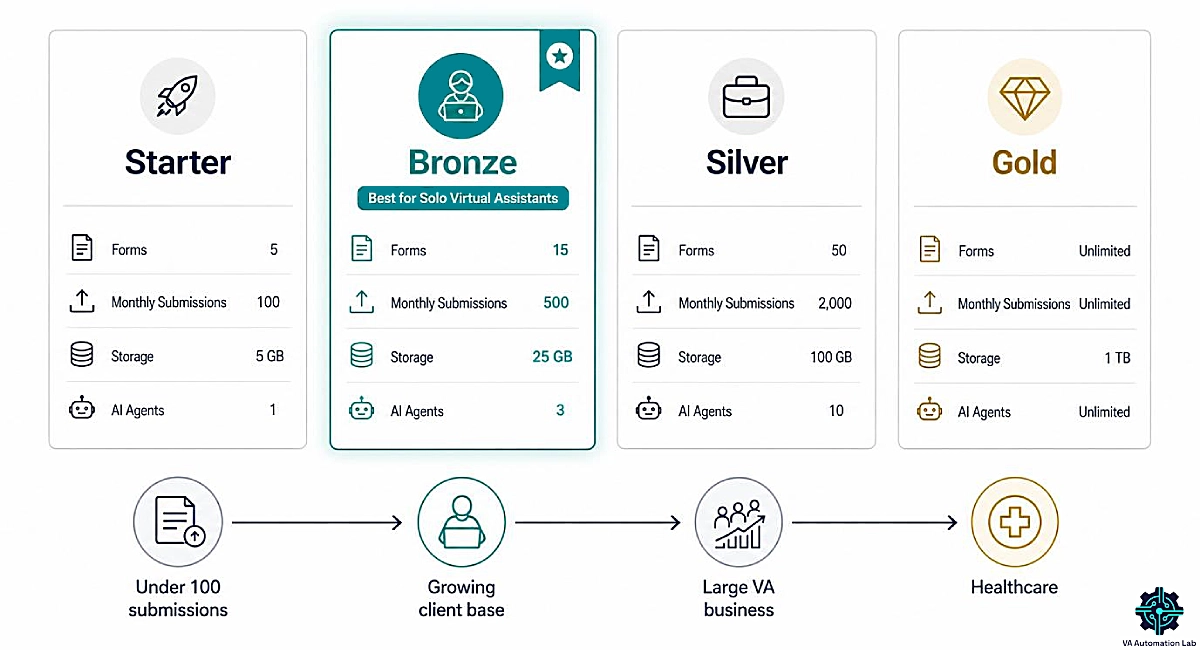
Bronze, Silver, and Gold Compared for VA Workloads
Starter | Bronze | Silver | Gold | |
Price (annual billing) | $0 | $34/mo | $39/mo | $99/mo |
Forms | 5 | 25 | 50 | 100 |
Monthly submissions | 100 | 1000 | 2500 | 10,000 |
Monthly form views | 10,000 | 100,000 | 1,000,000 | 10,000,000 |
Storage | 100 MB | 1 GB | 10 GB | 100 GB |
Fields per form | 100 | 250 | 500 | 1000 |
Signed documents/mo | 10 | 100 | 250 | 1000 |
Payment submissions/mo | 10 | 100 | 250 | 1000 |
AI Agents | 5 | 25 | 50 | 100 |
Agent conversations/mo | 100 | 1000 | 2500 | 10,000 |
Branding removed | ✗ | ✓ | ✓ | ✓ |
HIPAA available | ✗ | ✗ | ✗ | ✓ |
Users | 1 | 1 | 1 | 1 |
Bronze is the right plan for almost every solo VA. A thousand monthly submissions covers intake, task requests, and weekly reporting for a full client roster with headroom. It removes the branding, which matters when clients see your forms. Silver costs five dollars more for capacity most VAs will never use. Gold only makes sense if you need HIPAA compliance for healthcare clients.
Submission Math for a Virtual Assistant With Eight Clients
Model your own volume before choosing. A VA with eight retainer clients:
Form | Frequency | Monthly submissions |
Client intake | 1 new client/month | 1 |
Lead qualification | 6 inquiries/month | 6 |
Task requests | 8 clients × 3/week | 96 |
Weekly updates | 8 clients × 4/month | 32 |
Offboarding | Occasional | 1 |
Total | 136 |
That figure sits 36% over the free ceiling and 14% of the way into Bronze. It also shows exactly which form drives your bill: task requests are just over 70% of the total.
The practical rule — size the plan for your busiest month, not your average one. Onboarding three clients in January while your existing eight submit as normal is a spike. A form that stops accepting submissions mid-onboarding is a client-facing failure.
Run the Free Plan Until your Volume Says Otherwise
Most VAs stay on Starter for months before submissions force an upgrade.
Build the intake form, use it with your next client, and move to Bronze at $34 a month only when the numbers make the case.
7. Jotform Review: Strengths and Limits From a VA Perspective
Most reviews of this product are written for organisations. Here is the verdict for someone running a solo service business.
Where Jotform Holds Up in Day-to-Day Client Work
Breadth without assembly. Signatures, payments, file collection, a submission database, and workflow automation are one subscription. Matching that with specialist tools costs more and takes longer to maintain.
Template depth. Whatever form you need, a starting point exists. For a VA billing by the hour, starting at 60% complete is worth real money.
Reliability at low volume. Forms load fast, submissions arrive, and notifications fire. Unglamorous, and the thing that matters most while a client is filling in your intake form.
Integration reach. Native connections cover the tools a VA already runs, and webhooks cover everything else.
The Single-User Ceiling and the Limits Worth Knowing
Every review flags the same headline limitation: every plan below Enterprise is single-user. You cannot invite a collaborator without moving to Enterprise pricing.
For a solo VA, this is close to irrelevant. You are one user. The limitation that blocks a marketing team does not touch you. That is worth saying plainly, because it is the most-cited criticism of a product that suits your business model well. It becomes a real constraint the day you subcontract and want a second person managing forms — at that point you are sharing one login or changing platforms.
These limits do bite:
Builder friction on complex forms. Past roughly 30 fields with heavy branching, the editor gets slow and rules get hard to audit. Group your sections early.
Meters are easy to misjudge. Four counters run at once, and the form-view meter is the one people forget until a form sits on a busy page.
Feature volume is a cost. With 400-plus widgets and five sub-products, finding the setting you want takes longer than it should. The first hour is slower than a simpler tool.
Templates need editing. Ready-made VA templates are starting points. Publishing one unedited gets you a form asking for information you do not need and missing what you do.
Data Security, GDPR, and Handling Client Information
Jotform encrypts submissions in transit, offers form-level end-to-end encryption, and states compliance with GDPR, PCI DSS, and CCPA, with HIPAA features available on Gold. EU accounts can store data in EU data centres.
The part that concerns VAs specifically is different. When you collect information about your client’s customers, you are a processor acting for them as controller. That relationship should be documented in your service agreement, and the platform’s compliance does not substitute for it.
Two practical rules. First, never collect passwords or API keys in a form field — use a password manager’s sharing feature instead. Second, set data retention rules and delete old submissions rather than accumulating client data indefinitely.
None of this is legal advice. If you handle regulated data, take proper counsel. Jotform’s security documentation is a reasonable starting point for the platform-side questions.
8. Jotform vs Google Forms, Typeform, and All-in-One Client Systems
Four alternatives are worth weighing seriously. Jotform carries the highest entry price of the paid options here, so the case for it rests on what the cheaper tools cannot do.
Free submissions | Entry price (annual billing) | E-signature | Payments | Automation | Best for | |
Jotform | 100/mo | $34/mo | ✓ Built in | ✓ 30+ gateways | Native workflows + webhooks | Client-facing intake and onboarding |
Google Forms | Unlimited | Free | ✗ | ✗ | Sheets + Apps Script | Internal data collection |
Typeform | 10/mo | Paid plans | Higher tiers only | ✓ Stripe | Integrations | Brand-led lead capture |
Tally | Unlimited | $24/mo | ✗ | ✓ Stripe | Integrations | Simple forms on a budget |
Dubsado | n/a | $27.92/mo | ✓ | ✓ | Full client workflows | End-to-end client management |
Jotform vs Google Forms for Client-Facing Work
Google Forms is free, unlimited, and already in your Workspace account. For anything internal — a checklist, a personal tracker, a quick poll — it wins outright, and paying for a form builder to do that job is wasted money.
It loses on everything client-facing. No signatures, no payments, no branding control beyond a header colour, and no workflow layer. A Google Form sent to a paying client looks like a Google Form, and the follow-up work it cannot do lands back on you.
The rule is clean: Google Forms for yourself, Jotform for your clients.
Jotform vs Typeform and Tally on Cost and Completion
Typeform‘s one-question-at-a-time format produces higher completion rates on customer-facing forms, and it looks better than anything Jotform will build. Its Basic plan also undercuts Jotform Bronze at $34 a month billed annually. What you give up is e-signatures below the higher tiers, the workflow builder, and payment gateway breadth. The free plan’s 10 monthly responses make it a trial rather than a tier, so treat Basic as the real entry point. Choose Typeform when the form is a marketing asset.
Tally deserves a straight answer: its free plan offers unlimited forms and unlimited submissions, and that beats Jotform on raw volume outright. Tally Pro removes branding at $24 a month, billed annually. If you need a clean form and nothing else, Tally is the better buy at both price points. What you give up is the signature tool, the payment gateway breadth, the workflow builder, and the template library — which is precisely the connected system this guide is built around.
Jotform vs Dubsado and Other All-in-One Client Systems
This is the real decision, and it turns on architecture rather than features.
Jotform is a capture layer you connect to other tools. Dubsado is a single platform covering proposals, contracts, invoicing, scheduling, and workflows in one subscription. Both approaches work.
Choose the modular route — Jotform plus an automation layer plus a CRM — when you want best-in-class pieces, already run tools you like, and want the flexibility to swap one without rebuilding everything. It is also cheaper to start, since Jotform’s free tier costs nothing while you validate the system.
Choose the all-in-one when you would rather have one login and one bill, your process is standard, and you do not want to maintain integrations. Dubsado at $335 a year undercuts assembling three separate tools.
Business stage decides it in practice. Early on, modular wins because you are still learning what your process should be. Once your process is stable and repeating, an all-in-one removes maintenance you no longer want to do.
9. Is Jotform Right for Your VA Stack?
Three questions settle it.
Do your clients see your forms? If yes, branding, signatures, and payments matter, and Jotform earns its place. If your forms are internal only, use Google Forms and spend the money elsewhere.
Does a submission need to trigger something? If a form is just a way to collect answers you read manually, a free tool is enough. If submission should start a sequence, you want the workflow layer.
Are you past 100 submissions a month? Below that, run free indefinitely. Above it, Bronze is the answer and the decision is already made.
Where Jotform Fits Alongside Your CRM, Scheduler, and Automation Layer
Jotform is the capture layer, not the whole system. Treating it as the whole system is how VAs end up frustrated with the tool.
A working stack for a solo VA:
- Jotform — captures every structured input: intake, task requests, updates, signatures, deposits.
- Make — the router. Receives submissions and distributes them conditionally to everything else.
- Folk — the client record. Holds relationship history that a form database cannot.
- SavvyCal — scheduling. Kickoff and check-in calls booked from the form’s confirmation page.
- 1Password — credential handling. Solves the access problem your intake form raises without ever putting a password in a form field.
Each tool does one job. The form captures; the router distributes; the CRM remembers; the scheduler books; the vault secures. Replace any one of them without rebuilding the rest.
A 30-Day Rollout Plan for Your First Two Forms
Week 1 — Build the intake form. Nine field blocks, conditional logic per service, tested on every path. Free plan throughout.
Week 2 — Connect the destinations. Native integrations to your calendar, storage, and CRM. Use it live with your next new client and note what is missing.
Week 3 — Add the task request form. Prefilled for retainer clients. Tell them it replaces ad-hoc requests, and give them the link directly.
Week 4 — Automate the sequence. Build the onboarding workflow, add the automation layer if you need conditional multi-tool routing, and upgrade if your submission count says so.
One month, two forms, and the onboarding chase is gone.
Week 1 Starts with a Free Account
The rollout plan above needs nothing but a Starter account to begin.
Build the nine field blocks, test every path, and send it to your next client.
10. The Bottom Line
Jotform for virtual assistants works because of what sits behind the form, not the form itself. Signatures, payments, a submission database, workflow automation, and AI agents in one subscription cover most of what a solo VA needs to run client intake and onboarding without a client portal.
It is not the right answer everywhere. Google Forms is better for internal work, Tally is better if free and unlimited is the priority, and an all-in-one is better once your process has stopped changing. Say yes to Jotform when your clients see your forms and a submission needs to trigger something.
Start free, build the intake form, and use it with your next client. If it saves you the 90 minutes this guide opened with, the paid plan pays for itself in the first month.
Frequently Asked Questions About Jotform for Virtual Assistants
Is Jotform free for virtual assistants?
Yes. The Starter plan is free permanently and includes 5 forms, 100 monthly submissions, 10,000 monthly form views, and 100 MB of storage. Forms carry Jotform branding until you upgrade to Bronze at $34 a month billed annually.
How many form submissions does a virtual assistant need per month?
It depends entirely on which forms you run. Client intake alone rarely exceeds 12 submissions a year. Add task requests, weekly updates, and lead qualification for eight retainer clients and you reach roughly 136 a month, which exceeds the free ceiling.
What should a virtual assistant client intake form include?
Nine blocks: contact and business basics, service selection, scope and deliverables, first-30-day priorities, communication preferences, tool access required, brand and reference files, billing details, and consent with signature. Never include a password field.
Are Jotform e-signatures legally binding?
Jotform Sign produces signatures with an audit trail recording each step, which is the standard evidentiary basis for electronic signatures in most jurisdictions. Requirements vary by country and document type, so take legal advice for anything consequential.
Can Jotform automate the whole client onboarding process?
Natively, it handles approvals, signature requests, payment collection, conditional branching, and notifications. For onboarding that touches tools outside Jotform — creating tasks, building folder structures, updating trackers — you need an automation layer receiving the submission webhook.
Is Jotform safe for storing client data?
Submissions are encrypted in transit, form-level end-to-end encryption is available, and the platform states GDPR, PCI DSS, and CCPA compliance, with HIPAA features on Gold. When you collect data about a client’s customers you act as their processor, which should be documented in your service agreement.
Can two people share one Jotform account?
No. Every plan below Enterprise is single-user. This rarely affects a solo VA, but it becomes a real constraint if you subcontract and want a second person managing forms.
Is Jotform better than Google Forms for freelancers?
For client-facing forms, yes — branding, e-signatures, payments, and workflows are all absent from Google Forms. For internal data collection, Google Forms is free, unlimited, and sufficient.
Glossary
Conditional logic: Rules that show or hide form fields based on earlier answers, so respondents only see relevant questions.
Monthly submission: One completed form entry. Counted across your whole account, not per form, and the meter that usually determines a VA’s plan.
Monthly form view: One page load of a form, whether or not it is completed. Metered separately from submissions.
Prefill: Populating a form with information already on file, so returning clients do not retype known details.
Webhook: An automatic message a platform sends to another application when an event occurs, used to trigger multi-step automations.
E-signature audit trail: The record of who signed a document, when, and from where, used as evidence that a signature is valid.
Signing order: A sequence controlling who signs a multi-party document first, second, and so on.
Data Processing Agreement (DPA): A contract governing how one party processes personal data on another’s behalf, required under GDPR.
Data controller vs data processor: The controller decides why and how personal data is processed. The processor acts on the controller’s instructions. A VA collecting data for a client is usually the processor.
HIPAA: A US regulation governing protected health information. Available on Jotform’s Gold plan and above.
PCI DSS: The security standard for handling card payments, relevant to any form collecting payment.
AI Agent knowledge base: The documents, URLs, and FAQs you train a conversational agent on, metered in characters per plan.
About the Author
Alex Stratton has spent the better part of a decade working at the intersection of virtual assistance and operational systems, first as a VA supporting founders and small business owners, then as a workflow consultant helping remote teams reduce the manual overhead that accumulates when businesses grow faster than their processes. The tools and workflows here reflect decisions made repeatedly in real client contexts, where the wrong choice costs hours, not minutes. Learn more about VA Automation Lab → About.