
Folk CRM for Virtual Assistants: Complete Setup Guide (2026)
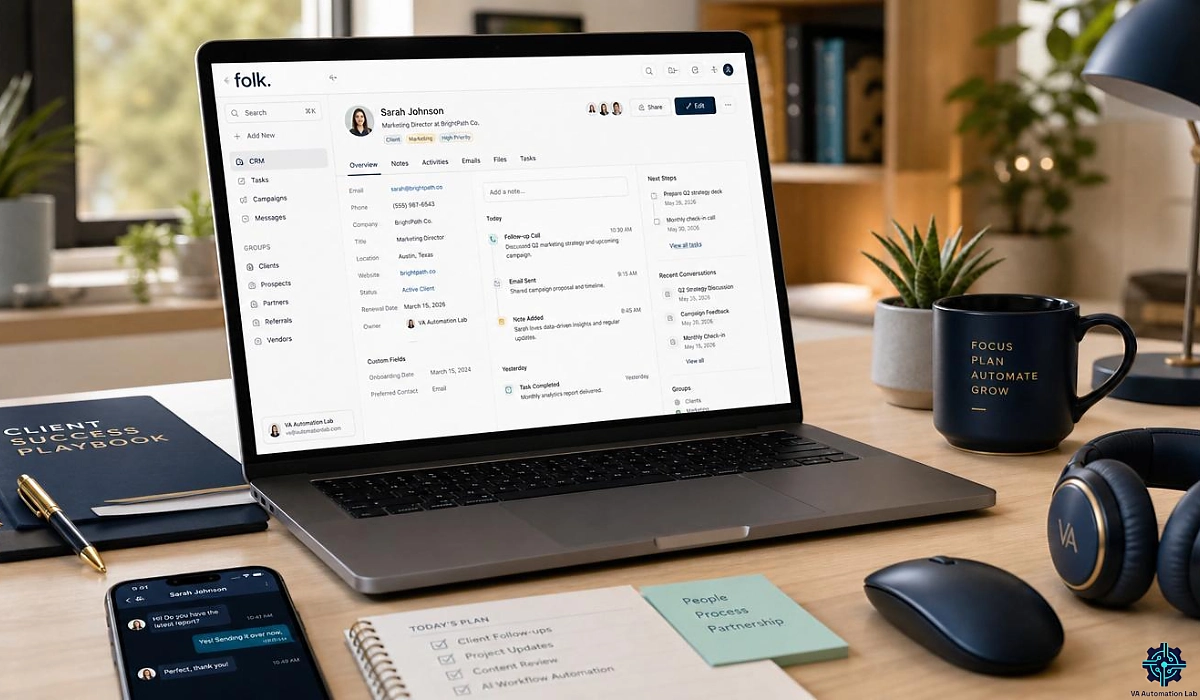
Disclosure: This article contains affiliate links. If you sign up through them, VA Automation Lab may earn a commission at no extra cost to you. We only recommend tools we believe help virtual assistants.
Most CRMs get abandoned by week three. Folk is the rare one virtual assistants keep open — and this guide shows you exactly how to set it up, what it costs in 2026, and how to run every client from a single workspace.
Managing a handful of clients as a virtual assistant sounds simple, until your contacts live in three inboxes, a spreadsheet, and your memory. Follow-ups slip. Notes vanish. You open the “CRM” your client pays for and close it again, because it feels built for a 50-person sales floor, not for you.
Folk takes a different path. It is a lightweight, relationship-first CRM designed to be opened every day, not configured for a week and abandoned. For virtual assistants juggling multiple clients, that one difference matters more than any feature list.
This guide shows you exactly what folk CRM does, what it costs in 2026, how to set it up step by step, and the real workflows that help you manage more clients without dropping a thread. You will also see where folk falls short and which alternatives fit if it is not right for you. By the end, you will know whether folk belongs in your stack, and how to start without wasting a trial.
Folk CRM at a Glance
Short on time? Here is our editorial verdict on folk for virtual assistants, scored across what matters most. Every rating is backed up in the sections below.
Category | Rating |
Ease of use | 4.5 / 5 |
Features | 4 / 5 |
AI tools | 4.5 / 5 |
Integrations | 4.5 / 5 |
Mobile experience | 4 / 5 |
Value for VAs | 4.5 / 5 |
Overall | 4.4 / 5 |
Best for: VAs managing client relationships across multiple clients who want a simple CRM they will open every day.
Skip if: you need a free-forever plan, or you want deep sales pipelines, forecasting, and automation on the entry-level plan.
Price: from $24 per member/month, billed annually.
Free trial: 14 days, no card required.
If you’re building a complete system around your CRM, this guide on Client Management Systems for Virtual Assistants breaks down how each tool fits into a structured workflow.
For a complete overview of the best AI tools for Virtual Assistants, you can read the main guide: AI Tools for Virtual Assistants: The Complete Practical Guide.
Free AI Toolkit for Virtual Assistants
The exact AI tools and automation workflows to run client work on autopilot — delivered straight to your inbox, free.
Table of Contents
1. What folk CRM Is and Why Virtual Assistants Are Adopting It
CRMs have a usage problem. People pay for one, build pipelines on day one, and stop opening it by day thirty. Folk was built to fix that by designing around the relationships you maintain, not the reports a sales director wants. For a VA, that is the whole point: a tool you will open is worth far more than a powerful one you avoid.
What Is folk CRM?
Folk CRM is a lightweight, relationship-first CRM that brings your contacts, emails, calendar events, and WhatsApp messages into one simple workspace. Built for founders, agencies, and virtual assistants, it uses AI Assistants and one-click capture to cut manual data entry, so you spend less time updating records and more time managing client relationships.
The relationship-first model vs traditional sales CRMs
Most CRMs are built around a sales process: territories, forecasts, multi-touch attribution. That is overkill for a VA who simply needs to know who to follow up with and what was said last time.
Folk flips the model. The contact comes first, the list view behaves like a spreadsheet, and the pipeline is a clean drag-and-drop board. There is no week-long setup and no admin to configure permissions. If you have ever managed clients in Google Sheets, you will feel at home in minutes, with a lot less manual upkeep.
This is why folk shows up in conversations about the Best AI Tools for Virtual Assistants: it removes friction instead of adding it.
Where folk fits a virtual assistant’s client-management stack
Think of folk as the contact-and-relationship layer of your business. It replaces the spreadsheet-plus-inbox tangle where client details usually scatter. Around it, you still run scheduling, invoicing, and automation, but folk becomes the single place you check to see how every relationship is doing.
That makes it a natural anchor for a broader Client Management System for Virtual Assistants, especially once you manage more than two or three clients and a spreadsheet starts to crack.
2. Folk CRM Features That Matter Most for Virtual Assistants
Folk has a long feature list, but only a handful move the needle for a VA. Here are the ones worth your attention.
folkX Chrome extension and one-click contact capture
folkX is folk’s browser extension, and for most users it is the standout feature. You land on a LinkedIn profile, a Gmail thread, or almost any website, click once, and the contact is saved to folk with details pre-filled. Enrichment runs in the background, filling in job titles, company data, and social profiles. For a VA who sources leads or builds contact lists for clients, this removes the data-entry tax that gets most CRMs abandoned.
Magic Fields and Smart Fields for automated data entry
Folk has two clever field types. Smart Fields update themselves, so a field like “last interaction” stays current without you touching it. Magic Fields are AI-powered columns: you write a prompt once, and folk generates a value for every contact, such as categorizing leads by industry or cleaning up messy data across your list. One word of caution. Magic Fields can draft personalized icebreakers at scale, but recipients can usually tell when an opener was machine-written. Use the AI to organize and clean your data, and keep your actual outreach human.
Folk AI Assistants — Follow-up, Recap, Research, Workflow
Folk ships four AI Assistants, and each maps cleanly to a task VAs do every week:
- Follow-up Assistant scans your email and WhatsApp threads, spots conversations that have gone quiet with a pending next step, and suggests a follow-up written in your tone. Fewer dropped leads.
- Recap Assistant generates an instant summary of your whole history with a person, company, or deal, perfect for prepping a client call in seconds instead of scrolling old threads.
- Research Assistant enriches company profiles and writes short research notes, so you walk into conversations informed.
- Workflow Assistant runs simple trigger-based email automations inside your groups, for example sending a templated email when a contact’s status changes.
Folk on the go (iOS and Android)
Folk has a native mobile app, Contacts by folk CRM, so client work is not chained to your desk. You can add contacts from your phone, from WhatsApp or LinkedIn, or by scanning a business card; record notes hands-free with talk-to-text that syncs in real time; see a contact’s full history across email, calendar, and past interactions; and search by simply asking folk a question instead of scrolling. Like the desktop app, the mobile app is free for 14 days with no card. It keeps you capturing and updating between meetings, at events, or on the move.
Email campaigns, pipelines, and contact enrichment
Beyond the Assistants, folk handles bulk personalized email (mail merge), pipeline views for tracking deals, and automatic enrichment that fills missing contact details. Enrichment is a big time-saver, but no enrichment is flawless, so verify anything important before you send it.
3. Folk CRM Pricing and Plans for Solo VAs and Small Teams
Folk keeps pricing simple: three paid plans, priced per member per month. There is no free plan, but there is a generous trial. The rates below are for annual billing; paying monthly costs more — Standard is $30, Premium $60, and Custom from $100 per member per month. All figures are current as of 2026.
Plan | Price (per member/mo, billed annually) | What you get |
Standard | $24 | Pipeline management, email campaigns, contact enrichment, AI Assistants, Magic Fields, the folkX extension, email + calendar + WhatsApp sync, and 5,000+ integrations |
Premium | $48 | Everything in Standard, plus custom objects and deals, email sequences, dashboards, API access, advanced roles and permissions, higher credit limits, and full interaction history |
Enterprise | from $80 | Everything in Standard and Premium, plus custom limits, custom billing, and dedicated support |
The single most important line in that table: deal pipelines, multi-step email sequences, and API access live on Premium. On Standard you can tag contacts and send one-off bulk emails, but stage-based deals and automated follow-up cadences require the upgrade. For a VA, this is the make-or-break decision, so be realistic about whether you only track relationships (Standard) or run a client’s sales process (Premium). One more thing to watch: enrichment and AI-field credits are capped and shared across your whole workspace, not allocated per user, so high-volume prospecting for a client can hit the monthly limit faster than you would expect.
The 14-day trial and the no-free-plan reality
Folk does not offer a free-forever plan. Instead, you get a 14-day free trial that defaults to Premium features, with no credit card required. That is unusually buyer-friendly: you evaluate the full product, not a stripped-down version. When the trial ends, your account is locked, but your data is preserved if you upgrade later.
Which plan a virtual assistant needs
For most solo VAs who manage contacts and follow-ups across a few clients, Standard is enough — you get the Assistants, folkX, sync, and enrichment, which is the core value. Step up to Premium if you run a client’s sales process and need deal stages, forecasting, automated email sequences, or API access. Reach for Custom only if you are an agency with bespoke limits or integration needs.
Try folk Free — Full Premium Access, No Card
Test every Premium feature — pipelines, AI Assistants, folkX and sync — with no credit card.
See if folk is the CRM you will keep opening.
4. How Much Time Can folk Save a Virtual Assistant?
Folk’s real value is not a feature — it is the hours it hands back. The exact number depends on your workload, so rather than trust a vendor’s headline figure, here is how to estimate it for your own business.
Start by listing the manual tasks folk removes from your week:
- Typing contacts in by hand → replaced by folkX one-click capture and enrichment.
- Hunting through inboxes for context → replaced by the synced timeline and the Recap Assistant.
- Remembering and chasing follow-ups → replaced by the Follow-up Assistant and Smart Fields.
- Copy-pasting between tools → replaced by Make automations.
Now do the math with your own numbers:
(Hours you spend on those tasks each week) × (your hourly rate) = the weekly cost folk is targeting.
Compare that to folk’s price: Standard is $24 per month, which works out to roughly $6 per week per seat. For example, say you bill $30 an hour and folk trims even 90 minutes of admin from your week — that is about $45 of recovered time against roughly $6 in cost. If folk saves you a single billable hour a week, it has likely paid for itself several times over.
The only reliable way to know your real number is to measure it. Time-track your CRM and admin work for one typical week before you start folk, then again two weeks after setup. The gap is your true ROI, in your currency, at your rate — far more reliable than any “saves X hours” claim.
5. How to Set Up folk CRM as a Virtual Assistant
Setup is fast, usually under an hour. Follow these steps in order and your workspace will be client-ready by the end.
What to prepare before you start
Have these ready before you sign up:
- Your client contact list, ideally as a CSV (or login details for your current CRM to migrate).
- A Google or Microsoft account for email and calendar sync.
- WhatsApp, if you run client conversations there.
- Google Chrome, so you can install the folkX extension.
Gathering these first means you finish setup in one sitting instead of three.
The folk CRM Setup Walkthrough, Step by Step
Step 1 — Create your workspace and pick a template
Sign up with your email or Google account, then name your workspace something simple like “Client CRM.” Folk offers starter templates with pre-built pipeline stages for sales, recruiting, fundraising, and more — choose the one closest to your work so you start with structure instead of a blank board. You can rename or delete any stage later, so don’t overthink this.
Step 2 — Import your contacts and clean duplicates
Upload a CSV or migrate from your current CRM, then map your columns to folk fields (name, email, company, status). After the import finishes, run folk’s duplicate detection so two versions of the same person don’t split your history across records. Five minutes of cleanup here saves you hours of confusion later.
Step 3 — Build a group and custom fields for each client
Create one group per client (or one per pipeline if you prefer), so one client’s contacts never mix with another’s. Then add only the custom fields you use day to day — for example “Client,” “Lead source,” “Status,” “Deal value,” or “Next action.” Keep it lean to start; you can always add fields as your process matures.
Step 4 — Connect Gmail or Outlook, your calendar, and WhatsApp
Turn on sync so every email, meeting, and message attaches itself to the right contact automatically. This is the step that makes folk feel effortless: you stop logging activity by hand, and each contact’s timeline fills itself in. Be sure to connect the same calendar your clients book on, so meetings appear where you expect them.
Step 5 — Install folkX and turn on enrichment
Pin the folkX extension in Chrome, then test it by opening a LinkedIn profile and saving the person to folk in one click. Let enrichment fill in job title, company, and social links, and spot-check a few results against the real profile before you trust it. For a VA building lead lists for clients, this is the single biggest time-saver in the whole tool.
Step 6 — Set up your first client pipeline
Inside a client’s group, create stages that mirror your real process — for example Lead → Contacted → Proposal → Won. Drag two or three real contacts through the stages to confirm the flow feels natural, and add a follow-up reminder on one so you can see how notifications reach you. Your workspace is now live and ready for client work.
Verify your workspace is client-ready
Before you rely on folk with a client, run a quick five-minute check. Send yourself an email from a synced address and confirm it appears on the contact’s timeline. Spot-check two or three enriched fields against the real LinkedIn profile. Walk one contact through every pipeline stage to make sure nothing is mislabeled. Finally, trigger one follow-up reminder so you know alerts reach you where you work. If all four pass, folk is ready for clients.
6. Real folk CRM Workflows for Managing Multiple Clients
Features only matter when they become repeatable systems. Here are three folk workflows that scale across multiple clients.
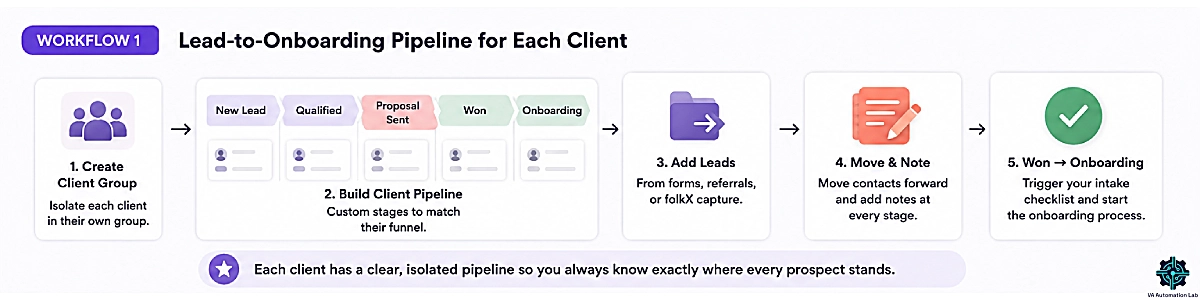
Workflow 1: A Lead-to-Onboarding Pipeline for Each Client
Give every client their own group and pipeline so their prospects, leads, and onboarding never bleed into another account’s. Here is the flow that works for most VAs:
- Create a group named after the client.
- Build a pipeline with stages that match their funnel — for example New Lead → Qualified → Proposal Sent → Won → Onboarding.
- As leads arrive (from a form, a referral, or folkX capture), drop them into “New Lead” and record the source in a custom field.
- Move each contact forward as the relationship progresses, adding a short note at every stage so anyone reviewing the account sees the full story.
- When a deal hits “Won,” switch it to “Onboarding” and trigger your intake checklist.
Because each client is isolated in its own group, you can open one board and instantly see exactly where every prospect stands — no spreadsheet tabs, no guesswork. This is the backbone of managing multiple clients with AI, and it feeds directly into a documented client onboarding process that receives every “Won” deal.
Want to see what happens after a deal moves to “Won”? Our guide on How to Automate Client Onboarding as a Virtual Assistant walks through the entire onboarding workflow, from intake forms to automated client handoffs.
This pipeline is only one piece of a larger client-management system. For the full framework used to manage multiple clients, deadlines, and follow-ups without losing track of important relationships, read How to Manage Multiple Clients as a Virtual Assistant Using AI.
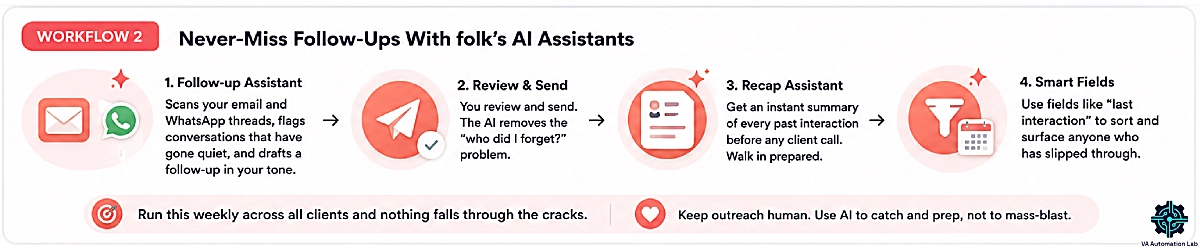
Workflow 2: Never-Miss Follow-Ups With folk’s AI Assistants
Follow-ups are where VAs lose their clients’ leads without noticing. Folk’s AI Assistants turn that from a memory task into a system:
- Let the Follow-up Assistant scan your synced email and WhatsApp threads. It flags conversations that have gone quiet with an open next step and drafts a follow-up in your tone.
- Review and send. You stay in control of the message — the AI just removes the “who did I forget?” problem.
- Before any client call, run the Recap Assistant on that contact or company for an instant summary of every past interaction. You walk in prepared in seconds instead of scrolling old emails.
- Use Smart Fields like “last interaction” to sort your list and surface anyone who has slipped through.
Run this once a week across all your clients and nothing falls through the cracks, even when you are managing ten relationships at once. Keep the actual outreach human — use the AI to catch and prep, not to mass-blast.
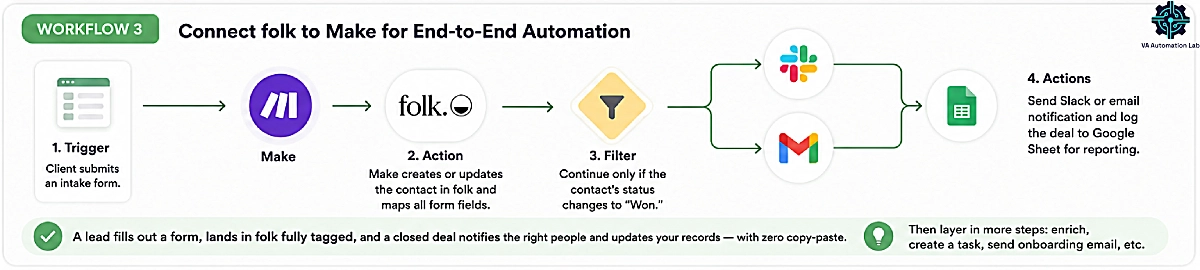
Workflow 3: Connect folk to Make for End-to-End Automation
Folk syncs natively with Gmail, Outlook, calendar, WhatsApp, and LinkedIn (via folkX), and connects to 5,000+ other apps through Zapier and Make. Make is where folk stops being an island and becomes the hub of your client operations. A reliable starter scenario looks like this:
- Trigger: a client’s intake form is submitted — Make watches the form or receives a webhook.
- Action: Make creates or updates the contact in folk, mapping each form field to your custom fields.
- Filter: only continue if the contact’s status changes to “Won.”
- Action: Make sends a Slack message or email to alert you or the client, and logs the deal to a Google Sheet for reporting.
The result: a lead fills out a form and lands in folk fully tagged, and a closed deal notifies the right people and updates your records — with zero copy-paste. As you grow, you can layer in more steps, such as enriching the contact, creating a task, or kicking off an onboarding email. If you are new to building scenarios, start with our Make for virtual assistants guide, then connect it to folk.
Put Your folk Workflows on Autopilot
Connect folk to 3,000+ apps and let Make handle intake, status updates and notifications while you focus on clients.
7. The Best folk CRM Stack for Virtual Assistants
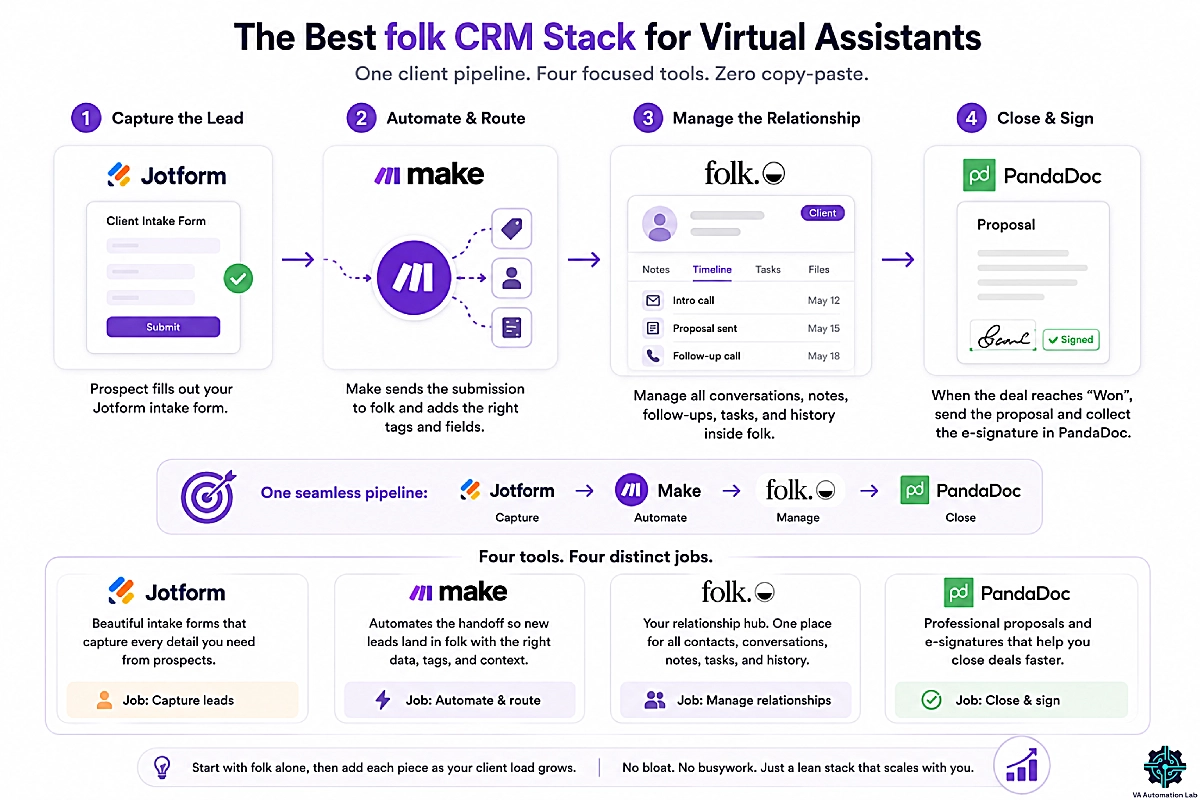
Folk is the hub, but it is strongest paired with a few focused tools — one per job, no bloat. This is the lean stack we would run to handle a client relationship from first contact to signed contract.
Tool | Its job in your stack | Plan to start (annual billing) |
The CRM hub — contacts, pipelines, follow-ups | Standard, $24/mo | |
Automation between folk and everything else | Free, then $9/mo (10k credits) | |
Client intake forms that feed folk | Free, then $34/mo | |
Proposals, quotes, and e-signatures after “Won” | Free, then $19/mo |
Here is how the pieces connect into one client pipeline: a prospect fills out a Jotform intake form, Make routes that submission straight into folk as a tagged contact, you manage the whole relationship inside folk, and when the deal reaches “Won,” you send the proposal and collect the e-signature in PandaDoc. Four tools, four distinct jobs, and no manual copy-paste between them. Start with folk alone, then add each piece as your client load grows — you do not need the full stack on day one.
8. Folk CRM Limitations Every Virtual Assistant Should Know
No tool is perfect, and folk has real trade-offs. Knowing them now saves you a frustrating switch later.
No free-forever plan
Folk only offers a 14-day trial (no card required), and after that it is paid. If a permanently free CRM is non-negotiable for you or your client, folk is not the fit — Zoho CRM‘s free tier for up to three users is the closer option.
Deals, sequences, and API access are Premium-only
On the $24 Standard plan you cannot run stage-based deal pipelines, multi-step automated email sequences, or connect folk’s API for custom integrations. The moment a client’s sales process or a deeper integration is on the table, you are on the $48 Premium plan. Budget for it if that describes your work.
Per-member pricing adds up for teams
Folk is billed per member per month, so a three-person team on Premium runs to a few hundred dollars a year. For a solo VA that is a non-issue; for a growing team, factor the per-seat cost into your decision.
9. Folk CRM Alternatives for Virtual Assistants
Folk is excellent for relationship-led VAs, but it is not the only option. Here is how it compares to the alternatives VAs ask about most. All prices are billed annually.
Tool | Starting price | Free plan | Best for VAs who… |
Folk | $24/member/mo | No (14-day trial) | want a simple, relationship-first CRM they will open daily |
Pipedrive | $14/user/mo | No (14-day trial) | need deal pipelines, forecasting, and structured sales tracking |
Zoho CRM | Standard (per user) | Yes (3 users) | want a free start and deep customization |
Folk vs Google Sheets: When to Upgrade From a Spreadsheet
Most VAs start client tracking in Google Sheets, and for a while it works. A spreadsheet is free, flexible, and familiar. The trouble starts as you add clients and contacts:
- A sheet cannot sync your email, calendar, or WhatsApp, so context stays trapped in your inbox.
- It will not remind you to follow up or show a contact’s full history at a glance.
- It cannot enrich a contact or capture one in a single click.
- Shared sheets get messy fast, and one wrong sort can scramble everything.
Folk keeps the spreadsheet’s familiar list view but adds the layer a sheet cannot: sync, enrichment, reminders, pipelines, and AI Assistants. Stay on Sheets if you have a handful of contacts and a free tool is non-negotiable. Move to folk the moment you are managing relationships across several clients and the manual upkeep starts eating into billable hours.
Folk vs Pipedrive: Simplicity vs Pipeline Depth
Folk and Pipedrive look similar but solve different jobs. Folk is built around contacts and relationships; Pipedrive is built around the sales pipeline.
- Core model: folk centers on people and groups. Pipedrive centers on deals moving through stages, with weighted revenue forecasting baked in.
- Automation: folk’s Workflow Assistant handles simple email triggers. Pipedrive automates multi-step sequences, task creation, and follow-ups across the whole pipeline.
- Pricing at parity: Pipedrive’s Lite plan starts at $14 per user per month, below folk’s $24 Standard — but folk bundles AI Assistants and enrichment that Pipedrive spreads across higher tiers.
- AI and capture: folkX one-click capture and Magic Fields are folk’s edge; Pipedrive’s strength is reporting and forecasting depth.
The rule of thumb: if your job is keeping a client’s relationships organized and warm, folk is the friendlier daily driver. If your job is running a client’s actual sales process — quotas, forecasts, structured deal flow — Pipedrive’s depth wins, and it is worth the switch.
Folk vs HubSpot: When Each Makes Sense
HubSpot offers a capable free CRM, which makes it tempting. The catch is direction and cost. HubSpot is a marketing-and-sales platform built to scale into the hundreds of seats, and its paid Sales Hub tiers climb steeply once you outgrow the free plan. For a solo VA or a small team managing client relationships, that is power you will pay for but rarely use. folk does less on purpose, and that focus is exactly why VAs keep it open. Choose HubSpot only if you (or your client) need full marketing automation, landing pages, and a CRM that doubles as a growth platform. For day-to-day client management, folk is the leaner fit.
How to choose the right CRM for your VA business
Match the tool to the job, not the hype. Pick folk for relationship management, Pipedrive for sales pipelines and forecasting, and Zoho CRM if you want a free start with deep customization. It is also worth noting that folk positions itself against general workspace tools — if you currently track clients in Airtable, Monday, or Notion, folk is the purpose-built CRM alternative, though those tools do far more beyond contact management. Still weighing options? Our full breakdown of the best CRM for virtual assistants compares every contender side by side, including the ones outside this article.
10. Is folk CRM Worth It for Virtual Assistants in 2026?
After weighing the features, pricing, and trade-offs, here is the verdict.
Who folk CRM is the right fit for
Folk is the right call if your work is relationship- and contact-led, you manage several clients, and you value a CRM you will open every day — at your desk or on your phone. For that VA, folk is the rare tool that does not get abandoned by week three.
Who should pick a different CRM
Look elsewhere if you want a free-forever plan (Zoho CRM), or if you need deep sales pipelines, forecasting, and automation on a tight budget (Pipedrive or Zoho). Buying folk for features you will not use is the wrong call.
Final verdict and how to start your folk trial
For most virtual assistants who manage client relationships, folk is worth it. It removes the data-entry tax that kills CRM habits, and it pairs simplicity with just enough AI to save real time. Start on Standard, and use the 14-day trial to test every Premium feature before you decide.
Stop Losing Leads in Spreadsheets
Join the VAs who swapped spreadsheets for a CRM they keep using.
Free for 14 days, no card required.
Frequently Asked Quenstions about Folk CRM for Virtual Assistants
Does folk CRM have a free plan?
No. folk does not offer a free-forever plan. Instead, you get a 14-day free trial that unlocks Premium features with no credit card required, so you evaluate the full product rather than a stripped-down version. When the trial ends, your account locks, but your data is preserved if you upgrade. If a permanently free CRM is a must-have, Zoho CRM’s free tier for up to three users is the closer fit.
Does folk CRM have a mobile app?
Yes. folk has native iOS and Android apps — Contacts by folk CRM — free for 14 days with no card. You can add contacts from your phone, WhatsApp, LinkedIn, or by scanning a business card; record notes hands-free with talk-to-text; track a contact’s full history across email, calendar, and past interactions; and search by simply asking a question. It keeps you working between meetings, not just at your desk, though heavier setup like building pipelines is still easiest on the desktop app.
How much does folk CRM cost?
Folk has three plans, priced per member per month (billed annually): Standard at $24, Premium at $48, and Custom from $80. Standard covers contacts, pipelines, AI Assistants, folkX, enrichment, and sync. The jump to Premium unlocks deal objects, multi-step email sequences, dashboards, and API access. There is no free plan, but the 14-day trial includes Premium features.
Can folk CRM replace a spreadsheet for client management?
For most VAs, yes. folk keeps the familiar list view but adds sync, enrichment, reminders, and pipelines a spreadsheet cannot — see the Folk vs Google Sheets comparison above for exactly when to make the switch.
What integrations does folk CRM support?
Folk syncs natively with Gmail, Outlook, Google and Microsoft calendars, WhatsApp, and LinkedIn through the folkX extension. Beyond those, it connects to more than 5,000 apps through Zapier and Make, and offers a REST API on the Premium plan for custom integrations.
Can I use folk CRM with AI assistants like Claude?
Yes. Beyond folk’s four built-in AI Assistants, you can connect folk to external AI assistants such as Claude, ChatGPT, or Cursor using the Model Context Protocol (MCP). With your folk API key (available on the Premium plan) and a connector like Zapier or Composio, an AI agent can create contacts, log notes, set reminders, and search your CRM in plain language. It is a power-user feature, but a useful one if you already work with AI tools.
Is folk CRM good for virtual assistants?
Yes, if you manage client relationships and want a CRM you will open every day, on desktop or mobile. Its strengths — one-click capture, AI Assistants, and effortless sync — map directly to the work VAs do across multiple clients. It is a weaker fit if you need a free-forever plan or deep sales features like forecasting on the entry plan. For relationship-led client management, it is one of the best lightweight options available.
Folk vs Pipedrive — which is better for a VA?
It depends on the job. Folk is better for relationship and contact management: keeping clients warm, organized, and followed up. Pipedrive is better if you are running a client’s sales process and need deal pipelines, forecasting, and structured automation. Many VAs start on folk for simplicity and only move to Pipedrive when a client’s sales operation outgrows it.
Is folk CRM secure?
Yes. folk is fully GDPR-compliant and SOC 2 Type I certified, runs regular Google-approved security audits, and hosts your data on encrypted AWS infrastructure. That matters when you are handling a client’s contact data. folk does not currently advertise HIPAA compliance, so if a client specifically requires it, confirm directly with folk.
Glossary: Key terms about Folk CRM
CRM: Customer relationship management software that keeps your contacts, conversations, and deals in one place.
Pipeline: A visual board of the stages a lead moves through, from first contact to closed.
Contact enrichment: Automatically filling in missing contact details, such as job title, email, or company, from public data.
Magic Fields: folk’s AI-powered custom fields that generate a value from a prompt across all your contacts.
Smart Fields: Fields folk updates on its own, such as “last interaction.”
AI Assistants: folk’s built-in helpers (Follow-up, Recap, Research, Workflow) that automate routine CRM tasks.
Sync: A live connection that keeps your email, calendar, or messages attached to the right contact automatically.
MCP (Model Context Protocol): A standard that lets external AI assistants connect to a tool like folk and act on your data through natural-language commands.
About the Author
Alex Stratton has spent the better part of a decade working at the intersection of virtual assistance and operational systems, first as a VA supporting founders and small business owners, then as a workflow consultant helping remote teams reduce the manual overhead that accumulates when businesses grow faster than their processes. The tools and workflows here reflect decisions made repeatedly in real client contexts, where the wrong choice costs hours, not minutes. Learn more about VA Automation Lab → About.