
AI Tools for Virtual Assistants
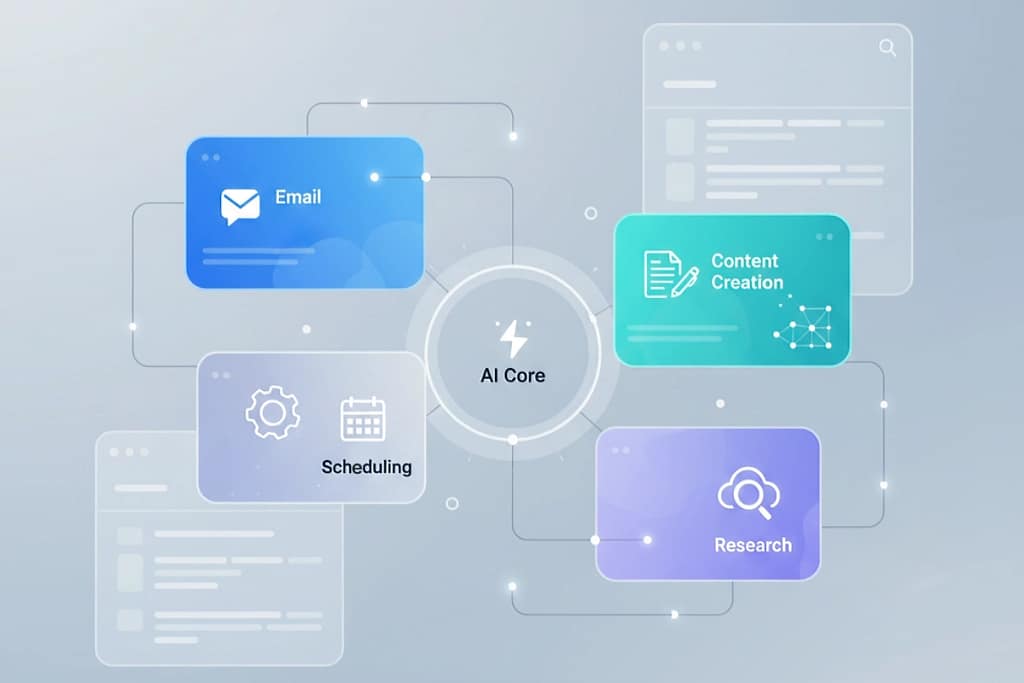
A curated hub of reliable, practical AI tools for virtual assistants, organized by real workflows, not hype.
Most guides to AI tools for virtual assistants are structured as lists, twenty tools, a one-line description each, and an affiliate link. They answer the question “what exists” without answering the question that actually matters: “what should I use, for which task, and in what order.”
This page is organized differently. Every tool here is selected against a single criterion: does it make a solo VA measurably more effective in daily client work? If the answer isn’t an immediate yes, it doesn’t appear here. No tools included because they’re trending. No placements bought. No stack that costs $300 a month before you’ve invoiced your first client.
The best virtual assistant AI tools aren’t the most powerful or the most feature-rich. They’re the ones that integrate cleanly into your existing workflow, reduce the time you spend on low-value tasks, and produce output you can actually use without spending forty minutes on prompts and revisions.
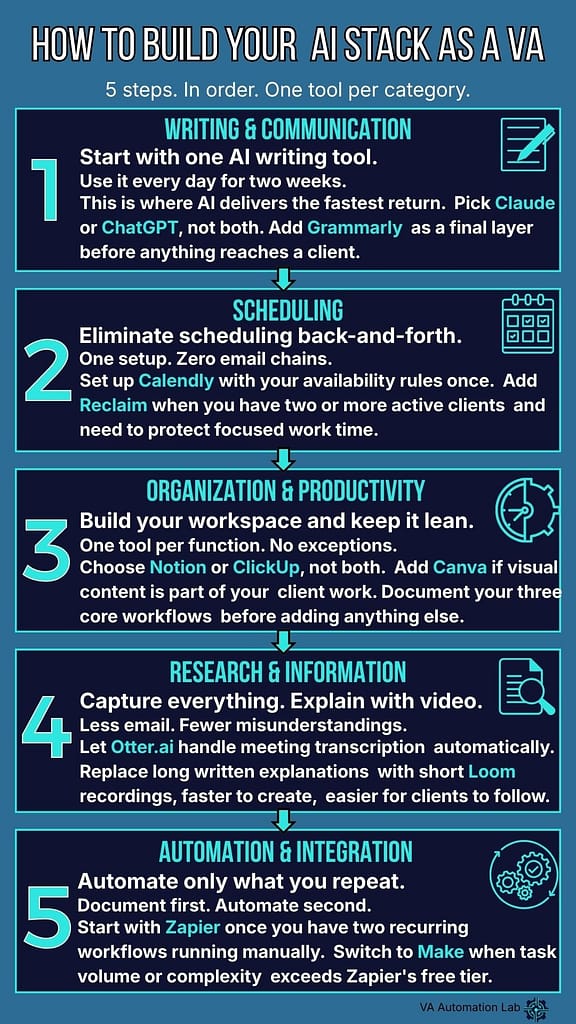
What follows is a curated set of AI apps for virtual assistants organized into five workflow categories: writing and communication, scheduling and calendar management, organization and productivity, research and information handling, and automation. Each category includes the tools that deliver the most value at the beginner and intermediate level, the use cases where they’re strongest, and a clear recommendation on where to start.
Table of Contents
Who This Page Is For
This page is built for virtual assistants who want a lean, intentional AI stack, not a comprehensive directory of every tool that exists. If you’re trying to figure out which virtual assistant AI tools to actually use in your daily work, in what order to adopt them, and how to avoid building a setup that costs more than it saves, you’re in the right place.
If you’re starting from zero, begin here instead: 👉 Start From Zero — The Complete Beginner’s Guide
How This Page Is Organized

Five categories, each mapped to a distinct area of VA daily work. Within each category: two to three tools, selected for practical value and low learning curve, with use cases, a clear recommendation, and a link to the relevant deep-dive guide where one exists. Start with Writing & Communication, it’s where AI delivers the fastest, most immediate return for most VAs.
Writing & Communication Tools
Writing and communication is where most VA hours go, and where AI tools for VAs deliver the most immediate, measurable return. These tools reduce the time between receiving a task and delivering a professional result, not by replacing your judgment, but by handling the structural and mechanical work so your attention goes to the decisions that actually require it.
Claude (Anthropic)
Best for: writing, client communications, documentation, SOPs, research synthesis
Claude is the tool to reach for when output quality is the priority. Its particular strength is contextually aware, nuanced writing, the kind that reads like a person wrote it, not a template. For virtual assistants whose work includes drafting client communications, building documentation, writing SOPs, or summarizing complex briefs, Claude produces deliverables that require fewer revision cycles and create stronger client confidence than most alternatives.
Practical use cases for VA work:
– Drafting professional responses to difficult or ambiguous client messages
– Writing first-draft SOPs for recurring tasks as you document your workflows
– Summarizing long briefs, documents, or meeting transcripts into clear action points
– Creating onboarding documents, welcome guides, and client-facing templates
– Researching unfamiliar industries or topics before starting a new client engagement
Learning curve: low. Plain-language prompts produce usable output from the first session. Quality improves as you learn to give it more context, but the baseline is immediately useful.
Cost: free tier available. Claude Pro at $20/month unlocks higher usage limits and more capable models, worth the upgrade once you’re using it daily across client work.
ChatGPT (OpenAI)
Best for: brainstorming, structured list generation, quick research, general-purpose drafting
Where Claude tends to excel at depth and nuance, ChatGPT excels at breadth and speed. For a VA supporting clients across varied industries and task types, that generalist capability is useful, particularly in the early months when your client mix is unpredictable and your task range is wide.
Practical use cases for VA work:
– Generating service package ideas, pricing structures, or positioning options
– Brainstorming content ideas for a client’s social media or newsletter
– Creating structured checklists or frameworks for new task types
– Quick factual research to orient yourself before unfamiliar client territory
– Drafting first versions of repetitive content: social captions, product descriptions, email sequences
Learning curve: low to medium. The interface is intuitive from day one, but consistently high-quality output requires prompting with specificity. Invest thirty minutes early on learning the basics of effective prompting, the gap between a vague prompt and a detailed one is significant.
Cost: free tier available. ChatGPT Plus at $20/month provides higher usage limits and access to more capable models.
ChatGPT The most widely adopted AI assistant for virtual assistants, covers email drafting, SOP creation, research synthesis, client proposals, task planning, and content creation from a single interface. Zero configuration required to start. 👉 Complete guide: ChatGPT for Virtual Assistants
Grammarly
Best for: tone and clarity checking, real-time editing, professional polish on client-facing documents
Grammarly works as a layer on top of everything else, it catches what Claude and ChatGPT miss, particularly in documents you’ve written yourself or lightly edited from AI output. For VAs who handle client emails, proposals, reports, or shared documents, it reduces the cognitive load of self-editing and catches errors that accumulate when you’re moving fast.
Practical use cases for VA work:
– Client emails and proposals where professional tone is critical
– Shared documents and reports reviewed by senior stakeholders
– Non-native English speakers who want an additional quality layer
– Any high-stakes communication where a missed error carries real cost
Learning curve: very low. Browser extension installs in minutes and works across Gmail, Notion, Google Docs, and most writing environments.
Cost: free tier covers essential grammar and spelling. Grammarly Premium at ~$12/month adds tone detection, clarity suggestions, and full rewrite options.
Feature | Claude | ChatGPT |
Best for | Client comms, SOPs, documentation | Brainstorming, lists, quick research |
Output tone | Nuanced, natural, context-aware | Clear, structured, versatile |
Long document handling | ✓ Strong | ~ Good |
Structured output (lists, tables) | ~ Good | ✓ Strong |
Free tier | ✓ Available | ✓ Available |
Paid plan | $20 / month | $20 / month |
Learning curve | Low | Low |
Ideal use in VA workflow | Output that goes to clients | Internal thinking and planning |
Recommendation | Start here | Add second |
Where does Grammarly fit? Grammarly is not an alternative to Claude or ChatGPT, it’s a complementary layer. Use Claude or ChatGPT to produce the draft. Run Grammarly on the output before anything reaches a client. They work in sequence, not in competition.
Key Takeaway: Writing & Communication
Use AI tools for VAs to handle the mechanical and structural work: first drafts, reformatting, summarizing, template generation. Your judgment, your client relationship knowledge, and your tone remain essential inputs that no tool replaces. The goal is to reduce the distance between task and deliverable, not to remove yourself from the process.
If email management is a significant part of your daily work, this guide goes deeper:
👉 Best AI Tools for Managing Emails as a Virtual Assistant
Scheduling & Calendar Management Tools
Scheduling is one of the most time-consuming and interruptive tasks in a VA workflow, and one of the most automatable. The tools below eliminate the back-and-forth of calendar coordination, surface conflicts before they become problems, and in some cases autonomously protect your focused work time. For VAs who manage calendars as part of their client service, this category has one of the highest ROIs in the entire AI stack.
Calendly
Best for: eliminating scheduling back-and-forth for client calls, discovery calls, recurring meetings
Calendly removes the manual coordination from any meeting that follows a predictable format. You define your availability windows and buffer rules once; clients and contacts book directly into your calendar without email chains. For VAs who schedule calls on behalf of clients, it works equally well, share your client’s Calendly link and the entire coordination process becomes invisible.
Practical use cases for VA work:
– Client discovery and onboarding calls
– Recurring check-in meetings with defined formats
– Coordinating multi-party meetings without back-and-forth
– Embedding booking links in proposals and email signatures
Learning curve: very low. Operational in under thirty minutes for a basic setup.
Cost: free tier covers one active event type, sufficient for a solo VA starting out. Standard plan at $10/month per user unlocks multiple event types and integrations.
Reclaim.ai
Best for: AI-powered calendar optimization, protecting focus time, automatically scheduling recurring tasks
Reclaim goes further than Calendly, it actively manages your calendar rather than just accepting bookings. It learns your work patterns, protects blocks for deep work and recurring habits, automatically reschedules tasks when meetings shift, and finds optimal meeting times that minimize disruption to focused work. For a solo VA managing multiple clients with unpredictable schedules, it reduces the daily overhead of calendar management significantly.
Practical use cases for VA work:
– Automatically blocking deep work time around client meetings
– Scheduling recurring tasks (weekly reports, client updates) without manual placement
– Finding meeting times that work across multiple calendars without back-and-forth
– Preventing reactive work from colonizing your entire day
Learning curve: low to medium. Takes a week of active use for the AI to calibrate to your patterns.
Cost: free tier available with core features. Pro plan starts at $8/month per user.
Feature | Calendly | Reclaim.ai |
Primary function | Booking page for inbound meetings | AI calendar optimization |
Eliminates back-and-forth | ✓ Yes | ~ Partial |
Protects focus time | ✗ No | ✓ Yes — automatically |
Auto-reschedules tasks | ✗ No | ✓ Yes |
Works for client-facing bookings | ✓ Primary use case | ~ Secondary |
Setup time | Under 30 minutes | 1–2 hours to calibrate |
Free tier | ✓ 1 event type | ✓ Core features |
Paid plan | From $10 / month | From $8 / month |
Learning curve | Very low | Low to medium |
Recommendation | Start here | Add at client 2+ |
Calendly and Reclaim solve different scheduling problems, one handles inbound bookings, the other manages your calendar proactively. They don’t overlap and are worth running simultaneously once your client load grows.
Key Takeaway: Scheduling & Calendar Management
Start with Calendly if scheduling back-and-forth is your primary problem. Add Reclaim if calendar fragmentation and protecting focus time are the bigger issues. Both tools are worth running simultaneously once you have two or more active clients, they solve different problems and don’t overlap.
For a complete breakdown of scheduling tools for VA work:
👉 Best AI Scheduling Tools for Virtual Assistants
Organization & Productivity Tools
These tools cover the workspace layer, where tasks live, how client work is tracked, and where documentation is stored and managed. The right choice depends on the complexity of your client mix and how much setup time you’re willing to invest upfront.
Notion
Best for: flexible workspace, task tracking, client dashboards, SOPs and documentation, knowledge base management
Notion is a workspace that adapts to how you work rather than forcing you into a predefined structure. For VAs managing multiple clients with different workflows, it provides a single environment where tasks, documentation, client notes, and SOPs coexist, reducing context switching and the cognitive overhead of moving between tools. Notion AI, available as a $10/month add-on, adds in-workspace summarizing, task generation from briefs, and the ability to query your own documentation.
Practical use cases for VA work:
– Task tracking with client-specific views
– SOPs and documentation that AI helps you write and maintain
– Client dashboards shared directly from your workspace
– Internal knowledge base that grows as you document recurring processes
Learning curve: medium. Budget two to three hours for a functional setup. The long-term flexibility is worth the upfront investment once you’re managing more than one client consistently.
Cost: free tier covers core functionality for a solo operator. Notion AI add-on at $10/month per member.
ClickUp
Best for: structured project management, managing multiple clients with defined workflows, teams and collaboration
ClickUp is more structured than Notion and better suited for VAs who work with clients who have defined processes, delivery milestones, and team collaboration requirements. Its AI features include task summarization, automated status updates, and action item extraction from documents. The trade-off for the additional structure is a steeper learning curve and a more opinionated setup process.
Practical use cases for VA work:
– Managing multiple clients with different project types and timelines
– Tracking deliverables with status, assignee, and deadline in a single view
– Collaborating with client teams inside the same workspace
– Automating repetitive workflow steps with ClickUp’s native automation
Learning curve: medium to high. More powerful than Notion for structured project management, but requires more deliberate setup.
Cost: free tier is functional for a solo VA. Unlimited plan at $7/month per member unlocks key features for multi-client management.
Canva (AI features)
Best for: visual content creation for clients, presentations, social media graphics, on-brand design assets
Canva belongs in every VA stack that includes any visual output: social media management, presentation support, content creation, or client reporting. Its AI features, background removal, Magic Design, text-to-image, and Magic Write, reduce the time to produce professional visual content from hours to minutes, without requiring design skills. For VAs who support clients with social media or content, this is one of the highest-return tools in the stack.
Practical use cases for VA work:
– Social media graphics using client brand templates
– Presentations and pitch decks with AI layout suggestions
– Client reports and one-pagers with professional visual structure
– Quick image editing (background removal, resizing, format conversion)
Learning curve: very low. Most VAs are producing usable output within the first session.
Cost: free tier is extensive and covers most VA use cases. Canva Pro at $15/month per user adds brand kits, more AI features, and a larger asset library, worth it if visual content is a significant part of your client work.
Feature | Notion | ClickUp |
Best for | Flexible workspace, docs, SOPs | Structured project management |
Task management | ~ Flexible, requires setup | ✓ Built-in, structured |
Documentation & SOPs | ✓ Excellent | ~ Available, secondary |
AI features built in | ✓ Notion AI (+$10/mo) | ✓ ClickUp AI (included) |
Multi-client management | ~ Good with setup | ✓ Strong natively |
Client sharing / collaboration | ✓ Easy to share pages | ✓ Full workspace sharing |
Setup time | 2–3 hours | 3–4 hours |
Learning curve | Medium | Medium to high |
Free tier | ✓ Functional for solo VA | ✓ Functional for solo VA |
Paid plan | From $12 / month | From $7 / month |
Switch when | You need docs + tasks in one place | Notion limits your project structure |
Recommendation | Start here | Upgrade path |
Where does Canva fit? Canva covers visual content creation, a distinct function that neither Notion nor ClickUp replaces. Add it to your stack regardless of which workspace tool you choose, especially if any of your client work involves social media, presentations, or reports.
Key Takeaway: Organization & Productivity
Choose Notion if you want a flexible, customizable workspace and are willing to invest setup time. Choose ClickUp if your clients have structured project workflows and you need stronger project management features. Add Canva regardless of which workspace tool you choose, it covers a distinct use case that neither Notion nor ClickUp addresses.
Deep-dive guides for this category:
👉 Notion AI for Virtual Assistants: Complete Guide
👉 ClickUp for Virtual Assistants: Setup Guide & Templates
👉 Notion vs ClickUp for Virtual Assistants: The Complete Comparison Guide (2026) The choice between these two tools depends on your service type, not on a generic feature ranking.
Research & Information Handling Tools
Virtual assistants regularly deal with high volumes of information, meeting transcripts, client briefs, background research, industry reports. These tools reduce the time between receiving information and producing something useful from it.
Otter.ai
Best for: automatic call transcription, meeting summaries, action item extraction
Otter.ai eliminates the manual note-taking overhead from every client call. It joins your Zoom or Google Meet calls automatically, transcribes in real time, and generates a structured summary with action items. The downstream effect is significant: clients who receive a clean, organized meeting summary within an hour of a call experience a level of professionalism that most VAs, including experienced ones, don’t deliver. The effort required to produce that summary drops from thirty minutes to two.
Practical use cases for VA work:
– Auto-transcribing onboarding calls so no client instruction is missed
– Generating structured meeting summaries to send clients within the hour
– Capturing exact client feedback during review calls
– Building a searchable archive of every client conversation for reference
Learning curve: very low. Integrates with Zoom and Google Meet in under ten minutes.
Cost: free tier covers 300 monthly transcription minutes, sufficient for a VA with two to three active clients. Paid plans start at $16.99/month.
Loom
Best for: async video communication, explaining workflows, client walkthroughs, reducing misunderstandings
Loom replaces long written explanations with short screen recordings, faster to create, easier to follow, and more effective for anything that involves showing rather than telling. For VAs who regularly explain processes, walk clients through deliverables, or communicate with teams asynchronously, Loom reduces the email chain overhead and the rate of misunderstandings significantly.
Practical use cases for VA work:
– Explaining a completed workflow or system to a client
– Walking through a deliverable before formal sign-off
– Documenting a process for a client’s team without a live call
– Replacing a multi-paragraph email with a two-minute screen recording
Learning curve: very low. Recording and sharing a Loom takes under five minutes from first use.
Cost: free tier covers 25 videos with five-minute limit per video. Starter plan at $12.50/month removes limits and adds AI transcript features.
Key Takeaway: Research & Information Handling
Otter.ai and Loom solve different problems in the same category, Otter handles input (capturing what was said in meetings), Loom handles output (communicating what you did or built). Both are worth using from early on. The time savings compound quickly once they become part of your standard workflow.
Automation & Integration Tools
Automation belongs at the end of this list deliberately. It delivers the most value when your workflows are already documented and stable, not when you’re still figuring out what you do and how. The tools below are the right ones to add once you have at least two recurring processes that follow the same sequence every time.
Zapier
Best for: connecting tools and automating two-step workflows without code, beginner automation
Zapier is the standard entry point for no-code automation. Its trigger-action structure is intuitive once you understand the logic, its pre-built template library covers most common VA workflows, and its free tier is sufficient for a solo VA in the first three to six months. The limit of the free tier, 100 tasks per month across unlimited two-step automations, becomes visible only when you have three or more active automations running at volume.
Practical automation examples for VA work:
– New client inquiry via contact form → task created in Trello or Notion → email notification sent
– Completed task marked done → automatic status update email sent to client
– New invoice paid in Wave → follow-up task created in task manager
– Weekly Toggl time report → summary compiled in Notion automatically
Learning curve: medium. Budget two hours for your first working automation. The second takes twenty minutes.
Cost: free tier covers 100 tasks/month on two-step automations. Starter plan at $19.99/month unlocks multi-step automations and higher task volume.
Make (formerly Integromat)
Best for: complex multi-step automations, advanced integrations, higher task volume at lower cost
Make offers more flexibility than Zapier for complex, multi-step workflows, its visual scenario builder makes it easier to understand and debug intricate automations. Its free tier is more generous (1,000 operations/month vs Zapier’s 100 tasks), and its paid plans are significantly cheaper at equivalent functionality. The trade-off is a steeper initial learning curve, the interface is less intuitive for beginners than Zapier.
Practical use cases where Make outperforms Zapier:
– Multi-step automations with conditional logic (if this, then that, otherwise this)
– Workflows that process data rather than just moving it between tools
– High-volume automations where Zapier’s task limits become expensive
– Integrations with tools that Zapier doesn’t support natively
Learning curve: medium to high. More powerful than Zapier, but the first automation takes longer to build correctly.
Cost: free tier covers 1,000 operations/month. Core plan starts at $9/month.
Feature | Zapier | Make |
Best for | Simple 2-step automations, beginners | Complex multi-step workflows |
Interface | Linear, beginner-friendly | Visual canvas, more powerful |
No-code | ✓ Yes | ✓ Yes |
Free tier | 100 tasks / month | 1,000 operations / month |
Paid plan | From $19.99 / month | From $9 / month |
Conditional logic | ~ Basic (paid) | ✓ Advanced, native |
App integrations | 7,000+ | 1,500+ |
Learning curve | Low | Medium to high |
Switch when | — | Zapier task limits hit consistently |
Recommendation | Start here | Graduate to this |
This is a summary comparison. For a full breakdown with real VA automation examples, cost analysis, and a recommendation based on your current workflow stage, read the complete guide: 👉 Zapier vs Make for Virtual Assistants: The Complete Comparison Guide
Key Takeaway: Automation & Integration
Start with Zapier. Its free tier and beginner-friendly interface make it the right entry point for most VAs. Switch to Make, or run both, when you’ve hit Zapier’s task limits consistently or when you need multi-step conditional logic that Zapier’s basic plans don’t support cleanly.
For a direct comparison:
👉 Zapier vs Make for Virtual Assistants: The Complete Comparison Guide
For a complete automation curriculum from first workflow to advanced systems:
👉 Best Automation Workflows for Virtual Assistants: Beginner to Advanced
Summary Table
The table below summarizes all the AI apps for virtual assistants covered on this page, organized by category with the primary use case and starting cost.
Category | Tools | Best For | Starting Cost |
Writing & Communication | Claude, ChatGPT, Grammarly | Drafting, editing, client comms | Free |
Scheduling | Calendly, Reclaim.ai | Calendar management, focus time | Free |
Organization & Productivity | Notion, ClickUp, Canva | Tasks, workspace, visual content | Free |
Research & Information | Otter.ai, Loom | Transcription, async comms | Free |
Automation & Integration | Zapier, Make | Connecting tools, reducing manual steps | Free |
Total starting cost across all five categories: $0. Full paid stack at entry-level tiers: approximately $65-80/month, recoverable within the first two client invoices.
How We Evaluate AI Tools
Every tool on this page is assessed against six criteria before inclusion. Clarity: is the tool straightforward enough that a VA can produce useful output without extensive setup or training? Reliability: does it work consistently across the use cases it claims to support? Speed: does it produce a measurable reduction in the time required to complete the relevant task? Integration: does it fit into a standard VA workflow without creating dependencies or complications? Cognitive load: does it simplify your day or add another system to manage? Value: is the time saved proportionate to the cost, including the time cost of learning and maintaining the tool?
Only tools that pass all six filters are included. Tools that score well on five but fail on one, typically cognitive load or integration, are excluded. This is why several well-known AI tools don’t appear here: they’re capable, but they add complexity that a solo VA operating lean doesn’t need.
A Note on Stack Size
Thirteen tools across five categories is already more than most experienced VAs use simultaneously. This page is a reference, not a shopping list. The right number of tools for most solo VAs at the beginner and intermediate stage is five to seven, chosen deliberately and used consistently enough to become invisible infrastructure.
The decision framework is simple: add a tool to your stack only when you have a specific, recurring problem that your current stack demonstrably cannot solve. Not because the tool looks useful. Not because it appeared in a comparison article. Because you have a real gap and this tool closes it. The best AI tools for VAs are the ones you stop noticing because they work exactly as expected, every time.
The VA who uses six tools fluently outperforms the VA with twenty tools used occasionally, every time.
Frequently Asked Questions About AI Tools for Virtual Assistants
What are the best AI tools for virtual assistants today?
The most consistently useful AI tools for virtual assistants are Claude and ChatGPT for writing and communication, Otter.ai for meeting transcription and summaries, Calendly for scheduling, Notion or ClickUp for task management, Canva for visual content, and Zapier for workflow automation. These seven tools cover the highest-impact use cases with the lowest learning curve. The right starting point is one AI writing tool, Claude or ChatGPT, used daily for two to three weeks before adding anything else. Fluency with one tool is worth more than access to ten.
Do I need to pay for AI tools as a virtual assistant?
No. Every tool recommended on this page has a free tier that covers the core functionality a beginner VA needs. Claude, ChatGPT, Notion, Trello, Canva, Otter.ai, Calendly, Zapier, and Make all offer free plans sufficient for a solo VA in the first three to six months. The total starting cost of a complete AI stack is $0. Paid upgrades, typically $10-20/month per tool, become worth evaluating only when you’re hitting the free tier limits regularly, which usually happens around month three to four of active daily use.
Can I use AI tools as a virtual assistant without technical skills?
Yes. The leading virtual assistant AI tools are designed for plain-language interaction, no coding, no technical background, and no prior AI experience required. Claude, ChatGPT, and Notion AI respond to clear, specific instructions in the same way you’d communicate with a capable colleague. Zapier and Make have visual interfaces that make automation logic visible without requiring code. The same applies to every AI app for virtual assistants covered on this page, the learning curve is measured in hours and days, not weeks. Most VAs reach functional fluency within two to three weeks of consistent daily use.
How many AI tools does a virtual assistant actually need?
Most solo VAs operate effectively with five to seven tools covering the five core categories: one AI writing tool, one scheduling tool, one workspace tool, one transcription tool, and one automation platform. More tools don’t produce better results, they produce more overhead. The most common mistake is adding tools reactively, based on recommendations, before the existing stack has been fully integrated. Start with one tool per category, use each consistently for at least two weeks before evaluating whether to add anything, and only add a new tool when your current stack has a specific, demonstrable gap.
What’s the difference between Claude and ChatGPT for VA work?
Both are capable AI writing tools with free tiers and similar pricing at the paid level. The practical difference is in their strengths: Claude tends to produce higher-quality output for tasks that require nuance, context-awareness, and writing that sounds natural, client communications, documentation, SOPs, and anything where tone matters. ChatGPT tends to be faster for breadth tasks, brainstorming, list generation, quick research, and structured outputs like checklists and frameworks. Most VAs who use both settle into a pattern: Claude for the output that goes to clients, ChatGPT for the thinking and planning work that stays internal.
When should a virtual assistant start using automation tools?
The right time to add automation is when you have a documented, repeatable workflow that you execute manually more than twice a week. Not before. Adding Zapier or Make to an undocumented process doesn’t save time, it automates chaos. Document your three core workflows first (client onboarding, weekly task management, task delivery), run them manually for at least a month to confirm the sequence is stable, and then automate the steps that are most repetitive and least variable. That order of operations (document, stabilize, automate) produces automations that work reliably instead of breaking the first time an edge case appears.
The tools are here. The next step is building the system that connects them.
This page covers the best AI tools for virtual assistants across five workflow categories, the next logical step is connecting them into a system that runs consistently without manual overhead.
If you haven’t yet set up your operational foundation, the five categories of tools that every VA needs before the AI layer makes sense, start there:
👉 Start From Zero — The Complete Beginner’s Guide
If you want a complete framework for choosing and using AI tools at every stage of your VA business, this guide covers it in full:
👉 AI Tools for Virtual Assistants: The Complete Practical Guide
When your core setup is in place and you’re ready to automate the workflows that repeat most often:
👉 Automation Workflows for Virtual Assistants
If you want to skip the research and get a curated, minimal starting stack with no decisions required: