
Notion vs ClickUp for Virtual Assistants: The Complete Comparison Guide (2026)
Notion vs ClickUp for virtual assistants is the most consequential tool decision a VA makes when building their operational system, and it is also the most commonly made on the wrong basis. This guide covers the complete feature comparison, the real pricing picture for solo VA use, the automation gap that separates the two tools operationally, and the decision framework that matches each tool to the specific service type and workflow structure of the VA who will use it.
The comparison looks straightforward on the surface: both tools promise to replace multiple apps with a single workspace. Both have free plans, both have AI assistants, both support databases and documents, and both are used by virtual assistants at scale. The marketing positioning of each tool reinforces the confusion, ClickUp calls itself “the one app to replace them all,” Notion calls itself “the all-in-one workspace.”
They are not the same tool solving the same problem in different ways. They are tools built on fundamentally different operational philosophies that happen to overlap in the middle of the feature spectrum. ClickUp is task-centric: it was built from the ground up for structured project management, with tasks as the primary unit of work. Notion is document-centric: it was built for flexible knowledge management, with pages and databases as the primary unit of work. For a virtual assistant, this distinction is not semantic, it determines which tool fits which service type, which tool scales more efficiently with client count, and which tool integrates more cleanly with the automation stack.
The answer to “Notion vs ClickUp for virtual assistants” is not universal. It depends on what the VA primarily delivers, how many clients they manage, and whether their highest-friction daily task is task execution or documentation. This guide provides the data, the comparison, and the framework to answer it correctly for your specific situation.
What this guide covers:
- The fundamental difference between Notion and ClickUp and why it matters for VA operations
- Notion vs ClickUp features, side-by-side comparison across eight categories
- Notion vs ClickUp pricing, the real cost for solo VA use including AI features
- Notion vs ClickUp workflow comparison, how each tool performs for the five highest-frequency VA task types
- The automation gap and how to bridge it
- The VA-specific decision framework, which tool for which service type
- The combined stack, when to use both
👉 AI Tools for Virtual Assistants: The Complete Practical Guide — the full reference for every AI tool category in VA operations.
🎁 Free resource before you dive in.
The Notion + ClickUp Combined Stack Starter Kit includes the Notion Client Wiki Template, the ClickUp Client List Template, and the Make scenario that connects them, ready to duplicate for your first client in under 30 minutes.
Table of Contents
1. The Fundamental Difference Between Notion and ClickUp

Understanding the notion vs clickup for virtual assistants comparison correctly requires starting with the architectural difference, the design philosophy that shapes every feature, every limitation, and every workflow implication of each tool.
ClickUp is task-centric. Every element in ClickUp is ultimately a task or a container for tasks. Spaces, Folders, and Lists are the structural hierarchy, each level a container that organizes tasks below it. Documents, whiteboards, and dashboards exist in ClickUp, but they are satellite features built around the task management core. When you open ClickUp, you see tasks. The primary action is creating, assigning, tracking, and completing work items.
Notion is document-centric. Every element in Notion is ultimately a page or a database. Pages contain structured content: text, tables, embedded databases, linked views. Tasks exist in Notion, but they are implemented as database rows, not native task objects. When you open Notion, you see pages. The primary action is creating, organizing, and retrieving structured information.
Why this matters for VA operations:
A VA’s daily work is split between two fundamentally different operational modes:
Execution mode — processing tasks, meeting deadlines, tracking deliverables, managing recurring work. This mode benefits from ClickUp’s native structure: task statuses, due dates, priorities, dependencies, recurring tasks, and time tracking are all first-class features that require no configuration.
Documentation mode — writing SOPs, building client wikis, organizing reference material, storing meeting notes, creating templates. This mode benefits from Notion’s native structure: flexible page hierarchies, relational databases, and the Ask Notion AI feature that makes the entire documentation library queryable.
The correct tool for a given VA is determined by which mode dominates their daily operations. A VA whose primary deliverables are task execution, project management, and client deliverables tracking spends 70-80% of their time in execution mode, ClickUp is the correct primary tool.
A VA whose primary deliverables are content creation, documentation, research, and knowledge management spends 70-80% of their time in documentation mode, Notion is the correct primary tool.
A VA doing both at high volume, the majority of experienced VAs managing multiple clients with diverse service scopes, needs both, configured to work together rather than competing for the same operational territory.
Notion | ClickUp | |
Primary unit of work | Page / Database row | Task |
Core strength | Knowledge management + documentation | Project management + task execution |
Setup approach | Build from blank canvas | Structured system out of the box |
Learning curve | Lower for beginners | Higher — steeper initial setup |
Best fit | Documentation-heavy VA services | Task-execution-heavy VA services |
2. Notion vs ClickUp Features — Eight-Category Comparison
The notion vs clickup features comparison below covers the eight categories most relevant to VA operations, ranked by operational impact for solo VA use.
Category 1 — Task Management
ClickUp: Native, first-class task management. Tasks have statuses, priorities, due dates, time estimates, time tracking, dependencies, subtasks, and recurring schedules built in. Multiple task views (List, Board, Gantt, Calendar, Timeline, Workload) switch without data duplication. Recurring tasks are scheduled automatically with future instances visible. Task templates reduce setup time for repeating work types.
Notion: Task management via database. A task database can replicate most ClickUp functionality (status, priority, due date, assignee) but every feature requires manual configuration. Recurring tasks require workarounds (manual duplication or third-party tools). No native time tracking. No native Gantt or timeline without third-party extensions.
Winner for VAs: ClickUp, by a significant margin for task management as the primary use case. Notion’s task management is functional for simple single-client use but does not scale efficiently to multi-client operations without significant custom configuration.
Category 2 — Documentation and Knowledge Base
Notion: Native, first-class documentation. Pages are infinitely nestable and composable (text, tables, databases, embedded content, callouts, toggles) all in one flexible canvas. A Notion workspace naturally becomes a searchable knowledge base. Ask Notion queries the entire workspace in natural language. Client wikis, SOP libraries, onboarding documents, and meeting note archives are all native Notion use cases.
ClickUp: Documentation via Docs feature. ClickUp Docs supports rich text, tables, and page nesting. Adequate for most document types. Connected Search finds content across Docs and tasks. The documentation layer is less flexible than Notion’s, complex relational structures require more configuration.
Winner for VAs: Notion, for documentation and knowledge base as the primary use case. ClickUp Docs handles routine documentation adequately but cannot match Notion’s flexibility for complex client wikis and multi-relational database structures.
Category 3 — Database and Relational Structures
Notion: Databases are Notion’s operational core. Table, Board, Gallery, List, Calendar, and Timeline views of the same database. Relations link databases bidirectionally, a task in the Task database can relate to a row in the Client database, which relates to rows in the Meeting Notes database. Rollups aggregate data across linked databases automatically. This relational layer is powerful for VAs who build structured client management systems in Notion.
ClickUp: Relational structures via Custom Fields and Relationships. Less flexible than Notion’s relational database model but sufficient for most VA operational needs. The ClickUp hierarchy (Space > Folder > List) provides structural organization that replaces some relational functionality for task management contexts.
Winner for VAs: Notion, for complex relational data structures. For simple task-linked data, ClickUp’s Custom Fields are sufficient.
Category 4 — Native Automation
ClickUp: Native automation builder included on paid plans. “If/then” rules with triggers (status change, date arrival, task creation, field update) and actions (assign, move, change status, create task, send notification). Pre-built automation templates for common workflows. Covers the recurring-task and status-change automation needs of most VA operations without requiring Zapier or Make.
Notion: No native automation as of 2026. Button automations (trigger a sequence from a manual button click) and basic database automation (auto-set properties on creation) are available on paid plans. For cross-platform or time-triggered automation, Zapier or Make is required.
Winner for VAs: ClickUp, decisively. The absence of time-triggered native automation in Notion is the single largest operational gap for VAs who need workflows to run automatically without manual triggers.
Category 5 — Views and Visual Planning
ClickUp: List, Board (Kanban), Gantt, Calendar, Timeline, Workload, Table, Mind Map, Whiteboard, all as views of the same underlying task data. Switch between views without data migration. The Workload view is particularly valuable for multi-client VAs, it shows task distribution across time and identifies overload periods visually.
Notion: Table, Board, Gallery, List, Calendar, Timeline views of database data. No Gantt native. No Workload view. Multiple databases can be displayed on the same page via linked views, giving a dashboard effect without true cross-database aggregation.
Winner for VAs: ClickUp, for task planning and workload visualization. For database views and flexible page layouts, Notion is more flexible.
Category 6 — Collaboration and Client Sharing
ClickUp: Guest access on paid plans. Clients can be given limited access to specific lists or tasks. Real-time collaboration on Docs. Comments and @mentions on tasks. Native chat feature for team communication.
Notion: Guest access on all plans (limited on Free). Clients can be given read or edit access to specific pages or entire workspaces. Notion sharing is particularly clean for client-facing portals, a shared Notion page can function as a project hub the client accesses without requiring a ClickUp account.
Winner for VAs: Notion, for clean client-facing sharing. ClickUp is more functional for internal team collaboration.
Category 7 — Mobile Experience
ClickUp: Full-featured mobile app. Task creation, status updates, and notifications work well on mobile. The interface is dense, less comfortable for reading and documentation tasks on small screens.
Notion: Mobile app focused on reading and light editing. Database views and page navigation work well. Heavy editing and complex database management are better suited to desktop.
Winner for VAs: Tie, both have functional mobile apps with different strengths. ClickUp mobile for task updates on the go; Notion mobile for reference and review.
Category 8 — Performance and Reliability
ClickUp: Can feel sluggish on large workspaces with many automations and custom fields. Performance degrades with workspace complexity, a known limitation at scale. Desktop app generally performs better than the browser version.
Notion: Generally faster for navigation and page loading. Performance is more consistent across workspace sizes. Large databases with many linked relations can slow down on older hardware.
Winner for VAs: Notion, for consistent performance. ClickUp’s performance issues are a real operational consideration for high-volume VA workspaces.
Category | Notion | ClickUp | Winner (VA context) |
Task Management | ⚠️ Via database | ✅ Native, full-featured | ClickUp |
Documentation | ✅ Native, flexible | ⚠️ Adequate via Docs | Notion |
Database / Relations | ✅ Advanced relational | ⚠️ Basic via Custom Fields | Notion |
Native Automation | ❌ Limited | ✅ Built-in if/then rules | ClickUp |
Views / Visual Planning | ⚠️ Basic views | ✅ 9 view types + Workload | ClickUp |
Client Sharing | ✅ Clean guest access | ⚠️ Available on paid plans | Notion |
Mobile | ⚠️ Reading/reference | ⚠️ Task updates | Tie |
Performance | ✅ Consistent | ⚠️ Degrades at scale | Notion |
3. Notion vs ClickUp Pricing — The Real Cost for VAs
Notion vs ClickUp pricing looks comparable at the plan level, both offer a free tier and paid plans in the $7-15/month range. The real cost picture for VAs changes significantly when AI features are included, because both tools monetize their AI layers differently.
Plan | ClickUp | Notion |
Free | Unlimited tasks + members, 5 Spaces, 100MB storage, basic automations | Unlimited pages + blocks (solo), 10 guests, 5MB uploads |
Plus/Starter | $7/user/mo (annual) — unlimited storage, custom fields, 250 automations/mo | $10/user/mo (annual) — unlimited guests, file uploads, advanced features |
Business | $12/user/mo (annual) — advanced automations, time tracking, workload | $15/user/mo (annual) — advanced AI, SAML SSO, advanced analytics |
AI Add-on | ClickUp Brain: +$7/user/mo on any paid plan | Notion AI: included in Business plan ($15/mo) or +$10/mo on Plus |
Solo VA effective cost with AI | $14/mo (Plus $7 + Brain $7) | $15/mo (Business includes AI) |
The AI cost comparison for solo VAs:
At the solo VA level, the effective cost of getting full AI features is nearly identical: $14/month for ClickUp (Plus + Brain) versus $15/month for Notion (Business with AI included).
The critical difference is what you get at each price point:
ClickUp $14/month (Plus + Brain): Full task management, 250 automations/month, time tracking, custom fields, ClickUp Brain for task summaries and content generation, Connected Search across workspace.
Notion $15/month (Business): Full documentation features, advanced database functionality, Notion AI for writing and summaries, Ask Notion workspace Q&A, AI Autofill in databases, advanced analytics, SAML SSO.
The Free plan reality for VAs:
ClickUp Free is more generous for task management: unlimited tasks, unlimited members, and basic automations make it viable for a solo VA managing one or two clients. The 5 Space limit becomes a constraint as the client roster grows.
Notion Free is more generous for solo documentation use: unlimited pages and blocks for a single user, with no AI features. The collaboration limit (10 guests) is sufficient for most solo VAs.
Recommendation by budget:
$0/month: Notion Free for documentation, ClickUp Free for task management. Use both free plans as the starting stack.
$7-15/month: ClickUp Plus + Brain ($14/mo) if the primary need is task management and automation. Notion Business ($15/mo) if the primary need is AI-enhanced documentation and knowledge management.
$20+/month: Both tools on paid plans for the full combined stack. Cost: ClickUp Plus ($7) + Notion Plus ($10) = $17/month for both without AI, or $24-29/month with AI on both.
4. Notion vs ClickUp for the Five Highest-Frequency VA Tasks
The abstract feature comparison matters less to a VA’s daily experience than the question: which tool performs better for the specific tasks I do most often? The five categories below represent the highest-frequency operational tasks across VA service types.

Task 1 — Multi-Client Task Management and Tracking
ClickUp performance: Excellent. One Space per service category, one Folder for Client Work, one List per client duplicated from template. The cross-client dashboard using the Everything View shows all tasks across all client lists with filtering by due date, priority, and assignee. Recurring tasks automate weekly and monthly deliverables. The Workload view shows capacity across all clients simultaneously. Setup time: 2-3 hours initially, 5-10 minutes per new client from template.
Notion performance: Functional with configuration. A Master Task Database with a Client property and filtered views per client replicates most ClickUp functionality. Cross-client overview requires a linked database view on a dashboard page, achievable but requires 3-5 hours of initial configuration. No native workload view. Recurring tasks require manual duplication or a Zapier automation.
Verdict: ClickUp is the correct tool for multi-client task management. The native structure handles the architecture without configuration overhead.
Task 2 — SOP Creation and Documentation
Notion performance: Excellent. Pages and sub-pages create a natural SOP library hierarchy. Notion AI generates SOP first drafts from process descriptions instantly. Ask Notion retrieves specific SOPs from the library by natural language query. Client-specific SOP variants are linked relational rows in the same database, visible in filtered views per client.
ClickUp performance: Functional. ClickUp Docs handles SOP creation and organization. The documentation layer is less flexible than Notion’s, complex linking between SOPs and related tasks requires custom field configuration. ClickUp Brain can generate SOP content. Search finds documents across the workspace.
Verdict: Notion is the correct tool for SOP creation and documentation as the primary use case.
Task 3 — Client Communication and Weekly Reports
Both tools: Neither Notion nor ClickUp is the primary tool for client communication, that role belongs to Gmail and the AI drafting tools (ChatGPT or Claude). Both tools support the reporting preparation layer: ClickUp provides the completed task data that feeds the report; Notion provides the documentation context and client history that informs the narrative.
ClickUp advantage: The completed tasks for a given week are directly visible in ClickUp filtered by completion date, easier to pull into a Make scenario that auto-generates weekly reports.
Notion advantage: The client wiki and meeting notes history in Notion provides richer context for narrative reporting than a task list alone.
Verdict: Both tools contribute to the reporting workflow at different layers.
Task 4 — Client Onboarding
ClickUp performance: A ClickUp List template duplicated for each new client creates the complete task structure instantly. Combined with Make automation (form submission → ClickUp list creation), the operational onboarding is near-fully automated. The template stores the standard onboarding task sequence with correct statuses, assignees, and due date logic.
Notion performance: A Notion page template duplicated for each new client creates the client wiki structure instantly. Combined with a Zapier automation, the documentation layer of onboarding is automated. The template stores the client profile, services agreement reference, SOPs, and meeting notes structure.
Verdict: Both tools are valuable for different layers of the onboarding process, ClickUp for the task and workflow layer, Notion for the documentation and knowledge layer. This is the strongest argument for using both tools in combination.
👉 How to Automate Client Onboarding for Virtual Assistants — the complete onboarding automation workflow using both tools.
Task 5 — Content Calendar and Social Media Management
Notion performance: Excellent. A content calendar database with Title, Platform, Status, Publish Date, and Content fields replicates a full editorial calendar. AI Autofill generates captions and content angles from the topic and audience fields automatically. Gallery view provides a visual calendar layout. Clients can be given read or edit access to the calendar without a paid seat.
ClickUp performance: Functional. A ClickUp List configured as a content calendar with custom fields for Platform, Status, and Content works well. The Calendar view provides scheduling visibility. Less flexible than Notion for rich text content storage per calendar item.
Verdict: Notion is the correct tool for content calendar management, particularly for VAs sharing the calendar directly with clients.
The templates that make these workflows work are already built.
The Free AI Starter Toolkit includes the Notion Client Wiki Template with content calendar database, AI Autofill configuration, and client sharing setup, plus the ClickUp Client List Template with task statuses, recurring task structure, and cross-client dashboard view. Both ready to duplicate, zero configuration from scratch.
5. The Automation Gap
The automation capability difference between Notion and ClickUp is the single most important operational consideration for virtual assistants who want to build a genuinely scalable workflow system.
ClickUp’s native automation: ClickUp includes an if/then automation builder on paid plans. Common VA automation use cases that work natively in ClickUp:
- When task status changes to “Done” → move to Completed list → notify via email
- When due date arrives → change priority to Urgent → assign to VA
- When new task is created in client list → set default assignee and due date
- Weekly recurring task creation on specified day and time
- Monthly report task auto-creation with subtask structure
These automations run inside ClickUp without any external tool. For a VA managing 4-5 clients, ClickUp’s native automations handle 60-70% of the workflow automation needs at zero additional cost.
Notion’s automation limitation: Notion has no time-triggered native automations. The button automations introduced in 2024 allow a sequence of database actions to run from a manual button click, useful but not automated. For any workflow that needs to run on a schedule (weekly report generation, recurring task creation, reminder sequences), Notion requires Zapier or Make as the automation layer.
The practical implication:
A VA using Notion as their primary operational hub needs to budget for and configure Zapier or Make to handle the automation layer that ClickUp provides natively. A VA using ClickUp can handle most task-layer automation without any additional tools.
This does not make Notion the wrong choice for a documentation-heavy VA, it means the total system cost and complexity for a Notion-primary stack is higher than for a ClickUp-primary stack, because the automation layer requires an additional tool.
Automation Type | ClickUp Native | Notion Native | Requires Zapier/Make |
Status change trigger | ✅ | ❌ | Notion only |
Due date trigger | ✅ | ❌ | Notion only |
Recurring task creation | ✅ | ❌ | Notion only |
New row auto-property | ✅ | ✅ (limited) | — |
Button-triggered sequence | ✅ | ✅ | — |
Cross-platform automation | ❌ | ❌ | Both |
Email/Slack notification | ✅ | ❌ | Notion only |
👉 Best Automation Workflows for Virtual Assistants — the complete guide to building the automation layer for both Notion and ClickUp operations.
6. Notion vs ClickUp AI Features
Both tools have AI assistants, Notion AI and ClickUp Brain, built natively into their workspaces. For VAs evaluating the best project management tool for virtual assistants on AI capability, the comparison reveals tools designed for different primary functions.
Notion AI
Notion AI is a writing and knowledge assistance layer built on top of the Notion workspace. Its three highest-value features for VAs:
AI Summaries — summarize any page or database into a structured brief in seconds. Meeting notes to action items, research pages to executive summaries, weekly activity logs to client update drafts.
Ask Notion — query the entire workspace in natural language. “What are the open tasks for Client A?” “Which SOPs cover the invoicing process?” “Summarize all decisions from last month’s meetings.” The answer is generated from the actual content in the workspace.
AI Autofill — auto-populate database columns based on existing row content. Configure once per property, runs automatically on all new rows. Content calendar captions from topic fields, task priority from description content, client status from linked meeting notes.
Limitation: Notion AI operates on workspace content only. It cannot pull data from external tools, trigger external actions, or process information that is not already stored in Notion.
ClickUp Brain
ClickUp Brain is a task and project management AI assistant. Its three highest-value features for VAs:
Connected Search — searches across ClickUp tasks, Docs, and connected external tools simultaneously. Find information without knowing where it lives.
Task Summaries — summarize any project, list, or task cluster into a status report. “Summarize the current status of all Client A tasks” produces a narrative overview from the actual task data.
Content Generation — generate task descriptions, project plans, status updates, and meeting agendas from brief inputs. Similar to ChatGPT but with workspace context.
Meeting Notetaker — automatically captures, summarizes, and creates action items from meetings recorded or uploaded to ClickUp.
Limitation: ClickUp Brain’s strongest features are task and project-oriented. For open-ended writing, complex document generation, or documentation-heavy work, ChatGPT or Claude produces better outputs.
AI Feature | Notion AI | ClickUp Brain |
Writing assistance | ✅ Strong | ✅ Adequate |
Page/document summaries | ✅ Excellent | ⚠️ Via Docs |
Workspace Q&A | ✅ Ask Notion | ✅ Connected Search |
Task summaries | ⚠️ Via database queries | ✅ Native |
Database autofill | ✅ AI Autofill | ⚠️ Custom Fields |
External tool search | ❌ | ✅ Connected Search |
Meeting notes | ✅ (Plus+) | ✅ Brain |
Best for | Documentation + knowledge retrieval | Task management + project context |
👉 Notion AI for Virtual Assistants: Complete Guide — the full Notion AI feature guide with prompt templates and workflows.
👉 ClickUp for Virtual Assistants: Setup Guide — the complete ClickUp configuration guide for VA operations.
7. Notion vs ClickUp for Multi-Client Management
Multi-client management is where the notion vs clickup for virtual assistants decision has the most concrete operational consequences. The structural requirements of managing four to six simultaneous client engagements test both tools at their respective limits.
ClickUp multi-client structure: One Space → “Client Work” Folder → one List per client (from Client List Template). The Everything View aggregates all tasks across all client lists with full filtering. The Dashboard view provides cross-client KPIs. New client onboarding duplicates the template list, 5 minutes of setup. This structure scales from 2 to 10 clients without architectural changes.
Notion multi-client structure: One Master Database → Client property → filtered views per client. Or: one database per client in a shared Client Work database. Or: one page per client in a Client Hub. Notion provides three valid architectures for multi-client management, the flexibility is an advantage for VAs who want custom structures but a disadvantage for VAs who want a reliable out-of-the-box system.
The cross-client visibility problem:
The highest multi-client management challenge, seeing all tasks from all clients in a single prioritized view, is solved differently by each tool:
ClickUp’s Everything View with “Group by Priority” and filtered by “Due this week” provides this view natively, in under 10 seconds of configuration.
Notion requires a filtered linked database view on a dashboard page, achievable but requires 30-45 minutes of configuration and is less dynamically responsive to real-time changes than ClickUp’s view.
For VAs where multi-client task visibility is the primary operational challenge, ClickUp solves it faster and more reliably.
👉 How to Manage Multiple Clients as a Virtual Assistant — the complete multi-client management framework for VA operations.
8. The VA-Specific Decision Framework
The best project management tool for virtual assistants is not determined by a generic feature ranking, it is determined by the specific service type and workflow structure of the individual VA. The framework below provides a direct answer for each VA profile.
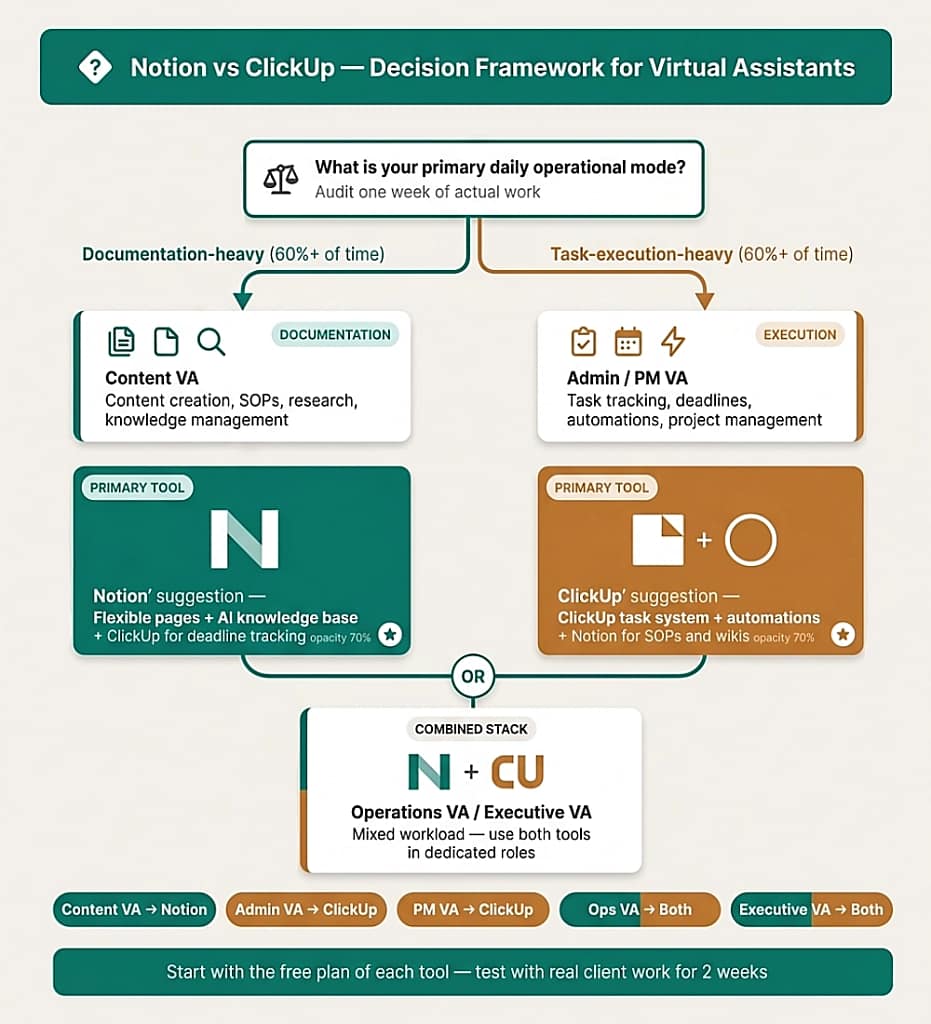
Profile 1 — The Admin VA
Primary services: inbox management, scheduling, task tracking, client updates, data entry, document organization.
Primary operational mode: execution (70-80% of daily time spent on task work).
Correct primary tool: ClickUp Rationale: the work is task-centric. Native task statuses, recurring tasks, automated reminders, and cross-client task views directly address the daily operational structure. Notion as secondary tool for SOPs and client reference documentation.
Profile 2 — The Content VA
Primary services: content creation, social media management, content calendars, newsletter management, blog posts, repurposing.
Primary operational mode: documentation and creation (60-70% of daily time spent creating and organizing content).
Correct primary tool: Notion Rationale: the work is documentation-centric. Content databases, editorial calendars, client brand guides, AI Autofill for content generation, and clean client sharing make Notion the natural fit. ClickUp as secondary tool for deadline tracking and deliverable management.
Profile 3 — The Operations VA
Primary services: SOP creation, process documentation, system setup, automation building, onboarding management.
Primary operational mode: mixed (50% documentation, 50% execution).
Correct primary tool: Both Rationale: the work requires both documentation depth (Notion) and automation and task management (ClickUp). Use Notion as the knowledge base and documentation hub; use ClickUp as the task execution and automation hub.
Profile 4 — The Project Management VA
Primary services: project coordination, deadline management, client dashboards, status reporting, team coordination.
Primary operational mode: execution and reporting (75% task-oriented work).
Correct primary tool: ClickUp Rationale: ClickUp’s native Gantt, Timeline, Workload, and Dashboard views are the correct tools for this service type. The reporting workflows (completed tasks → AI summary → weekly report) run natively with ClickUp Brain and Make automation.
Profile 5 — The Executive VA
Primary services: calendar management, inbox management, research, meeting prep, client briefings, decision support.
Primary operational mode: mixed, with high documentation requirements.
Correct primary tool: Both Rationale: the research, briefing, and documentation layer belongs in Notion (Ask Notion for knowledge retrieval, Notion AI for document generation). The scheduling, task tracking, and deadline management layer belongs in ClickUp.
VA Profile | Primary Tool | Secondary Tool | Automation |
Admin VA | ClickUp | Notion (SOPs) | ClickUp native + Make |
Content VA | Notion | ClickUp (deadlines) | Zapier + Make |
Operations VA | Both (equal) | — | Make primary |
PM VA | ClickUp | Notion (docs) | ClickUp native + Make |
Executive VA | Both (equal) | — | Zapier + Make |
You’ve identified your VA profile. Now build the system.
The Free AI Starter Toolkit includes the exact workspace templates referenced in the decision framework above, Notion Client Wiki for documentation-heavy VAs, ClickUp Client List for execution-heavy VAs, and the combined stack configuration for Operations and Executive VAs. Download once. Duplicate for every client.
9. The Combined Stack — When to Use Both
The most effective notion vs clickup workflow for an experienced VA managing multiple clients with diverse service scopes is not a choice between the two tools, it is a combined stack where each tool handles the operational territory it was built for.
The combined stack configuration:
Notion as the knowledge layer:
- Client wikis and reference documentation
- SOP library (all processes documented here)
- Meeting notes and decision logs
- Content calendars and brand guides
- Onboarding documentation templates
ClickUp as the execution layer:
- All active tasks across all clients
- Recurring task schedules
- Deadline tracking and priority management
- Native automations (status changes, due date triggers, recurring creation)
- Weekly planning and cross-client overview
The connection between the two: Each ClickUp client list contains a description field with the Notion client wiki URL, clicking from the task context to the documentation context takes one click. Notion client wiki pages contain a linked ClickUp view (embed) showing that client’s active tasks, making the documentation hub also a task visibility point.
Build sequence for new VAs:
- Set up Notion with the master client database structure first (documentation foundation)
- Set up ClickUp with the client list template structure (execution foundation)
- Connect each ClickUp client list to the corresponding Notion wiki
- Build the automation layer (Make scenarios that pull ClickUp completed tasks into Notion weekly logs)
10. Switching Costs — What Happens if You Choose Wrong
A VA who builds their complete system in one tool and then needs to switch to the other faces a real operational disruption, typically 8-20 hours of migration work plus 2-4 weeks of reduced efficiency while rebuilding mental models. Understanding the switching cost before choosing is worth 30 minutes of analysis.
Switching from ClickUp to Notion: The most painful migration. ClickUp’s task data exports to CSV, importable into a Notion database but loses status history, subtask relationships, and automation rules. All ClickUp automations require manual recreation as Zapier/Make scenarios. The structural hierarchy (Space/Folder/List) maps imperfectly to Notion’s page structure. Total migration time: 10-20 hours for a 4-5 client VA workspace.
Switching from Notion to ClickUp: Easier for the task layer. Notion database exports to CSV, importable to ClickUp lists. Documentation (pages, wikis) does not have a direct ClickUp equivalent, either migrates to ClickUp Docs (loss of relational structure) or Notion is retained for documentation while ClickUp handles tasks (natural path to the combined stack).
The hybrid migration: The most common real-world outcome for VAs who start with one tool and find its limitations is not a full switch. it is adding the second tool for the use cases where the first tool falls short. This produces the combined stack organically, often with some redundancy and structural confusion. The most efficient path is to plan the combined stack from the start rather than arriving at it through frustration.
11. How to Choose Between Notion and ClickUp as a Virtual Assistant
The five-step process below turns the abstract comparison into a concrete decision for your specific situation.
Step 1 — Identify Your Primary Operational Mode
Audit your current daily work for one week. At the end of each day, classify every work session as either Execution (creating, tracking, or completing tasks and deliverables) or Documentation (writing, organizing, or retrieving information and reference material).
If Execution sessions represent 65%+ of your week: ClickUp is your primary tool. If Documentation sessions represent 65%+ of your week: Notion is your primary tool. If the split is 50/50 or close: plan the combined stack from the start.
Step 2 — Assess Your Automation Needs
Answer these three questions:
– Do I need workflows to trigger automatically on a schedule without manual intervention?
(If yes: ClickUp native automations or Make is required, Notion alone is not sufficient.)
– Do I need cross-platform automations connecting my workspace to Gmail, Slack, or other tools?
(If yes: Zapier or Make regardless of which tool you choose.)
– Am I comfortable building Zapier/Make scenarios from scratch?
(If no: ClickUp’s native automation builder is the lower-friction path.)
Step 3 — Evaluate Your Client-Sharing Requirements
– Do any of your clients need access to a shared workspace, content calendar, or project status page?
(If yes: Notion’s guest sharing is cleaner and more commonly accepted by clients than ClickUp’s guest access model.)
– Do your clients need to see task statuses and project progress in real time?
(If yes: ClickUp’s task views with guest access provide better task visibility than Notion’s database views.)
Step 4 — Test Both Free Plans for Two Weeks Each
Open a free ClickUp account and set up one client workspace using the recommended structure (one List from the Client List Template). Run your actual work through it for two weeks. Open a free Notion account and set up one client workspace (Client Wiki page + Master Task Database). Run your actual work through it for two weeks. The tool that feels frictionless after two weeks of actual use is the correct primary tool, regardless of what the feature comparison says.
Step 5 — Make the Decision and Build the System
Choose the primary tool based on steps 1-4. Build the full client workspace structure for all active clients. Add the secondary tool for the use cases where the primary tool has documented gaps (documentation for ClickUp-primary VAs; task automation for Notion-primary VAs). Connect the two tools via URL links and Make/Zapier automations.
Do not delay the decision in search of more information, the switching cost is manageable if caught within the first 30 days. The cost of continued indecision (fragmented tools, inconsistent systems) compounds daily.
12. Common Setup Mistakes
Mistake 1 — Building Everything in One Tool When the Work Needs Two
The most common mistake among new VAs is forcing all operational needs into a single tool to avoid managing two. A VA who builds their entire SOP library in ClickUp Docs and their entire task system in Notion databases is using both tools outside their core competence, producing worse results than either tool produces in its native domain.
The fix: accept the combined stack early. The maintenance overhead of two tools with clear, non-overlapping roles is lower than the maintenance overhead of one tool doing two jobs poorly.
Mistake 2 — Starting with the Most Complex Configuration
New ClickUp users configure every custom field, every view, every automation in week one, before understanding which features their actual workflow needs. New Notion users build elaborate relational database structures before populating them with real data.
The fix: start with the minimum viable configuration. For ClickUp: one Space, one Client Work Folder, one List template. For Notion: one Client Hub page, one Task database. Add complexity only when the current configuration creates a specific problem.
Mistake 3 — Ignoring the Automation Gap in Notion
VAs who choose Notion as their primary tool and do not account for the automation gap end up doing manually what should run automatically, weekly report generation, recurring task creation, reminder sequences. The additional time cost surfaces gradually and is easy to attribute to “being busy” rather than to a structural tool limitation.
The fix: when choosing Notion as the primary tool, budget and plan for Zapier or Make from the start. The automation layer is not optional for a VA running a scalable multi-client operation on a Notion-primary stack.
Mistake 4 — Using the Wrong Tool for Client Sharing
VAs who share ClickUp workspace access with clients who are not familiar with project management tools often create confusion and additional support overhead. Clients who receive a Notion page link typically navigate it successfully without training.
The fix: use Notion pages as the client-facing layer regardless of whether ClickUp or Notion is the VA’s primary internal tool. A client-facing Notion page can display a filtered ClickUp task view via embed, giving the client a clean overview without requiring a ClickUp account.
Mistake 5 — Not Using Templates From Day One
Both ClickUp and Notion have template systems that eliminate the setup overhead for every new client. VAs who build each new client workspace from scratch spend 1-2 hours per client on setup instead of 5-10 minutes.
The fix: before onboarding the first client, build the master template: ClickUp Client List Template with standard task structure, statuses, and custom fields; Notion Client Wiki Template with all standard sections pre-populated. Duplicate from template for every new client, never build from scratch again.
Mistake 6 — Choosing Based on Aesthetics Rather Than Function
Notion’s visual design is cleaner and more aesthetically customizable than ClickUp’s. Many VAs choose Notion because it looks better, without verifying that their work structure (task-centric, deadline-driven, multi-client) is a poor fit for a documentation-centric tool. The aesthetic preference costs 3-6 months of reduced operational efficiency before the structural mismatch becomes obvious enough to act on.
The fix: complete Step 1 of the decision framework (operational mode audit) before evaluating either tool’s interface. The tool that looks better is irrelevant if it slows down the work you actually do.
13. Conclusion
The notion vs clickup for virtual assistants question has a clear answer once the operational mode audit is complete. ClickUp is the correct primary tool for task-execution-heavy VA services, admin, project management, and operations roles where task tracking, recurring workflows, and native automation are the daily operational core. Notion is the correct primary tool for documentation-heavy VA services, content, research, and knowledge management roles where flexible page structures, relational databases, and AI-powered knowledge retrieval are the daily operational core.
For the majority of experienced VAs managing multiple clients with diverse service scopes, the correct answer is the combined stack, each tool in its native domain, connected via URL links and automation scenarios, building an operational system that neither tool could provide alone.
The fastest path to this conclusion is the two-week free trial of each tool described in Step 4 of the decision framework. Actual use in your real workflow context produces more reliable tool-fit data than any comparison article, including this one.
Ready to build the system?
The Free AI Starter Toolkit gives you the Notion and ClickUp templates, the Make automation scenario, and the prompt library to run your first client through the combined stack this week.
Frequently Asked Questions About Notion Vs ClickUp for Virtual Assistants
Is Notion or ClickUp better for a beginner virtual assistant?
For a beginner VA, ClickUp’s free plan offers more immediate operational value, unlimited tasks, basic automations, and a structured workspace that is ready to use without significant configuration. Notion’s free plan is more powerful for individual use but requires more initial setup to function as an operational hub.
If the beginner VA’s primary work is task execution, start with ClickUp. If the primary work is content or documentation, start with Notion. Both tools have free plans that support the first 1-2 clients without any cost.
Can I use Notion and ClickUp together?
Yes, the combined stack is the recommended configuration for experienced VAs with diverse service scopes. Notion handles the documentation and knowledge management layer; ClickUp handles the task execution and automation layer.
Connect them via URL links (each ClickUp client list links to the Notion wiki, each Notion wiki embeds a ClickUp view), and via Make or Zapier automations that move data between them.
The combined stack costs $17/month for both Plus plans (without AI) or $24-29/month with AI features on both.
Does Notion have automation?
Notion has limited native automation as of 2026, button-triggered sequences and basic database property auto-setting on row creation. It does not have time-triggered or event-triggered automation comparable to ClickUp’s native if/then builder. For time-triggered workflows (weekly report generation, recurring task creation, reminder sequences), Notion requires Zapier or Make.
This is the most significant operational gap for VAs who need a scalable automated workflow system.
Which has better AI — Notion AI or ClickUp Brain?
They are optimized for different use cases. Notion AI is better for documentation, writing assistance, and knowledge retrieval, Ask Notion and AI Autofill are particularly powerful for documentation-heavy VA work.
ClickUp Brain is better for task management, project summaries, and work execution context, Connected Search and meeting notes integration are stronger than Notion’s equivalents.
The effective monthly cost is nearly identical for solo VAs ($14-15/month), so the choice should be based on which AI application matches the primary work type, not on price.
How long does it take to migrate from Notion to ClickUp or vice versa?
A full migration of a 4-5 client VA workspace takes 10-20 hours depending on data complexity. The task data migration (CSV export/import) takes 2-3 hours. The documentation migration (page recreation or restructuring) takes 4-8 hours. The automation recreation takes 3-6 hours.
The most common outcome for VAs who try to migrate is recognizing that the combined stack is more practical than a full switch, the documentation layer stays in Notion, the task layer moves to ClickUp, and the migration becomes an integration rather than a replacement.
Which tool is easier to share with clients?
Notion is significantly cleaner for client-facing sharing. A Notion page shared with a client renders cleanly in a browser without requiring a Notion account for read access.
Clients who receive a shared Notion link can view project status, content calendars, and SOPs without any onboarding. ClickUp guest access works but typically requires the client to create an account and navigate an unfamiliar interface. For client-facing portals, use Notion regardless of which tool is the VA’s internal operational hub.
Glossary: Key Terms for the Notion vs ClickUp Comparison
Execution Mode The operational state in which a VA is primarily creating, tracking, and completing tasks and deliverables. The primary mode for admin, project management, and operations VAs. ClickUp is the correct primary tool for VAs whose work is predominantly in execution mode.
Documentation Mode The operational state in which a VA is primarily writing, organizing, or retrieving structured information and reference material. The primary mode for content, research, and knowledge management VAs. Notion is the correct primary tool for VAs whose work is predominantly in documentation mode.
Combined Stack The configuration where ClickUp and Notion are used simultaneously, each handling the operational territory it was built for, ClickUp for task execution and automation, Notion for documentation and knowledge management. Recommended for experienced VAs managing multiple clients with diverse service scopes.
ClickUp Hierarchy The structural organization of ClickUp: Workspace → Space → Folder → List → Task. For VA multi-client operations, the recommended mapping is: one Space per service category, one Folder for Client Work, one List per client from template.
Native Automation Automation that runs inside a tool without requiring an external platform like Zapier or Make. ClickUp has a native if/then automation builder. Notion does not have time-triggered native automation as of 2026.
Ask Notion The Notion AI feature that queries the entire workspace in natural language. Equivalent in function to ClickUp’s Connected Search, allows the VA to retrieve information from the workspace without knowing which page or database it lives in.
ClickUp Brain ClickUp’s AI assistant, available as a paid add-on ($7/user/month). Covers task summaries, content generation, Connected Search across the workspace and connected external tools, and meeting notetaking.
AI Autofill A Notion AI feature that automatically populates a database column based on a prompt configured once per property. Runs on all new rows automatically. High-value for content calendars (auto-generate captions), task databases (auto-generate descriptions), and client CRMs (auto-summarize activity).
Guest Access The ability to share a workspace or specific pages/lists with external users (clients, collaborators) without giving them full member access. Notion guest access renders cleanly in a browser without an account for read-only views. ClickUp guest access requires account creation and is better suited to internal collaboration than client-facing sharing.
Switching Cost The time and operational disruption involved in migrating a VA’s complete workspace from one tool to another. Estimated at 10-20 hours for a 4-5 client VA workspace, plus 2-4 weeks of reduced efficiency during the mental model rebuild period.
About the Author
Alex Stratton has spent the better part of a decade working at the intersection of virtual assistance and operational systems, first as a VA supporting founders and small business owners, then as a workflow consultant helping remote teams reduce the manual overhead that accumulates when businesses grow faster than their processes. The tools and workflows here reflect decisions made repeatedly in real client contexts, where the wrong choice costs hours, not minutes. Learn more about VA Automation Lab → About.