
1Password for Virtual Assistants: Manage Client Logins (2026)

Disclosure: This article contains affiliate links. If you sign up through them, VA Automation Lab earns a commission at no extra cost to you. Recommendations are based on our evaluation of tool fit for VA workflows.
1Password gives virtual assistants a structured way to store, share, and revoke client logins — replacing the shared docs and Slack messages most VAs still use to manage passwords across multiple clients.
Almost everything written about password managers and virtual assistants is written for the person hiring you. It explains how a business owner can safely pass credentials to a VA. Useful for them. Close to useless for you, because your problem runs in the opposite direction: you are the custodian of logins you do not own, for clients who can end the contract on Friday and expect clean removal by Monday.
This guide covers 1Password from that side. Which plan a solo VA should buy and which one wastes money. How to structure vaults across a client roster. The four ways a client can grant you access, and which one to ask for. And how to offboard without leaving a trail of live credentials behind you.
1Password is one of the operational tools in our AI Tools for Virtual Assistants: The Complete Stack Guide, and it sits inside the wider system covered in Client Management Systems for Virtual Assistants: The Complete Guide.
1Password at a Glance
Best for | Virtual assistants holding logins for three or more clients |
Price | From $3.99/month (Individual), billed annually |
Plan to buy for client work | Families $5.99/month, or Business $8.99/user/month |
Free tier | None — 14-day trial on every plan |
Guest accounts | Families 5 · Team Starter Pack 5 · Business 20 |
Why it wins for VAs | Guest accounts give a client one vault and one-click revocation |
Main drawback | No free plan, and the client has to agree to use it |
Closest alternatives | Zoho Vault, Bitwarden, Proton Pass |
Get the Free AI Toolkit for Virtual Assistants
Setup guides, pricing changes, and the workflows that survived contact with real clients.
Delivered free, no fluff.
Table of Contents
1. Why Virtual Assistants Need a Password Manager, Not a Password List
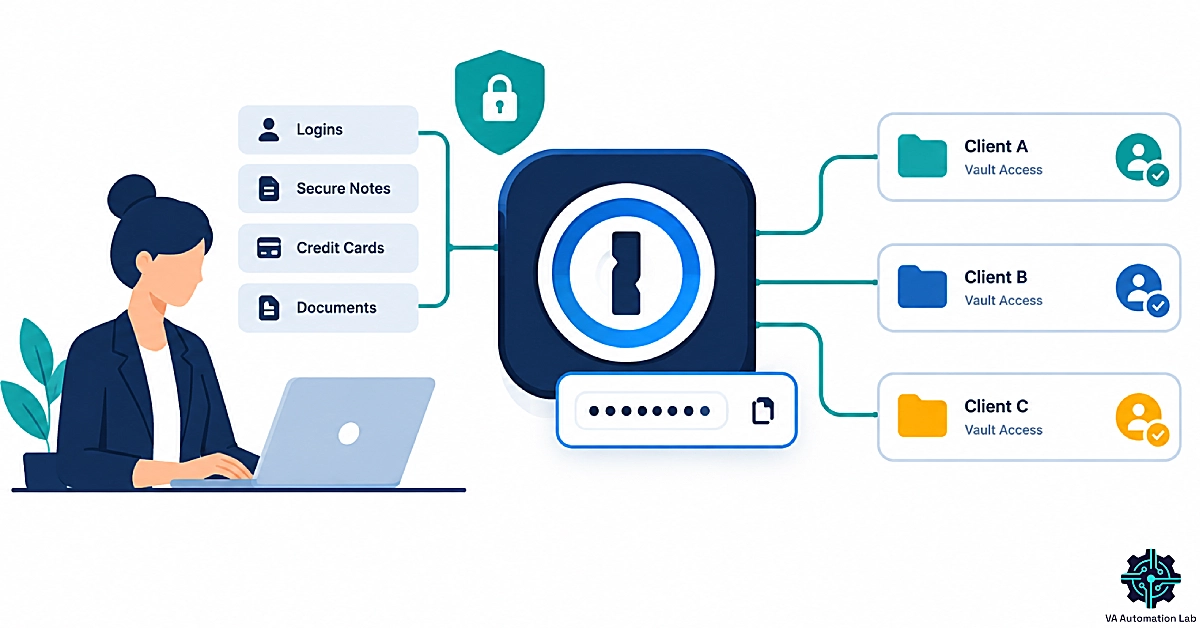
1Password is a credential manager that stores client logins in encrypted vaults you can share, restrict, and revoke. For a virtual assistant, the value is not password storage — it is separation. One vault per client means access can be granted and withdrawn per relationship, without touching anything belonging to anyone else.
Most VAs arrive at a password manager after a scare rather than a plan. Before that, credentials tend to live in one of four places, and each one fails in a specific way.
The shared document. A client drops logins into a Google Doc and shares the link. It works on day one. Six months later it holds credentials for cancelled tools, the link has been forwarded to a designer, and nobody can say who has opened it.
The Slack or WhatsApp message. Credentials sent through chat sit in message history permanently, sync to every device on both accounts, and stay searchable long after the contract ends.
The browser. Client logins saved to Chrome sit behind whatever protects your operating system login, with no way to hand them back and no record of what you hold.
No offboarding at all. The one that carries real professional risk. When a contract ends, most VAs simply stop logging in — and the credentials are still on the device, still in the browser, still in the chat history, and legally the client’s.
A password manager fixes the last one first. Because access is structural rather than copied, removing a vault removes the access.
Is It Safe to Share Passwords With a Virtual Assistant?
Yes, when it goes through a password manager, and no through any channel that leaves a readable copy behind.
The distinction matters more than the tooling. When a client emails or messages a password, a plaintext copy now exists on their device, on yours, on both mail servers, and in every backup either account runs. Rotating that password later does nothing about the copies.
When the same credential is shared through a vault, the client keeps ownership. You receive access to an item, not a copy of it. If the client updates the password, your access continues without a handover. If the client removes you, the access stops on every device you own.
One clarification most articles skip: sharing through a manager does not make it impossible for a recipient to read the credential. 1Password Business includes a View and Copy Passwords permission that can be switched off. But 1Password’s own support staff describe it as a deterrent rather than a guarantee — the restriction applies inside 1Password’s apps, not to the browser that fills the field. Anyone telling a client that a VA can “never see” a shared password is overselling it.
If you are sending this section to a hesitant client: pair the password manager with a signed agreement. Our roundup of Best Contract Tools for Virtual Assistants covers the contract side.
2. How 1Password Works: Vaults, Items, and the Secret Key
Four concepts carry almost everything you will do in 1Password.
Vaults. A vault is a container and, more importantly, the unit of access control. You do not share individual passwords with people in any durable way — you share vaults. Everything a person can reach is defined by which vaults they hold. This is why vault structure, covered further down, decides how painful your offboarding will be.
Items. What lives inside a vault. Logins are the obvious one, but items also cover secure notes, documents, API credentials, credit cards, and one-time codes. For client work, the note and document types matter as much as passwords: account numbers, recovery email addresses, and support PINs all belong in the vault rather than in a separate file.
The Secret Key. 1Password combines your account password with a 34-character Secret Key generated on your device and never stored on 1Password’s servers. Both are required to decrypt a vault. The practical consequence is that a server-side breach at 1Password would not be enough to open your data, and a guessed or reused account password would not be either. It is also why account recovery works differently here than in most managers.
Watchtower. Built-in monitoring that flags reused passwords, credentials caught in known breaches, and accounts that support two-factor authentication but do not have it switched on. For a VA, this turns into a client-facing deliverable rather than a personal housekeeping tool.
Two more things worth knowing early. 1Password runs multiple accounts inside a single app, so your own account and any client account you are invited to join appear side by side without signing in and out. And Travel Mode, covered below, removes selected vaults from your devices entirely.
3. 1Password Pricing for Virtual Assistants: Which Plan Do You Need?
All prices below are per month, billed annually. Every plan includes a 14-day free trial, and there is no free tier.
Plan | Price (billed annually) | Seats | Guest accounts | Admin controls | Best for |
Individual | $3.99 | 1 | None | None | A VA who joins client-owned accounts |
Families | $5.99 | 5 | 5 | Basic | Solo VA running their own vaults, up to 5 client guests |
Team Starter Pack | $24.95 flat | 10 included | 5 | Role-based permissions | VA teams from 3 people up |
Business | $8.99 per user | Per user | 20 | Role-based permissions, Watchtower alerts, SSO | Solo VA needing 6+ guests, or an agency |
Team Starter Pack allows up to 10 additional seats beyond the 10 included, charged at per-member pricing. The per-member rate for those extra seats is not published on the plan sheet — ask sales before you plan around it.
If you have one or two clients. Buy Individual at $3.99, and let each client add you to their own account. You are paying for a place to keep your business credentials, not for a client-facing system. Do not overbuild this.
If you have three or more clients. Run your own account with your own vault structure, whatever the clients do. At this point you are managing an access system, and managing it inside four separate client-owned accounts is where things get dropped.
Who pays? Three defensible positions. The client pays, because the credentials are theirs and the account should outlive you. You pay and absorb it, because $71.88 a year is too little to argue over and it buys a competence signal. Or you pay and bill it as a line item, which is cleanest with clients who already reimburse software. The middle option is the one most VAs land on.
Which 1Password Plan Should a Virtual Assistant Buy?
Most solo VAs choosing a 1Password plan default to Team Starter Pack or Business without knowing that Families — the personal plan — includes five guest accounts for vault sharing, a detail almost nobody documents. A guest is a limited-access account that reaches one shared vault and nothing else. That single fact changes the decision.
Start by ruling out Team Starter Pack, which is priced for teams and rarely makes sense alone. It runs $24.95 a month flat for 10 members, against $8.99 per user on Business. At one user, Business costs $107.88 a year versus $299.40 for a Starter Pack whose other nine seats sit empty. The flat rate only pays off from three members up, where $24.95 for the team beats $26.97 for three Business seats. Below that, you are paying for occupancy you do not have.
That leaves a solo VA choosing between Families and Business, and the deciding factor is guest accounts. Families is $5.99 a month, includes five seats, and its five guest accounts mean you can run a client-facing shared-vault setup for five clients at $71.88 a year. Business at $8.99 a month raises that to 20 guests and adds role-based permissions and Watchtower alerts across shared vaults.
The trade-off for choosing Families over Business is administration. Families is sold as a personal plan and does not include the business-side reporting: no activity log, no role-based vault permissions, no security reports you can export. It works mechanically, but when a client asks who accessed what and when, you will not have an answer. Under six clients and no compliance-minded clients, Families is the pragmatic pick. Past either threshold, move to Business.
Start with the 14-day Trial before You Commit
Every 1Password plan includes 14 days free with no card required up front.
Long enough to build the vault structure below, add two clients, and see whether Families’ five guest accounts cover your roster.
4. How to Structure Your Vaults for Multiple Clients
Setting up client vaults in 1Password takes about twenty minutes, and the structure you choose determines how much work every future client exit costs you. The principle: one vault per client, always, even for a client with two logins. Vaults are free. Untangling a shared vault eighteen months later is not.
Step 1 — Create one vault per client
In the 1Password sidebar, choose New Vault. Never put two clients in one vault, however small either is. The vault is the unit you will eventually delete or unshare, and a mixed vault cannot be cleanly removed.
Step 2 — Name vaults so they sort predictably
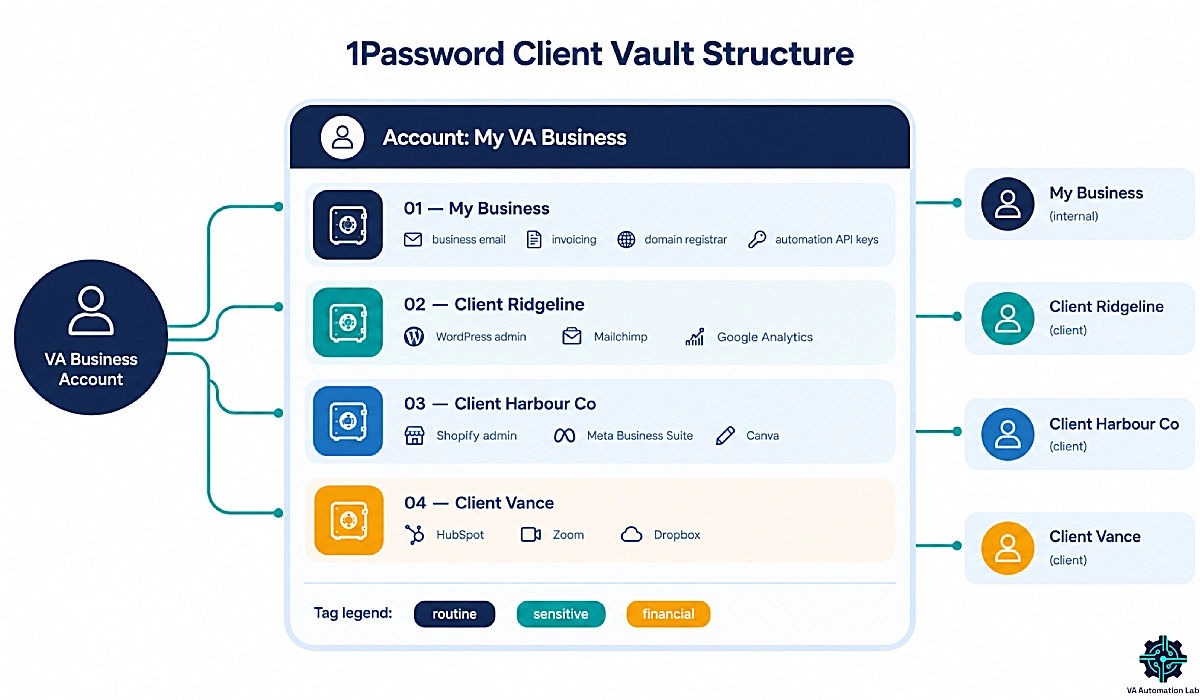
Use a numeric prefix and a consistent client name: 01 — My Business, 02 — Client Ridgeline, 03 — Client Harbour Co. When you hold eleven vaults across two accounts, alphabetical chaos costs real minutes every day.
Step 3 — Separate your business credentials from client credentials
Your invoicing tool, your domain registrar, your email, your automation API keys all live in 01 — My Business and never mix with client items. This is the vault that stays with you when everything else is unshared.
Step 4 — Tag items by access tier
Apply three tags across all vaults: routine for day-to-day tools, sensitive for anything touching customer data, financial for payment processors and banking. Tags cut across vaults, so you can pull every financial item you hold in one search — useful when a breach alert lands and you need to know your exposure in thirty seconds.
Step 5 — Record what you were given, and by whom
Add a secure note to each client vault listing which credentials you received, on what date, and from which person. This becomes your offboarding checklist and your evidence that you handed everything back.
Here is the structure applied to a VA with four clients:
01 — My Business— business email, invoicing, domain registrar, automation API keys02 — Client Ridgeline— WordPress admin, Mailchimp, Google Analytics03 — Client Harbour Co— Shopify admin, Meta Business Suite, Canva04 — Client Vance— HubSpot, Zoom, Dropbox
Four vaults, three tags, one note per client. That is the whole system. If you are running a wider multi-client operation, this slots into the broader approach in How to Manage Multiple Clients as a Virtual Assistant Using AI.
5. Four Ways to Get Client Access (and Which One to Ask For)
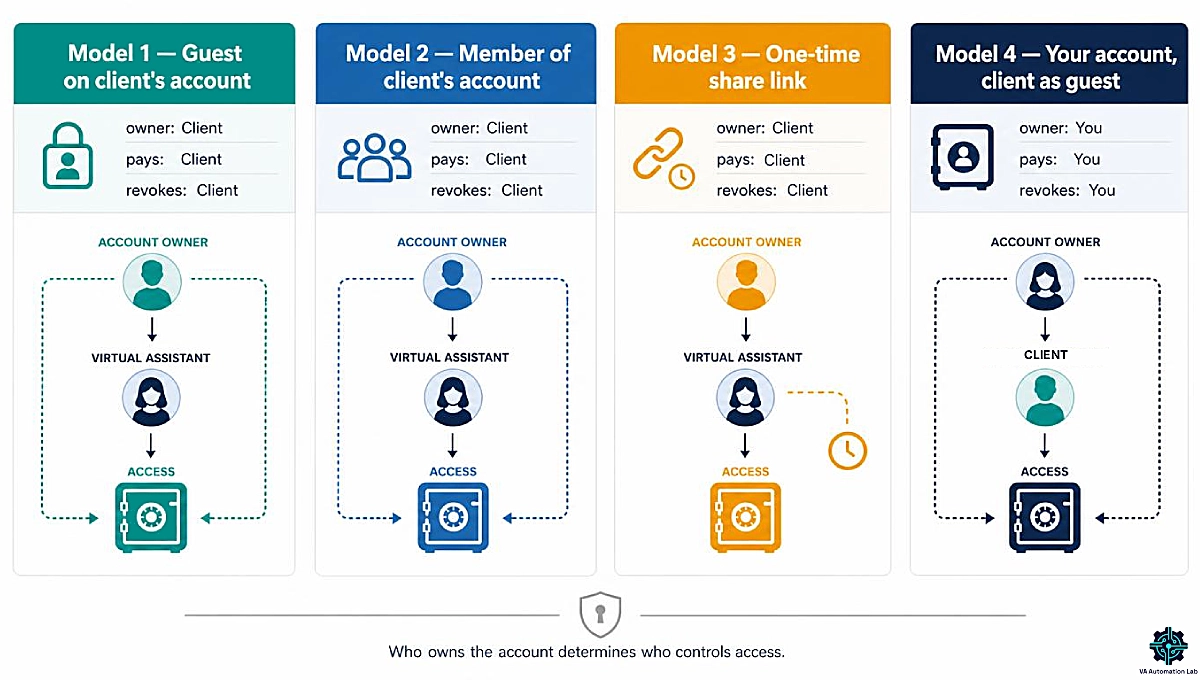
Every credential handover you will ever do falls into one of four models. They differ on the questions that matter when a relationship ends: who owns the account, who pays, who can revoke, and what survives.
Model | Account owner | Who pays | Who revokes | Survives offboarding? | Best when |
1 — Guest on client’s account | Client | Client (guest included, no extra cost) | Client | No — access ends with the invite | Client already uses 1Password |
2 — Member of client’s account | Client | Client (uses a paid seat) | Client | No | You work inside the client’s team daily |
3 — One-time item link | Client | Client (existing plan, no extra seat) | Client | No | Single task, one credential |
4 — Your account, client as guest | You | You | You | Yes — vault stays with you | Client has no password manager |
Guest Accounts: How Clients Give Contractors Limited Access
A guest account is a limited-access 1Password account that reaches exactly one shared vault. Guests do not appear in the client’s team, cannot see other vaults, and cannot be moved around without an admin action.
A guest account is the access model most virtual assistants should ask a client for, and the one most have never heard of. The request is simple: “Can you invite me as a guest to a vault with just the accounts I need? That way you keep control and can remove my access in one click.”
Guest allowances by plan: Families includes 5, Team Starter Pack includes 5, Business includes 20. A client on Individual has no guest accounts and will need one of the other three models.
Model 2 — Full member of the client’s account. Appropriate when you effectively work inside the client’s operation and need several vaults. It costs the client a seat and gives you visibility they may not have intended, so treat it as the exception rather than the default ask.
Model 3 — One-time item sharing links. For a single credential and a single task. The client shares one item via a link that can be restricted to your email address and set to expire. Nothing persists, which is the point. This is the right answer to “I just need you to post one thing on the LinkedIn page.”
Model 4 — You own the vault, the client is the guest. The model nobody writes about, and the strongest positioning play available to a VA. You create the client vault inside your own 1Password account, populate it, and invite the client as a guest so they can see and update what you hold. You get one consistent structure across every client. They get visibility without administering anything.
State the trade-off to the client up front: you own the account, so you control revocation. Some clients will be fine with that and relieved not to buy software. Security-conscious clients will not be, and should be steered to Model 1. Do not push Model 4 on a client who has hesitated about credential handling — you will win the argument and lose the trust.
Whichever model you use, the request belongs inside your onboarding sequence rather than in an ad-hoc message three days into the engagement. If you run onboarding through Dubsado, the access request fits as a workflow step alongside the contract. The setup is covered in Dubsado for Virtual Assistants: Review & Setup Guide, and the wider sequence in How to Automate Client Onboarding for Virtual Assistants.
One rule for intake forms: collect account names, never passwords. An intake form should ask which tools you will need access to, so the client can prepare the invites. A form field that receives a password creates exactly the plaintext copy the password manager exists to eliminate — including in the form provider’s submission storage. Jotform handles the account-name side well, and Jotform for Virtual Assistants: Intake & Onboarding walks through the build.
Model 4 Needs your own Account
Running client vaults from your side means one structure across every client instead of four different setups you don’t control.
Families covers five client guests at $5.99 a month; Business raises it to 20.
6. Daily 1Password Workflows for Virtual Assistants
Day to day, a virtual assistant uses 1Password for four things: filling client logins without a lookup, storing the account context a password does not carry, holding automation API keys, and running a monthly breach check across every client vault.
Autofill on client dashboards. The extension fills from whichever vault holds the item, so moving between four clients’ admin panels no longer means a lookup. With several accounts added it shows which vault a suggestion came from — worth reading, because filling one client’s credentials into another’s login screen is a phone call you do not want.
Secure notes for the context passwords do not carry. Recovery email addresses, support PINs, account numbers, which plan the client is on, who can authorize a change. This belongs beside the credential, not in a separate document that goes stale.
Storing API keys and automation credentials. Connection credentials for client automations are usually the highest-privilege items you hold. Keep them in the client vault with a note recording which scenario uses each one, so a rotated key can be traced to what it will break. The scenario side is covered in Make for Virtual Assistants: The Beginner Setup Guide; Make stores its own connections, but a vault record keeps the inventory in one place.
A monthly Watchtower pass as a client deliverable. Run Watchtower across each client vault once a month and send a two-line summary of anything reused or breached. Ten minutes across a full roster, and one of the few pieces of unsolicited work that reliably gets noticed.
Storing 2FA Codes in 1Password (and When You Shouldn’t)
1Password can hold time-based one-time codes alongside the password, so the login and the second factor fill in one action. For client tools this is the right call: without it, every login means messaging the client for a code, and you will both stop bothering inside two weeks.
The trade-off is that storing the password and its one-time code in the same vault collapses two-factor authentication into one factor. Anyone who opens the vault has everything.
A workable rule: store codes for routine client tools — scheduling, social, project management, analytics. Do not store them for payment processors, banking, or anything with withdrawal rights. Those should stay on the client’s own device, with a note in the vault saying so. If a client asks why, the answer is short: no VA should be able to move money alone.
Travel Mode: Why It Matters If You Work From Abroad
Travel Mode removes selected vaults from your devices entirely. Not hidden, not locked — removed, with no indicator that anything is missing. When you switch it off from a trusted connection, the vaults come back.
For a large share of freelance VAs this is not a niche feature. If you work internationally, relocate seasonally, or cross borders where device inspection happens, you are traveling with credentials belonging to businesses that never agreed to that exposure. Travel Mode is the only mainstream implementation of this, and it is available on every 1Password plan including Individual.
7. How to Offboard a Client Without Leaving Access Behind
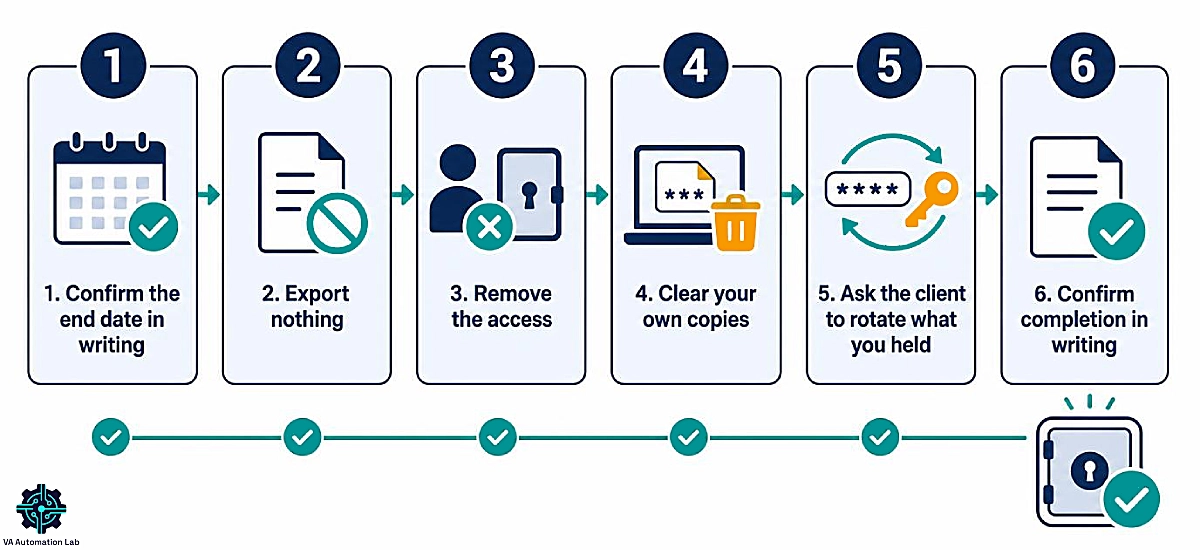
Two things need to happen at the end of a contract, and most VAs do neither: removing your access to the client, and removing your copies of their data. Working through it in order takes fifteen minutes.
Step 1 — Confirm the end date in writing. Everything below is dated from it, and you want the date agreed rather than assumed.
Step 2 — Export nothing. No archive copy, no “just in case” folder, no screenshot of the vault. Retaining client credentials after a contract ends is the single fastest way to end a VA business, and it is indefensible whatever the intention.
Step 3 — Remove the access. If the client owns the account, leave it or ask them to remove your guest account. If you own the vault under Model 4, unshare it from the client and delete the vault once step 5 is confirmed.
Step 4 — Clear your own copies. Browser-saved logins for the client’s tools, credentials pasted into project notes, anything in chat history you can delete. This is where the residue lives.
Step 5 — Ask the client to rotate what you held. Send the list from the secure note you created in step 5 of the vault setup, and ask them to change those passwords. Some will, some will not. Asking is the part that is on you.
Step 6 — Confirm completion in writing. A short message closes the loop and creates the record.
Here is the message:
Hi [Name] — wrapping up access on our end. I’ve removed my access to the accounts below and deleted my local copies. I’d recommend rotating the passwords on these as standard practice when any contractor finishes: [list]. Nothing else outstanding — it’s been a pleasure working with you.
If your engagements run on a signed agreement, adding a short credential-handling clause makes this routine rather than a favor. PandaDoc handles the contract and the countersigned record in one place.
8. Where 1Password Falls Short for Virtual Assistants
1Password’s main limitations for a virtual assistant are the absence of a free tier, no documented self-hosted option, guest account caps that arrive earlier than expected, and a Team Starter Pack priced for teams rather than solo operators.
No free tier. Fourteen days of trial and then you pay. Zoho Vault and Proton Pass both run free plans. If your VA business is three months old with one client, this alone may decide it.
Self-hosting. 1Password’s pricing pages for personal and business plans, checked on September 24, 2026, list subscription plans and don’t list a self-hosted deployment. This matters only when a client requires self-hosting; in that case, confirm it with 1Password before you commit.
The client has to cooperate. No password manager solves a client who insists on texting you credentials. You can model good practice and you can make the ask during onboarding — you cannot impose it.
Guest limits arrive sooner than expected. Five guests on Families sounds generous until you count clients, a subcontractor, and the client’s own web developer. Plan the jump to Business before you are blocked mid-onboarding.
Team Starter Pack is a poor fit for solo work. Covered above: $24.95 a month flat versus $8.99 a month for one Business seat, both billed annually. It is priced for teams and it does not pretend otherwise.
You are paying for developer tooling you will not touch. CLI access, SSH key signing, CI/CD integrations. It costs nothing extra and it is not why you are here.
9. 1Password Alternatives Worth Comparing
The realistic alternatives to 1Password for a virtual assistant are Zoho Vault, Bitwarden, Proton Pass, NordPass and Keeper (a dash means we couldn’t confirm it on the vendor’s site). 1Password’s business plans include guest accounts, 5 on Teams Starter Pack and 20 on Business, and guests are what make client-facing credential sharing clean. The table shows how each alternative handles contractor sharing.
Tool | Free tier | Entry paid plan | Contractor sharing | Best for |
Bitwarden | Yes | Premium $1.65/mo | Send links | The tightest budget |
Proton Pass | Yes | Pass Plus | Vault and link sharing | Privacy-first positioning |
Zoho Vault | Yes | Standard (15-day free trial, no card) | One-time third-party sharing; folder sharing on Professional | VAs already inside Zoho |
NordPass | — | Premium | Teams — fixed 10-user pack | Small teams, not solo VAs |
Keeper | No (30-day trial) | Personal | Shared folders on Family | Feature depth over price |
Bitwarden is the answer when price is the constraint: open source, publicly audited, and the cheapest paid entry point in this table.
Zoho Vault is the strongest budget option for client work specifically. The free plan covers unlimited passwords with audit trails, and Standard adds secure sharing, one-time sharing with third parties, and password expiration alerts — the client-facing features most free plans leave out. If your clients already run Zoho CRM or Zoho Mail, it slots in without a new vendor relationship.
Proton Pass suits VAs whose positioning leans on privacy, and the free tier is unusually complete. NordPass Teams is a fixed ten-seat pack that a solo VA cannot buy down. Dashlane offers Premium for individuals and Password Management for business, with no free plan for business, only a 14-day trial. LastPass still appears in older VA guides; given its breach history, it is not where we would start a new setup in 2026.
10. Is 1Password Worth It for a Virtual Assistant?
For a virtual assistant holding credentials for three or more clients: yes — and the plan to buy is Families at $5.99 a month or Business at $8.99 per user a month, both billed annually, not the Team Starter Pack the plan page steers you toward.
One or two clients, tight margins. Skip it. Join your clients’ accounts if they have them, or start on Zoho Vault‘s free plan and revisit at client three. Paying $71.88 a year to organize six logins is overbuilding.
Three or more clients. Buy it. Families at $5.99 a month if you need five client guests or fewer, Business at $8.99 per user a month once you cross that line or once a client asks who accessed what (both billed annually). The vault structure in this guide takes twenty minutes and pays back the first time a contract ends cleanly.
You subcontract to other VAs. The strongest case of the three. The moment credentials pass through a second person, role-based permissions and an activity log stop being nice to have, and Business is the only plan that provides both.
The reason to run this properly is not that a breach is likely. It is that credential handling is one of the few things a client can evaluate about your work before they have seen any of it — and almost none of your competitors have an answer for it.
Three Clients or More? This is the one to Buy
Business at $8.99 a month gives a solo VA 20 guest accounts, role-based permissions, and the activity log that answers “who accessed what” when a client asks.
14 days free to test it against your own roster.
Frequently Asked Questions About 1password for Virtual Assistants
Does 1Password have a free plan?
No. 1Password offers a 14-day free trial across all plans, then requires a paid subscription starting at $3.99 a month for Individual, billed annually. Zoho Vault, Proton Pass and NordPass all offer free tiers if a no-cost option is a requirement.
Can I use one 1Password app for several clients’ accounts at once?
Yes. 1Password supports multiple accounts inside a single app and browser extension. Your own account and any client accounts you have been invited to appear together, and you can switch to view one at a time or see everything at once.
Can my client see that I opened a password?
On 1Password Business, yes — administrators have an activity log covering item usage and sign-ins. On Families and Individual there is no equivalent reporting, which is one reason a security-conscious client will prefer to own the account themselves.
What happens if I forget my 1Password account password?
On a personal plan, your Emergency Kit containing the Secret Key is the recovery path — there is no password reset, because 1Password cannot decrypt your data. On a business account, an administrator can start account recovery for a team member.
Should the client or the virtual assistant pay for 1Password?
Either works. The client paying keeps ownership where the credentials belong. The VA paying and absorbing the cost is the more common arrangement at $71.88 to $107.88 a year, and doubles as a competence signal during onboarding.
Can I share a password with someone who doesn’t use 1Password?
Yes. Item sharing generates a link that can be restricted to specific email addresses and set to expire, and the recipient does not need a 1Password account. It suits one-off access rather than an ongoing working relationship.
Is 1Password better than Bitwarden for a virtual assistant?
For client-facing work, 1Password’s guest accounts make a cleaner setup. For a solo VA managing only their own credentials, Bitwarden Premium covers the job at $1.65 a month. The guest account question is the deciding one.
How do I remove a client’s credentials when a contract ends?
Leave their account or unshare the vault, delete any local copies including browser-saved logins, then ask the client to rotate the passwords you held. Confirm in writing that access has been removed.
Glossary
Zero-knowledge encryption — Data is encrypted on your device before it reaches the provider, so the provider cannot read it even if compelled to.
Secret Key — A 34-character key generated on your device and never sent to 1Password’s servers. Combined with your account password to decrypt your data.
Account password — The password that unlocks your 1Password account. Not resettable by the provider on personal plans.
Vault — A container for items and the unit of access control. Sharing and revoking happen at vault level.
Item — Anything stored in a vault: a login, secure note, document, API credential, or payment card.
Guest account — A limited-access account that can reach one shared vault and nothing else. Included on Families, Team Starter Pack, and Business.
TOTP — Time-based one-time password. The six-digit rotating code used as a second authentication factor.
Passkey — A cryptographic credential replacing a password, tied to your device and unusable if phished.
Least privilege — Granting each person the minimum access their work requires, and nothing beyond it.
Emergency Kit — The PDF containing your Secret Key and account details, generated at signup. Your only recovery path on a personal plan.
Credential sprawl — Logins accumulating across documents, chats, browsers, and devices with no central record of who holds what.
About the Author
Alex Stratton has spent the better part of a decade working at the intersection of virtual assistance and operational systems, first as a VA supporting founders and small business owners, then as a workflow consultant helping remote teams reduce the manual overhead that accumulates when businesses grow faster than their processes. The tools and workflows here reflect decisions made repeatedly in real client contexts, where the wrong choice costs hours, not minutes. Learn more about VA Automation Lab → About.