
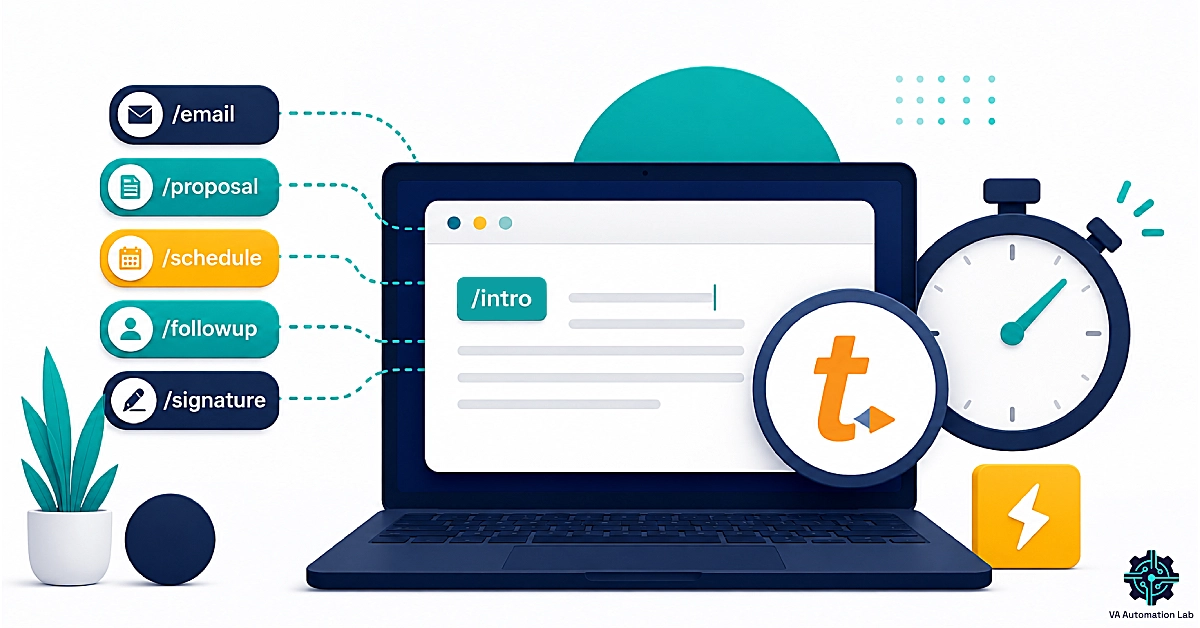
TextExpander for Virtual Assistants: Complete Guide to Templates, Snippets & Productivity Workflows (2026)
Disclosure: This article contains affiliate links. If you sign up through them, VA Automation Lab earns a commission at no extra cost to you. Recommendations are based on our evaluation of tool fit for VA workflows.
TextExpander turns the text you retype all day — client replies, onboarding messages, booking links, invoice reminders — into two-keystroke snippets that expand anywhere you work, and for a busy virtual assistant that adds up to several reclaimed hours a week.
If you manage more than one client, you already know the tax that nobody warns you about: typing the same things over and over. The same welcome email. The same “here’s my booking link.” The same status update, reworded slightly for each client. TextExpander is built to erase that tax.
This guide shows you exactly how to use it as a virtual assistant: the setup, the workflows, the ROI, and the limitations. It also covers the AI tools for virtual assistants it pairs with best. It sits inside a broader system of Productivity Systems for Virtual Assistants, so by the end you’ll know whether TextExpander earns a place in your stack and how to make it pay for itself.
For the wider picture, see our Tools for Virtual Assistants: The Complete AI Systems & Software Guide.
TextExpander at a Glance
Best for | VAs managing multiple clients across email, support, and admin |
Platforms | Mac, Windows, iPhone, iPad, Android |
Browser support | Chrome only |
Core feature | Snippets, fill-in fields, macros, snippet groups |
AI features | Context-aware retrieval, AI snippet drafting, on-device processing |
Compliance | SOC 2, HIPAA, GDPR |
Starting price | $5/month per user (Pro, billed annually) |
Free trial | 30 days, no credit card required |
Our verdict | A high-return, low-effort tool for multi-client, cross-device VAs |
Get the Free AI Toolkit for Virtual Assistants
Get the exact tools, prompts, and workflows we use to help VAs save hours every week — including a ready-to-use snippet starter pack.
Free, straight to your inbox.
Table of Contents
1. What TextExpander Does for Virtual Assistants
TextExpander is a text-expansion app that turns short abbreviations into full snippets — emails, templates, links, and forms — anywhere you type. For virtual assistants, it standardizes client communication, cuts repetitive typing, and syncs snippets across Mac, Windows, Chrome, iOS, and Android.
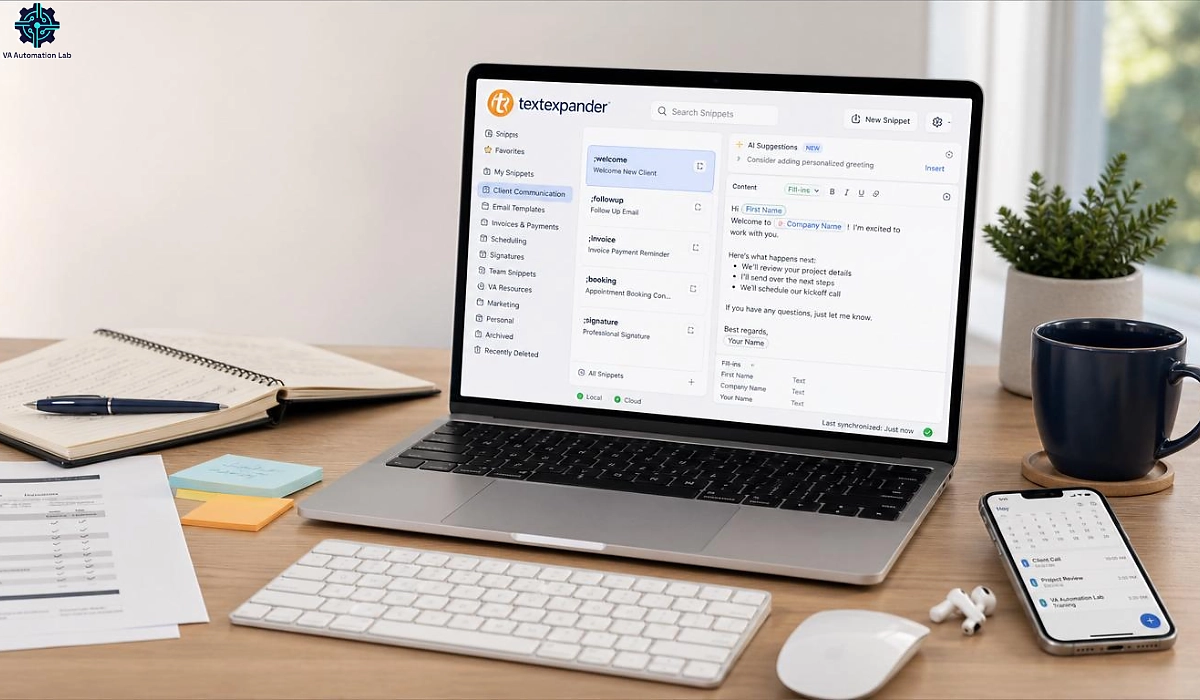
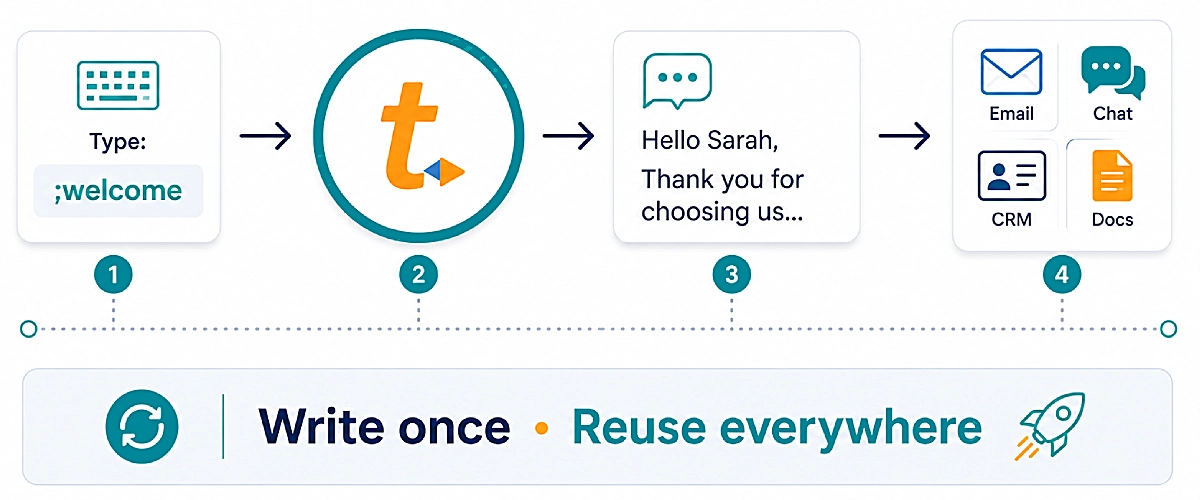
At its core, TextExpander watches for short “abbreviations” you type and instantly replaces them with longer, pre-written content. Type ;welcome and a full onboarding message appears. Type xsig and your signature drops in, formatted and correct. The tool works across almost everything you already use — Gmail, your CRM, your help desk, a proposal doc. You’re not copying and pasting between a notes file and your inbox anymore.
For a VA, that shift matters more than it does for most people, because your day is a stack of small, repeated communications spread across several clients. The value isn’t one giant time save; it’s hundreds of tiny ones that compound.
How Text Expansion Works (abbreviation → snippet)
A snippet is simply two things joined together: the content you want to reuse, and the short abbreviation that triggers it. You create the content once — a paragraph, a link, a whole email, even an image — and assign it a trigger you’ll remember, like ;followup or xbooking. From then on, typing that trigger expands the full content wherever your cursor is.
The mechanic is deliberately dumb, and that’s its strength. TextExpander doesn’t need an integration with each app. It operates at the keyboard level, so the same snippet fires in your browser, your desktop email client, a chat window, or a document editor. You can store plain text, rich text with links and formatting, and dynamic pieces that change each time (more on those below).
For virtual assistants, this means one library of approved language follows you everywhere. Write a client’s preferred phrasing once, and every reply you send for that client stays consistent — no more hunting through old threads to remember how you worded something last month.
Where Repetitive Typing Drains VA Billable Hours
Most VAs underestimate how much of the day is retyping. Think about a normal morning: acknowledging new requests, sending the same “received, I’m on it” reply, pasting a scheduling link. Then there’s answering the three FAQs every client’s customers ask, and updating each client on progress. Individually these take seconds. Collectively they eat a real slice of your billable capacity, and worse, they’re the low-value work you can’t charge a premium for.
This is the same problem that pushes VAs to automate repetitive tasks in general — text expansion is simply the fastest, lowest-effort entry point. You don’t need to build an automation or connect apps. You just stop typing things you’ve typed before. Because the work disappears at the moment of typing, there’s no context-switch cost, which is exactly why snippets tend to stick as a habit when heavier tools don’t.
For the wider automation framework, read How to Automate Repetitive Tasks as a Virtual Assistant.
TextExpander vs autocorrect and Gmail canned responses
It’s fair to ask why you’d pay for this when your Mac has text replacement and Gmail has templates. The answer is scope. Built-in autocorrect is device-bound and clumsy with anything longer than a phrase. Gmail templates only live in Gmail. TextExpander works in every app on every device and supports fill-in fields and dynamic content. Crucially for a VA, it also lets you organize snippets by client and update them all in one place. When you outgrow “a few canned replies,” a dedicated tool stops being optional.
2. Core TextExpander Features Every VA Should Know
TextExpander has a deep feature set, but only a handful matter for day-to-day VA work. Master these and you’ve captured most of the value.
Snippets, Abbreviations, and Snippet Groups
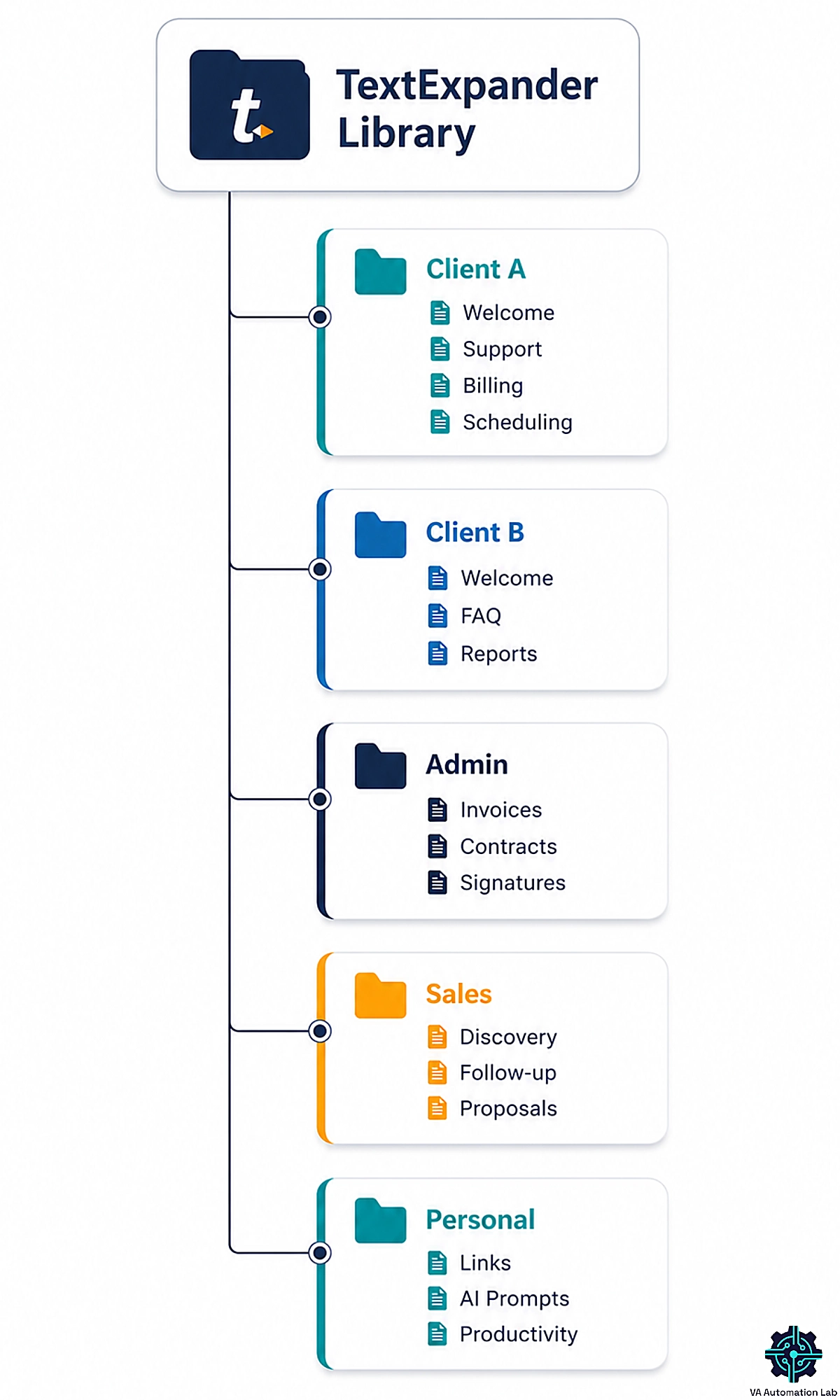
Snippets are the building block, and snippet groups are how you keep hundreds of them usable. A group is a folder — you might have one per client, plus shared groups for admin, sales, and personal snippets. Each group can carry its own notes (what the snippets are for) and its own expansion rules (which apps it fires in), which becomes important once your library grows.
The practical workflow is: create a group, name it clearly, then add snippets inside it. Each snippet gets its content, an abbreviation, and an optional label — a longer, human-readable description that makes snippets easy to find by search when you can’t remember the trigger. For VAs juggling multiple clients, labels are the difference between a library you trust and one you abandon.
Groups also unlock sharing. On team plans you can share a group with a client or a subcontractor, so everyone sends the same approved language. If you hand off part of a workflow, the recipient inherits your snippets instead of reinventing them. That’s why TextExpander shows up so often in advice about how to onboard and train a VA.
Fill-in Fields for Personalizing Client Messages at Scale
Fill-in fields are what keep templated messages from feeling templated. Instead of hard-coding a name or amount, you insert a fill-in — a blank the snippet asks you to complete as it expands. Type ;refund and a small window pops up asking for the customer’s name and the refund amount; you type them in, and a polished, correct message appears.
Fill-ins are what make TextExpander useful for client-facing work, not just fast. You get the speed of a template with the personalization clients expect. Fill-ins come in several flavors: single-line and multi-line text boxes, and pop-up menus for either/or choices. That’s perfect for a snippet that offers three sign-off options or lets you pick which service a client is asking about.
Used well, fill-ins let one snippet replace a dozen near-duplicates. Rather than storing separate “refund approved,” “refund partial,” and “refund declined” messages, you build one snippet instead. A pop-up selects the outcome, and a fill-in adds the details. Fewer snippets, less maintenance, and no risk of grabbing the wrong version at speed.
Date, Time, and Math Macros for Scheduling and Invoicing
TextExpander can also insert dynamic values that calculate themselves. Date and time macros drop in today’s date in any format you like. Date math lets you add or subtract days, so a snippet can automatically say “payment is due in 14 days” with the correct date every time — without you counting on a calendar.
For VAs, this removes a whole category of small errors before they happen. Invoice reminders reference the right due date. Follow-up snippets say “as we discussed on [today minus 3 days].” Meeting confirmations show the correct date in the client’s preferred style. Because the value is computed at the moment of expansion, you never update these by hand.
Clipboard and keyboard macros round this out: a snippet can wrap whatever you just copied in a standard format, or press Tab and Enter to move through a web form. These are small touches, but for admin-heavy VA work they turn multi-step chores into a single trigger.
Nested snippets and cross-device sync
Two features protect you as your library scales. Nesting lets one snippet embed others, so you build long messages from reusable blocks and update a phrase once to change it everywhere it appears. Cross-device sync keeps your entire library identical across Mac, Windows, Chrome, iPhone, iPad, and Android. The snippet you built on your laptop is there on your phone when a client messages after hours. For a remote VA who works across devices, that consistency is the whole point.
3. TextExpander’s AI Features, Explained
TextExpander’s 2026 releases lean into AI, and the additions are useful for VAs — provided you understand what they do and where to keep a human in the loop.
Context-aware Snippet Retrieval (find the right snippet without the abbreviation)
The classic complaint about text expanders is that you have to remember your triggers. TextExpander’s context-aware retrieval attacks that directly: it surfaces the right snippet based on what you’re writing, without you recalling the exact abbreviation. In practice, you start typing a reply and the tool proposes the approved snippet that fits, so you spend less time searching your own library.
For a VA managing hundreds of snippets across several clients, this is the feature that lowers the learning curve most. New snippets become usable immediately instead of sitting unused because you forgot they existed. It also softens the biggest onboarding hurdle when you bring on a subcontractor — they can lean on retrieval while they learn your abbreviations rather than memorizing a cheat sheet first.
The upshot is that a large library stops being a liability. Historically, the more snippets you had, the harder they were to recall; retrieval flips that, so building a deep, client-specific library becomes an asset rather than a memory test.
AI Snippet Drafting — and How VAs Should Use it Responsibly
TextExpander can also draft a snippet for you when one doesn’t exist yet, based on the context you’re working in. You review, refine, and save it — turning a message you’re writing for the first time into a reusable asset in a couple of clicks. For VAs, that’s a fast way to build a library from real work instead of setting aside an afternoon to write templates from scratch.
The responsible-use caveat matters here, because you’re writing on behalf of clients. Treat AI drafts as first drafts, never final sends. Read every generated snippet against the client’s voice and facts before you save it, and re-check anything with numbers, dates, or commitments. The same discipline you’d apply when using ChatGPT for client work or Claude for drafting applies here: AI accelerates the draft, but you own the accuracy.
On-device AI and privacy
A meaningful detail for VAs handling sensitive client information: TextExpander’s AI features are designed to run locally, processing on your device rather than shipping your keystrokes to a server. That “on-device” design reduces exposure and supports the tool’s HIPAA-safe positioning — which matters if you work with healthcare or finance clients. It’s not a substitute for your own data hygiene (covered below), but it’s a reassuring default.
4. How to Set Up TextExpander as a Virtual Assistant (Step by Step)
Setup takes about fifteen minutes, and the VA-specific part — structuring your library by client — is what separates a tool you keep from one you abandon. Here’s the TextExpander setup that works for multi-client work.
Step 1 — Installing TextExpander and enabling expansion across your apps
Start by creating an account and installing the app on your primary computer, then add the browser extension and the mobile apps you use daily. On macOS and Windows, the app runs in the background. The one step people skip is granting the accessibility or input permission the app needs to expand text in other applications. Without it, nothing fires — so complete that prompt during install.
Once installed, test expansion in three places you work most: your email, your CRM or help desk, and a browser tab. If a snippet expands in all three, you’re set. If it doesn’t fire in a specific app, check the group’s “expand in” settings, which let you allow or exclude particular applications. Getting expansion confirmed across your core tools before you build anything saves you from debugging later, when you’re mid-task with a client waiting.
Step 2 — Building your first client-communication snippet
Don’t start with a blank library and try to invent snippets — start with a message you send constantly. Open your sent folder, find your most-repeated reply, and turn it into your first snippet. Create a snippet, paste the content, assign a memorable abbreviation (something like ;ack for an acknowledgment), and add a label so you can find it by search.
Now improve it with a fill-in. Replace the client-or-customer name with a single-line fill-in field, so the snippet asks who it’s for as it expands. Send it once in a real reply to confirm it feels natural and the cursor lands where you expect. This first end-to-end snippet — content, trigger, fill-in, tested in a live send — is the template for every snippet you’ll build after it. And it delivers a visible win in your very first hour.
Step 3 — Structuring a multi-client snippet library (a group per client)
Generic setup guides skip this step, and it’s the one that matters most for VAs. Create one snippet group per client, plus shared groups for cross-client work: Admin, Sales/Proposals, and Personal. Client-specific language (their tone, their product names, their FAQs) lives in that client’s group. Anything you reuse everywhere lives in a shared group and can be nested into client snippets.
Structuring this way keeps client voices separate, prevents you from accidentally sending Client A’s phrasing to Client B, and makes offboarding clean — when an engagement ends, you archive one group. It also scales: adding a client means adding a group, not untangling a giant flat list. If you later share snippets with a subcontractor, you share only the relevant client group, which keeps access tidy and aligns with the boundaries you’d set when you onboard a new client.
Step 4 — Naming conventions and prefixes that prevent accidental expansion
Adopt one rule and apply it everywhere: prefix triggers so they never fire by accident inside normal words. A leading ; or x (for example ;followup or xbooking) means the snippet only expands when you intend it. Keep abbreviations short but readable, and consider a per-client prefix (like a- for Client A) so triggers stay organized and memorable. Consistency beats cleverness here — a rule you can predict is a rule you don’t have to remember.
You Just Built One Snippet. Imagine Fifty
Take the library structure above and build it for real — a free forever plan, plus a 30-day preview of paid features for new accounts, no credit card required.
Most VAs feel the time savings within the first week.
5. TextExpander Workflows for Virtual Assistants
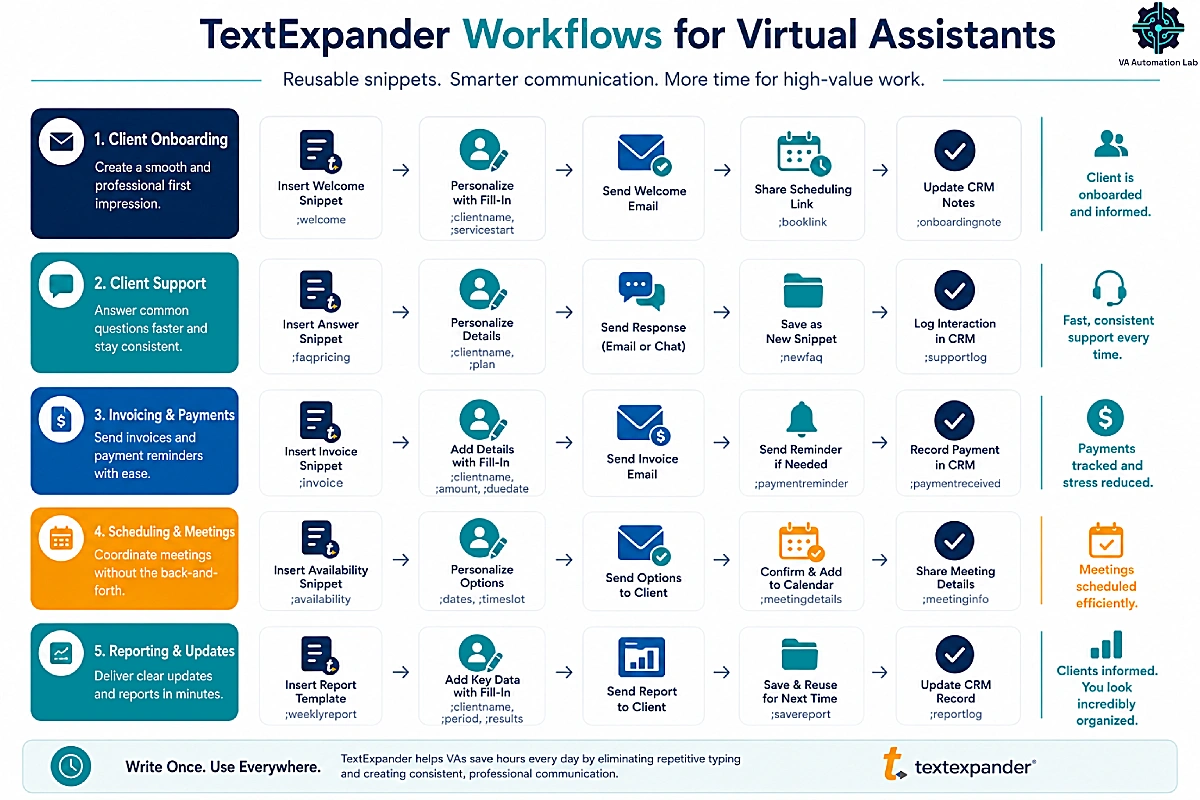
Features are only useful attached to real work. These are the TextExpander workflows that return the most time for a virtual assistant, roughly in the order most VAs adopt them.
Client Onboarding and Welcome-sequence Snippets
Onboarding is the highest-leverage place to start, because it’s repetitive, high-stakes, and identical every time. Build snippets for your welcome message, your intake questions, your “here’s how we’ll work together” explainer, and the request for logins and access. Chain them with nesting so a single trigger can assemble a full welcome email from reusable blocks.
Because onboarding sets the tone for the whole engagement, consistency here protects your professionalism — every new client gets your best version, not a rushed retype. Pair these snippets with a documented process and you’ve turned onboarding from a scramble into a repeatable system, complementing anything you do to automate client onboarding.
For the full workflow, read How to Automate Client Onboarding for Virtual Assistants: Tools, Stacks & Complete Workflow.
Email and Support-reply Templates that Stay On-brand
Most VAs feel the biggest daily save here. Build snippets for your standard acknowledgments, your FAQ answers, your follow-up nudges, and your polite declines. If you handle inboxes or support for clients, create client-specific reply snippets that match each client’s tone, stored in their group.
The combination of speed and consistency is the point: you respond faster and every reply sounds like the client’s brand, not like you improvising. Text expansion slots neatly beside the broader tools and habits in AI email management for virtual assistants — snippets handle the “type this again” problem while your email system handles triage and routing.
For the wider picture, read AI Email Management for Virtual Assistants: Best Tools and Workflows.
Booking Links, Brand Assets, and Reusable AI Prompts
Some of the most-used snippets are the smallest. A snippet for your scheduling link means you never dig for it again. Snippets for a client’s brand hex codes, boilerplate, or standard disclaimers keep you accurate when you’re working in their design tools or documents. And if you use AI daily, storing your best prompts as snippets means you paste a refined, tested prompt instead of rewriting it each time.
These “micro-snippets” feel trivial one at a time, but they’re triggered dozens of times a day, which makes them some of the highest-return entries in your library. Booking links in particular pair well with a dedicated scheduling tool, which we cover in the stack section below.
Status updates, reporting, and invoicing snippets
Round out your workflows with the admin communications that recur on a schedule: weekly status-update templates, month-end summaries, and invoice reminders with date-math due dates. These make your reporting rhythm effortless and reinforce the systems behind automating client reporting, so clients hear from you consistently without you drafting from scratch each cycle.
Learn the full reporting workflow in How to Automate Client Reporting as a Virtual Assistant.
6. Building Your TextExpander Tool Stack for VAs
TextExpander is strongest as the “typing layer” of a small, deliberate stack. Each tool below pairs with a specific snippet workflow — here’s how they fit together and what each costs (billed annually).
Store your credentials in a password manager — 1Password
Your snippet library should never hold passwords, API keys, or account numbers — a topic we return to in the security section. The right home for those is a dedicated password manager, and 1Password is the standard for client-facing work. It generates and autofills credentials securely, works across all your devices, and lets you share specific items with a client or team without exposing everything.
For a VA managing logins across multiple clients, this is non-negotiable hygiene. Credentials stay encrypted and access is revocable, so offboarding a client is a clean toggle rather than a scramble. 1Password starts at $3.99/month for an Individual plan and $8.99/month for Business (billed annually), with a 14-day free trial.
Turn scheduling into one-keystroke booking links — SavvyCal
One of your most-triggered snippets will be your booking link, and a good scheduling tool makes that snippet far more useful. SavvyCal lets recipients overlay their calendar on yours to pick a time faster, and it supports team scheduling. Notably for VAs, its Premium plan includes the ability to delegate scheduling to an assistant — a feature purpose-built for the way you work.
Store your SavvyCal link as a snippet and you hand clients a friction-free way to book without the back-and-forth. SavvyCal offers a free plan, with Basic at $10/month and Premium at $17/month (billed annually).
Feed your snippets from intake forms — Jotform
Fill-in fields are powerful, but some information is better collected up front with a proper form. Jotform lets you build intake forms, onboarding questionnaires, and request forms whose responses feed the exact details your snippets then reference. You’re personalizing from real client data rather than guessing.
For VAs, this pairing closes the loop between “collect the information” and “reuse it consistently.” Jotform has a free Starter plan; paid plans begin at $34/month (Bronze) and $39/month (Silver) billed annually, with HIPAA-compliant features available on higher tiers for regulated clients.
Draft snippet copy faster with AI — Rytr
When you’re building a library from scratch, an AI writing tool speeds up the first drafts of your snippets — welcome emails, FAQ answers, follow-up sequences. You then refine each one in your client’s voice and save it. Rytr is an affordable option for this, with a free tier and an Unlimited plan at $7.50/month (billed annually). Keep the same human-review discipline you apply to any AI output, and lean on the deeper guidance in our AI Writing Tools for Virtual Assistants coverage.
→ Try Rytr
Automate the stack and measure what you save
Two more tools complete the picture without needing an affiliate pitch. When you’re ready to move beyond typing into full automation, connect your apps with a platform like Make (Core plan $9/month for 10,000 credits, billed annually). Snippets then become one step in a larger flow. And to prove the time savings are real, track your hours with Toggl Track — the ROI section below shows how to turn that data into a number.
7. Keeping Client Data Safe in Your Snippet Library
Because your snippets travel across every app and device, they deserve the same care as any client data you touch. A little discipline here protects your clients and your reputation.
What Belongs in a Snippet — and What Never Should
Snippets are ideal for anything approved, reusable, and non-secret: email templates, FAQ answers, booking links, boilerplate, brand assets, and standard disclaimers. What should never live in a snippet is anything that would cause harm if exposed. That includes passwords, API keys, credit card or bank numbers, government IDs, or a client’s private personal data.
The reason is simple: snippets sync across devices and can be shared, which is exactly the wrong property for a secret. Keep credentials in a password manager (see the stack above) and keep sensitive client records in the systems built to secure them. A useful test before saving any snippet: “Would I be comfortable if this expanded on the wrong screen?” If not, it doesn’t belong in your library.
Compliance for VAs with Healthcare or Finance Clients (HIPAA, SOC 2, GDPR)
If your clients operate in regulated industries, the tools you use become part of their compliance surface. TextExpander maintains SOC 2, HIPAA, and GDPR compliance. That matters when you’re handling communications for a healthcare practice or a financial services client — the tool won’t be the weak link in their audit.
That said, compliance is shared responsibility. TextExpander being HIPAA-capable doesn’t make your workflow compliant on its own. You still need to avoid storing protected information in snippets, use the right plan, and follow each client’s data agreement. Confirm what a client requires before you connect any tool to their work, and document the tools you use so you can answer the question if it’s ever asked. Treat certifications as a green light to proceed carefully, not a reason to skip your own safeguards.
8. The ROI of TextExpander for a Virtual Assistant
The reliable way to decide whether TextExpander is worth it is to run the math on your own numbers. Here’s a simple, adjustable model — plug in your reality, not these example figures.
The time-savings math (a worked, adjustable example)
The calculation has four inputs: how many repetitive items you type per day, and how much time each snippet saves versus typing or hunting for it. Two more matter just as much: your working days per month, and your effective hourly rate. Here’s an illustrative example — your numbers will differ.
Input | Example value |
Repetitive items typed per day | 40 |
Time saved per item | ~20 seconds |
Time saved per day | ~13 minutes |
Working days per month | 22 |
Hours reclaimed per month | ~4.9 |
Your effective hourly rate | $35 |
Value of reclaimed time per month | ~$170 |
TextExpander cost per month (Pro, billed annually) | $5/mo per user |
In this example, roughly five hours a month come back to you against a $5 monthly cost. Even if your real usage is half this, the tool pays for itself many times over. The point of the exercise isn’t the exact figure — it’s that the break-even is low enough that most active VAs clear it easily.
Turning reclaimed hours into billable capacity or margin
Reclaimed time is only valuable if you do something with it. For a VA, those hours convert two ways. Either you take on more billable work at the same rate, or you keep your workload flat and reclaim margin and breathing room. Both are wins; which one you choose depends on whether you’re trying to grow revenue or protect your time.
To make this concrete rather than theoretical, track your hours for a couple of weeks before and after building your library with Toggl Track. The difference in time spent on repetitive communication is your real, measured ROI — far more persuasive than any estimate. It’s also useful evidence when you’re justifying tools to yourself or raising your rates.
When the subscription does not pay off
Honesty matters: TextExpander isn’t for everyone. You might not need it yet if you type very little repetitive text or work almost entirely in one app that already has good templates. The same is true if you’re just starting out with a single client and low volume. In those cases, the tool may sit unused. In those cases, TextExpander’s free plan — 5 active Snippets — is the smarter starting point until your volume grows into Pro.
9. TextExpander Review: Strengths and Limitations
After weighing what virtual assistants consistently report, here’s the balanced verdict — the strengths and the drawbacks worth knowing before you commit.
What VAs Consistently Praise (time saved, consistency, cross-platform)
The praise is remarkably consistent across reviews: TextExpander saves meaningful time, keeps communication consistent, and works everywhere. Users describe it as a “second brain” that remembers the exact links, phrasing, and details they’d otherwise have to look up. They also highlight how quickly it becomes part of the workflow — the whole team is usually productive within an hour.
For VAs specifically, the cross-platform reliability and the ability to keep client voices consistent are the recurring wins. Reviewers on major software directories rate it highly. The theme underneath the ratings is the same one this guide keeps returning to: it removes low-value typing so you can spend attention on work that needs you. That reliability is why it’s a staple in serious productivity for virtual assistants stacks.
Drawbacks (learning curve, library organization, Chrome-only browser)
No tool is perfect, and TextExpander has real limitations. There’s an initial learning curve: advanced snippets with fill-ins and macros take a little practice. Organizing a large library takes discipline too, which is exactly why the per-client structure above matters so much. Some users also find the app interface dated, though day-to-day use stays smooth.
The limitation most worth flagging for VAs is browser support: TextExpander’s browser extension is Chrome-only. If you or a client rely on Firefox, that’s a gap, and it’s the most common reason people evaluate alternatives (covered next). Finally, past the free plan’s 5 active Snippets it’s a subscription — so light users who need a bigger library may prefer a cheaper or one-time option. None of these are dealbreakers for a busy multi-client VA, but you should go in with eyes open.
10. TextExpander Pricing and Plans for Virtual Assistants
TextExpander pricing is straightforward, per user, and shown here in the annual-billing convention (the lower effective rate).
Pro and Business tiers at a glance
Plan | Price (billed annually) | Best for |
Pro | $5/user/month | Solo VAs building a personal library |
Business | $10/user/month | VAs sharing snippet groups with a team or client |
Free forever plan, plus a 30-day preview of paid features for new accounts.
For most solo virtual assistants, Pro at $5/month per user billed annually is all you need; the Free plan covers a small library at 5 active Snippets. Move to Business only when you’re sharing snippets with a subcontractor or client.
How billing and the 30-day free trial work
TextExpander offers a free forever plan, plus a 30-day preview of paid features for new accounts, with no credit card required. That’s enough time to build a real library and feel the difference in your workflow — the recommended way to evaluate it. Billing is per user: annual plans are prepaid at the discounted rate shown above, while monthly billing costs a little more per month for the flexibility.
The trial matters because TextExpander’s value is habit-driven — you won’t feel it from a feature list, only from using it on real client work for a couple of weeks. Build your onboarding and top email snippets during the trial, and you’ll have a clear yes-or-no answer before any charge.
International pricing (VAT/GST) and annual vs monthly
One note for the many VAs working outside the US: the listed prices are US base rates excluding tax. If you’re in a region that requires tax-inclusive pricing — the EU, UK, Australia, and others — your final price may include roughly a 20% increase to reflect local VAT or GST. Checkout then converts the total to your local currency. Budget for that if you’re comparing tools on price. Annual billing remains the cheaper route per month regardless of region.
11. TextExpander vs the Alternatives for VAs
TextExpander isn’t the only text expander, and the recommendation depends on your platforms and budget. Here’s how the main alternatives compare for VA work.
Tool | Platforms | Browser support | Pricing (billed annually) | Best for |
TextExpander | Mac, Windows, iOS, Android | Chrome | Pro $5/mo per user · Business $10/mo per user | Multi-client VAs who need cross-device sync and fill-ins |
Text Blaze | Windows, Mac | Chrome, Edge | Free · Pro · Business | Chrome-first VAs who want dynamic templating on a budget |
Typinator | macOS only | — | Basic (one-time) · Advanced (yearly) · Business (yearly) | Solo Mac users who never share snippets or cross platforms |
Espanso | Windows, Mac, Linux | — | Free (open-source) | Technical VAs comfortable with config files and self-hosting |
Typedesk | Windows, Mac | Chrome, Firefox | Free · Premium · Premium + AI (yearly) | Support/sales-style teams needing Firefox and built-in sharing |
PhraseExpress | Windows, Mac, iOS | — | Standard · Professional · Enterprise (yearly) | VAs needing deep macros and automation |
When a free or budget-friendly tool is enough (Text Blaze, Espanso, Typinator)
If budget is your main constraint or you work in a narrow setup, an alternative can be the smarter call. Text Blaze is a strong, browser-first option with a capable free tier and paid Pro and Business plans — a good fit if you live in Chrome and want power without a big subscription. Espanso is free and open-source, ideal for technically comfortable VAs who don’t mind editing configuration files and want data kept entirely local.
Typinator‘s pricing is a hybrid: a one-time Basic license for macOS, or yearly Advanced and Business tiers if you want ongoing updates and more features (billed annually). If you’re a solo Mac user who wants to pay once and be done, Basic is the appeal; if you’d rather stay current, the subscription tiers make more sense. The trade-off across all three is what you give up: fewer cross-platform guarantees, lighter team-sharing, or a steeper technical setup. For a single-device, single-workflow VA, that trade can be worth it.
Team-first and browser-first alternatives (Typedesk, PhraseExpress)
If your gap with TextExpander is specifically Firefox or team sharing, two tools address it directly. Typedesk works across Windows, Mac, Chrome, and Firefox, with a free tier plus yearly Premium and Premium + AI plans, and includes team sharing without a separate add-on — a sensible pick for support- or sales-style teams. PhraseExpress is the heavyweight for automation, offering deep macro capabilities on annual plans from Standard to Enterprise, for VAs who need scripting more than polish.
How to choose based on your client mix and platforms
The decision is simpler than the options suggest. If you work across multiple devices and clients and value sync, fill-ins, and reliability, TextExpander is the safe default. If you’re Chrome-only and cost-sensitive, try Text Blaze. If you’re a solo Mac user on a budget, consider Typinator’s one-time Basic tier. If Firefox or free team sharing is a hard requirement, look at Typedesk. Match the tool to your actual setup, not to a feature-count contest.
12. Is TextExpander Right for Your VA Business?
Here’s the bottom line. TextExpander is one of the highest-return, lowest-effort tools a virtual assistant can adopt — but only if your work has the shape that rewards it.
Best-fit VA profiles (multi-client, high email volume, cross-device)
You’re an ideal fit if you manage multiple clients, handle a high volume of email or support replies, or work across more than one device. You’re also a fit if you do meaningful client-facing communication where consistency matters. That describes most established VAs. For them, the per-client library and fill-in workflows in this guide turn TextExpander into a productivity multiplier that pays for itself within the first month.
When to skip it or pair it differently
Stay on the free plan — for now — if you’re brand new with a single low-volume client, work entirely inside one app that already has solid templates, or type very little repetitive text. In those cases, 5 active Snippets are enough; move to Pro when your volume grows. Whatever you choose, make it part of a deliberate system. Pair it with the habits in our AI-powered Productivity System for Virtual Assistants, so text expansion reinforces a workflow rather than sitting on its own.
If you fit the profile, the fastest way to a real answer is to use it on live client work. Start the 30-day free trial, build your onboarding and top email snippets, and let the reclaimed hours make the case.
$5 a Month. Hours Back Every Week
Most multi-client VAs recover the cost in reclaimed time within the first month.
Try the 30-day free trial — no credit card required — and see for yourself.
Frequently Asked Question About TextExpander for Virtual Assistants
Is TextExpander free?
Yes. TextExpander has a free forever plan with no credit card required: 5 active Snippets, unlimited total Snippets, and one Snippet swap every two weeks. Pro, at $5/month per user billed annually, removes the active-Snippet cap.
How much does TextExpander cost?
TextExpander pricing (per user/month, billed annually) is $5 for Pro and $10 for Business. Monthly billing costs slightly more, and prices exclude local tax such as VAT or GST.
What is a snippet in TextExpander?
A snippet is the combination of reusable content — a phrase, link, template, or image — and the short abbreviation that triggers it. Type the abbreviation, and TextExpander expands the full content wherever you’re typing.
How do I create a snippet?
In the app, create a new snippet, paste or type your content, assign a memorable abbreviation, and optionally add a label so you can find it by search. Group related snippets together for easier management.
Does TextExpander work on Windows and mobile?
Yes. TextExpander works on Mac, Windows, iPhone, iPad, and Android, and syncs your library across all of them. The browser extension, however, is Chrome-only.
Does TextExpander work offline?
Your snippets work offline once they’ve synced to your device. You need an internet connection for initial setup and to keep snippets updated across devices.
Is TextExpander safe for client and patient data?
TextExpander maintains SOC 2, HIPAA, and GDPR compliance, and its AI features are designed to run on-device. Even so, never store passwords or sensitive records in snippets — keep those in a password manager and your clients’ secure systems.
Can I use TextExpander across multiple clients or teams?
Yes. Use a separate snippet group per client to keep language and access organized. The Business plan adds sharing for working with subcontractors or client teams.
Does TextExpander work with Gmail, Outlook, and other apps?
Yes. Because TextExpander expands at the keyboard level, snippets fire in Gmail, Outlook, your CRM, help desk, chat tools, and document editors — anywhere you type.
What are the best TextExpander alternatives?
The main alternatives are Text Blaze (browser-first, free tier), Typinator (one-time macOS license), Espanso (free and open-source), Typedesk (Firefox and team sharing), and PhraseExpress (deep automation).
Is TextExpander worth it for a virtual assistant?
For VAs with multiple clients or high communication volume, yes — the time reclaimed typically outweighs the low subscription cost many times over. Use the ROI model above with your own numbers to confirm before you commit.
Glossary: Key Terms for TextExpander
Snippet: The core unit in TextExpander — reusable content paired with a short abbreviation that triggers its expansion.
Abbreviation (trigger): The short string you type (often prefixed, like ;followup) that TextExpander replaces with a snippet’s full content.
Snippet group: A folder of related snippets — commonly one per client — with its own notes and expansion settings.
Fill-in field: A blank inside a snippet that you complete as it expands, used to personalize templated messages (for example, a customer’s name or an amount).
Macro: A dynamic element inside a snippet — such as a date, time, math result, clipboard content, or keystroke — that generates its value at the moment of expansion.
Nested snippet: A snippet embedded inside another, so long messages are built from reusable blocks and a shared phrase updates everywhere at once.
Text expansion: The underlying technique of typing a short abbreviation that software automatically replaces with longer, predefined text.
About the Author
Alex Stratton has spent the better part of a decade working at the intersection of virtual assistance and operational systems, first as a VA supporting founders and small business owners, then as a workflow consultant helping remote teams reduce the manual overhead that accumulates when businesses grow faster than their processes. The tools and workflows here reflect decisions made repeatedly in real client contexts, where the wrong choice costs hours, not minutes. Learn more about VA Automation Lab → About.