
Reclaim.ai for Virtual Assistants: Complete Guide & Setup (2026)
Disclosure: This article contains affiliate links. If you sign up through these links, VA Automation Lab earns a commission at no extra cost to you. We only recommend tools we’d use ourselves.
A practical, setup-ready guide to using Reclaim.ai as a virtual assistant, from connecting your first calendar to building workflows that protect your time across multiple clients.
Managing five client calendars manually is a time sink that compounds daily. Every meeting request that lands in your inbox starts a negotiation: availability check, back-and-forth emails, manual calendar block, confirmation, repeat. Multiply that by four clients, add recurring check-ins, weekly deliverable deadlines, and your own working hours, and the scheduling overhead alone consumes more of your week than it should.
Reclaim.ai addresses this directly. It’s an AI calendar tool that automatically blocks time for focus work, recurring routines, and tasks, then reschedules everything dynamically when something changes. For virtual assistants managing multiple clients, that means fewer manual calendar adjustments and more protected time for the actual work clients pay for.
This Reclaim.ai review and setup guide covers what the tool does, how to configure it from scratch, the workflows that matter most for VA work, and whether the free tier or a paid plan is the right fit for where you are.
👉 Productivity Systems for Virtual Assistants: The Complete Guide — for a complete framework on building a scalable VA operating system, including the 7 core components, tool stack architecture, and a step-by-step 4-week implementation plan.
👉 Tools for Virtual Assistants: The Complete AI Systems & Software Guide — everything you need to build an AI‑powered VA business, from automation workflows to productivity systems and client management frameworks.
Get the Free AI Toolkit for Virtual Assistants
This guide covers Reclaim.ai in depth, the free AI toolkit takes it further with curated tools, setup checklists, and copy-paste workflow templates for VAs at every level.
No research required.
Table of Contents
1. What Is Reclaim.ai?
Reclaim.ai is an AI-powered calendar assistant that automatically schedules your tasks, habits, focus time, and meetings, then continuously reschedules everything as your week changes, without manual intervention. You connect your Google Calendar or Outlook Calendar, define your priorities, and Reclaim fills in available windows intelligently, defending the time you need to get work done.
Unlike Calendly or a standard scheduling link tool, Reclaim doesn’t just handle meeting booking. It manages your entire working schedule: when you do deep work, when you run recurring tasks, when you take breaks, and how your client meetings fit around everything else. The AI runs continuously in the background, adapting your calendar in real time when urgent tasks appear or meetings shift.
It’s built on a simple premise: most knowledge workers lose hours every week to avoidable calendar chaos. Reclaim replaces that chaos with a structured, self-managing schedule that adapts to how work happens.
Reclaim runs as a set of specialized AI agents — covering Focus Time, Habits, Buffer Time, Smart Meetings, and Meeting Quality — that you direct in plain language through a built-in AI assistant. Now part of Dropbox, Reclaim reports an average of 7.6 hours of additional focus time per user per week and a 40% reduction in time spent scheduling — figures worth applying to a VA’s billable rate to gauge the potential value.
2. Why Reclaim.ai Fits the Way Virtual Assistants Work
Scheduling tools built for corporate teams tend to optimize around one thing: getting people into meetings. A VA’s problem is almost the opposite, protecting time between meetings so that client deliverables, administrative tasks, and deep work get done.
Three specific friction points in VA work make Reclaim.ai a better fit than most scheduling tools in this category.
Multi-client calendar fragmentation. A VA managing three to five clients simultaneously is coordinating across multiple time zones, recurring check-ins, and variable workloads. Every client has their own meeting cadence. Manually blocking time to accommodate all of it, and adjusting that blocking when priorities shift, consumes time that should go to billable work. Reclaim handles this layer automatically: tell it what needs to get done, assign a deadline and duration, and it finds the time without input from you.
The deep work problem. Client-facing VA work looks heavily calendar-managed on the outside, but the actual value delivery (drafting SOPs, managing inboxes, building automations, producing content) requires uninterrupted blocks. Meetings and ad hoc requests erode those blocks if they’re not actively defended. Reclaim’s Focus Time feature blocks those windows proactively, preventing them from being overwritten by new meeting requests.
Recurring task overhead. VAs handle dozens of recurring tasks each week: weekly status updates, recurring reports, monthly invoicing, daily inbox triage. Without a system that auto-schedules these, they get done reactively, squeezed into whatever time is left, rather than proactively at the right time. Reclaim’s Habits feature builds those routines into the calendar automatically, moving them when conflicts arise rather than deleting them.
None of this requires complex configuration or technical knowledge. The setup is guided, the learning curve is measured in days, and the free tier covers enough to produce visible results within the first week.
3. Reclaim.ai Key Features for Virtual Assistants
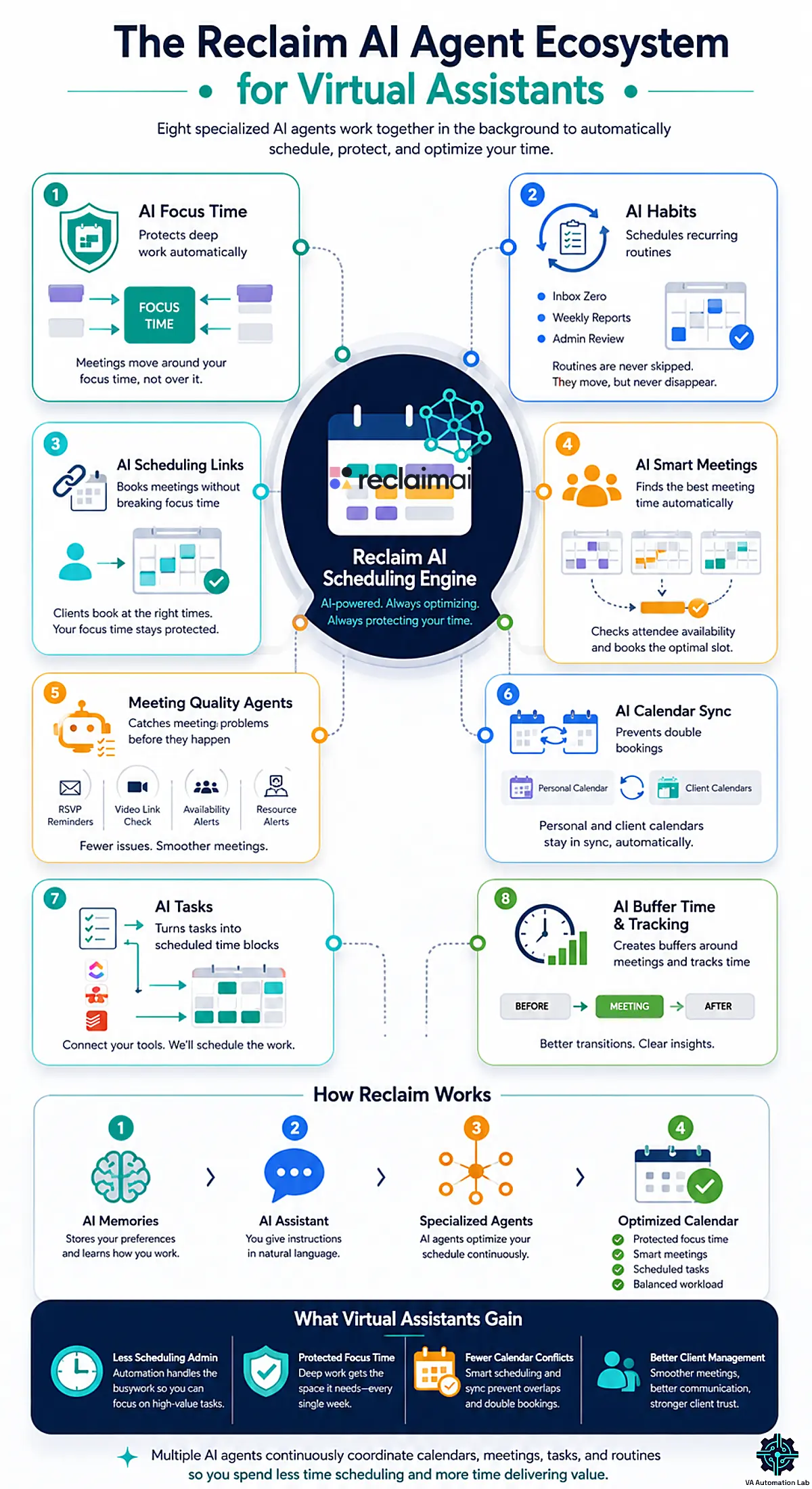
Reclaim organizes its automation as specialized AI agents that run continuously in the background, grouped into five families: Focus Time, Habits, Buffer Time, Smart Meetings, and Meeting Quality. Not all of them are equally relevant to solo VA work — the features below are the ones that produce measurable results in a VA context.
AI Focus Time
Focus Time lets you set a weekly goal for uninterrupted work (for example, 10 hours of protected deep work per week) and Reclaim automatically blocks that time in available windows across your calendar. The blocks move dynamically: if a client books a meeting during a Focus Time slot, Reclaim finds the next available window and relocates the block.
For VAs: This is the feature that prevents the common pattern where every week “runs out” of time for deep work because meetings keep expanding into it. Set a Focus Time goal on Monday morning and the week is pre-organized around it before your inbox opens. And if you share a Slack workspace with clients, Reclaim’s Slack integration sets your status to Do Not Disturb automatically during Focus Time — signaling you’re heads-down without sending a single message.
AI Habits
Habits are recurring routines that Reclaim schedules flexibly around your existing calendar. You define the routine (daily inbox triage, weekly client report prep, Friday admin review), set the duration, frequency, and ideal time window, and Reclaim places it wherever it fits that day, moving it if meetings arrive, never deleting it.
For VAs: Habits replace the mental overhead of remembering to schedule recurring tasks. Set up a “Client weekly updates” habit for 45 minutes on Thursdays between 2pm–5pm and it appears on your calendar automatically every week, shifted intelligently if needed.
AI Scheduling Links
Reclaim’s Scheduling Links are a Calendly-style meeting booking feature with one key difference: they account for your entire calendar, including Focus Time blocks and Habits, when displaying availability. A client booking through your Scheduling Link cannot accidentally book over your protected deep work time.
For VAs: This is the feature to replace basic scheduling links if you’re managing client onboarding calls, project kickoffs, or regular check-ins. Create separate link types per meeting category (30-min check-in, 60-min strategy call) with different buffer rules for each. You can send these links directly to clients or embed them in onboarding materials.
AI Smart Meetings
Smart Meetings handles recurring internal meetings (weekly syncs, one-on-ones, recurring client calls) and automatically finds the best available slot for all attendees rather than requiring manual back-and-forth. For VAs who manage multiple recurring client touchpoints, this removes the scheduling coordination entirely.
For VAs managing executive or team calendars: Smart Meetings is particularly useful. Instead of checking multiple calendars and proposing times manually, you define the meeting parameters and Reclaim surfaces the optimal slot for all parties. Reclaim’s Meeting Quality Agents (below) extend this further, catching meeting-administration issues like pending RSVPs or missing video links before they become a problem.
Meeting Quality & AI Content Agents
Beyond finding the best slot for a meeting, Reclaim runs a set of agents that catch what goes wrong around it. The Meeting Quality Agents cover the chores a VA is often hired to catch: the RSVP Reminder Agent flags invites still awaiting your response, the Video Link Check Agent catches meetings missing a conferencing link and can auto-add one, the Attendee Availability Agent alerts you when a significant number of attendees decline or hit a conflict, and the Room & Resource Decline Alert Agent warns you when a booked room or resource falls through.
The same Smart Meeting family also handles content: generating meeting agendas from your connected apps, drafting follow-up emails and messages from Zoom transcripts and notes, and syncing those notes into recommended action items.
For VAs: This is the closest Reclaim comes to doing the meeting-coordination job VAs are routinely hired for. Chasing non-responders, fixing a broken Zoom link before a client call, and turning a meeting into an agenda and a follow-up email are exactly the tasks you can now hand to an agent and simply review. For an executive whose calendar you manage, that is hours of recurring admin handled automatically.
AI Calendar Sync
Calendar Sync connects multiple calendars (personal and work Google accounts, Outlook, and others) and creates availability blocks on your primary calendar based on events in your secondary calendars. This means a personal appointment on your private calendar automatically blocks that time on your work calendar without sharing the event details.
For VAs: Essential for maintaining separation between client work calendars and personal time. If you’re managing three client Google Workspace accounts and your own calendar, Calendar Sync prevents double-bookings across all of them.
AI Tasks
Tasks in Reclaim work by importing task lists from connected project management tools (ClickUp, Asana, Todoist, Jira, Google Tasks, Linear) or adding tasks manually. You assign a deadline, duration estimate, and priority level, and Reclaim auto-schedules them in available windows, prioritizing high-priority items and leaving lower-priority tasks for later in the week.
For VAs: Connect your ClickUp or Asana workspace and your task list automatically flows into your calendar as scheduled blocks. When a deadline moves, Reclaim adjusts the task’s position on the calendar accordingly.
AI Buffer Time
Buffer Time auto-schedules short gaps before and after meetings, enough time to review notes before a call or process action items immediately afterward. You set the buffer duration per meeting type, and Reclaim adds it automatically to every new booking.
For VAs: The single setting that eliminates back-to-back meetings. A 10-minute buffer before and after client calls means you never join a call mid-task or leave one without time to record action items.
AI Time Tracking
Reclaim includes built-in time tracking that logs time spent across event categories (meetings, focus work, habits, tasks) and produces a weekly summary. This isn’t a replacement for dedicated time tracking, but it gives a useful overview of where calendar time is going each week.
For VAs who bill hourly: The built-in tracking is useful for reference but doesn’t replace a proper time tracker with client-level reporting. The integration with Toggl Track (covered in section 8) fills that gap.
For a broader look at where scheduling tools fit within a complete VA workflow system, see the AI-powered Productivity System Framework for Virtual Assistants.
AI Assistant, Agents & Memories
Reclaim’s automation runs on specialized AI agents that continuously optimize your schedule across the five families above. You set them up and adjust them through a built-in AI assistant — an LLM chat where you analyze your week, fix conflicts, find time to meet, and spin up new agents in plain language instead of clicking through settings. AI Memories sit underneath it all, storing your preferences and recurring decisions so each round of optimization reflects how you like to work.
For VAs: This is the layer that turns multi-client chaos into single sentences. Ask the assistant to find ninety minutes for a client deadline, resolve a double-booking, or stand up a recurring agent that defends Friday admin time, and it proposes the change for you to approve before anything touches a calendar. Because Memories persist, you stop re-explaining the same preferences every week — the system learns that a given client’s calls never go before 10am and schedules around it.
4. How to Set Up Reclaim.ai: Step-by-Step
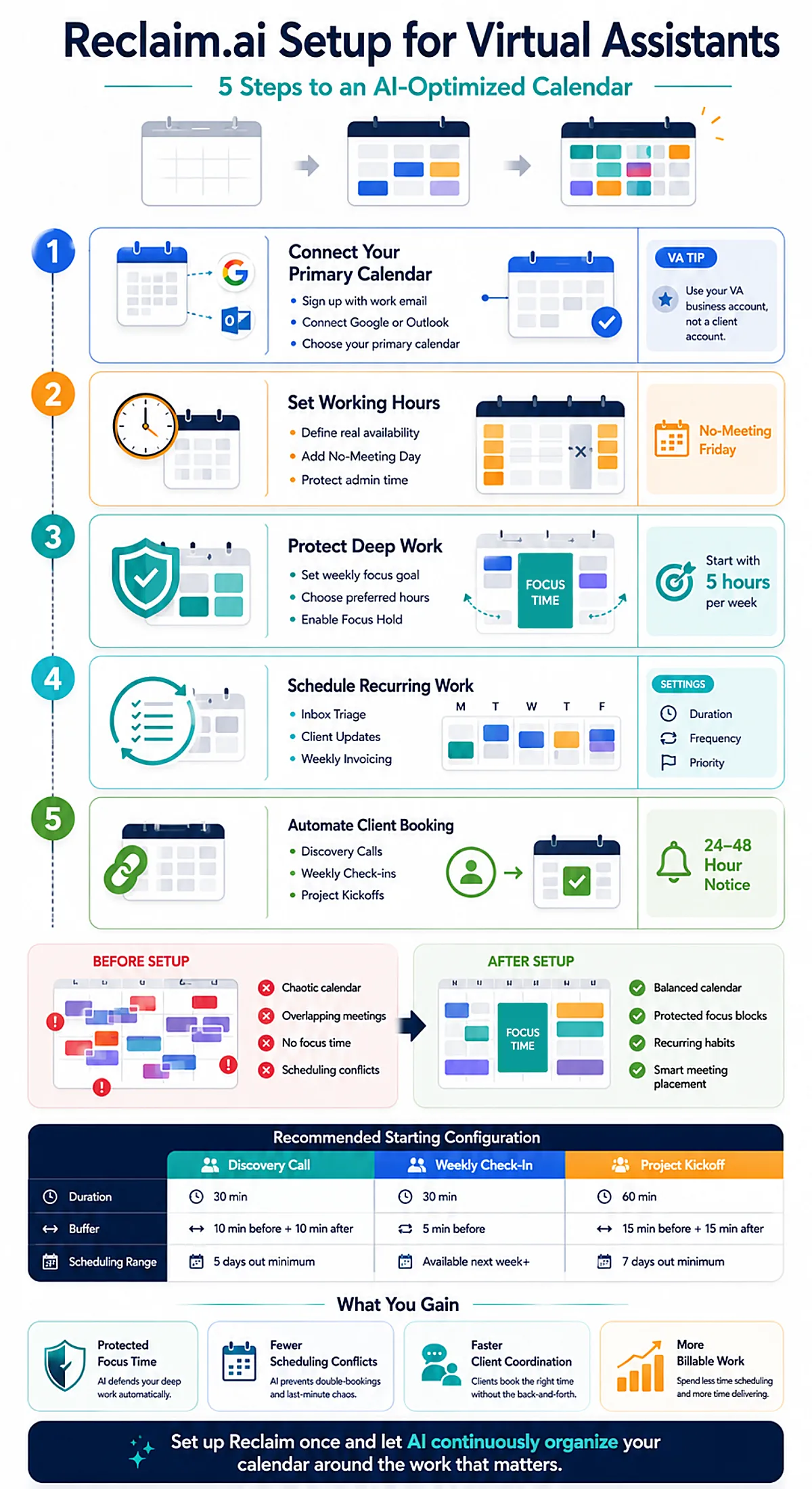
Reclaim.ai setup takes approximately 30–45 minutes to produce a functional calendar. The onboarding is guided, Reclaim walks you through each step, but the notes below help you make the right decisions for a VA workflow specifically.
Step 1 — Create Your Account and Connect Your Primary Calendar
Go to Reclaim.ai and sign up using your Google or Microsoft account. This immediately connects your primary work calendar.
On the Lite (free) plan, you connect one calendar and one additional personal calendar via Calendar Sync. On Starter, you connect unlimited calendars. If your work involves managing a client’s Google Workspace calendar, connect it here as your primary work calendar for that client, or use Calendar Sync to block your time across multiple accounts.
Decision point for VAs: Sign up with your primary work email (your VA business account), not a client’s account. Your schedule lives here. Client calendar management happens through Calendar Sync or separate scheduling link configurations.
Step 2 — Set Your Working Hours and No-Meeting Windows
Navigate to Settings → Working Hours. Define your actual working hours per day, not aspirational hours, actual committed availability. This is the window within which Reclaim will schedule everything.
Set at least one No-Meeting Day per week using the #reclaim_free hashtag feature or the dedicated no-meeting day setting. For most VAs, Friday or Monday works well for deep work and admin without client interruptions.
Practical note: If you work across time zones for different clients, set your working hours to your own local time. Reclaim handles time zone conversions in Scheduling Links automatically.
Step 3 — Configure Focus Time
Go to Focus Time and set a weekly Focus Time goal. Start with a realistic number, if your week is currently 80% meetings, start with 5 hours of Focus Time and expand as you recalibrate client expectations.
Set your preferred Focus Time hours (typically morning blocks before 12pm perform best for deep work). Reclaim will slot Focus Time blocks into these windows, moving them if meetings arrive.
VA-specific setting: Enable the Focus Time “Hold” option. This places a visible but flexible block on your calendar that prevents new meeting requests from landing in those windows, while still allowing Reclaim to shift the block when necessary.
Step 4 — Create Your First Habits
Navigate to Habits and add your recurring tasks. Start with the two or three highest-volume recurring tasks in your week:
– Weekly client status update prep (45 min, Thursdays, 2–5pm window)
– Daily inbox triage (20 min, mornings, 8–10am window)
– Weekly invoicing and time log review (30 min, Fridays, flexible)
For each Habit, set:
– Duration (realistic, not optimistic)
– Frequency (daily / weekly / specific days)
– Ideal time window (preferred hours, not hard constraints)
– Priority level (Critical / High / Medium — this controls how aggressively Reclaim defends the time)
Step 5 — Set Up Your First Scheduling Link
Go to Scheduling Links and create one link per meeting type you offer clients.
Set a minimum scheduling notice (24–48 hours) so clients cannot book same-day slots that don’t give you preparation time.
Once configured, add your scheduling links to your email signature, client onboarding documents, and any recurring meeting invitations. This eliminates the back-and-forth email exchange that precedes every meeting.
For clients who use the onboarding process you’ve built out, Reclaim Scheduling Links integrate directly into automated sequences via Make, so a new client triggering your onboarding flow receives their booking link automatically, without manual sending.
The Make Setup Guide for VAs covers how to connect scheduling tools into automated client workflows.
Recommended starting point for VAs
Link Type | Duration | Buffer | Scheduling Range |
Discovery Call | 30 min | 10 min before + 10 min after | 5 days out minimum |
Weekly Check-In | 30 min | 5 min before | Available next week+ |
Project Kickoff | 60 min | 15 min before + 15 min after | 7 days out minimum |
5. Four Reclaim.ai Workflows Every VA Should Configure
Setup produces a functional calendar. These four workflows produce a functional VA operation.
Workflow 1 — The Multi-Client Focus Block System
Problem it solves: When managing three or more clients simultaneously, focus time gets fragmented across different client contexts. Work on Client A’s project bleeds into Client B’s deliverables and nothing gets completed at the depth it requires.
How to set it up:
Create separate Focus Time blocks labeled by client context — either through Reclaim’s color-coding system or by creating client-specific Habits that act as dedicated working sessions. Assign each client a fixed color in your calendar. When Reclaim schedules Focus Time, you visually see which client context each block belongs to.
A practical structure for a three-client VA:
- Client A: Tuesday and Thursday mornings (deep work deliverables)
- Client B: Monday and Wednesday afternoons (admin and communication)
- Client C: Friday morning (flexible, lower-volume client)
Set these as Habits with the relevant client name, priority level, and your estimated weekly hours per client. Reclaim places them automatically each week, adjusting around meetings without eliminating the blocks.
Workflow 2 — Automated Client Scheduling Links in Onboarding
Problem it solves: Every new client onboarding involves at least one scheduling coordination step: setting up a kickoff call, configuring recurring check-ins, and establishing a booking link they can use going forward. This is administrative work that can be fully automated.
How to set it up:
- Create a “New Client Kickoff” Scheduling Link in Reclaim with a 60-minute duration, 7-day minimum notice, and 15-minute buffers.
- Connect Make to Reclaim via webhook or the Zapier integration.
- Trigger: new client intake form submitted → action: send the kickoff booking link automatically via email.
Once this automation is live, you never manually send a meeting link to a new client again. The link goes out automatically when the form is received. The Client Onboarding Automation Guide covers the full sequence for building this workflow.
For connecting Reclaim to your broader automation stack, Make provides the webhook-based connection that handles the trigger-action logic.
Workflow 3 — Weekly Review Habit with Smart Rescheduling
Problem it solves: Weekly reviews (reviewing all active projects, updating client status docs, reconciling time logs) get skipped when the week is busy, which is exactly when they’re most needed. Without a protected slot, they accumulate into a backlog.
How to set it up:
Create a Habit called “Weekly Review” with the following parameters:
- Duration: 60 minutes
- Frequency: Weekly, Fridays
- Time window: 9am–12pm
- Priority: High (not Critical — allows Reclaim to move it, but not skip it)
- Minimum scheduling advance: Same week
With High priority, Reclaim will always find a Friday slot for this block, even in a busy week. If Friday morning is full, it moves to Friday afternoon. If Friday is blocked entirely, it finds the closest alternative window that week.
The result: A weekly review that happens every week without manual scheduling.
Workflow 4 — Buffer Time as a Non-Negotiable Setting
Problem it solves: Back-to-back meetings produce degraded output quality, you arrive at each call without preparation time and leave without processing time. This is recoverable when it happens occasionally; it becomes a structural problem when it happens daily.
How to set it up:
In Settings → Buffer Time, configure:
- Before all meetings: 10 minutes (review notes, open the relevant client workspace)
- After all meetings: 10 minutes (log action items, update project tracker)
- Before external calls specifically: 15 minutes minimum
Reclaim enforces these buffers automatically. When a client books through your Scheduling Link, the buffer windows are already blocked. When you add a meeting manually, Reclaim adds the buffers. This is a one-time configuration that pays off in every subsequent meeting.
Combined with Toggl Track: If you use Toggl Track for client billing, the after-meeting buffer is the ideal window to log your time entry for that call while it’s fresh, eliminating the end-of-week scramble to reconstruct hours from memory.
6. Reclaim.ai Pricing: Which Plan Makes Sense for VAs?
Plan | Price (Annual) | Best For |
Lite | Free forever | Solo VAs testing the platform |
Starter | $10 per seat/month | Established VAs who need full functionality |
Business | $15 per seat/month | VA teams or operators managing multiple workspaces |
Enterprise | $22 per seat/month | Agencies with 100+ seats and security requirements |
The free Lite plan is permanent and requires no credit card. Annual billing saves 20% compared to monthly, and teams evaluating the Business or Enterprise tiers can request a guided demo.
What the Free Lite Plan Includes
The Lite plan is functional for a VA who is testing Reclaim before committing. It includes:
- 5 AI Agents (Reclaim’s specialized scheduling automations)
- 1 calendar sync (Google Calendar or Outlook)
- 1 Habit
- 1 Scheduling Link
- Focus Time (1-week scheduling range)
- Basic time tracking
The limitations that matter for daily VA use: one Habit is not enough for a functioning routine system, and the 1-week scheduling range means clients can only book within 7 days. These limits are the signal to upgrade.
When the Starter Plan at $10/month makes sense
Starter is the right tier for most working VAs. It unlocks:
- 10 AI Agents per seat
- Unlimited Habits
- 3 Scheduling Links (enough for most VA use cases)
- Unlimited calendar syncs
- Advanced analytics
- Extended scheduling range (beyond 1 week)
- Integrations with ClickUp, Asana, Todoist, Jira, Linear, and Google Tasks
At $10/month on annual billing, the ROI calculation is simple: if Reclaim saves you two hours per month of manual scheduling coordination on billable time, the plan pays for itself regardless of your rate.
When the Business Plan at $15/month makes sense
Business adds People Analytics (team-wide time data), 100 AI Agents per seat, expanded team controls, and higher capacity across all features. For a solo VA, the Starter plan covers everything needed. Business makes sense if you’re running a VA agency with team members or managing calendar systems for an executive on top of your own schedule.
The verdict on pricing
Start on the free Lite plan to validate the setup against your real schedule. It is functional enough to confirm that automated time-blocking fits how you work before any money changes hands — connect a calendar, set a Focus Time goal, and watch how Reclaim defends it across a live week.
Upgrade to Starter the moment you hit the single-Habit or single-Scheduling-Link limit. For an active VA managing multiple clients, that happens within the first one to two weeks of daily use, because one Habit cannot cover the recurring routines a real practice runs — inbox triage, weekly client prep, invoicing, and review all compete for that single slot. At $10/user/month billed annually ($120/year), Starter is the right ongoing tier for a solo VA.
Reclaim prices per seat, a structure built for teams, but a solo practice only ever needs one seat, so that structure never inflates your cost. The ROI math stays simple: if Reclaim protects even two hours of billable time per month that would otherwise disappear into manual scheduling, the plan has already paid for itself — and most VAs recover far more than that in the first week.
Business ($15/user/month) and Enterprise ($22/user/month) add team analytics, delegation, and advanced controls that solo operators do not need. Reach for them only if you are running a multi-VA agency or managing an executive’s calendar alongside your own. For everyone else, Starter is both the floor and the ceiling.
Start Free with Reclaim.ai — No Credit Card Required
The Lite plan is free and permanent.
Connect your calendar, set your first Focus Time goal, and watch Reclaim protect your deep-work blocks before you spend a cent.
When the single-Habit limit starts pinching — usually within a week or two of real use — upgrading to Starter takes one click and unlocks unlimited Habits, three Scheduling Links, and every task-manager integration.
7. Where Reclaim.ai Falls Short
No tool review is complete without the limitations. These are the real ones.
No native mobile app
Reclaim operates as a web app and integrates with your calendar on mobile through Google Calendar or Outlook, but there’s no dedicated Reclaim mobile app. Day-to-day usage is fine, your Reclaim-managed calendar looks the same on mobile as any other calendar, but configuring habits, adjusting priorities, or creating new scheduling links requires the web interface.
The AI can over-reschedule
When your calendar fills unexpectedly, Reclaim moves lower-priority habits and tasks to find available windows. For users who like a predictable daily structure, seeing a habit moved to an unexpected time can feel disruptive. The fix is adjusting priority levels, Critical tasks never move, High tasks move only within the same day, Medium tasks have the most flexibility.
Limited free tier for real VA work
The Lite plan’s single Habit and single Scheduling Link are insufficient for a working VA. The free tier is suitable for evaluation, not for production use. Budget for the Starter plan ($10/month annual) if you intend to use Reclaim as a core workflow tool.
Not a task manager
Reclaim schedules tasks from connected tools but doesn’t replace them. You still need ClickUp, Asana, Notion, or a similar tool for project management and task documentation. Reclaim handles calendar-layer scheduling; it does not replace the underlying task system.
iCloud Calendar support is limited
Syncing iCloud calendars requires a workaround via Google Calendar or Outlook subscription links. If your personal calendar lives in iCloud and your work calendar is Google, the sync process works but involves more steps than a native connection.
For a structured comparison of AI scheduling tools alongside Reclaim.ai, the Best AI Scheduling Tools for Virtual Assistants Guide covers the full category including how Reclaim compares to simpler booking-only tools.
For a wider comparison of tools that replace Calendly, see 6 Best Calendly Alternatives for Virtual Assistants.
8. Reclaim.ai + Toggl Track: The Complete VA Time Stack
Reclaim.ai manages when work happens. Toggl Track records how long work takes and produces the client-billable reports that justify your rates.
These two tools are complementary without overlap.
Reclaim.ai handles:
- Calendar time blocking (Focus Time, Habits, Tasks)
- Meeting scheduling and buffers
- Dynamic rescheduling when plans change
Toggl Track handles:
- One-click time tracking per client and project
- Billable rate assignment per client
- Weekly and monthly reporting for client invoicing
- Time log exports for retainer documentation
The natural integration point is the post-meeting buffer. After each client call, the 10-minute Reclaim buffer is the window to open Toggl Track and log the session. During Focus Time blocks, Toggl Track runs in the background tracking the active project. By end of week, the billable hours log is complete without any end-of-week reconstruction.
Practical setup: In Toggl Track, create a workspace per client and a project per ongoing retainer or deliverable. Use the browser extension (available for Chrome and Firefox) to start and stop timers from within any tab. The free Toggl Track plan covers up to five users and includes all core time tracking features, sufficient for a solo VA operation.
For VAs who bill hourly across multiple clients, this two-tool stack (Reclaim for calendar management, Toggl Track for time logging) covers the complete time management layer of a VA practice at minimal cost: Reclaim Starter at $10/month and Toggl Track free for solo use.
If you’re building the full operations stack for managing multiple clients simultaneously, the guide to Managing Multiple Clients as a Virtual Assistant Using AI covers the broader system that this scheduling and time tracking layer fits within.
Track Every Billable Hour with Toggl Track — Free for Solo VAs
Reclaim decides when work happens; Toggl Track records how long it takes and turns it into the reports that justify your retainers.
Start and stop timers from any browser tab, tag time by client and project, and export clean billing summaries at month-end.
The free plan covers solo use in full, so you can close the time-tracking gap today at zero cost — and upgrade only when you add team members.
9. Verdict: Is Reclaim.ai Worth It for Virtual Assistants?
Reclaim.ai solves a real, recurring problem in VA work: calendar time gets consumed by meetings and reactive scheduling until there’s no protected space left for the work that matters. The Focus Time, Habits, and Scheduling Links features address that problem directly, and the setup is accessible without technical knowledge.
The free Lite plan is a starting point, not a marketing exercise. The limitation that pushes most VAs to Starter is the single Habit cap, which you’ll hit within days of real use.
At $10/month on annual billing, the Starter plan is the right level for an active VA practice. The ROI case is uncomplicated: recover two hours per month of manual scheduling overhead on billable time and the plan pays for itself. Most VAs recover more than that in the first week.
The one limitation: Reclaim requires intentional setup. It produces results proportional to how clearly you’ve defined your priorities, working hours, and recurring tasks. A five-minute signup with default settings produces a functional calendar, not an optimized one. The setup process in section 4 is the difference between those two outcomes.
Recommended starting point: Sign up on the free Lite plan using the link below, complete the full setup in section 4, and use it daily for two weeks before evaluating the Starter upgrade.
Reclaim.ai Starter — $10/Month for a Self-Managing Calendar
Unlimited Habits, three Scheduling Links, unlimited calendar syncs, and native task-manager integrations with ClickUp, Asana, Todoist, Jira, and Linear.
It is the tier built for a working VA practice: enough automation to stop manually defending your time, at a price a single recovered billable hour more than covers.
Start on the free Lite plan and upgrade the moment the limits hit.
Frequently Asked Questions About Reclaim.ai for Virtual Assistants
Is Reclaim.ai free?
Yes. Reclaim.ai has a free Lite plan available permanently with no time limit. It includes Focus Time, one Habit, one Scheduling Link, and one calendar sync. The free plan is functional for evaluation but limited for daily VA use — the single Habit cap is the primary constraint, and unlocking unlimited Habits requires the Starter plan.
What is the difference between Reclaim.ai and Calendly?
Calendly is a booking tool: it lets other people schedule meetings with you based on your defined availability. Reclaim.ai is a full AI calendar assistant: it manages your entire week, including when you do deep work, recurring routines, task scheduling, and meeting booking. Reclaim includes scheduling links that function similarly to Calendly, but also defends your focus time and habits from being overwritten by new bookings. For VAs who need both meeting scheduling and protected working time, Reclaim replaces both tools.
Does Reclaim.ai work with Google Calendar and Outlook?
Yes. Reclaim.ai has full native integrations with both Google Calendar and Microsoft Outlook Calendar. Events created by Reclaim appear directly in your existing calendar view, you don’t use Reclaim as a separate calendar interface. The Reclaim Google Calendar add-on also lets you manage smart events directly within Google Calendar without switching tabs.
What task management tools does Reclaim.ai integrate with?
On the Starter plan and above, Reclaim integrates with ClickUp, Asana, Todoist, Jira, Linear, and Google Tasks. Tasks from these tools sync automatically into Reclaim, which then schedules them into available calendar windows based on deadline and priority. Changes made in the task manager (deadline updates, new tasks added) sync back to Reclaim and the calendar is adjusted accordingly.
How long does it take to set up Reclaim.ai properly?
Initial setup (connecting your calendar, setting working hours, configuring Focus Time, and creating your first Habits and Scheduling Link) takes 30 to 45 minutes following the steps in section 4 of this guide. A fully optimized setup, including task manager integrations and client-specific scheduling links, takes two to three hours across the first week as you add and adjust based on how your real schedule operates.
Is Reclaim.ai better than Motion?
Both tools occupy the same category, AI scheduling assistants, with different strengths. Reclaim.ai‘s pricing is more accessible (free tier available, Starter at $10/month) and its Habits and Focus Time features are particularly well-suited to solo VA work with recurring routines. Motion‘s strength is its integrated task management and project scheduling, which makes it a stronger fit for VAs who want a single tool covering both calendar and project management. For VAs already using a separate project management tool (ClickUp, Notion, Asana), Reclaim’s lighter footprint is an advantage.
Does Reclaim.ai have a mobile app?
No. Reclaim.ai runs as a web app and surfaces its scheduled blocks inside your existing Google Calendar or Outlook on mobile, so your managed calendar looks the same on your phone. Configuration tasks — creating Habits, adjusting priorities, or building Scheduling Links — require the web interface.
Is Reclaim.ai secure with my calendar data?
Reclaim.ai connects to Google Calendar and Outlook through their official, permission-based integrations and encrypts data in transit and at rest. Calendar Sync creates availability blocks across accounts without exposing private event details. For VAs handling client calendars, review your client’s data-handling requirements before connecting a managed account.
Glossary
AI Agent (Reclaim.ai): A specialized automation that continuously optimizes one area of your schedule — Focus Time, Habits, Buffer Time, Smart Meetings, or Meeting Quality. Reclaim runs multiple agents in the background; the number you can create scales with your plan.
AI Assistant (Reclaim.ai): A built-in LLM chat used to analyze your schedule, resolve conflicts, find meeting times, and set up new agents in plain language, with changes surfaced for approval before they are applied.
AI Memories (Reclaim.ai): Stored preferences and recurring decisions that Reclaim recalls to maintain context, so future scheduling reflects how you prefer to work without re-entering the same rules.
AI Calendar Assistant: A software tool that uses artificial intelligence to automatically schedule tasks, meetings, and routines in a calendar, adapting in real time as priorities and availability change.
Focus Time: A dedicated block of time on a calendar, defended against new meeting requests, reserved for uninterrupted deep work. In Reclaim.ai, Focus Time is scheduled automatically based on a weekly hour goal.
Habit (Reclaim.ai): A recurring routine block that Reclaim schedules flexibly around other calendar events. Unlike fixed recurring events, Habits move when conflicts arise rather than being overwritten or skipped.
Smart Meeting: A meeting type in Reclaim.ai that automatically finds the optimal time for all attendees based on their real calendar availability, including Focus Time and Habit blocks, rather than requiring manual time slot negotiation.
Scheduling Link: A shareable URL that allows others to book a meeting based on your available calendar windows. Reclaim’s Scheduling Links account for Focus Time and Habits when displaying available slots, preventing bookings that conflict with protected work time.
Calendar Sync: A feature that connects multiple calendar accounts (personal and work Google, Outlook) and creates availability blocks across all of them, preventing double-bookings without sharing private event details across accounts.
Buffer Time: Short time blocks automatically added before and after meetings, providing preparation and processing time without manual scheduling. Configured once in Reclaim settings; applied automatically to all subsequent bookings.
Dynamic Rescheduling: The process by which Reclaim.ai automatically adjusts the position of Habits, Tasks, and Focus Time blocks when meetings or higher-priority events arrive, ensuring that lower-priority blocks are moved rather than lost.
Time Blocking: A time management approach where specific tasks or categories of work are assigned to defined calendar windows. Reclaim.ai automates time blocking for tasks, routines, and focus work.
Scheduling Range: The number of days in advance that Reclaim.ai can schedule events and that clients can book meetings through Scheduling Links. The Lite (free) plan has a 1-week range; Starter and Business plans extend this range.
About the Author
Alex Stratton has spent the better part of a decade working at the intersection of virtual assistance and operational systems, first as a VA supporting founders and small business owners, then as a workflow consultant helping remote teams reduce the manual overhead that accumulates when businesses grow faster than their processes. The tools and workflows here reflect decisions made repeatedly in real client contexts, where the wrong choice costs hours, not minutes. Learn more about VA Automation Lab → About.