

Claude AI for Virtual Assistants: Complete Guide to Use Cases, Prompts & Workflows (2026)
Disclosure: This article contains affiliate links. If you purchase through them, VA Automation Lab earns a commission at no additional cost to you. All tools are evaluated independently.
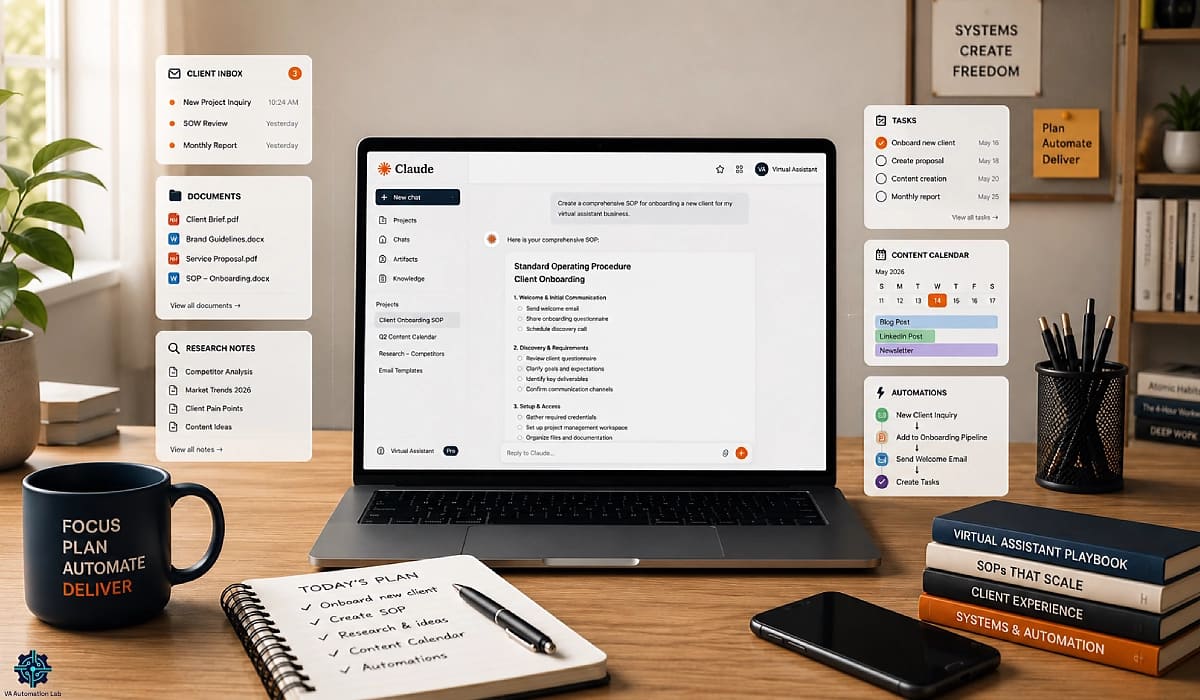
Claude AI is Anthropic’s language model built for depth — long-form writing, complex document analysis, nuanced client communication, and multi-step instruction execution at a precision level that most AI tools do not match. For virtual assistants, that depth translates directly into fewer revision cycles, faster documentation workflows, and the ability to process entire client archives in a single session. This guide covers everything needed to run Claude at full operational capacity: the 12 prompt templates that turn VA task types into repeatable AI workflows, the Projects setup that eliminates manual context-pasting, the honest comparison with ChatGPT, Gemini, and Copilot, and the workflow integration system for building Claude into daily operations.
What is Claude AI for virtual assistants? Claude AI is Anthropic’s AI assistant designed for text-intensive cognitive work. For VAs, it processes up to 200,000 words of client documents in a single session, follows complex multi-part instructions with high precision, and produces long-form SOPs, proposals, and research briefings with higher output consistency than comparable tools.
What this guide covers:
- A full capability profile of Claude — what it does well and where it has genuine limitations
- Claude plans and pricing with a clear recommendation for solo VA professional use
- The top 8 Claude use cases for virtual assistants, each with time estimates
- A dedicated Claude Projects setup guide — the feature that transforms Claude from a chat tool into a persistent VA operating system
- 12 copy-paste prompt templates organized by VA task type
- The task-by-task comparison with ChatGPT, plus how Claude stacks up against Gemini, Copilot, and Perplexity
- Claude Code for VAs — what agentic automation means for non-technical users
- A workflow automation setup connecting Claude to Make
- The complete recommended tool stack to pair with Claude
- A client data security briefing for VAs handling sensitive information
- The five-day integration workflow for adding Claude to an existing VA stack
👉 Tools for Virtual Assistants: The Complete AI Systems & Software Guide — the full system view of every AI layer in a modern VA’s stack.
Want to Start Using AI Tools the Right Way?
The Free AI Starter Toolkit includes the Claude prompt library from this guide — all 12 prompt templates pre-formatted and ready to paste into Claude Projects, plus the Claude vs ChatGPT task routing guide that tells you which tool to use for each of the 12 highest-frequency VA task types.
Download once. Route every task correctly from day one.
Table of Contents
1. What Is Claude AI for Virtual Assistants?
Claude is a large language model (LLM) developed by Anthropic, an AI safety company founded in 2021. Unlike general-purpose AI assistants, Claude is engineered with a specific focus on nuanced instruction-following, long-context reasoning, and reliable long-form text output. For virtual assistants, these properties are not abstract — they have a direct operational translation into fewer revision cycles, faster documentation turnaround, and output quality that survives client review with less manual intervention.
Understanding how to use Claude as a virtual assistant correctly starts with an honest capability profile: what Claude does exceptionally well, where it genuinely falls short, and what the comparison with other AI tools actually looks like in daily VA operations.
What Claude Does Well
Processes entire client document libraries in a single session. Claude’s standard context window handles up to 200,000 tokens — approximately 150,000 words. In practical VA terms: paste in a client’s brand guide, tone of voice document, previous proposals, and service history, then ask Claude to draft a new proposal. Everything is in context at once, with no fragmentation across multiple sessions.
Follows complex, multi-part instructions with high precision. A prompt with eight specific requirements — format, tone, length, exclusions, audience, structure, example, and CTA — consistently produces output that addresses all eight. Claude processes instruction lists the way a detail-oriented professional would: systematically, in sequence, without dropping the requirements that are less prominent.
Produces long-form outputs that require less editing. SOPs, research briefings, client handbooks, and proposal documents come out structurally coherent. Paragraphs connect. Arguments hold. Format stays consistent from page one to page twelve. This is where Claude’s output quality produces the most tangible operational difference: less time correcting AI-generated drafts means more time on high-value client work.
Handles sensitive and nuanced client communications. Emails about scope creep, expectation resets, late payment, and difficult feedback require tone calibration that most AI tools get wrong. Claude handles these well because it interprets the full situational context, not just the surface-level instruction.
Maintains a persistent operating profile through Claude Projects. A Project stores system instructions, uploaded reference documents, and conversation history accessible in every new session within that project. Claude remembers the client, the context, the tone rules, and the preferences — without re-briefing. This is covered in full in Section 5.
What Claude Does Not Do
Does not generate images. Claude is a text-only model. There is no image generation, diagram rendering, or visual content creation of any kind. For image tasks, a dedicated tool is required.
Does not access the internet by default. On the free plan, Claude has no web access and no knowledge of events after its training cutoff. Claude Pro includes web search, but it is not the default mode — the VA activates it per conversation.
Does not retain memory across separate conversations without Projects. Without a configured Project, each conversation starts from zero. This is the primary operational limitation for VAs managing multiple clients — addressed in Section 5.
Does not process audio or video files. Claude works with text, PDFs, and images (for analysis only). Audio transcripts and video content must be converted to text before Claude can process them.
Does not perform deep third-party workflow integration natively. For complex multi-step automation connecting Claude to external tools, Make or Zapier via the Anthropic API provides the integration layer. This is covered in Section 10.
Claude Capability Quick Reference
Capability | Free | Pro | Max |
Context window | 200K tokens | 200K tokens | 200K tokens (Opus: 1M beta) |
Claude Projects | ✅ | ✅ | ✅ |
Web search | Basic | ✅ Full | ✅ Full |
Extended thinking | ❌ | Limited | ✅ |
Cowork (agentic tasks) | ❌ | ✅ | ✅ |
Claude Code | ❌ | ✅ | ✅ |
Google Workspace integration | ❌ | ✅ | ✅ |
Full MCP support | ❌ | ✅ | ✅ |
API access | ❌ | ❌ | ❌ (separate billing) |
2. Why Claude AI Matters for VA Operations
Anthropic’s own research estimates that AI tools reduce administrative task time by 13% on average across knowledge workers — a figure that has grown as more VAs integrate AI into daily operations. For virtual assistants whose entire output is knowledge work, the practical ceiling is considerably higher.
The more relevant measure for VAs is output-per-session: how much billable-quality work a single Claude session produces. Claude completes college-level tasks 12x faster than the human average. For VAs whose service scope includes research, analysis, and structured documentation — tasks that map directly to college-level cognitive work — this speed multiplier translates to concrete hourly capacity gains.
Anthropic also reports that Office and Administrative Support is the fastest-growing Claude task category on the platform, up 3% in four months as of 2026. The tasks driving that growth are exactly the high-frequency VA work types: document creation, communication drafting, process documentation, and workflow automation support.
Three specific operational advantages drive the VA-relevant value:
1. The writing quality gap closes the revision loop. A VA using a lighter AI tool for long-form content typically spends 30–50% of AI-assisted writing time on revision — fixing tone inconsistencies, structural issues, and sections where context was lost. Claude’s stronger contextual consistency and more precise instruction-following reduces this overhead to 10–20% on equivalent tasks. For a VA producing five to ten documents per week, that recovers one to three hours.
2. The context window handles multi-client complexity. A VA managing five clients accumulates significant per-client context: brand guides, SOP libraries, communication histories, project documentation. Feeding all relevant context into every AI prompt is essential for high-quality, client-specific output — but it quickly exceeds what simpler tools can hold. Claude’s 200K context window removes this constraint for almost all practical VA use cases.
3. Projects replace the manual context-setting overhead. Claude Projects store client-specific instructions, documents, and style guides as persistent context, accessible in every conversation within that project without re-pasting. A Claude Project per client eliminates the manual context-setting step that otherwise adds five to ten minutes to every AI-assisted task.
Which VA Service Types Benefit Most
Claude’s advantage is strongest for VAs whose work is documentation-heavy, writing-intensive, or involves managing large volumes of client reference material.
VA Service Type | Claude Fit | Primary Use Case |
Executive / admin VA | ⭐⭐⭐⭐⭐ | Email drafting, SOPs, research briefings |
Content VA | ⭐⭐⭐⭐⭐ | Newsletters, blog drafts, long-form content |
Operations VA | ⭐⭐⭐⭐ | Process documentation, reporting, templates |
Social media VA | ⭐⭐⭐ | Caption drafting, strategy documents |
Bookkeeping / finance VA | ⭐⭐ | Client comms, reports — limited data processing |
Tech / web VA | ⭐⭐⭐ | Documentation, client guides, Claude Code workflows |
For VAs whose service scope spans multiple types, Claude becomes the primary AI writing and analysis layer regardless of specialty.
3. Claude Plans and Pricing for VAs
Plan | Price | Context Window | Key Features | Best For |
Free | $0/mo | 200K tokens | Claude Sonnet 5, usage limits (resets every 5-8 hrs), basic web search, memory, Projects, basic MCP connectors | Testing and light use |
Pro | $20/mo | 200K tokens | 5x usage vs Free, Claude Opus 4.8 + Sonnet 5, priority access, Projects, full web search, memory, Google Workspace integration, Cowork, Claude Code, full MCP support | Solo VA primary tool |
Max | $100-200/mo | 200K tokens (Opus 4.8: 1M beta) | 5x-20x usage vs Pro, all Pro features, Opus 4.8 with 1M context window (beta), agent teams, highest priority, extended thinking | High-volume VA operations |
Team | $30/user/mo (min 5 users) | 200K tokens | All Pro features, collaboration + shared Projects, centralized billing, admin controls, higher limits | VA agencies or teams |
The solo VA recommendation: Claude Pro at $20/month.
Claude Pro gives a solo VA everything needed for full daily integration: sufficient usage capacity for 4-6 hours of active AI-assisted work per day, access to Claude Opus 4.8 (the most capable model for complex reasoning tasks), Projects for per-client context storage, Google Workspace integration (read and edit Google Docs, Gmail, and Drive directly within the chat interface), Cowork for autonomous multi-step background tasks, and full MCP server support for external tool connections.
New in 2026 — Cowork. Cowork is Anthropic’s agentic feature launched January 12, 2026, that allows Claude to autonomously complete multi-step tasks in the background — file organization, multi-document analysis, project coordination — while the VA continues working on other tasks. Available on Pro since January 16, 2026. For VAs running document-heavy workflows, Cowork eliminates the bottleneck of waiting for Claude to complete long sequential tasks.
The Free plan reality for VAs:
Claude Free now includes basic web search, memory, and Projects — features that were previously Pro-only. This makes it genuinely more capable than earlier versions. However, the usage limits remain the binding constraint: during peak hours, a VA can exhaust the Free plan’s message allowance within one to two hours of active work. For consistent, professional daily use, Claude Pro eliminates the usage ceiling and adds Google Workspace integration, Cowork, and Claude Code that the Free plan does not include.
4. The Top 8 Claude Use Cases for Virtual Assistants
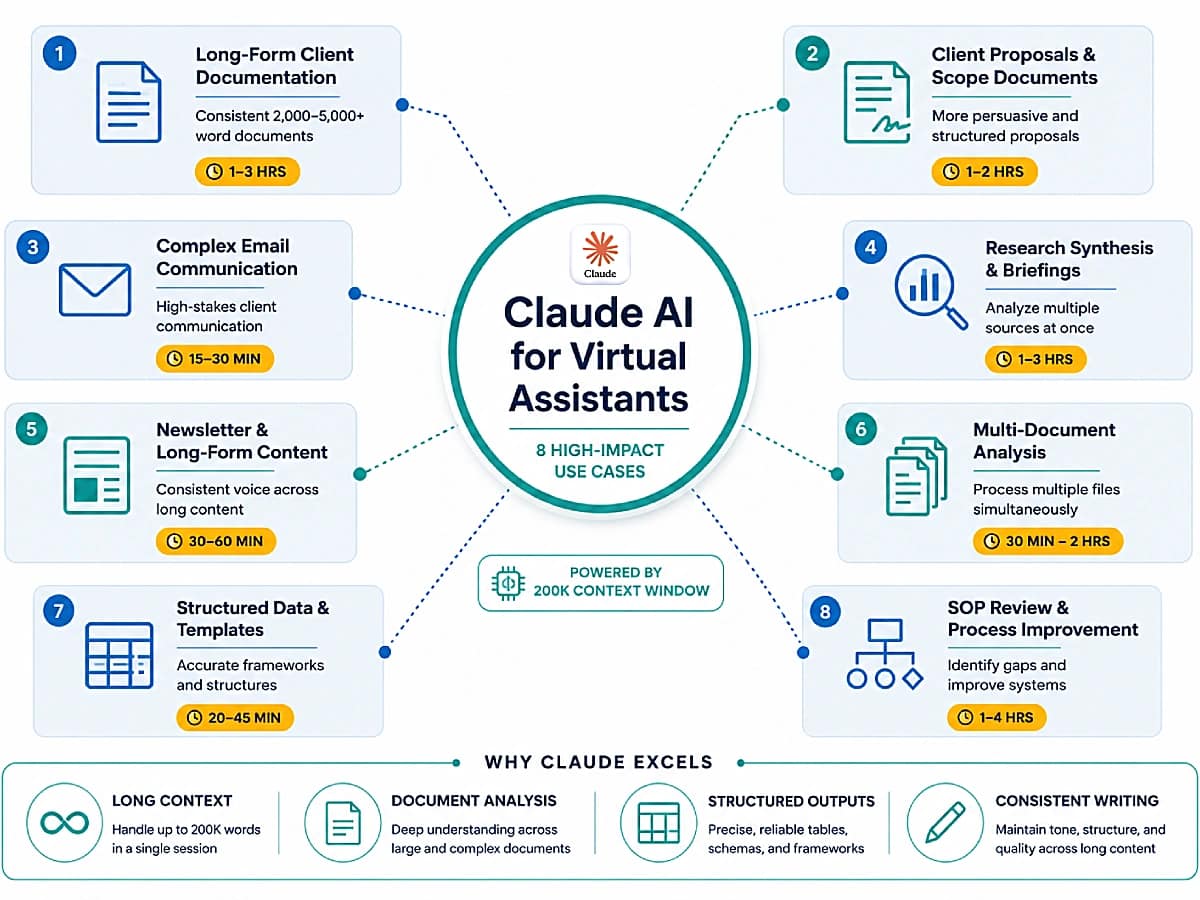
The eight use cases below represent the VA task types where Claude produces the most consistent, highest-quality output, ranked by the combination of frequency in VA operations and output quality advantage.
Use Case 1 — Long-Form Client Documentation
What it covers: SOPs, process guides, client handbooks, onboarding documentation, service agreements, policy documents.
Why Claude excels here: Document-length consistency. Claude maintains structural coherence, tonal consistency, and internal cross-references across 2,000–5,000+ word documents without the quality degradation that appears in the latter sections of long AI-generated outputs. A 3,000-word SOP drafted in Claude typically requires 20–30% less post-editing than equivalent output from lighter tools.
Time saving: 1–3 hours per document depending on complexity.
Use Case 2 — Client Proposals and Scope of Work Documents
What it covers: Service proposals, scope of work documents, project briefs, retainer agreements, service package descriptions.
Why Claude excels here: Persuasive structure with nuance. Claude produces proposals with stronger problem framing, more credible value articulation, and cleaner benefit statements. The nuance advantage is most visible in proposals for complex or high-value engagements where generic language reduces conversion.
Time saving: 1–2 hours per proposal.
Use Case 3 — Complex Email Drafting and Communication
What it covers: Sensitive client communications, difficult feedback delivery, negotiation emails, conflict resolution, boundary-setting, client escalations.
Why Claude excels here: Tonal precision in high-stakes contexts. Claude produces more nuanced, situationally appropriate drafts for communication that requires careful tone management. The quality difference is most visible in situations requiring acknowledgment of difficulty, delivery of unwelcome news, or downward calibration of client expectations — scenarios where formulaic output creates more problems than it solves.
Time saving: 15–30 minutes per complex communication.
Pair it with: SaneBox automatically triages the inbox before Claude drafts responses — filtering low-priority messages so Claude’s time and the VA’s attention both go to the communications that genuinely need careful handling. The workflow: SaneBox surfaces what matters → Claude drafts the response.
👉 AI Writing & Content Creation for Virtual Assistants: The Complete Guide — for a complete system covering purpose-built AI writing tools, workflows, and brand voice management.
Use Case 4 — Research Synthesis and Client Briefings
What it covers: Competitor research synthesis, industry briefings, market analysis summaries, executive briefings, decision support documents.
Why Claude excels here: Large document processing and analytical depth. The 200K context window allows Claude to process multiple source documents simultaneously and synthesize them into a coherent briefing without context fragmentation. The analytical depth produces briefings with more nuanced insight and fewer generic conclusions.
Time saving: 1–3 hours per research synthesis task.
Use Case 5 — Newsletter and Long-Form Content Writing
What it covers: Email newsletters, long-form LinkedIn posts, blog post drafts, thought leadership articles, content for clients in professional services, finance, legal, and consulting.
Why Claude excels here: Voice consistency across length. Newsletter content and long-form articles require consistent voice across 600–2,000 words. Claude’s superior long-form consistency produces first drafts that maintain the client’s voice throughout — critical for professional services clients where brand voice authenticity is a primary content requirement.
Time saving: 30–60 minutes per long-form content piece.
Use Case 6 — Multi-Document Analysis and Summarization
What it covers: Contract review summaries, meeting note synthesis across multiple sessions, client feedback compilation, research literature synthesis, document comparison.
Why Claude excels here: Context window capacity. Processing multiple documents simultaneously within a single Claude conversation eliminates the manual synthesis step that forces users of smaller-context tools to process documents sequentially and combine outputs by hand. Claude processes all documents at once and produces the synthesis directly.
Time saving: 30 minutes to 2 hours per multi-document task depending on document volume.
Use Case 7 — Structured Data and Template Creation
What it covers: Spreadsheet structures, database schemas, report templates, tracking systems, structured content frameworks.
Why Claude excels here: Structural precision. Claude produces consistently correct structured outputs — tables, schemas, template hierarchies — with fewer formatting errors, particularly for complex multi-level structures where every requirement must be met exactly.
Time saving: 20–45 minutes per template or structured output.
👉 How to Automate Reporting for Virtual Assistants — one of the highest-value applications of this capability is building the Google Sheets reporting hub structure and AI narrative prompt for automated client reporting.
Use Case 8 — SOP Review and Process Improvement
What it covers: Reviewing existing SOPs for gaps, suggesting process improvements, identifying inconsistencies across related SOPs, benchmarking processes against best practices.
Why Claude excels here: Analytical reasoning over long context. Pasting an existing SOP library — potentially 20,000–50,000 words — into Claude for analytical review is only practical with the 200K context window. The analysis identifies gaps, inconsistencies, and improvement opportunities across the entire library simultaneously.
Time saving: 1–4 hours per SOP review cycle.
Use Case | Claude Advantage | Time Saved |
Long-form documentation | Consistency across length | 1-3 hrs/doc |
Proposals + SOW | Persuasive nuance | 1-2 hrs/proposal |
Complex emails | Tonal precision | 15-30 min/email |
Research synthesis | Multi-doc processing | 1-3 hrs/task |
Newsletter + long-form content | Voice consistency | 30-60 min/piece |
Multi-document analysis | 200K context | 30 min-2 hrs/task |
Templates + structured data | Structural precision | 20-45 min/template |
SOP review + improvement | Long-context analysis | 1-4 hrs/cycle |
Turn Claude-Generated Proposals Into Signable Documents
Claude writes the persuasive copy. PandaDoc handles the professional formatting, e-signature workflow, and payment collection.
Together, the proposal-to-signed-contract cycle goes from hours to under 30 minutes — without switching between tools or reformatting manually.
5. Claude Projects — Complete VA Setup Guide
Claude Projects is the feature that transforms Claude from a general-purpose chat tool into a persistent VA operating system. Without Projects, every Claude conversation starts from zero — the VA manually re-pastes client information, brand guides, and task instructions at the start of every session. With Projects, that context is stored and loaded automatically. One configuration, permanent context.
What is Claude Projects? Claude Projects creates persistent context workspaces within Claude. Each Project stores a custom system prompt (Project Instructions), uploaded reference documents, and a conversation history accessible in every new session within the project — without any re-briefing required.
Projects are available on all Claude plans including Free. Full functionality — higher document storage limits, priority processing, and Google Workspace integration — is available on Pro.
The VA Projects Architecture
The most effective setup for a multi-client VA is:
- One Project per active client — stores all client-specific context
- One VA Operations Project — stores the VA’s own business context (proposals, SOPs, service packages)
- One Prompt Library Project (optional) — stores and organizes the full prompt library from Section 6
Step 1 — Create One Project per Client
In Claude (any plan), open the Projects panel in the left sidebar and create a new project for each active client.
Recommended naming format: [CLIENT NAME] — [PRIMARY SERVICE] Example: Acme Corp — Content + Admin
For client onboarding workflows that feed directly into this Project setup, see the full system in the Automate Client Onboarding guide.
Step 2 — Configure the Project Instructions
Each Project has a “Project Instructions” field — the persistent system prompt applied to every conversation in that project. Use this template:
CLIENT: [CLIENT NAME]
BUSINESS TYPE: [DESCRIPTION]
MY ROLE: [VA SERVICES PROVIDED]

BRAND VOICE: [3–5 voice descriptors with IS / IS NOT pairs]
Example: Direct, not verbose. Warm, not casual. Confident, not aggressive.

VOCABULARY TO USE: [list]
VOCABULARY TO AVOID: [list]

COMMUNICATION PREFERENCES: [How the client prefers to communicate,
any sensitivities, relationship context]

CURRENT PROJECTS: [Active projects and their status]

IMPORTANT CONTEXT: [Anything Claude should always know when working
on tasks for this client]
The Project Instructions field functions as a permanent briefing document. Anything placed here is active in every conversation without the VA including it in the individual message.
Step 3 — Upload Key Client Documents
Each Project accepts document uploads. For each client, upload:
- Brand voice guide or style guide
- Key SOP reference documents
- Service agreement or scope summary
- Any active project briefs
Claude references these documents in every conversation in the project without the VA needing to paste them.
Step 4 — Create a VA Operations Project
In addition to per-client projects, create a single “VA Operations” project containing:
- Service packages and pricing
- Standard response templates
- Working hours and policies
- Tools and systems overview
Use this project for tasks about your own business: new proposals, business communications, your own SOPs.
Step 5 — Build the Prompt Library in Projects
Save the prompts from Section 6 as notes within a dedicated “Prompt Library” Project, or in Notion with one page per task category. Before each Claude session, copy the relevant prompt, fill in the variables, and paste into the project conversation. This eliminates blank-page time for every recurring task type.
For a Notion-based prompt library system that mirrors the Projects architecture, the Notion AI for Virtual Assistants guide covers the workspace setup for VA operations in full.
Memory vs Projects — Understanding the Difference
Both features provide persistent context, but they operate differently and serve different purposes.
Feature | Memory | Projects |
What it stores | Automatically synthesized general context about the VA across all conversations | Manually defined, client-specific instructions + uploaded documents |
How it updates | Automatically, every 24 hrs, based on conversation patterns | Manually — the VA edits the Project Instructions |
Scope | Cross-conversation, all of Claude | Per-project only |
Control level | VA can review, edit, or pause | VA fully controls what is stored |
Best for | Working preferences, general context, recurring background details | Client-specific brand voice, SOPs, confidential project details |
The operational recommendation: use Memory for the VA’s general working preferences and background context; use Projects for all client-facing, billable work. The two systems are complementary — Memory handles the macro layer; Projects handle the client-specific operational layer.
6. The Claude Prompt Library for VAs — 12 Templates
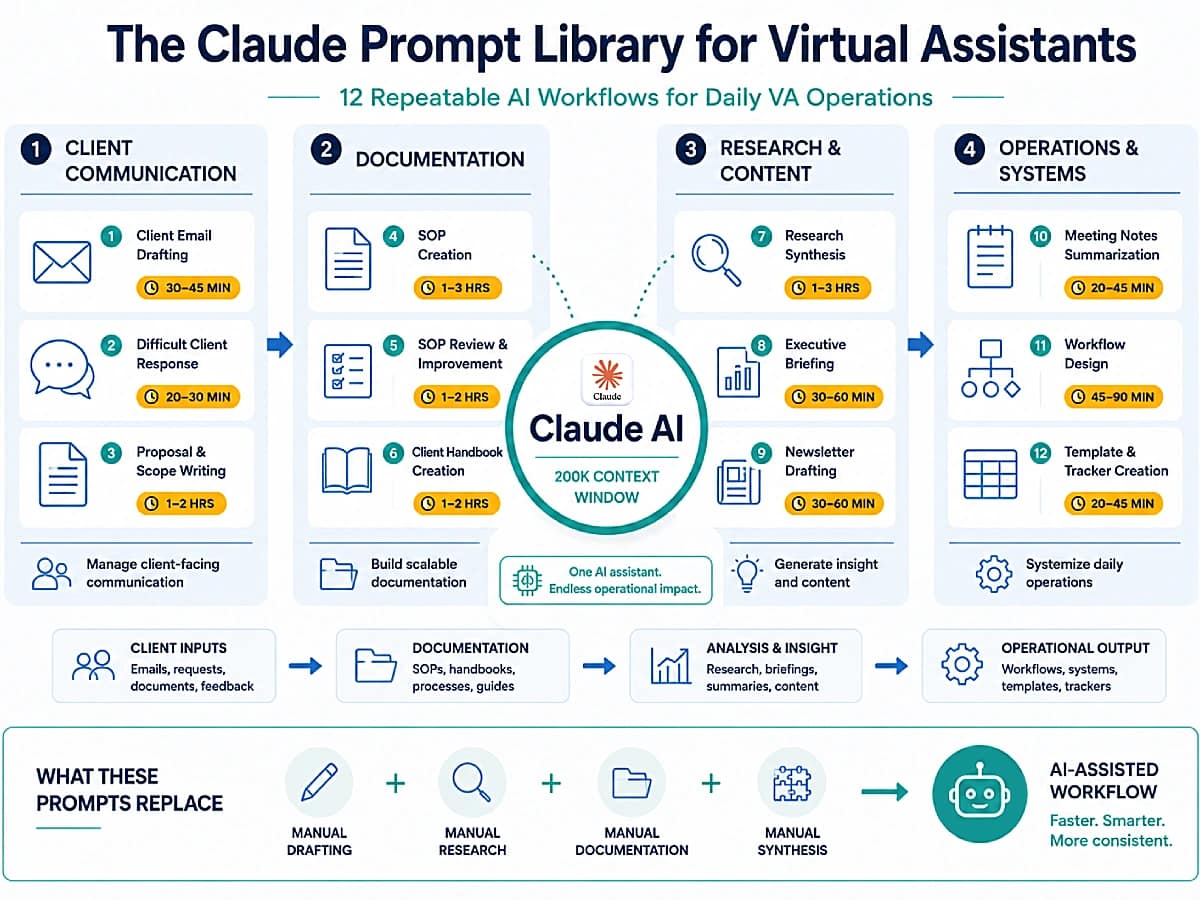
The prompt library below covers all eight use cases from Section 4. Each prompt follows the Role / Task / Requirements / Context / Format structure, written to leverage Claude’s instruction-following precision with multi-part prompts that produce consistently correct output across categories.
Total templates: 12 — organized across 8 task categories.
Prompt Category 1 — Long-Form Documentation
Prompt 1.1 — SOP Creation
You are a process documentation specialist writing an SOP for [CLIENT NAME], a [BUSINESS TYPE].

Write a complete SOP for: [PROCESS NAME].

Requirements — follow all of these exactly:
1. Length: 600-900 words
2. Format: use the following section headers exactly as written: PURPOSE / TOOLS REQUIRED / PREREQUISITES / STEP-BY-STEP INSTRUCTIONS / QUALITY CHECK / TROUBLESHOOTING / RELATED PROCESSES
3. Tone: clear, direct, instructional — write for someone doing this process for the first time
4. Steps: number all steps, include specific tool names, menu paths, and field names where relevant
5. Quality Check section: include 3 specific verification criteria, not generic statements
6. Troubleshooting: include 3 specific issue + solution pairs

Process description: [DESCRIBE THE PROCESS IN DETAIL]

Tools used in this process: [LIST TOOLS]

Do not add sections beyond those listed.
Do not use bullet points inside the Steps section — numbered steps only.
Prompt 1.2 — Client Handbook Section
You are a professional services writer creating a client handbook for [CLIENT NAME], a [BUSINESS TYPE] serving [AUDIENCE].

Write the [SECTION NAME] section of their client handbook.

Tone: [VOICE — e.g., warm and professional, authoritative, approachable].

Requirements:
1. Length: 400-600 words
2. Open with a clear statement of what this section covers and why it matters to the client
3. Use H3 subheadings for each sub-topic
4. End with a clear next step or action the client should take
5. Write in second person ("you" / "your") throughout — addressing the client directly
6. No jargon — use plain language

Section topic and key points to cover: [DESCRIBE THE SECTION AND KEY POINTS]
Prompt Category 2 — Proposals and Scope of Work
Prompt 2.1 — Service Proposal
You are a business development writer creating a service proposal for [YOUR NAME / BUSINESS NAME], a virtual assistant specializing in [YOUR SERVICES].

Write a complete service proposal for: [PROSPECTIVE CLIENT NAME] [THEIR BUSINESS TYPE AND BRIEF DESCRIPTION]

Their stated need / problem: [DESCRIBE WHAT THEY NEED]

Services you are proposing: [LIST YOUR PROPOSED SERVICES]

Investment: [YOUR PRICING / RETAINER STRUCTURE]

Requirements:
1. Open with a brief problem statement that demonstrates you understand their specific situation — not a generic intro about your services
2. Proposed solution section: explain specifically how your services address their stated need
3. What's included: use a clean list format
4. Investment section: frame the price in terms of time saved or value delivered, not just the number
5. Next steps: one clear, low-friction CTA
6. Tone: confident, peer-level — not subservient or over-eager
7. Length: 400-600 words total

Do not use: "I'm excited to", "I would love to", "please don't hesitate", or any similar filler phrases.
Prompt 2.2 — Scope of Work Document
You are a project documentation specialist writing a Scope of Work document for [YOUR BUSINESS NAME].

Client: [CLIENT NAME]
Project: [PROJECT NAME]
Project dates: [START DATE] to [END DATE]

Write a complete Scope of Work covering:
1. Project Overview (2-3 sentences)
2. Objectives (3-5 bullet points)
3. In Scope (specific deliverables — be precise, not general)
4. Out of Scope (explicit exclusions — at least 3 items)
5. Deliverables and Timeline (table format: Deliverable | Due Date | Format | Review Rounds)
6. Assumptions (conditions under which this SOW is valid)
7. Change Request Process (1 paragraph)

Format each section with its header in bold. Use a table for section 5.
Total length: 500-800 words.
Tone: professional, unambiguous, specific.
Avoid vague language in sections 3 and 4 — every item must be concrete and measurable.
Prompt Category 3 — Complex Email Drafting
Prompt 3.1 — Sensitive Client Communication
You are a professional communication specialist drafting an email on behalf of [YOUR NAME], a virtual assistant.

Situation: [DESCRIBE THE SITUATION FULLY — include what happened, the client's likely emotional state, and the relationship context]

Email objective: [WHAT THIS EMAIL MUST ACHIEVE]

Requirements:
1. Tone: [TONE — e.g., empathetic but professional, direct but warm, firm but respectful]
2. Acknowledge the situation directly in the first paragraph — do not bury the lead
3. Do not over-apologize or use language that implies more fault than is accurate
4. Propose a specific resolution or next step — not an open-ended offer to "discuss further"
5. Close with one clear action item for the client
6. Length: 150-250 words maximum
7. Subject line: write 3 options

Do not use: "I apologize for any inconvenience", "please feel free to", "at your earliest convenience". These are weak — replace with direct, specific alternatives.
Prompt 3.2 — Expectation Reset Email
You are a professional business writer drafting an email for [YOUR NAME], a virtual assistant.

Context: [CLIENT NAME] has been requesting work outside the original scope agreement. [DESCRIBE SPECIFIC EXAMPLES OF SCOPE CREEP]. The email needs to reset boundaries without damaging the relationship or signaling willingness to continue absorbing extra work.

Requirements:
1. Open by acknowledging the project positively — 1 sentence only
2. Transition to scope: reference the original agreement specifically (do not say "as we discussed" — be concrete about what was agreed)
3. Name the specific out-of-scope items that have been added — list them
4. Offer two options: absorbing the extra work at an additional fee, or deferring it to a future scope
5. Close with a question that invites the client to choose one option
6. Tone: confident, collegial, not apologetic
7. Length: 200-300 words
8. Subject line: neutral, non-confrontational

This email must not read as a complaint or ultimatum — it is a professional reframing of the working arrangement.
Prompt Category 4 — Research and Briefings
Prompt 4.1 — Research Synthesis Briefing
You are a research analyst preparing a briefing for [CLIENT NAME], a [ROLE — e.g., CEO, founder, director] at [COMPANY TYPE].

[PASTE SOURCE DOCUMENTS OR RESEARCH NOTES]

Synthesize the above into a structured executive briefing.

Requirements:
1. Format:
   SITUATION SUMMARY (3-4 sentences)
   KEY FINDINGS (5-7 bullet points — most important insights only, no filler)
   IMPLICATIONS (3 bullet points — what this means for [CLIENT NAME] specifically)
   RECOMMENDED ACTIONS (2-3 concrete next steps, prioritized)
   OPEN QUESTIONS (2-3 questions the research does not answer but [CLIENT NAME] should consider)
2. Length: 400-600 words total
3. Tone: direct, analytical, peer-level — write for a busy decision-maker who will skim before reading
4. Avoid: summarizing what the sources say. Synthesize what they mean.
5. The Implications and Recommended Actions sections must be specific to [CLIENT NAME]'s situation — not generic observations.
Prompt 4.2 — Competitor Analysis Summary
You are a strategic analyst writing a competitor analysis summary for [CLIENT NAME], a [BUSINESS TYPE] targeting [AUDIENCE].

[PASTE COMPETITOR RESEARCH NOTES OR DESCRIBE WHAT YOU KNOW ABOUT EACH COMPETITOR]

Write a structured competitor analysis covering [NUMBER] competitors.

Format for each competitor:
COMPETITOR NAME
Positioning: 1 sentence on how they position themselves
Strengths: 3 bullet points
Weaknesses: 3 bullet points
Differentiator vs [CLIENT NAME]: 1-2 sentences

After all competitors, add:
STRATEGIC IMPLICATIONS
3 bullet points on what [CLIENT NAME] should do differently or emphasize given this competitive landscape.

OPPORTUNITY GAPS
2-3 specific positioning or service opportunities the competitors are not addressing.

Total length: 600-900 words.
Be specific — no generic statements like "strong brand presence." Every point must be concrete and actionable.
Prompt Category 5 — Long-Form Content Writing
Prompt 5.1 — Email Newsletter
You are a content writer for [CLIENT NAME], a [BUSINESS TYPE] with a [VOICE] brand voice targeting [AUDIENCE].

Write a complete email newsletter for the week of [DATE].

Topic: [TOPIC]
Key insight or takeaway: [MAIN POINT]

Requirements:
1. Subject line: write 3 options (one curiosity-driven, one value-driven, one direct). Mark the recommended one.
2. Preview text: 1 option (40-60 chars)
3. Opening: a 2-3 sentence hook that opens with the insight or a story — not a recap of the topic
4. Body: 3-4 sections with H3 subheadings, each 80-120 words
5. Each section: one concrete idea, one practical application
6. CTA: one specific action — not "reply and let me know your thoughts" unless that is explicitly the goal
7. Sign-off: 1-2 sentences in [CLIENT NAME]'s voice — personal, not boilerplate
8. Total length: 450-650 words
9. Tone: [VOICE DESCRIPTION]

Do not use: "I hope this finds you well", "excited to share", "don't miss out", or similar filler phrases.
Prompt Category 6 — Multi-Document Analysis
Prompt 6.1 — Multi-Document Synthesis
You are a senior analyst reviewing multiple source documents for [CLIENT NAME], a [BUSINESS TYPE].

[PASTE ALL SOURCE DOCUMENTS BELOW — label each clearly:
DOCUMENT 1: [title/description]
DOCUMENT 2: [title/description]
(continue as needed)]

Task: Analyze all documents above and produce a unified synthesis.

Requirements:
1. Read all documents before writing anything
2. Structure the output as follows:
   - OVERVIEW (3–4 sentences): What these documents collectively address
   - KEY THEMES (4–6 bullet points): Patterns, conclusions, or positions that appear across multiple documents — not summaries of individual documents
   - CONTRADICTIONS OR GAPS (2–4 bullet points): Where documents conflict, contradict, or where important information is absent
   - SYNTHESIS TAKEAWAY (1 paragraph, 100–150 words): What this body of material means for [CLIENT NAME] in plain language
3. Do not summarize documents individually — synthesize across them
4. Do not reproduce content from the documents — paraphrase and synthesize
5. Flag specific sections or documents that require additional review

Length: as long as needed to be thorough — do not compress findings.
Prompt Category 7 — Structured Data and Templates
Prompt 7.1 — Reusable Report Template Generator
You are a professional documentation designer creating a reusable reporting template for [CLIENT NAME], a [BUSINESS TYPE] tracking [WHAT IS BEING TRACKED].

Create a complete, reusable [REPORT TYPE — e.g., Monthly Marketing Report, Weekly Project Status, Quarterly Business Review] template.

Requirements:
1. Every section must include:
   — A clear section heading
   — An instruction note in [BRACKETS] telling the user what to fill in
   — The expected format for that section (number, %, table, paragraph)
2. Required sections: [LIST THE SECTIONS THE REPORT NEEDS TO COVER]
3. Include a Summary / Executive View section at the top (to be filled in last)
4. Include a Notes / Action Items section at the bottom
5. Format: clean headers, consistent structure, table format where appropriate
6. Length: comprehensive but not padded — every section must be necessary
7. Tone: [AUDIENCE — e.g., internal team, client-facing, executive review]

Do not fill in any content — deliver the template structure only, with clear [PLACEHOLDERS] and instructions throughout.
Prompt Category 8 — SOP Review and Process Improvement
Prompt 8.1 — SOP Gap Analysis
You are a process improvement specialist reviewing an existing Standard Operating Procedure for [CLIENT NAME], a [BUSINESS TYPE].

[PASTE THE EXISTING SOP BELOW]

Task: Conduct a complete gap analysis and improvement review of the SOP above.

Analyze and report on:

1. STRUCTURAL GAPS
   What process steps are missing, assumed, or insufficiently detailed for a first-time user?
   List each gap with: Gap description | Severity (High/Medium/Low) | Recommended addition

2. CONSISTENCY ISSUES
   Where does the SOP contradict itself, use inconsistent terminology, or reference tools/processes not defined elsewhere?

3. QUALITY CONTROL WEAKNESSES
   Are verification steps present? Are error states handled? What could fail silently?

4. IMPROVEMENT OPPORTUNITIES
   What could be automated, simplified, or made faster without compromising quality? List the top 3.

5. PRIORITY REWRITE LIST
   List the sections that most urgently need rewriting, in priority order.

Format: use the section headers above exactly. Within each section, use a numbered list.
Length: as long as needed to be complete — do not summarize or truncate.
Store Your Claude Prompt Library in Notion
A Notion workspace structured around your Claude Projects architecture puts every prompt one click away — organized by client and task category, with context docs and project notes in the same place.
New users get three months free including all AI features.
7. Claude vs ChatGPT for Virtual Assistants — Task-by-Task Comparison
The claude vs chatgpt for virtual assistants comparison is most useful when structured by task type rather than by abstract feature categories. The table below provides a direct recommendation for each of the 12 highest- frequency VA task types.
VA Task | Recommended Tool | Reason |
Long-form SOP writing | Claude | Consistency across length, precision |
Client proposals | Claude | Nuanced persuasive structure |
Sensitive / complex emails | Claude | Tonal precision, contextual nuance |
Research synthesis (multi-doc) | Claude | 200K context, analytical depth |
Newsletter + long-form content | Claude | Voice consistency, quality |
Email drafting (routine) | ChatGPT | Speed, sufficient quality |
Social media captions | ChatGPT | Speed, format adherence |
Task lists and planning | ChatGPT | Structured output, fast |
Image creation prompts | ChatGPT | Native |
Web research (current/live data) | ChatGPT | More integrated browsing for live data |
Web research (synthesis/analysis) | Claude | Better analytical depth + context window |
Spreadsheet and data structuring | Tie | Equivalent quality |
Brainstorming and ideation | Tie | Equivalent quality |
The pattern in the table: Claude wins on tasks requiring depth, length, nuance, and tonal precision. ChatGPT wins on tasks requiring speed, multimodal output, or real-time data. For the middle tier (spreadsheets, brainstorming, routine communications) both produce equivalent results and the choice is a workflow preference.
When to Use Claude (and When Not To)
Use Claude when the task:
- Requires 500+ words of output
- Is tonally sensitive or high-stakes
- Is based on large amounts of input context
- Requires consistent voice across sections
- Involves synthesizing multiple existing documents
Use ChatGPT when the task involves:
- Image generation or visual content
- Live or real-time data (financial, news feeds)
- Quick structured outputs under 300 words
- Plugin or third-party tool integration requiring the ChatGPT ecosystem
The Claude + ChatGPT Combined Stack
The most effective claude ai virtual assistant workflow for an experienced VA with a diverse service scope is not a choice between Claude and ChatGPT — it is a combined stack where each tool handles the task types where it produces the best output.
Claude handles:
- all long-form writing (SOPs, proposals, handbooks, newsletters, long articles)
- complex and sensitive client communications
- multi-document research synthesis and briefings
- per-client context storage via Projects
ChatGPT handles:
- social media captions and short-form content
- image generation and visual content briefs
- quick task lists and planning
- research requiring live data
- workflow automation via the ChatGPT API
The switching rule:
- morning planning and task breakdown → ChatGPT
- Long-form writing sessions → Claude
- Quick email drafts → ChatGPT
- Complex communication or proposals → Claude
- Research with live data → ChatGPT
- Research synthesis from existing documents → Claude.
Setup cost of the combined stack: Claude Pro ($20/mo) + ChatGPT Plus ($20/mo) = $40/month. At a $40/hour VA rate, this represents one billable hour per month. The combined stack typically recovers five to ten hours of operational time per week — a return of 20–40x the monthly tool cost.
👉 ChatGPT for Virtual Assistants: Complete Guide — the full ChatGPT use case breakdown, prompt library, and workflow integration for VA operations.
👉 Best AI Writing Tools for Virtual Assistants (2026) — the expanded version of this routing logic covering several AI writing tools with evaluation criteria.
8. Claude vs Gemini, Copilot, and Perplexity
The question most VAs eventually ask is not only “Claude vs ChatGPT” but “which AI tool is right for which part of my operation.” As of 2026, four alternatives are relevant for VA use cases: ChatGPT, Google Gemini, Microsoft Copilot, and Perplexity. Each has a distinct primary advantage and a defined use case profile.
Feature | Claude | ChatGPT | Gemini | Copilot | Perplexity |
Long-form writing quality | ⭐⭐⭐⭐⭐ | ⭐⭐⭐⭐ | ⭐⭐⭐ | ⭐⭐⭐ | ⭐⭐ |
Instruction following | ⭐⭐⭐⭐⭐ | ⭐⭐⭐⭐ | ⭐⭐⭐ | ⭐⭐⭐ | ⭐⭐ |
Context window | 200K tokens | 128K tokens | Up to 1M* | 128K tokens | 32K tokens |
Web search | ✅ | ✅ | ✅ | ✅ | ✅ |
Image generation | ❌ | ✅ | ✅ | ✅ | ❌ |
Google Workspace integration | Partial | Partial | Native | ❌ | Partial |
Microsoft 365 integration | ❌ | Partial | ❌ | Native | ❌ |
Projects / persistent context | ✅ Projects | ✅ Memory | ✅ Gems | ❌ | ❌ |
Monthly cost (paid plan) | $20 (Pro) | $20 (Plus) | $20 (Advanced) | $20 (Pro) | $20 (Pro) |
*Gemini 1.5 Pro supports up to 1M token context in specific API configurations; standard chat context varies by interface.
Which Tool for Which VA Profile
Use Claude if: your core work is documentation-heavy, writing-intensive, or involves large client document sets. The output quality gap at long-form tasks is the clearest differentiator — Claude produces drafts that require less editing on proposals, SOPs, research briefings, and nuanced communications.
Use Google Gemini if: you and your clients operate primarily within Google Workspace. Gemini’s native integration with Gmail, Google Docs, Drive, and Meet creates workflows that no other AI tool replicates as smoothly. For VAs managing calendars, Docs, and client communications entirely in Google’s ecosystem, Gemini reduces friction in ways Claude cannot. Note: Gemini Advanced is included with Google One AI Premium ($19.99/month).
Use Microsoft Copilot if: you support clients in Microsoft 365 environments — Teams, Outlook, Word, Excel, PowerPoint. Copilot’s native Office integration (available through Copilot Pro at $20/month for personal use) is the clearest advantage for VAs doing document-heavy work in Microsoft tools.
Use Perplexity if: you regularly need real-time, cited research. Perplexity returns current web sources with citations — useful for competitive intelligence, industry briefings, and fact-checking tasks where currency and source traceability matter more than writing quality. It is not a writing or documentation tool; output from Perplexity typically requires significant editing before it is client-ready.
Use ChatGPT if: your work includes image generation, live data analysis, or you need the broadest ecosystem of native integrations and plugins.
The practical implication for most VAs: Claude for writing and documentation, Gemini for Google-native workflows if your clients are on Google Workspace, Perplexity for live research when sources need citation. The two-tool combination most VAs run — Claude + ChatGPT — covers the widest range of task types at the lowest complexity cost.
9. Claude Code for Virtual Assistants
Claude Code is Anthropic’s command-line interface (CLI) tool that allows Claude to write and execute code, process files, and complete multi-step computer tasks autonomously — available on Claude Pro and above. Unlike the standard Claude chat interface, which generates text for the user to act on, Claude Code can run scripts and produce outputs directly.
For most virtual assistants, the relevant question is not “can I code?” but “can I describe an outcome in plain English?” — because Claude Code operates on instructions, not on the VA’s code knowledge.
VA-Relevant Use Cases for Claude Code
Batch file processing. A VA managing hundreds of client asset files can instruct Claude Code to rename, reorganize, or convert files in bulk — describing the output format in plain language while Claude Code handles the scripting and execution.
Data conversion and formatting. CSV or spreadsheet data that needs to be restructured into a formatted report, or reformatted across different naming conventions, is a natural Claude Code task. The output can be saved directly without manual reformatting.
Document automation at scale. Claude Code can take a base template and a data source (a spreadsheet of client names, variables, or metrics) and generate multiple customized document versions simultaneously — a task that would otherwise require manual population of each template.
Research data extraction. For VAs doing competitive intelligence or market research, Claude Code can write a targeted scraper for a specific page structure and return structured data — without requiring the VA to know how web scraping works.
When to Use Claude Code vs Claude Chat
Use Claude chat for the standard VA use cases: all writing, analysis, communication, and document generation tasks described in Section 4. Claude chat is the primary tool for most VA workflows.
Use Claude Code when the task involves file manipulation, data transformation, batch processing, or automation that would benefit from code execution. Claude Code is the bridge between Claude’s reasoning capability and operational file-system work.
Claude Code is available on Claude Pro. It requires activating the CLI from the Claude website and runs from the terminal on Mac, Windows, or Linux — no coding knowledge is required to use it for the use cases described above.
10. Automating VA Workflows with Claude and Make
Claude AI for virtual assistants becomes significantly more powerful when connected to automation infrastructure. The Claude API — Anthropic’s programmatic access layer — connects Claude to Make (formerly Integromat) and other automation platforms, allowing Claude to function as an AI generation layer inside automated workflows rather than a manually operated tool.
Claude API vs Claude Chat
Two distinct modes of Claude access serve different operational purposes.
Claude chat (claude.ai): the browser interface. Flat monthly rate, usage limits applied per plan, manually operated by the VA. Best for: the full range of writing, analysis, and communication tasks covered in this guide.
Claude API: programmatic access billed per token, no session limits, connectable to any platform via HTTP module. Best for: automating workflows where Claude handles a repeating task as part of a larger sequence — brief intake to draft, document upload to summary, data to narrative report.
For most VAs, Claude chat covers daily operations. The API becomes relevant when a task type recurs at volume and the manual step of opening Claude, pasting input, and copying output represents meaningful time overhead.
Example Automated VA Workflows with Make + Claude
Workflow 1 — Client Brief to Draft Proposal: Trigger: New intake form submission (client fills out a brief via Jotform or Typeform) → Make sends form data to Claude API with the proposal prompt from Section 6 → Claude returns a draft proposal → Draft saved to Google Drive folder → VA receives a notification with the Drive link.
Workflow 2 — Analytics Data to Narrative Report: Trigger: Scheduled (weekly) → Make pulls data from the client’s reporting tool → Data sent to Claude API with a narrative prompt → Claude returns a written summary → Summary appended to a Google Doc or sent to the client via email.
Workflow 3 — Document Upload to Summary: Trigger: New file added to a designated Google Drive folder → Make sends file content to Claude API with a summarization prompt → Claude returns a structured summary → Summary saved to Notion under the relevant client page.
These workflows eliminate the manual step of operating Claude for every recurring task instance. The VA builds the workflow once; Claude handles all subsequent instances automatically.
👉 Make for Virtual Assistants: The Beginner Setup Guide — the step-by-step setup for building Make workflows, including HTTP module configuration for API connections.
👉 Best Automation Workflows for Virtual Assistants — the complete library of Make and Zapier workflows covering client reporting, onboarding, content, and more.
Connect Claude to Your Entire Workflow Stack
Make + Claude API turns every repeating VA task into an automated system: form submission to draft proposal, document upload to summary, analytics data to narrative report — all running in the background without manual operation.
11. The Complete VA Stack to Pair with Claude
Claude handles the thinking, writing, and analysis layer. The tools below handle the workflow infrastructure around it — storage, delivery, scheduling, and measurement. The stack is organized by function, with affiliate tiers reflecting both commission value and genuine utility for VA operations.
Automation Layer
Make — the integration layer that connects Claude to every other tool in the VA’s stack via the Anthropic API. When a task type is repeating and manual Claude operation creates time overhead, Make is the tool that automates it. Covered in depth in Section 10.
Knowledge & Documentation Layer
Notion — serves as the operational memory system around Claude. Prompt libraries, SOPs, client knowledge bases, research archives, and project documentation all become searchable and reusable assets instead of isolated conversations.
TextExpander — expands short abbreviations into full prompt templates in any interface. For VAs who run Claude workflows across different browser contexts, TextExpander removes the copy-paste step entirely: type the shortcode, the full prompt appears.
Project Management Layer
ClickUp — turns Claude-generated outputs into actionable client work. SOPs, content plans, research briefs, and project deliverables generated in Claude become trackable tasks, workflows, and client projects inside ClickUp.
Client Operations Layer
PandaDoc — the delivery endpoint for Claude-generated proposals and SOW documents. Claude drafts the copy; PandaDoc handles formatting, e-signature, and payment collection. Covered in Section 4.
Folk — lightweight CRM designed for freelancers and small agencies. Stores the client context (notes, communication history, deal stage) that feeds directly into Claude Projects. A well-maintained Folk record produces better Claude Projects instructions because the context is already organized and current.
Productivity Measurement Layer
Reclaim.ai — AI scheduling tool that automatically protects deep work blocks on the VA’s calendar. Claude’s best outputs come from focused, uninterrupted sessions; Reclaim keeps those sessions defended against meeting requests and calendar fragmentation.
Toggl Track — time tracking tool that measures the actual time spent on Claude-assisted tasks versus non-AI-assisted equivalents. The data quantifies the time savings Claude delivers, which is useful for communicating the value of the AI layer to clients and for identifying which task types still benefit from workflow optimization.
Email Management Layer
SaneBox — Claude drafts client communication; SaneBox keeps the inbox organized and ensures important conversations receive attention first. Together they reduce both writing time and inbox overload.
Content & Research Layer
Frase.io — AI-powered content research tool. For VAs doing content work, Frase provides the SERP analysis and topic structure that feeds into Claude as input context — improving the quality of AI-generated content by improving the quality of the input brief.
Recommended Claude Stack for Virtual Assistants:
Function | Tool |
AI Assistant | Claude |
Knowledge Base | Notion |
Project Management | ClickUp |
Automation | Make |
Email Management | SaneBox |
Scheduling | Reclaim.ai |
Proposals | PandaDoc |
Protect the Deep Work Sessions Where Claude Delivers
Claude’s best outputs come from focused, uninterrupted sessions.
Reclaim.ai automatically schedules and defends deep work blocks on your calendar — keeping AI-assisted work sessions protected from meeting requests and calendar fragmentation.
12. Is Claude Secure for Client Data?
Virtual assistants handle sensitive client information daily — legal documents, financial data, personal communications, unreleased product strategies. Before routing this content through any AI tool, understanding the data policy is not optional.
What Anthropic’s policy means for VAs. On Claude.ai Pro and Team plans, conversations are not used to train AI models by default. Anthropic may process conversations to improve safety performance under separate terms, but the default setting preserves the confidentiality of interactions. To verify your current settings: Settings → Privacy → Improve Claude for everyone — this toggle controls whether your conversations contribute to model improvement. Disable it to opt out.
Always verify the current policy at anthropic.com/privacy before making data-handling decisions on behalf of clients, as policies update and the above reflects the published standard as of early 2026.
What to avoid including in Claude regardless of settings:
- Combinations of client name + sensitive personal information (PII combinations)
- Client passwords, API keys, or authentication credentials
- Legally privileged communications where AI processing could create privilege issues
- Content that clients have restricted from third-party AI tools under their own data policies
Best practice for regulated industries. For clients in healthcare, legal, or financial services, review the client’s data handling agreement before using Claude for any content that falls under HIPAA, attorney-client privilege, or financial data regulations. Claude Pro does not offer a BAA (Business Associate Agreement) for healthcare use — that requires Claude Team or Enterprise.
For credential management across client accounts, a dedicated password manager is the operational standard. 1Password provides secure vault storage with role-based access — relevant for VAs managing multiple client tool accounts without creating security exposures.
13. How to Set Up and Use Claude for VA Operations
This section covers the full integration path: from creating an account to establishing a permanent daily workflow. The Claude Projects technical setup is covered in Section 5; this section focuses on the overall onboarding sequence and the five-day integration workflow for VAs adding Claude to an existing AI-assisted stack.
Step 1 — Account Setup and Plan Selection
Open claude.ai and create an account. The Free plan now includes web search, memory, and basic Projects — enough to run the five-day integration workflow below and evaluate Claude’s fit for your specific task profile.
Upgrade to Pro ($20/month) before using Claude for client-facing deliverables. The usage limits on Free are the binding constraint, not feature gaps. On Pro: explore the model selector (Sonnet 5 for everyday tasks, Opus 4.8 for complex reasoning), the Projects panel in the left sidebar, the document upload function within Projects, and the memory settings under Settings → Capabilities.
Step 2 — Configure Claude Projects for Your Top Clients
Follow the five-step Projects setup in Section 5. Prioritize the three clients whose work profile maps most clearly to Claude’s strengths: clients with significant documentation needs, complex communication requirements, or content-heavy service scopes.
A well-configured Project reduces per-task setup time from five to ten minutes (manual context pasting) to under one minute (opening the project and starting the conversation).
Step 3 — Build and Save the Prompt Library
For each task type where Claude will be the primary tool, save the corresponding prompt from Section 6 with client-specific variables pre-filled where possible. Store the library in Notion (one page per task category) or in a dedicated “Prompt Library” Project within Claude. Before each session, copy the relevant prompt, fill the remaining variables, and paste — eliminating blank-page time for every recurring task type.
Step 4 — Establish the Routing Rule
After two weeks of working with both Claude and ChatGPT, routing decisions become automatic. The final setup step is codifying the personal routing rule — which tasks go to Claude, which to ChatGPT — as a reference note in the VA Operations Project. The routing table in Section 7 is the starting framework; the five-day workflow below provides the empirical basis for customizing it to the VA’s specific task profile.
The Five-Day Integration Workflow
The five-day workflow below is designed for a VA who is adding Claude to an existing stack. It introduces Claude one task type per day to build familiarity with Claude’s output patterns before relying on it for client-facing deliverables.
Day 1 — Long-Form Documentation. Use Claude for one SOP or process document. Use Prompt 1.1 from Section 6. Note: where does the output require less editing than your current tool? Where does it require more?
Day 2 — Complex Email Drafting. Use Claude for one sensitive or high-stakes client communication. Use Prompt 3.1 or 3.2. The goal: identify whether Claude’s tonal approach matches your instinct for this communication type.
Day 3 — Client Proposal or SOW. Use Claude for one proposal or scope document. Use Prompt 2.1 or 2.2. Pay attention to the opening and the investment section framing — these are where Claude’s persuasive structure advantage is most visible.
Day 4 — Research Synthesis. Use Claude for one multi-document synthesis task. Paste two to four source documents and use Prompt 4.1. Test the context window: how large a document set can you include before output quality changes?
Day 5 — Project Setup. Set up Projects for your top three clients following the instructions in Section 5. Run one task per client in the Project context and compare output quality to the same task without Project instructions.
After five days: the tasks where Claude produced output requiring less editing are your Claude tasks going forward. The tasks where another tool was faster or produced equivalent quality stay where they are.
14. Common Mistakes
Mistake 1 — Using Claude for Tasks Where Speed Matters More Than Depth
Claude’s quality advantage in long-form writing leads some VAs to route all tasks to Claude — including quick social media captions, short task lists, and simple email replies where faster tools produce equivalent output 30–50% quicker. Claude’s thoughtful, nuanced approach is a disadvantage for high-speed, low-stakes tasks.
The fix: follow the routing table in Section 7. Use Claude for depth; use a faster tool for speed.
Mistake 2 — Not Using Projects
VAs who use Claude without configuring Projects re-paste client context at the start of every session, adding 5-10 minutes of setup overhead per conversation and producing inconsistent output because the context varies between sessions. This is the single most common operational mistake in Claude VA setups.
The fix: before using Claude for any client-facing work, create the Project and configure the instructions. The 20-30 minutes of setup per client is recovered within the first week of daily use.
Mistake 3 — Treating Claude’s Output as Final
Claude’s superior long-form output quality creates a temptation to reduce or eliminate the review step, particularly for VAs who have come from a ChatGPT workflow that required significant editing. Claude still hallucinates, still makes factual errors in specific domains, and still produces outputs that require tonal adjustment for specific client voices. The lower editing requirement does not mean zero editing requirement.
The fix: maintain the review step for all client-facing output regardless of tool. The goal is to reduce editing time, not eliminate it. A 5-minute review of a Claude output prevents the client- facing errors that a 30-second review misses.
Mistake 4 — Relying on the Free Plan for Professional Work
The Free plan includes web search, memory, and Projects — genuinely capable. However, Free plan usage limits reset every five to eight hours and are exhausted within one to two hours of intensive professional use during peak times. A VA who builds their workflow around Claude Free encounters unpredictable ceilings at the worst possible moments.
The fix: Claude Pro at $20/month is the minimum viable plan for professional VA use. The usage ceiling alone justifies the upgrade.
Mistake 5 — Not Leveraging the Context Window
VAs who use Claude in short, decontextualized prompts are using the tool as if it were a simpler alternative — missing the primary advantage of the 200K context window. A Claude session that includes the full client brief, relevant SOPs, previous communications, and the current task produces dramatically better output than a session with only the task prompt.
The fix: at the start of any significant Claude session, paste all relevant context before the task prompt. If the context is stored in a Project, it loads automatically. If not, paste it manually — the three to five minutes of setup is consistently worth the output quality improvement.
Mistake 6 — Skipping the Model Selection
Claude Pro gives access to both Claude Sonnet 5 and Claude Opus 4.8. Using Sonnet for all tasks misses the significant quality improvement Opus provides for complex reasoning tasks. Using Opus for all tasks pays for depth that routine tasks do not require.
The fix: make model selection a conscious step, not a default. Use the reference table below.
Task Type | Recommended Model | Reason |
Email drafting (routine) | Sonnet 5 | Speed sufficient; depth not needed |
Social media copy | Sonnet 5 | Short format; fast output |
Meeting notes and summaries | Sonnet 5 | Structured output; speed prioritized |
Quick task structuring | Sonnet 5 | Low complexity; fast adequate output |
Client proposals | Opus 4.8 | Persuasive nuance matters |
Long-form SOPs and documents | Opus 4.8 | Consistency across length |
Research synthesis and briefings | Opus 4.8 | Analytical depth required |
Sensitive or complex emails | Opus 4.8 | Tonal precision critical |
Multi-document analysis | Opus 4.8 | Complex reasoning required |
The model selector is visible at the top of every Claude conversation. Making it a deliberate step — not an inherited default — is the easiest upgrade available to any Claude Pro user.
15. Conclusion
Claude AI for virtual assistants is not a replacement for ChatGPT, Gemini, or any other tool in the stack — it is a specialization layer that closes the quality gap in the specific task types where lighter tools produce the most operational friction: long-form documentation, nuanced client communication, multi-document research synthesis, and structured content that requires coherence across extended outputs.
For VAs whose service scope is heavy in these task types, Claude Pro at $20/month produces a return that is measurable within the first week of use. For VAs with a broader scope, the combined stack with ChatGPT at $40/month total covers the full range of VA task types at 20–40x the return on tool cost.
The five-day integration workflow in Section 13 provides the empirical basis for a routing decision grounded in real work, not abstract feature comparisons. The prompt library in Section 6 provides the 12 templates that eliminate blank-page time across the eight highest-value VA task types. The Projects setup in Section 5 provides the persistent context layer that makes Claude’s quality consistent and setup overhead minimal.
The VAs who extract the most value from Claude are not those who use it for everything — they are those who use it for the right things, configured correctly, with prompts that leverage Claude’s instruction-following precision rather than treating it as a faster search engine.
Build Your Complete Claude Workflow System
Claude becomes dramatically more valuable when it’s connected to the rest of your operational stack.
The workflow used by high-performing virtual assistants is simple:
• Claude for writing, analysis, and decision support
• Notion for documentation and knowledge management
• ClickUp for project execution
• PandaDoc for proposals and client delivery
• Make for workflow automation
Start with one workflow, automate the repetitive steps, and gradually turn Claude from a standalone AI assistant into the operational hub of your VA business.
Frequently Asked Questions About Claude for Virtual Assistants
Is Claude better than ChatGPT for virtual assistants?
Claude is better than ChatGPT for specific VA task types (long-form writing, complex communication, multi-document analysis, and structured documentation) and worse or equivalent for others: social media content, image-related tasks, real-time research, and quick structured outputs.
The correct answer is not “Claude is better” or “ChatGPT is better” but “each tool is better for different tasks.” Most experienced VAs use both, Claude for depth and quality, ChatGPT for speed and multimodal capability. The combined stack costs $40/month and produces better results than either tool alone for a VA with a diverse service scope.
How much does Claude cost for a virtual assistant?
Claude Pro costs $20/month (or $17/month billed annually) and is the recommended plan for professional VA use. The Free plan includes web search, memory, and basic Projects, but usage limits that reset every 5-8 hours make it unsuitable as a primary tool for full-day client- facing work. Claude Pro provides sufficient capacity for 4-6 hours of active AI-assisted work per day, access to both Claude Sonnet 5 and Opus 4.8, full Projects functionality, Google Workspace integration, and Cowork for background agentic tasks.
What is Claude Projects and how do VAs use it?
Claude Projects is a feature available on all Claude plans, including Free, that creates persistent context spaces. Each Project stores system instructions, uploaded documents, and conversation history accessible in every new conversation within that project. For VAs, the most effective use is one Project per client: the Project instructions contain the client’s brand voice guide, communication preferences, and service context; uploaded documents contain key SOPs and briefs.
Every conversation in the Project starts with full client context pre-loaded, eliminating the manual context-pasting that adds 5-10 minutes to every AI-assisted session. Full Projects functionality, including higher document storage limits and priority processing, is available on Claude Pro.
Can Claude replace a human virtual assistant?
No. Claude AI for virtual assistants is a tool that amplifies VA productivity, not a substitute for VA judgment, client relationship management, or the contextual understanding that comes from ongoing client engagement. Claude produces first drafts, synthesizes information, and handles the mechanical layer of document creation and communication.
The VA applies strategic judgment, quality review, client voice calibration, and relationship management, the work that requires human intelligence and professional accountability. The VA’s value increases with AI assistance because more output can be produced at higher quality in less time.
Does Claude have memory?
Yes. As of 2026, Claude includes memory on all plans, including Free. Claude automatically synthesizes past conversations into a running summary that provides context in every new session, without the VA needing to re-explain their situation or preferences each time.
Memory can be reviewed, edited, or paused from Settings > Capabilities. For client-specific work, Claude Projects provide a more controlled form of persistent context: the VA explicitly defines what Claude should know about each client, rather than relying on automatically generated memory. The two systems are complementary, memory handles the VA’s general working preferences and context; Projects handle client-specific operational details.
Can I use Claude for automation with Make or Zapier?
Yes. Claude is accessible via the Anthropic API, which connects to Make and Zapier as an HTTP module. This allows Claude to function as the AI generation layer in automated workflows: content brief to draft proposal, document upload to summary report, analytics data to narrative report. The API requires a separate Anthropic account with API credits, billed per token rather than at the flat Pro rate. For high-volume automation, the API cost should be factored into the workflow design. The full automation setup is covered in Section 10.
What Claude Code features are useful for VAs?
Claude Code — available on Claude Pro — is relevant for VAs who deal with file management at scale, batch data processing, or document automation. Key VA use cases: batch renaming and reorganizing client asset folders, converting data formats (CSV to structured report), generating multiple customized documents from a template and data source, and extracting structured data from specific web pages for research. No coding knowledge is required: Claude Code works from plain-language descriptions of the desired outcome.
How does Claude compare to Google Gemini for VA work?
Claude outperforms Gemini on long-form writing quality and instruction-following precision. Gemini’s primary advantage for VAs is native Google Workspace integration: for VAs managing workflows entirely in Gmail, Google Docs, Drive, and Meet, Gemini reduces friction that Claude cannot replicate with partial integrations. The practical routing: use Claude for documentation and writing-heavy VA work; use Gemini (included with Google One AI Premium at $20/month) if your operation is built entirely on Google Workspace and native integration is the priority.
Glossary: Key Claude Terms for Virtual Assistants
Claude Projects — A feature available on all Claude plans that creates persistent context spaces, each Project stores system instructions, uploaded documents, and conversation history accessible in every new conversation within the project. The primary operational feature for VAs, replacing manual context-pasting at the start of every client-specific session. Full functionality (higher storage limits, priority processing, Google Workspace integration) is available on Pro.
Context Window — The maximum amount of text Claude can process in a single conversation, measured in tokens (approximately 0.75 words per token). Claude’s 200K token context window processes approximately 150,000 words, equivalent to a full-length non-fiction book, in a single conversation. Critical for multi-document analysis and large client archive processing.
Claude Sonnet 4.6 — The mid-tier Claude model available on the Pro plan, optimized for speed and cost efficiency. Recommended for routine VA tasks: email drafting, short content, task structuring, and any task where the primary requirement is fast, adequate output rather than maximum quality.
Claude Opus 4.6 — The flagship Claude model, optimized for complex reasoning, nuanced writing, and deep analysis. Available on Claude Pro. Recommended for high-stakes VA tasks: client proposals, multi-document synthesis, sensitive communications, and long-form documentation where output quality directly affects client deliverable quality.
Token — The unit of text measurement in AI language models. One token is approximately 0.75 words in English. A 1,000-word document is approximately 1,333 tokens. Claude’s 200K context window can process approximately 150,000 words of combined input and output per conversation.
System Prompt — Instructions given to Claude that define its role, tone, and behavior for a conversation or project. In Claude Projects, the Project Instructions field functions as a persistent system prompt, applied automatically to every conversation in the project without the VA needing to include it in each individual message.
Instruction Following — Claude’s ability to adhere to multi-part, specific instructions in a single prompt. Claude’s higher instruction-following precision compared to ChatGPT means that prompts with 6-10 specific requirements produce output that addresses all requirements more consistently, reducing the revision cycles needed to achieve the target output.
Hallucination — An AI output that contains factually incorrect information presented with apparent confidence. Claude hallucinates less frequently than earlier AI models on most task types, but the risk is non-zero, particularly for specific factual claims, statistics, dates, and proper nouns. All Claude outputs for client-facing use require human review before delivery.
Model Selection — The choice between Claude Sonnet 4.6 and Claude Opus 4.6 within a Pro account. Available via the model selector at the top of each Claude conversation. See the decision table in Section 14 for task-level guidance.
Memory — A feature available on all Claude plans that automatically synthesizes past conversations into a persistent context summary, updated every 24 hours, that Claude references in every new session. Memory tracks the VA’s general working preferences and recurring context without manual re-entry. Controllable from Settings → Capabilities.
Cowork — Anthropic’s agentic feature launched January 2026, available on Claude Pro and above. Cowork allows Claude to autonomously complete multi-step tasks in the background — file organization, multi-document analysis, project coordination — while the VA works on other tasks. Particularly useful for document-heavy workflows where waiting for long sequential tasks creates operational bottlenecks.
Routing Rule — A personal or team-level decision framework that determines which AI tool is used for each task type. A documented routing rule produces more consistent output quality than ad-hoc tool selection and reduces the decision overhead of choosing a tool for every new task. The routing table in Section 7 provides the task-level reference.
Claude Code — Anthropic’s command-line interface (CLI) tool available on Claude Pro and above, which allows Claude to write and execute code, process files, and complete multi-step computer tasks autonomously. For VAs, relevant for batch file processing, data transformation, document automation at scale, and targeted web data extraction — no coding knowledge required.
About the Author
Alex Stratton has spent the better part of a decade working at the intersection of virtual assistance and operational systems, first as a VA supporting founders and small business owners, then as a workflow consultant helping remote teams reduce the manual overhead that accumulates when businesses grow faster than their processes. The tools and workflows here reflect decisions made repeatedly in real client contexts, where the wrong choice costs hours, not minutes. Learn more about VA Automation Lab → About.